Copy Template
Copy templates are used for message delivery in operation plans. You can configure frequently used business text content and settings as copy templates to quickly create operation plans. Applicable scenarios include app check-in and SMS verification code templates.
Copy Group Management
Go to Operation Plan -> Sending Template, and click Copy Group Management.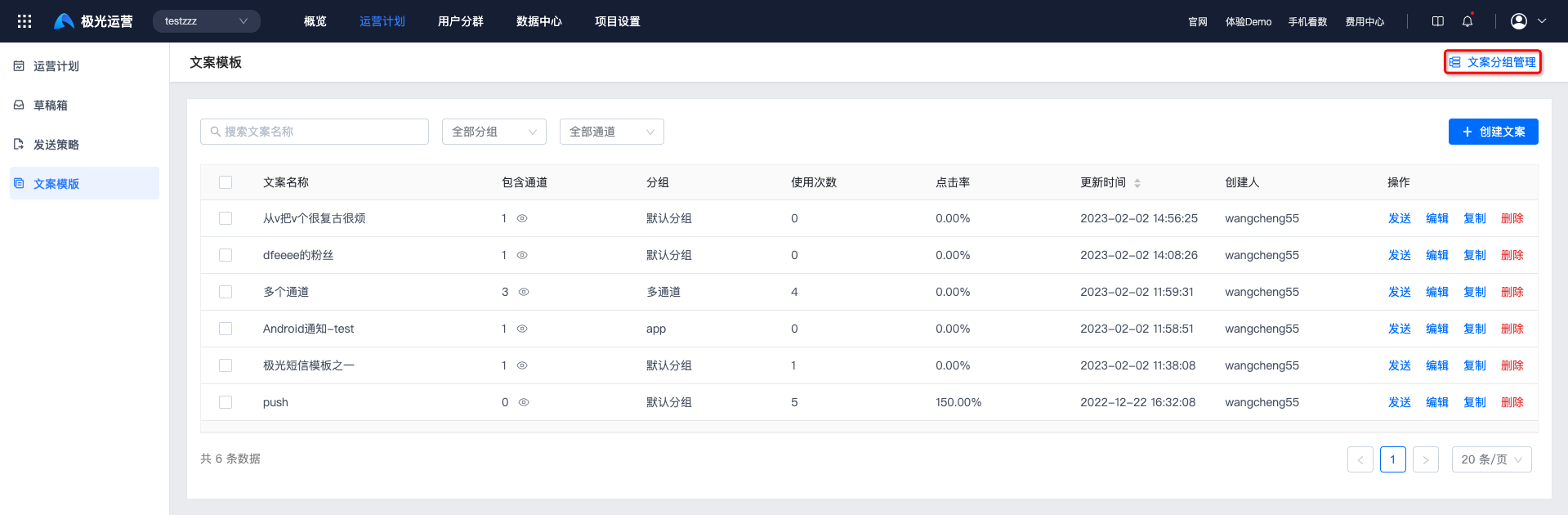
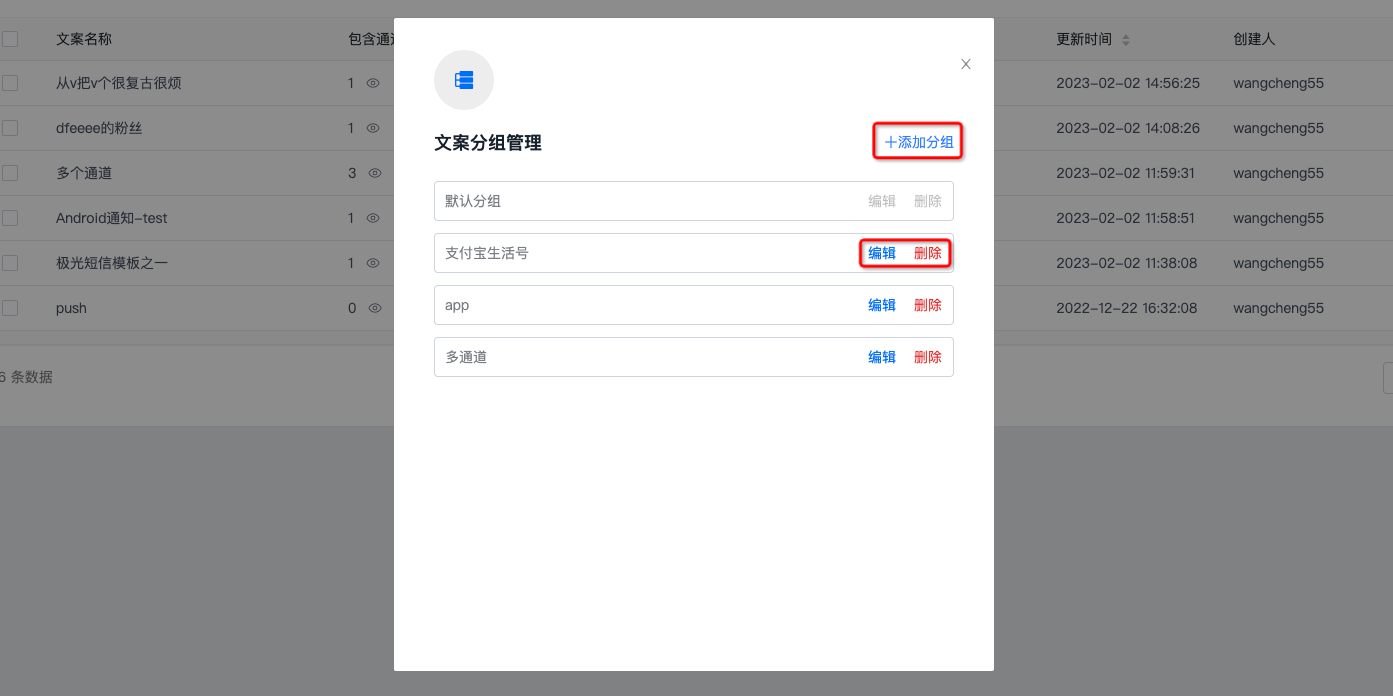
Add Group, Edit, and Delete operations are supported.
After deletion, all templates under the group will be transferred to Default Group.
Create Copy Template
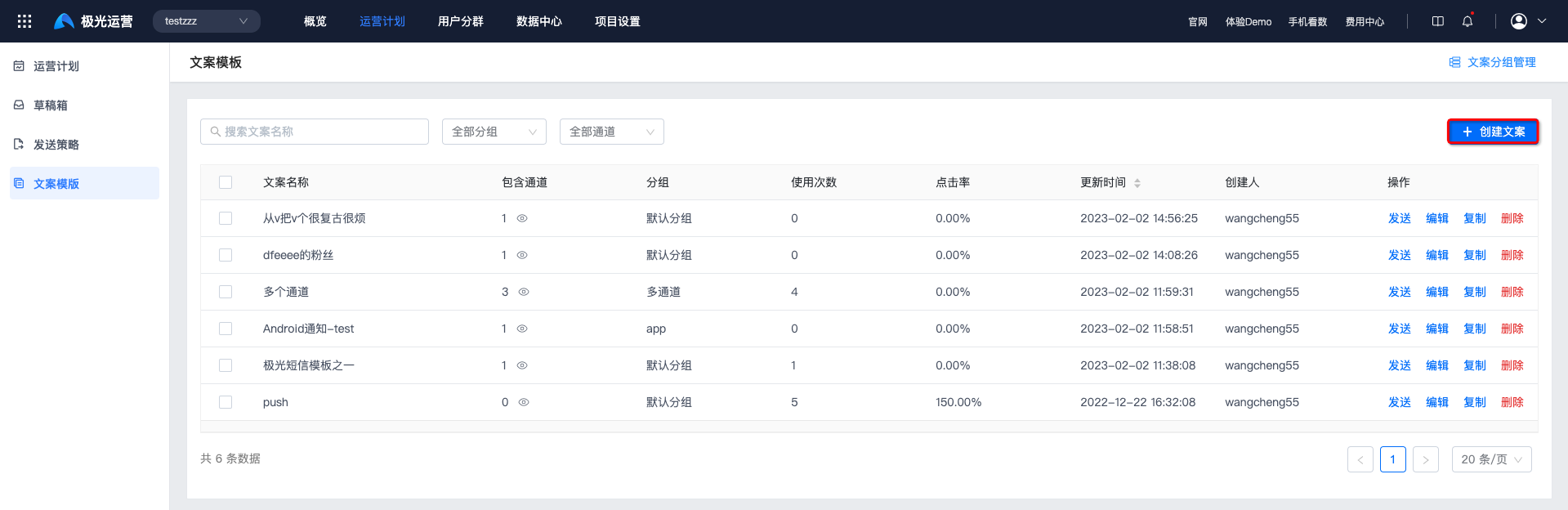
Go to Operation Plan -> Copy Template, and click Create Copy.
Fill in the copy name, select a channel, and fill in the copy according to the requirements of different channels.
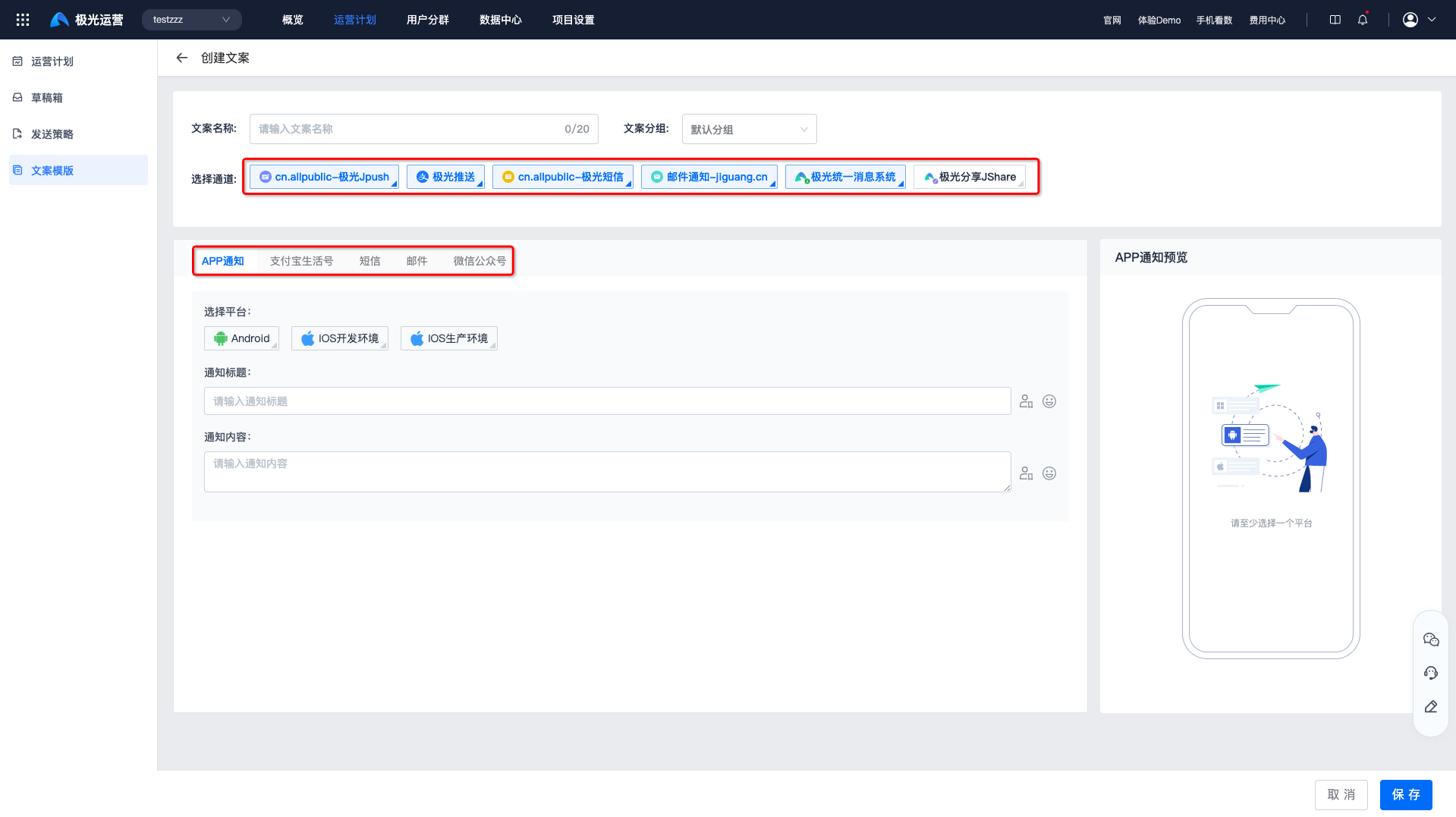
App Notification Channel
Using App Notification as an example, you need to select the platform and notification open method, and fill in the notification title and notification content. For detailed parameter descriptions, see the Create Push document.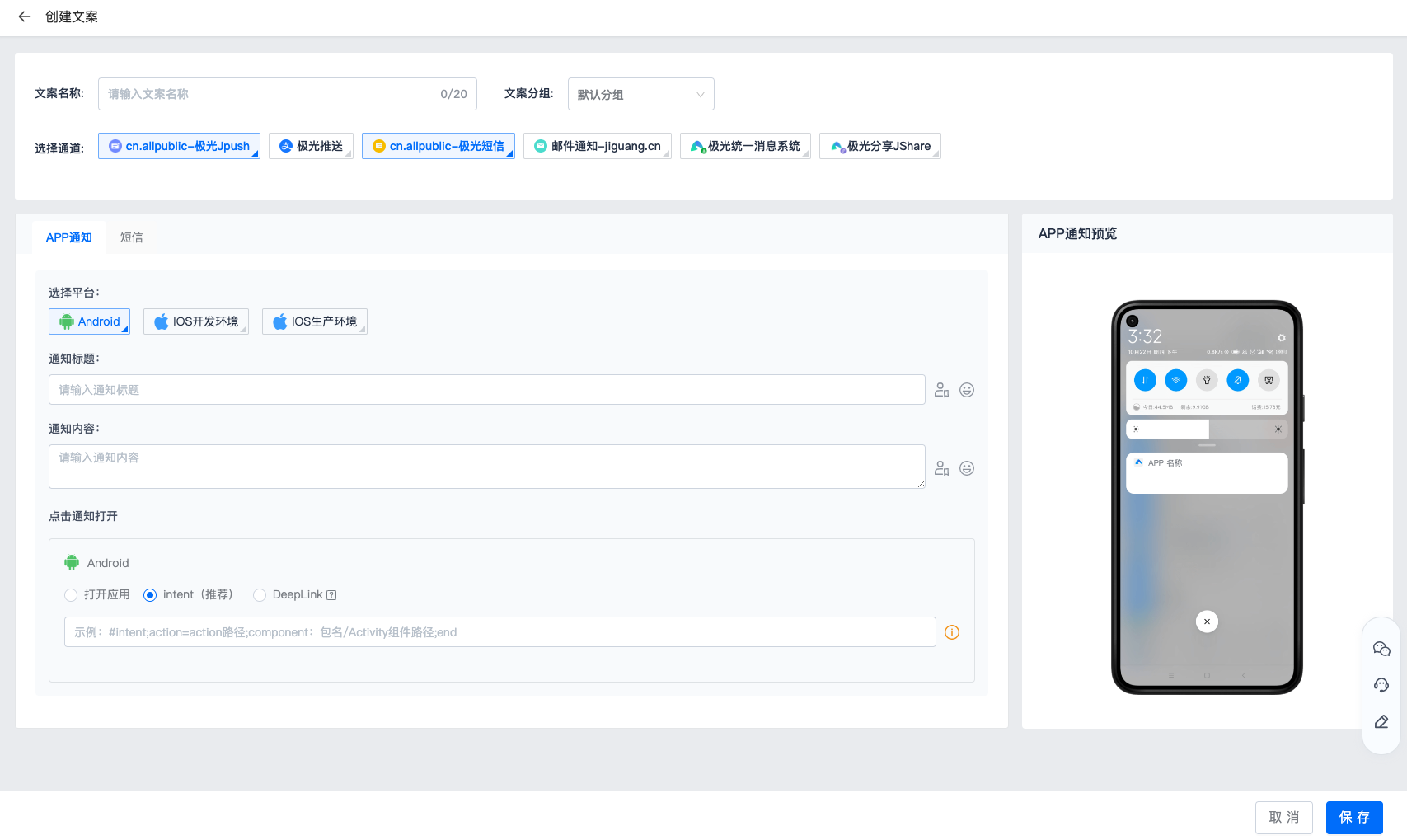
SMS Channel
Using SMS as an example, select an SMS signature and SMS template.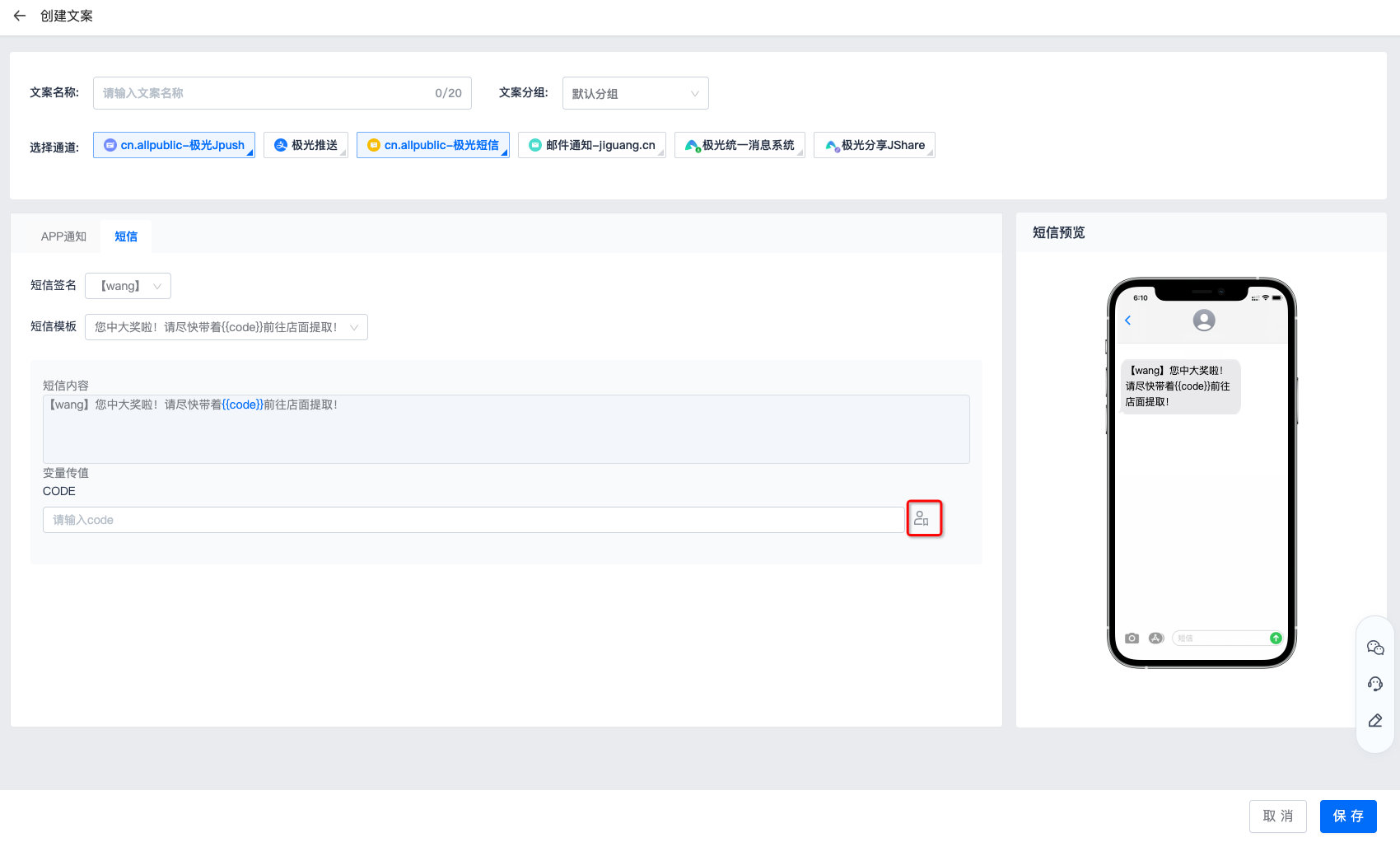
If there is no SMS signature or SMS template, click New to create one. For detailed creation steps, see the SMS Console User Guide.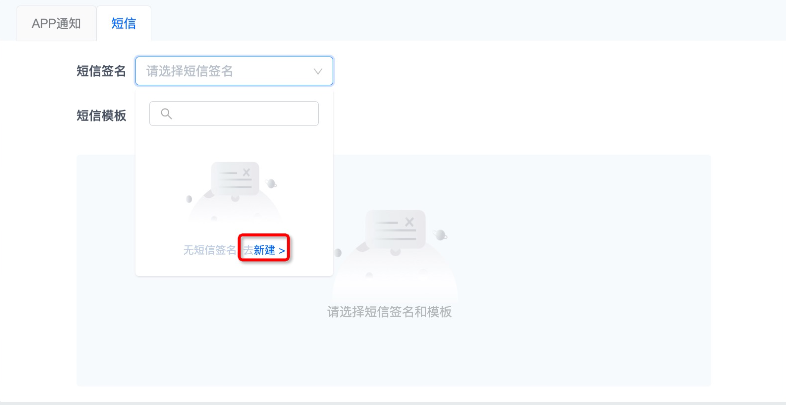
View Copy Templates
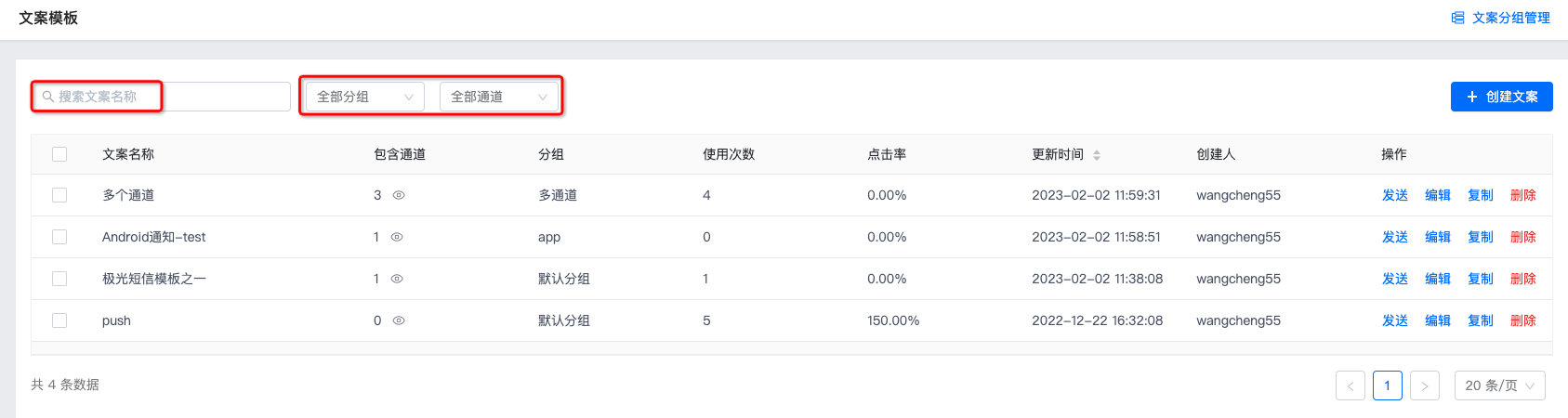
- Searching by copy name in the search box is supported.
- Filtering by copy group and reach channel is supported.
Use Copy Template
To quickly create an operation plan that uses this copy as message content, click Send for the copy to create a plan.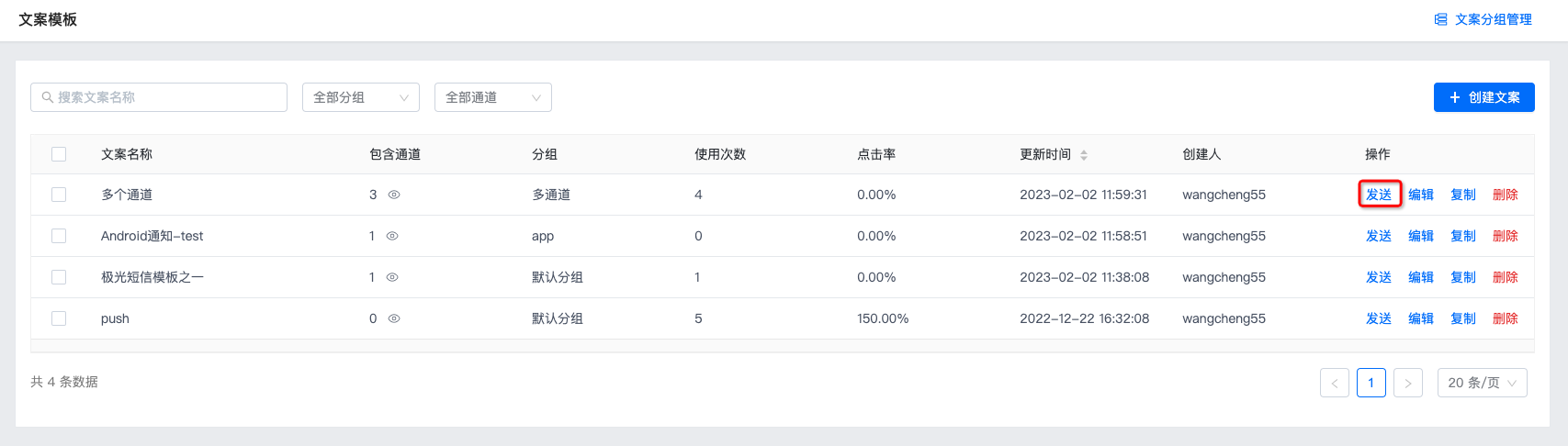
On the Message Content and Settings page for creating an operation plan, this copy template is selected by default. If the selected sending strategy includes the channel corresponding to the copy template, the copy for the corresponding channel is displayed according to the template by default.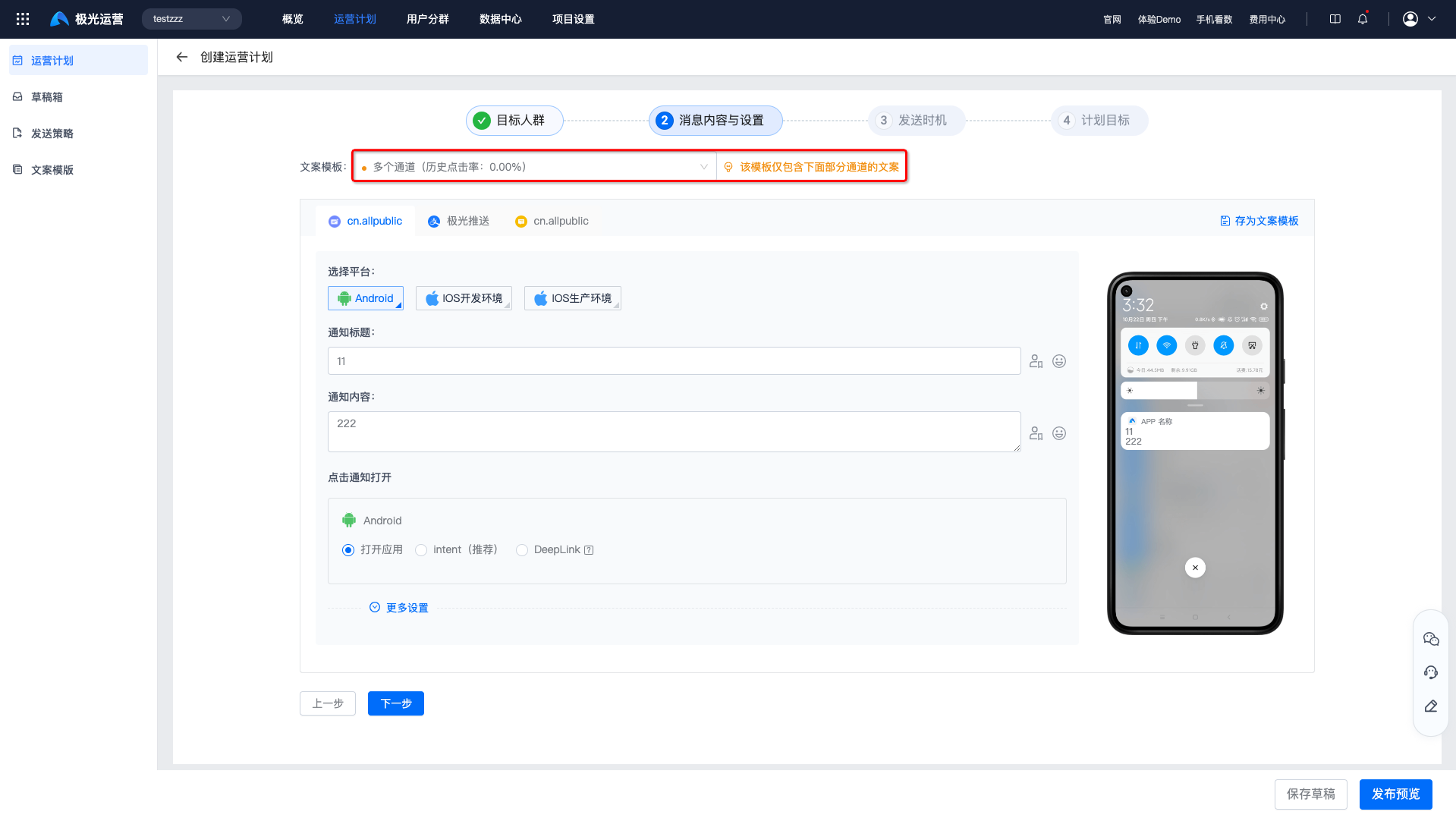
Edit Copy Template
To change content for each channel, click Edit to make changes, then click OK to save.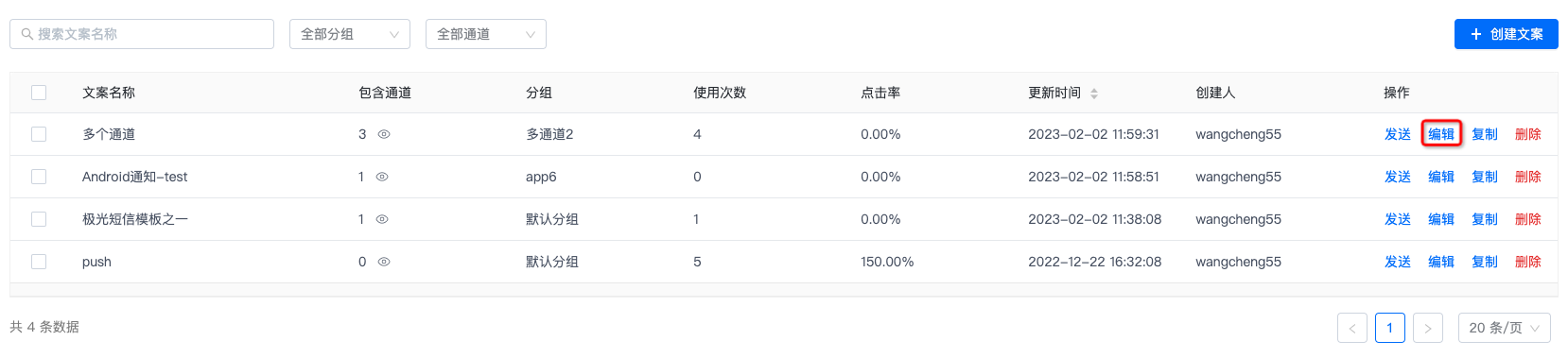
Copy Copy Template
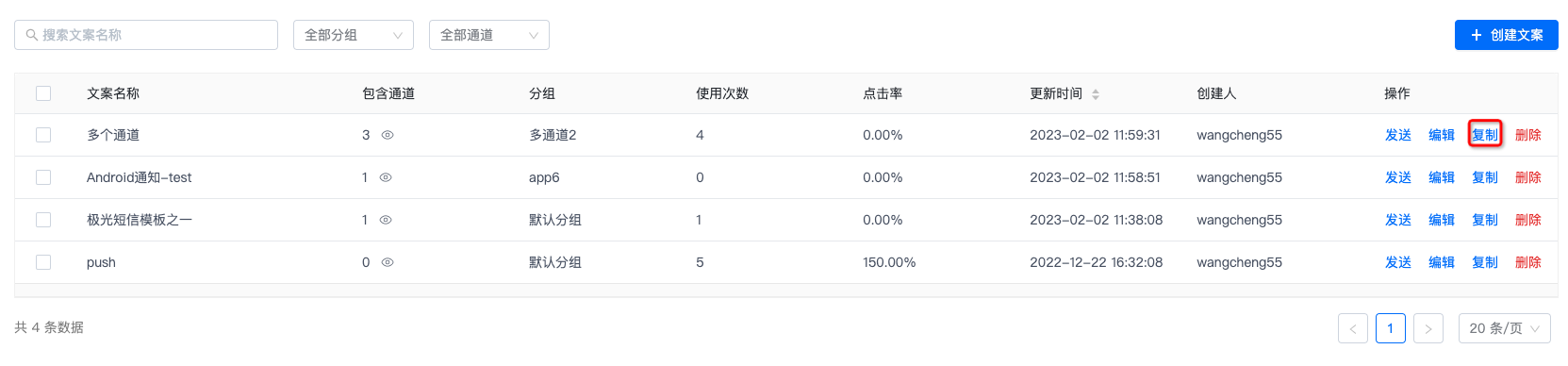
To quickly create copy with the same parameters, use the copy reuse feature. Click Copy to enter the create copy page. All parameters of the new copy are the same as the original copy.
Note: The copy name must be modified according to the prompt; otherwise it cannot be saved.
Delete Copy Template
After a copy template is deleted, it cannot be restored. Please operate with caution.
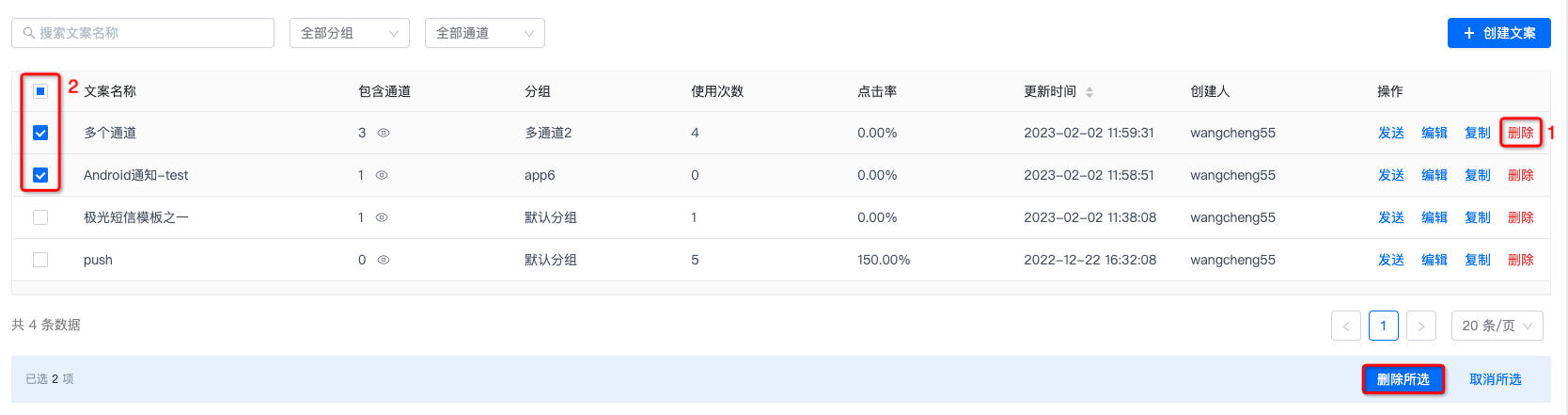
- Click Delete at position 1 in the image to directly delete the copy template.
- Select the copy templates to be deleted at position 2 in the image, then click Delete Selected to batch delete multiple copy templates.