Operational plan
The operation plan is the core module of the operation growth platform. It has the ability to flexibly create operation activities. When certain trigger conditions are met, it will reach the target group through multiple channels. Enterprise marketing operations personnel can set conversion goals through operation plans to monitor target achievement rates in real time, and continuously improve marketing conversion effects and marketing efficiency.
Application scenarios
scene
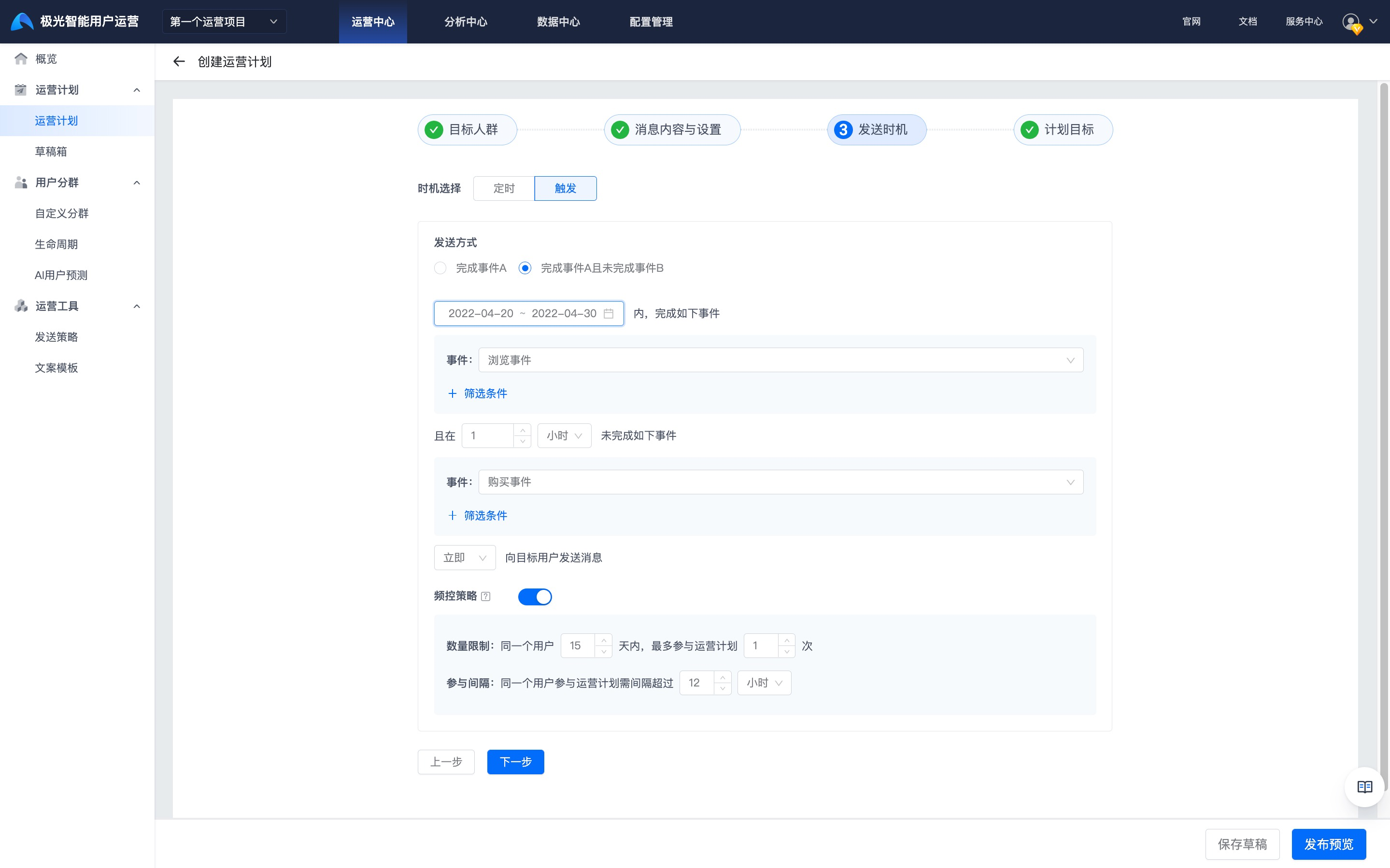
Triggered sending (event A is completed but event B is not completed): If a customer has browsed the product but has not placed an order after 1 hour, a push notification for receiving a coupon will be sent to encourage the customer to place an order.
Activity theme: Reminder that the user has not completed the order.
Target group: all users.
Operation strategy: After a customer browses the product and has not placed an order within an hour, you can send a coupon push to encourage the customer to place an order.
Activity effectiveness evaluation: After the activity is launched, track the completion rate of payment orders from the target audience.
Implementation steps
Sending time: Select the time to trigger - complete event A and uncomplete event B,2022-04-20 to 2022During -04-30, if the user does not complete the order within 1 hour after browsing the product, push notifications will be made to the audience immediately.
Audience users: Users who meet the trigger conditions (have not completed an order within 1 hour after browsing the product).
Send strategy: with App Send a push notification to the user to receive the coupon through push notification and text message.
Planning goal: After users receive the push notification, they can complete the ordering operation within 1 hour.
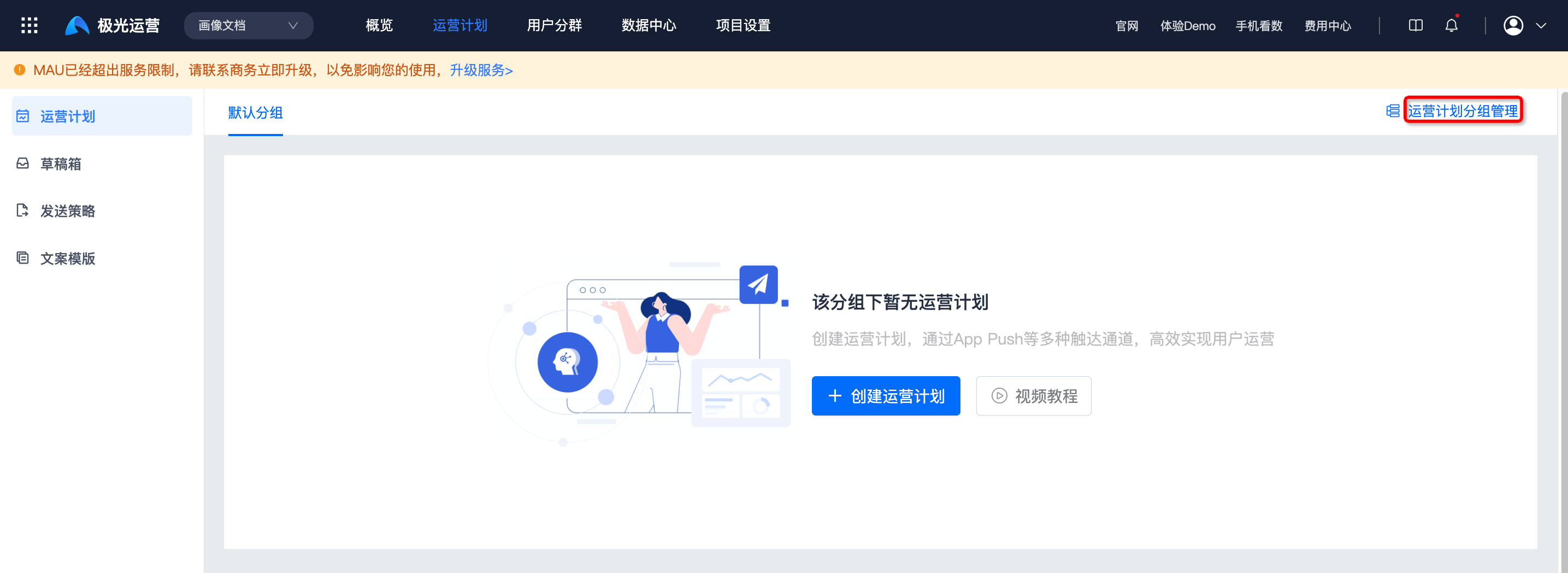
Operation plan group management
In order to facilitate the management of different types of operation plans, you can use the operation plan group management function. Enter the [Operation Plan] page and click "Operation Plan Group Management".
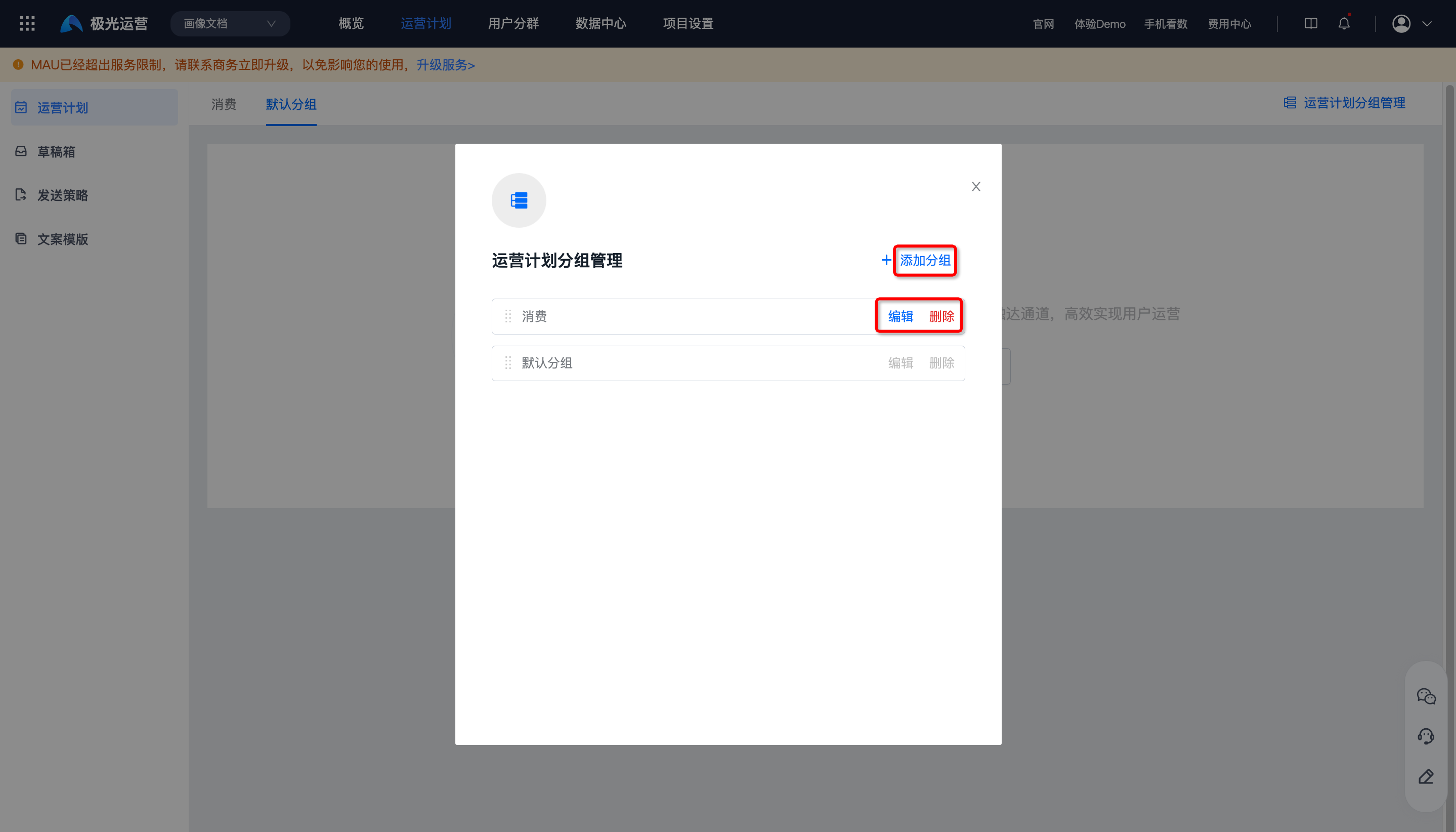
 Supports "add grouping", "edit" and "delete" operations.
After deletion, all operational plans under the group will be transferred to the "Default Group".
Create operational plan
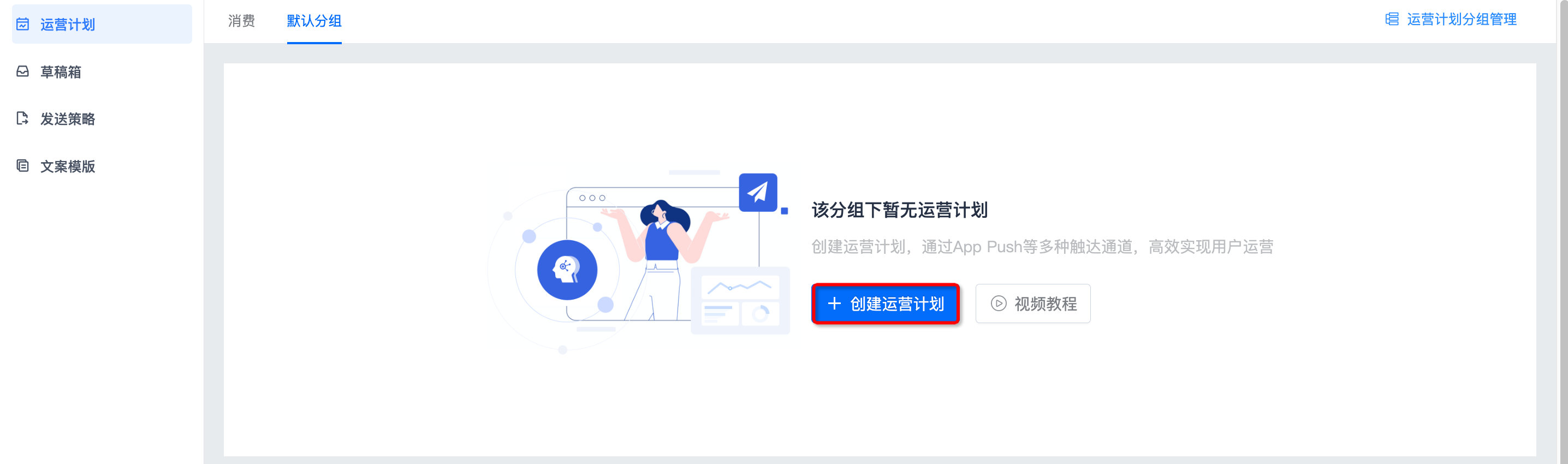
Enter the [Operation Plan] page and click "Create Operation Plan".
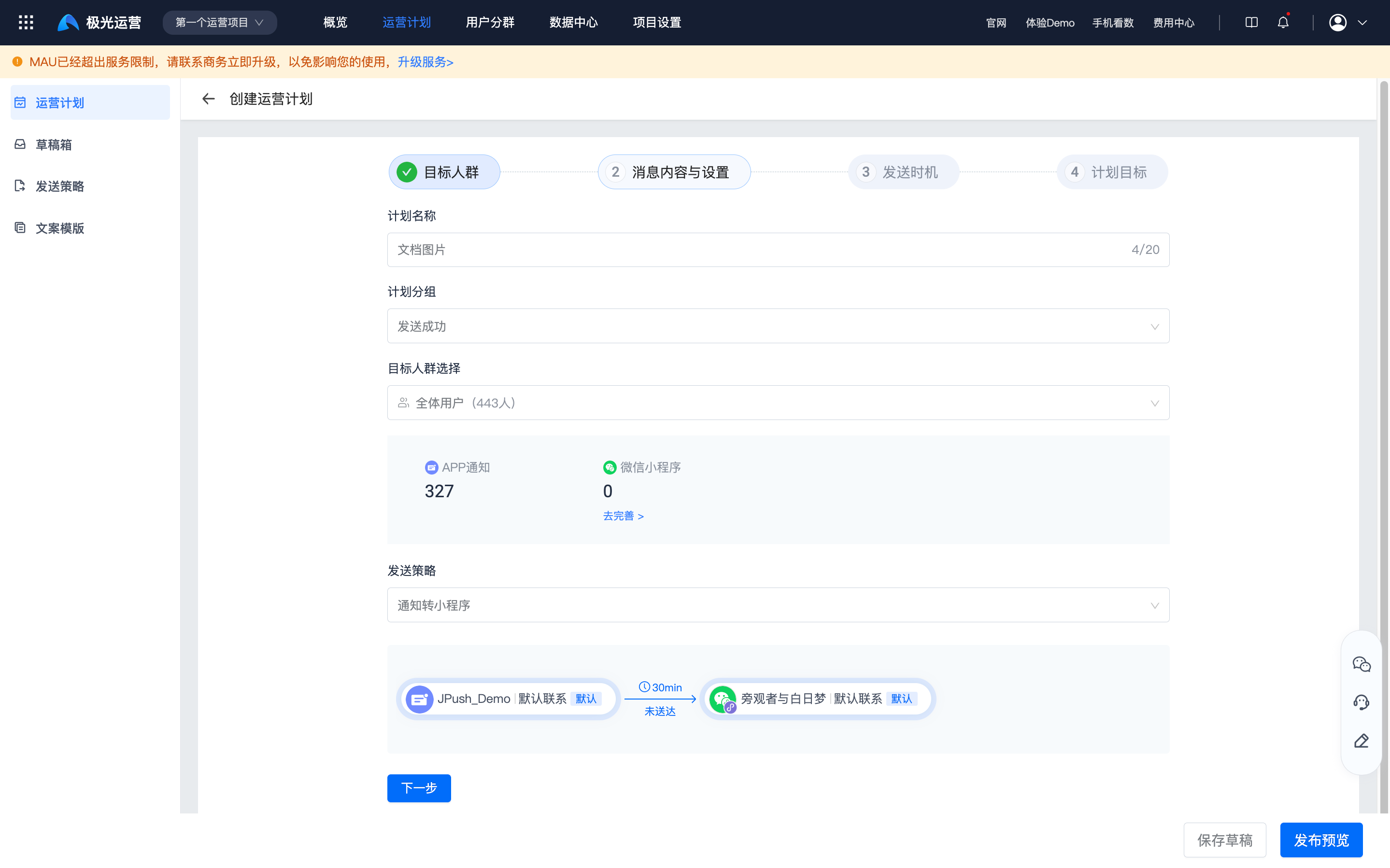
Select target group
Fill in the plan name, select plan grouping, target audience and sending strategy.
- The target group can select groups in the life cycle and customizeduser segment。
- The sending strategy refers to the sending rules to reach users. If there is no sending strategy, you need to create a new one and then select it.
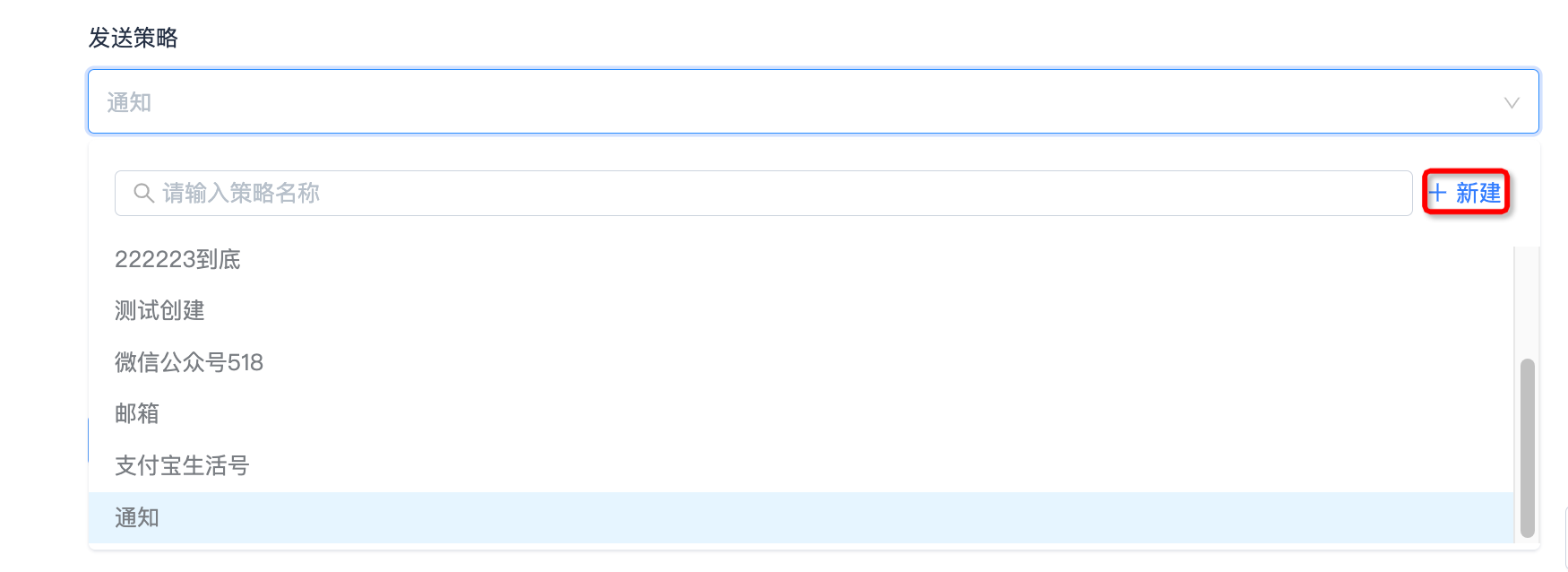
Create a sending policy
Click on the sending strategy to select. You can select the sending strategy that has been created in [Sending Strategy]. If there is no sending strategy, you need to click "New" to create it and then select it.
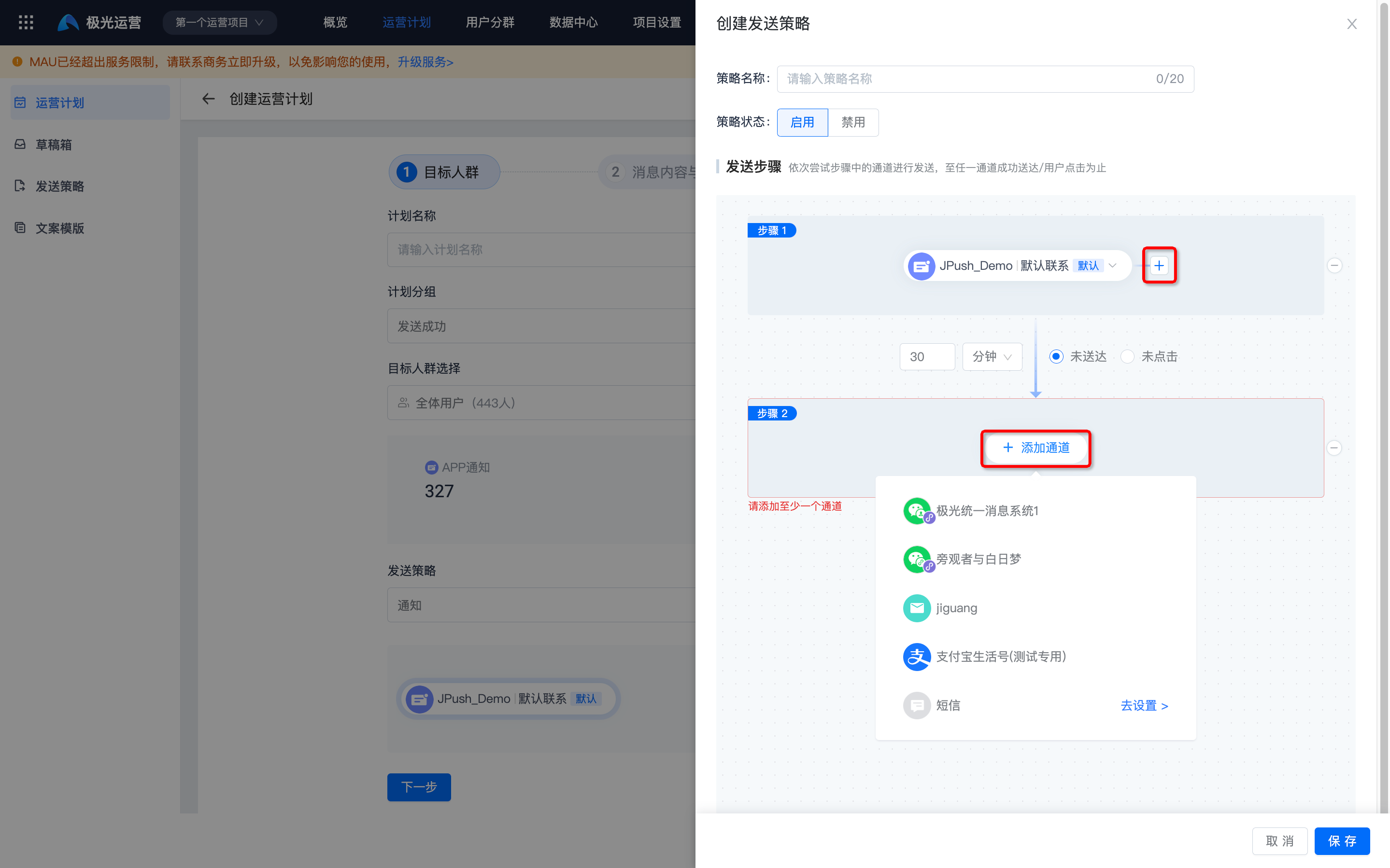
 Fill in the policy name, select the policy status, click "Add Channel" in the sending step, and add the channels and filter conditions that need to be reached. Supports adding multiple steps, and each step can add multiple channels.
Message content and settings
- Select a copywriting template. You can choose a template that has been created in [Send Template], or you can choose "Don't use template".
- According to the selected sending strategy, you need to fill in the copy content for each reach channel.
- to APP Take notifications as an example: you need to select the platform and notification opening method, fill in the notification title and notification content. If you need to configure more content, you can click "More Settings" and refer to the detailed parameter description. Create push document.
- If this copy needs to be saved as a template, click "Save as Copy Template".
APP Notification example: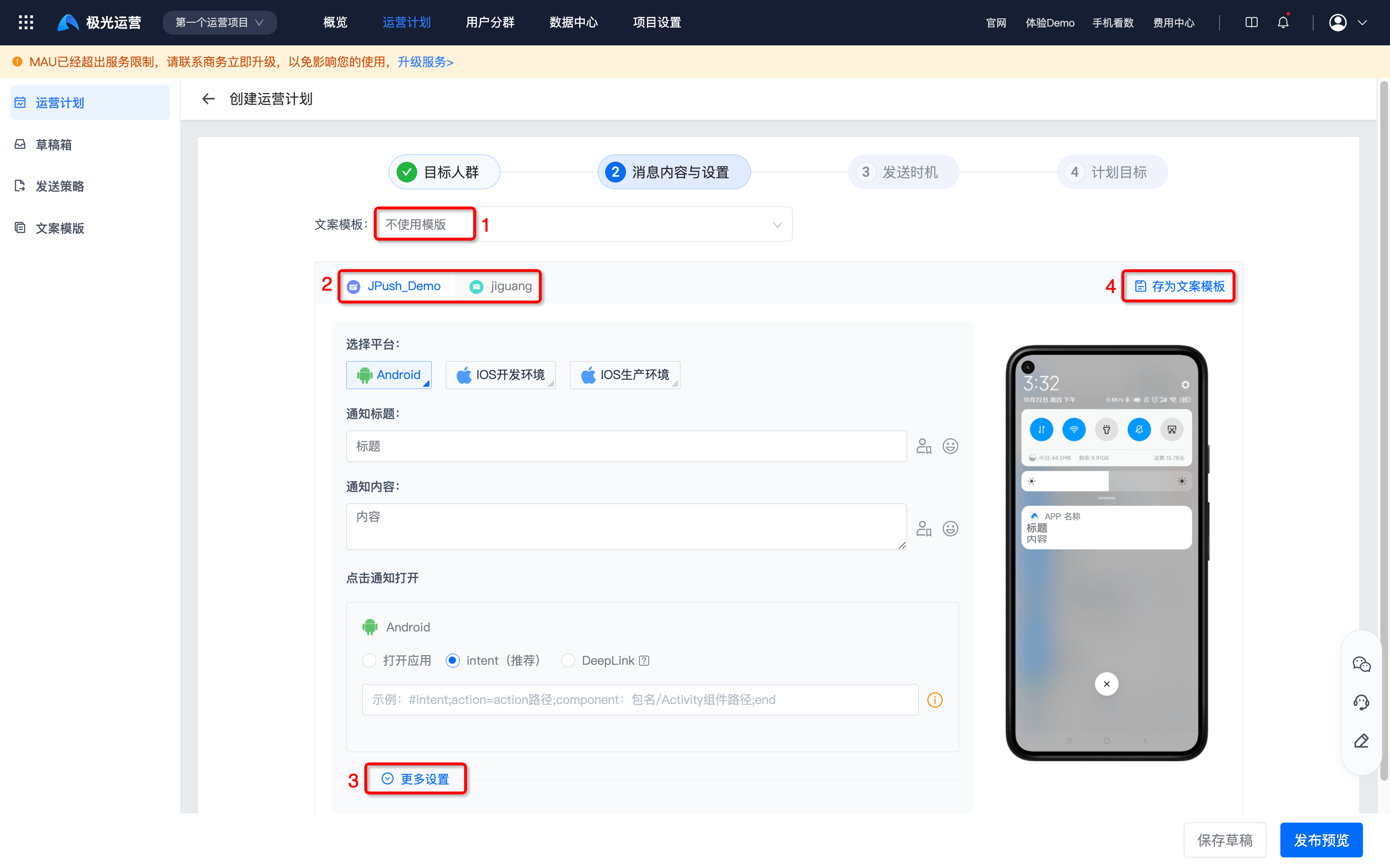
Send timing
Send regularly
Supports single sending and repeated sending, applicable scenarios: daily check-in, etc.
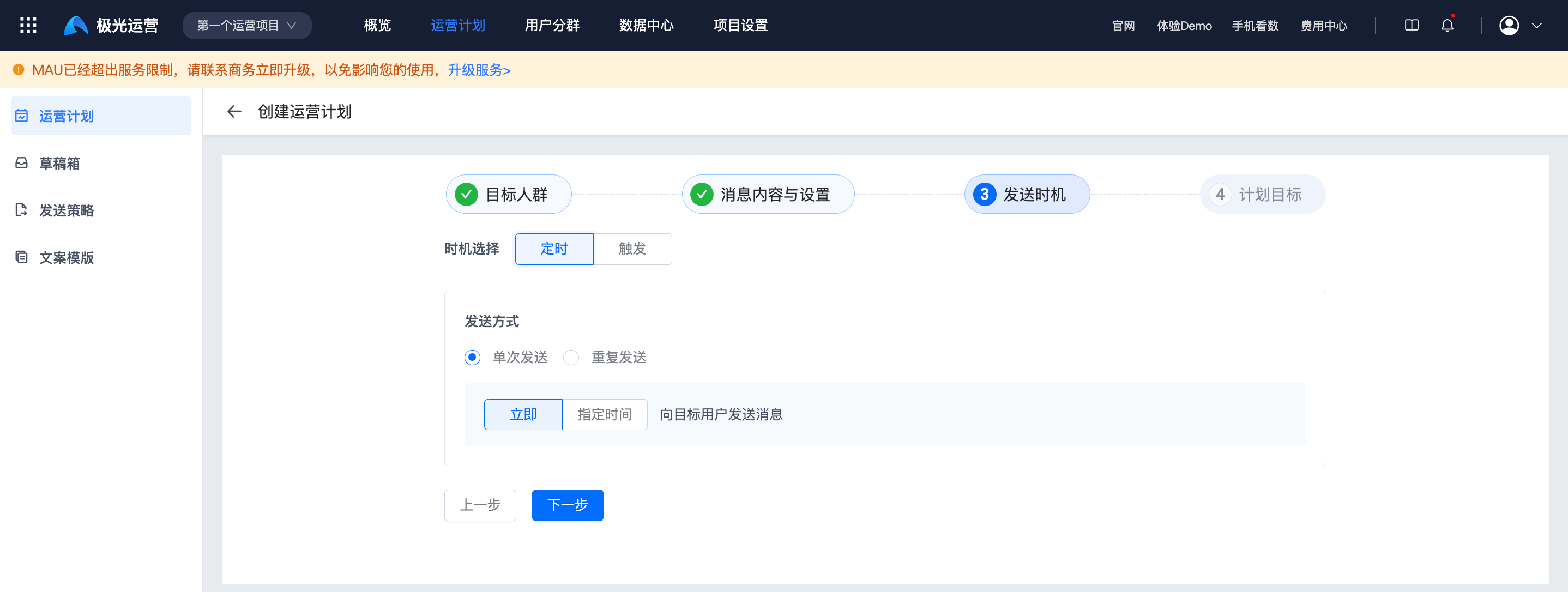
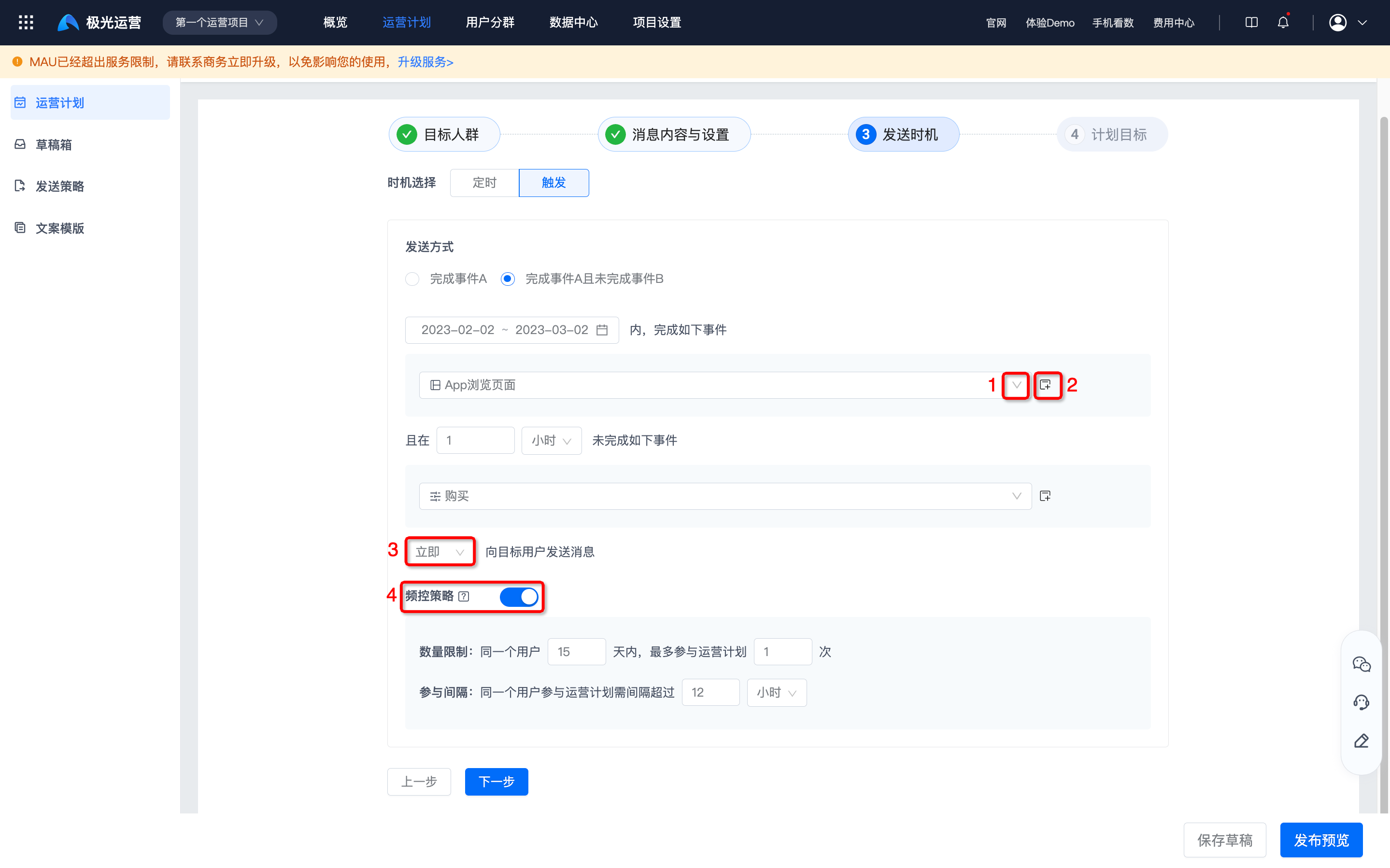
trigger send
The user needs to trigger an event before sending a push. Applicable scenarios: If a customer has not placed an order for an hour after browsing the product, a coupon can be issued to encourage the customer to place an order.
- The event selector cannot select combined events, but can only select those with data to report.meta-event/Virtual Events.
- You can click "Filter Conditions" to filter by conditions, such as first visit APP Only users who have browsed the product between January 1st and February 1st will complete event A.
- You can choose to send the message "immediately" to the user who triggers the condition, or you can choose to "delay" for a period of time before sending the message.
- If there are frequency limits on the number of users reached and the participation interval, you can enable the frequency control strategy. Note: Enabling the frequency control policy may result in target users who meet the triggering conditions being unable to receive messages.
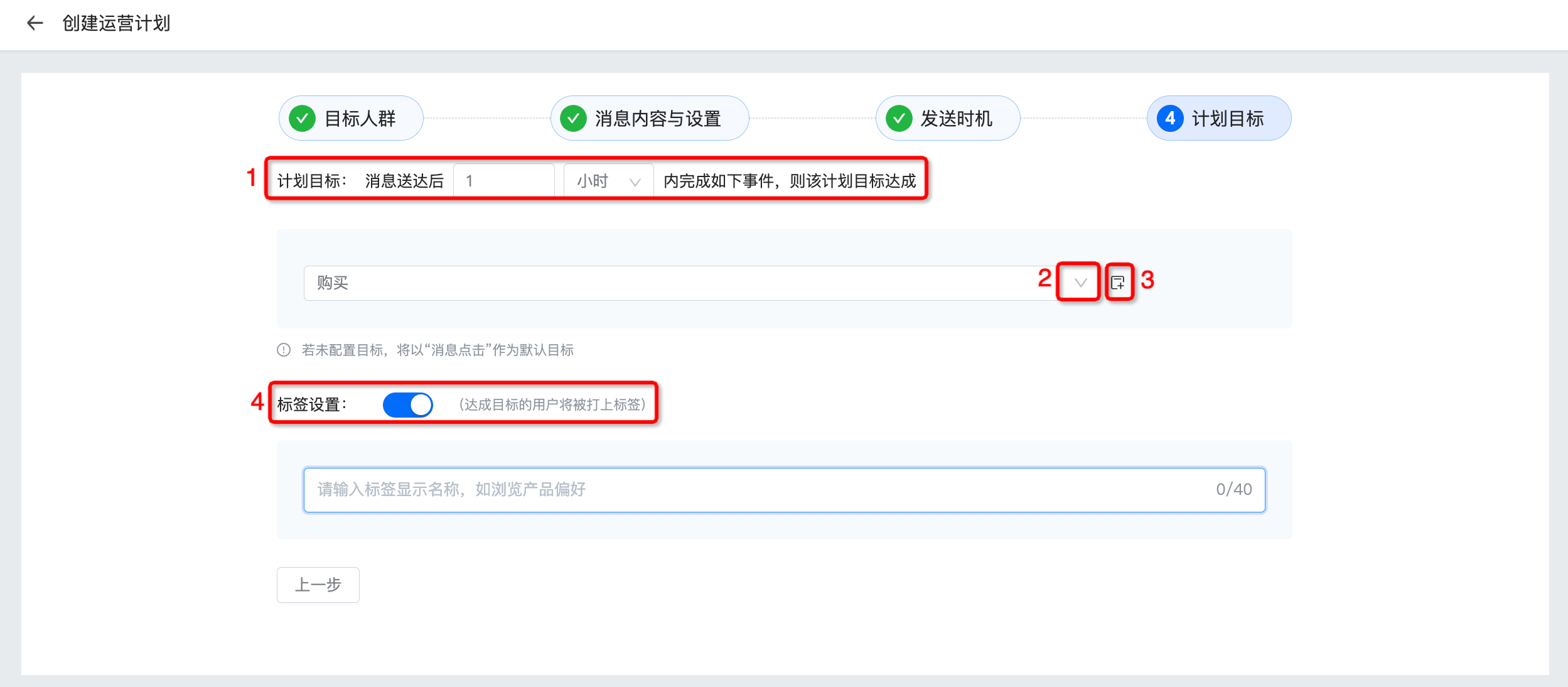
plan goals
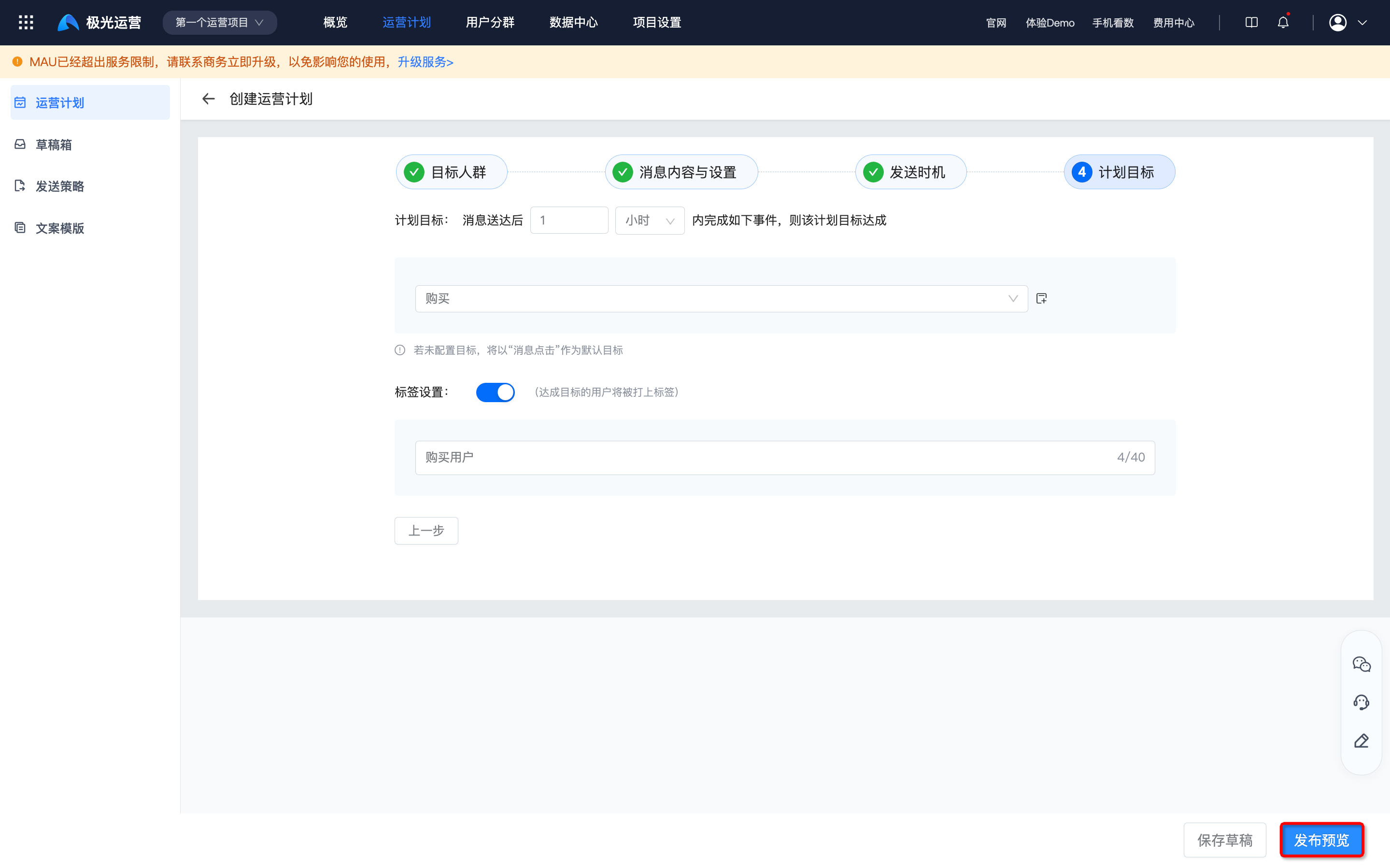
Formulate the goals of this operation plan, such as: the customer completes the order operation.
- Since most operational projects require a period of time for conversion before marketing conversion effects can be seen, you can set how long it takes for the specified event to be completed after the message is delivered to be considered as achieving the goal. If no target is configured, "Message Click" will be used as the default target.
- The event selector cannot select combined events, but can only select those with data to report.meta-event/Virtual Events.
- Filter conditions can be added to specified events, for example, the amount of the product must be equal to 50 yuan.
- If you need to label users who have achieved the goal, you can turn on the label settings and fill in the label name.
Release Preview
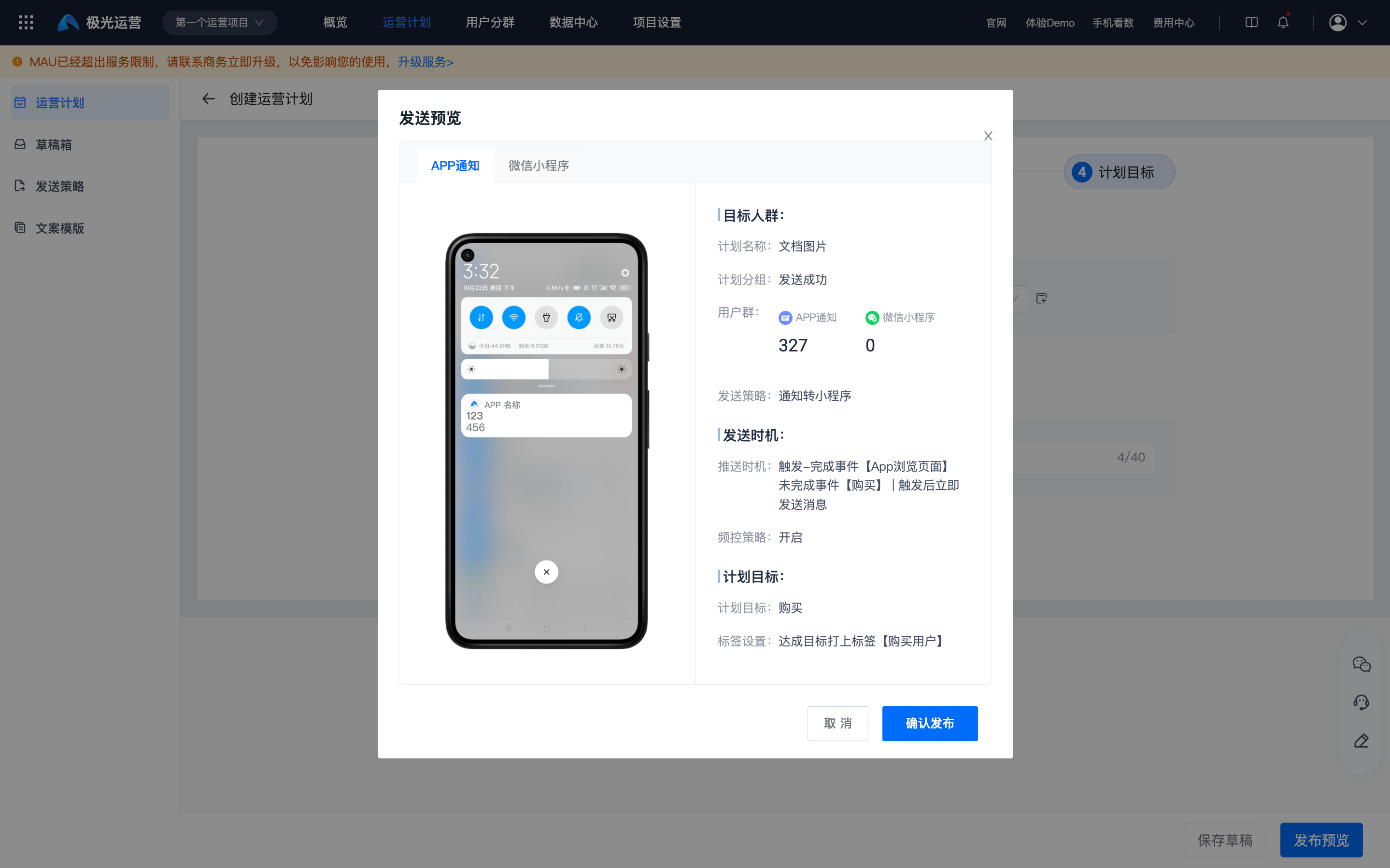
Click "Publish Preview", confirm that the plan settings are correct and click "Confirm Publish".
View operational plan
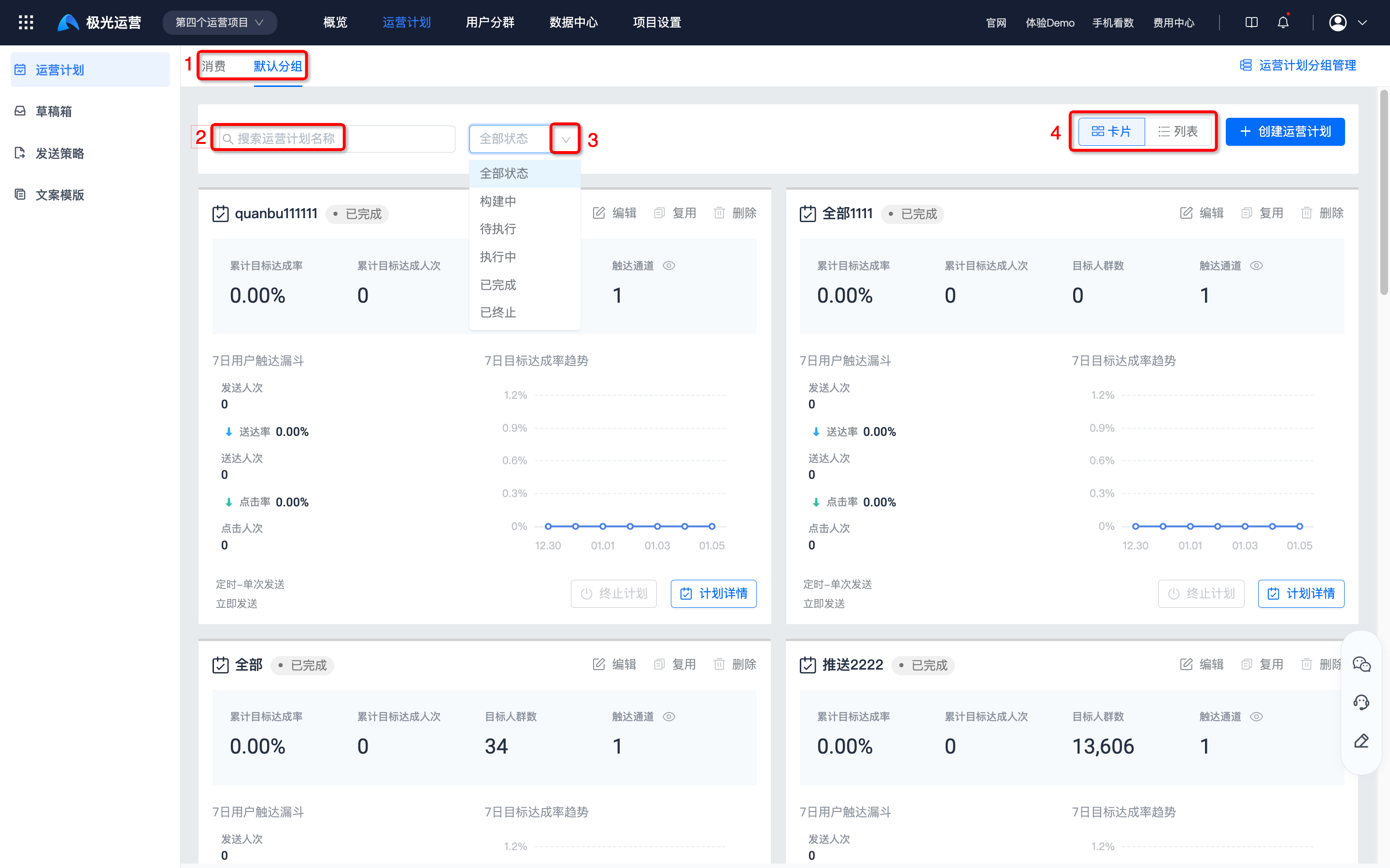
- Select the corresponding operation plan group.
- You can search the operation plan name directly in the search box.
- You can filter by the status of the operation plan, which includes: under construction, to be executed, in execution, completed, and terminated.
- Click "Card" or "List" to switch the display mode.
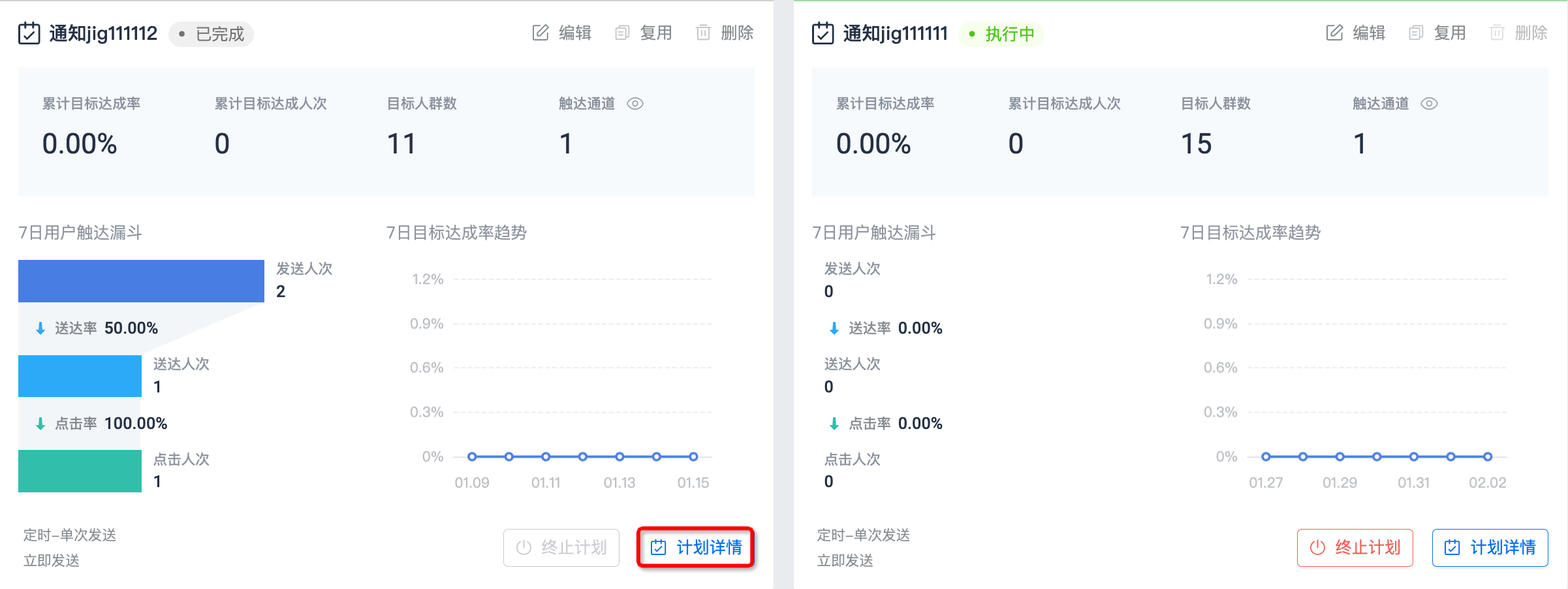
- Click "Plan Details" to enter the details page of the plan.
Data overview
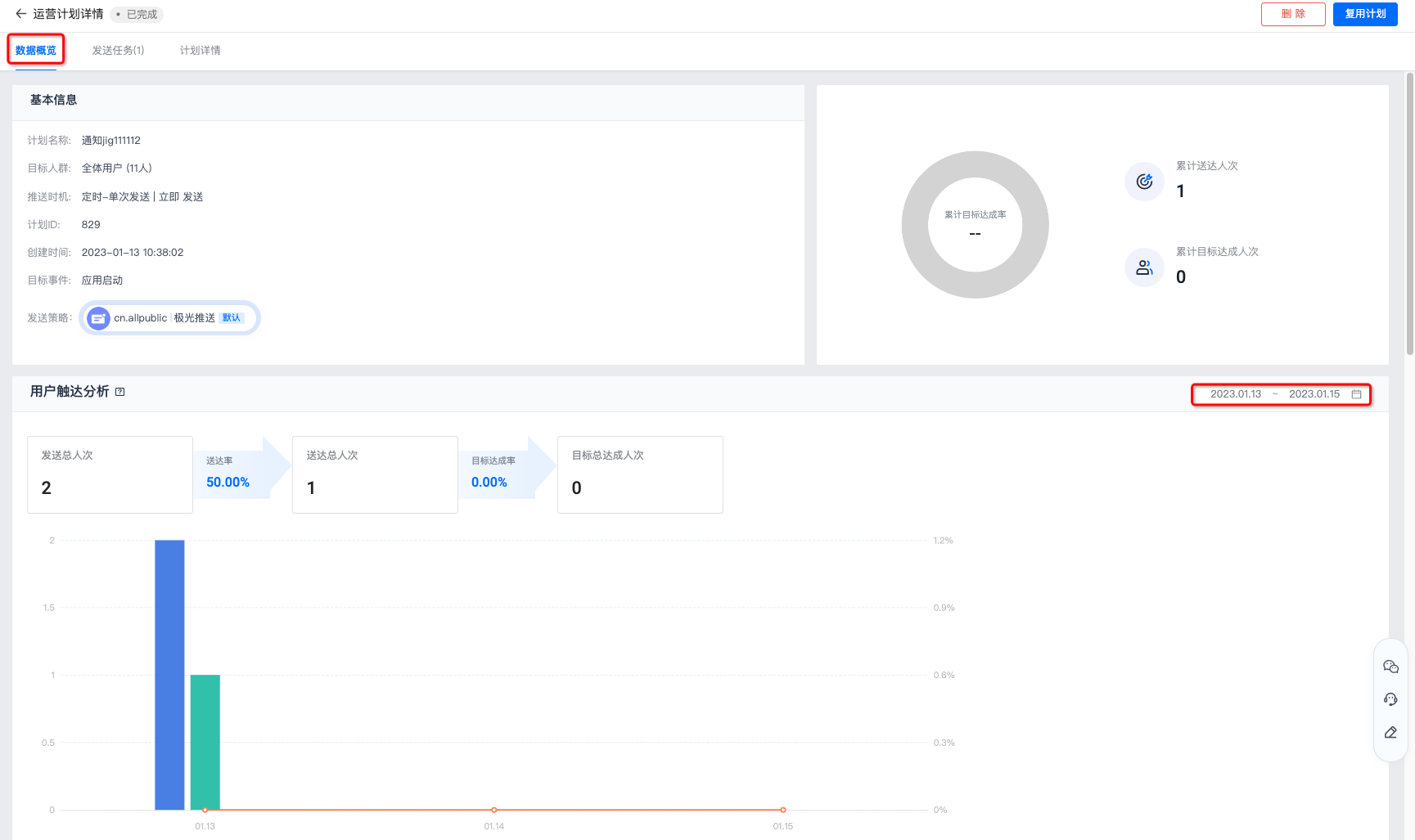
Enter the data overview page to view the basic information of the operation plan, user reach analysis, message data statistics and message loss analysis. User Reach Analysis
- Number of senders: The number of messages sent with the same task ID is deduplicated according to independent users (in a sending task, if the same user sends messages through multiple channels, it will be counted as 1 sender).
- Delivery times: The number of messages delivered with the same task ID is deduplicated by independent users (in a sending task, if the same user is sent messages by multiple channels, it will be counted as 1 delivery person).
- Number of goal attainments: The number of goal attainments for the same task ID is deduplicated by independent users (in a sending task, if the same user completes the planned goal multiple times, it will be counted as 1 goal attainment).
- Goal achievement rate: The cumulative number of goal accomplishments/number of deliveries among the delivery tasks generated by the operation plan.
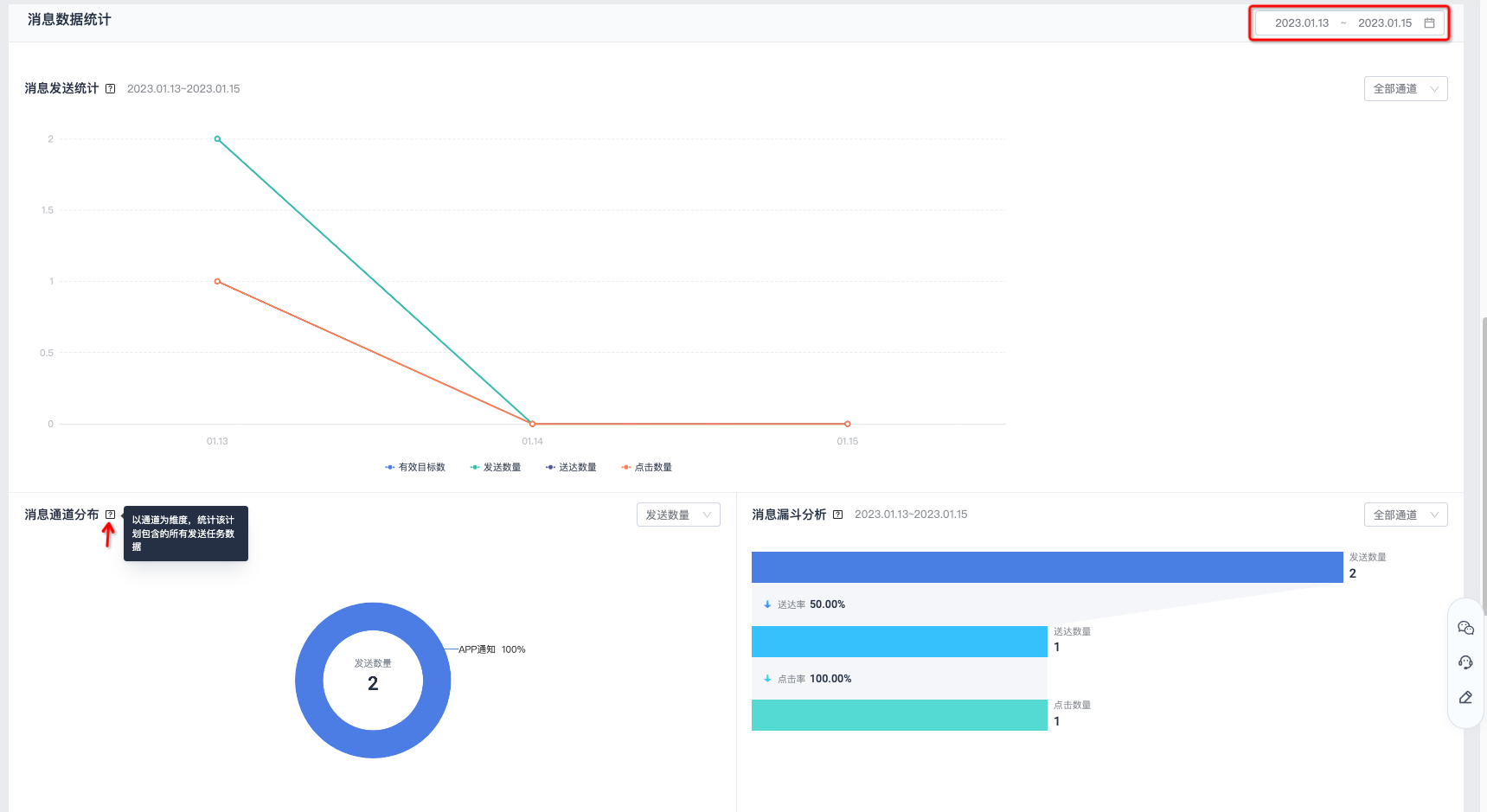
 Message data statistics
Supports filtering by date and channel.
Message data statistics
Supports filtering by date and channel.
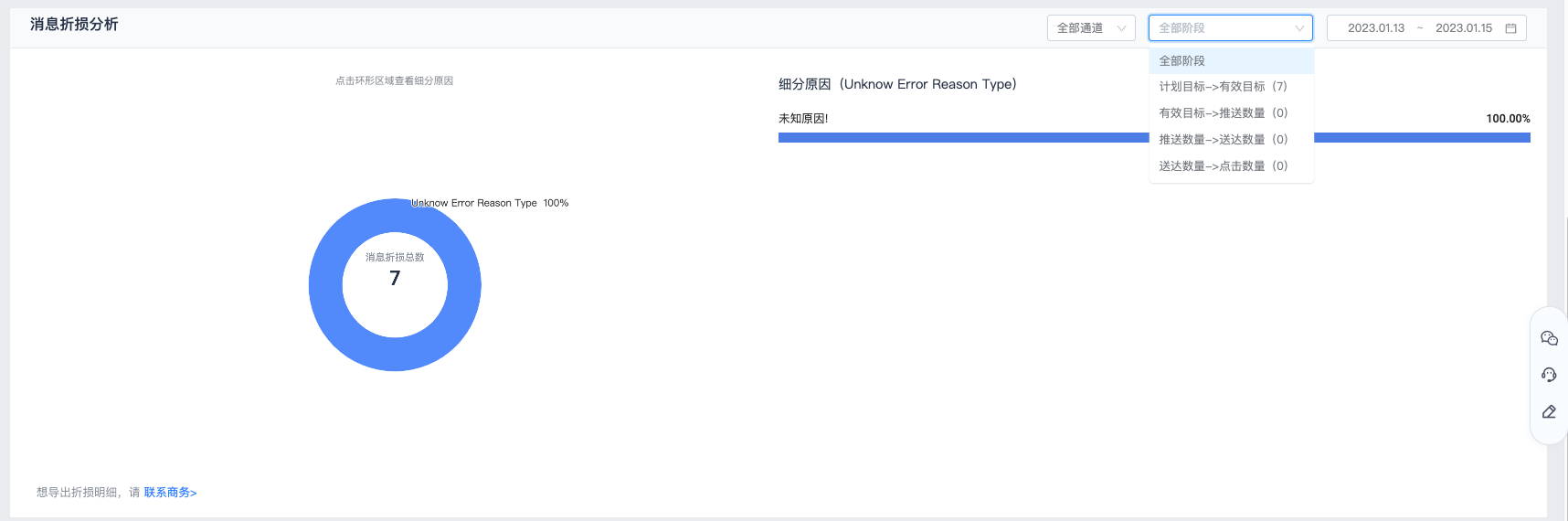
 Message loss analysis
Supports filtering by channel, damage stage and date. If you want to export the damage details, please contact the business.
Message loss analysis
Supports filtering by channel, damage stage and date. If you want to export the damage details, please contact the business.
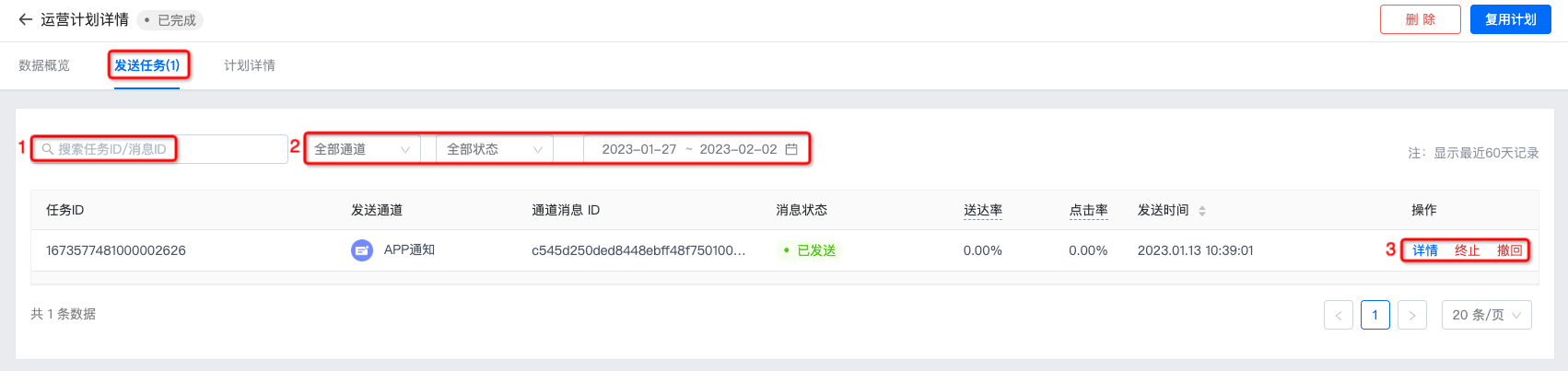
Send task
- You can search for tasks directly in the search box ID/Message ID.
- You can filter by channel, status, and time range.
- After clicking "Termination", new messages from all channels under this task ID will no longer be sent; after clicking "Withdraw", undelivered messages from all channels under this task ID will stop being delivered, and messages that have been displayed but not clicked will be withdrawn from the device.
Program details
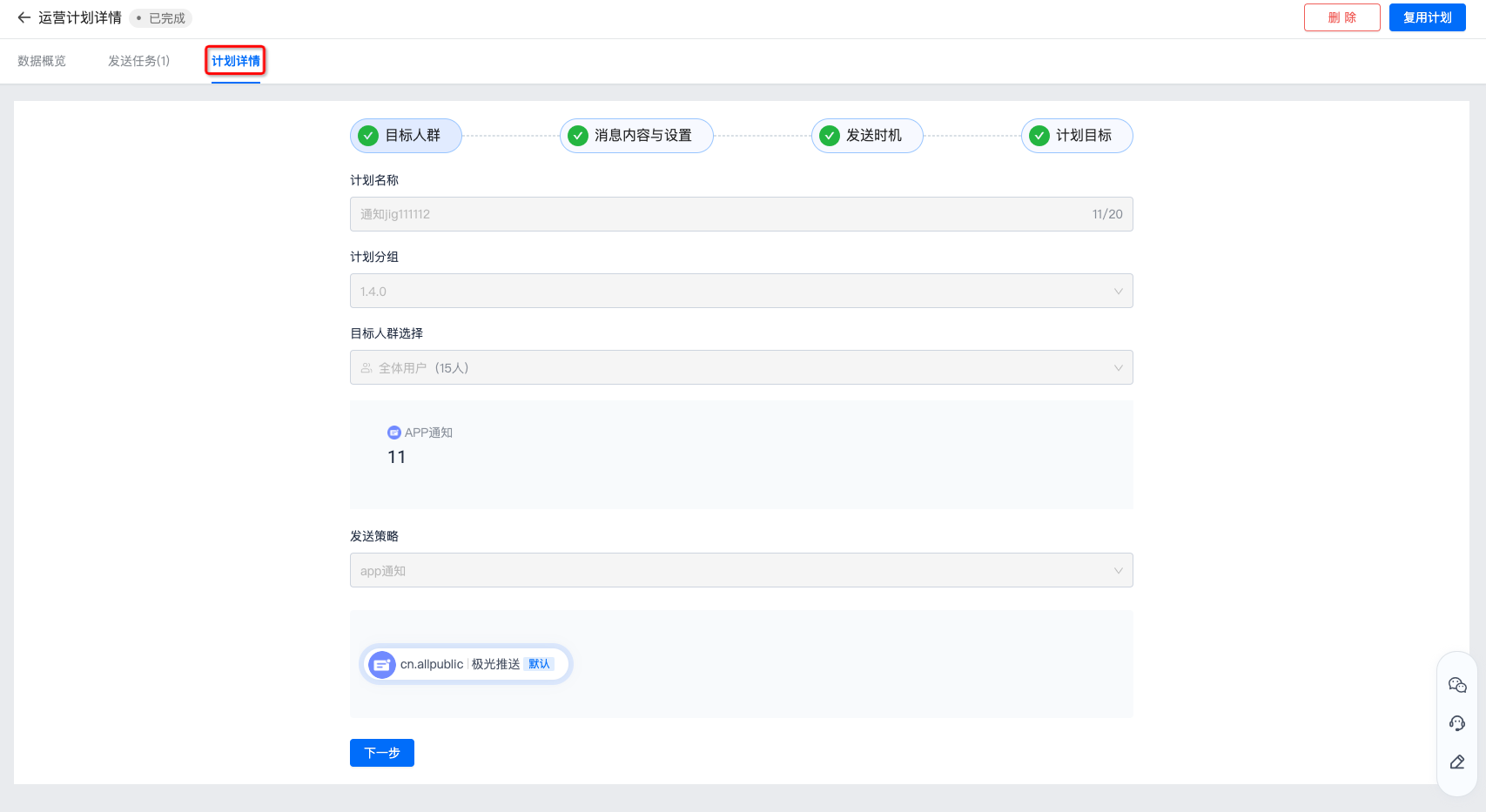
The plan details page displays the target group, message content and settings, sending timing, and plan goals configured when creating the operation plan page.
Terminate plan
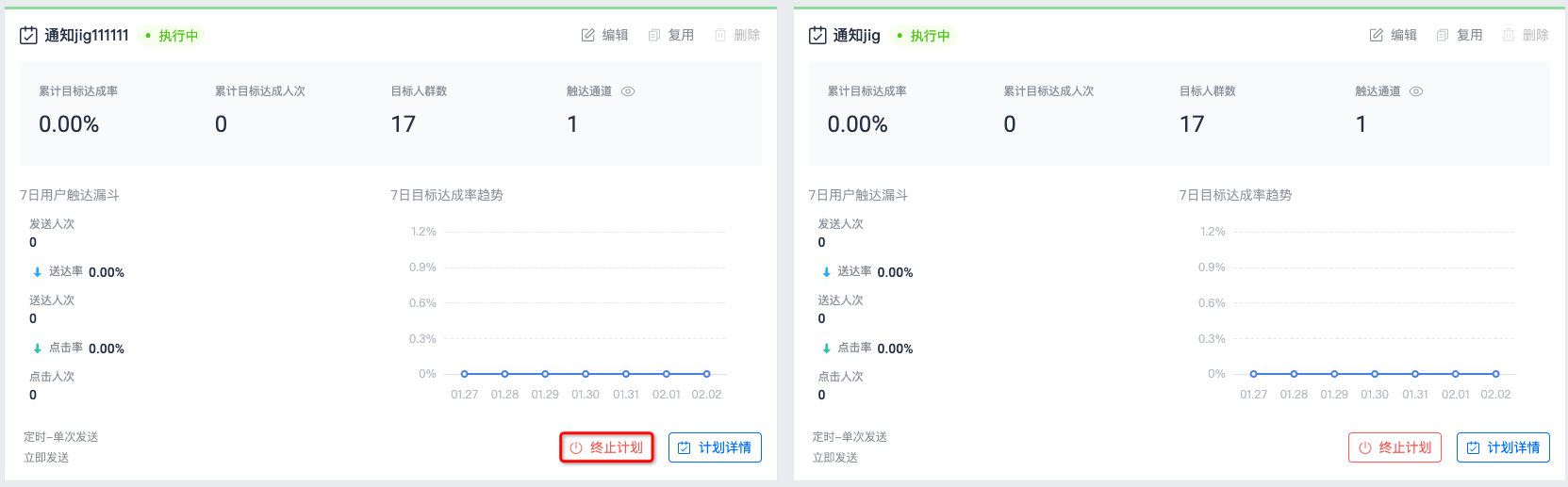
If the operation plan needs to be terminated, click "Terminate Plan" on the operation plan list interface, and the plan can be terminated after a second confirmation.
Only the executing plan can be terminated. After the plan is terminated, new messages for all channels under this task ID will no longer be sent.
reuse plan
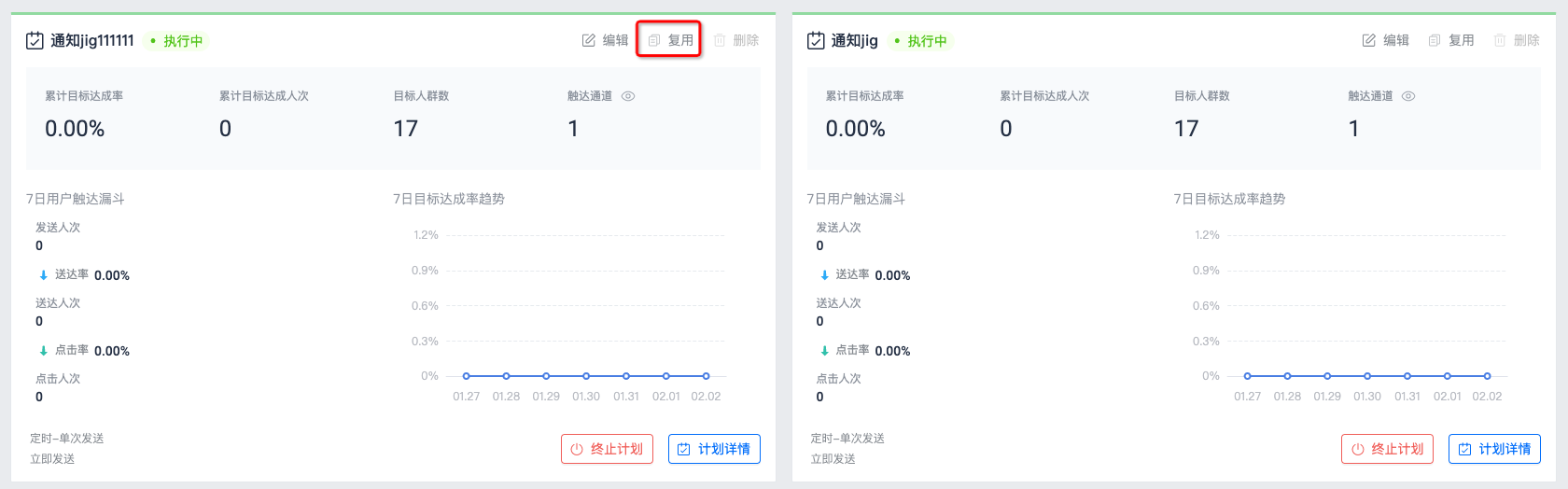
In order to quickly create operation plans with the same parameters, you can use the reuse plan function. In the operation plan list interface, click "Reuse" to enter the plan creation page. All parameters of the new plan are consistent with the original plan.
Note: Parameters such as plan name and time range need to be modified according to the prompts, otherwise they cannot be saved.
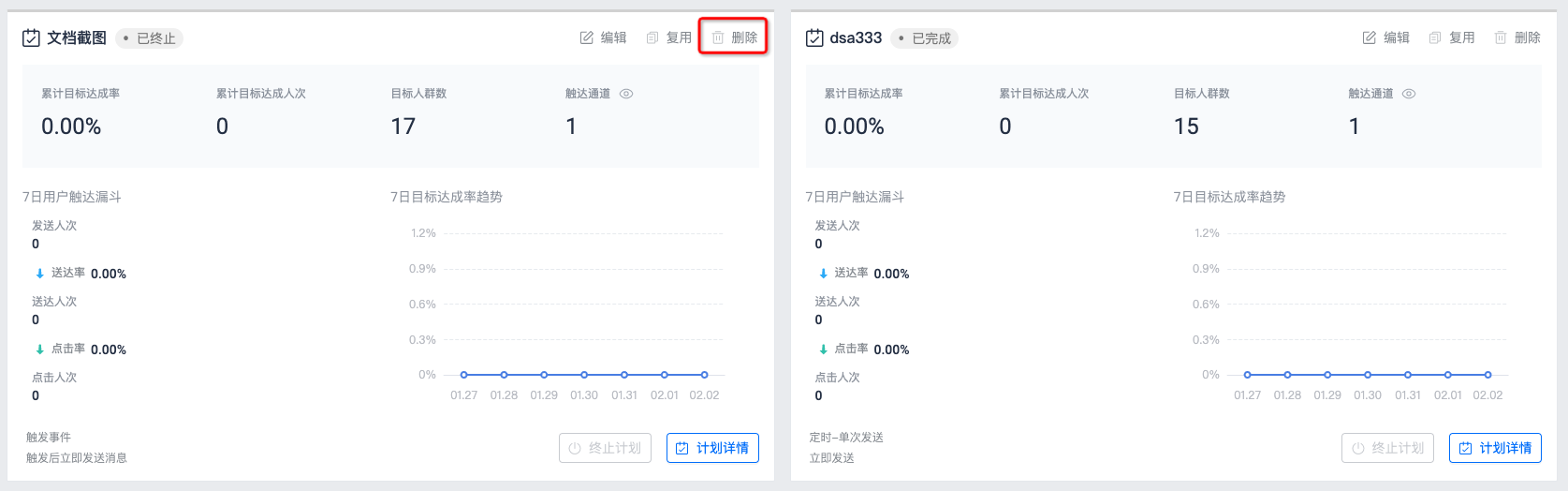
Delete plan
On the operation plan list interface, click "Delete" and the plan can be deleted after a second confirmation.
Only completed or terminated plans can be deleted. Operational plans cannot be restored after being deleted, so please operate with caution.