Marketing Score Management
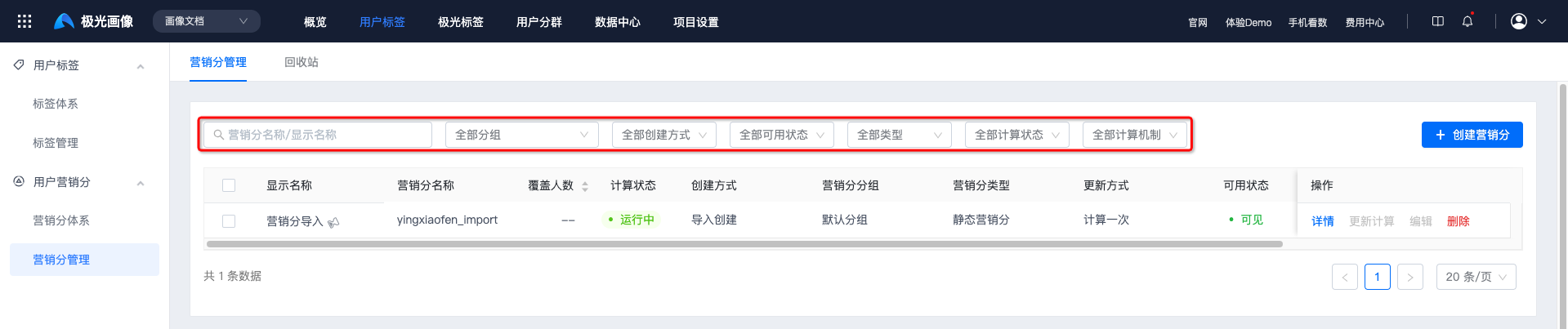
On the marketing score management page, you can view all created marketing scores and perform operations such as creating marketing scores, filtering marketing scores, and viewing details.
- Filtering by marketing score name/display name, group, creation method, availability status, type, calculation status, and calculation mechanism is supported.
- Viewing details, recalculating, pausing calculation, editing, deleting, and batch deletion are supported.
View Details
Click Details to view basic marketing score information, marketing score value distribution, and other data.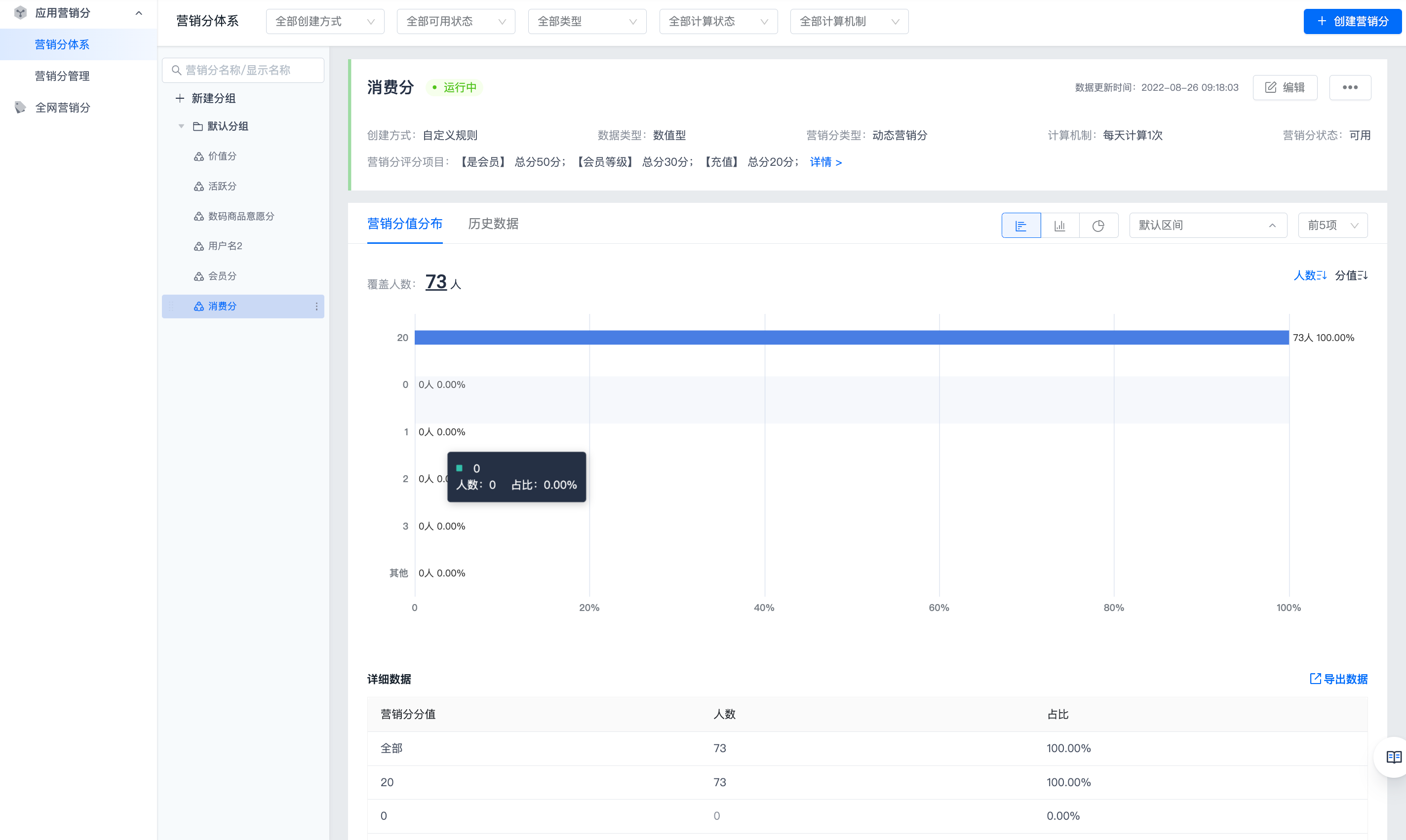
Recalculate
If the calculation status of a static marketing score is Completed, click Recalculate to calculate it again.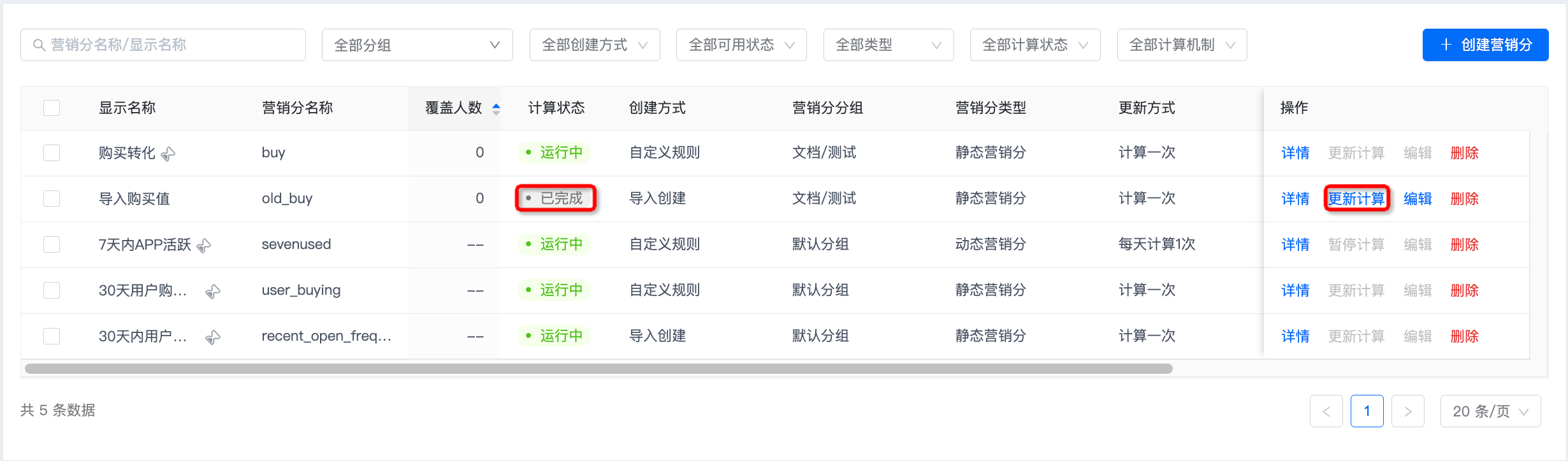
After clicking Recalculate, a funnel appears on the right side of the marketing score being calculated, indicating that calculation is in progress. At this time, Recalculate and Edit are grayed out and cannot be edited.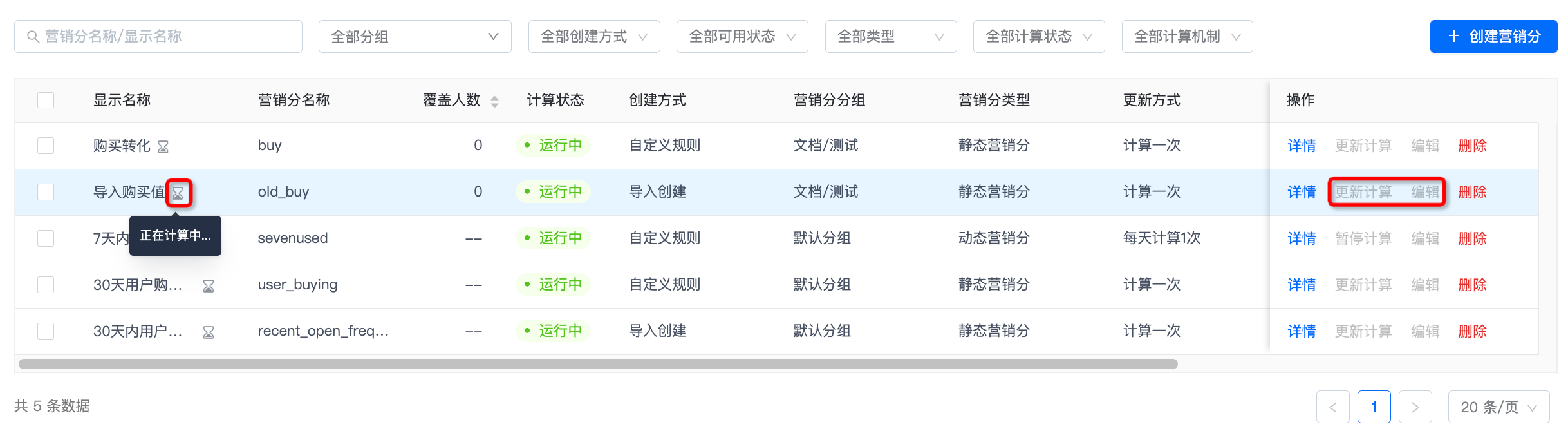
Pause Calculation
If the calculation status of a dynamic marketing score is Running and no calculation funnel is displayed, it means calculation for the current cycle has been completed. At this time, Pause Calculation and Edit are highlighted and clickable. Click Pause Calculation to stop periodic calculation of the dynamic marketing score.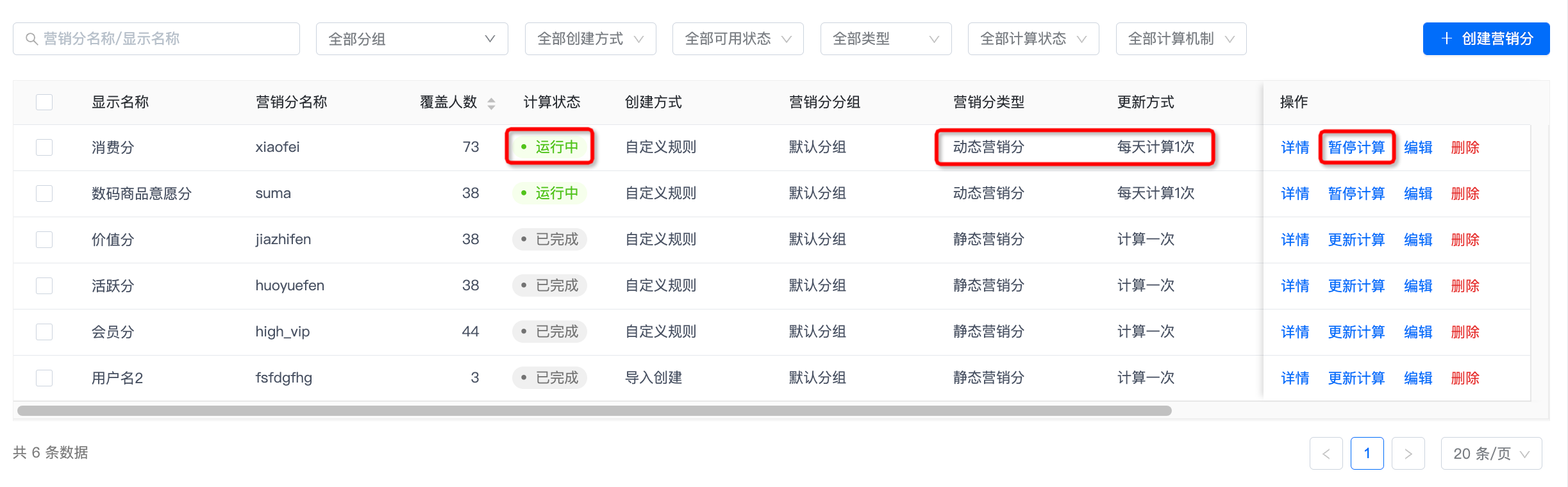
After clicking Pause Calculation, the calculation status changes to Paused, and the button changes to Resume Calculation. Click Resume Calculation to restart calculation.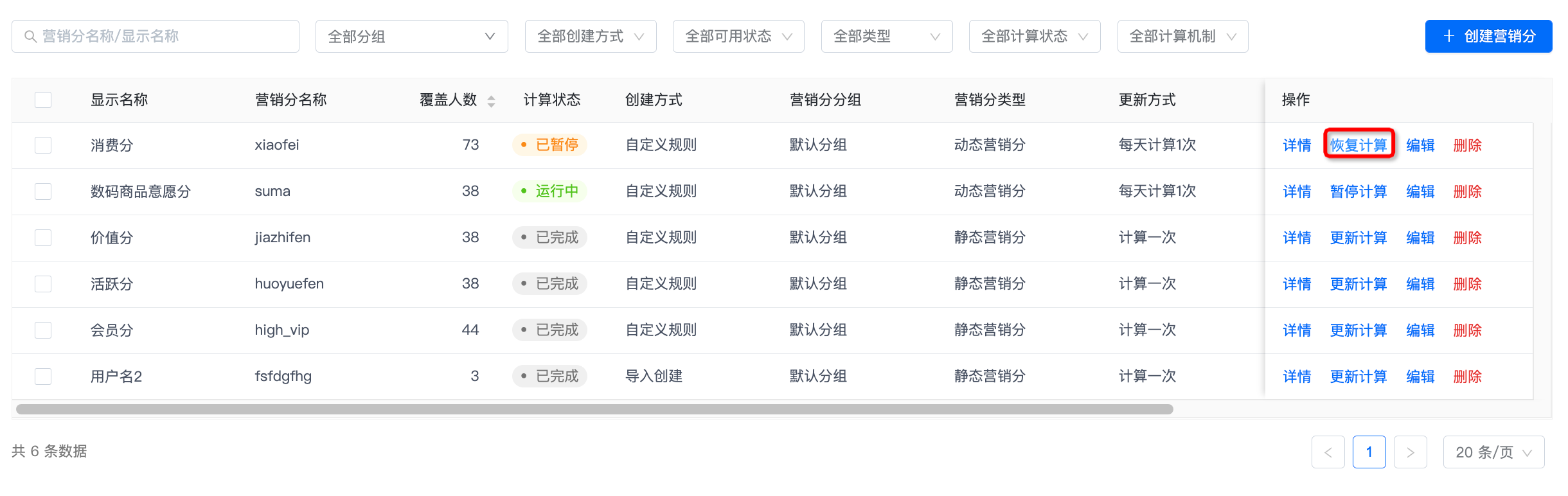
Edit
Click Edit to enter the basic information settings page. Except for the marketing score name, other information can be modified.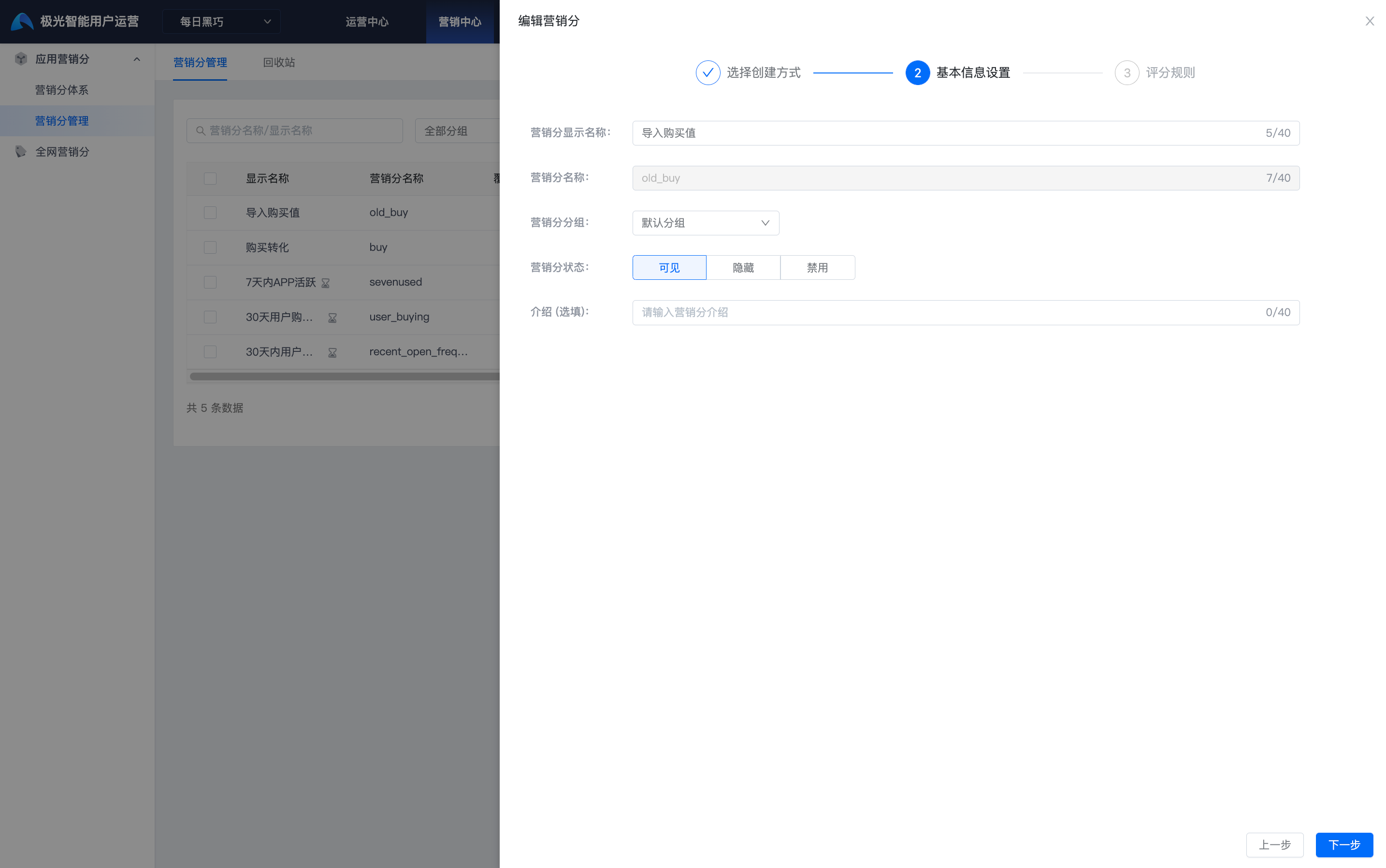
Click Next to enter the scoring rule modification page.
- If the creation method is custom rule, scoring rules cannot be modified.
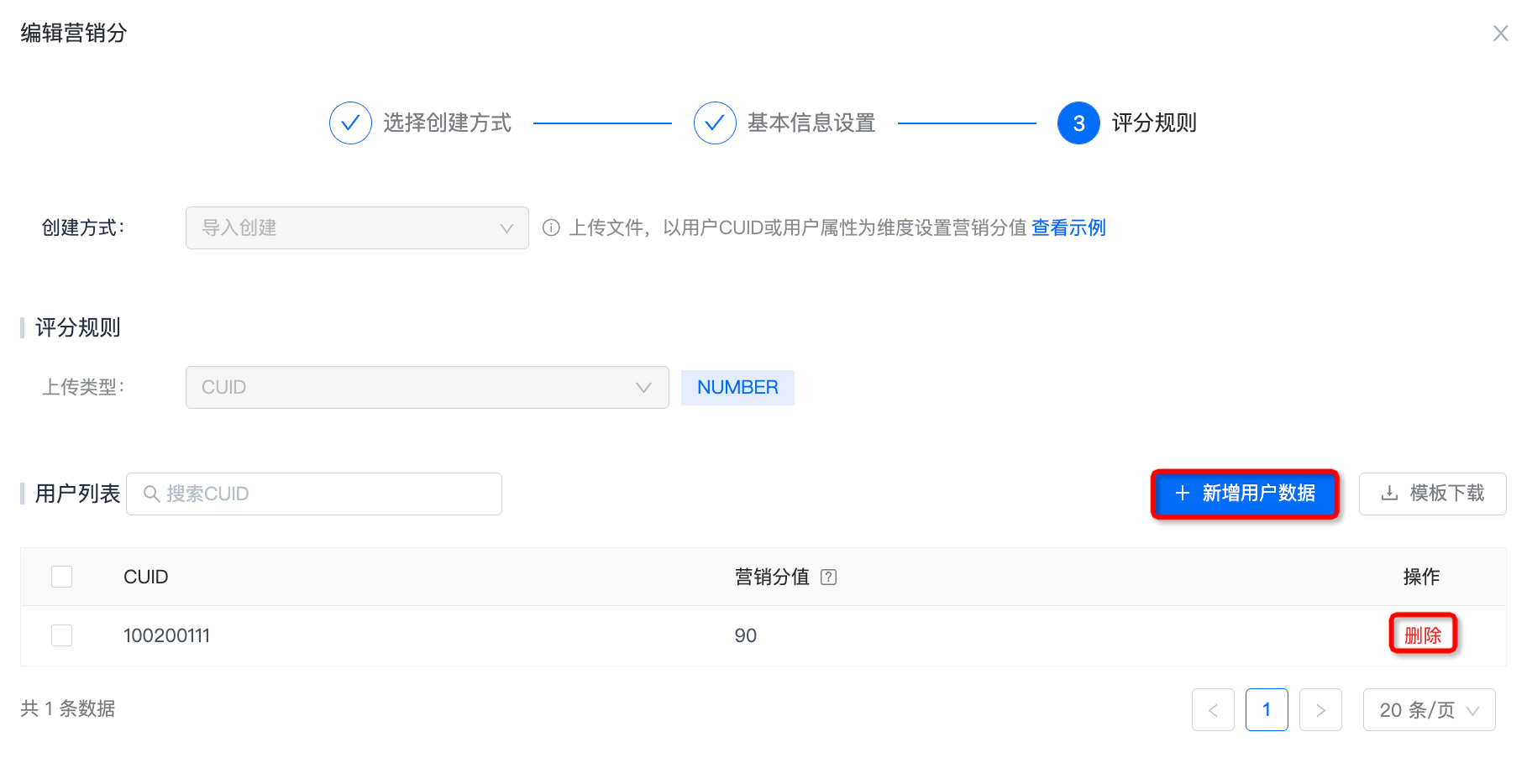
- If the creation method is import creation, user data can be added or deleted. When uploading a file again, if the matched CUID is an existing user, the user's original marketing score value is overwritten.
Delete
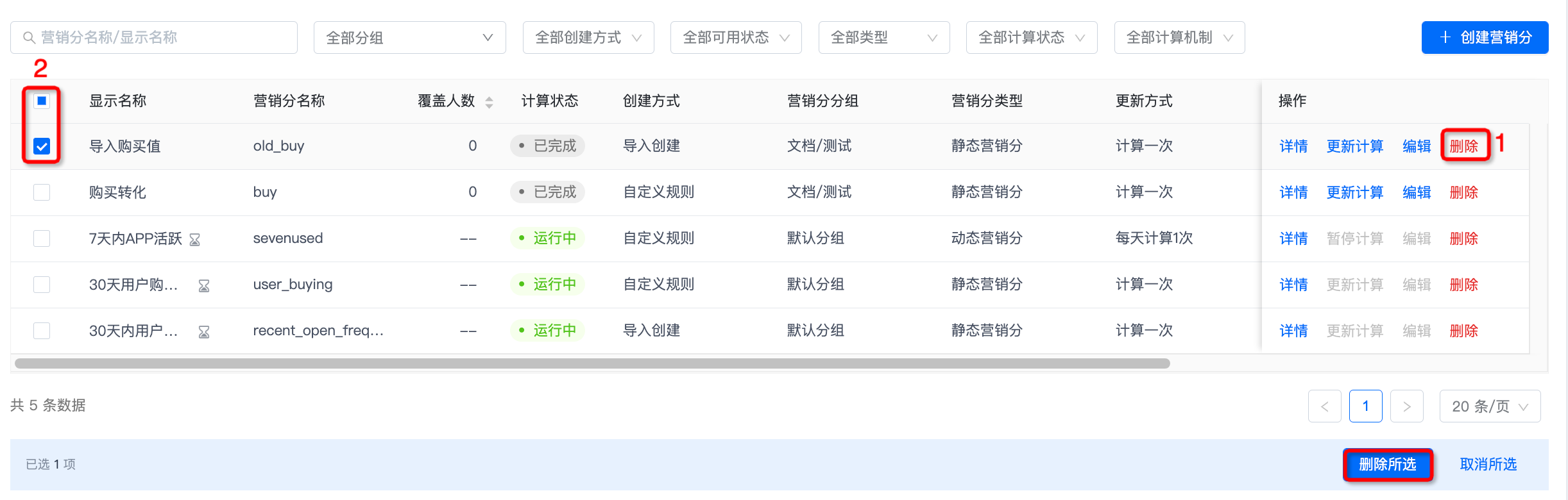
- To delete a marketing score, click Delete at position 1. It can be deleted after secondary confirmation.
- To batch delete, select the marketing score items to be deleted at position 2, click Delete Selected, and batch deletion can be completed after secondary confirmation.
Recycle Bin
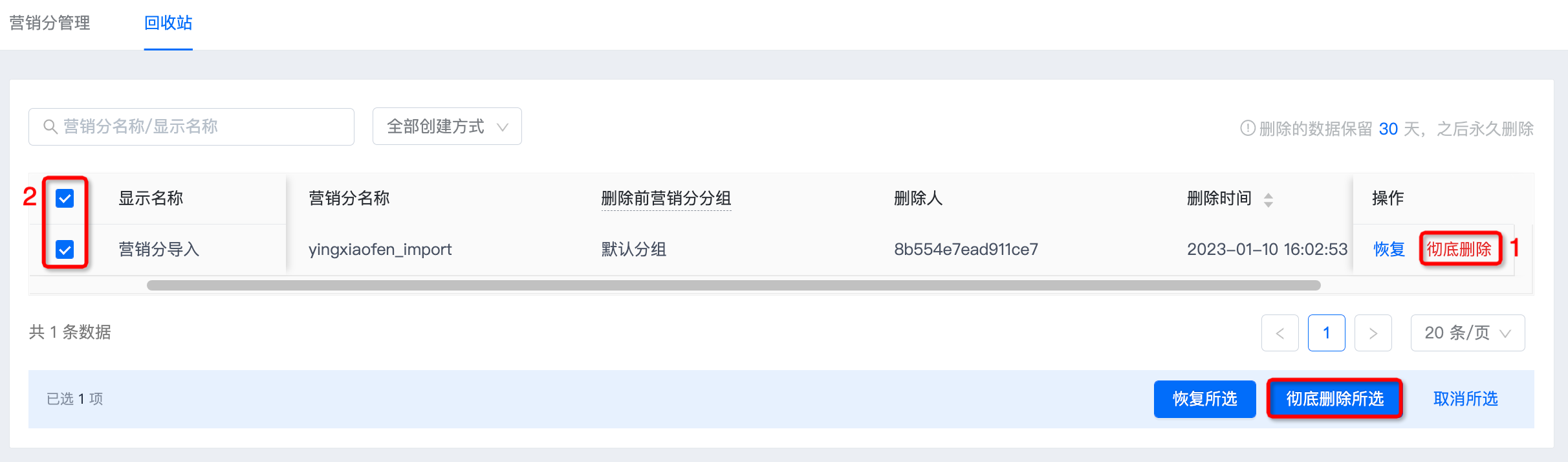
Deleted marketing scores are saved in the recycle bin. The recycle bin supports restoring marketing scores and permanently deleting marketing scores.
Deleted data is retained for 30 days and then permanently deleted.
To restore a marketing score, click Restore. To batch restore, select all marketing scores to be restored at position 2 and click Restore Selected.
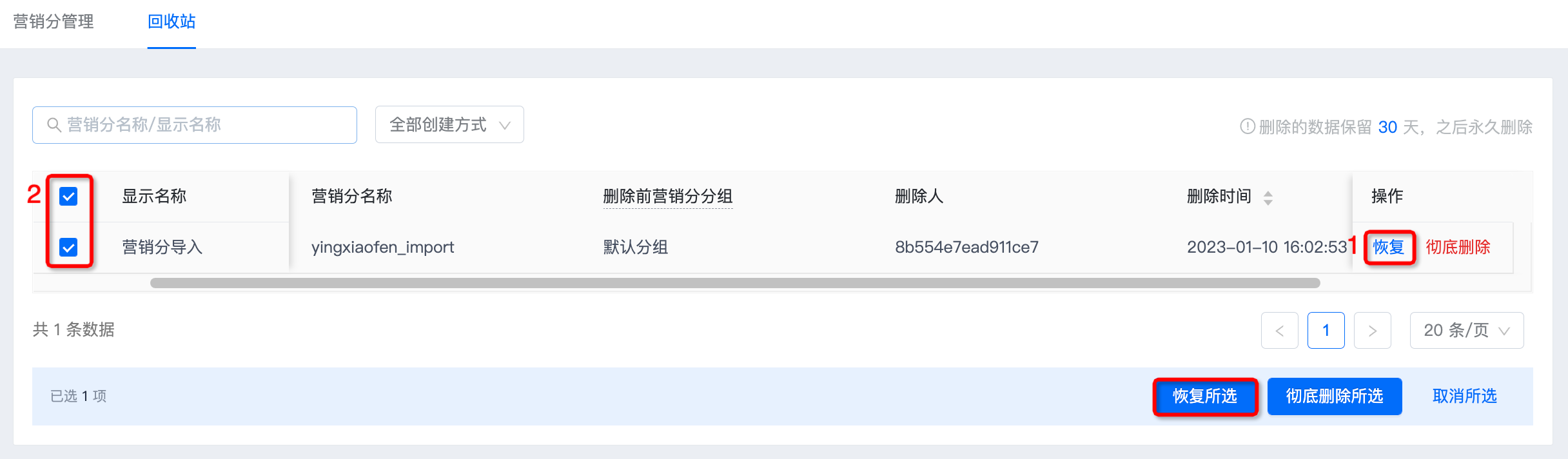
To permanently delete a marketing score, click Permanently Delete at position 1. It can be permanently deleted after secondary confirmation. To batch delete, select the marketing score items to be permanently deleted at position 2, click Permanently Delete Selected, and permanent batch deletion can be completed after secondary confirmation.