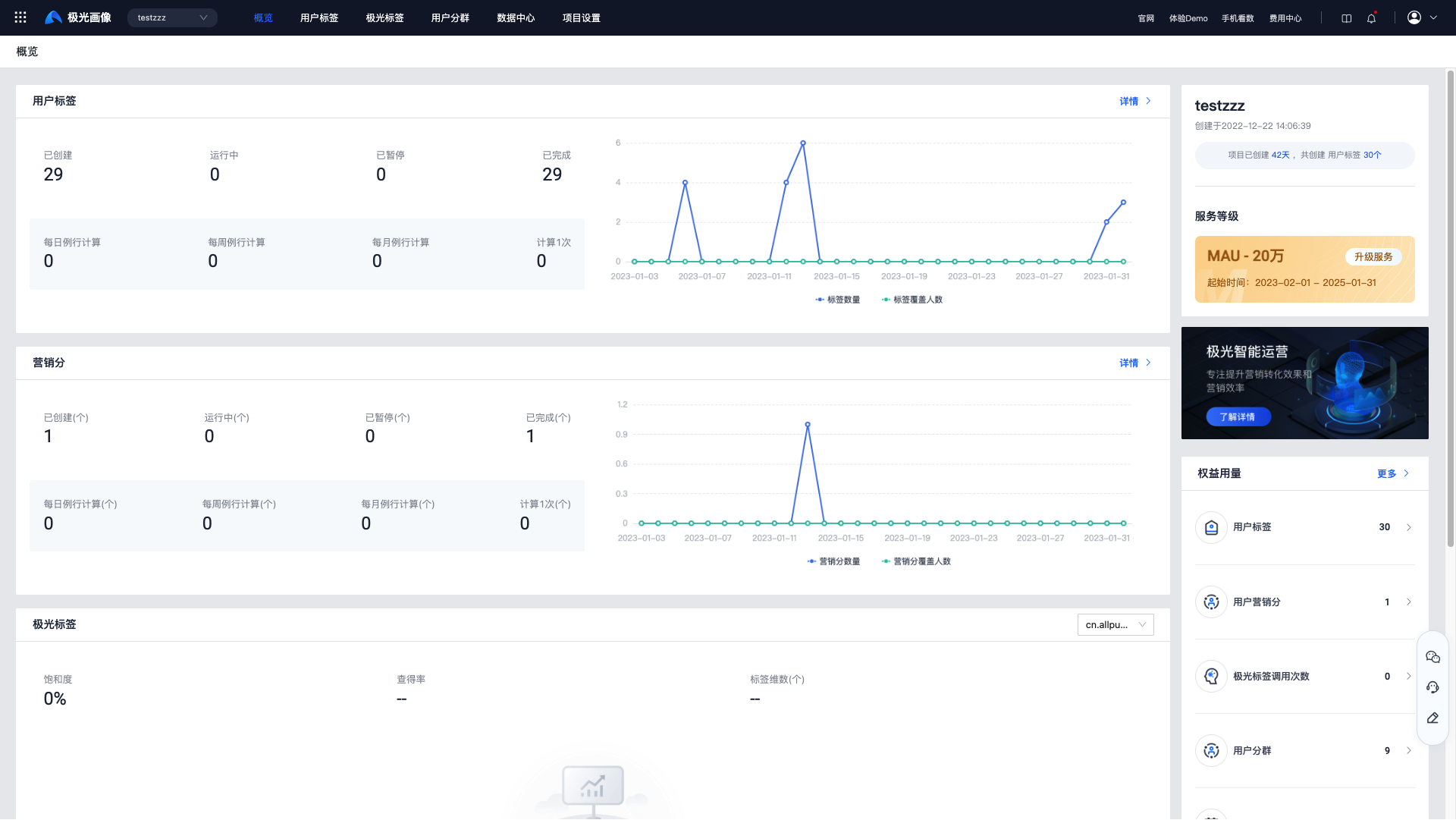
Overview
This guide helps you get started with Jiguang Portrait quickly:
- Configure a data source
- Create a user tag
- Create a marketing score
- Enable Jiguang big data tags
Configure Data Source
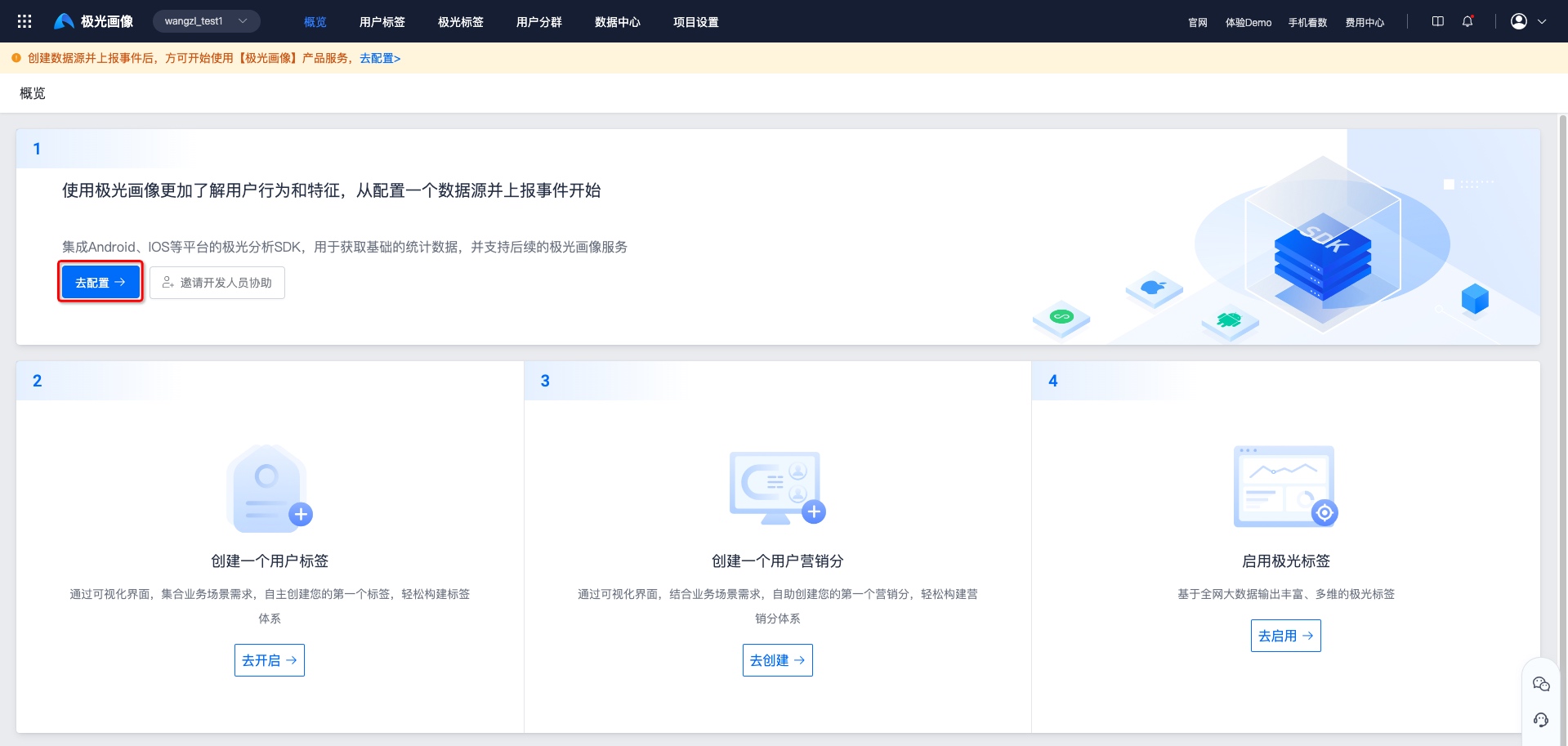
To better understand user behavior and characteristics, configure a data source first. Integrate SDKs for Android, iOS, Web, and other platforms.
Click Go to configure to open data source configuration.
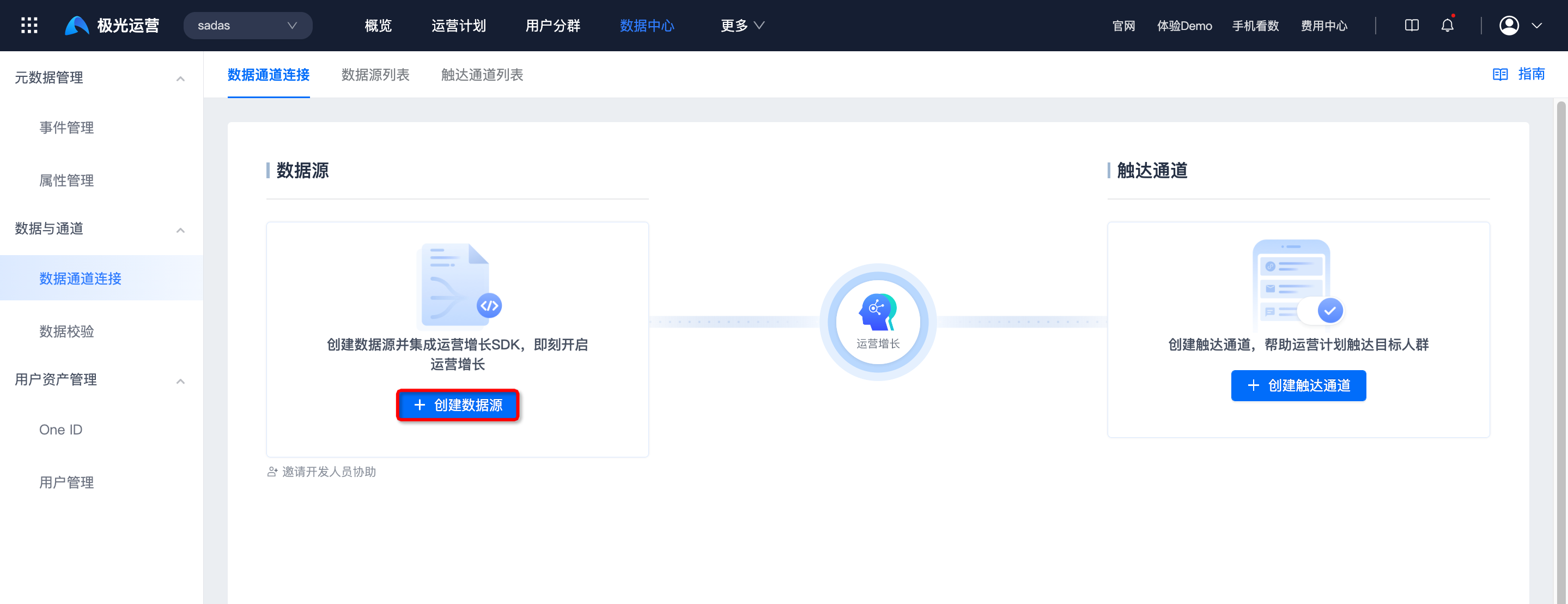
Click Create data source for the target platform. See Data source integration guide.
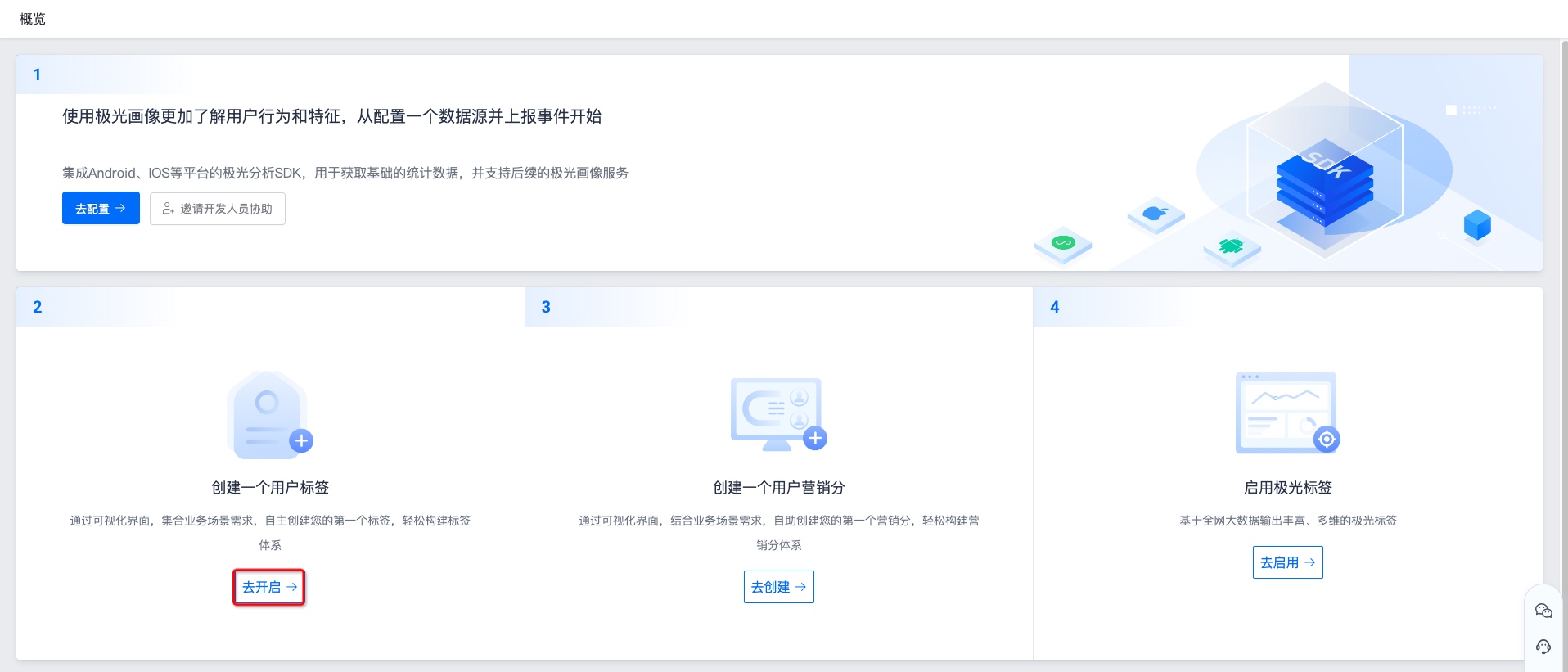
Create User Tag
Use the visual interface to create your first tag based on business scenarios and build a tag system.
Click Go to enable to open user tags.
Click Create tag and choose a creation type. See Create tag.
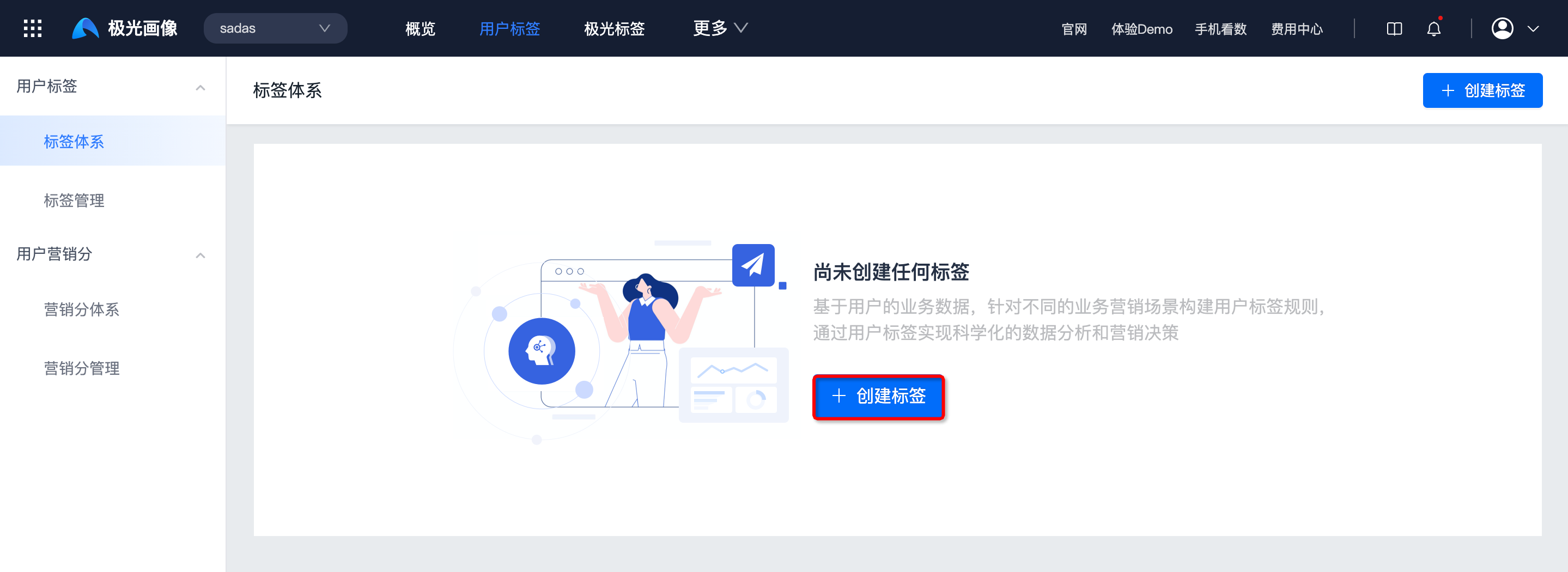
Create Marketing Score
Use the visual interface to create your first marketing score and build a scoring system.
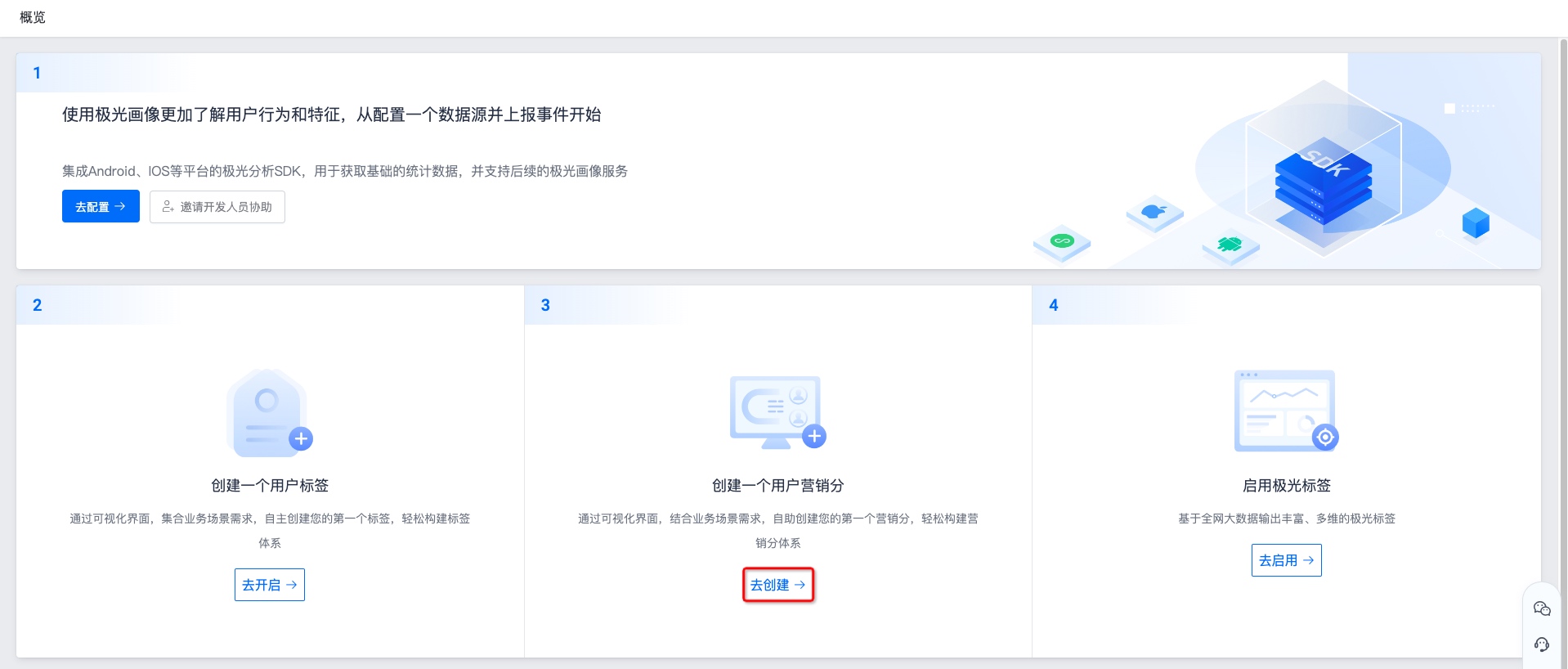
Click Go to create to open the marketing score system.
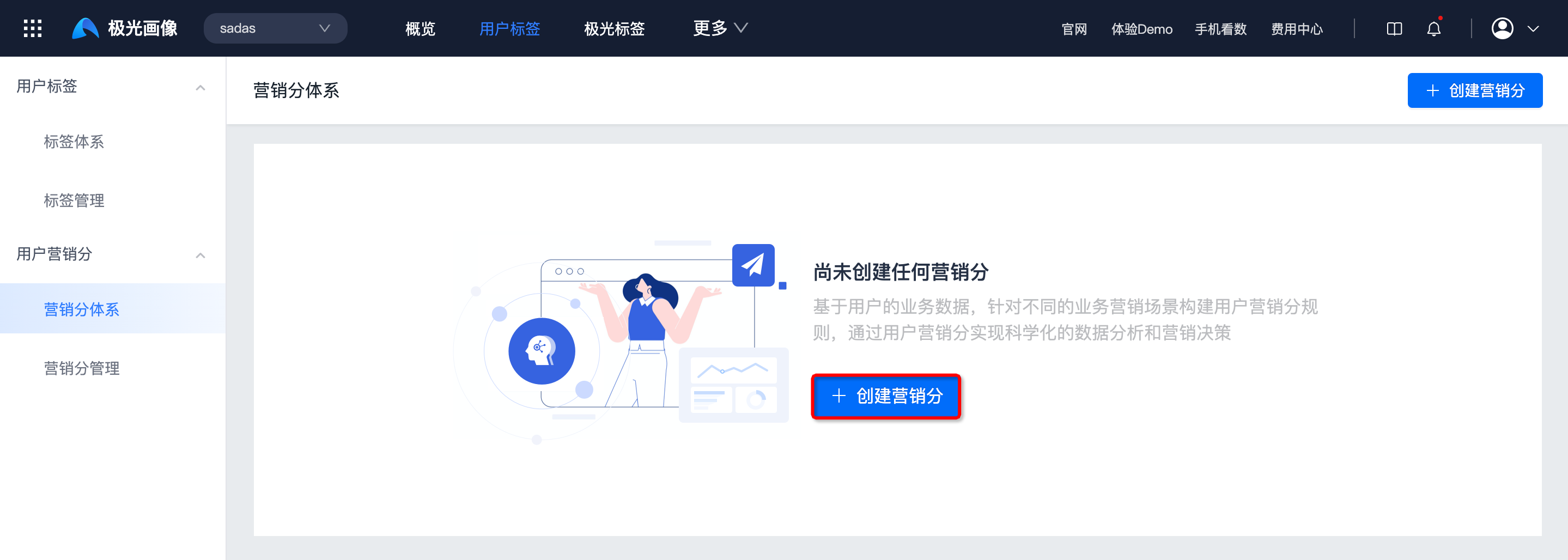
Click Create marketing score and choose a method. See Create marketing score.
Enable Jiguang Tags
Integrate the JPortrait SDK for accurate multi-dimensional user portraits from network-wide big data.
Click Go to enable to open basic portrait.
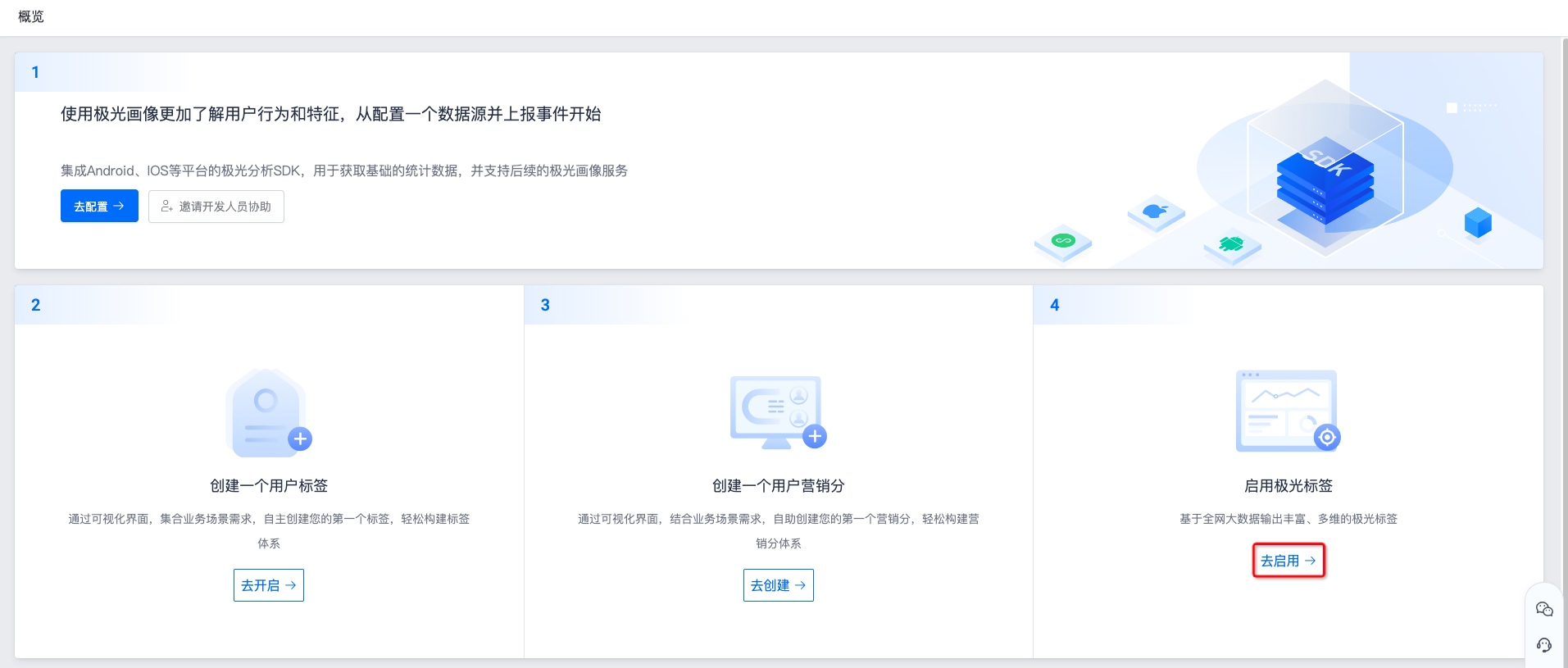
After creating the app, portraits are available on T+1 day.
Overview Details
- After each step, onboarding marks it complete. The guide can be collapsed or expanded.
- After configuration, the overview shows user tags, marketing scores, Jiguang tags, service level, quota usage, FAQ, and product docs. Click each module for details.