


Android Platform
This document guides users through quickly integrating the Android data source platform.
Create a Data Source
Go to Data Center -> Data Channel Connection -> Data Source List, and click Create Data Source.
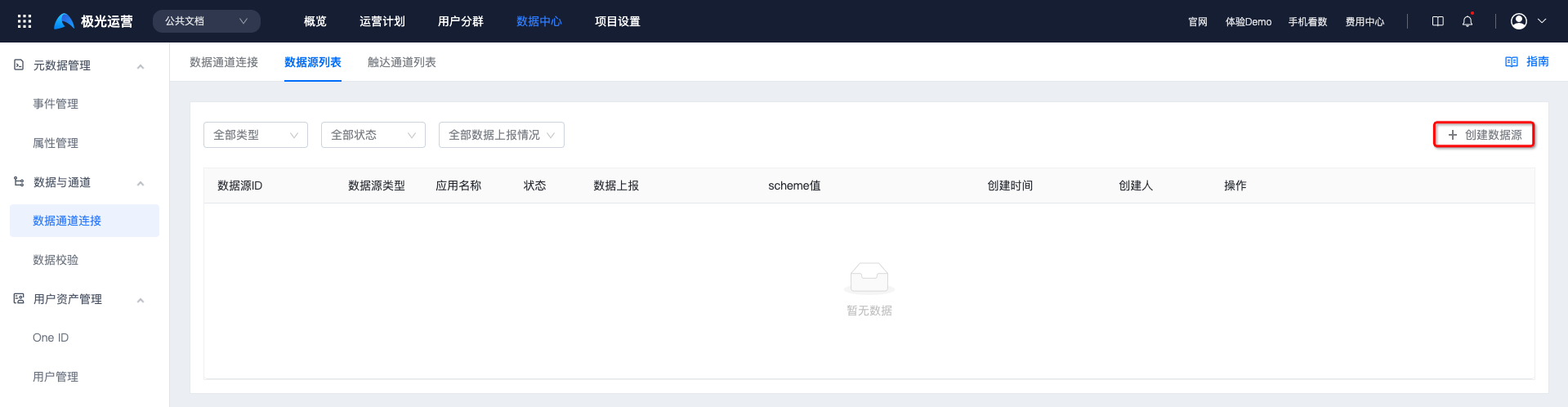
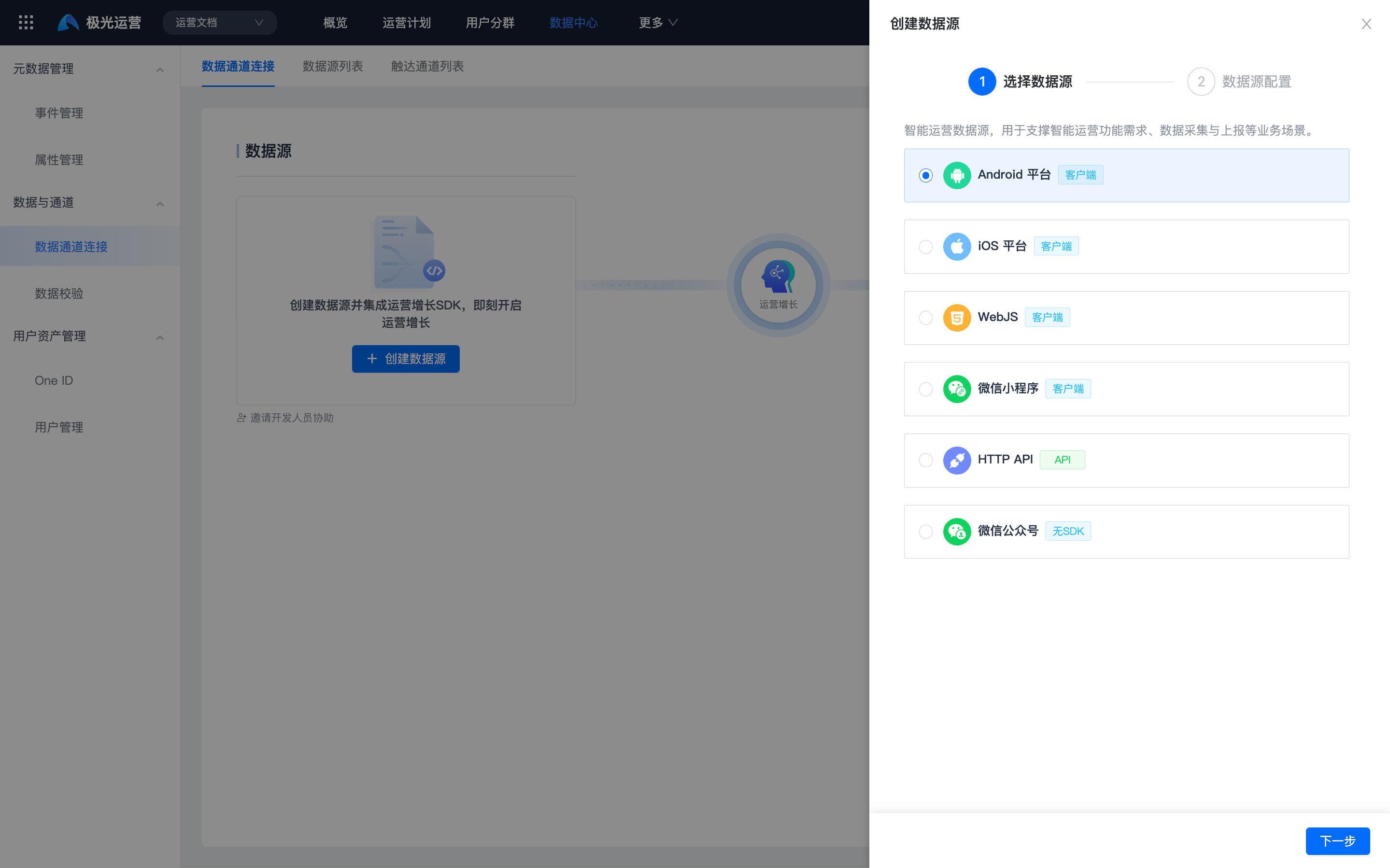
Select Android Platform and choose the application name.
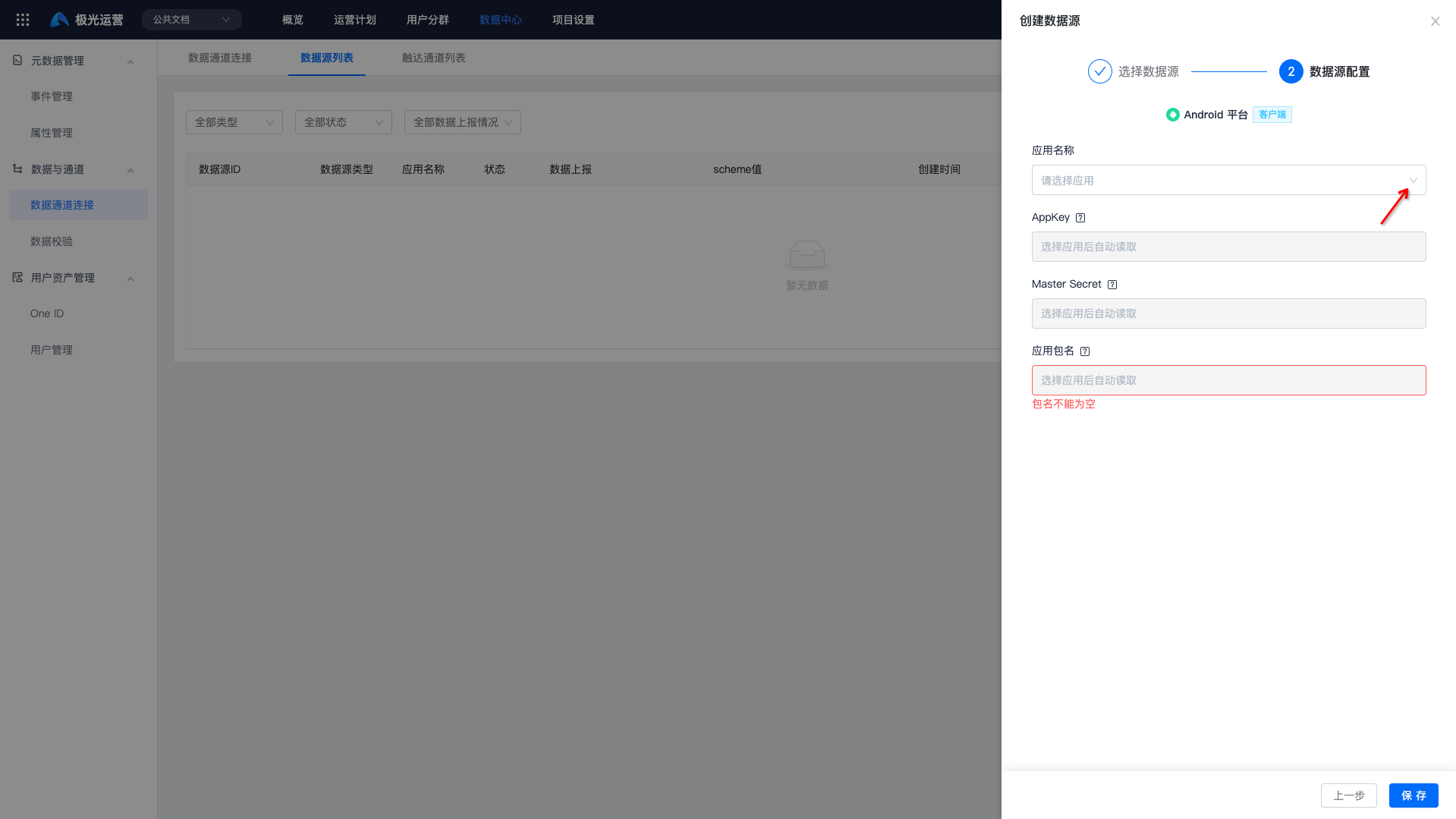
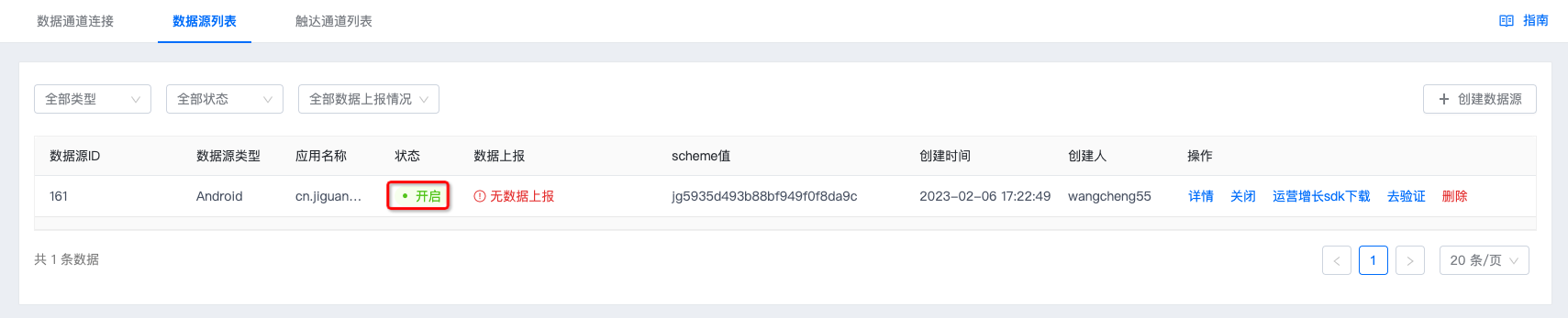
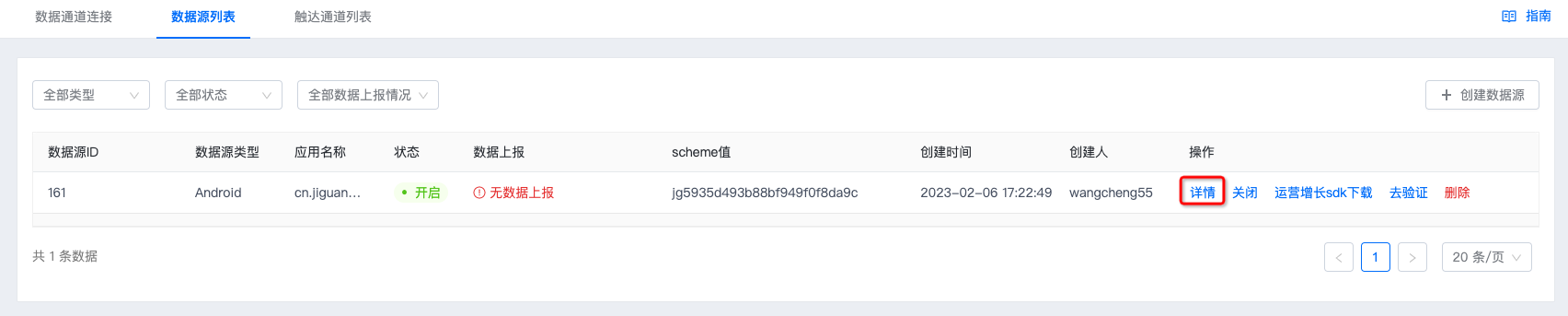
Click Save. If the status shows Enabled, the data source has been created successfully.
Integrate the SDK
If the Data Reporting status shows No Data Reported, the SDK must be integrated to report data for the data source. Click Details to obtain the AppKey and scheme required for SDK integration.
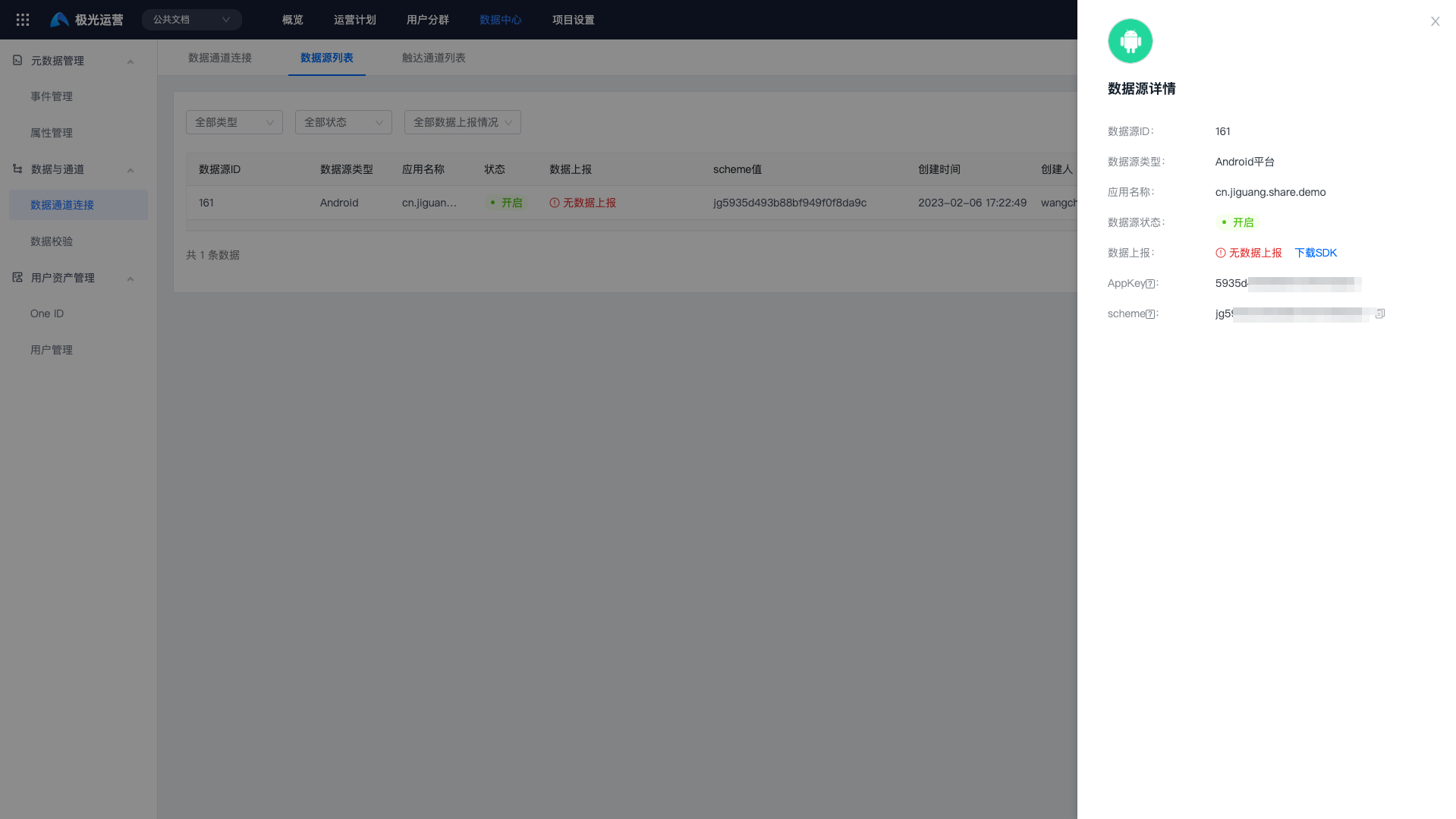
For details about Jiguang Analytics SDK integration steps, see the Android Integration Guide.
After integrating the SDK, if Data Reporting shows data is being reported normally, the integration is successful.

For other features, see Android SDK API.
Data Verification
After integrating the SDK, if you need to test whether the data source is reporting data normally, you can also use the data verification feature. The client scans a QR code to open the configured URL scheme and enter data verification mode. You can then view the data reporting status of the CUID in the console. For details, see the Data Verification documentation.

