


iOS SDK Integration Guide
This document is the standard integration guide for the JOperate iOS SDK.
- To quickly test the SDK, follow this guide to run the demo within a few minutes.
- The Jiguang documentation site provides all related guides, APIs, tutorials, and other documents. Updated versions of this document will also be published there in a timely manner.
Applicable Versions
v2.0.0 and later. The SDK currently supports iOS 10 and later.
Integration Configuration
Add the SDK to Your Project
Option 1: Import with Cocoapods
- Download through Cocoapods:
pod 'JOperate'
Note: If the latest version cannot be imported, run
pod repo update masterto update the local pod repository, then runpod 'JOperate'again.
- To install a specified version, use the following method. Version 2.0.8 is used as an example:
pod 'JOperate', '2.0.8'
Option 2: Manual Import
- Download the latest SDK from the Jiguang official website.
- Import the SDK file under the
libsfolder into your project: JOPERATEService.h- Add the required frameworks to the project. The frameworks required by the project are:
AdSupport.framework(required for obtaining IDFA; do not add it if IDFA is not used)CoreLocation.frameworkCFNetwork.frameworkCoreFoundation.frameworklibresolv.tbdlibz.tbdlibc++.1.tbdCoreTelephony.frameworkSystemConfiguration.frameworkSecurity.frameworkCoreGraphics.frameworkjcore-ios-x.x.x.a, JCore version 3.0.0 or laterjoperate-ios-x.x.x.a
jcore-ios-x.x.x.a and joperate-ios-x.x.x.a are located in the libs folder.
Project Configuration
Configure -ObjC
Set -ObjC in project TARGETS -> Build Settings -> Other Linker Flags.
Configure HTTP Transport Support
Right-click the project plist file and add the following code:
           <key>NSAppTransportSecurity</key>
    <dict>
        <key>NSAllowsArbitraryLoads</key>
        <true/>
    </dict>
Configure Scheme
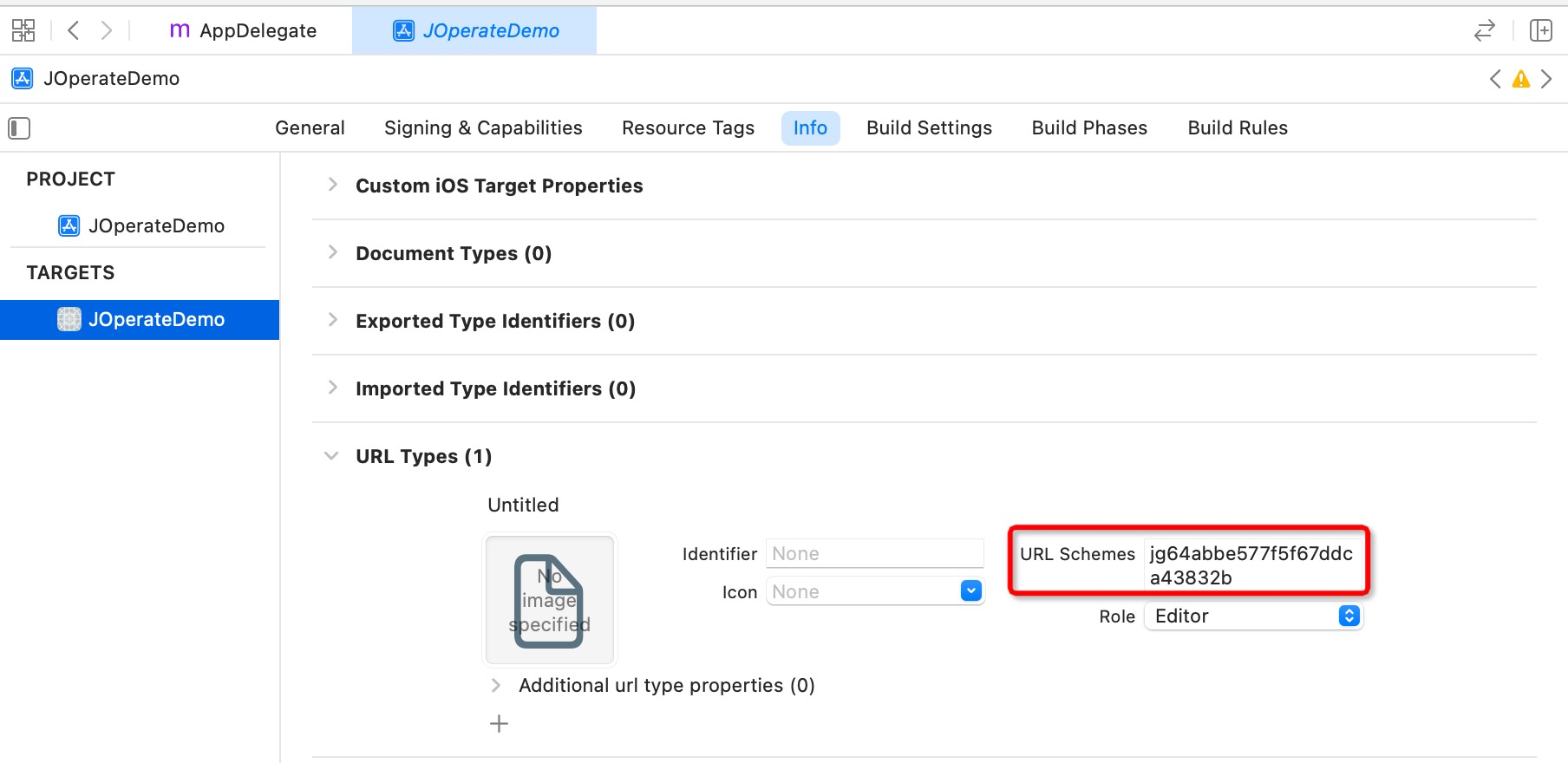
In project Target -> Info -> URL Types, enter your URL Schemes.
Note: The scheme must be consistent with the scheme configured in the console.
Integration Code
Add Header Files
Add the following code to the relevant classes that reference the JOPERATEService.h header file:
          // Import the JOPERATEService.h header file
#import "JOPERATEService.h"
// Header file required if you need to use IDFA (optional)
#import <AdSupport/AdSupport.h>
Initialization Code
Add the following code at an appropriate location:
          [JOPERATEService initialize SDK];
JOPERATEConfig *config = [[JOPERATEConfig alloc] init];
config.appKey = @"your appkey";
config.advertisingId = idfaStr;
[JOPERATEService operationStart:config];
Verify the Integration Result
After integration is complete, the following log indicates that the integration is successful:
JIGUANG | D - [JIGUANG] history cuid: (null), current cuid: 10100400011
Data Verification Mode
To view real-time reporting, scan the QR code to enter data verification mode. For details, see the Data Verification documentation.
More APIs
For usage of other APIs, see the API document: iOS SDK API.
Run the Demo
The demo included in the compressed package is an API demonstration example. You can import it into your project, enter your AppKey in the demo AppDelegate, set the BundleID, and run it directly for testing.
Technical Support
Contact by email: support@jpush.cn

