


Super Administrator Permissions
This document guides users on how to use super administrator permissions. A super administrator has permissions for project management, account permissions, and viewing monitoring.
Project Management
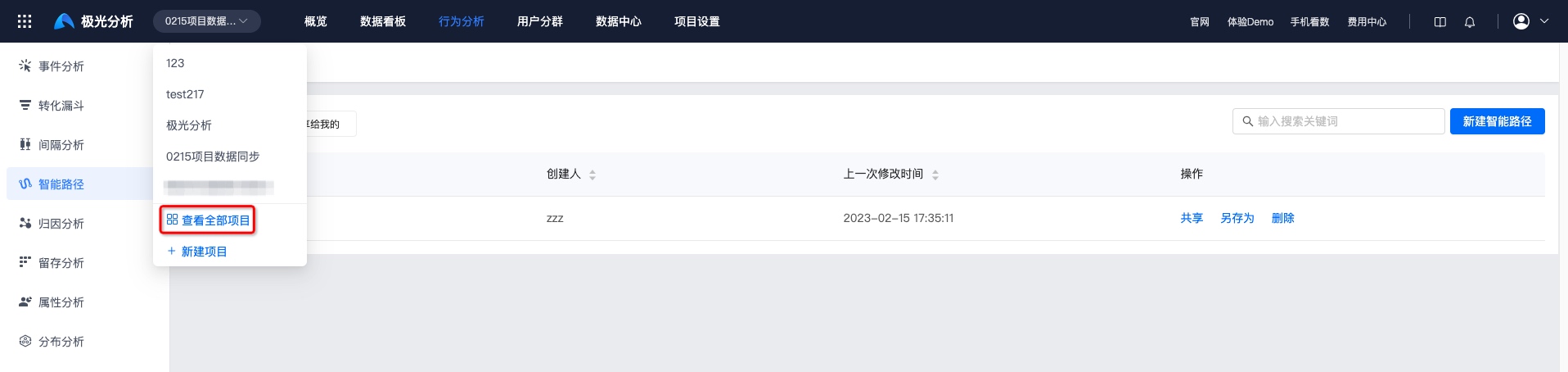
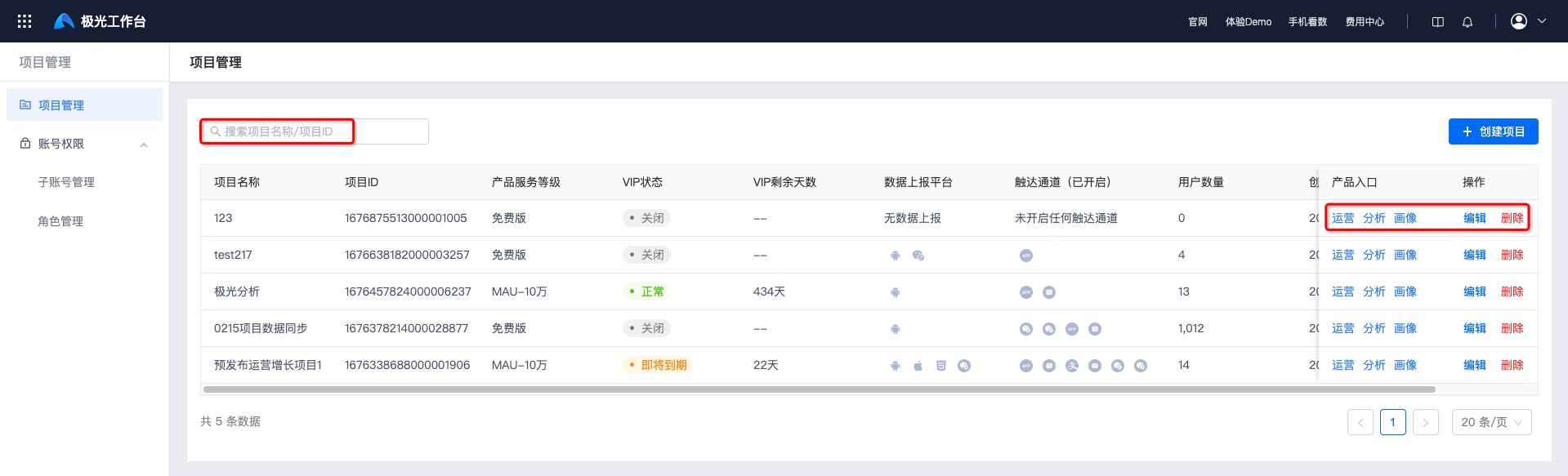
Click [Projects] - [View All Projects] to enter the project management page. You can view all created projects and project information: project name, project ID, project level, data reporting platform, enabled reach channels, and data volume.
The data reporting platform shows all data source icons in this project that have data reporting.
Reach channels show all reach channel icons in this project whose status is enabled.
Click "Enter" to enter the overview pages of Jiguang Operation, Jiguang Analytics, and Jiguang Portrait for this project. Click "Edit" to modify the project name. Click "Delete" and confirm again to delete the project. After deletion, the project cannot be restored. Use this carefully.
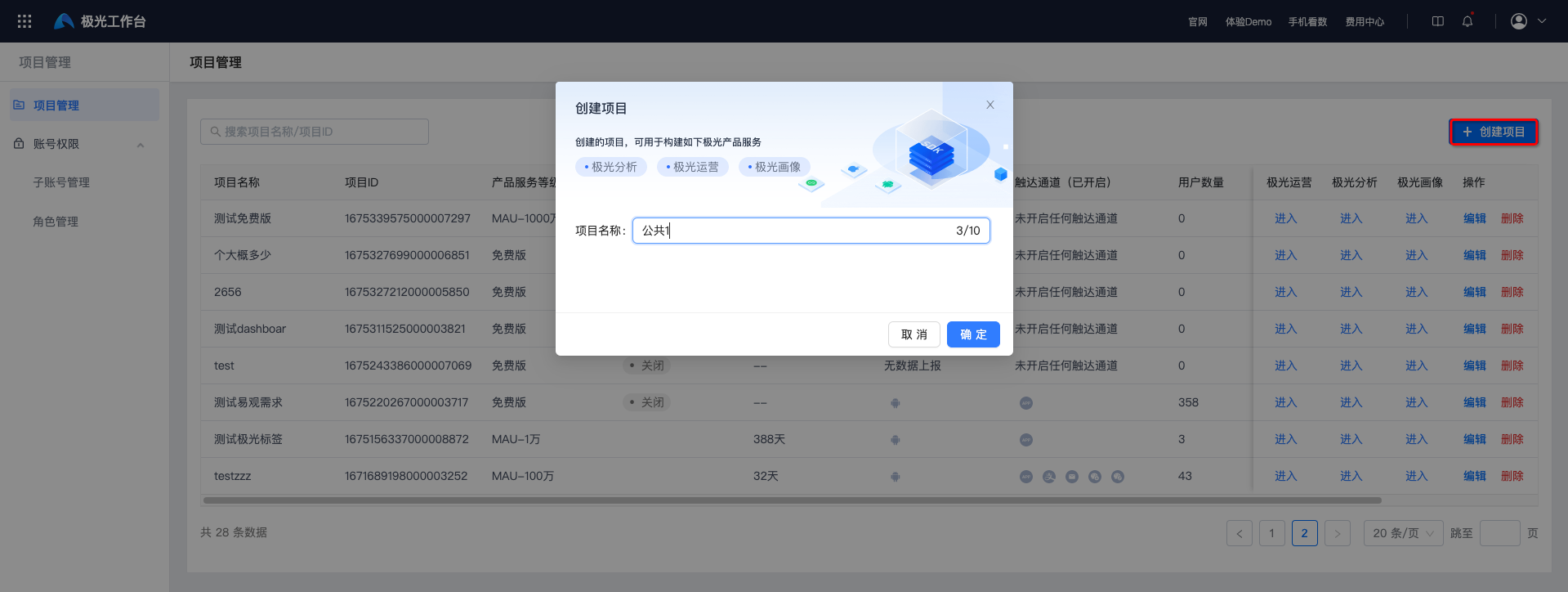
Click "Create Project" in the upper-right corner, and fill in the project name.
Account Permissions
Account permissions include account management and role management. Through account management, you can assign corresponding role permissions to each account in different projects. For example, Z is the operation lead of project A and also participates in some data analysis work for project B. In this case, you can create an account for Z, assign the super administrator role for project A, and assign a role for viewing statistical data for project B. This helps project personnel manage the business they are responsible for, while ensuring secure data isolation.
Account Management
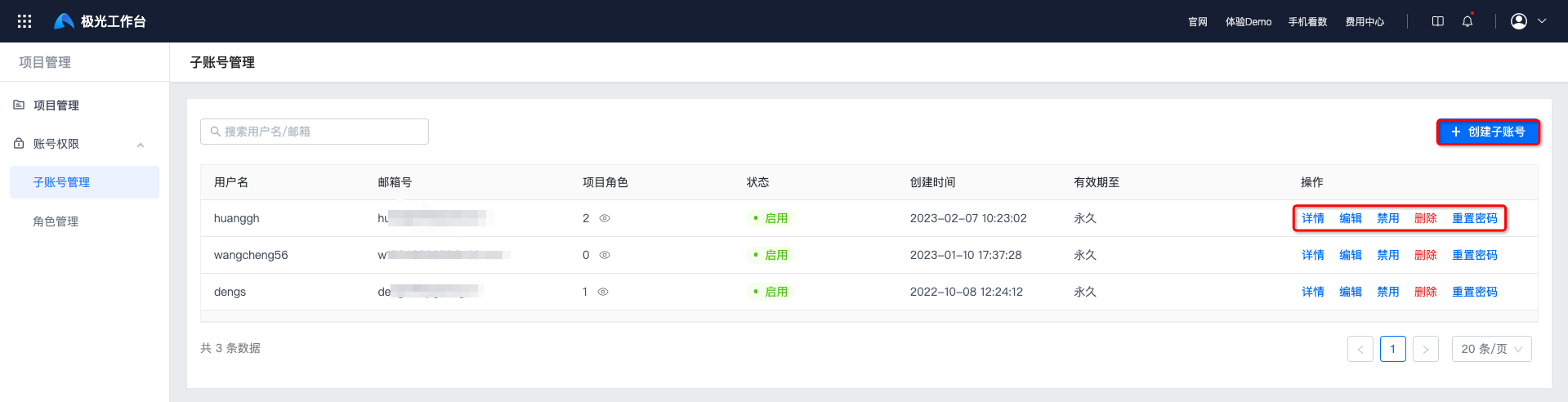
Go to [Account Permissions] - [Account Management]. You can view all created accounts, search by username/account ID, and perform operations such as creating accounts, viewing details, editing, disabling, resetting passwords, and deleting.
Create an Account
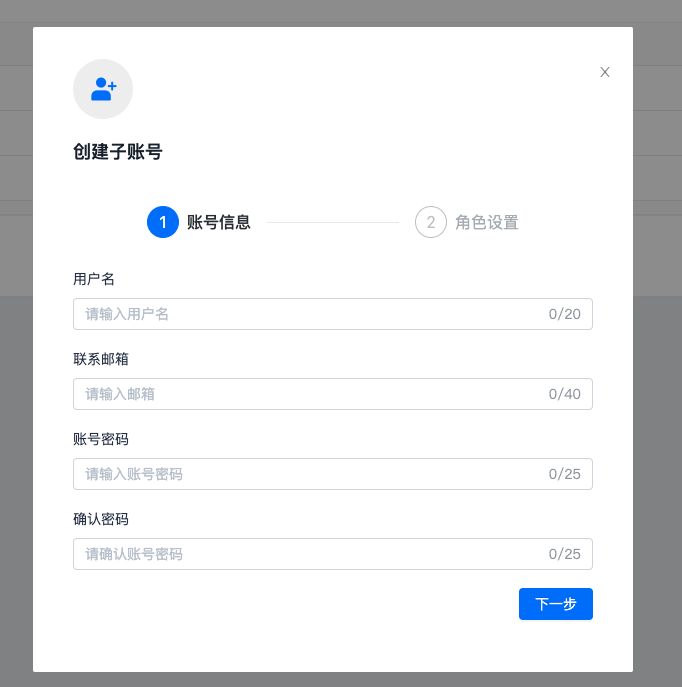
- Click "Create Account" to enter the account creation page.
- Fill in username, contact email, account password, and confirm password, then click "Next".
- Click "Add Project", then select the project and corresponding role.
- One project supports selecting multiple roles. If there is no role, click "New Role" to quickly create one.
- If multiple projects need to be configured, continue clicking "Add Project" to add them.
- To delete an extra project, click "-".
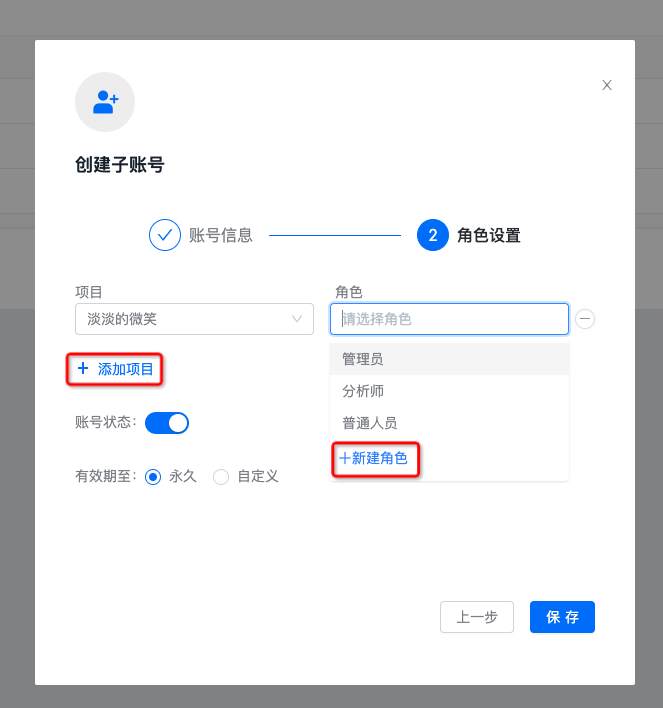
- Click "Save" to complete account creation.
View Details
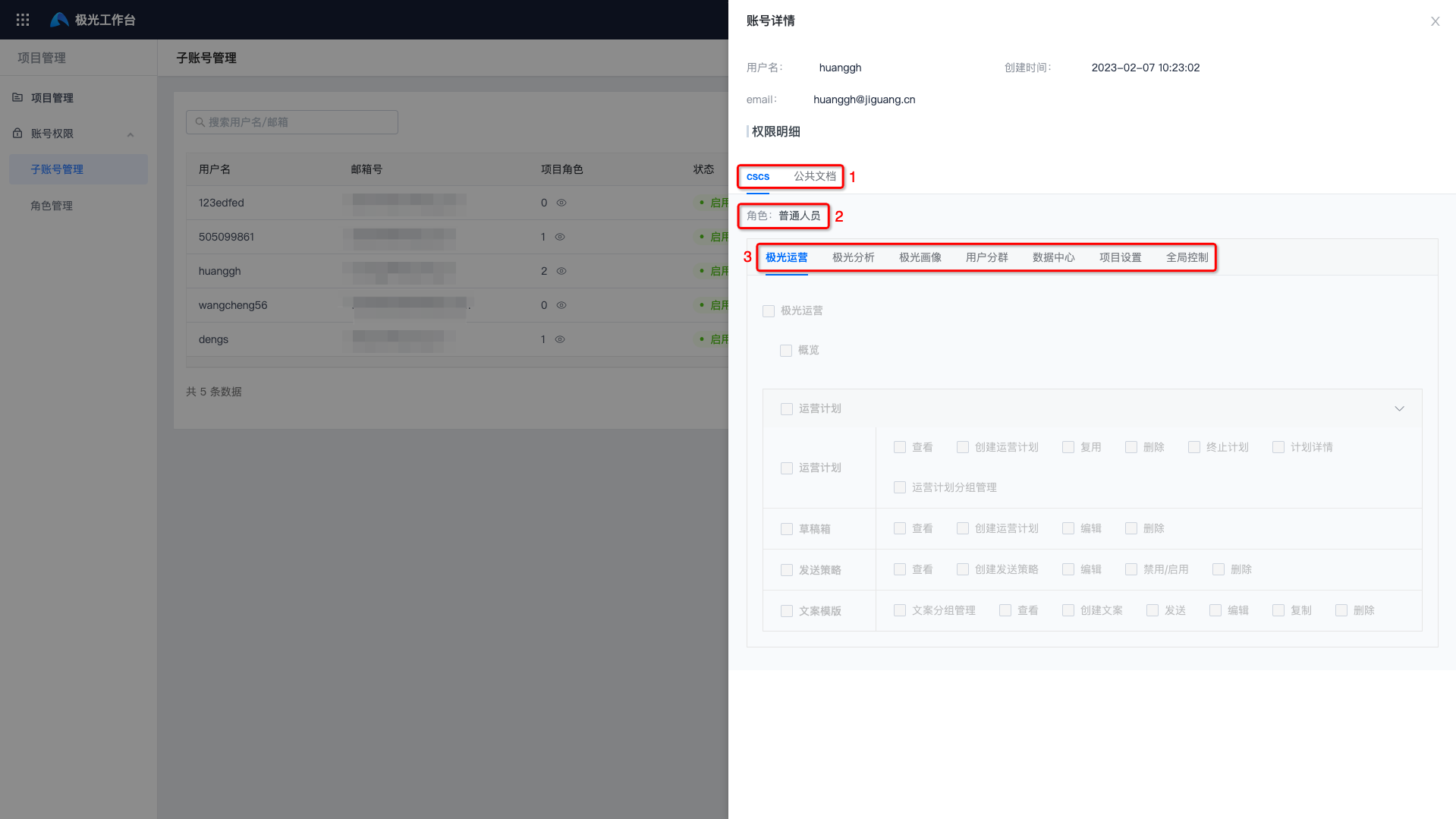
- On the account management page, select an account and click "Details".
- On the account details page, you can view detailed user information and permission details. At position 1, you can switch projects. At position 2, you can view the roles held by this account in this project. At position 3, you can switch to other feature modules of this project.
Edit
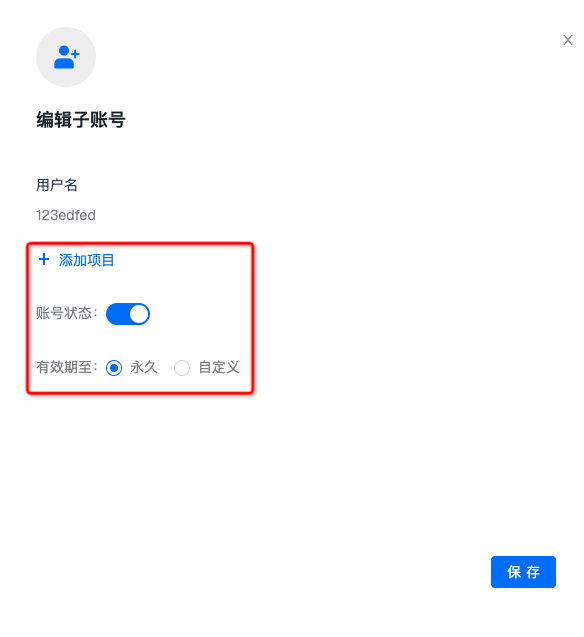
- On the account management page, select an account and click "Edit".
- On the account editing page, you can modify the project, the roles corresponding to the project, account status, and validity period. The changes take effect after clicking Save.
Disable
If you need to prohibit the use of an account, click "Disable" on the right side of the account and confirm again to complete disabling.Disabled accounts cannot be used to log in to the Growth platform. Use this carefully.
Reset Password
If the password is forgotten and the person has left and cannot re-authenticate to log in to the account, you can reset the password. On the account management page, select the account to modify, click "Reset Password", fill in the new password and confirm password, and click "OK" to reset the password of this account.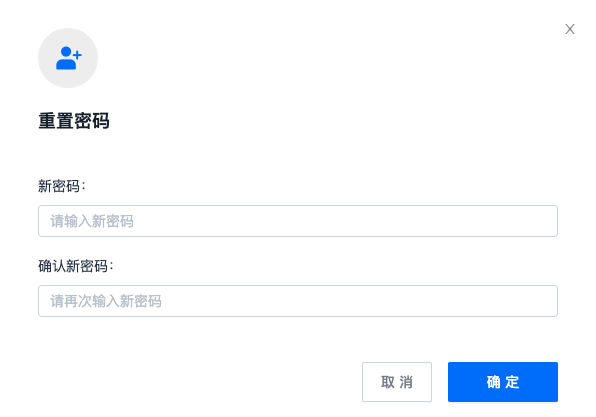
Delete
If you need to delete an account, select the account to modify on the account management page, click "Delete", and confirm again to complete deletion.
After an account is deleted, it cannot be restored. Use this carefully.
Role Management
Go to [Account Permissions] - [Role Management]. You can view all roles, role permission details, and role member lists.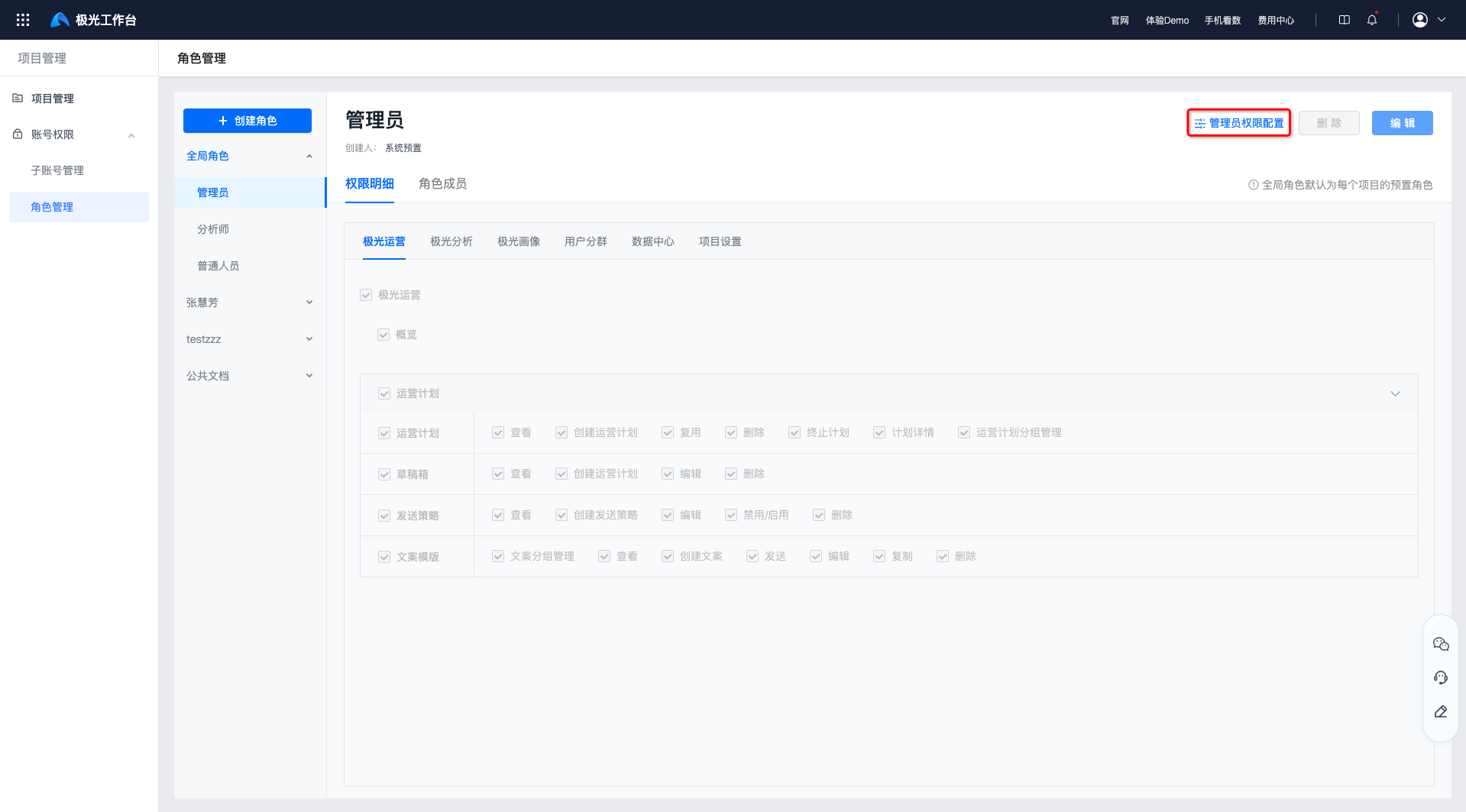 Click "Administrator Permission Configuration" to configure project administrator permissions. Select the required permissions and click "Confirm Modification" to save.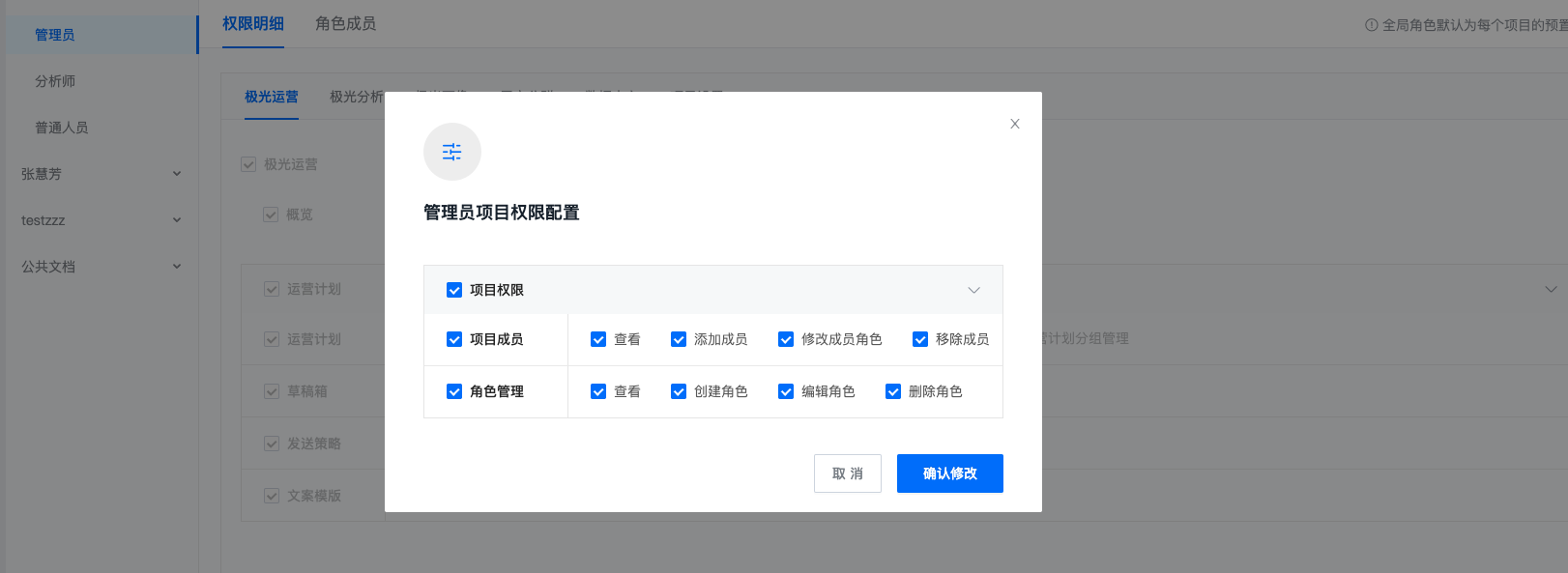
Add Role
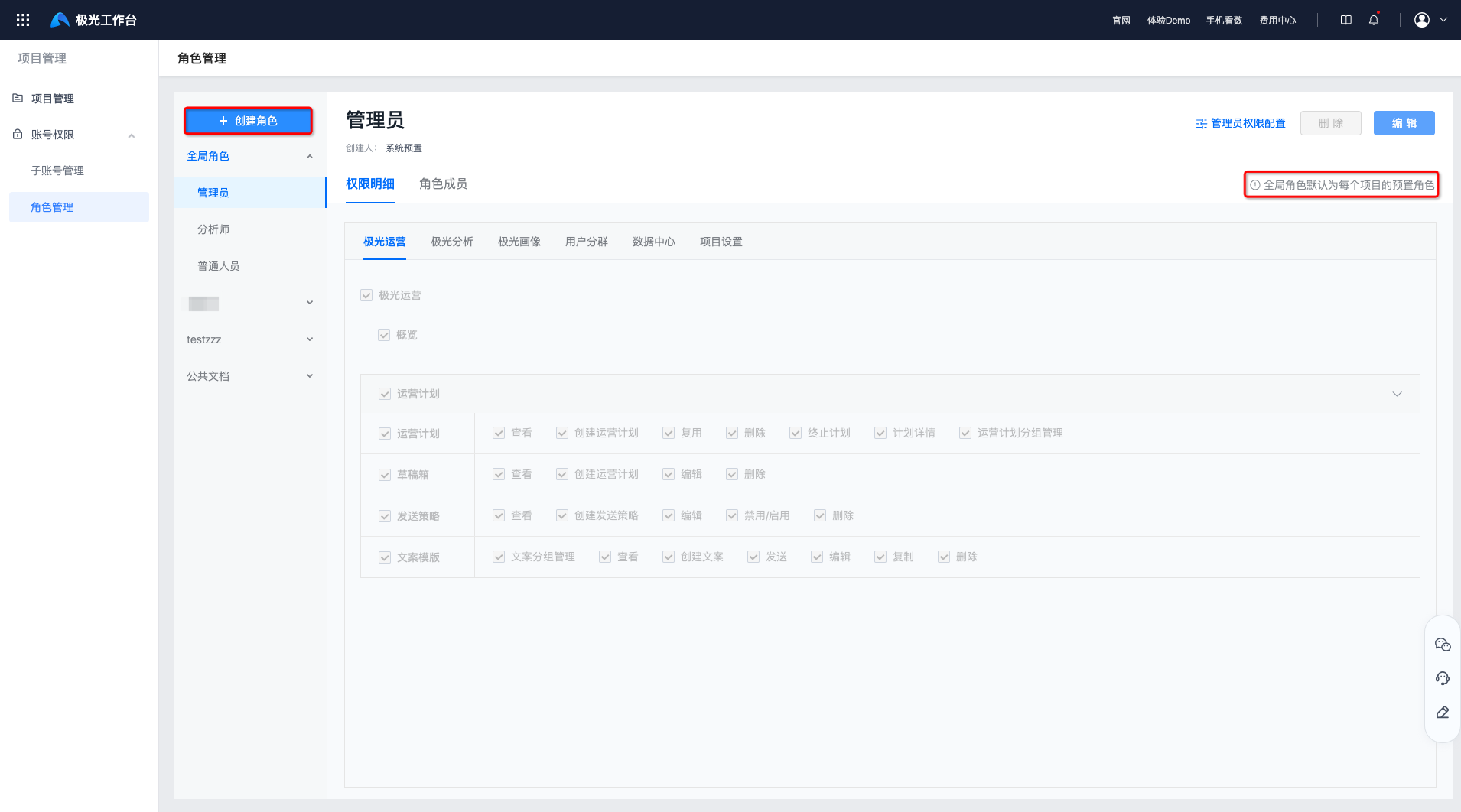
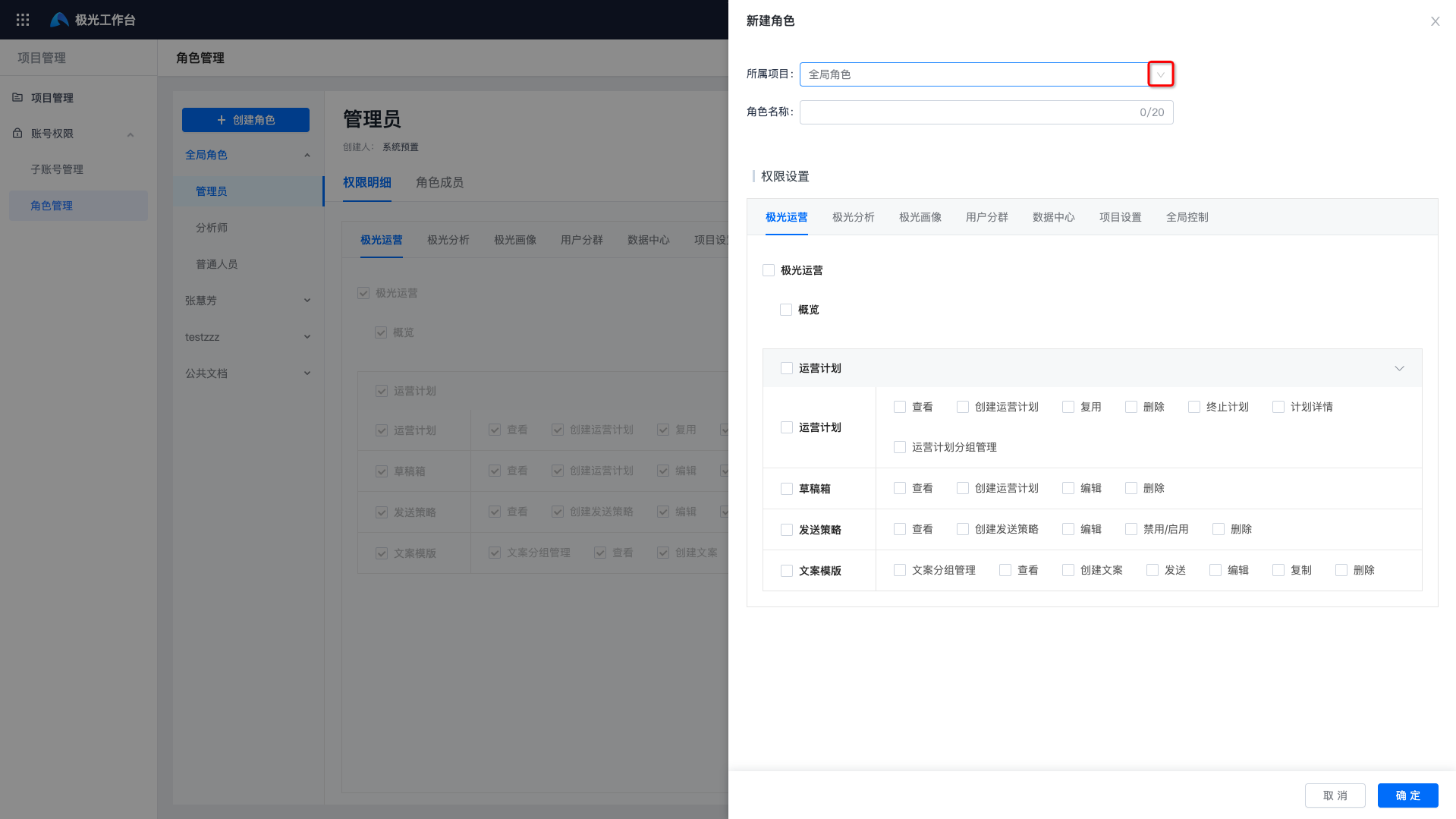
Click "Create Role", select the project it belongs to, fill in the role name, and select permissions.
The project it belongs to can be any project or a global role. A global role is a preset role for each project by default.
Permission Details
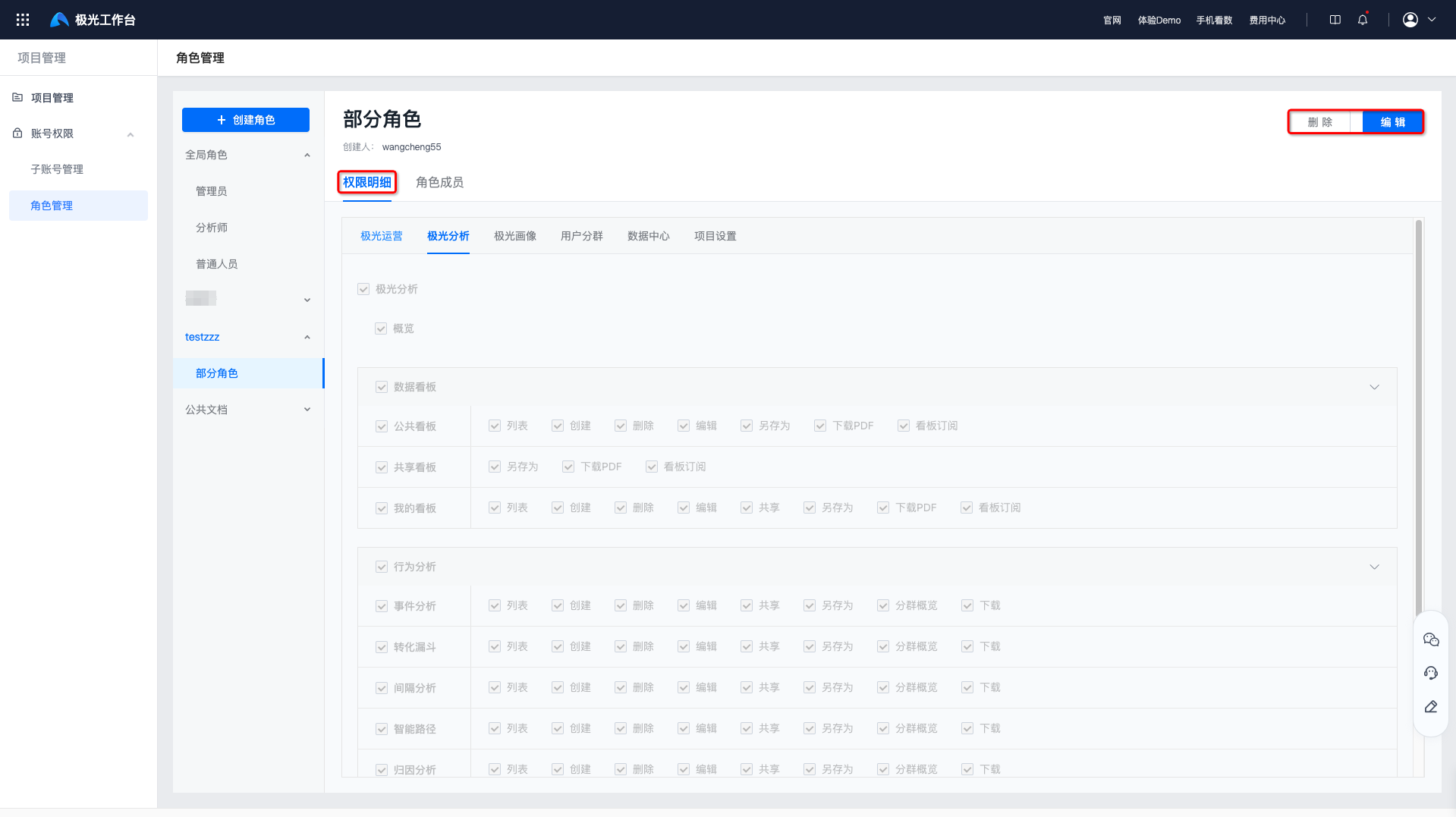
Click any role to view permissions for modules such as Operation Center on the permission details page.
Click "Delete" to delete the role. After the role is deleted, associated members are removed from this role.
Click "Edit" to reselect module permissions, then click Save for the changes to take effect.
Role Members
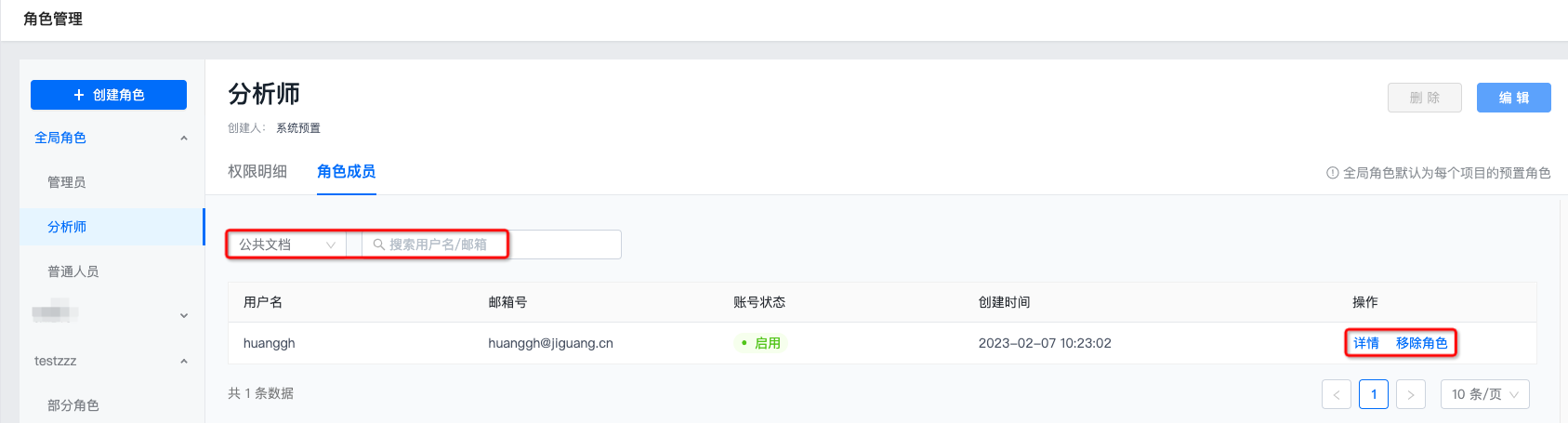
Click any role to enter the role members page, where you can view the list of members using this role in each project.
- Filtering by username/account ID is supported.
- Global roles also support filtering by project.
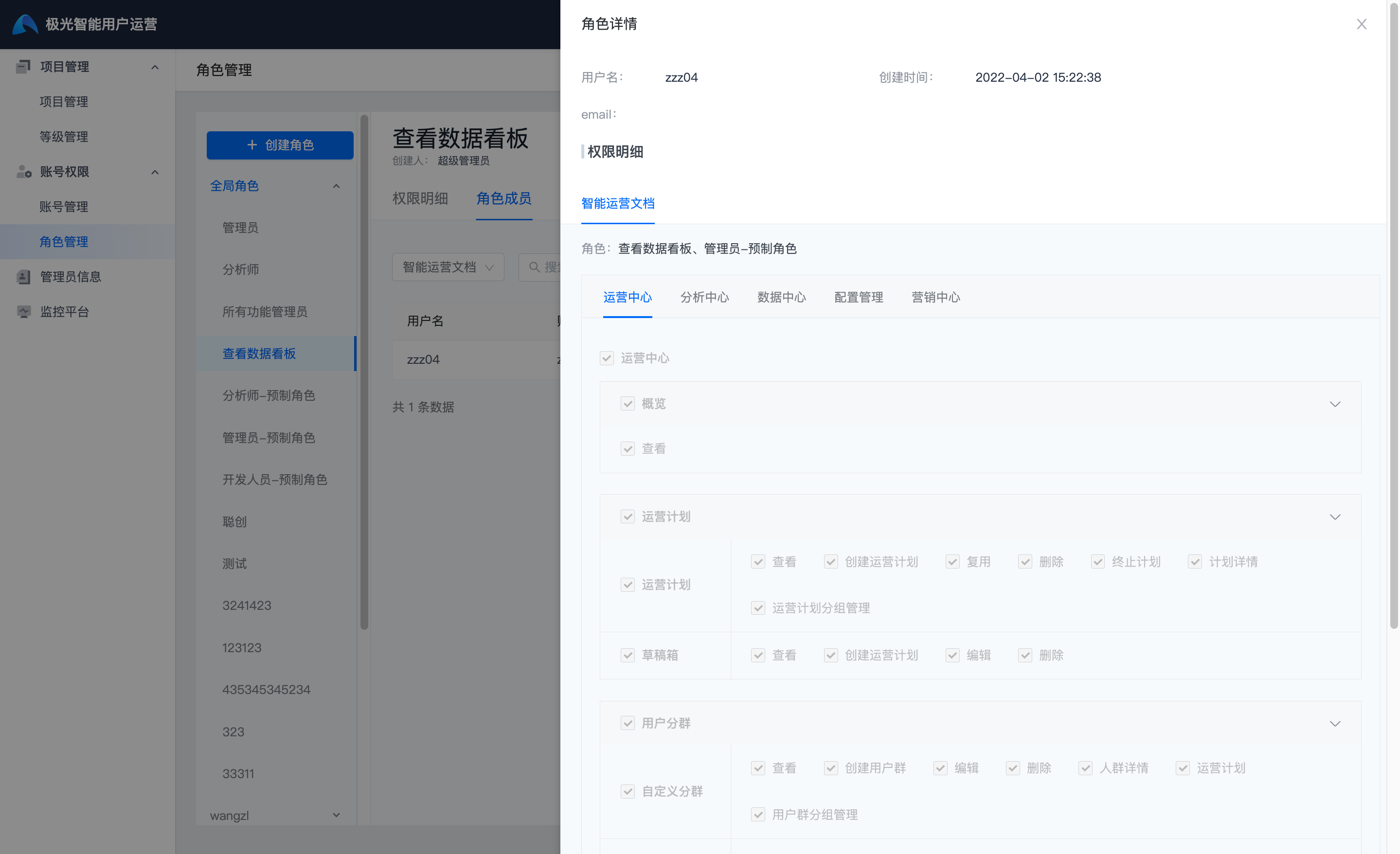
Click "Details" to view all permission details of this role.
Click "Remove Role" and confirm again to remove it. After the role is removed, this account will no longer have permissions for this role.

