


Attribute Management
Attributes are basic data in the Operation Growth platform, including event attributes and user attributes. You can use attributes to describe events/users in detail, such as using article_id=123 or customer_id=123 to further describe the specific article viewed and the user. Attributes are commonly used in custom segmentation, operation plans, product analysis, and user asset management. The attribute management module is dedicated to unified management of the user attribute system and meets data requirements of different business lines by managing event attributes and user attributes.
Create Event Attribute
Go to Data Center -> Metadata Management -> Attribute Management -> Event Attributes, and click Create Attribute.

Fill in the attribute name, display name, and other information. See the table below for details.
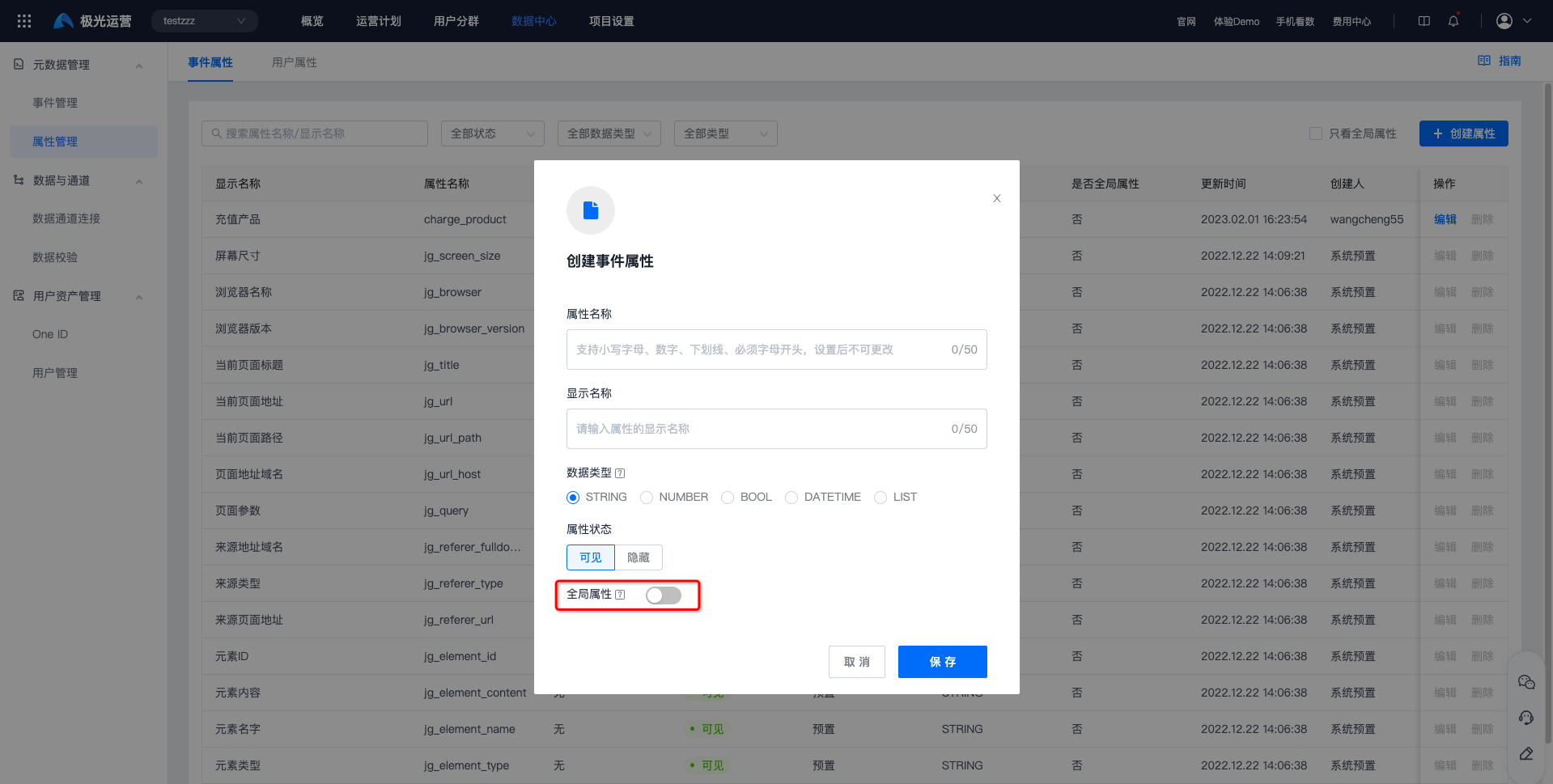
| Option | Description |
|---|---|
| Attribute Name | Name of the reported attribute. Non-preset attributes need to be reported through tracking. Lowercase letters, digits, and underscores are supported, and the name must start with a letter, such as open_app. It cannot be changed after being set. |
| Display Name | Display name of the attribute in the console. |
| Data Type | ["Tesla","Volkswagen","Audi"], for example "interest tags". |
| Attribute Status | Display status of the attribute. Supported statuses: visible and hidden. |
| Public Attribute | After being set as a public attribute, it is automatically associated with every event. Up to 10 public attributes can be set. |
- Click Save to complete creation.
Event Attribute Details
- Searching by attribute name/display name in the search box is supported. Filtering by status, data type, type, and only public attributes is supported.
- Preset attributes cannot be edited or deleted. Custom attributes without reported data can be edited and deleted. Custom attributes with reported data can be edited but cannot be deleted.

Create User Attribute
Go to Data Center -> Metadata Management -> Attribute Management -> User Attributes, and click Create User Attribute.

Fill in the attribute name, display name, and other information. See the table below for details.
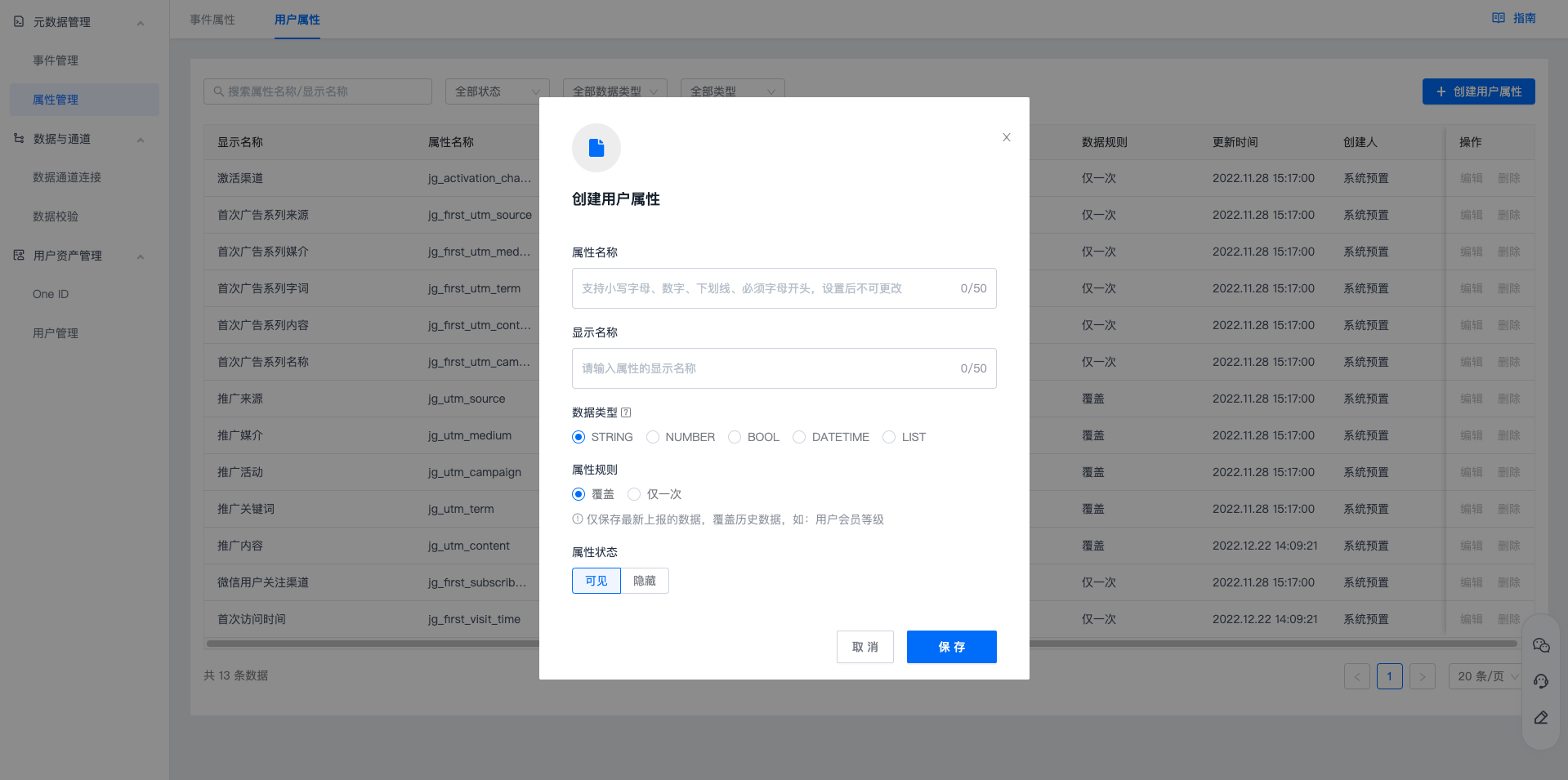
| Option | Description |
|---|---|
| Attribute Name | Name of the reported attribute. Non-preset attributes need to be reported through tracking. Lowercase letters, digits, and underscores are supported, and the name must start with a letter, such as open_app. It cannot be changed after being set. |
| Display Name | Display name of the attribute in the console. |
| Data Type | ["Tesla","Volkswagen","Audi"], for example "interest tags". |
| Attribute Rule | |
| Attribute Rules Supported by Different Data Types | |
| Attribute Status | Display status of the attribute in other modules. Supported statuses: visible and hidden. |
- Click Save to complete creation.
Report User Attributes
After completing user attribute creation, call an API to report user attributes. For details, see each SDK API document: Android SDK API, iOS SDK API, Mini Program SDK API, and Web SDK API.
User Attribute Details
- Searching by attribute name/display name in the search box is supported. Filtering by status, data type, and type is supported.
- Preset attributes cannot be edited or deleted. Custom attributes without reported data can be edited and deleted. Custom attributes with reported data can be edited but cannot be deleted.


