Custom Segment
User segmentation means marking users with the same characteristics/behaviors at the data layer for analysis or operation pushes. It is the foundation of refined operations. In later analysis, you can compare the performance of the same metric across different audiences, discover underlying influencing factors, guide product optimization, or match different services and content for different user groups to perform personalized operations.
User Segment Group Management
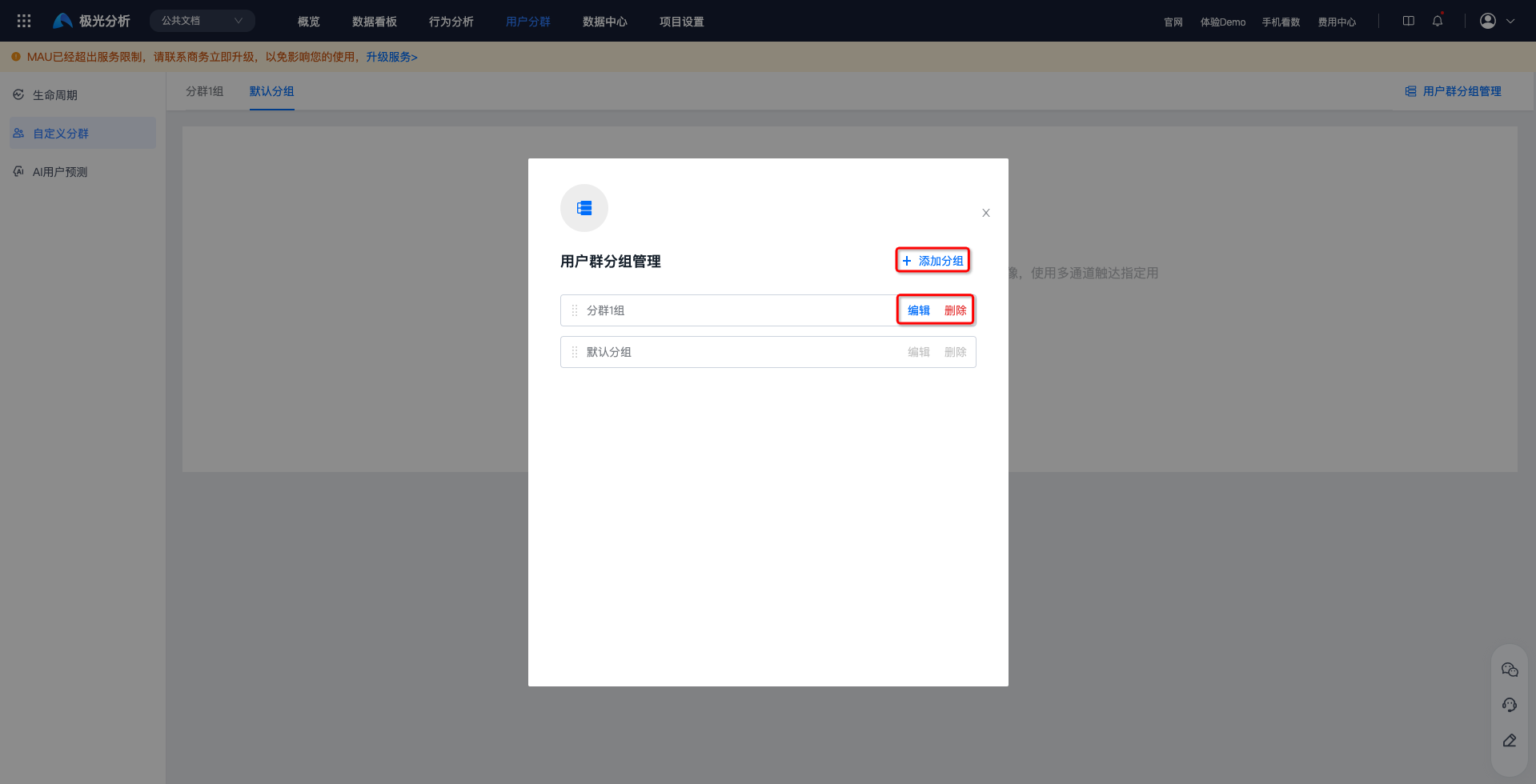
To make it easier to manage different types of user segments, you can use user segment group management. Go to [User Segmentation] - [Custom Segment], and click "User Segment Group Management".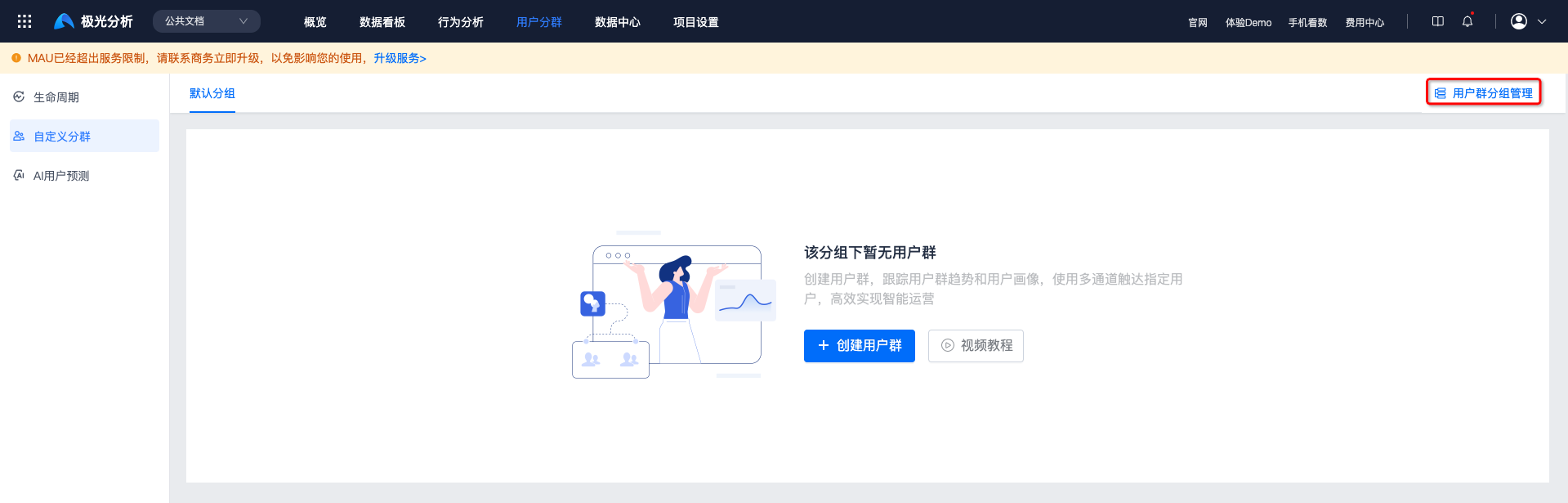 Adding groups, editing, and deleting are supported.
After deletion, all user segments under the group are transferred to [Default Group].
Create User Segment
Click "Create User Segment", and select condition-based segment creation or imported segment creation.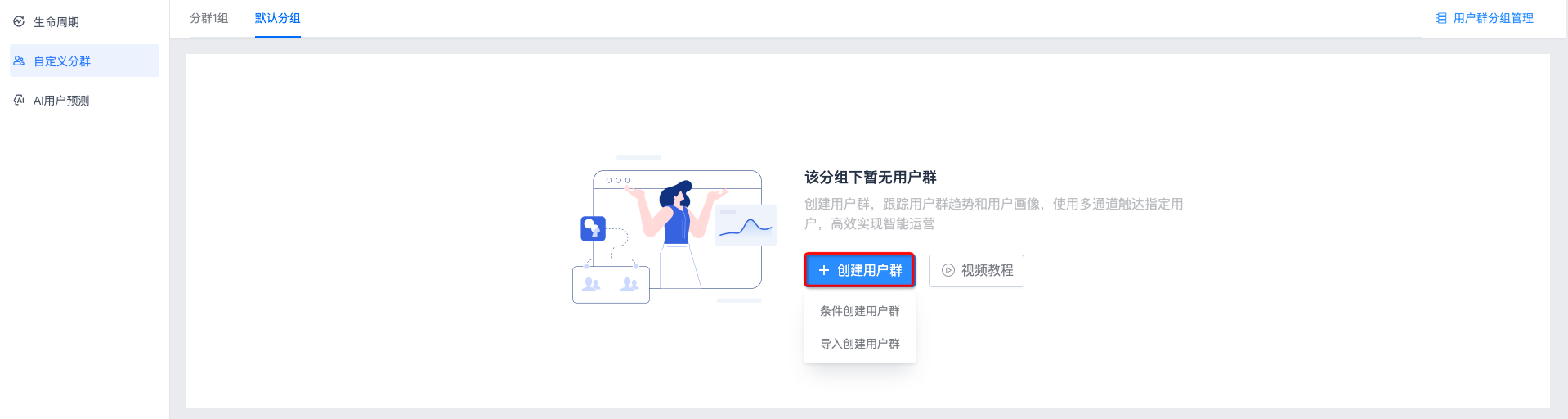
Condition-Based User Segment Creation
- Click "Condition-Based User Segment Creation", fill in the user segment name and introduction, and select the user segment group and calculation mechanism.
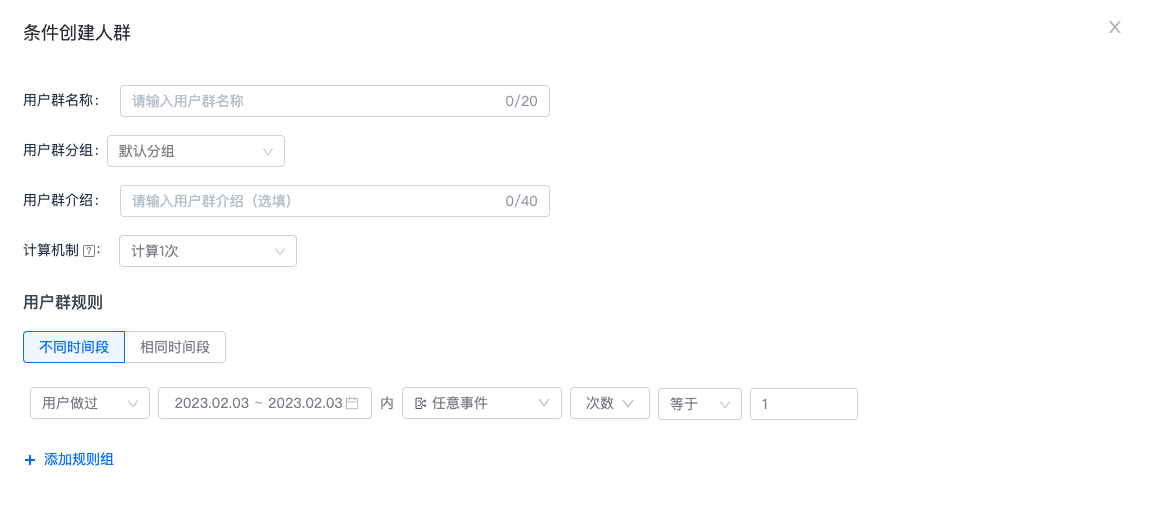
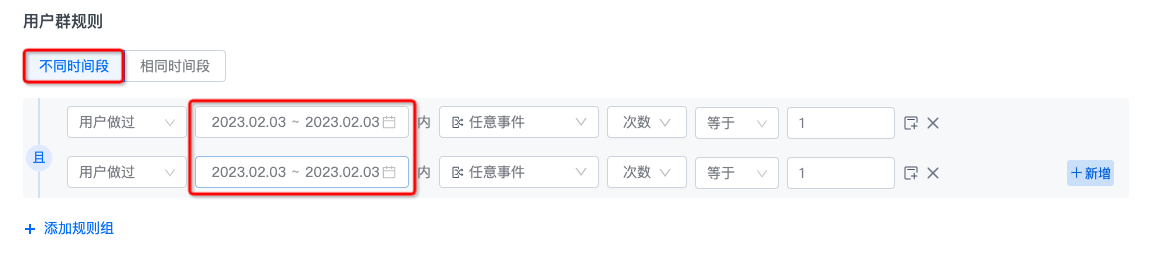
- Set the rule time period. Different time periods and the same time period are supported.
- If different time periods are selected, each rule needs to set its time period separately.
- If the same time period is selected, only one time period needs to be set.
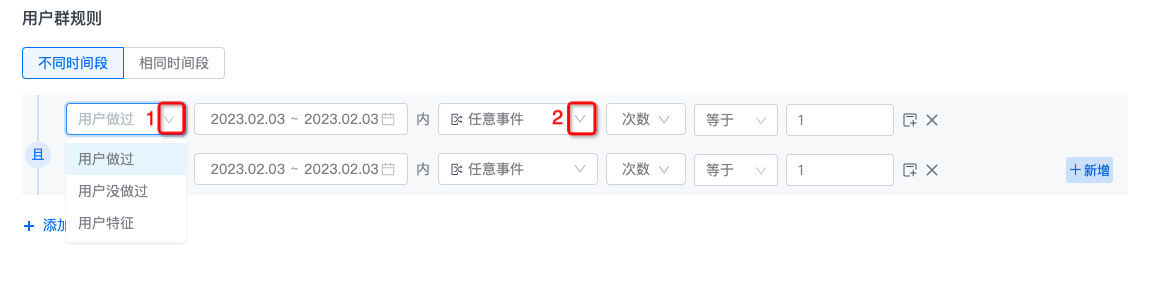
- Set rule group content.
At position 1, you can select the user identifier: user has done, user has not done, or user feature.
If user has done/user has not done is selected at position 1, the options at position 2 are events.
If user feature is selected at position 1, the options at position 2 are user attributes, user segments, and user labels.
Events and user attributes are created in [Data Center], user segments are created in [User Segmentation], and user labels are created in [Jiguang Portrait - User Label].
Click position 3 to add filter conditions. Selecting event attributes, user attributes, user segments, and user labels is supported.
Click "Add" at position 4 to add a rule.
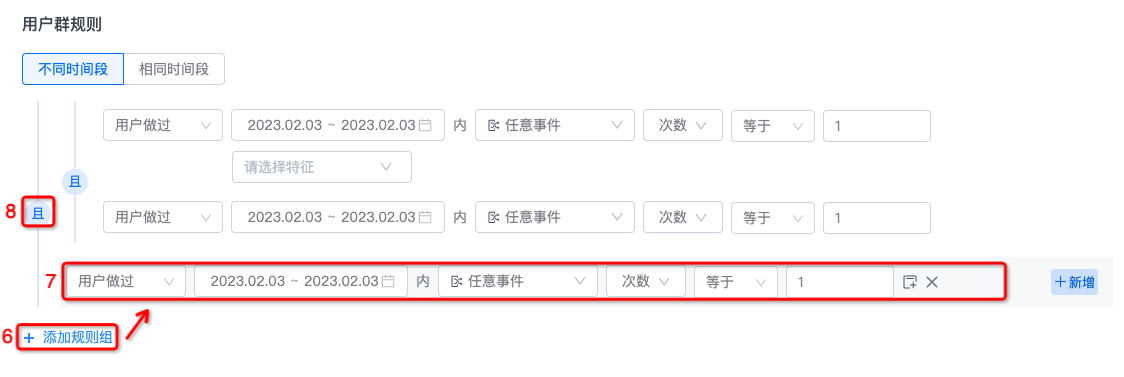
After adding a rule, the intersection/union relationship of the new rule is added at position 5. Click "AND" to switch the intersection/union relationship of rules.
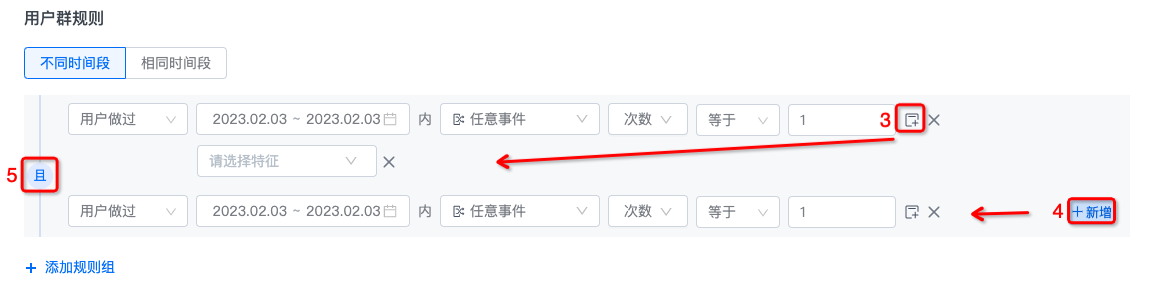
Click "Add Rule Group" at position 6 to add a rule group, as shown at position 7.
After adding a rule group, the intersection/union relationship of the new rule group is added at position 8. Click "AND" to switch the intersection/union relationship.
CUID-Based User Segment Creation
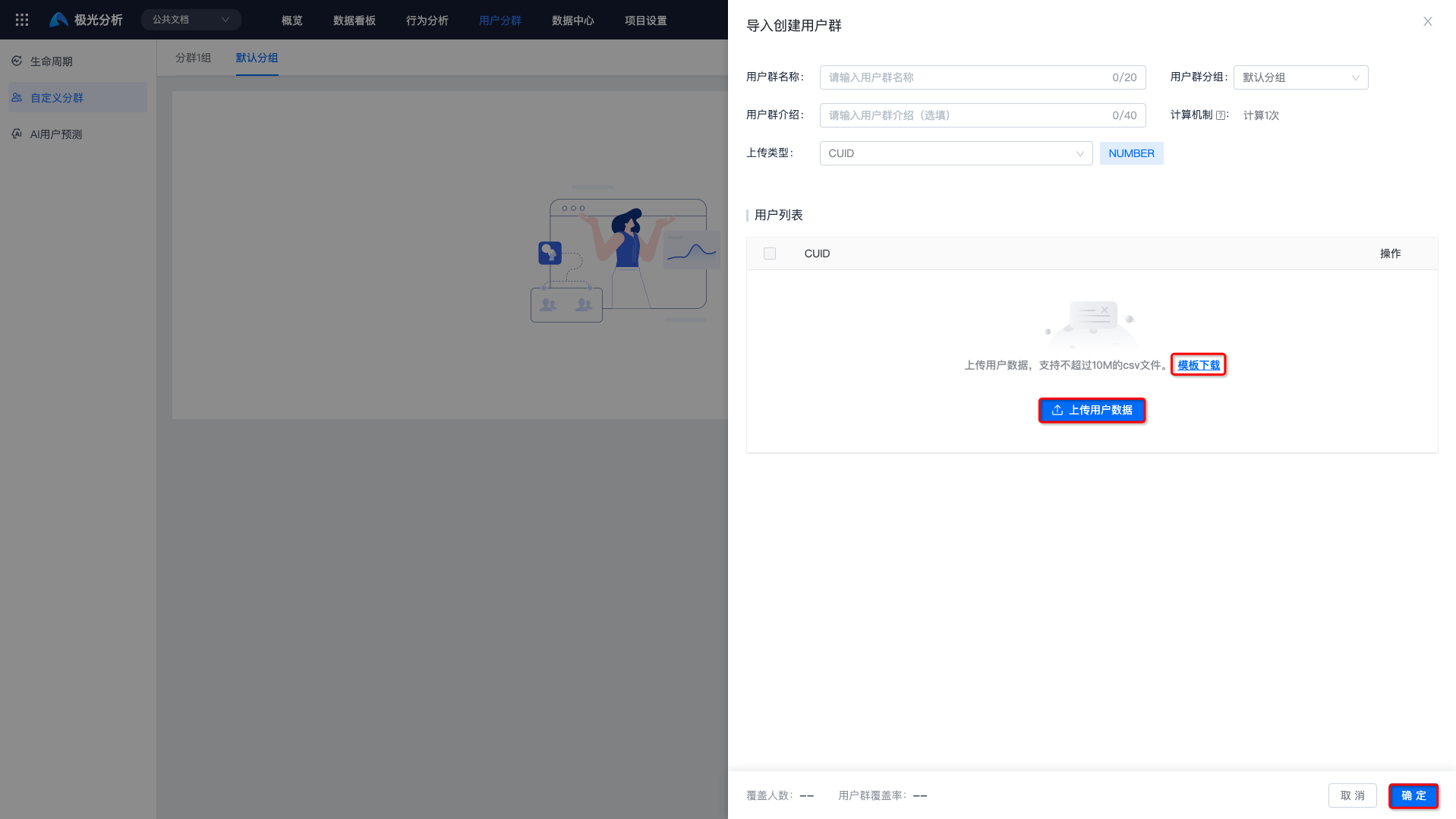
Click "CUID-Based User Segment Creation", fill in the user segment name and introduction, and select the user segment group and calculation mechanism.
- The calculation mechanism cannot be changed after setting.
Click "Template Download" and fill in CUIDs according to the template.
Click to upload user data.
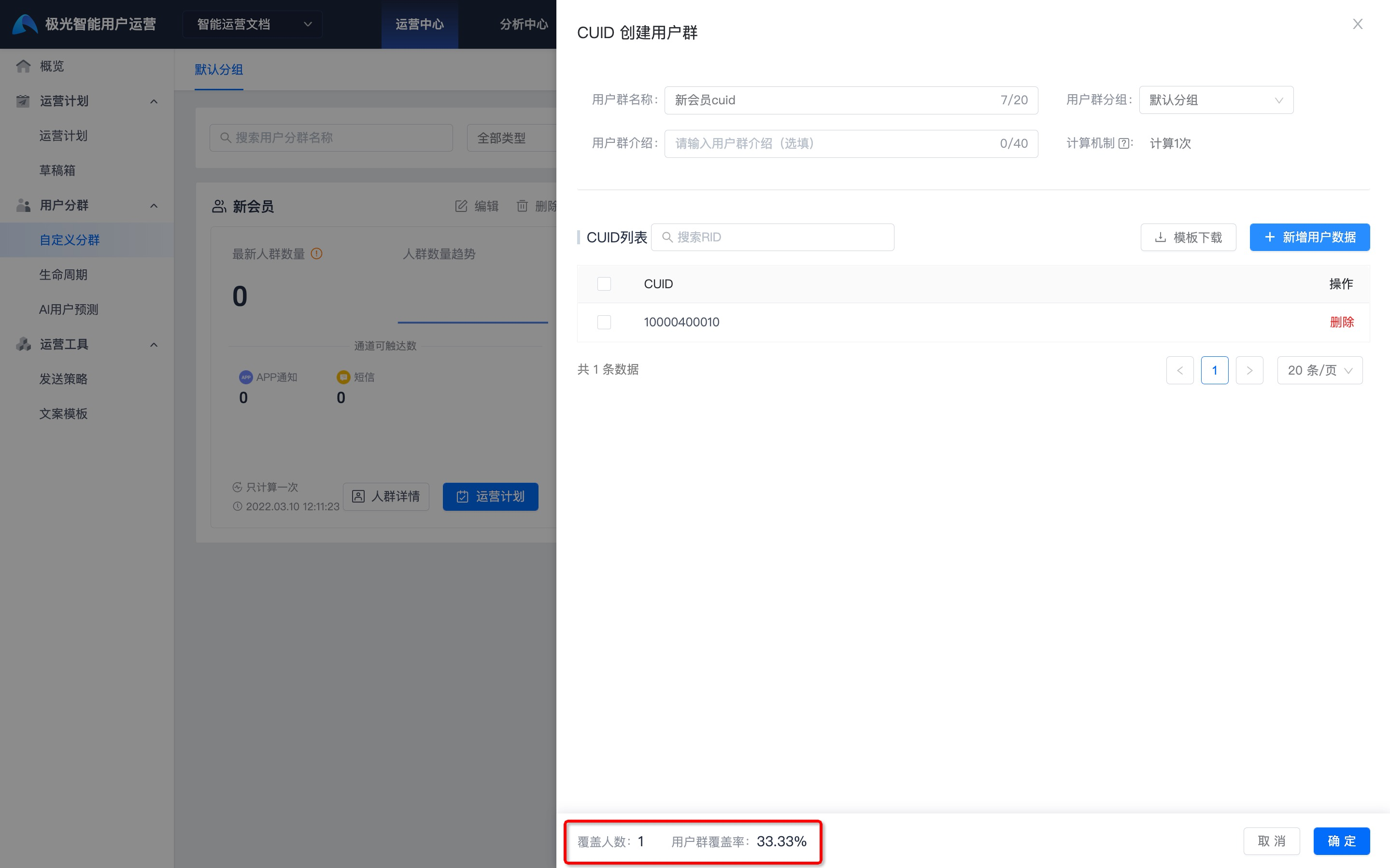
After upload, the covered user count and segment coverage rate are displayed, as shown below:
User segment coverage rate: the percentage of users in the segment out of the total users.
View User Segments
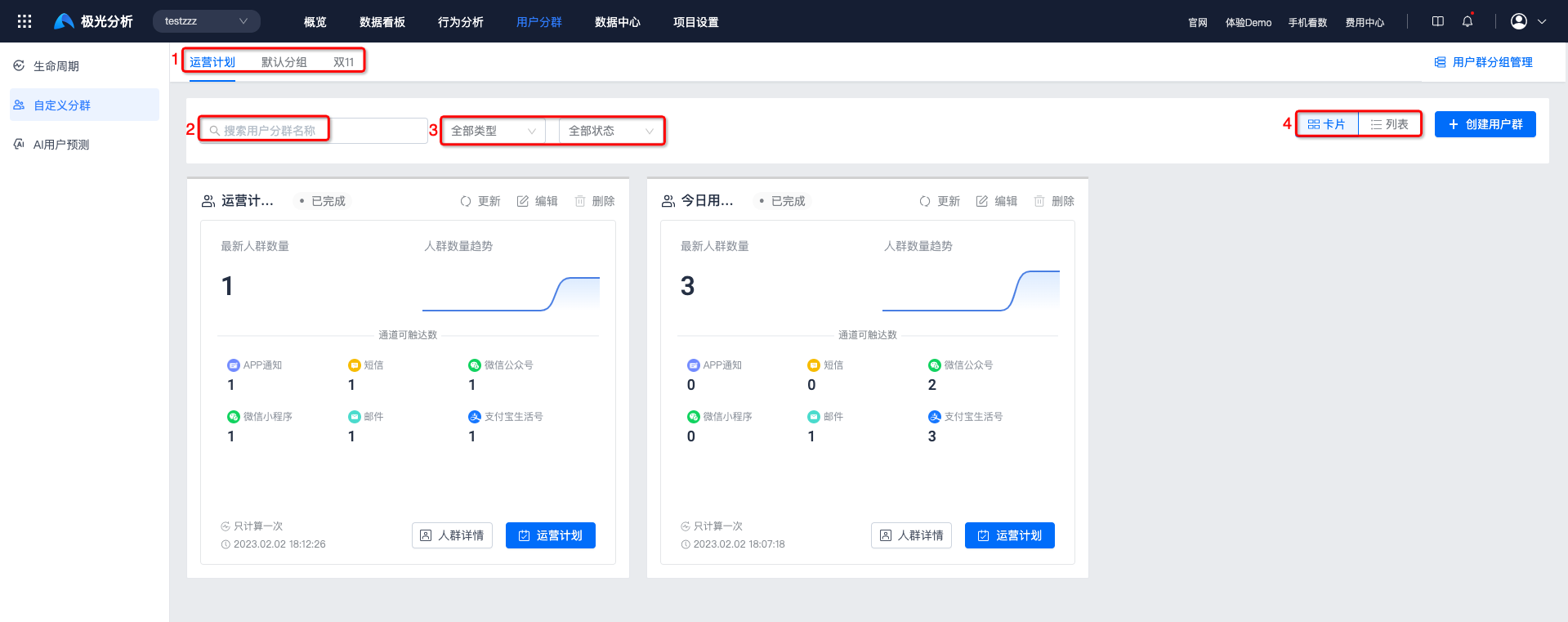
Select the corresponding user segment group.
Searching user segment names in the search box is supported.
Filtering by user segment type and calculation status is supported.
Click "Card" or "List" to switch the display mode.
Audience Details
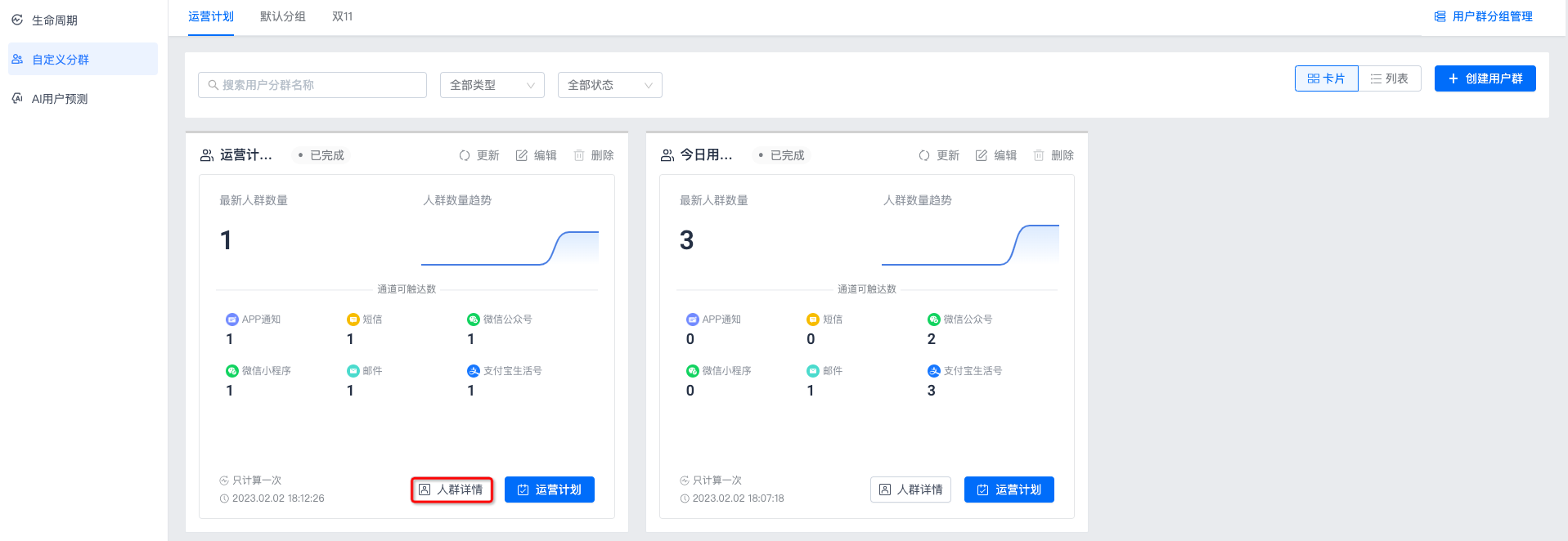
Click "Audience Details" to enter the detail page of this user segment.
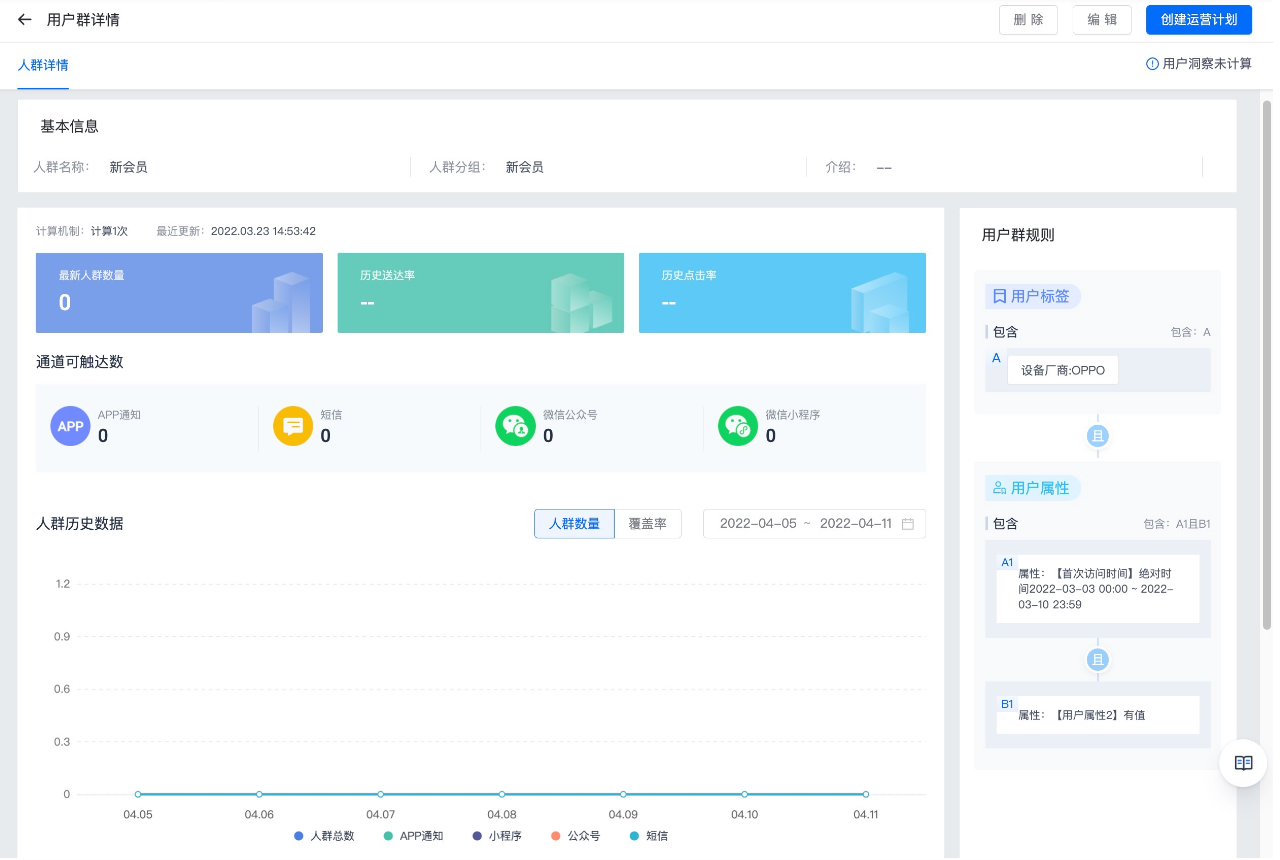
The detail page can display basic information, reachable count by channel, audience historical data, and user segment rules.
For user segment rules, condition-created audiences display valid rule conditions, and CUID-created audiences display audience upload records.
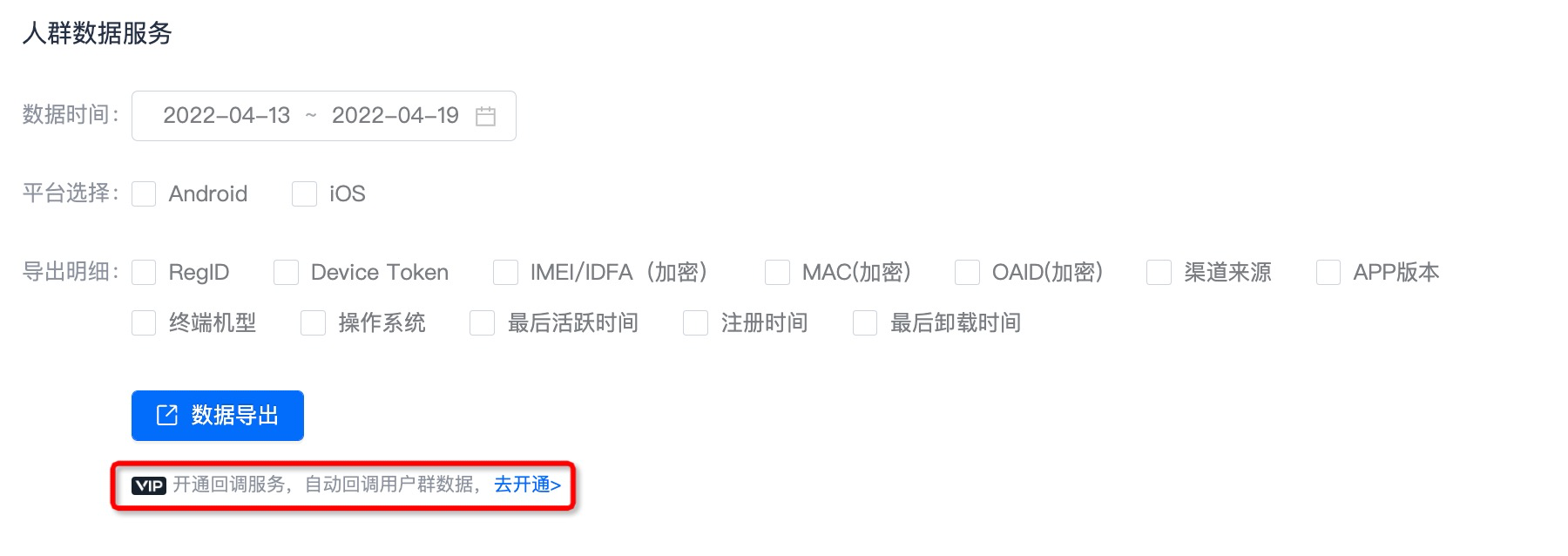
Audience data service: data details can be exported customly. This feature requires VIP activation.
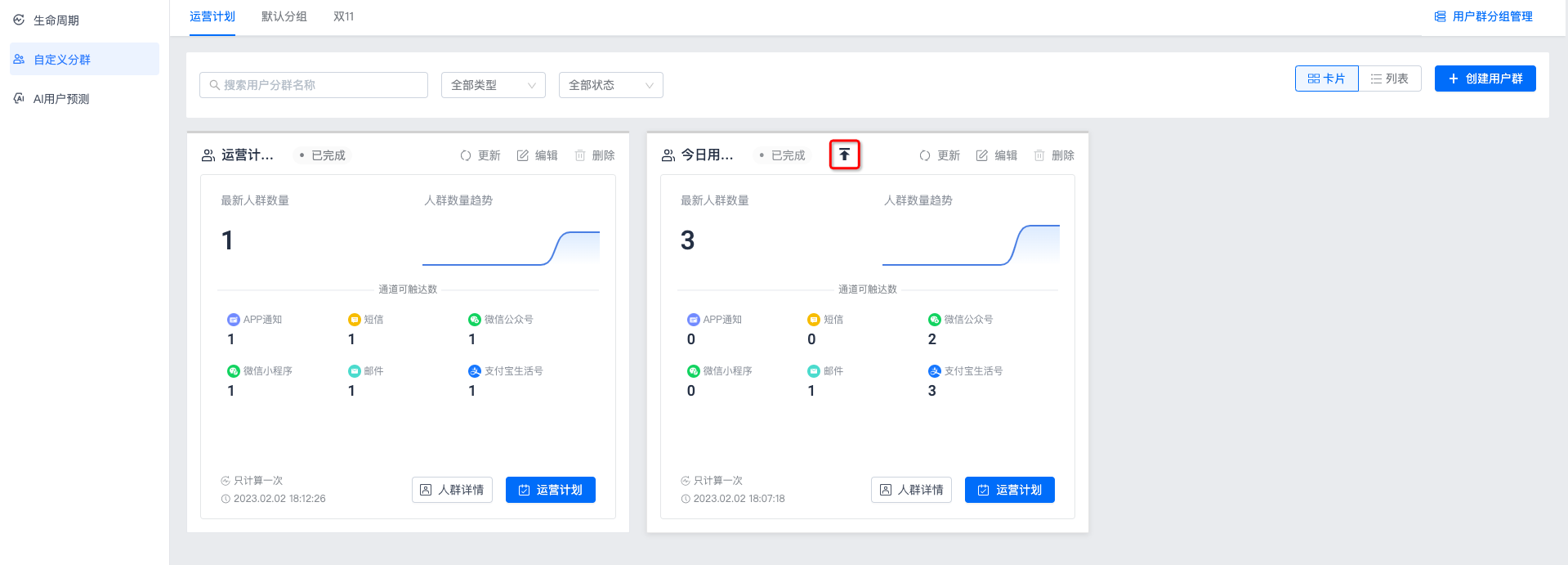
Pin User Segment
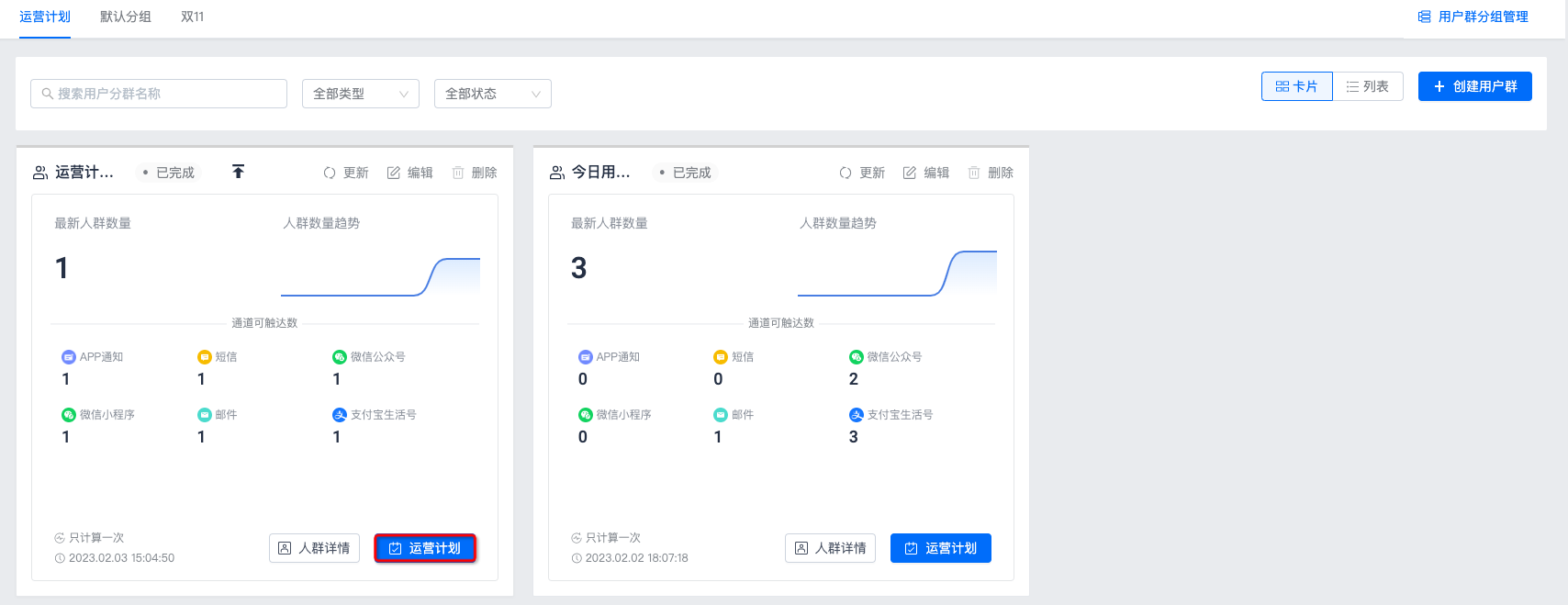
Click "Pin" for a user segment to place it at the top of the list.
Update User Segment
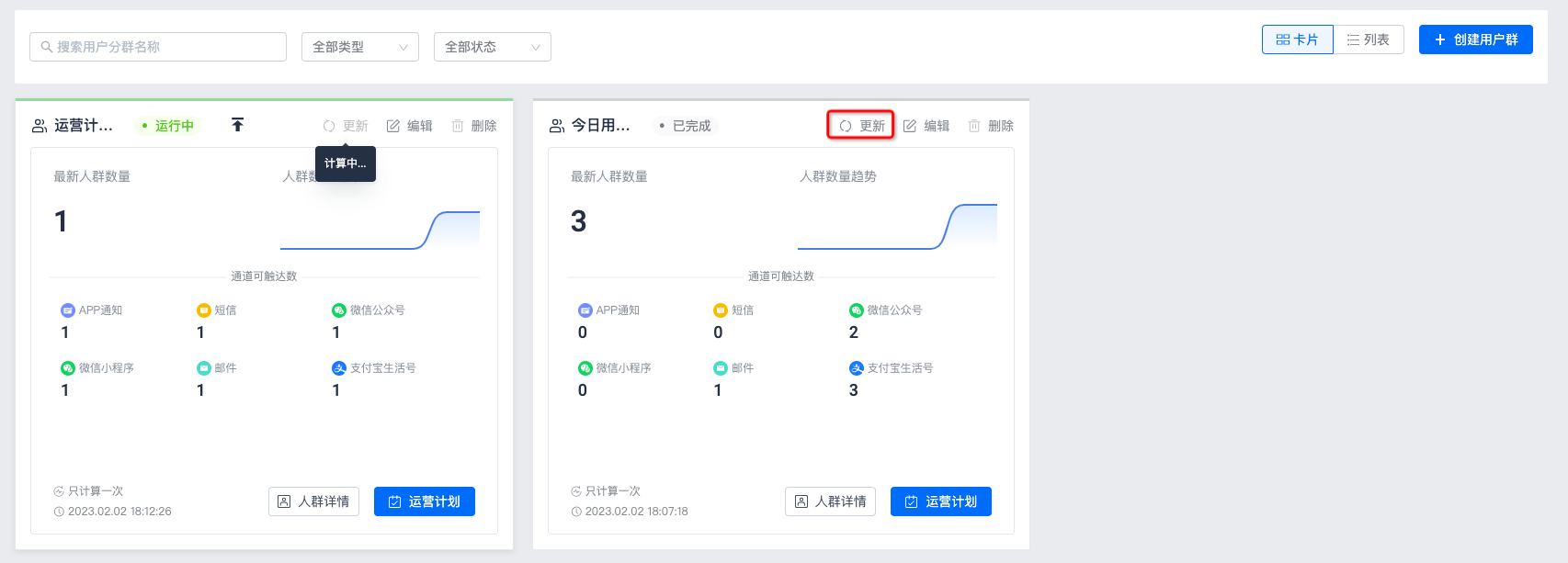
Click "Update" to force real-time update of this user segment. Before calculation is complete, it cannot be clicked again.
Edit User Segment
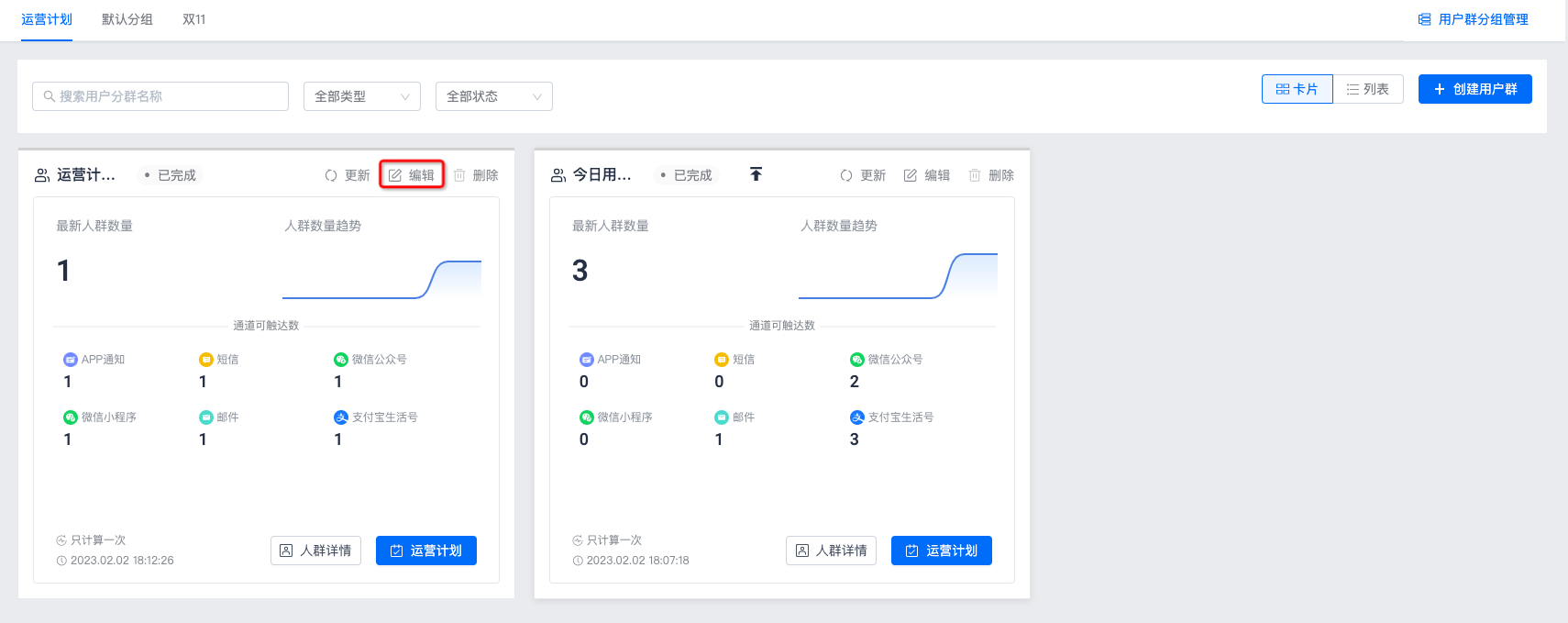
If you need to change user segment information, user segment rules, or the CUID list, click "Edit" to make changes. After editing, click "OK" to save.
Delete User Segment
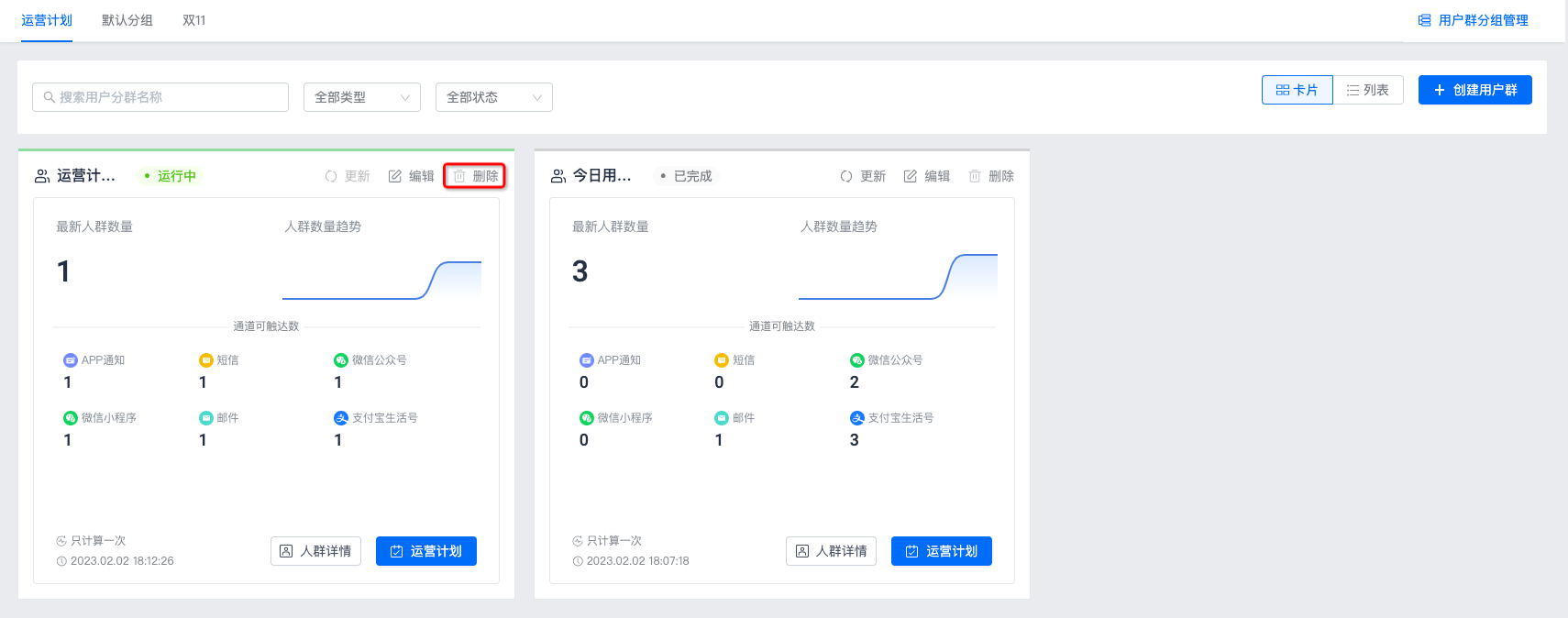
On the user segment list page, click "Delete", and delete the plan after secondary confirmation.
After a user segment is deleted, it cannot be restored. Use this carefully.
Create Operation Plan
If you need to quickly create an operation plan using this user segment as the target audience, click "Operation Plan" for this user segment to create it. For details, see the document on creating operation plans.