Event Management
Events are data-based descriptions of user behavior and are the basic data of the Growth platform. They are used in custom segments, operation plans, product analysis, and user asset management. The Event Management module is dedicated to unified management of the user event system, meeting data requirements of different business lines by managing event groups, meta events, virtual events, and combined events.
Event Group Management
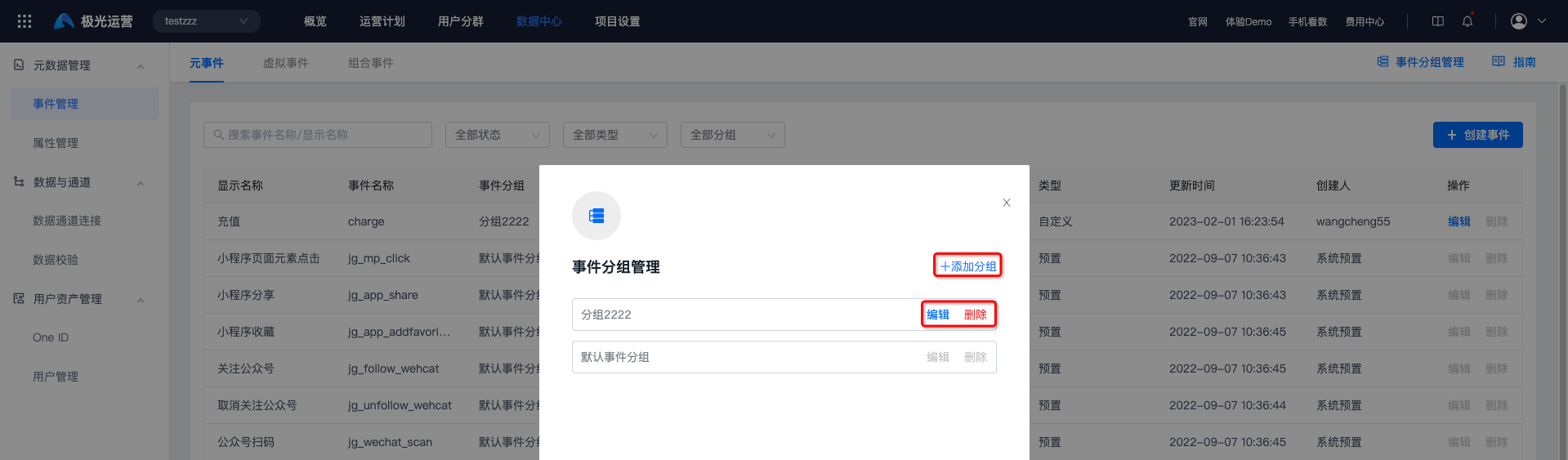
To make it easier to manage different types of events, you can use event group management. Go to [Data Center] - [Metadata Management] - [Event Management], and click "Event Group Management". Adding groups, editing, and deleting are supported.
After deletion, all events under the group are transferred to [Default Group].
Meta Events
Create a Meta Event
- Go to [Data Center] - [Metadata Management] - [Event Management] - [Meta Events], and click "Create Event".

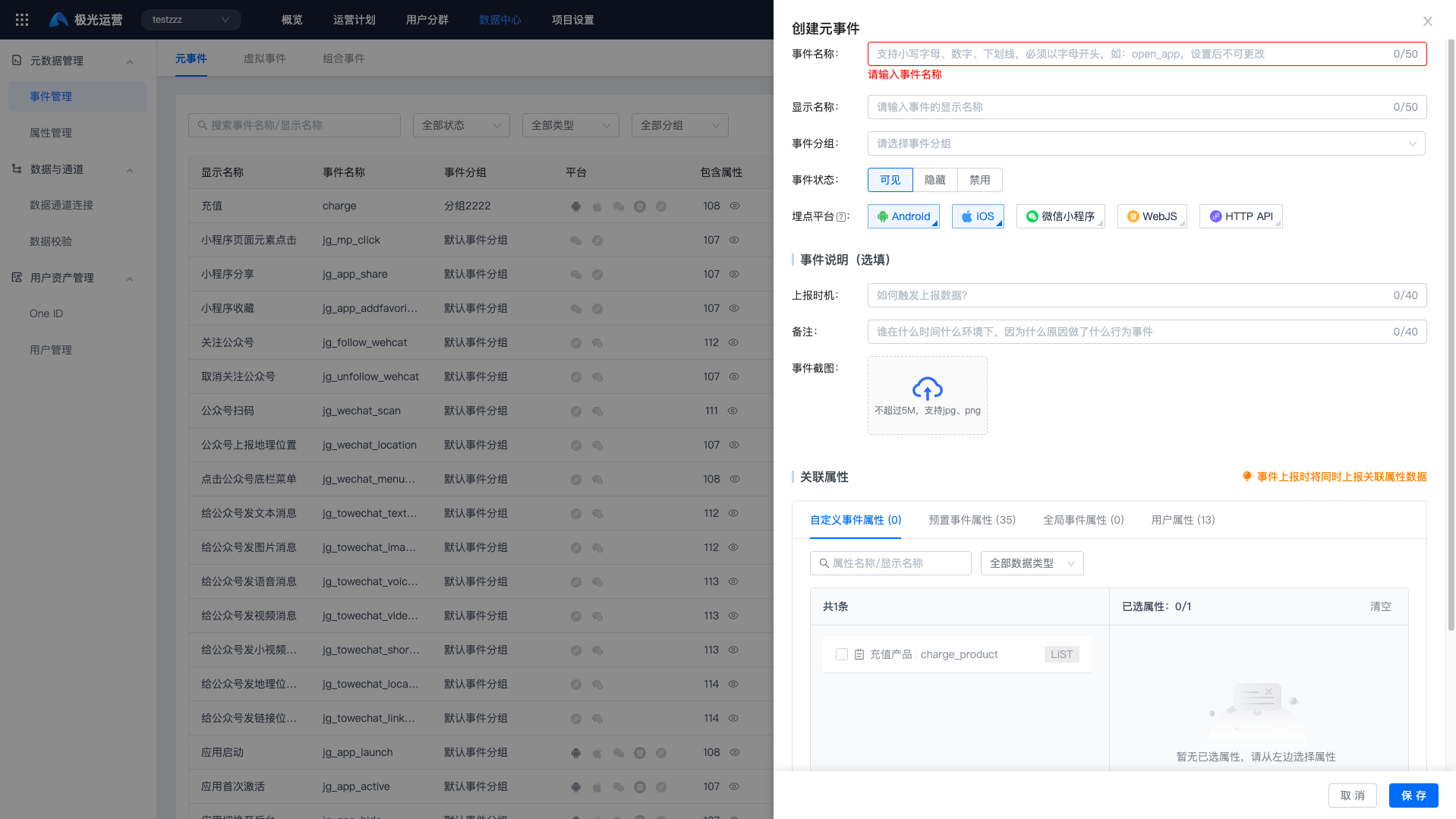
- Fill in parameter options. See the table for details.
| Option | Required | Description |
|---|---|---|
| Event name | Yes | Name of the reported event. Non-preset events need tracking reporting. Supports lowercase letters, numbers, and underscores, and must start with a letter, such as open_app. It cannot be changed after setting. |
| Display name | Yes | Display name of the event in the console. |
| Event group | Yes | Select a group created in event group management. |
| Event status | Yes | Display status of the event in other modules. Supported statuses: visible, hidden, disabled. |
| Tracking platform | Yes | Indicates that the event needs tracking reporting. Multiple selections are supported. Supported platforms: Android, iOS, WeChat Mini Program, Web/H5, HTTP API. |
| Reporting timing | No | Describes how to trigger data reporting, helping business personnel understand the trigger conditions of each event. |
| Remarks | No | Describes the event details, helping business personnel understand the purpose of each event. |
| Event screenshot | No | Describes the reporting location of the event, helping business personnel understand where each event is triggered. |
| Event properties | Yes | |
| User properties | Yes | Specific user information that needs to be collected in this event. It requires tracking configuration and creation in property management. |
- Click "Save" to complete creation.
Report Meta Events
After completing meta event creation, call APIs to report custom events and event properties. For details, see each SDK API document: Android SDK API, iOS SDK API, Mini Program SDK API, Web SDK API.Meta Event Details
- Searching event name/display name in the search box is supported. Filtering by status, type, and group is supported.
- Click a platform icon to display data reporting status for each platform.
- Click the view icon on the right of "Included Properties" to view all associated properties.
- Preset events cannot be edited or deleted. Custom events without reported data can be edited and deleted. Custom events with reported data can be edited but cannot be deleted.

Virtual Events
For more convenient and flexible analysis, events can be split or combined to form new "virtual events". This reduces repeated filtering configuration for fixed and commonly used events during analysis, and also triggers event storage. For example, you need to count the number of unique users who browsed both page A and page B. When a user completes both meta events of browsing page A and browsing page B, one virtual event is triggered.- Can be used in operation plan timing selection, plan goals, and user behavior analysis models.
- Compared with combined events, virtual events trigger event reporting and have higher query efficiency.
Create a Virtual Event
- Go to [Data Center] - [Metadata Management] - [Event Management] - [Virtual Events], and click "Create Virtual Event".
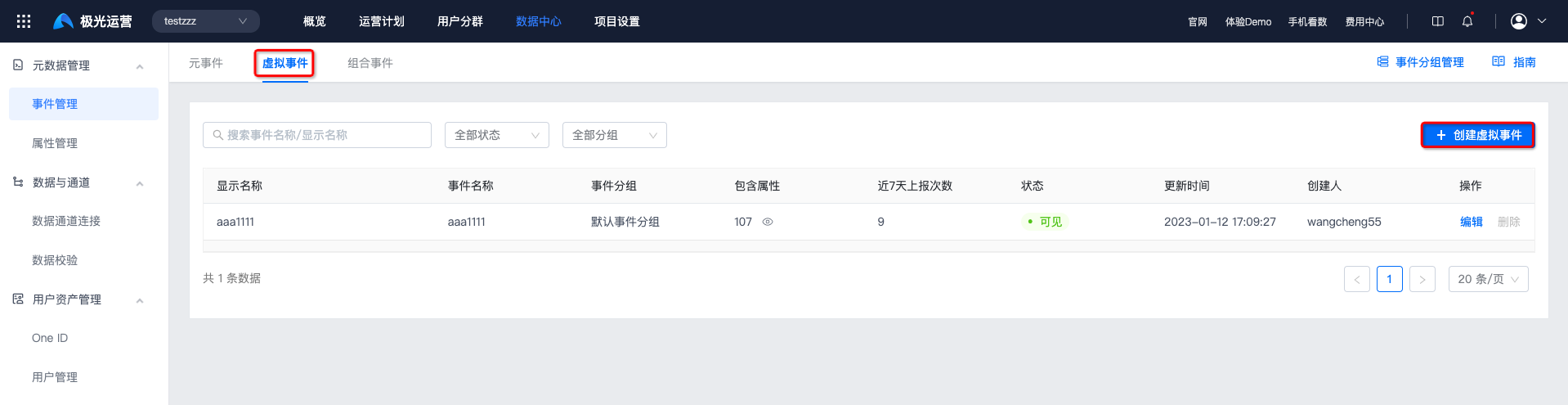
- Fill in event name, event group, and other information. For details, see Meta Event Option Description.
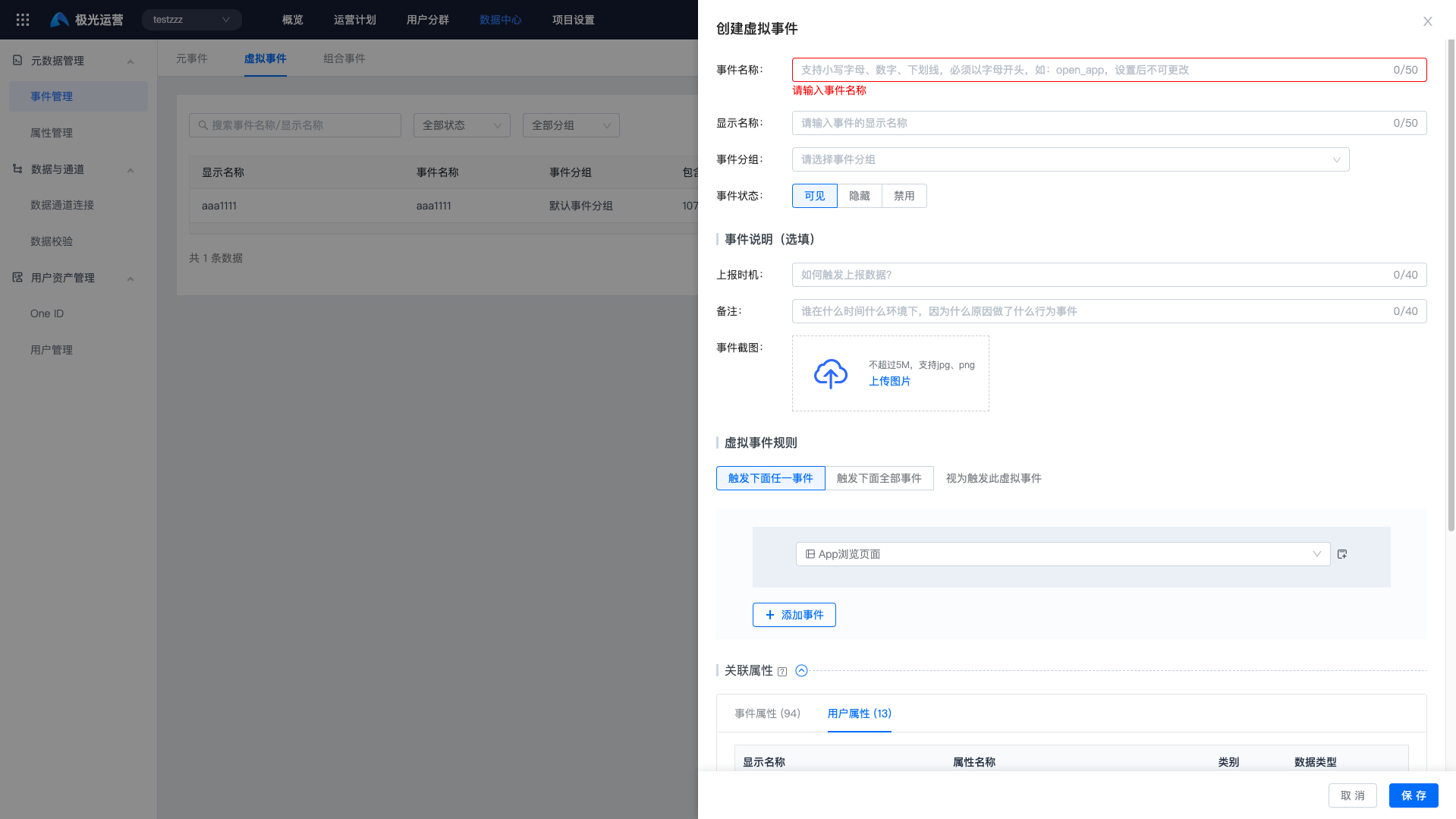
- Set virtual event rules.
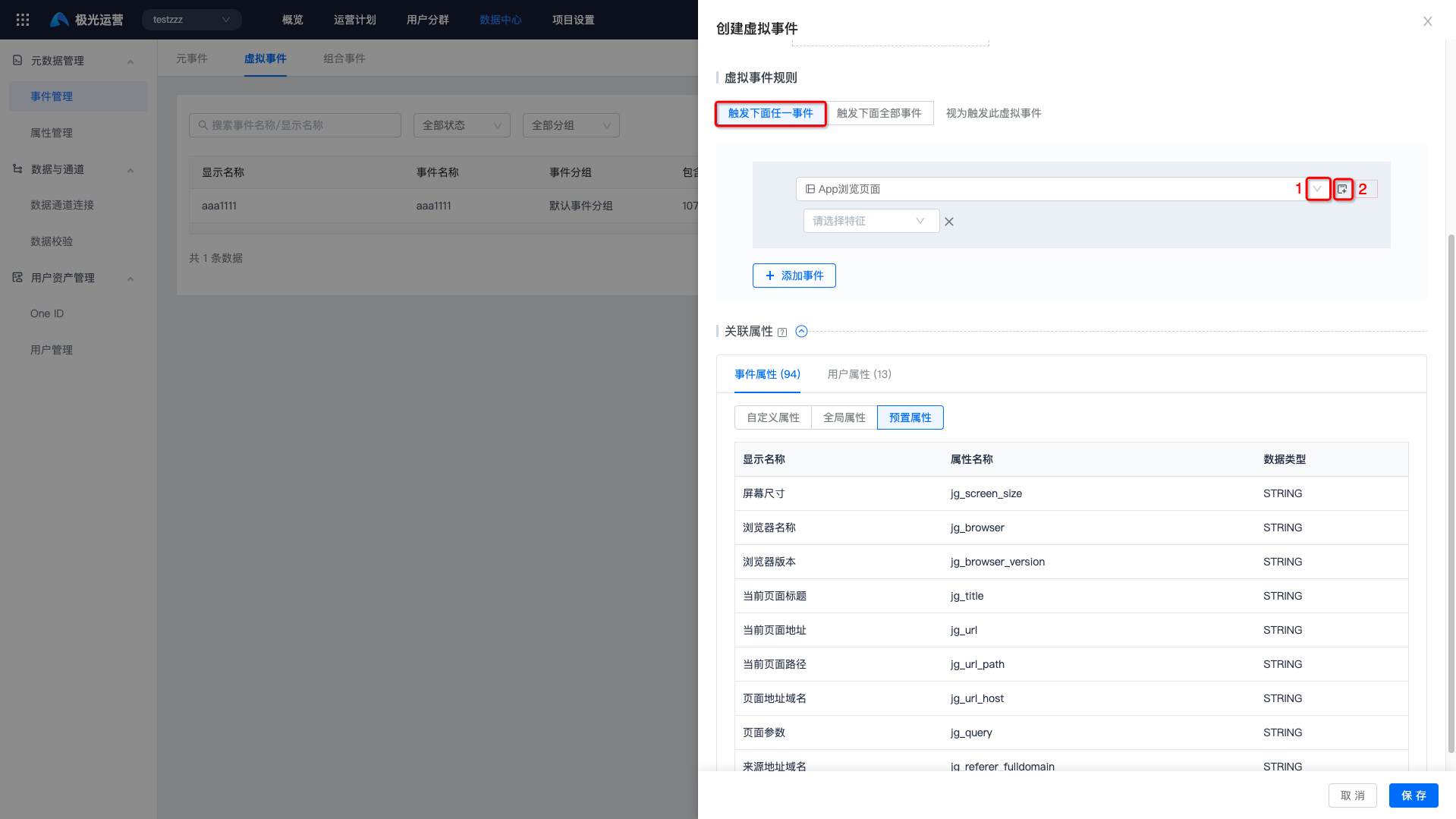
Click "Trigger any of the following events", then select events and corresponding filter conditions.
Combined events cannot be selected. Only meta events with reported data are displayed in the add event list.
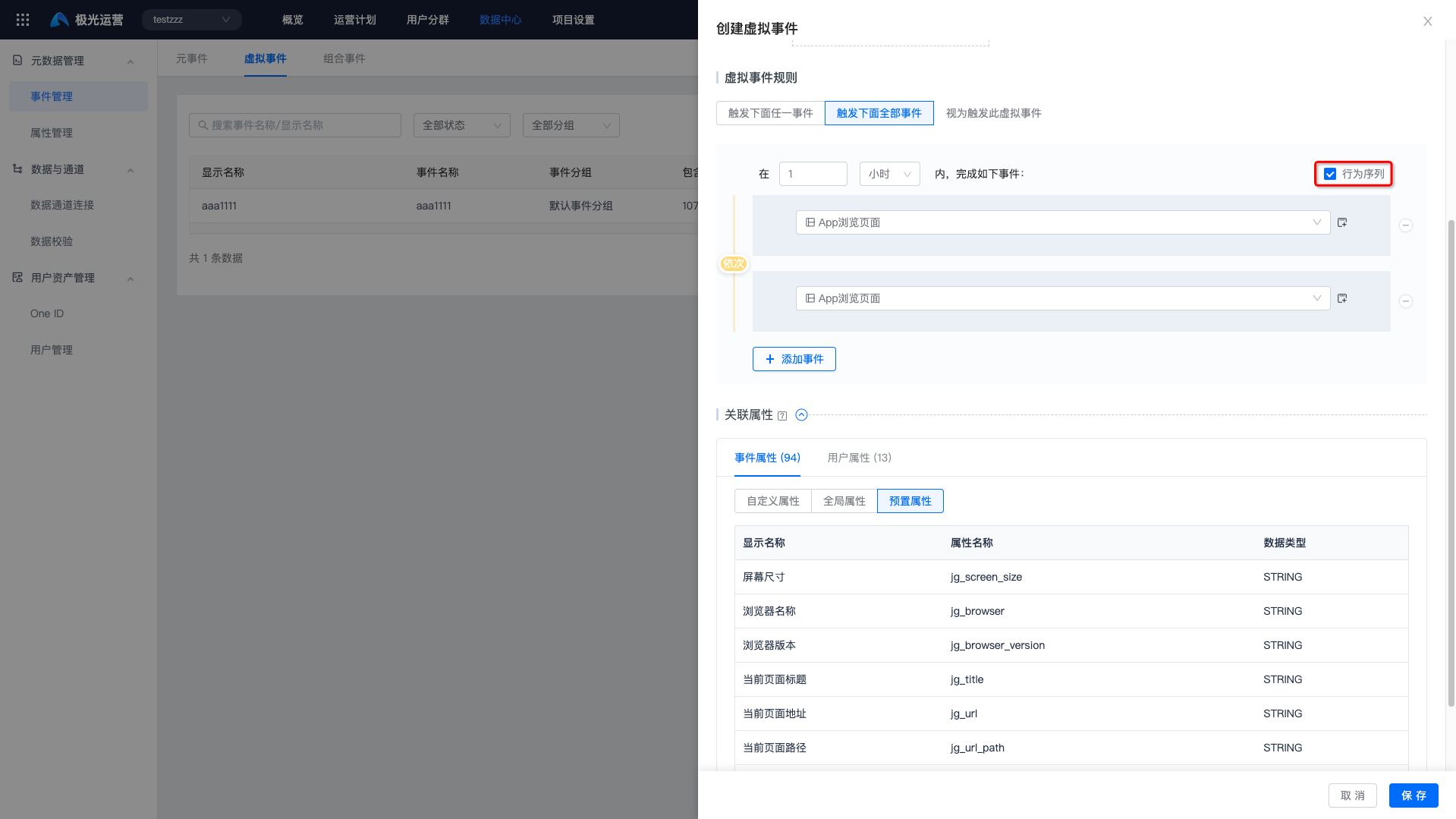
Click "Trigger all of the following events", then select events, add events, and corresponding filter conditions. If "Behavior Sequence" is selected, the selected events must be completed in sequence to trigger one virtual event.
Only meta events with reported data are displayed in the add event list.
- Associated property values take the intersection of all combined event properties, based on the properties of the last reported event.
- Click "Save" to complete creation.
Virtual Event Details
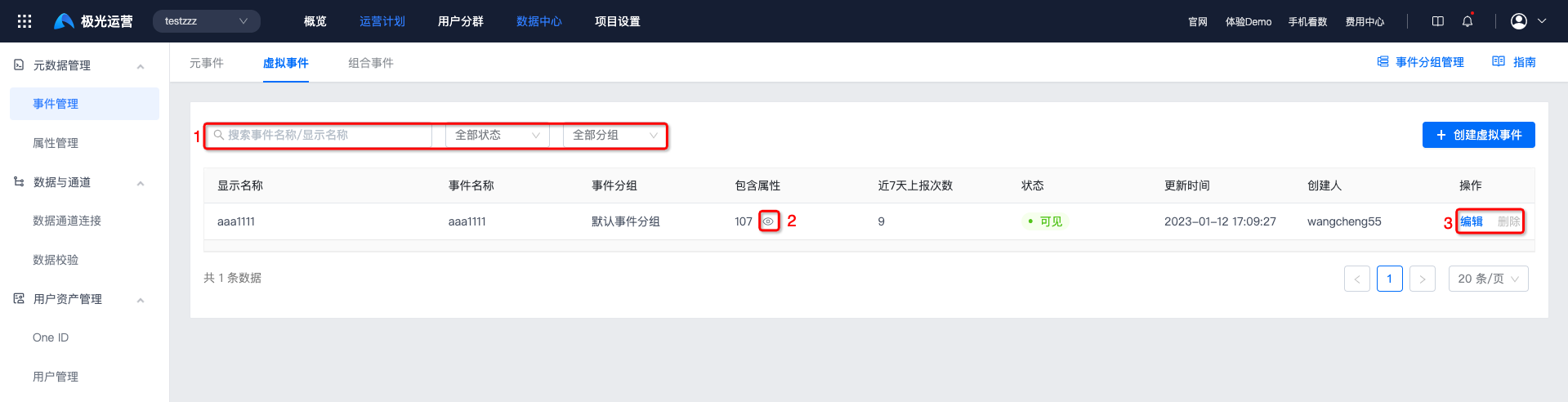
- Searching event name/display name in the search box is supported. Filtering by status and group is supported.
- Click the view icon on the right of "Included Properties" to view all associated properties.
- Virtual events without reported data can be edited and deleted. Virtual events with reported data can be edited but cannot be deleted.
Combined Events
For more convenient and flexible analysis, events can be split or combined to form new "combined events". This reduces repeated filtering configuration for fixed and commonly used events during analysis, but does not calculate triggered events. For example, you need to count the number of unique users who browsed both page A and page B. You can combine the two meta events of browsing page A and browsing page B into one event, and select that event for analysis during event analysis.- A combined event is a shortcut for meta event combination configuration. It is used only in analysis scenarios and is not a truly triggered event.
- Compared with virtual events, combined events do not trigger events. If you do not need to trigger events, using combined events is recommended.
Create a Combined Event
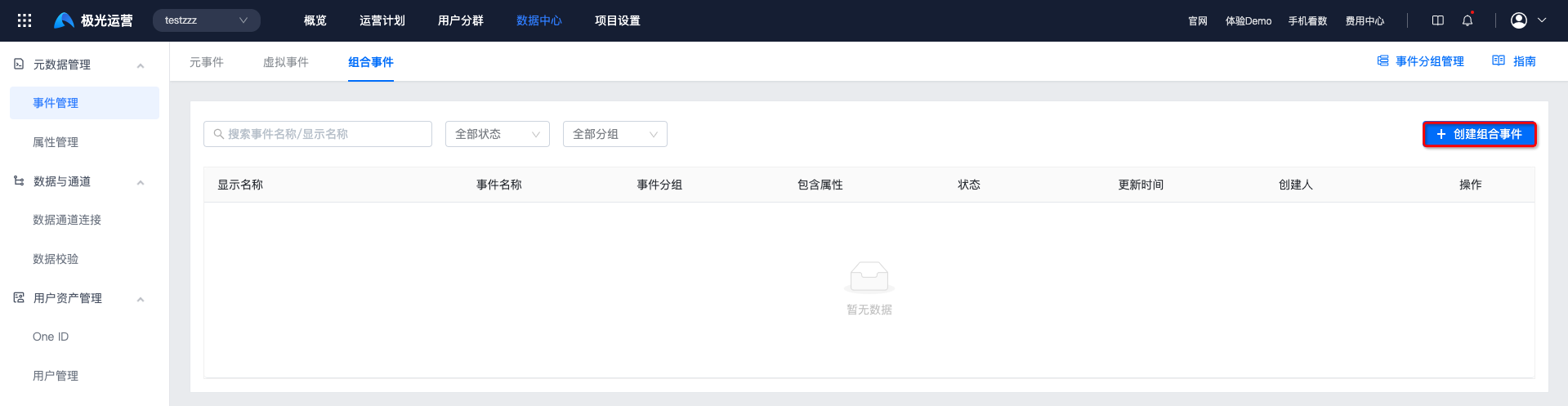
- Go to [Data Center] - [Metadata Management] - [Event Management] - [Combined Events], and click "Create Combined Event".
- Fill in event name, event group, and other information. For details, see Meta Event Option Description.
- Select included events and filter conditions.
Virtual events cannot be selected. Only meta events with reported data are displayed in the add event list.
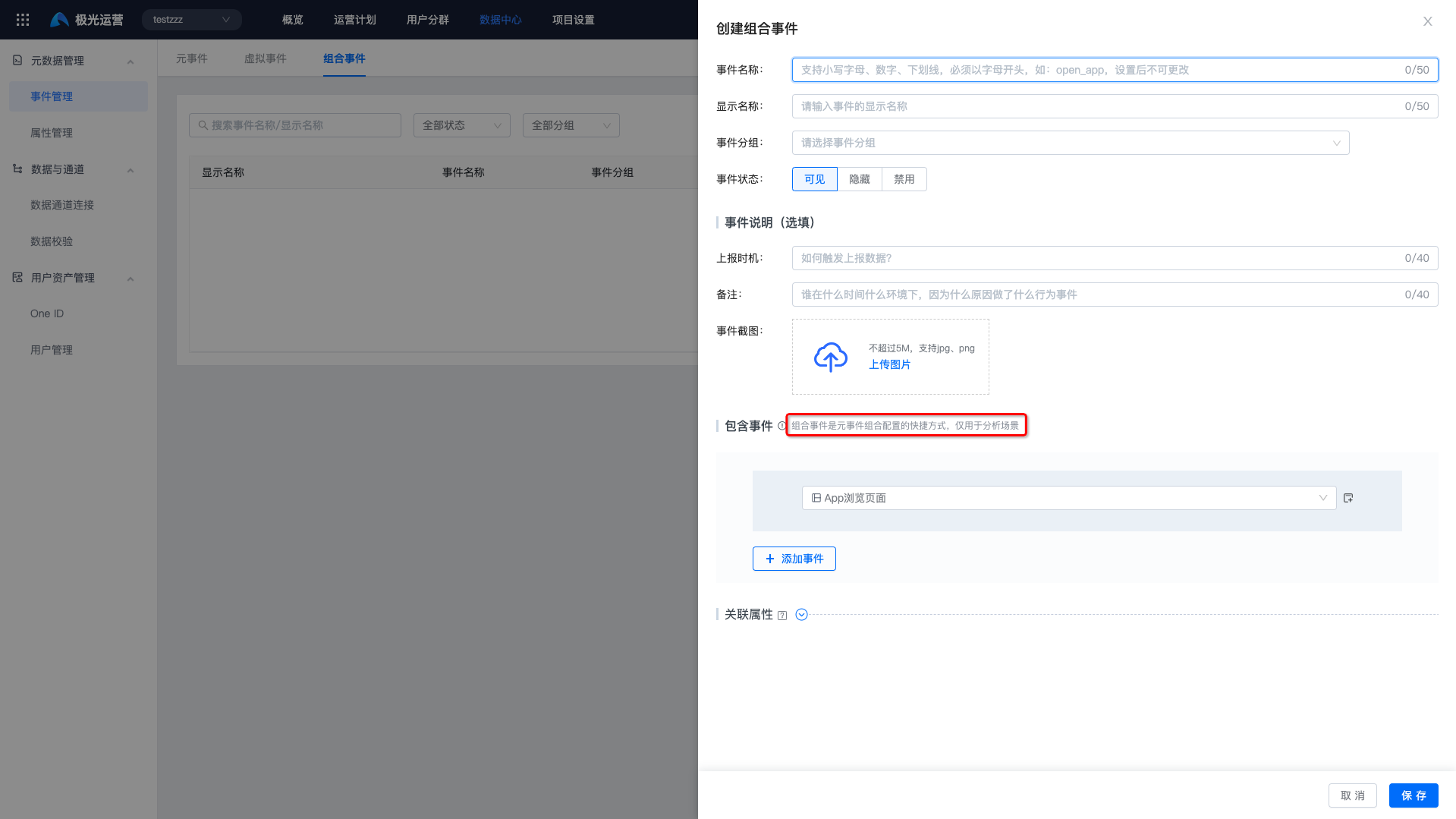
- Associated property values take the intersection of all combined event properties, based on the properties of the last reported event.
- Click "Save" to complete creation.
Combined Event Details
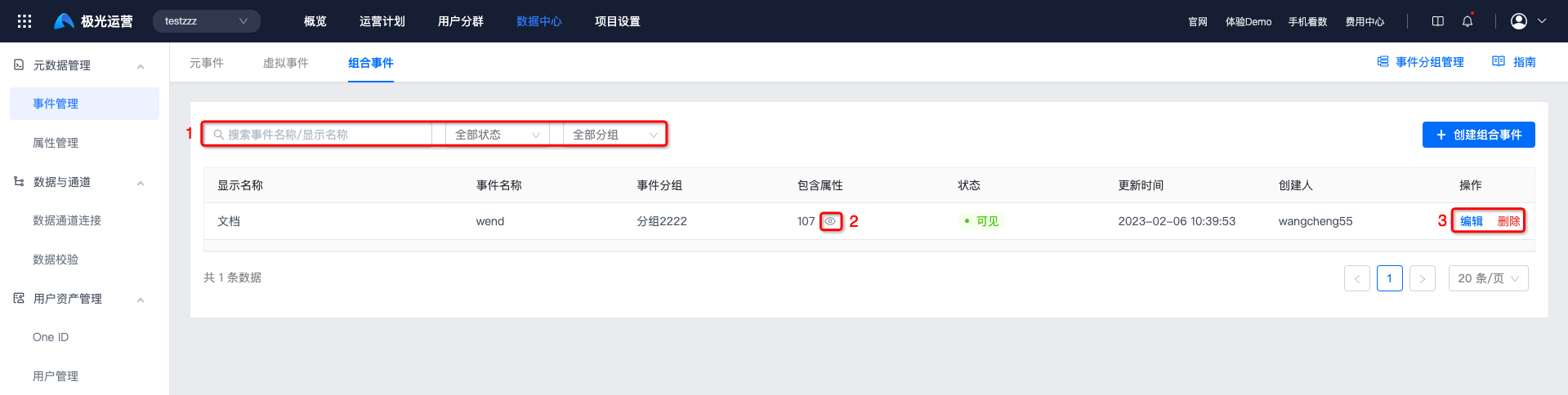
- Searching event name/display name in the search box is supported. Filtering by status and group is supported.
- Click the view icon on the right of "Included Properties" to view all associated properties.
- If a combined event is referenced by an analysis model, it can be edited but cannot be deleted. If it is not referenced by an analysis model, it can be edited and deleted.