


Project Members
This document guides users through adding and managing project members in the console.
Member List
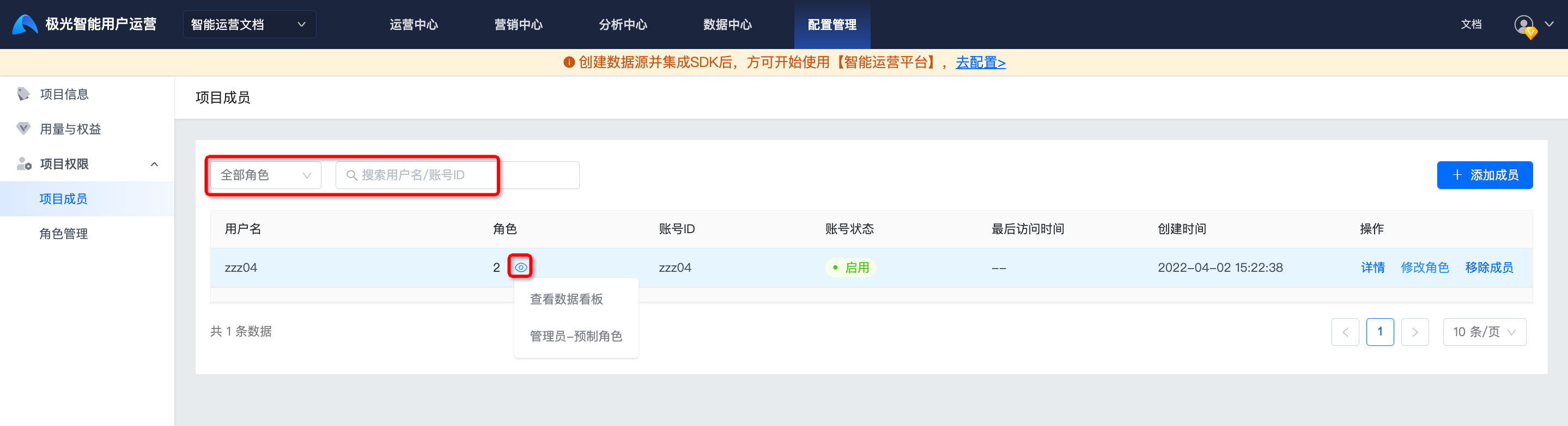
Go to Configuration Management -> Project Permissions -> Project Members to view information such as the role, account ID, and account status of all project members.
- Filtering by role, username, and account ID is supported.
- Click the View button on the right side of a role to view all role names of the member.
Add Member
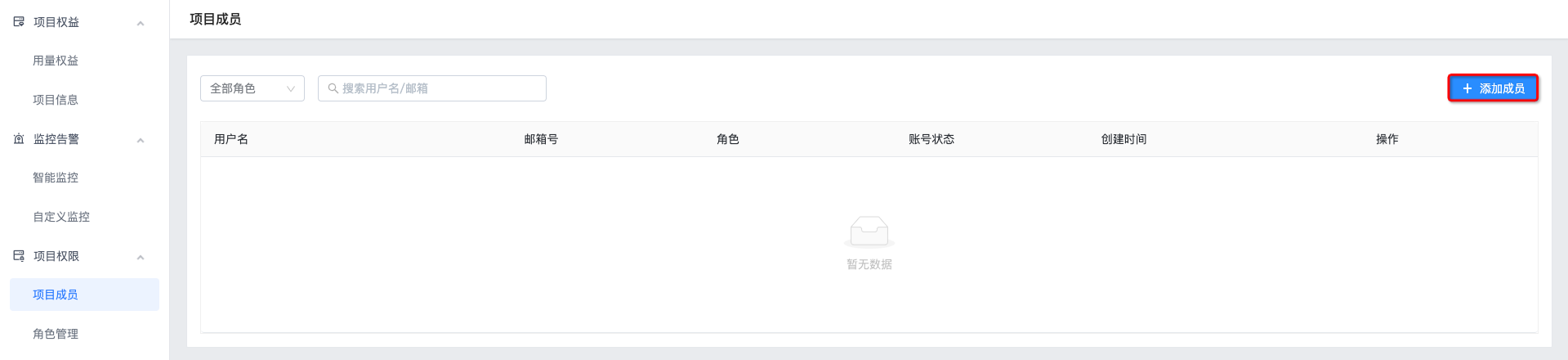
Click Add Member.
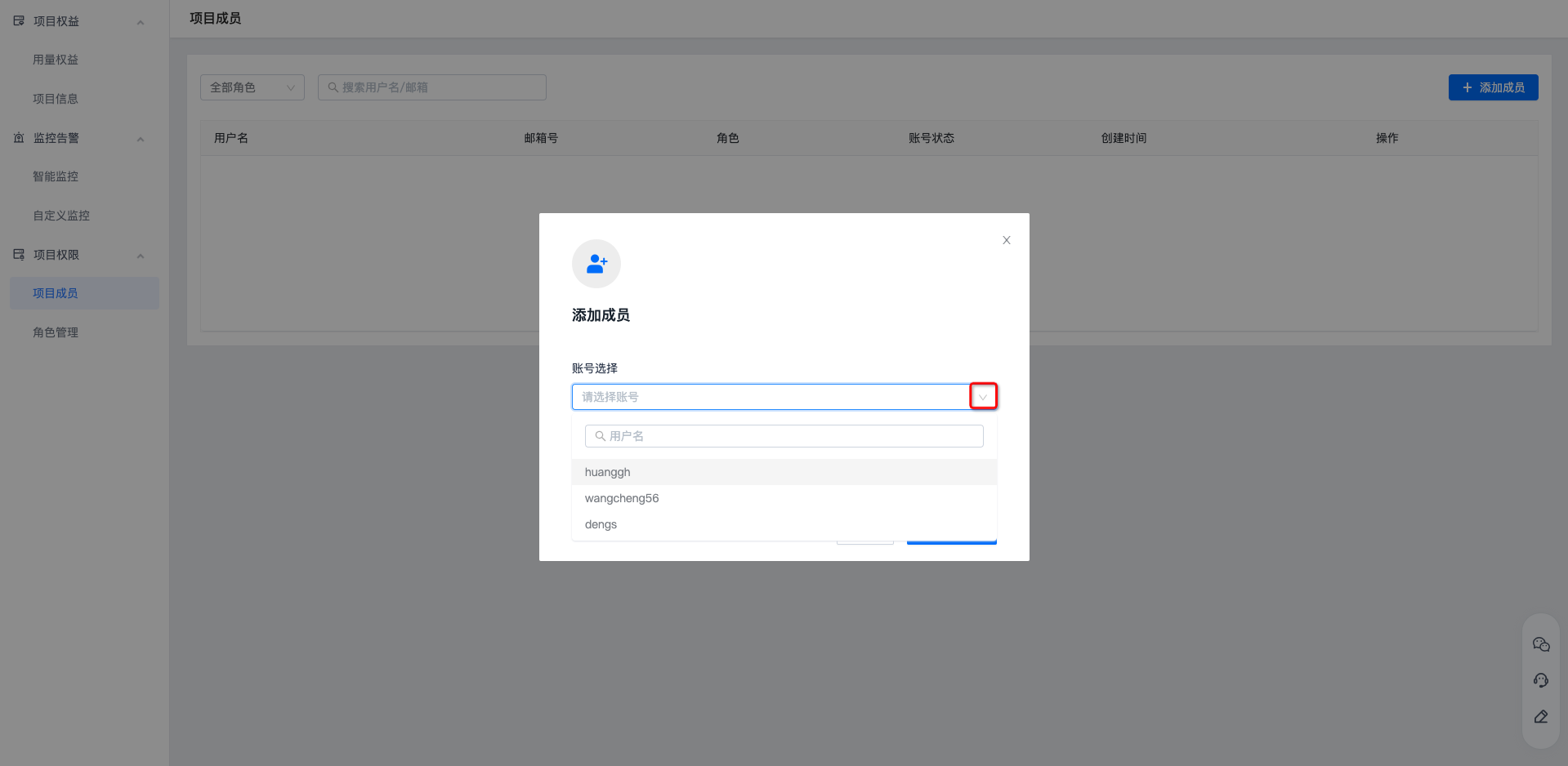
Select the account created in Account Management. Selection by searching username and account ID is supported.
Select the role created in Role Management.
Selection by searching role name is supported, and multiple roles can be added.
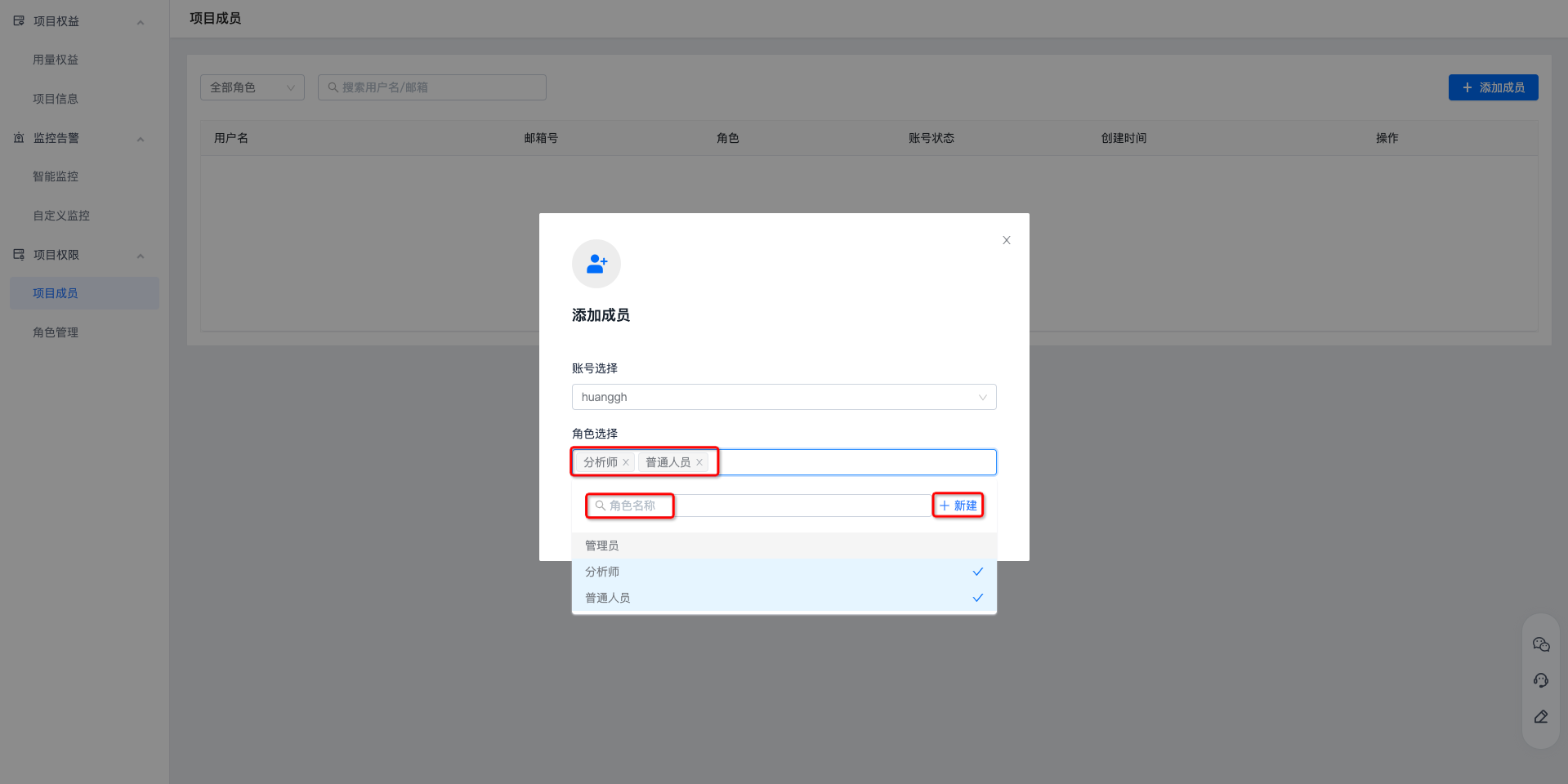
Creating a new role is supported. Click New, enter the role name, and set permissions for each module.
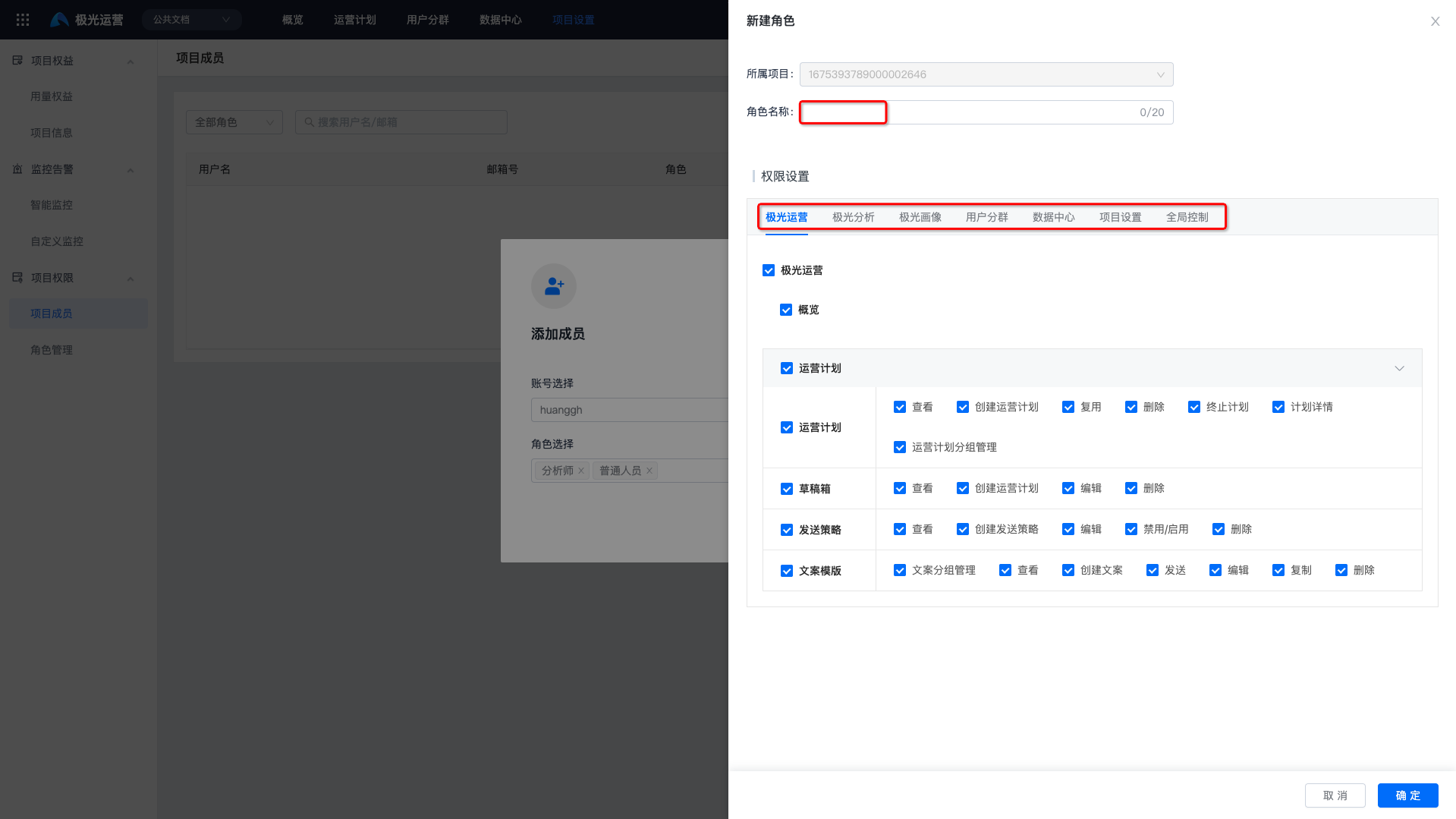
- Click Confirm Add to complete adding the member.
Manage Project Members
View Details
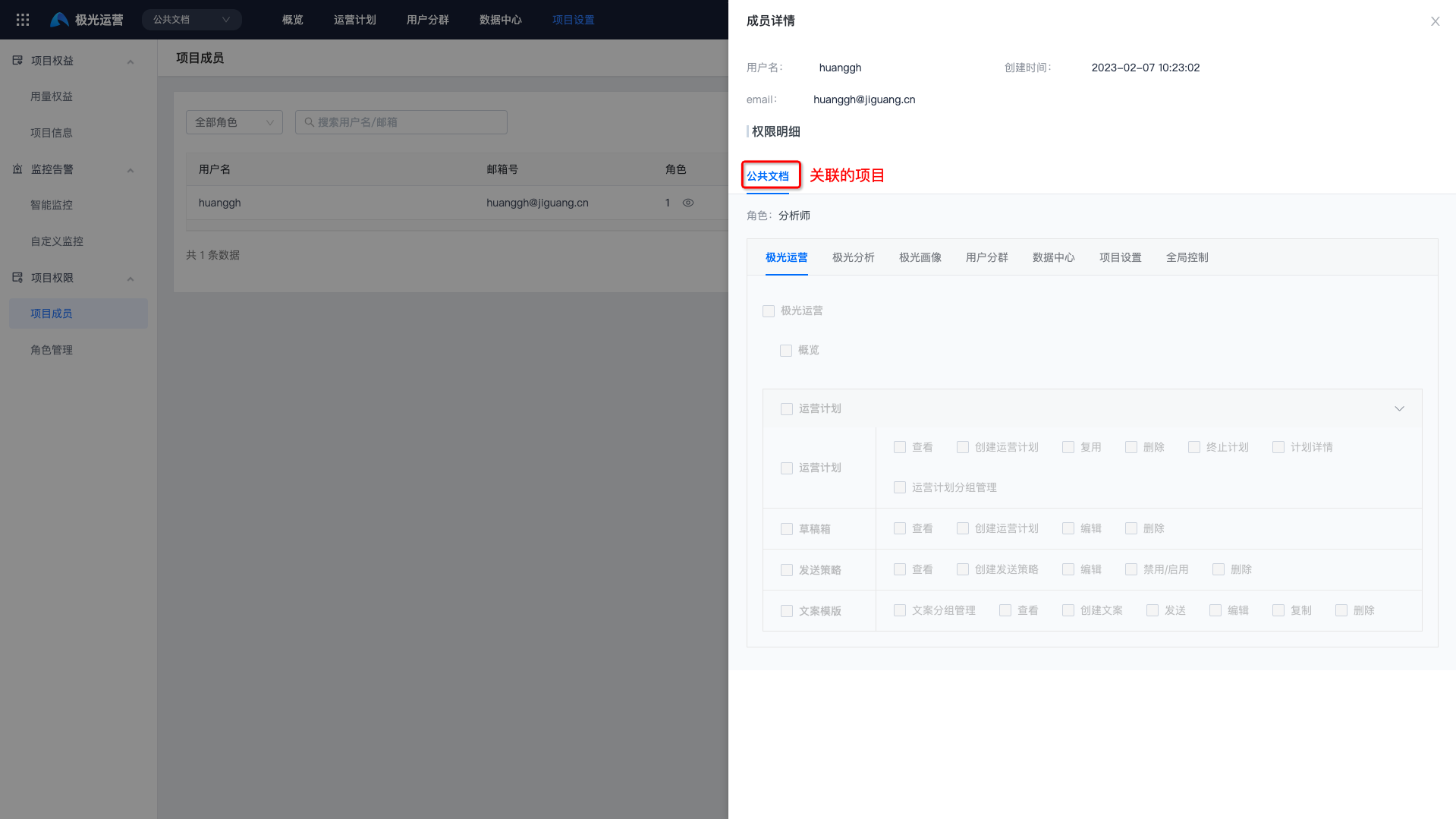
Click Details to view all projects associated with the member and the permission details of the roles.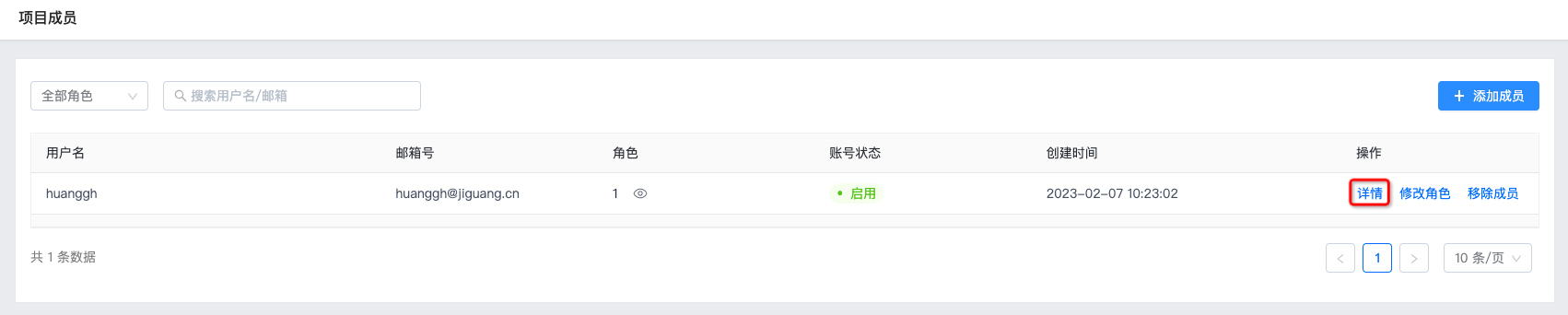
Modify Role
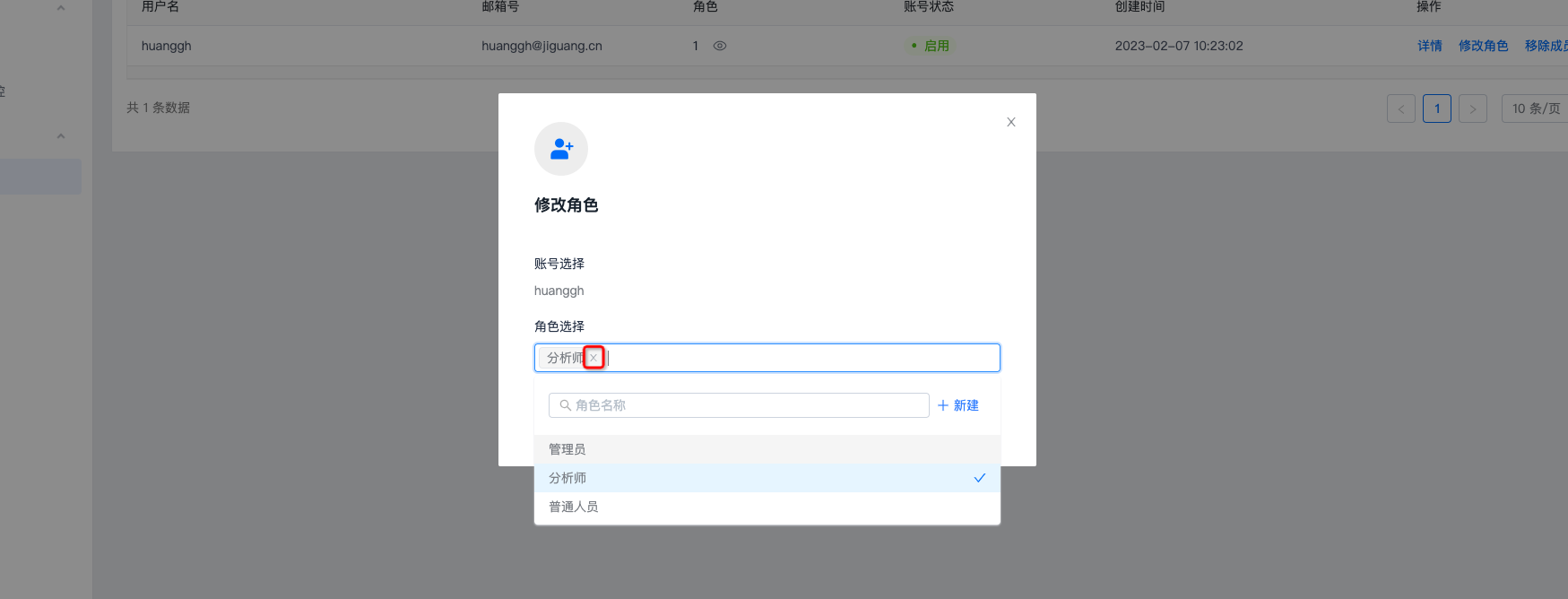
To modify the role permissions of an account, click Modify Role. You can delete previously selected roles or select other roles.
Remove Member
To delete a project member, click Remove Member. The member can be removed after secondary confirmation.
After the role is removed, the account will no longer have permissions for this role. Please operate with caution.


