


App Channel Integration Guide
The UMS system supports integration with Jiguang public cloud push and private cloud push. This document describes the operations required for UMS to integrate App Push. For more specific operations such as JPush client SDK integration, see the JPush documentation.
Configure Authentication Information
Log in to the Jiguang official website, go to Service Center - Developer Platform, create an app, then obtain the AppKey and Master Secret on the app settings page and configure them in the UMS App channel information.
When adding a channel, you need to set the channel code. This code is used when uploading user information.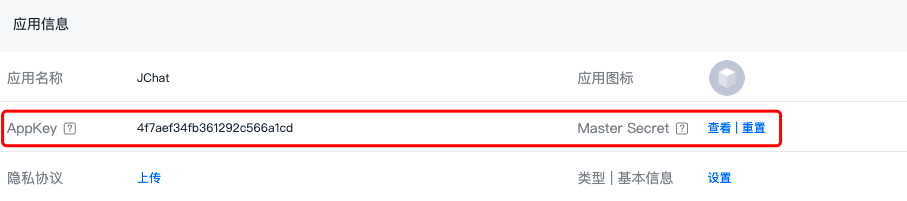
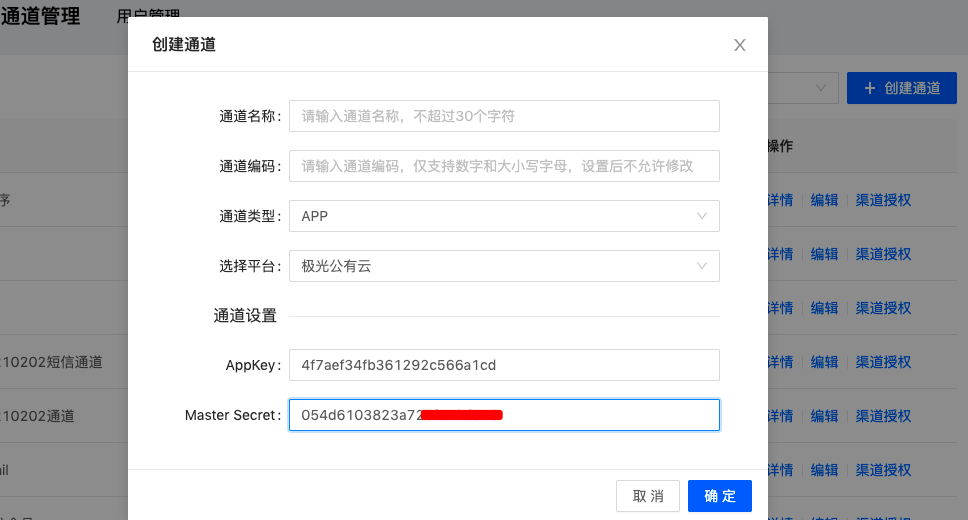
If integrating with Jiguang private cloud push, because the private cloud server is deployed inside the enterprise, you also need to fill in the REST API request URL and the enterprise must allow the UMS system to access the private cloud system.
- If the port in the request URL is not one of 80, 443, 25, or 465, contact business support to explain the port.
UMS does not restrict which Jiguang account the integrated app belongs to. Apps under any Jiguang account can be integrated.
Configure Callback URL
To allow the UMS system to detect message delivery and click status, the enterprise needs to configure delivery and click callback URLs on the Jiguang Push - Push Settings - Callback Settings page.
- Delivery callback URL: https://ums-callback.jiguang.cn/v1/app/callback
- Click callback URL: https://ums-callback.jiguang.cn/v1/app/callback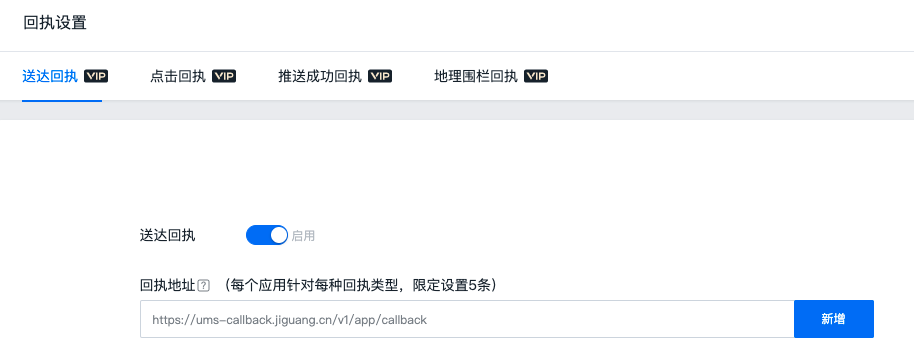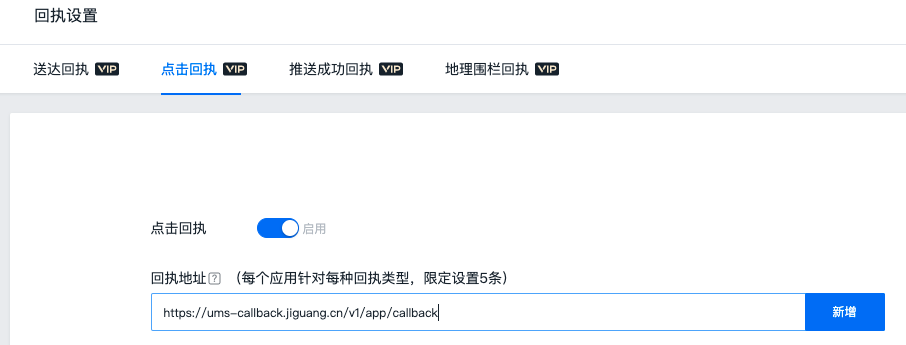
For Jiguang private cloud, corresponding settings must be configured in the private cloud server configuration. Contact your dedicated private cloud technical support for assistance.
Upload registrationID
After the Jiguang JPush SDK is successfully integrated, the app obtains the unique device identifier registrationID. This value needs to be uploaded to the UMS system and bound to userID, so that messages can be accurately pushed to specific devices when pushing by userID.
The AppKey configured during SDK integration determines the binding identifier bind_id filled in when uploading registrationID information. It is the channel code of the channel configured with the same AppKey.
Suppose the channel code configured when creating a channel in UMS is app123. The example for uploading information to the UMS platform is as follows:
- Click file upload in the UMS console. App registration ID is named app_regid in UMS. Excel content example:

- JSON example for uploading through REST API is as follows. For details, see REST API - User Management.
          [{
 "userid": "zhangsan",
 "set":{
 "app": {
 "app123": ["1104a89792bbb69299a","191e35f7e0fb16c7d45"]
 }
 }
}]
Send Messages
After configuration succeeds, you can start sending messages through the official console. Read the Console Operation Guide.
You can also call APIs to send messages. Read the REST API Documentation.


](https://ums-callback.jiguang.cn/v1/app/callback!%5Bjpush_web%5D(https://img.jiguang.cn/docs/2021/jums/senderguide/image/sender-App3.png)!%5Bjpush_web%5D(https://img.jiguang.cn/docs/2021/jums/senderguide/image/sender-App4.png))