


WeChat Mini Program Integration Guide
UMS supports integration with WeChat Mini Program subscription notifications. Messages from all mini programs are displayed in the Service Notifications conversation in WeChat.
Apply for a WeChat Mini Program
- Go to the mini program registration page, fill in the information as instructed, and submit the required materials.
Note that each email address can apply for only one type of account. Enter an email address that has not been registered for a subscription account, service account, enterprise account, mini program, open account, or personal WeChat account.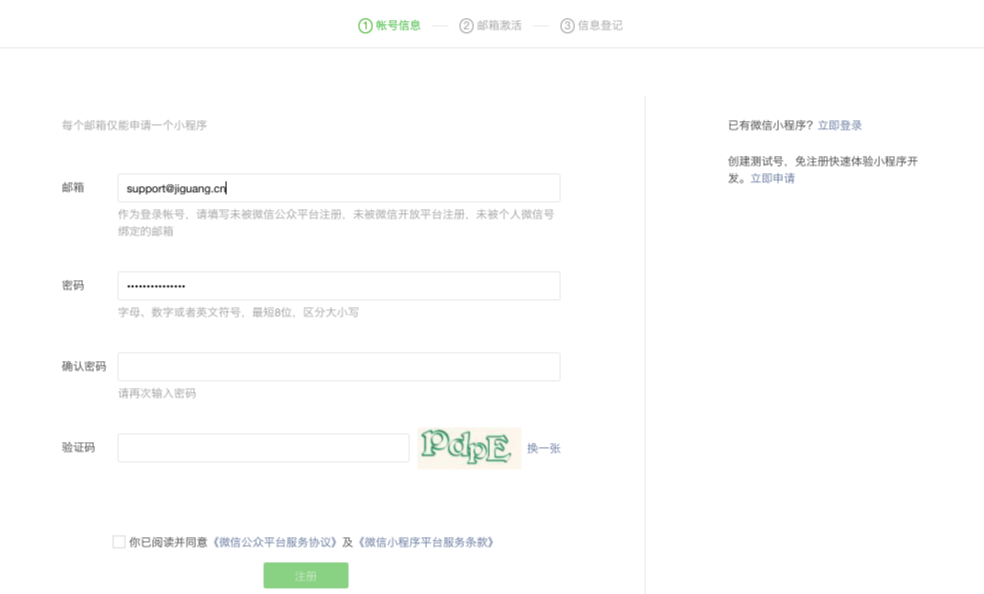
Log in to the email account to activate it.
Fill in subject information. After selecting the subject type, complete subject information and administrator information, then complete authentication.
Enterprise subjects support two methods: corporate account authentication and WeChat authentication. For details, see the official description.
As with WeChat Official Accounts, if the information is not ready during registration, you can later log in directly with the email address on the WeChat Official Accounts platform home page and continue authentication registration.
Basic Configuration and Authentication
Use AppID and Secret
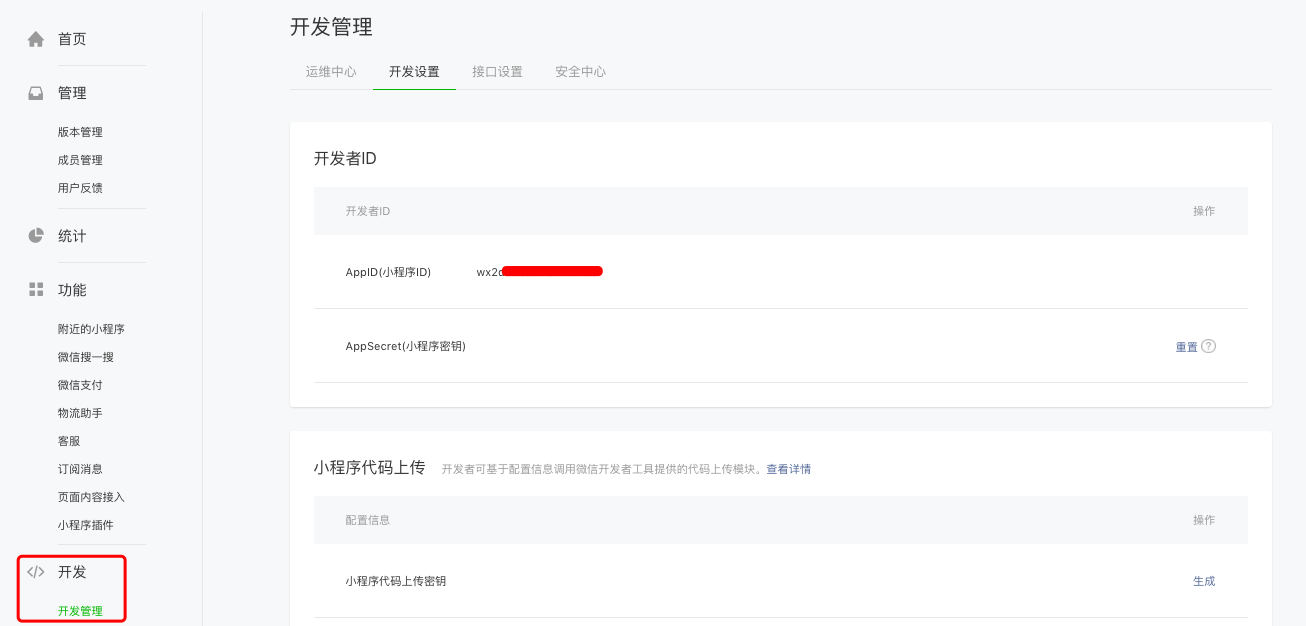
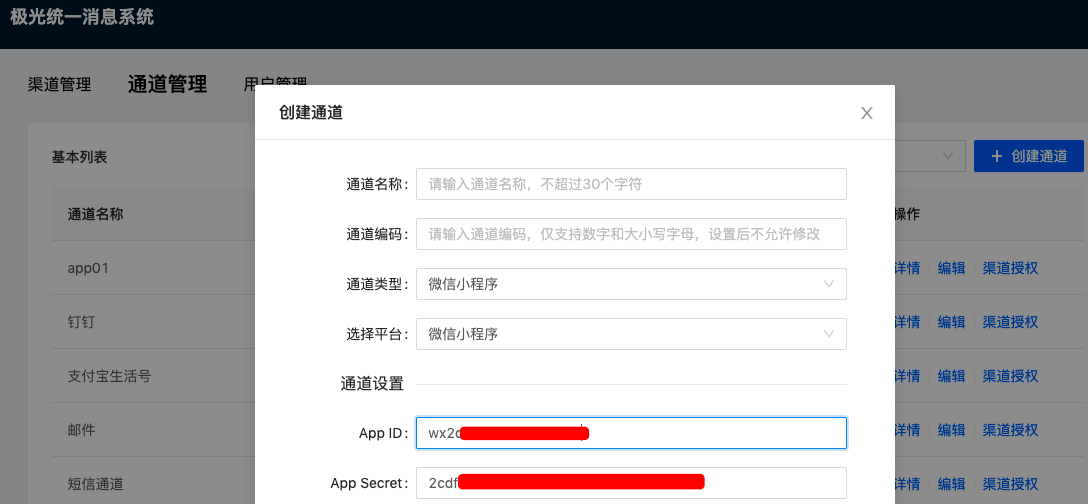
- Log in to the mini program on the WeChat Official Accounts platform home page. In the left menu, find Development -> Development Tools -> Development Settings to obtain the AppID and AppSecret. Configure this information in the UMS WeChat Mini Program channel information.
Use Third-Party Platform QR Code Authorization
- Public cloud uniformly uses the third-party platform provider Jiguang Unified Messaging System. When creating a channel, perform QR code authorization. The administrator of the official account must scan the QR code. No callback URL needs to be configured when creating a channel using this method.
- If the enterprise's business system has already integrated WeChat Official Account or mini program services and you want UMS to avoid conflicts with the business system, such as token or statistics acquisition conflicts, select QR code authorization when creating the channel.
- Private cloud customers can configure a third-party platform created by the enterprise for authorization management. The steps are the same as for official accounts. See the Official Account document. The permission set required for mini programs is as follows:
| Permission Set ID | Description | Remarks |
|---|---|---|
| 18 | Development management and data analysis permissions | Required |
Add Templates
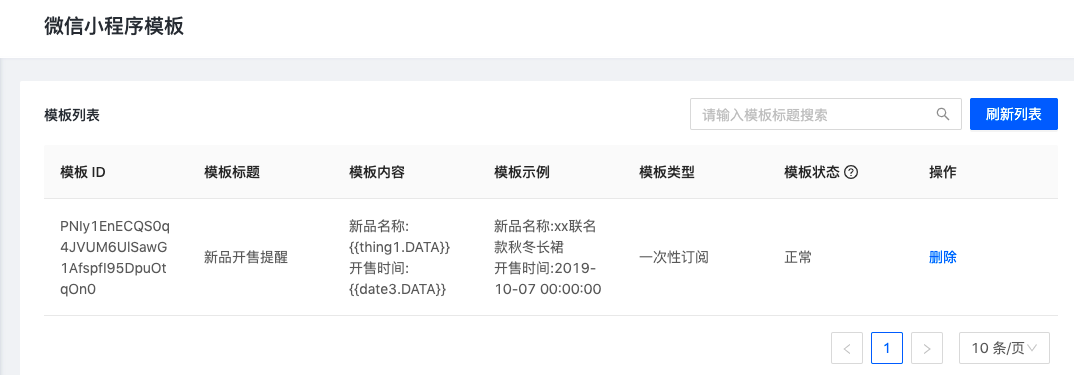
Go to the Subscription Messages menu page and select templates from the public template library. A total of 50 templates can be selected.
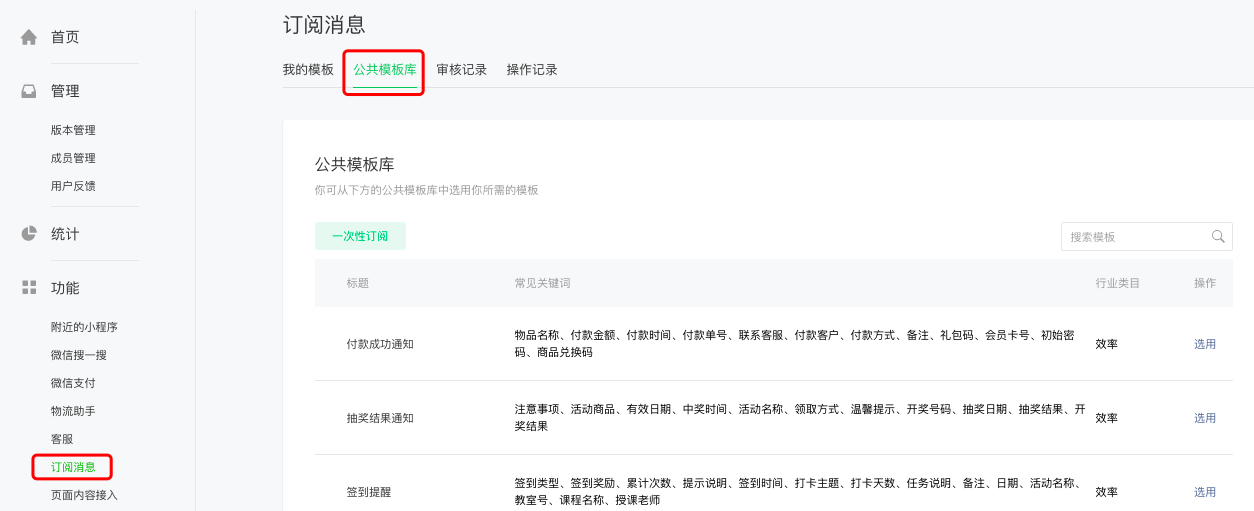
After templates are successfully added on the WeChat Mini Program platform, click Refresh List in the UMS system to obtain the template list and use the templates when pushing messages.
Upload openID
- In the WeChat Mini Program, bind the enterprise account with the WeChat user. You need to obtain the openID through the login API officially provided by WeChat.
- The general process is: after the user enters the mini program, guide the user to log in and bind the account. After the user logs in on the account login page, call the official WeChat API to obtain the openID, thereby obtaining the association between the openID and the account.
Upload the binding relationship to the UMS user system.
If the channel code configured when creating the channel in UMS is
wechatmp123, examples for uploading information to the UMS platform are as follows:
- Click file upload in the UMS console. The WeChat Mini Program openID field name in UMS is
wechatmp_openid. The Excel content is as follows: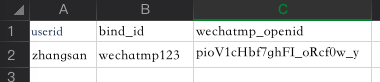
- The following is a JSON example for uploading through the REST API. For details, see REST API - User Management.
          [{
 "userid": "zhangsan",
 "set":{
 "wechatmp123":"pioV1cHbf7ghFI_oRcf0w_yHT-1F"
 }
}]
Notes
Subscription messages can be sent only after the user actively clicks to subscribe to a specific template. Otherwise, even if the openID has been obtained, messages cannot be sent successfully to that user.
The general process is: after the user enters the mini program, call the WeChat Mini Program subscription message API wx.requestSubscribeMessage when the user performs an action. This opens the subscription prompt. If the user selects Always Keep the Above Selection and Do Not Ask Again, subsequent calls to this API will no longer require user permission.
Because one click on the subscription button can send only one message, if multiple messages need to be sent, it is recommended to call wx.requestSubscribeMessage in many operations of the mini program to accumulate the number of messages that can be sent.
If you are concerned that calling the API on every operation may cause users to be asked too frequently whether to subscribe, you can call it by default on key operations. Before calling it on other operations, first use the wx.getSetting API to check whether the user selected Always Keep the Above Selection and Do Not Ask Again. If selected, call the API once.
Send Messages
After the configuration is complete, you can send messages from the official console. See the Console Operation Guide.
You can also call the API to send messages. See the REST API documentation.

