


DingTalk Integration Guide
UMS currently supports integrating DingTalk work notifications. DingTalk messages are generally used for internal employee notifications within an enterprise. You need to create an application under the enterprise organization first. Sent messages are displayed in the "Work Notification" conversation.
Apply for a DingTalk Application
For details, see the official documentation.
- Log in to the DingTalk Admin Console.
On the Application Development page, select the application type and click Create Application. After the application is created, you can obtain AppKey and AppSecret on the application details page. These two pieces of information need to be filled in the UMS DingTalk channel information.
- Permission application
- On the Application Development page, click the target application to enter the application details page.
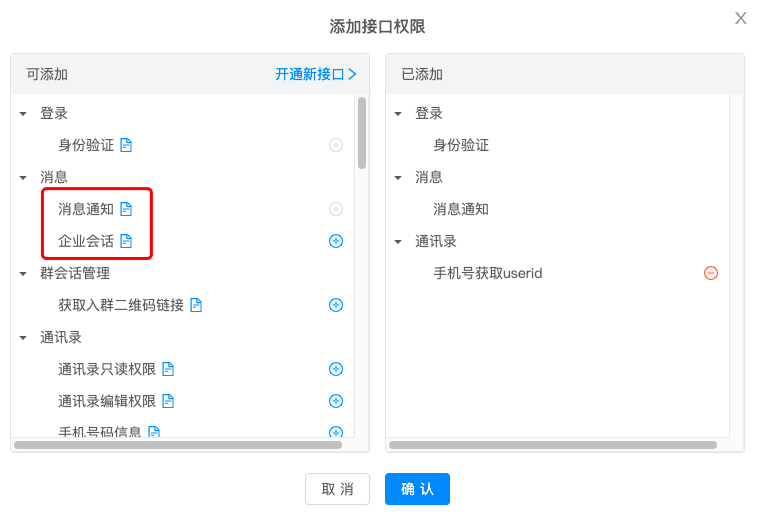
- On the application details page, click API Permissions, then click Add API Permission.
- Add message notification and enterprise conversation API permissions.
- Configure IP allowlist
Configure the Jiguang system IP 119.3.213.183 in Development Management - Server Outbound IP.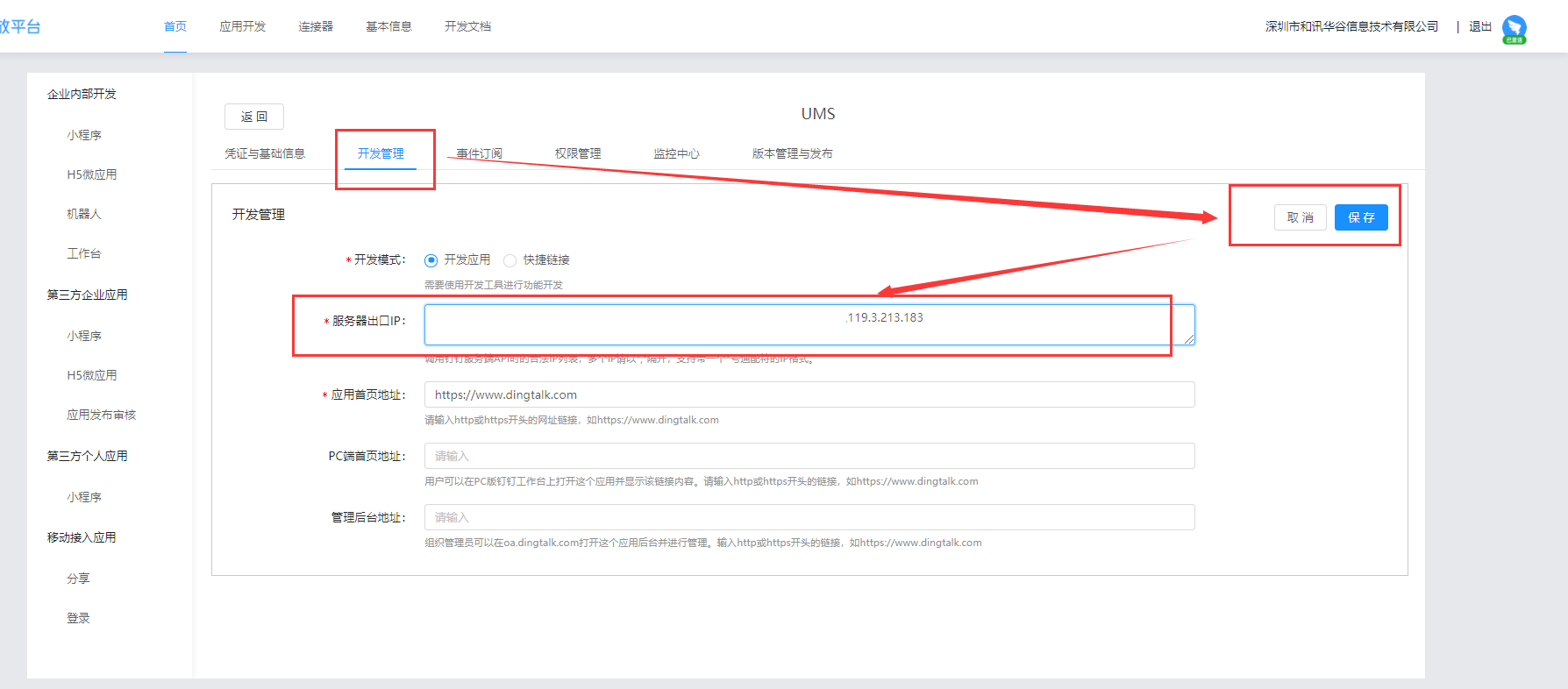
Upload userID
DingTalk userID can be set when creating a user in an enterprise. If not specified, it is generated randomly. Therefore, if it is not specified, permission is required to obtain userID.
DingTalk userID is unique within an enterprise. No matter how many applications are created, the same userID can be used to send messages. Therefore, when uploading information, the binding identifier bind_id is all.
Jiguang provides a tool to help developers obtain userID by mobile number. Download the pushtools tool (Linux version or Mac version), then enter the following command in the console and fill in the specific AppKey, AppSecret, and mobile number.
- Suppose the channel code configured when creating the channel in UMS is dingtalk123. The example for uploading information to the UMS platform is as follows:
- Click file upload in the UMS console. DingTalk userID is named dingtalk_userid in UMS. Excel content example:

- JSON example for uploading through REST API is as follows. For details, see REST API - User Management.
          [{
 "userid": "zhangsan",
 "set":{
 "dingtalkcc":"zsan"
 }
}]
Notes
- For the same application, the same user can receive the same message content only once per day.
- An internal enterprise application can send messages to the same user no more than 500 times per day.
- After the above limits are exceeded, the API returns success, but the user cannot receive the message.
Send Messages
After configuration succeeds, you can start sending messages through the official console. Read the Console Operation Guide.
You can also call APIs to send messages. Read the REST API Documentation.

