


WeChat Official Account Integration Guide
JUMS supports WeChat Official Account template messages and subscribe-notifications. Both are only available for "Service Account" type Official Accounts, so the enterprise must first apply for a Service Account.
Note: Article message type is on the roadmap. Stay tuned.
Apply for a Service Account
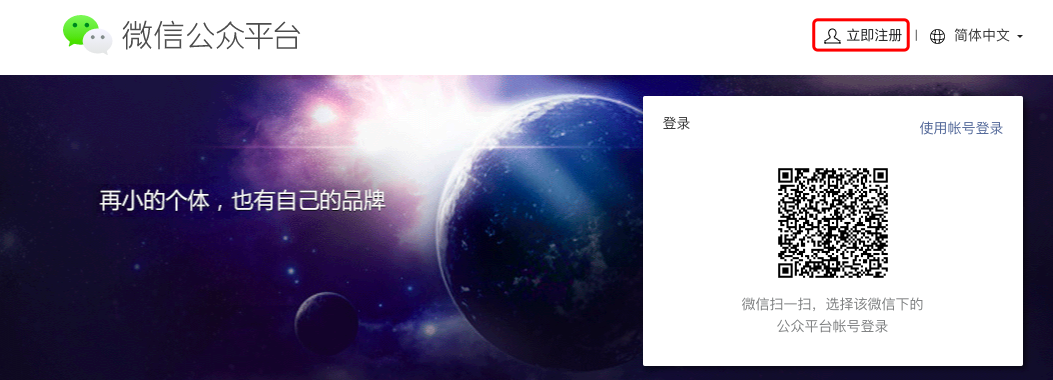
On the WeChat Official Accounts Platform login page, click Register.
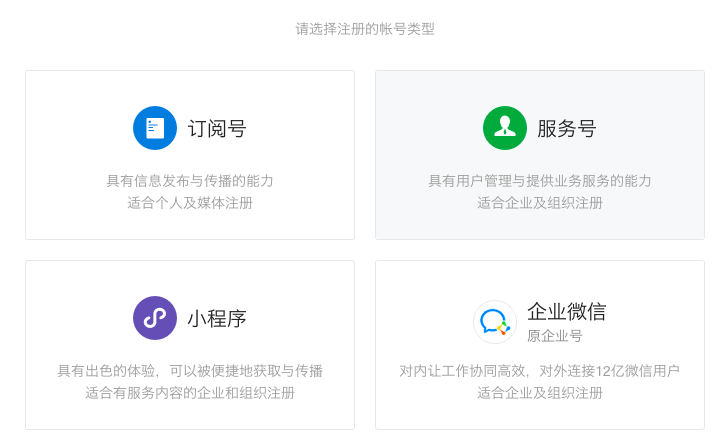
Choose "Service Account". Different account types have different capabilities — see Official Account interface permissions. To use template messages and subscribe-notifications, you must pick "Service Account".
Activate the mailbox.
Note: each mailbox can be used to apply for only one account type. Use a mailbox not yet registered for a Subscription Account / Service Account / Enterprise Account / Mini-program / Open account / personal WeChat ID.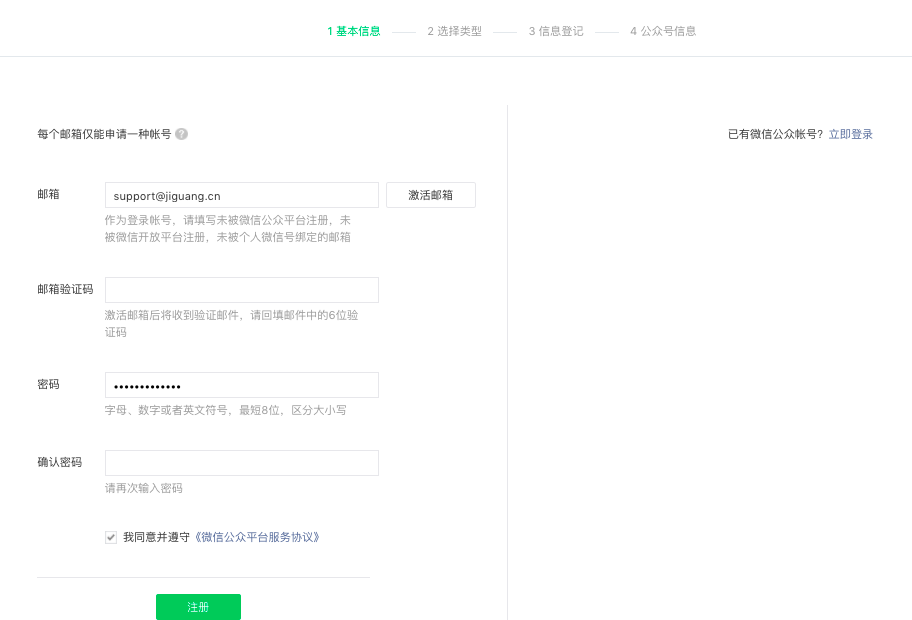
After mailbox activation, choose the registration region and the account type again.
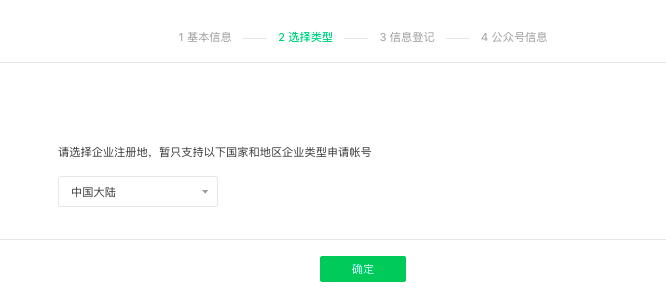
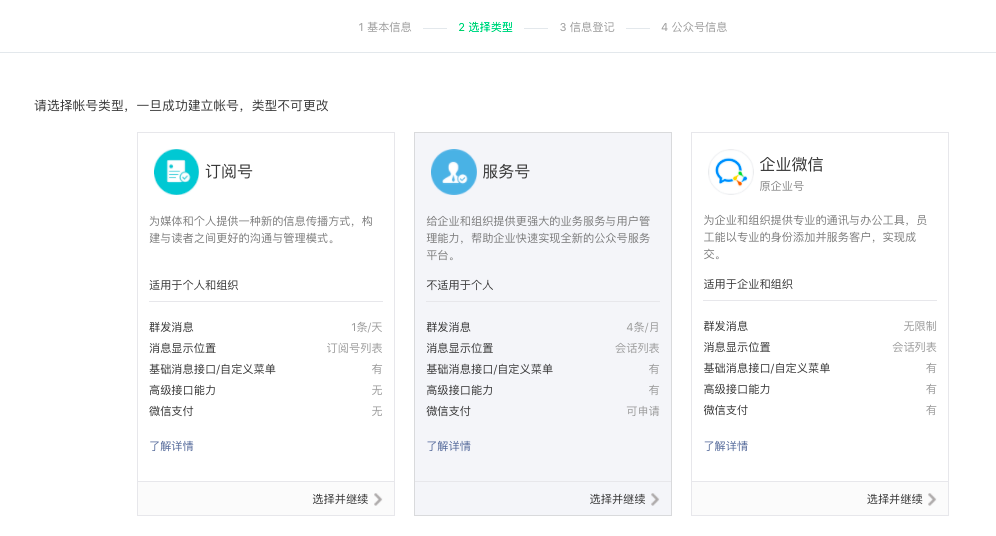
Registering a Service Account requires detailed information. See the official guide for required information, and the official guide on subject type.
If your documentation is not ready, you can log in later with the activated mailbox and password to continue registration.
After approval, you can use features like template messages and subscribe-notifications.
Basic configuration and authentication
Using AppID and AppSecret
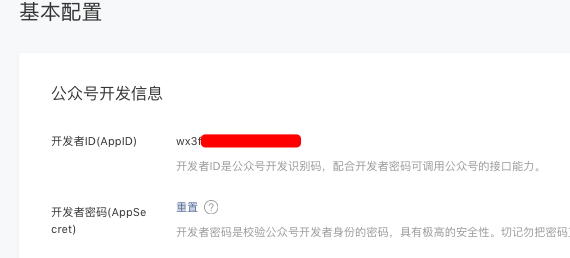
- After logging in to the Official Accounts Platform, find "Development" → "Basic Configuration" at the bottom of the left menu. Get the AppID and AppSecret and configure them in the JUMS WeChat Official Account channel.
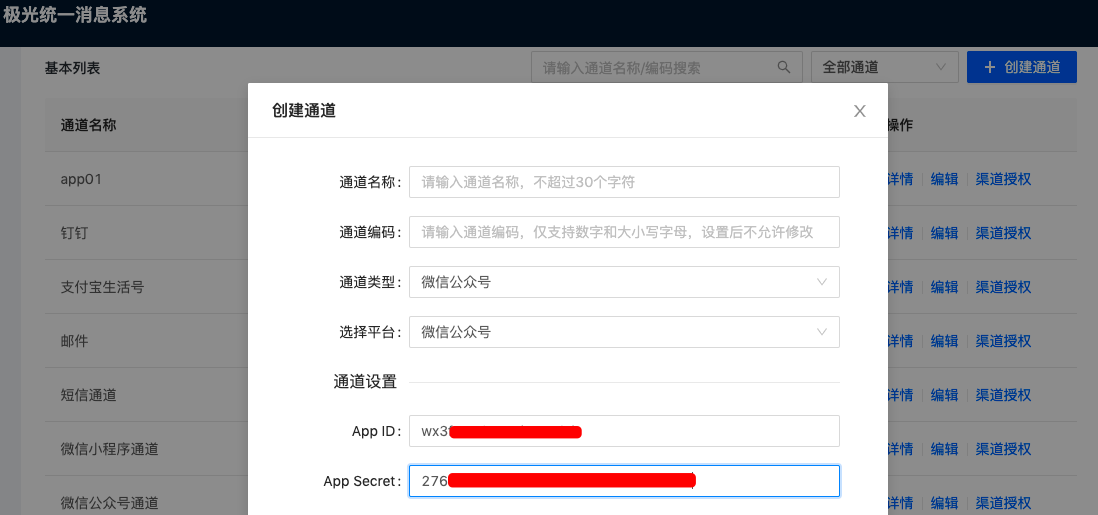
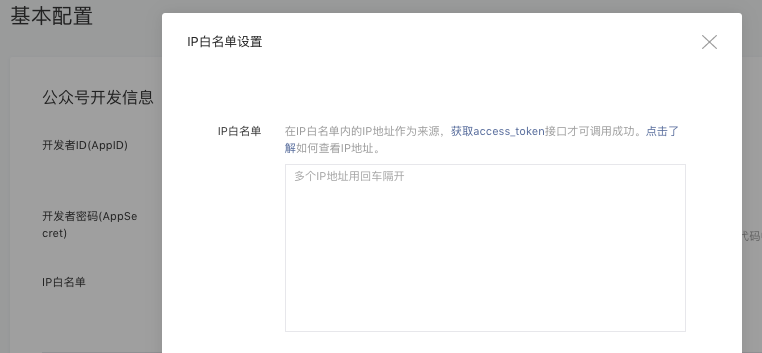
- Configure the IP whitelist: add the JUMS server IPs to the whitelist.
- 119.3.213.183
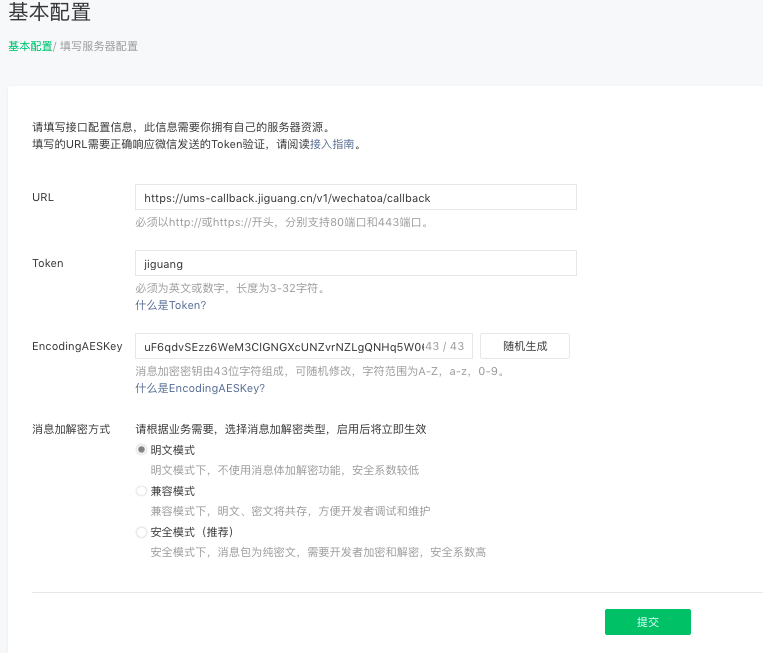
- Server configuration: to detect actual delivery status of WeChat Official Account messages, configure the JUMS callback URL here: https://ums-callback.jiguang.cn/v1/wechatoa/callback
Using a third-party platform via QR code authorization
- Public cloud uses the "Jiguang Unified Messaging System" third-party platform. When creating a channel, scan to authorize; only an Official Account administrator can scan. With this method, you do not need to configure a callback URL.
- If the enterprise's business system has already integrated WeChat Official Account / Mini-program directly, and you want JUMS not to conflict with the business system (token, statistics retrieval), choose QR-code authorization when creating a channel.
- Private-cloud customers can configure their own enterprise-created third-party platform for authorization management:
- Log in to the WeChat Open Platform.
- Under Management Center → Third-party Platform, click Create Third-party Platform. Choose "Platform Service Provider" type, and fill in the rest according to your enterprise. Note: a single third-party platform manages both WeChat Official Account and Mini-program.
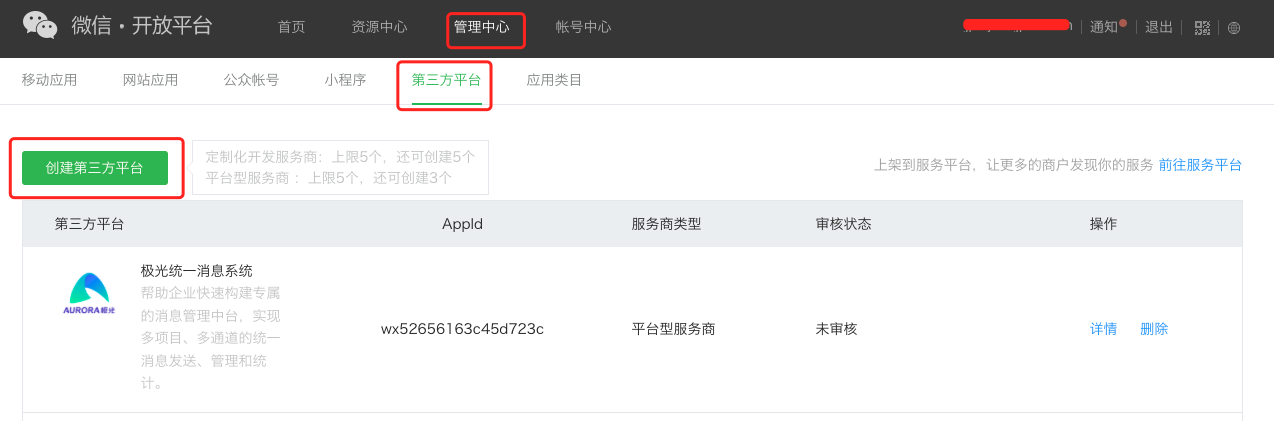
- After creation, submit for review.
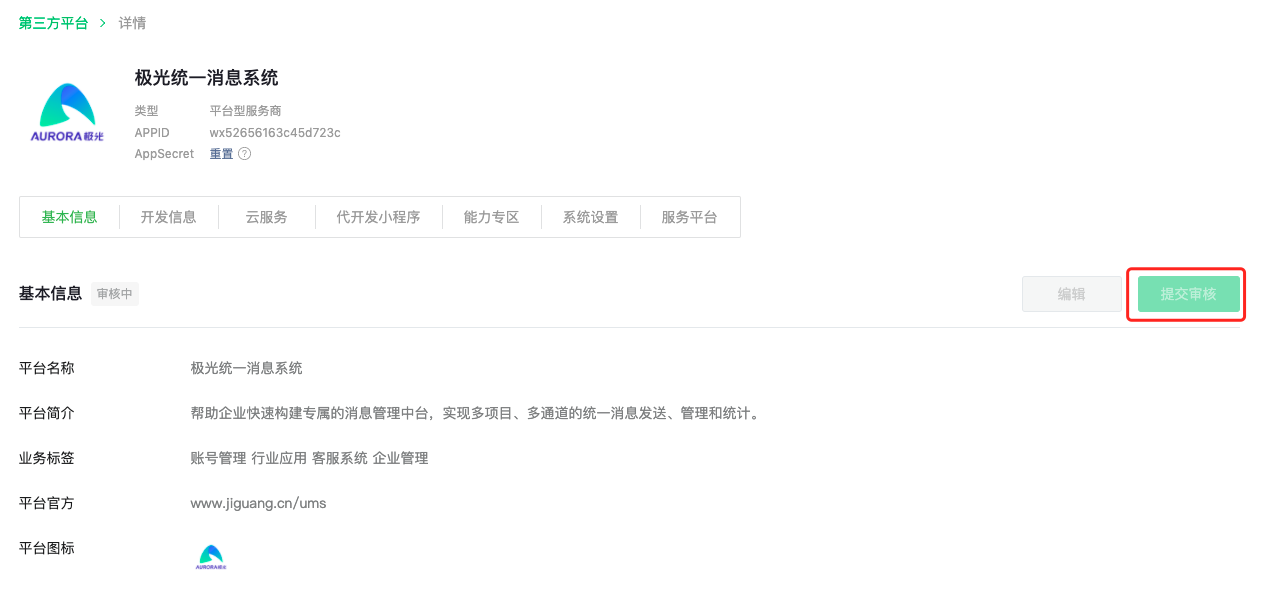
- Get the APPID and AppSecret from the details. Set them as the values of
wechattpp_component_app_idandwechattpp_component_app_secretin the config file. - In Details → Development Info → Permission Set, configure the permission set. See the official documentation on permission sets.
| Permission Set ID | Description | Notes |
|---|---|---|
| 7 | Mass send and notifications | Required |
| 8 | WeChat Coupons | Not needed now, but recommended for future feature expansion |
| 11 | Asset management | Not needed now, but recommended for future feature expansion |
| 89 | Service Account subscribe-notifications | Required |
- In Details → Development Info → Development Information, configure the relevant fields:
| Field | Value | Notes |
|---|---|---|
| Authorization Event Receive URL | JUMS domain / custom suffix path | 1. JUMS domain must be reachable from the public internet 2. In nginx, forward this address to the wechattpp service |
| Message and Event Receive URL | JUMS domain / custom suffix path | 1. The custom suffix path must include /$APPID$ |
| Message Verify Token | Custom value | Must match the value of wechattpp_encoding_token in the config file |
| Message Encryption Key | Custom value | Must match the value of wechattpp_encoding_aes_key in the config file |
| IP Whitelist | JUMS public IP | 1. Only when the developer's IP is in this list can it call the related APIs 2. If misconfigured, the wechattpp module prints an error log with code 61004 containing the actual request IP; use that IP instead |
| Authorized test Official Account / Mini-program list | Original ID of the Official Account or Mini-program | 1. Look up the ID on the Settings page of the Official Accounts Platform 2. Before nationwide release, only accounts in this list can be authorized |
- After the development info is configured, submit for nationwide release. After release, any Official Account can authorize you; if the enterprise has fewer than 10 Official Accounts + Mini-programs, you can continue using the authorization list.
Enable template messages
Under Features → Add Plugin, find the entry to apply for template messages. See the official introduction to template messages.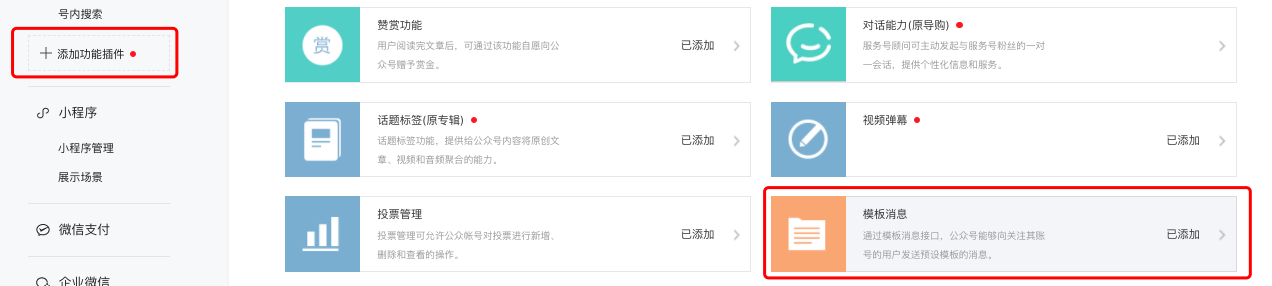
After adding template messages, in the Template Messages menu page you can add templates from the template library. You may apply for up to 25 templates; if you cannot find a suitable one, you may apply for a custom template (3 per month).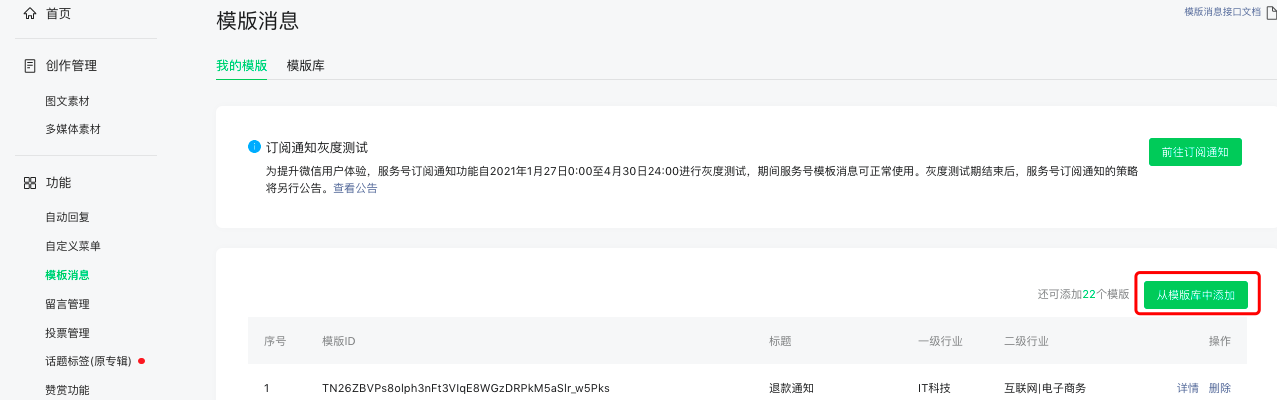
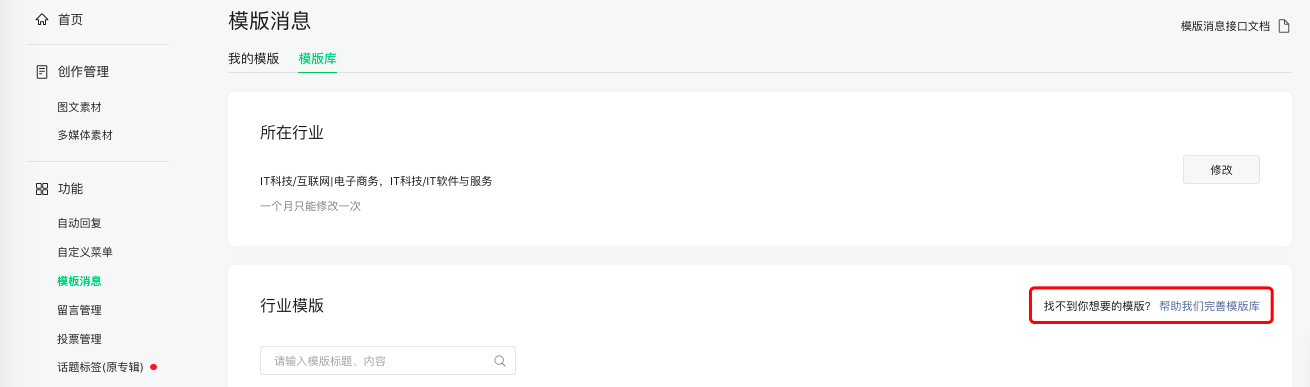
Note: when using template messages, follow WeChat's Operation Specifications.
After successfully adding templates in the WeChat Official Account, click Refresh in JUMS to fetch the template list and use them when sending messages.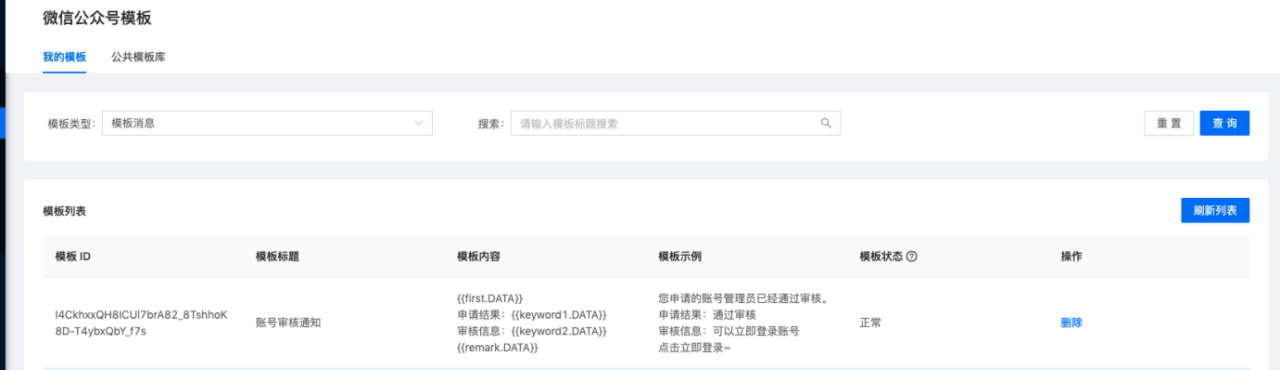
Enable subscribe-notifications
On the Add Feature page, find the entry to apply for subscribe-notifications. See the official introduction to subscribe-notifications.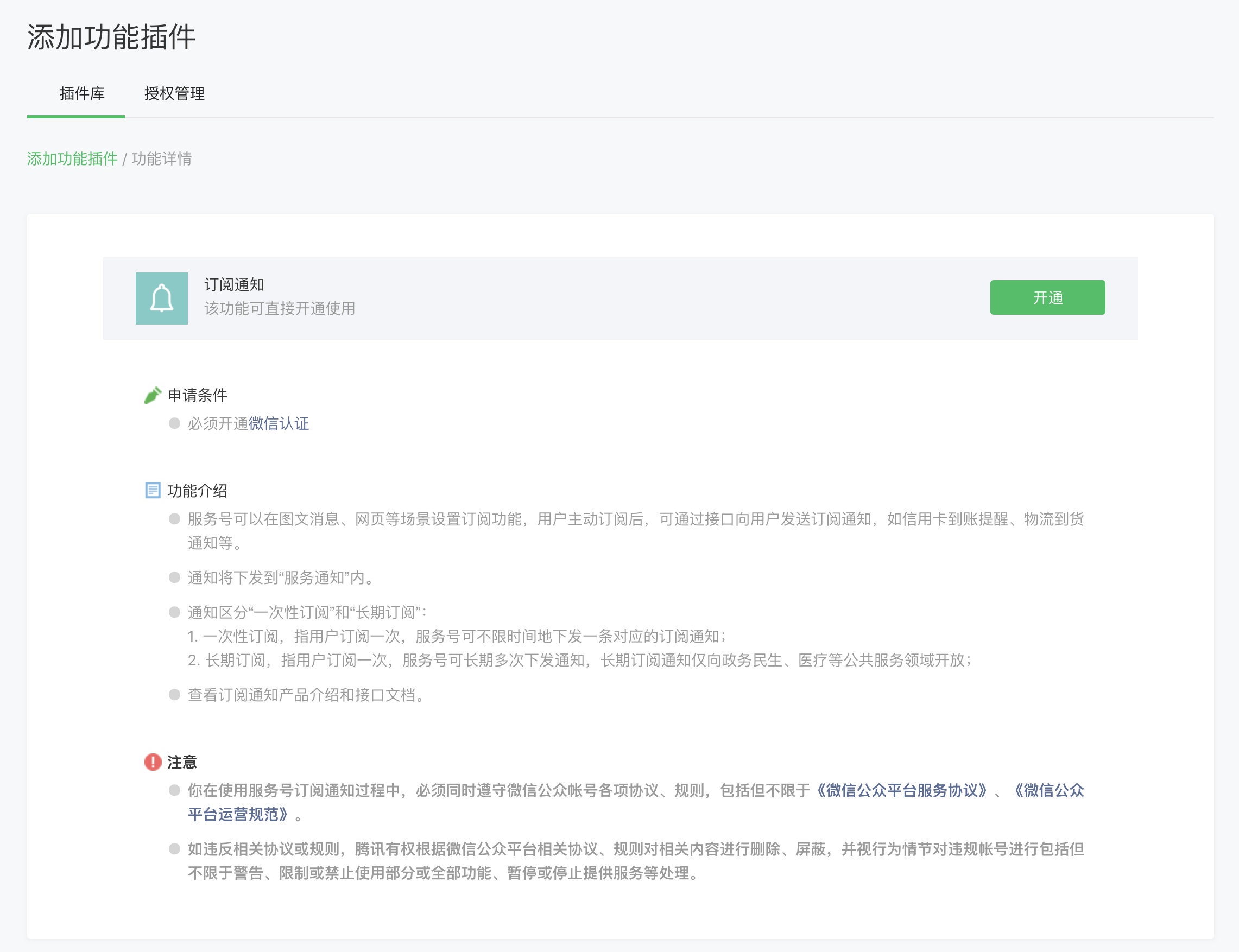
After enabling subscribe-notifications, under Ads & Services → Subscribe-Notifications, you can add templates from the public template library. You may apply for up to 50 templates; if you cannot find a suitable one, you may apply for a custom template (10 per month).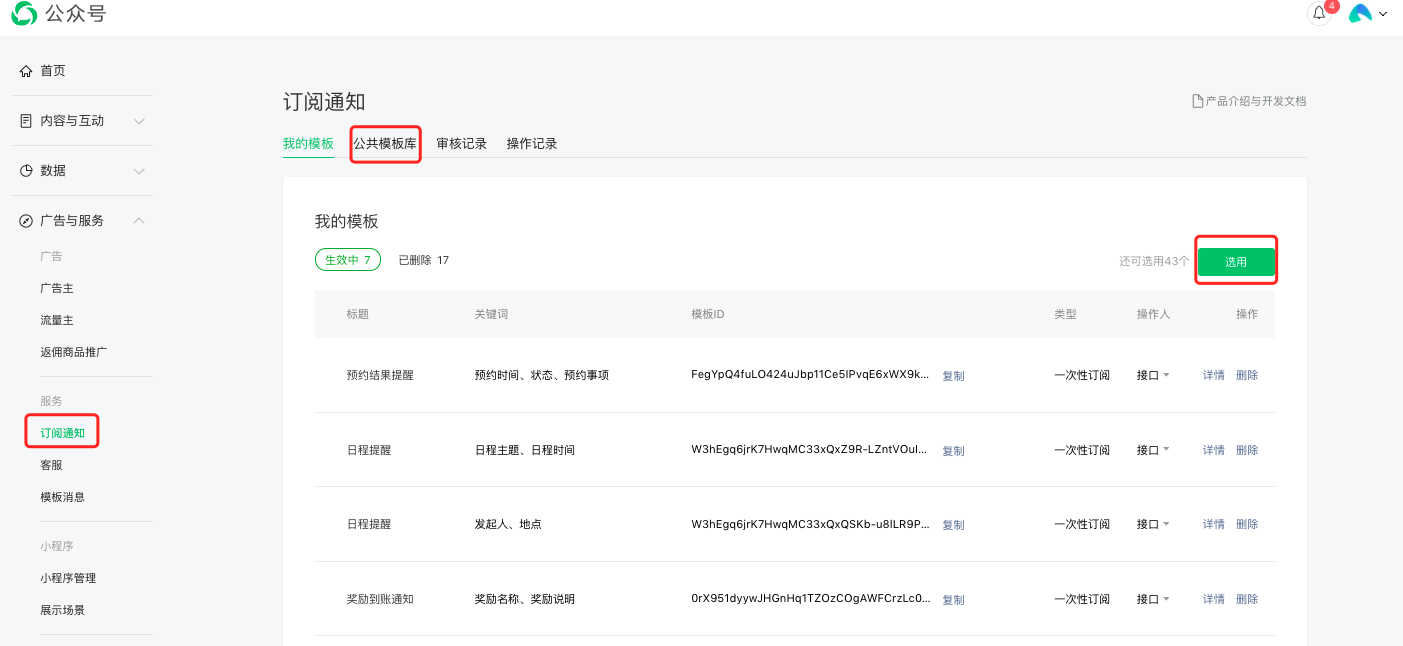
After templates are added in the WeChat Official Account, click Refresh in JUMS to fetch the template list and use them when sending messages.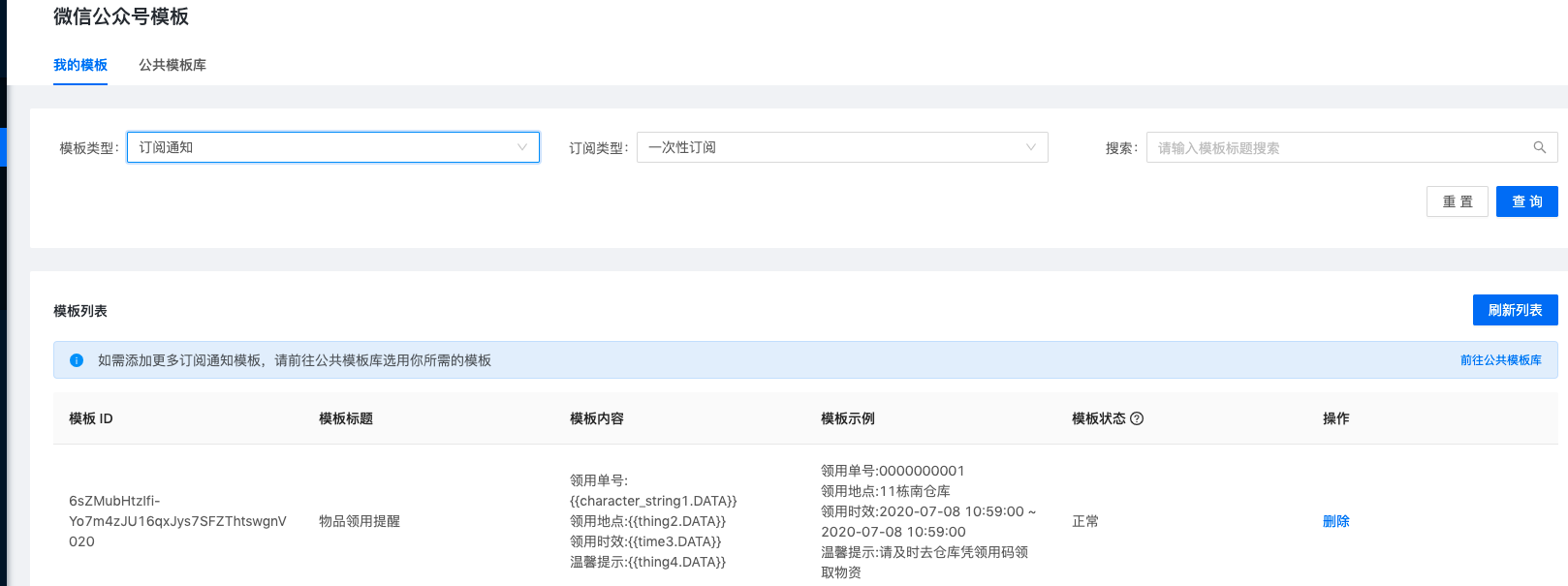
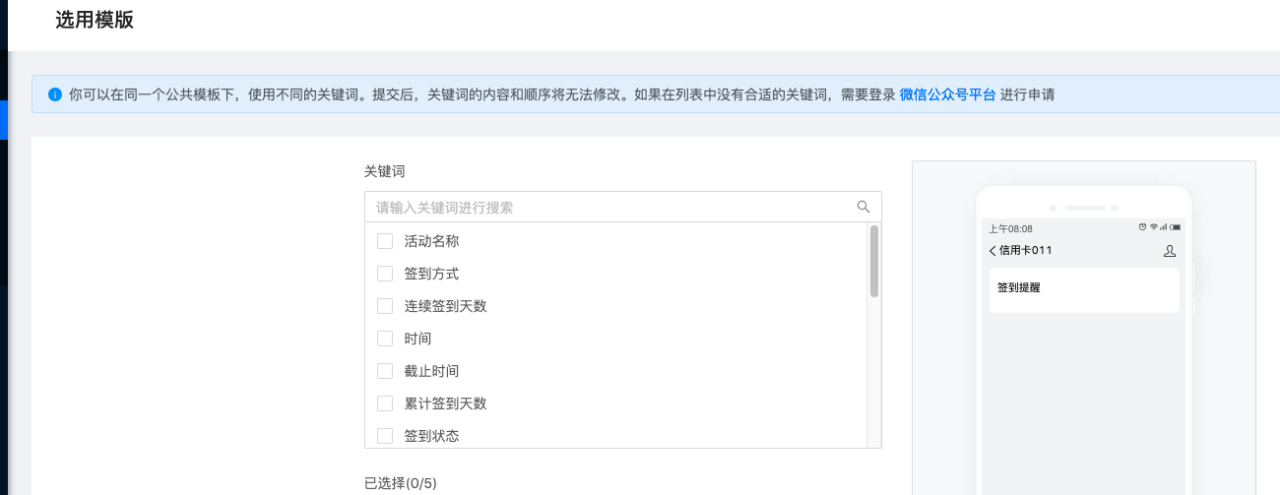
In addition to applying for templates in the Official Account backend, JUMS integrates the capability to apply for templates directly. After creating a WeChat Official Account channel under Channel Settings and authorizing it to a channel, the enterprise can pick templates from Channel → Template Management → WeChat Official Account → Public Template Library.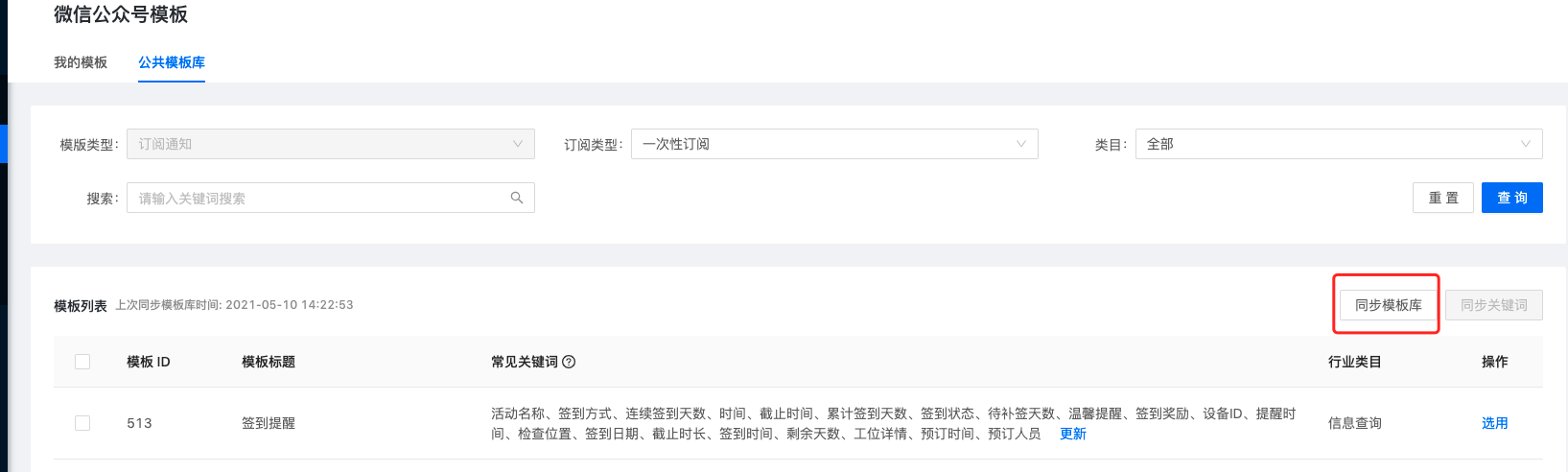
Upload openID
- To bind the enterprise's account with a WeChat user in the Official Account, you need to obtain the openID via Web Authorization.
- Typical flow: after the user follows the Official Account, guide them to log in to bind. Click to jump to the enterprise's account login page; after the user logs in, call the official WeChat API to obtain the openID, establishing the binding between openID and the account.
Upload the binding to the JUMS user system.
Assuming the channel code created in JUMS is
wechatoa123, the upload payload to JUMS looks like:
- In the JUMS console, click Upload File. The WeChat Official Account openID is named
wechatoa_openidin JUMS. Reference Excel content: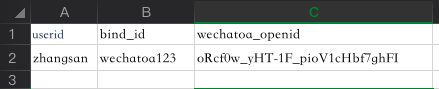
- JSON example for uploading via REST API; see REST API - User Management for details.[{ "userid": "zhangsan", "set":{ "wechatoa123":"oRcf0w_yHT-1F_pioV1cHbf7ghFI" } }]
          [{
 "userid": "zhangsan",
 "set":{
 "wechatoa123":"oRcf0w_yHT-1F_pioV1cHbf7ghFI"
 }
}]
This code block is shown in the floating window
Quick test plan
If your enterprise does not yet have a Service Account, during testing you can request a WeChat Official Account sandbox account. Note: subscribe-notifications are not supported in the sandbox.
If your enterprise has not built account-binding yet, here are 2 quick ways to obtain test openIDs:
- Compare user lists: fetch the user list, follow the Official Account from a test WeChat, then fetch the user list again — the newly added ID is the test WeChat's openID. Jiguang provides a tool to help fetch the user list; download
pushtools(Linux version or Mac version) and run:
- Log in to the Official Account backend, go to Left Menu → Management → User Management, find the test WeChat account, and click the name. In the chat page that opens, copy the URL. The URL contains a parameter
tofakeid=o_xxxxxxx; the value aftertofakeid=is the account's openID.
Notes on subscribe-notifications
Unlike template messages (which can be sent once the user follows), subscribe-notifications require the user to actively click subscribe on a specific template before a message can be sent. Otherwise, even with the openID, no message will be delivered.
Simple test: in the Official Account backend send an article message that includes subscribe info.
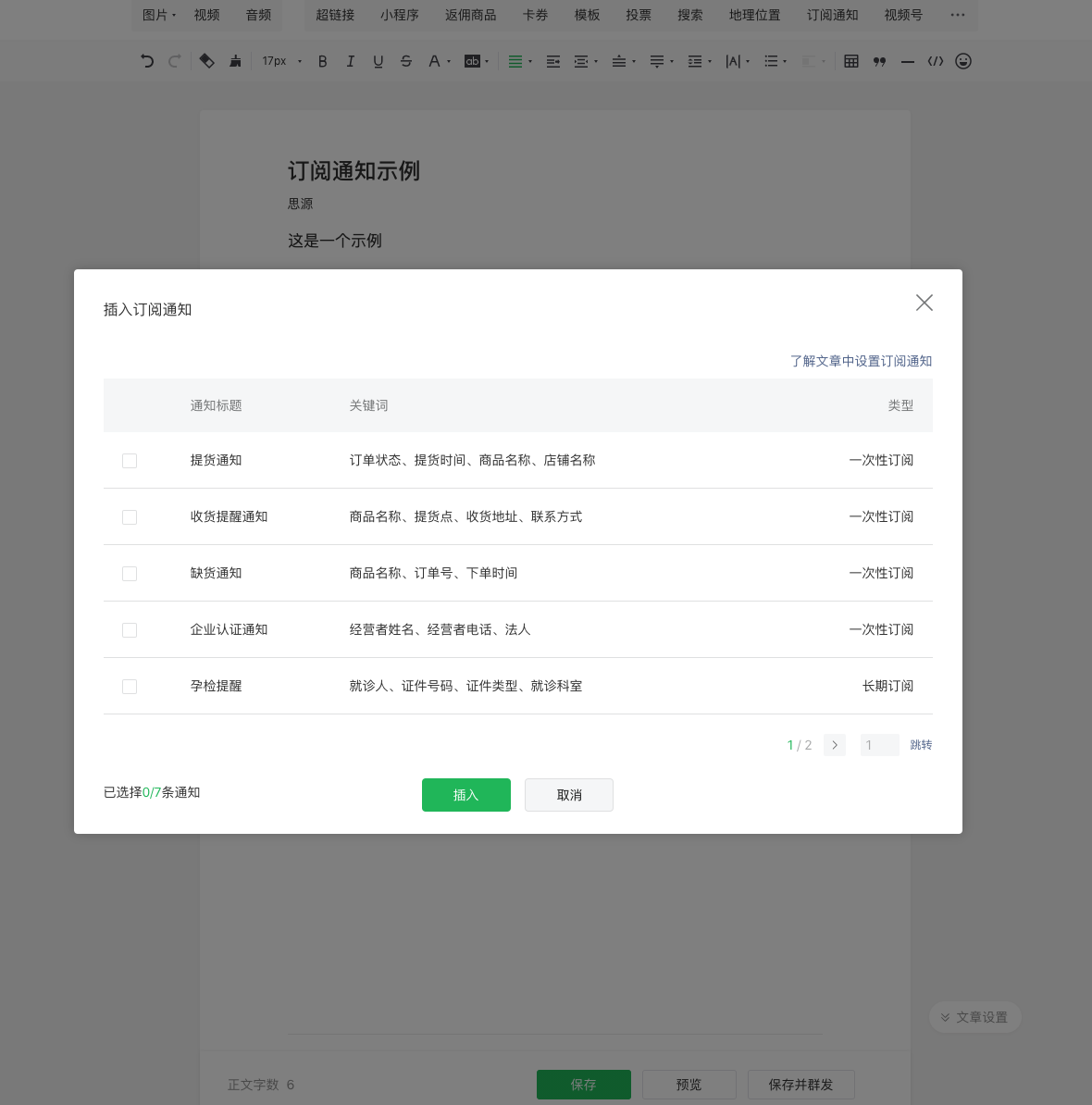
You can also set up subscribe-notifications via WeChat's open tag capability on a web page so users can actively subscribe. The web-side subscribe API is wx-open-subscribe.
As with mini-programs, clicking subscribe brings up a confirmation dialog. If the user selects "Always keep this choice and do not ask again", subsequent clicks do not require authorization.
Each subscribe click grants the right to send only one message. To send multiple messages, the enterprise must call the subscribe API in various user actions to accumulate send quota.
Send messages
After configuration, you can send messages using the console — see the Console Guide.
You can also send via REST API — see the REST API Docs.

