Enable Verification Service
Create a Developer Account
Go to the Jiguang official website to create a Jiguang developer account.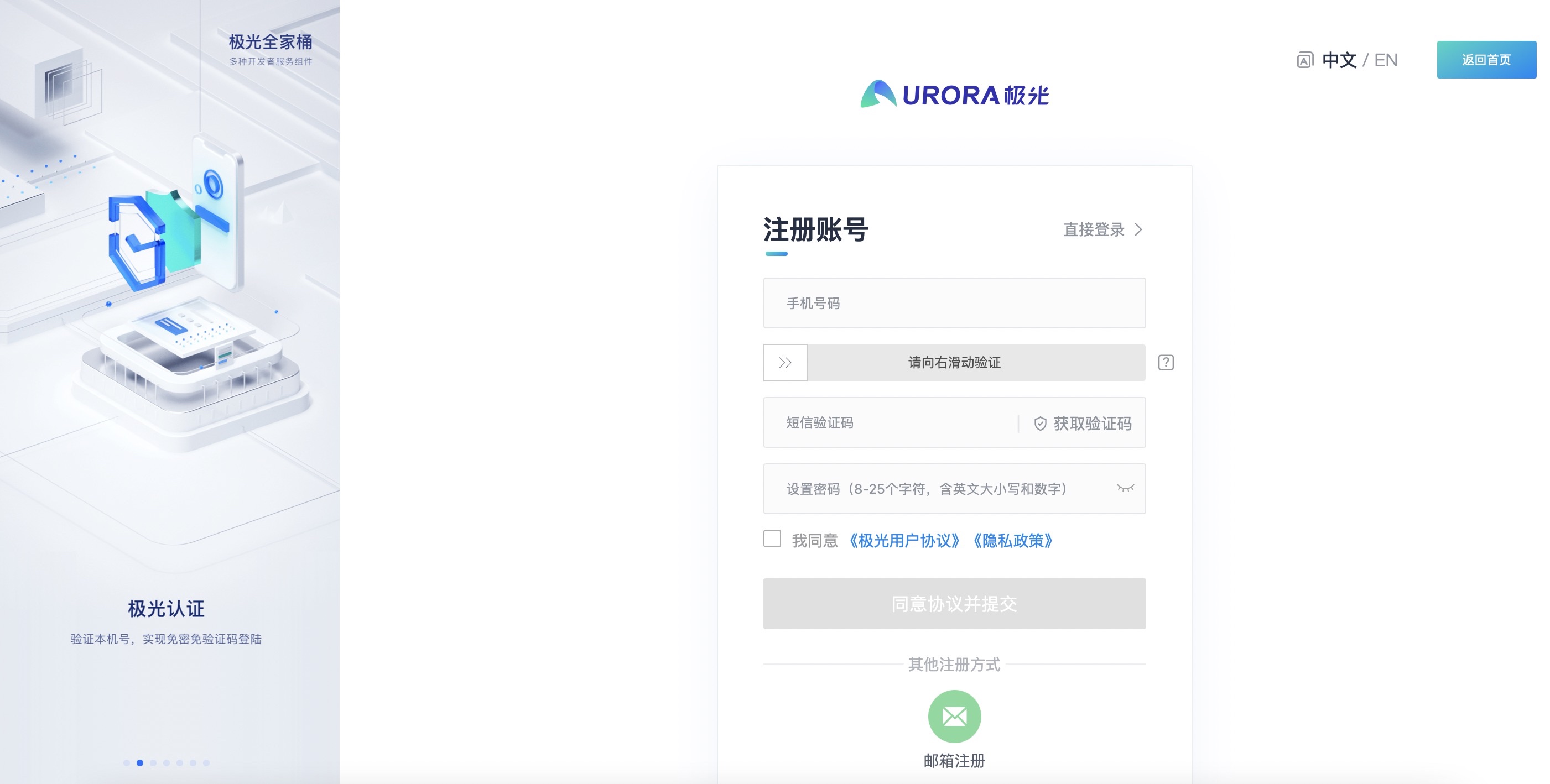
Developer Authentication
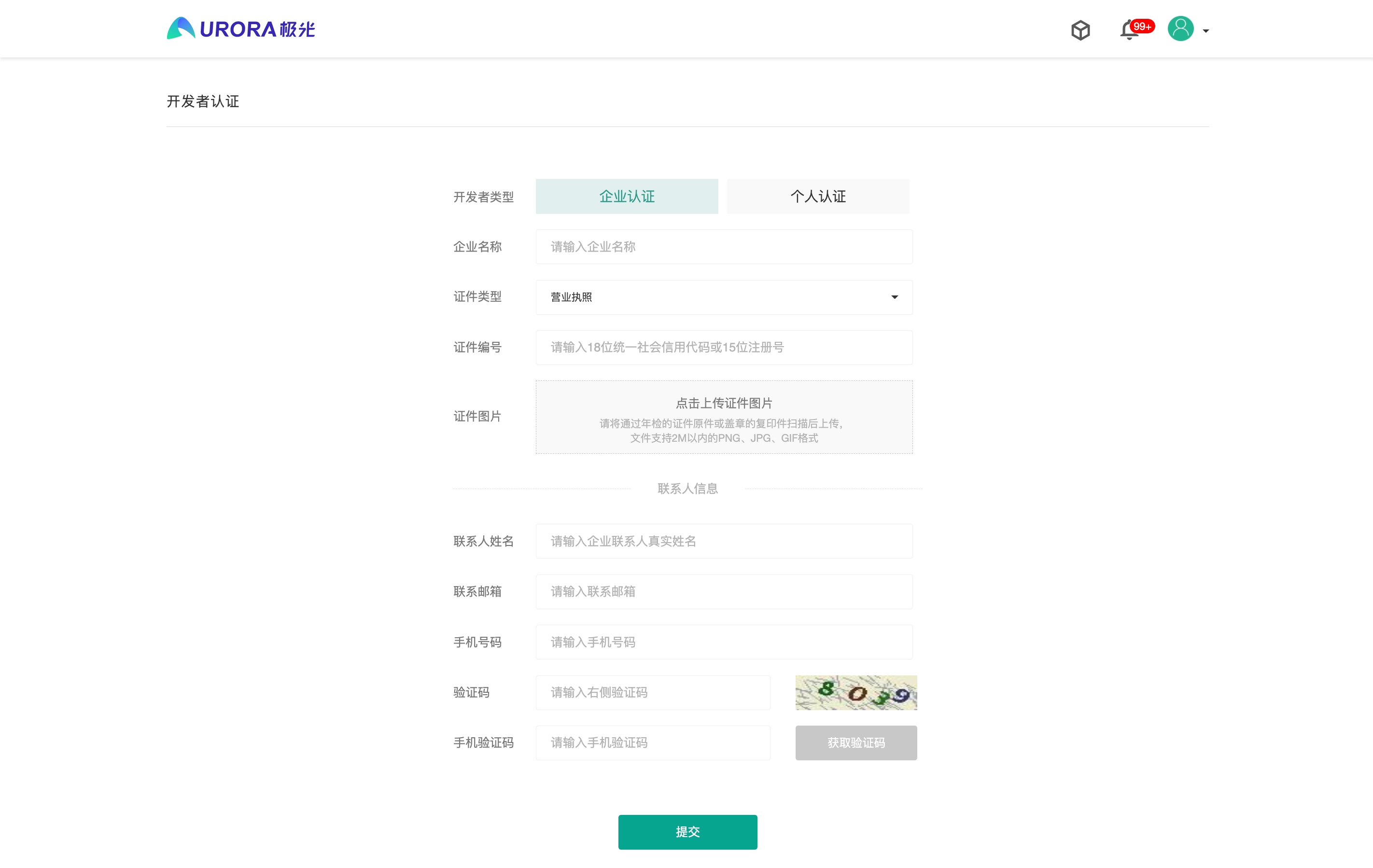
Due to carrier requirements, authentication services can be used normally only after individual real-name authentication or enterprise qualification authentication is completed. All authentication fields are required. Click to start developer authentication now.
After approval, the information cannot be modified. Please fill in the authentication information carefully to avoid affecting later use of SMS, authentication, and other services.
Create an App
Go to the Jiguang console, click "Create App", and fill in the app name to create an app.
Authentication Settings
After successfully creating the app, go to the platform/service integration page, select "Jiguang Verification", and click Next.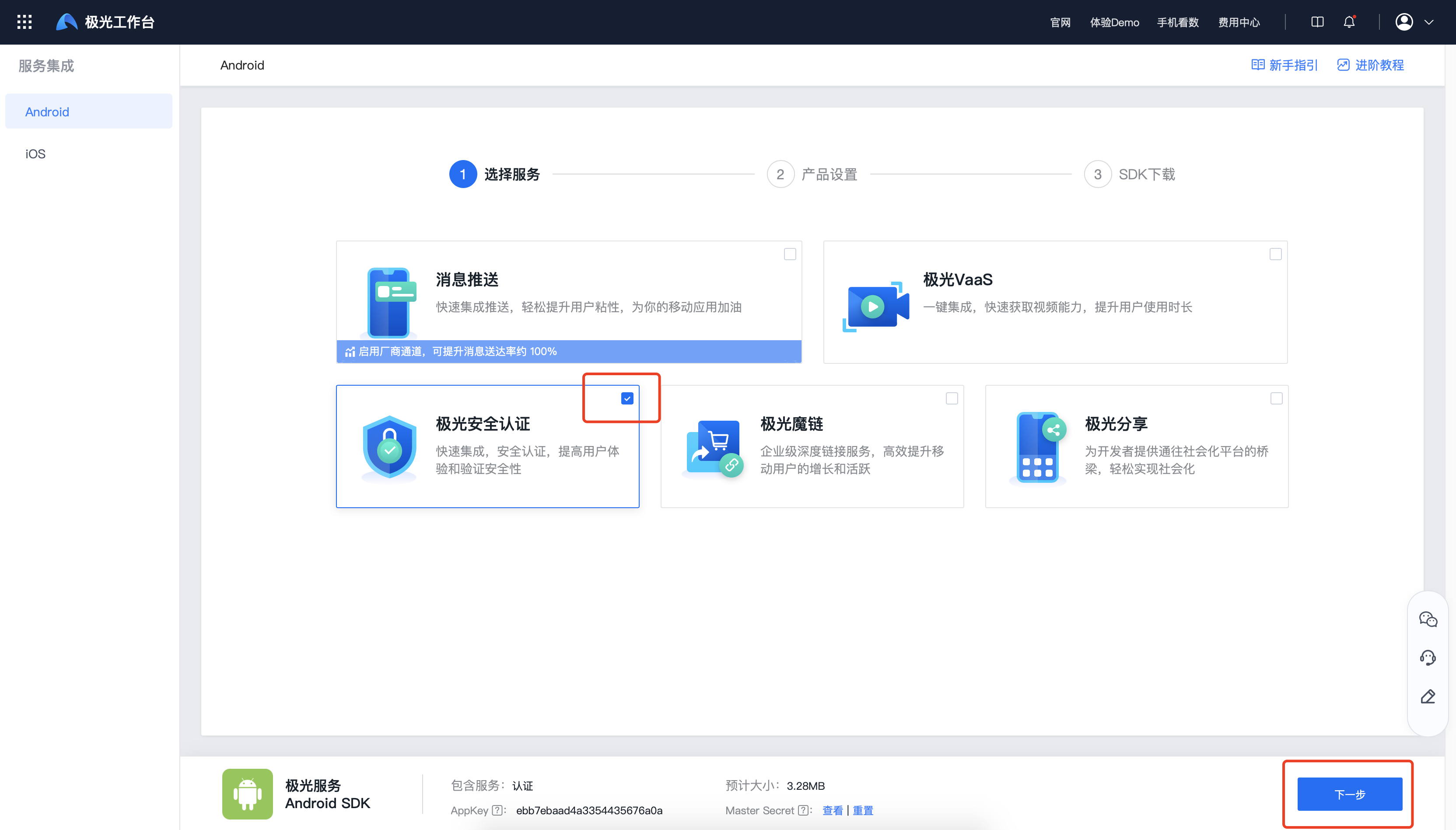
Integration Settings
Android Settings
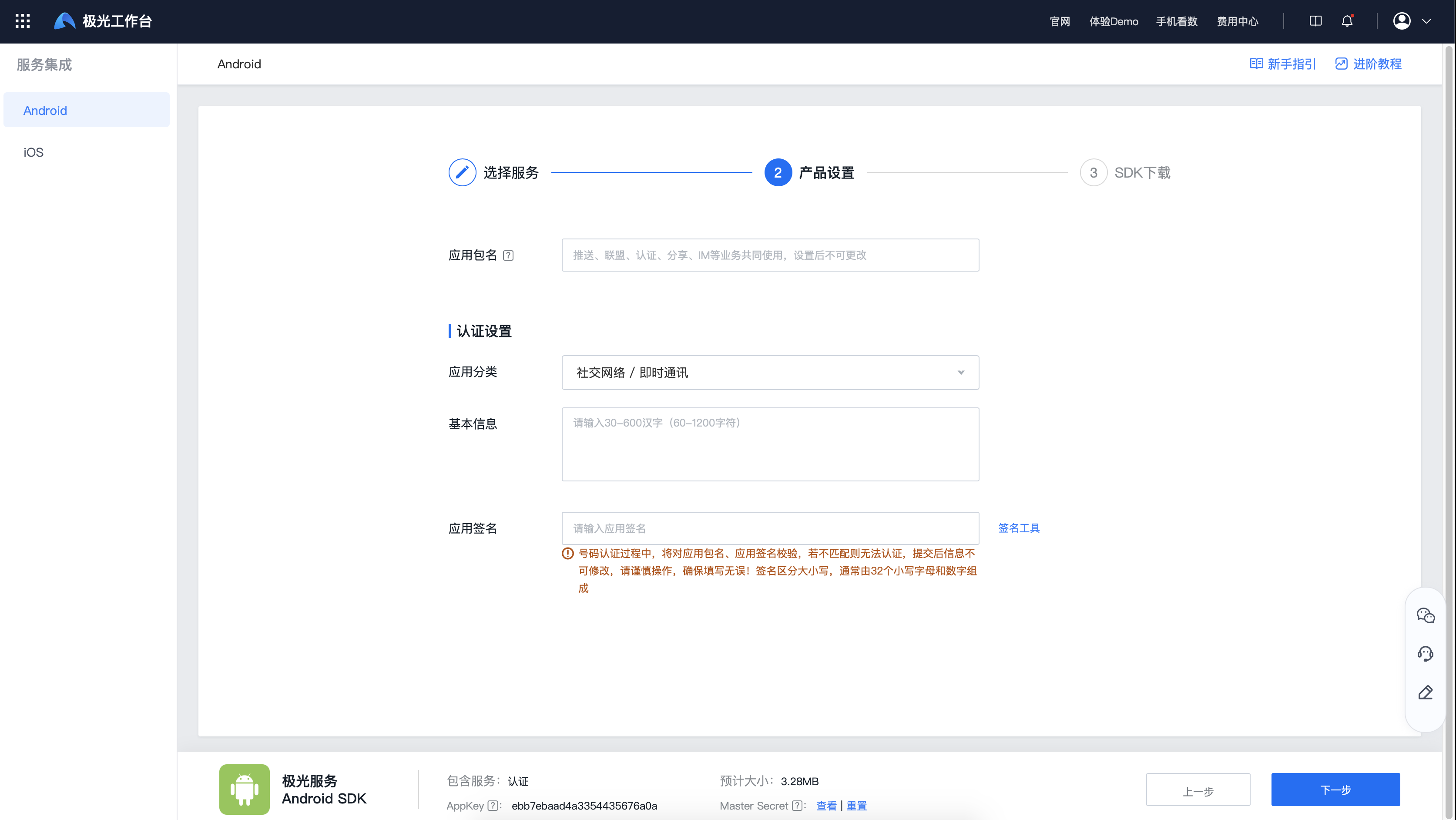
On the platform/service integration page, fill in the app package name, basic information, and app signature, and select the app category.
- The app package name is shared by push, verification, share, IM, and other services. Once specified, it cannot be changed.
- You can install the signature acquisition tool on the mobile terminal to quickly obtain app signature information.
- During number verification, the app package name and app signature are checked. If they do not match, authentication cannot be completed. Information cannot be modified after submission, so operate carefully and make sure the information is correct. The signature is case-sensitive and usually consists of 32 lowercase letters and digits.
HarmonyOS Settings
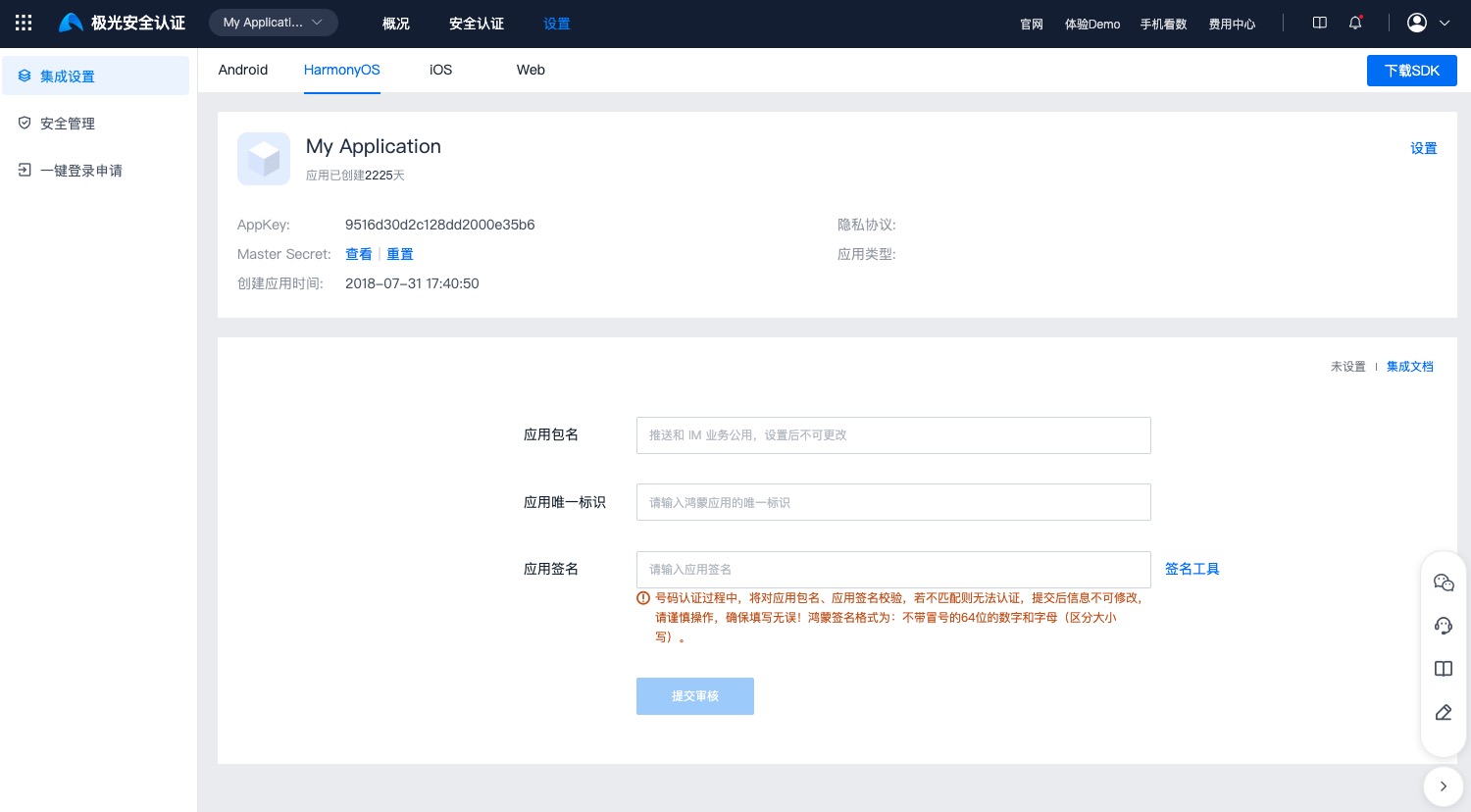
On the platform/service integration page, fill in the app package name, unique app identifier, and app signature, then submit for review.
- The app package name is shared by push, verification, share, IM, and other services. Once specified, it cannot be changed.
- For how to obtain the signature, see the Integration Guide.
- During number verification, the app package name and app signature are checked. If they do not match, authentication cannot be completed. Information cannot be modified after submission, so operate carefully and make sure the information is correct. HarmonyOS signature format: 64 digits and letters without colons, case-sensitive.
iOS Settings
On the platform/service integration page, fill in Bundle ID, app category, and basic information, then click Next to complete verification service configuration.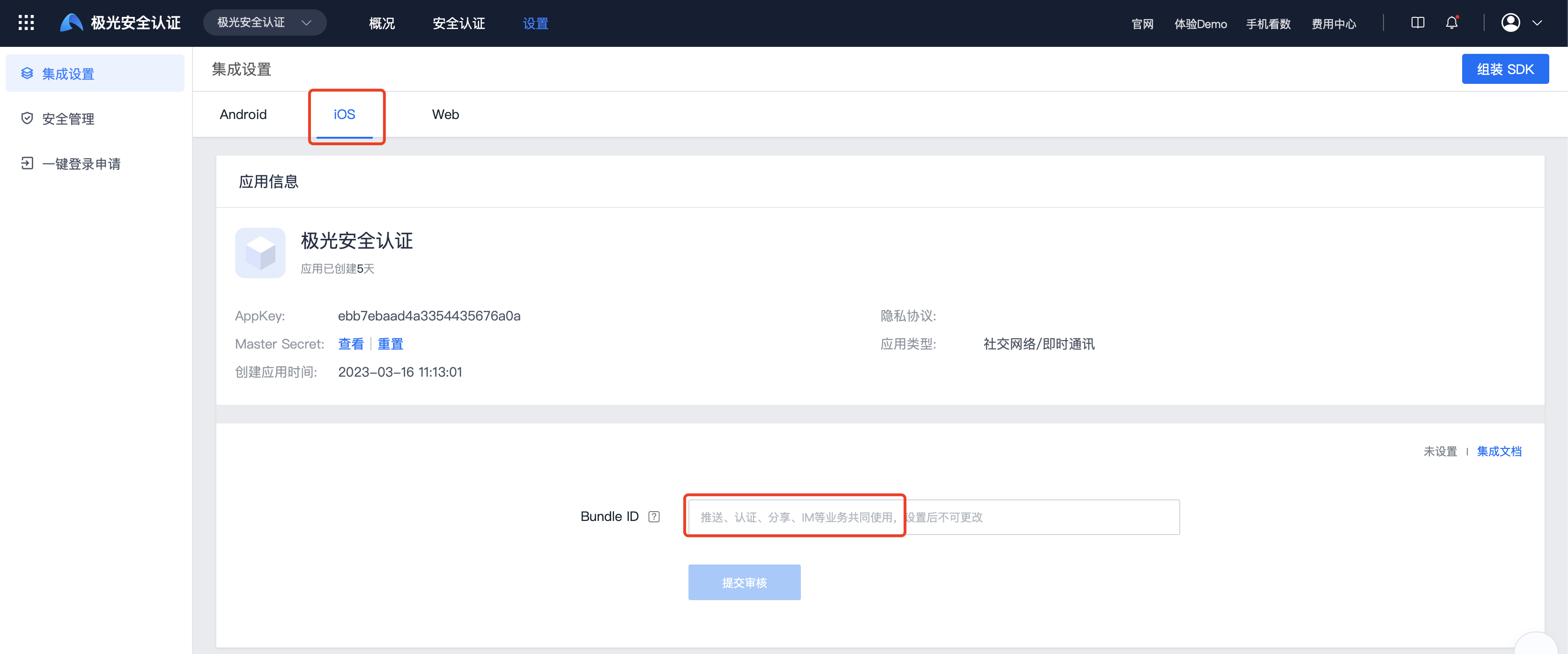
Web Settings
On [Authentication Settings] - [Integration Settings] - [Web], fill in launch date, offline date, integration page URL, and request source, then submit for review. After review is approved, Web settings are complete.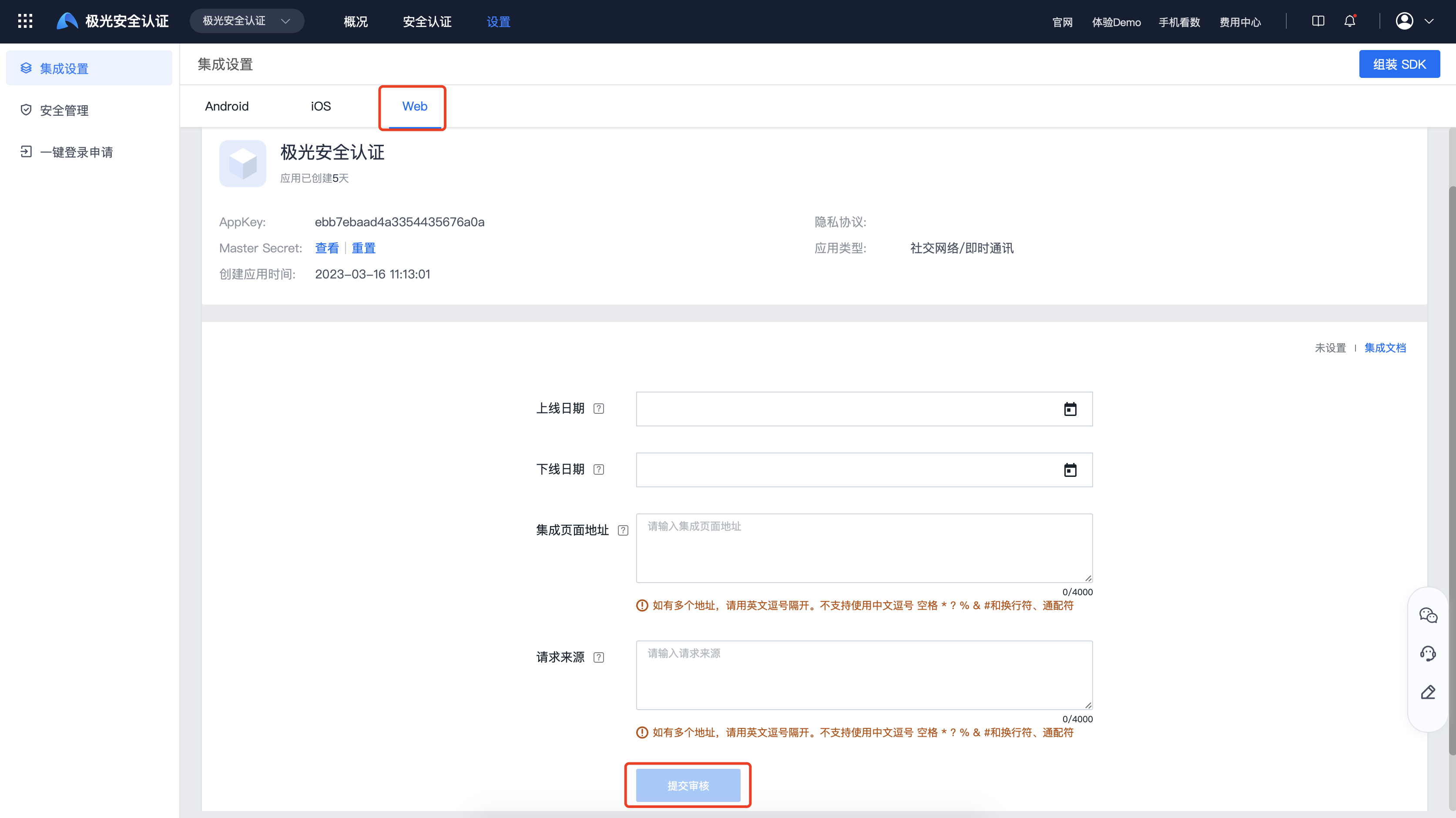
Enable One-Click Login Service
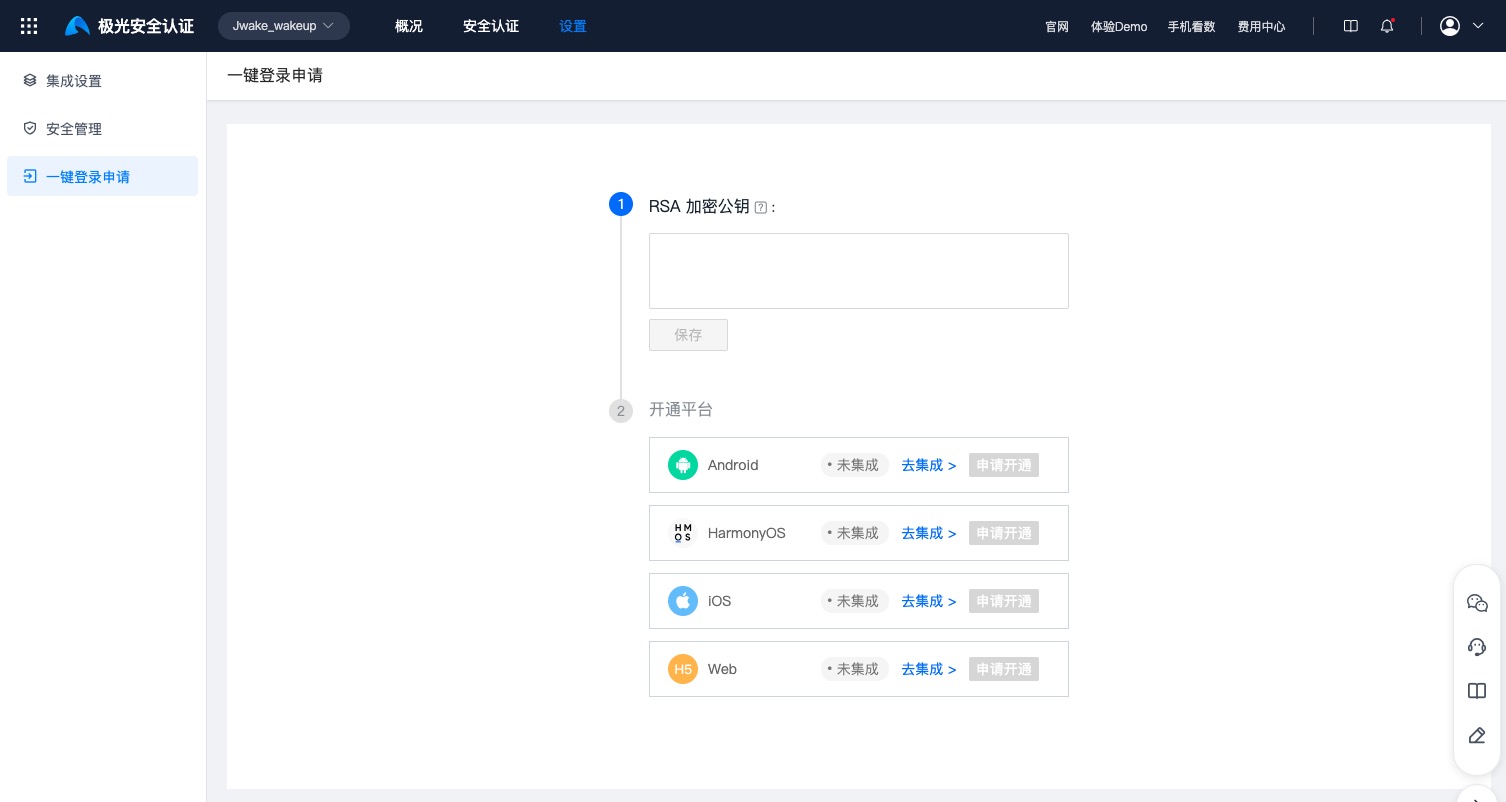
If developers need to use one-click login, after completing integration settings, fill in the RSA encryption public key on the [One-Click Login] page, click Save, and click "Apply to Enable" under the platform that needs to be enabled.
The mobile number for one-click login is encrypted with the RSA public key. Decrypt it locally with the corresponding private key. Keep the key pair secure and do not enter production private keys into third-party online tools. The RSA public key length is 1024 bits, and the key format is PKCS#8.
You can use OpenSSL to generate and verify RSA keys locally:
          # Generate a 1024-bit PKCS#8 RSA private key
openssl genpkey -algorithm RSA -pkeyopt rsa_keygen_bits:1024 -out private_key.pem

# Export the public key from the private key
openssl rsa -in private_key.pem -pubout -out public_key.pem

# Verify that the private key is readable
openssl pkey -in private_key.pem -text -noout

# Verify that the public key is readable
openssl pkey -pubin -in public_key.pem -text -noout