


Vendor Channel Parameter Application Guide
This document guides users through obtaining push parameters for vendor channels and completing vendor parameter configuration in the Jiguang console.
Obtain HarmonyOS Parameters
Register a Huawei Developer Account
Go to Huawei Developer Alliance and register a Huawei developer account. For details, see Register Account.
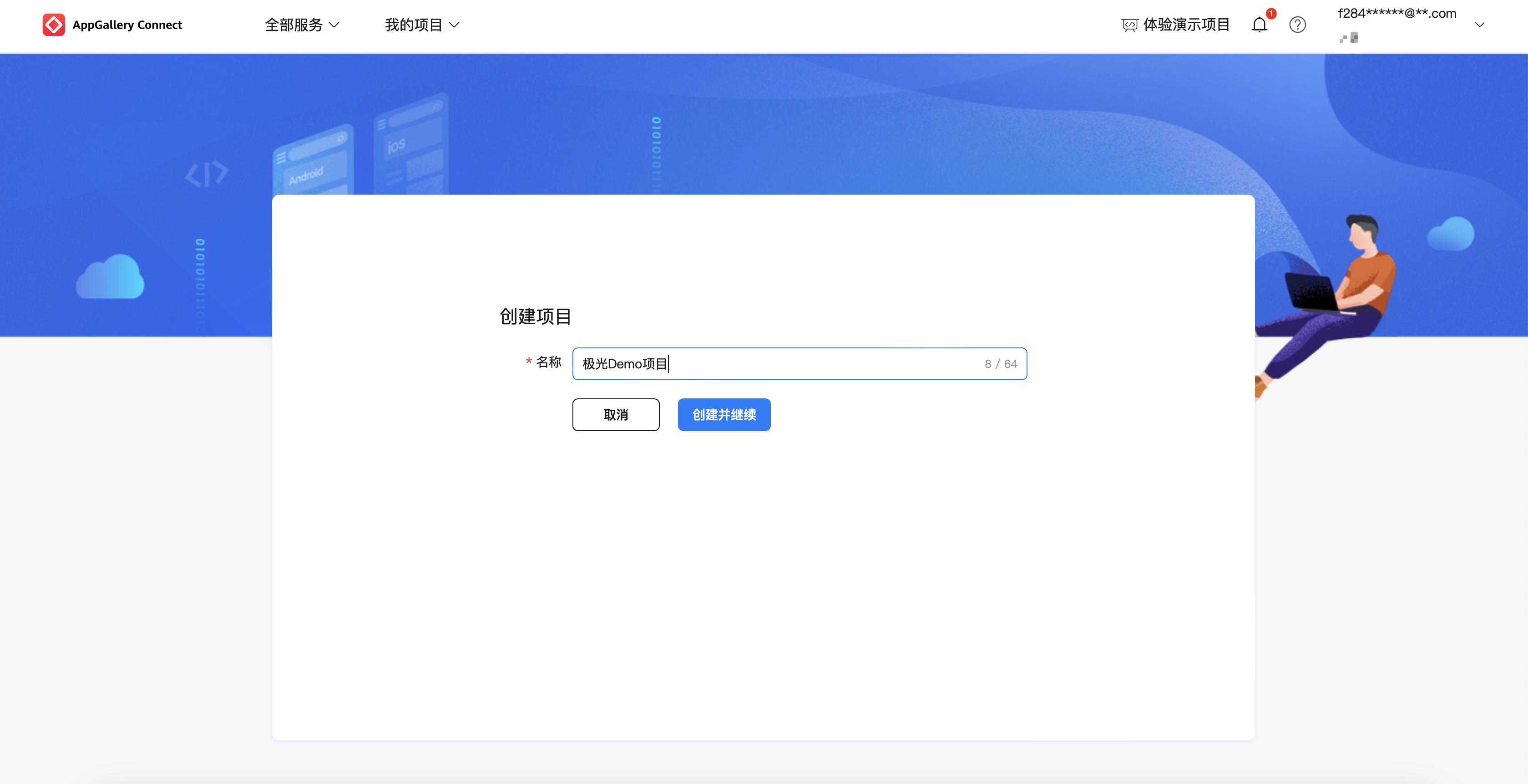
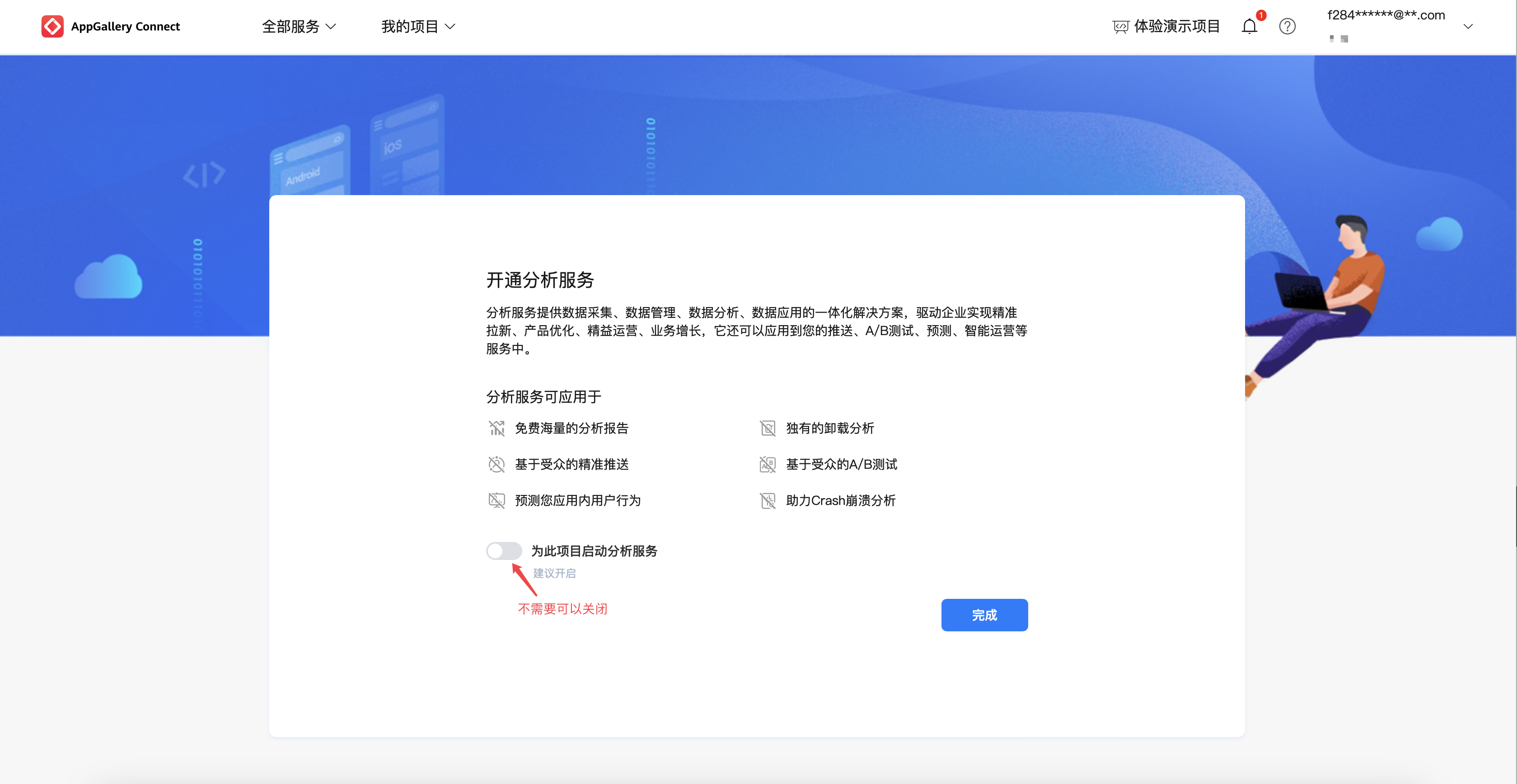
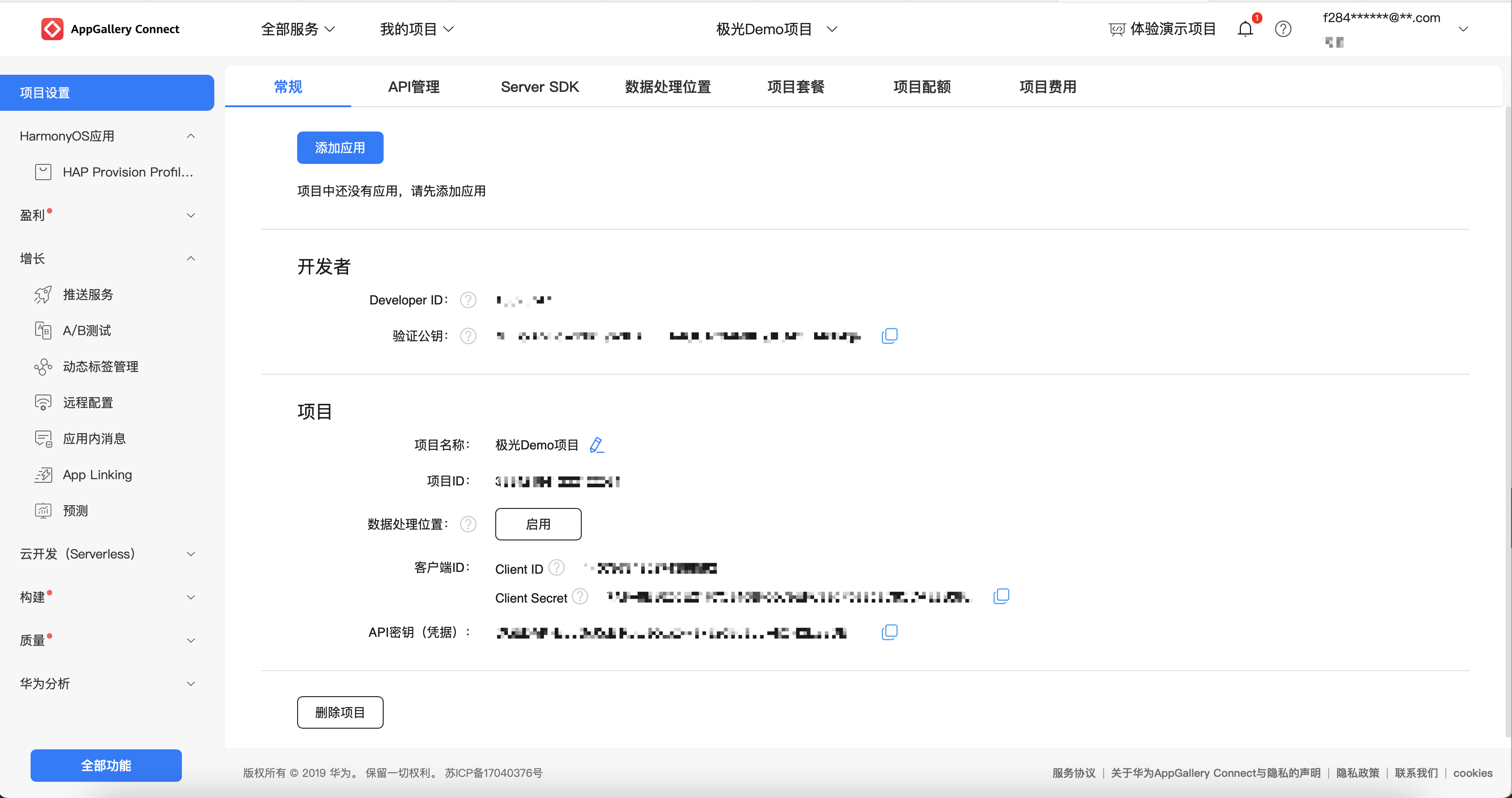
Create a Project
Developers should decide whether to create a new project based on actual business needs. If you do not need to create a new project, proceed directly to the following steps.
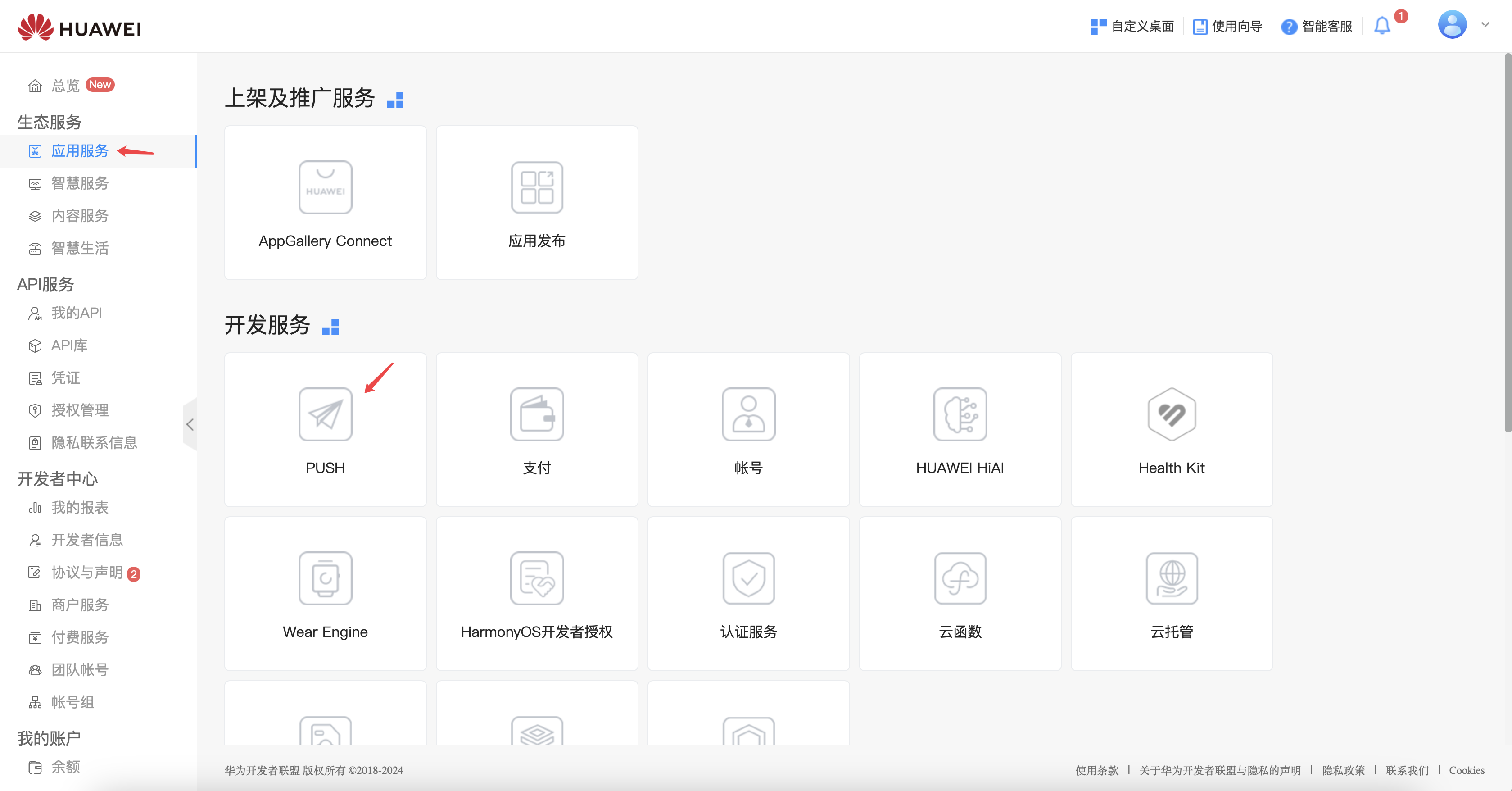
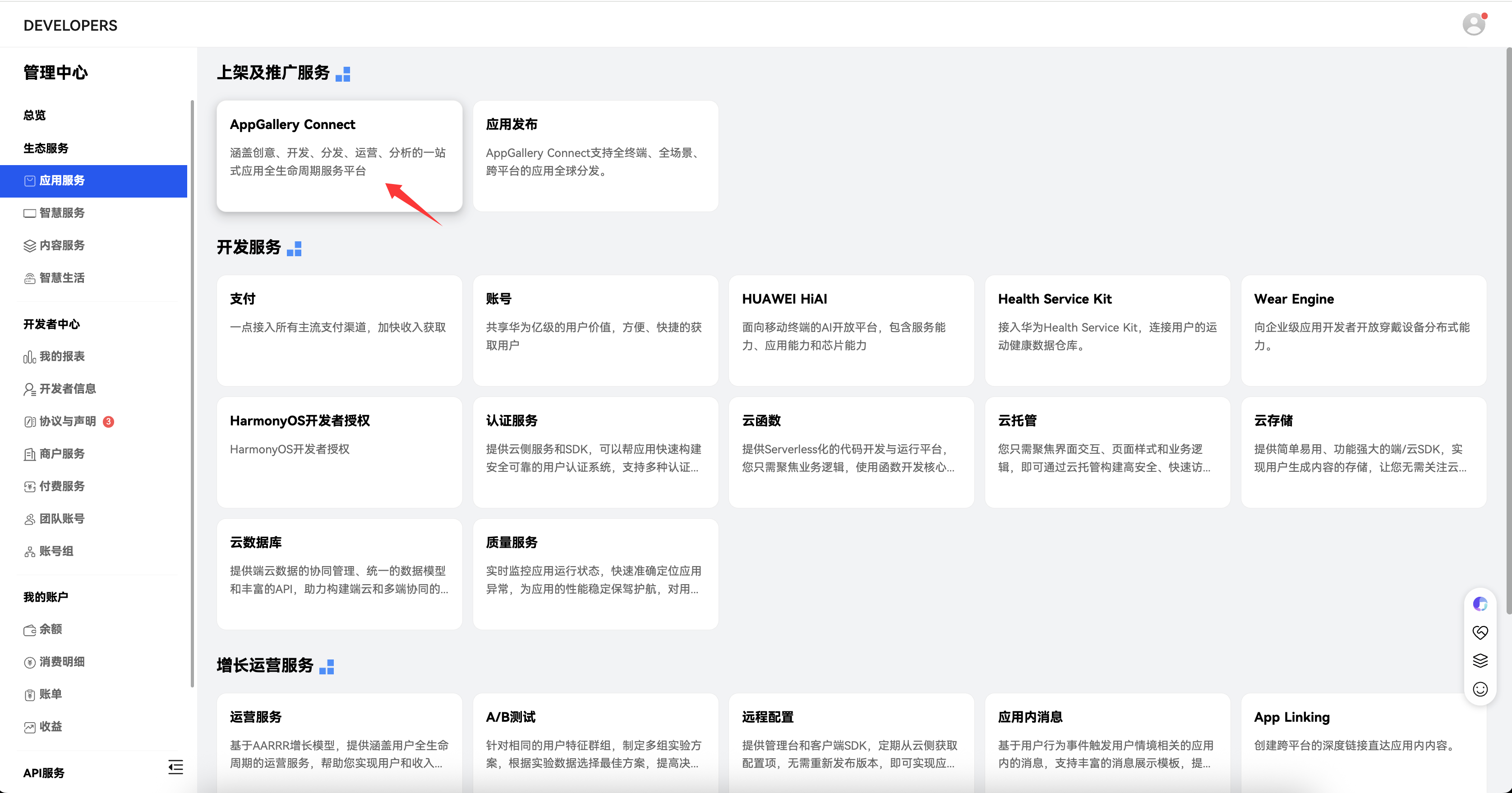
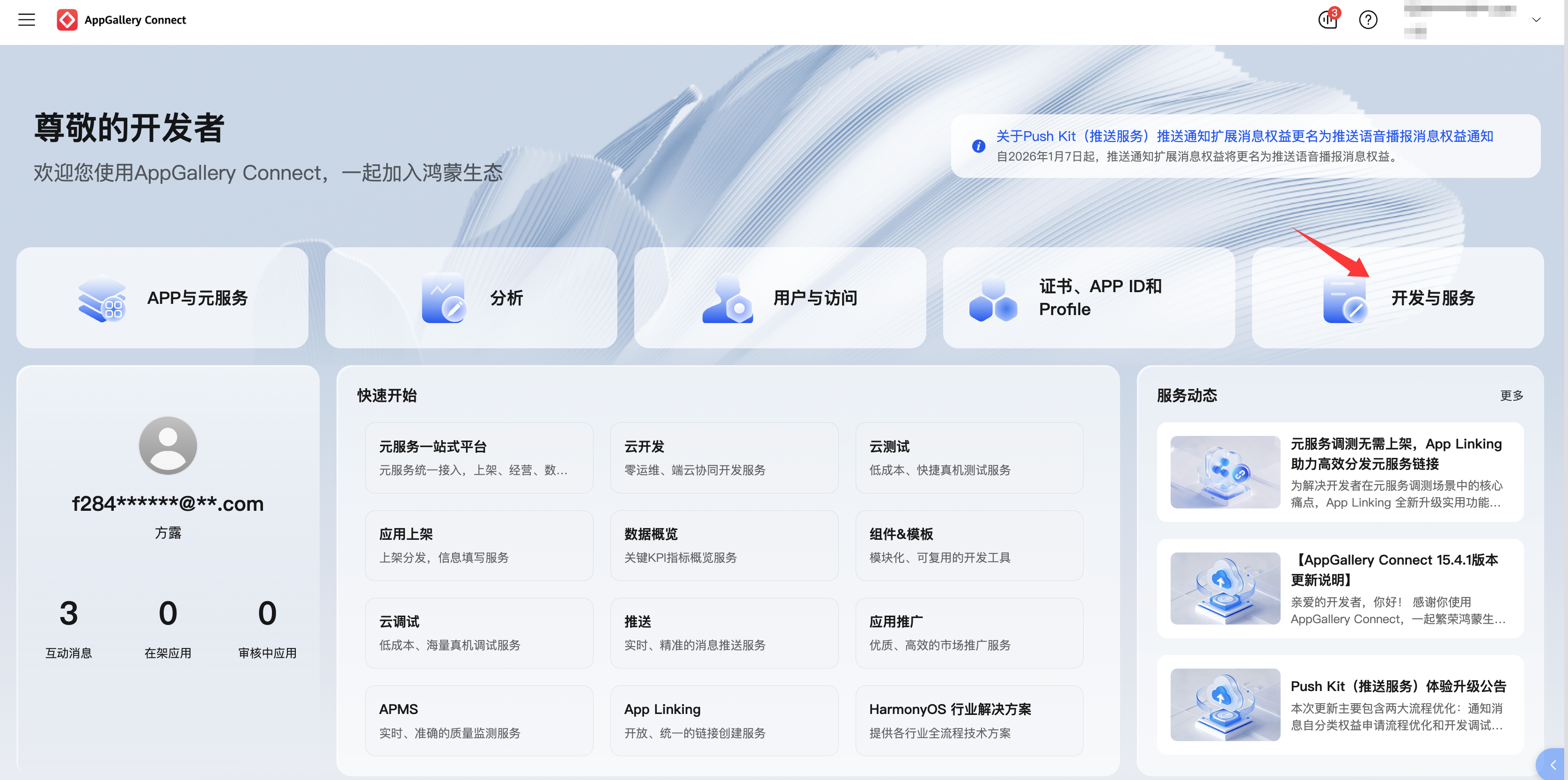
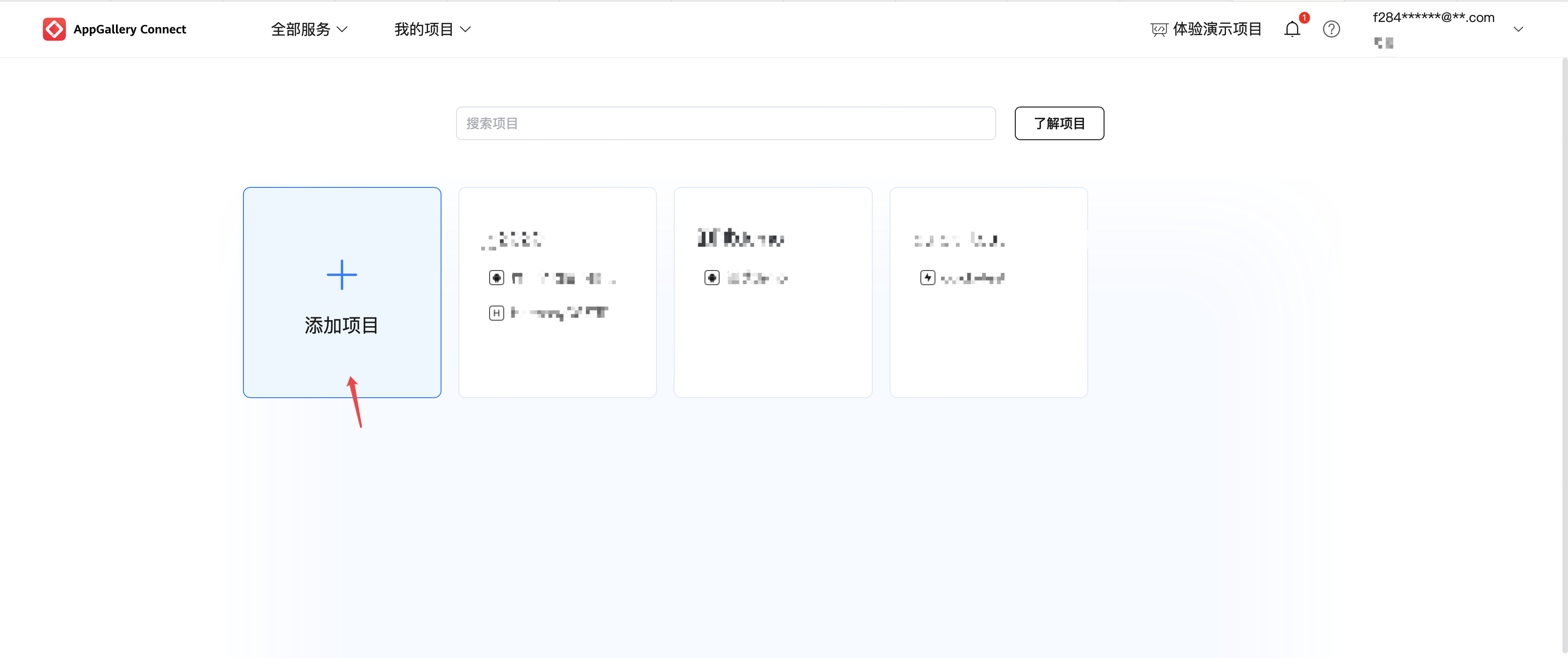
As shown above, if you do not have the PUSH entry, you can also select Listing and Promotion Services -> AppGallery Connect to enter the Huawei AGC console, then select My Projects -> Add Project. Use the entry that matches your actual situation. There may be multiple actual entries; this step only describes one known entry.
Enable Push API Service
Select My Projects -> Development and Services -> API Management, then enable the service from the following entry: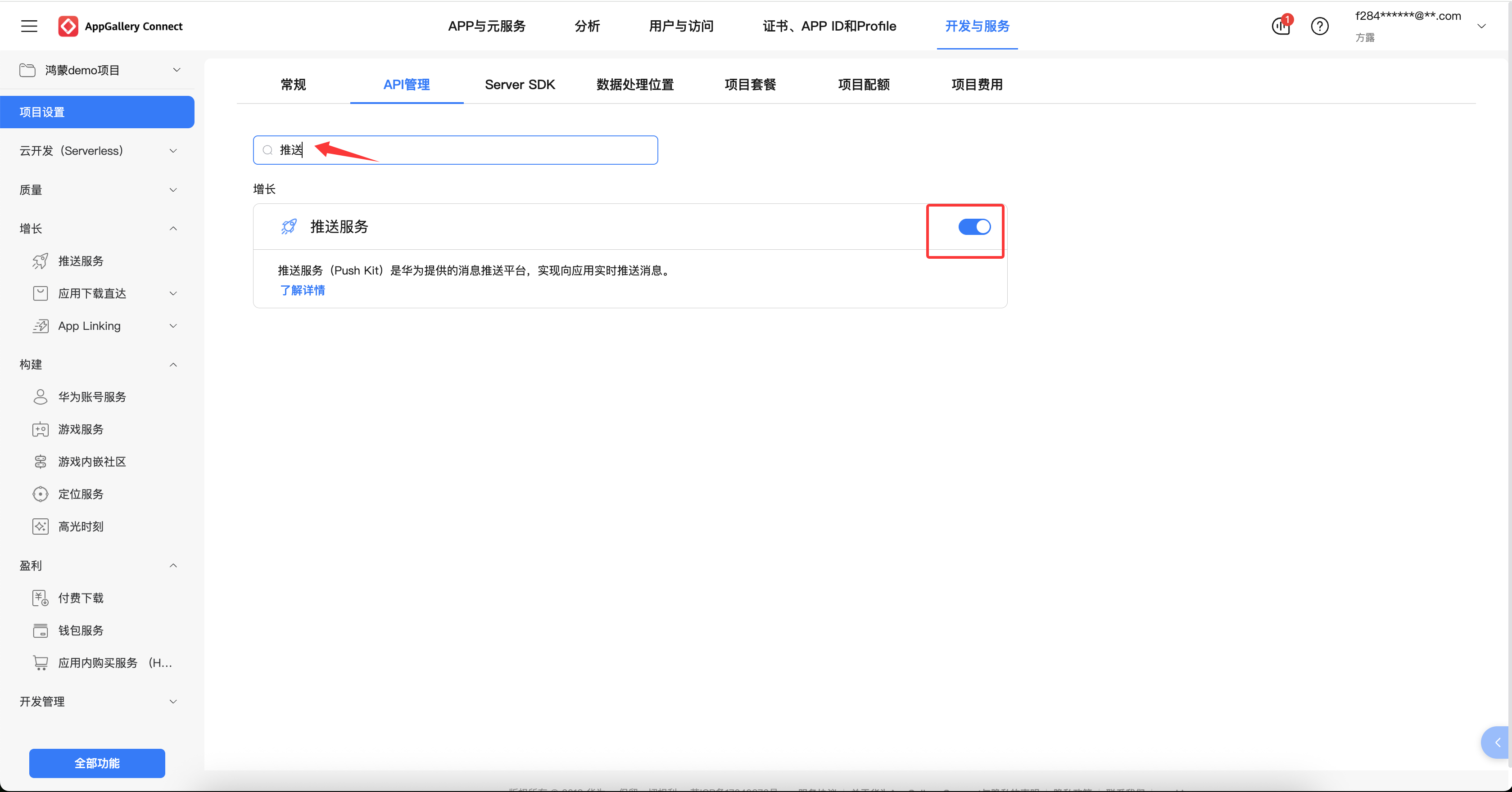
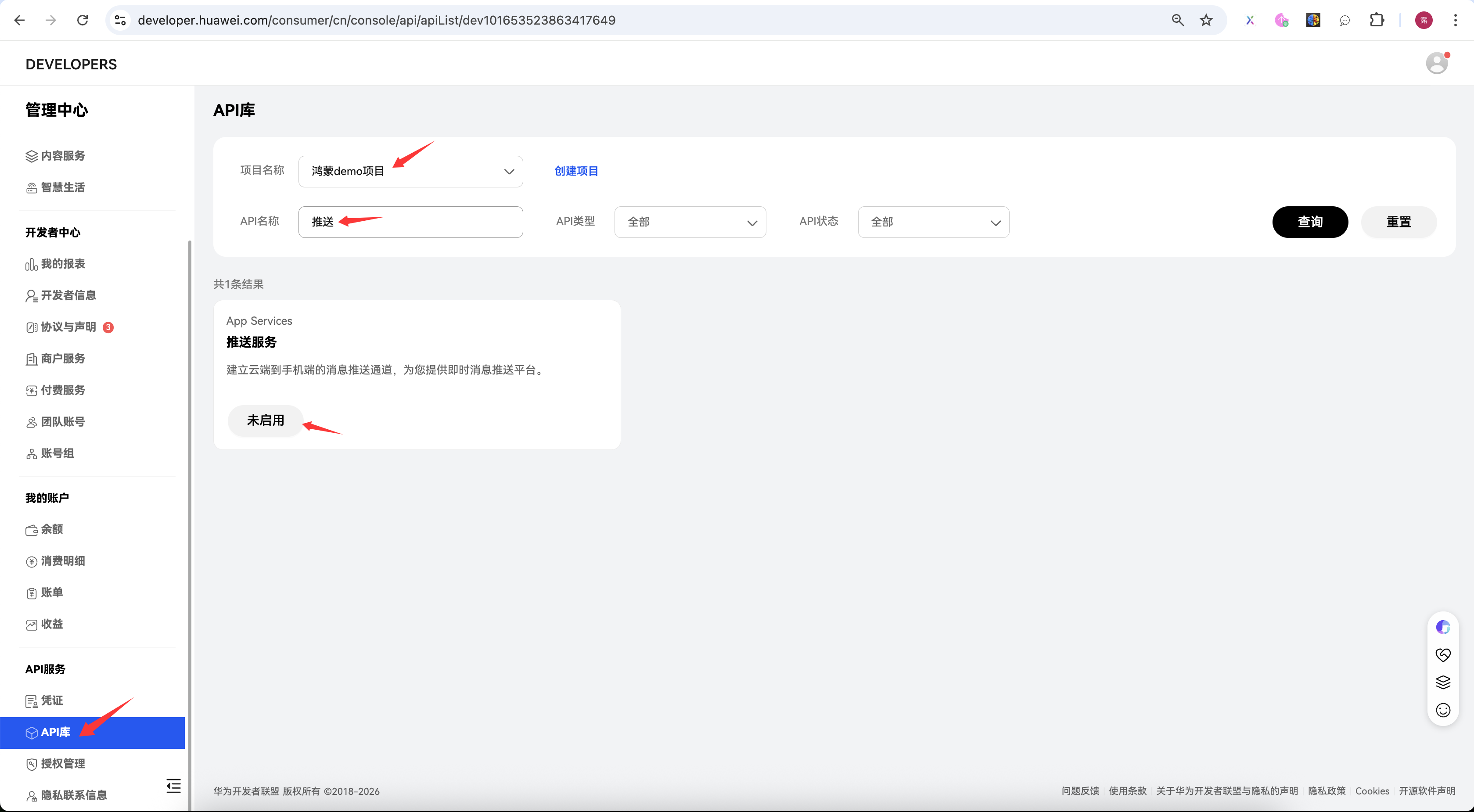
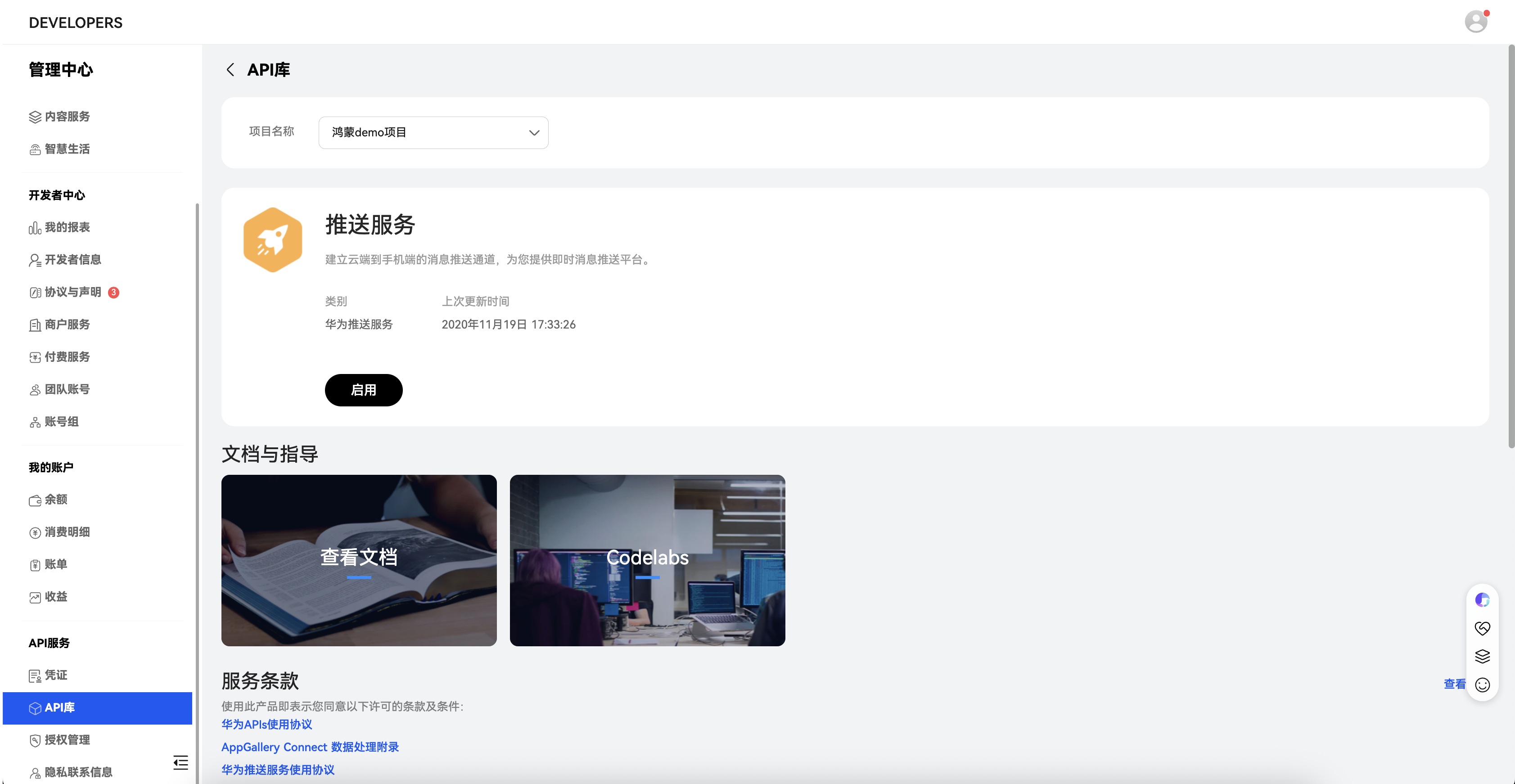
You can also go to Huawei Developer Alliance - Management Center Home, select API Services -> API Library -> select the newly created project -> search for "Push" by API name -> select Push Service -> Enable. The effect is the same.
Obtain Service Key
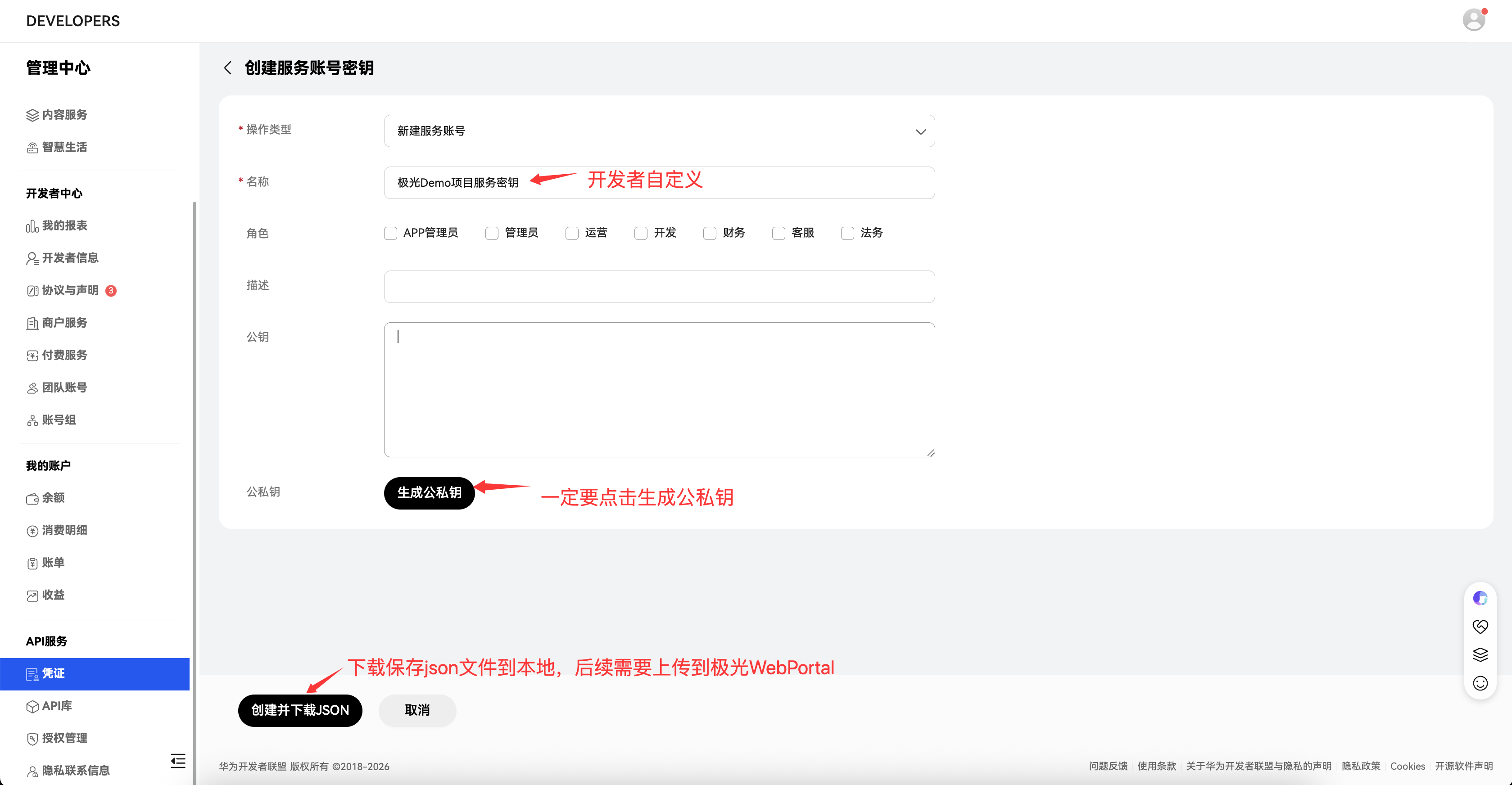
Go to Huawei Developer Alliance - Management Center Home, select Credentials -> create Service Account Key -> Download and save the service account key JSON file.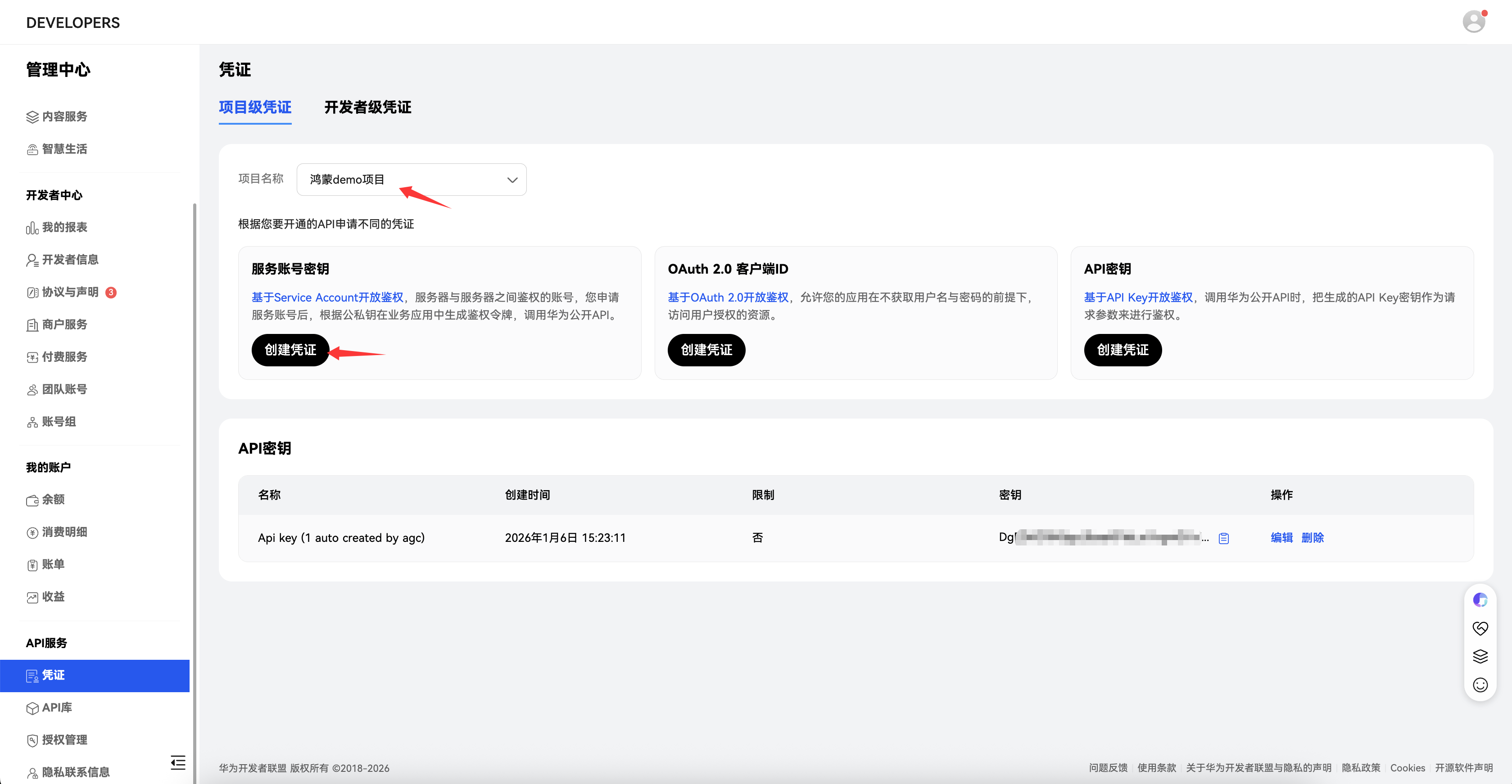
Create a HarmonyOS App Under the Project
If you have not created a project on Huawei's official website, create a project first. See Create a Project.
Go to Huawei Developer Alliance - Management Center Home, select Listing and Promotion Services -> AppGallery Connect to enter the Huawei AGC console, select your project, then Project Settings -> Add App. Follow the official steps to add a HarmonyOS app. Remember to enable Push Service for the newly added app according to the official guide.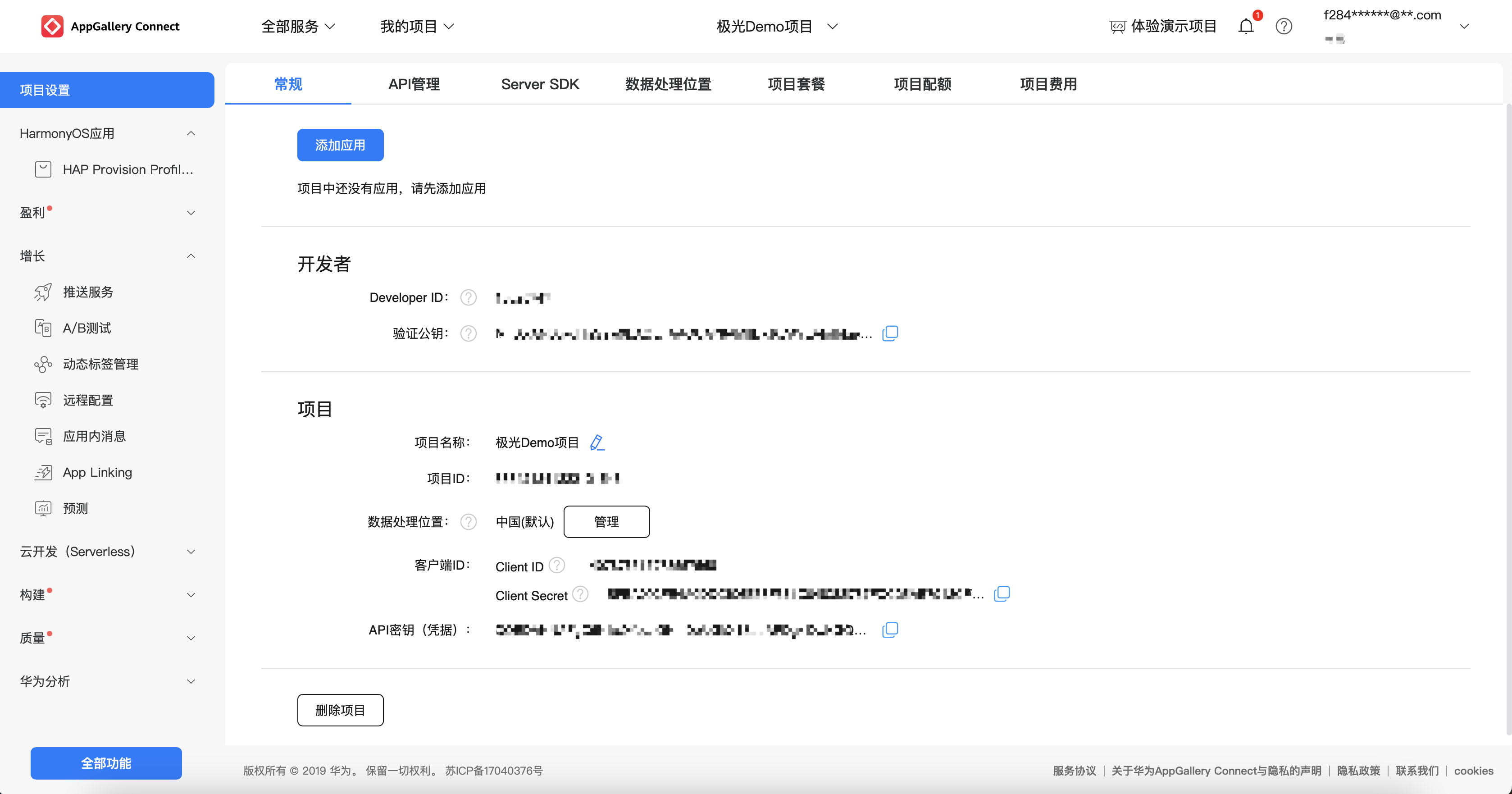
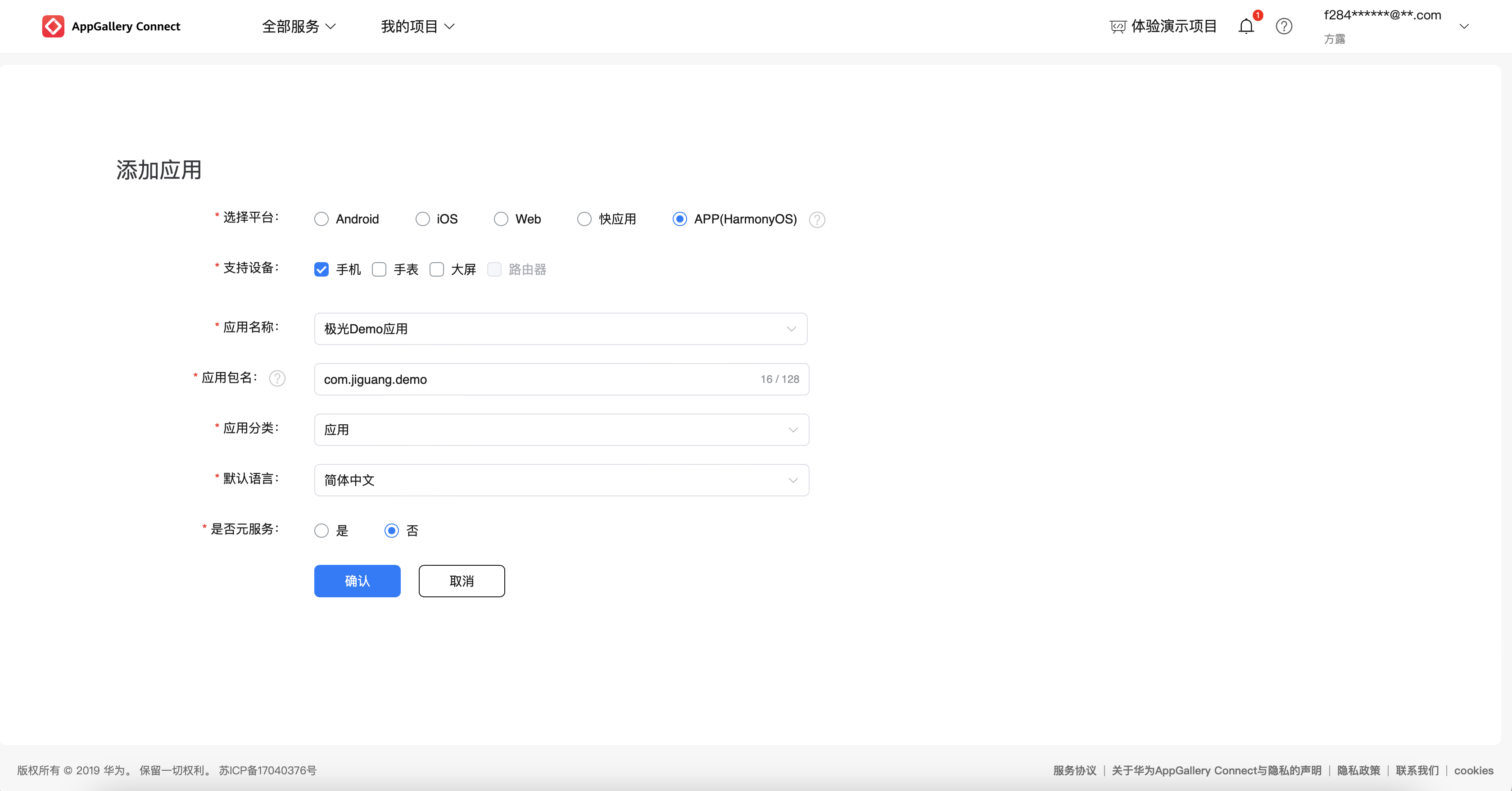
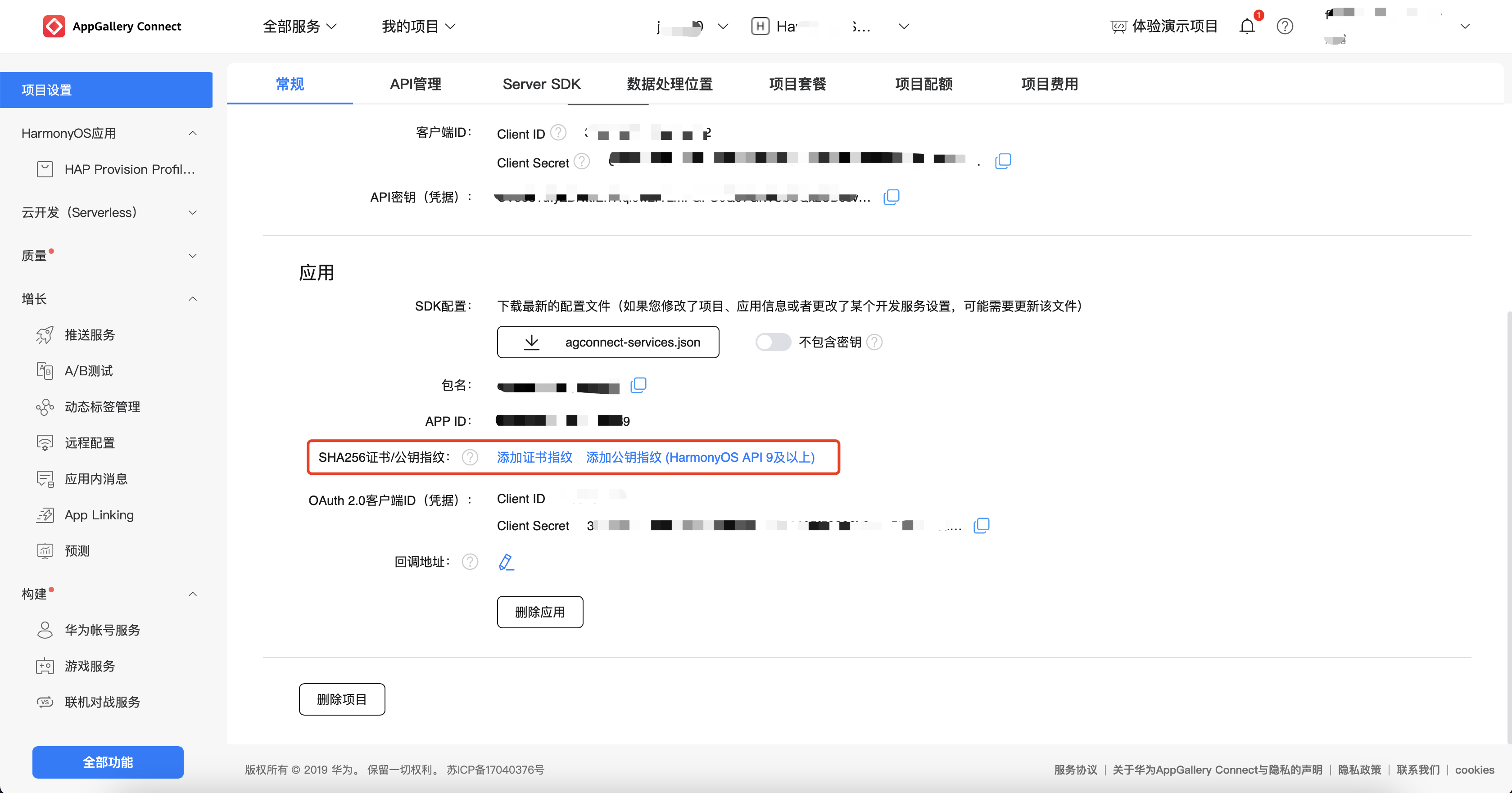
Important: After creating the HarmonyOS app, make sure to configure the app's SHA256 certificate/public key fingerprint. Click Add Public Key Fingerprint (HarmonyOS API 9 and later) after SHA256 Certificate/Public Key Fingerprint, and select the certificate file corresponding to Configure Signing when integrating the SDK.
Configure HarmonyOS on the Jiguang Platform
Go to Jiguang Console -> Message Push -> Push Settings -> Integration Settings, select the HarmonyOS platform, enter the package name, upload the service key JSON file, and save the configuration.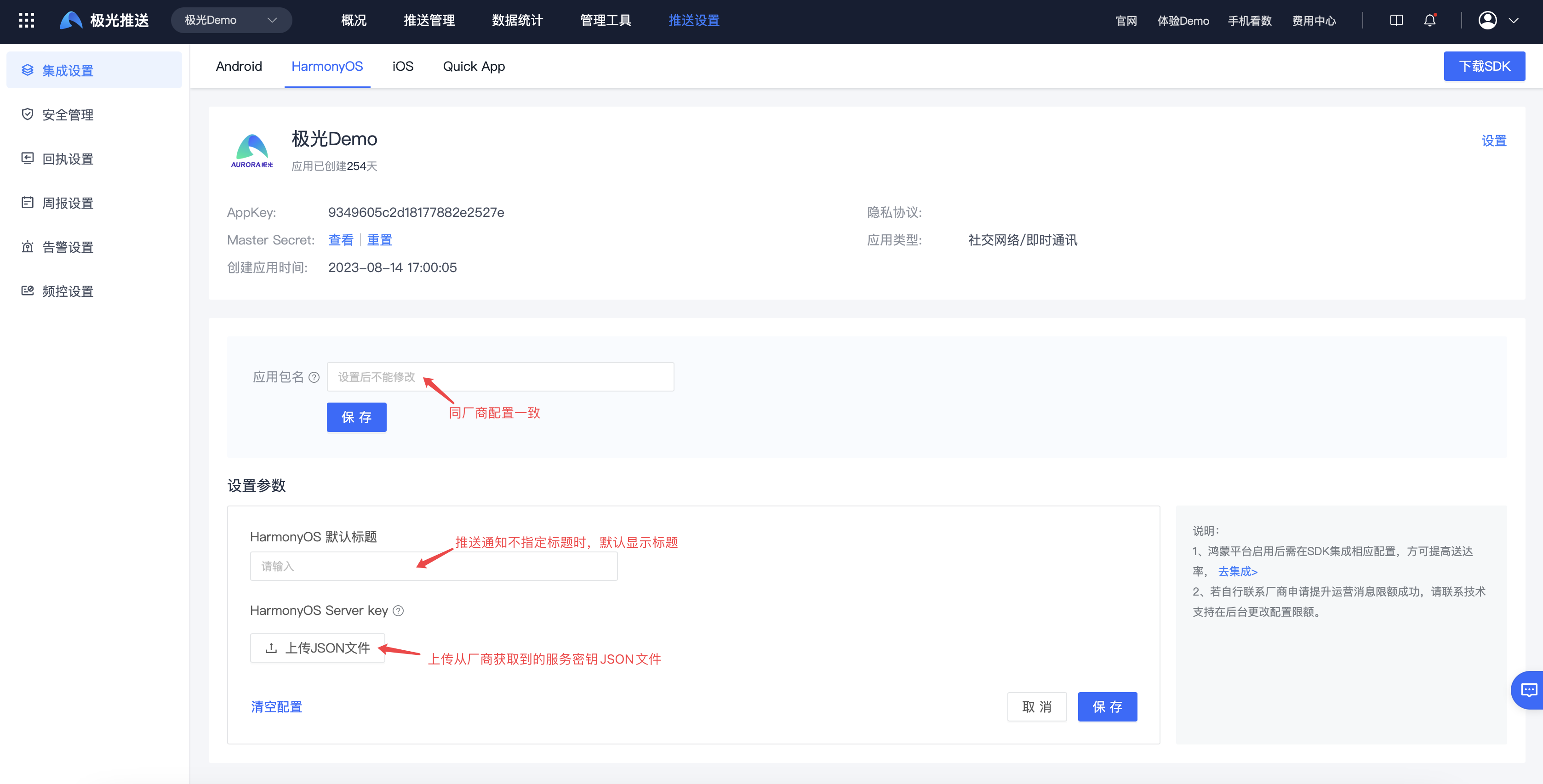
Enable the HarmonyOS Channel on the Jiguang Platform
Go to Jiguang Console -> Message Push -> Push Settings -> Integration Settings, select the HarmonyOS platform, and enable the HarmonyOS channel.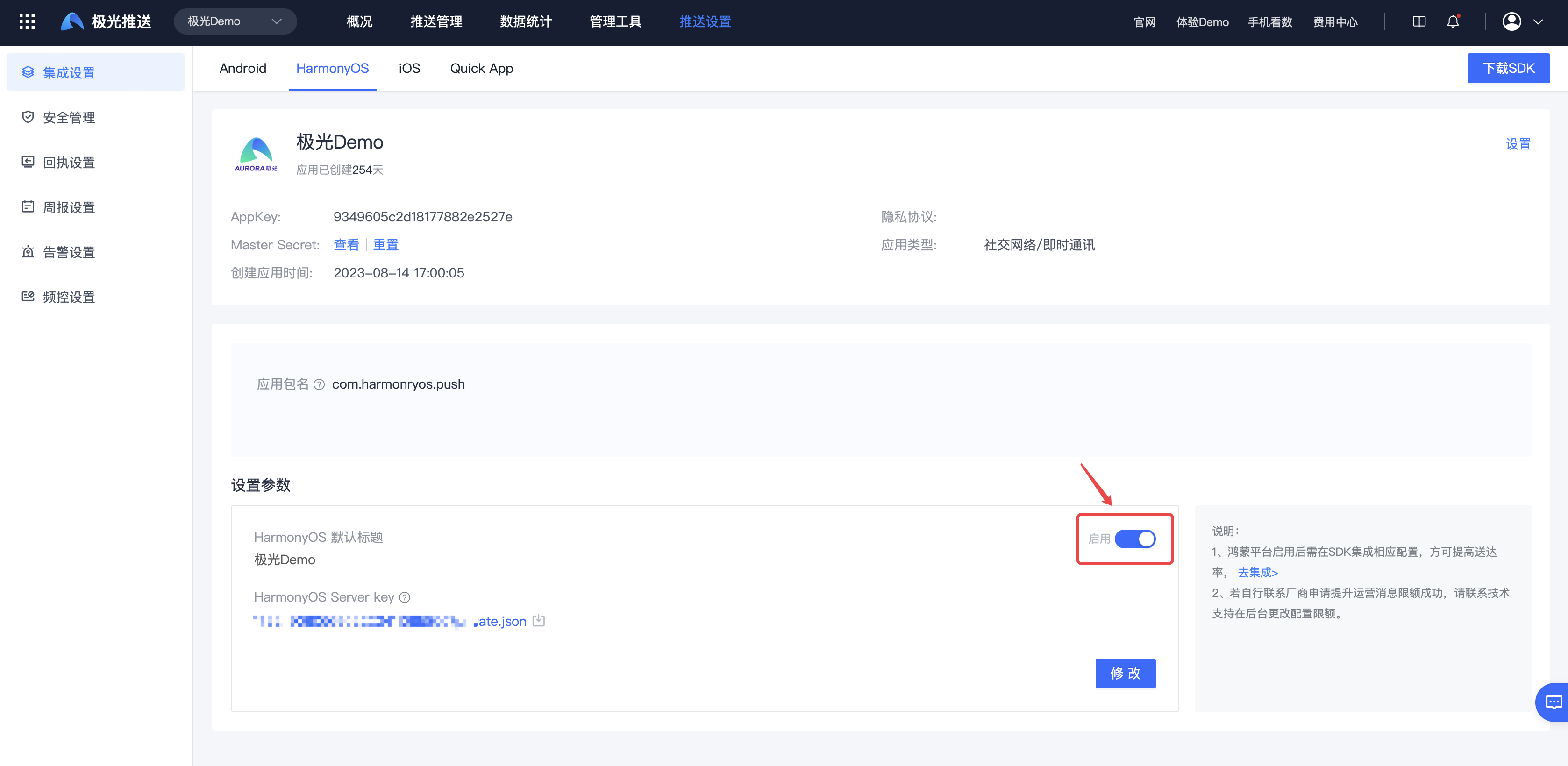
HarmonyOS Channel Receipt Configuration Guide
After completing HarmonyOS vendor channel SDK integration, developers need to enable and configure message receipts on the Huawei Open Platform before HarmonyOS delivery statistics and other data can be called back to the Jiguang platform. The specific steps are as follows:
Log in to the Huawei AppGallery Connect website.
Click My Projects, find your project in the project list, and navigate to the Configuration tab through Growth -> Push Service -> Configuration.
On this page, you can configure project-level receipts or app-level receipts. Note that a project-level receipt message receiving URL applies to all apps under the project. If you configure both project-level and app-level receipt URLs, the app-level receipt URL information is used first.
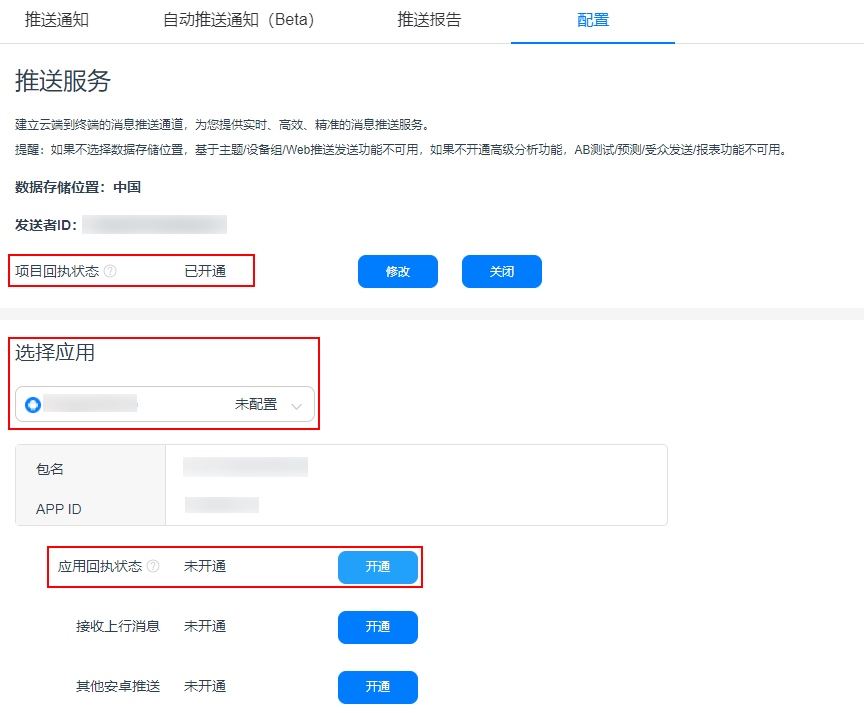
The following uses app-level receipts as an example. Select the app for which receipts need to be configured, and click Enable for the app receipt status.
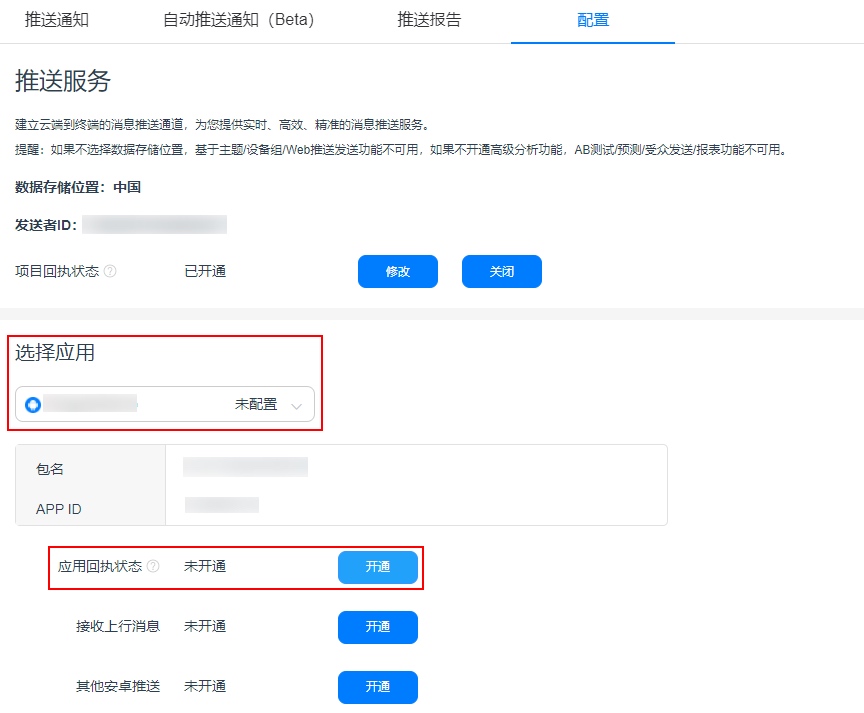
Enter receipt parameter configuration and create a new receipt.
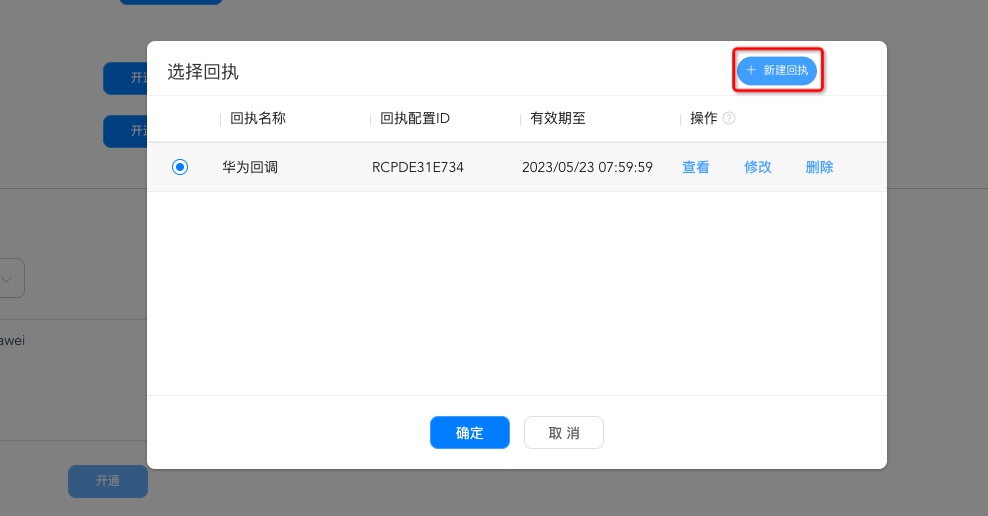
After clicking Create Receipt, configure the following parameters.
- Receipt name: enter a custom name.
- Callback URL:
https://xpnscb.jpush.cn/v3/hmpnsreport - Supported version: make sure to select Huawei V2.
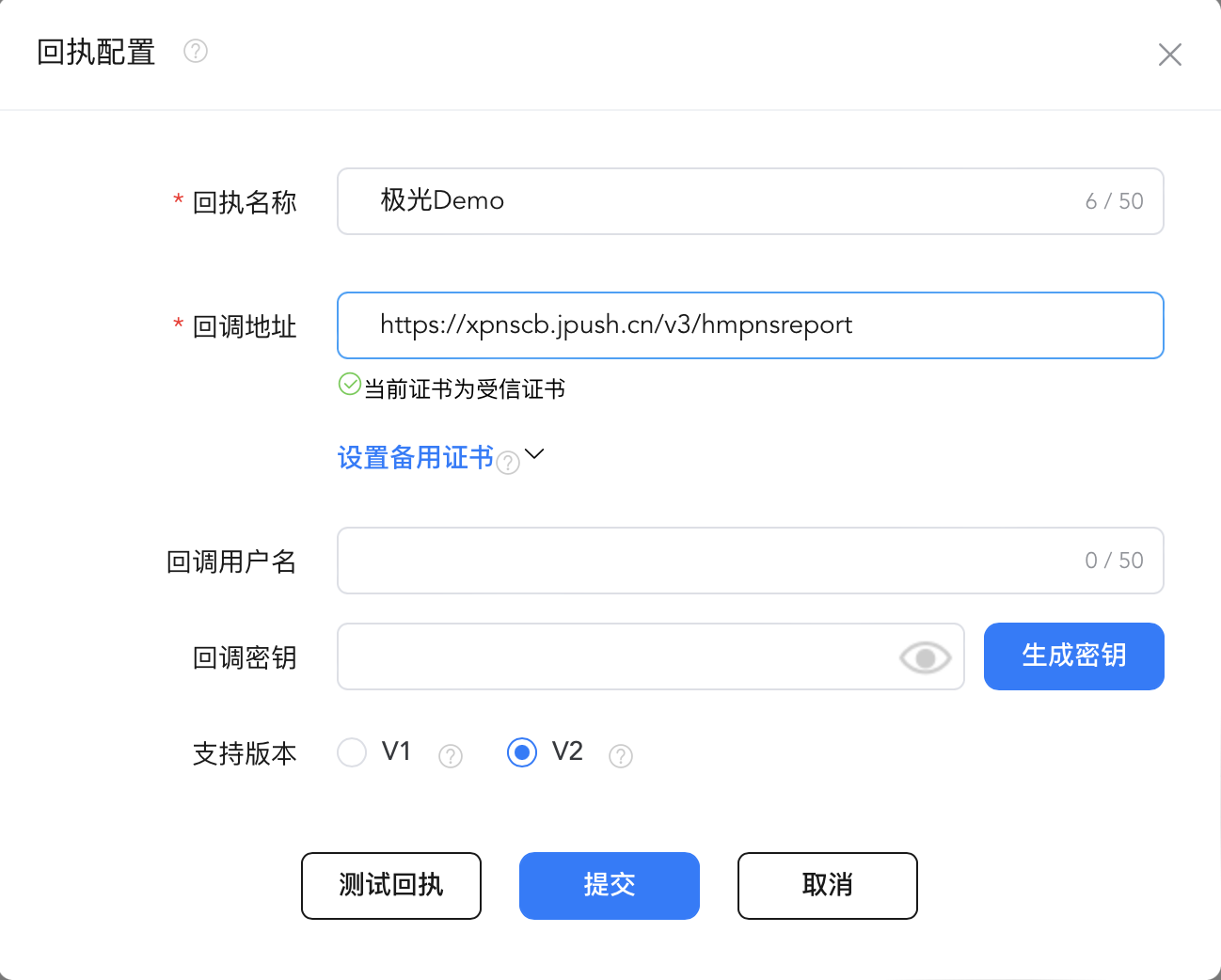
- Click Test Receipt to functionally test the receipt URL, then click Submit to complete receipt creation.

