Complete the Demo experience in three minutes
The purpose of this article is to guide developers who are new to Jiguang Push to get Jiguang Push up and running in just a few minutes:
- Install Demo to client.
- Create push on Portal.
- The client receives the push and displays it in the status bar.
Create an JiGuang developer account
To create a Jiguang developer account, please visit Jiguang Push official website. 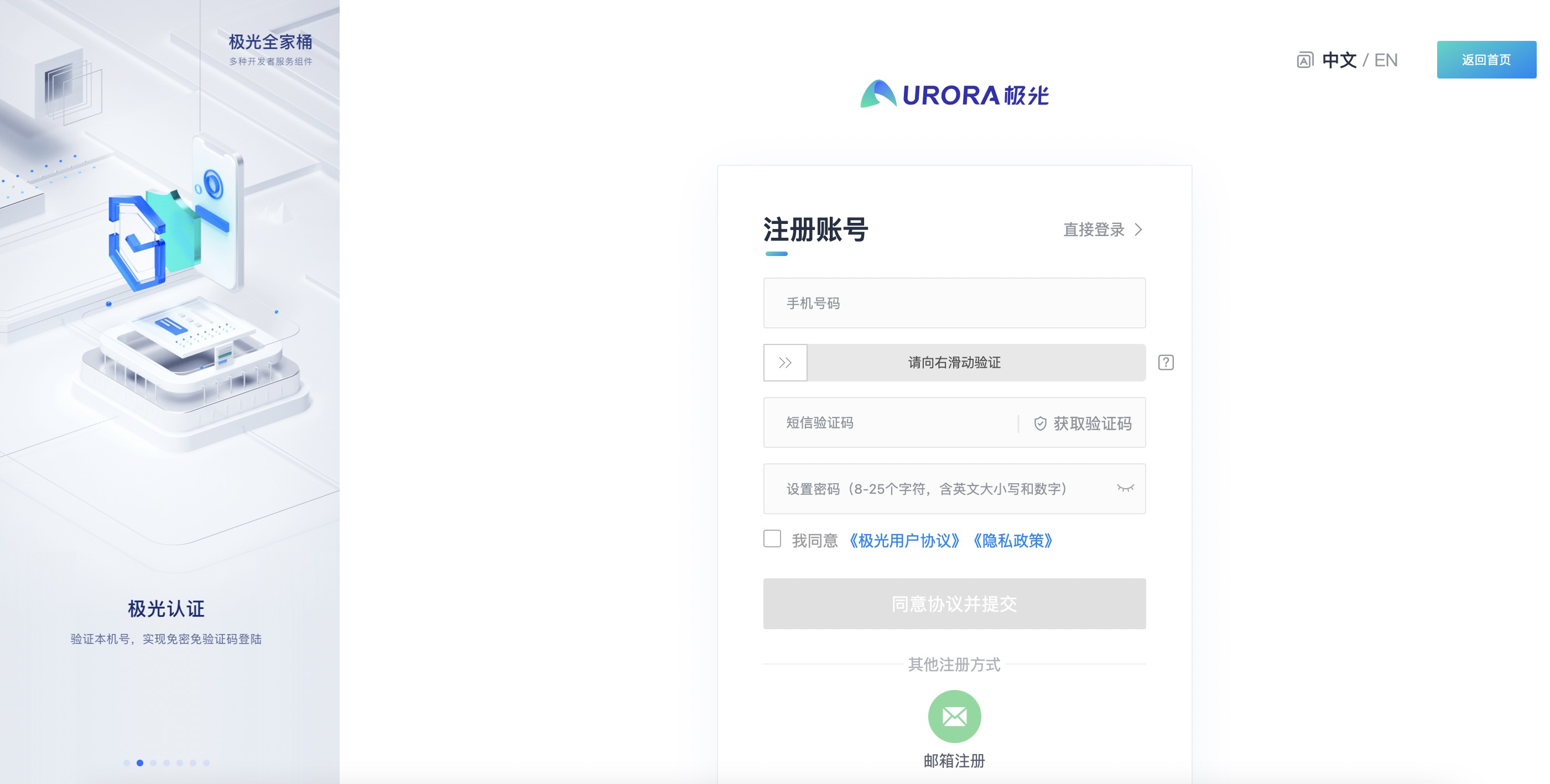
Create application
After completing the registration of the Jiguang developer account, enter the Jiguang console, click the "Create Application" button, and fill in the application name to create the application. 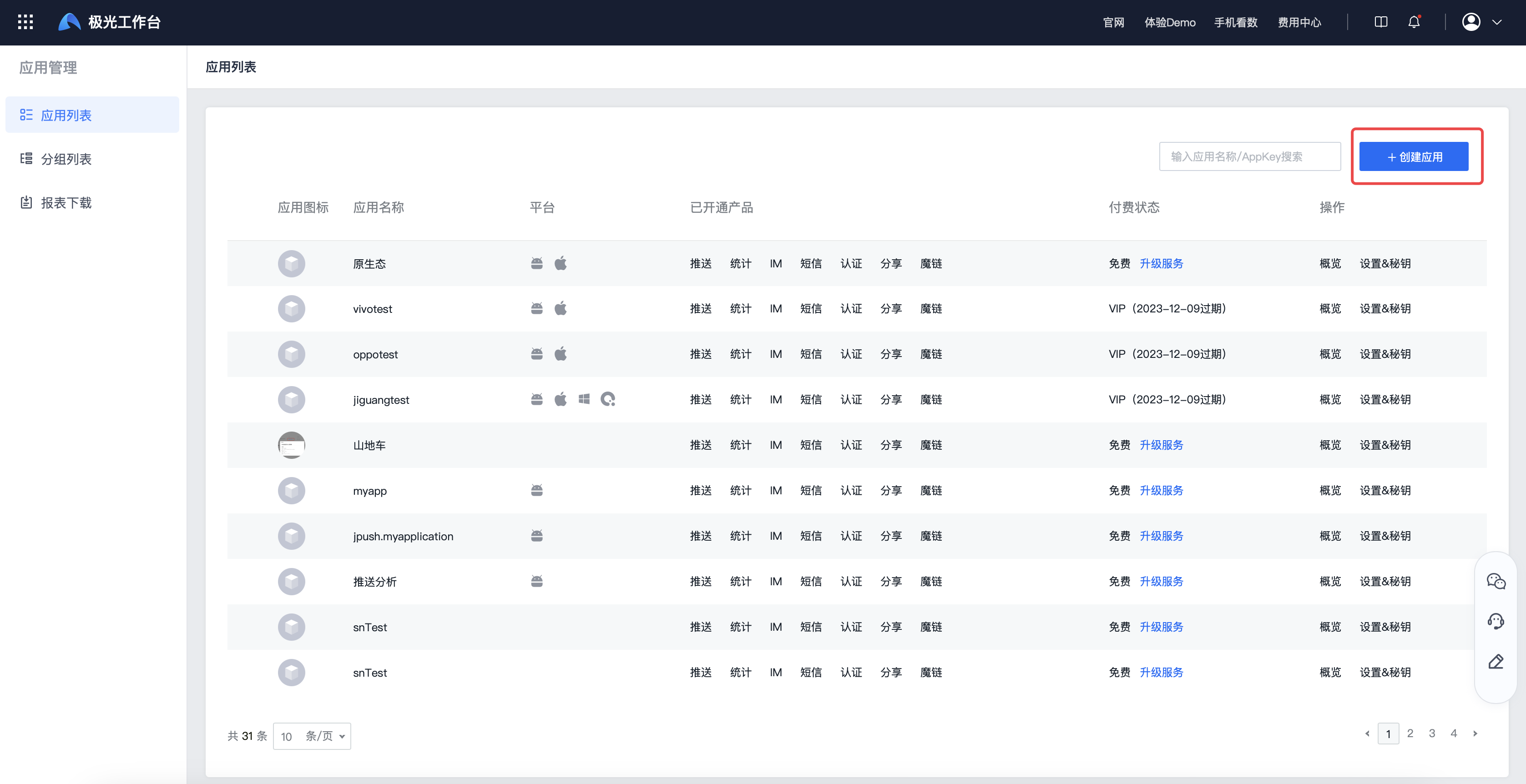
Configure push service
Select the service "Message Push" and click Next. 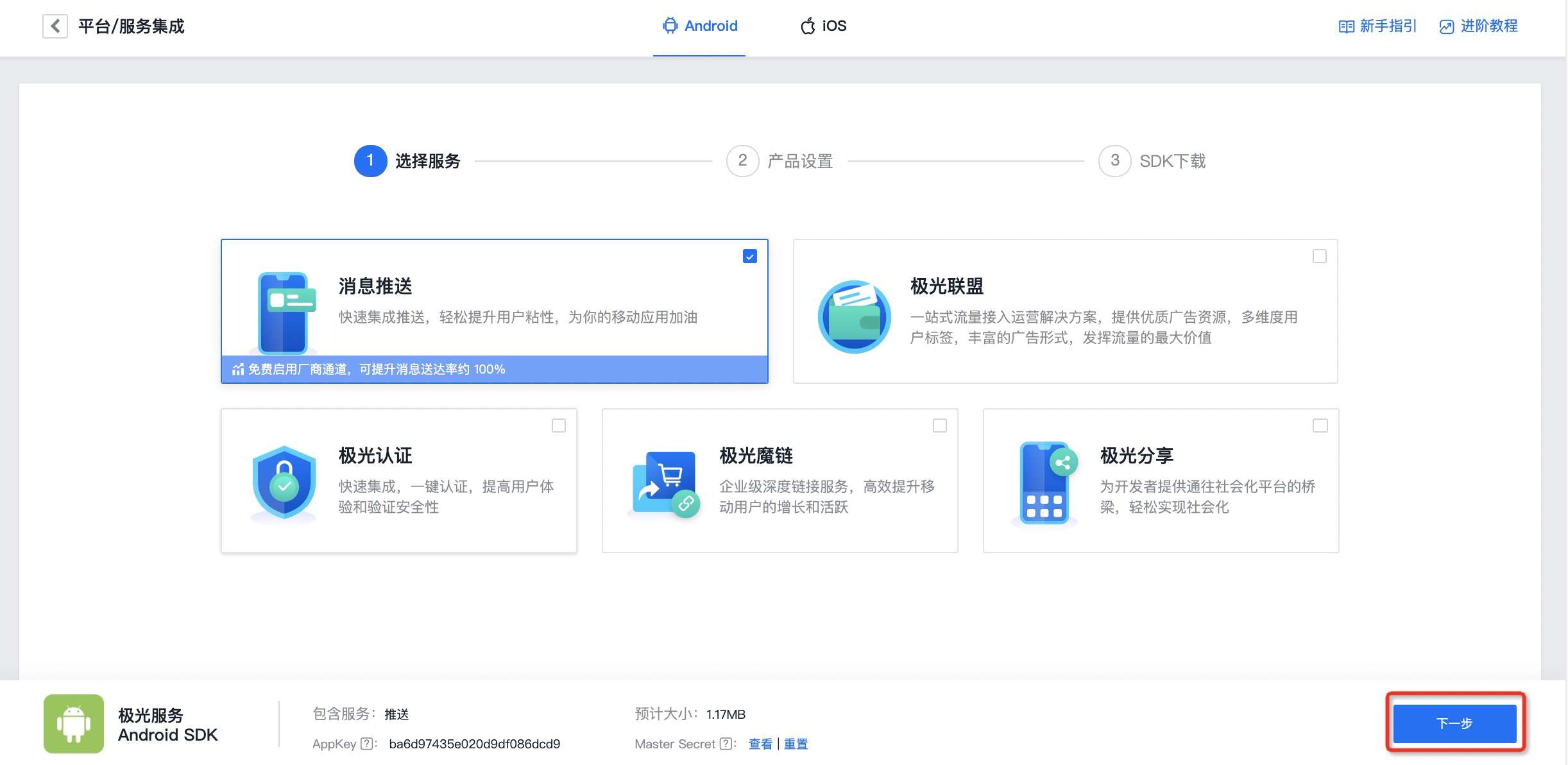
Android Configuration
Fill in your application package name in the Android section, select the vendor channel that needs to be integrated, and click Next to complete the push service configuration. 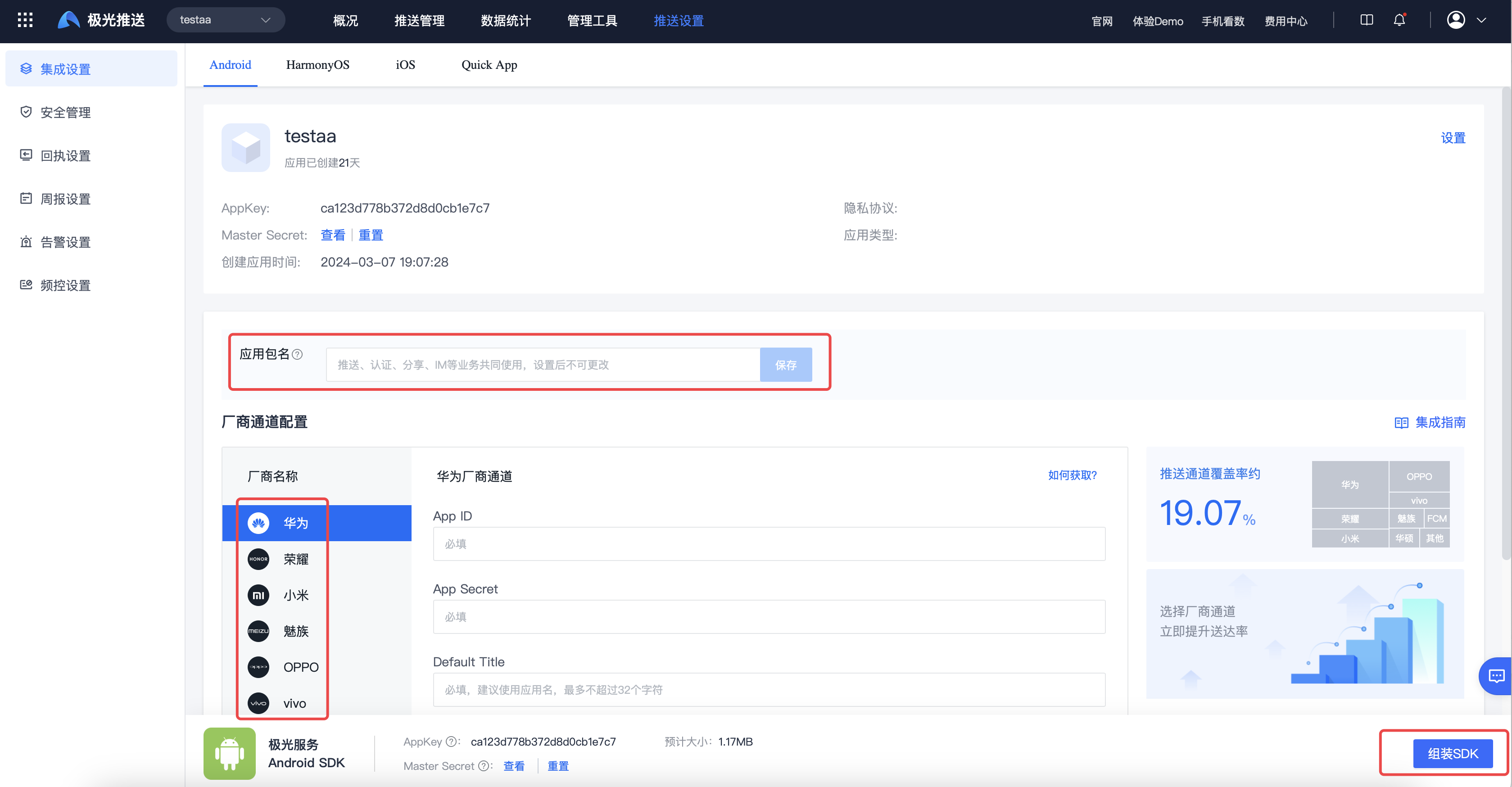
iOS Configuration
After Uploading the iOS push certificate, click Next to complete the push service configuration. 
Download Push Demo
Android platform
Click "Download Push Demo, experience mobile terminal receiving messages without integration" and scan the QR code to download Push Demo. This Demo is a sample application that has been configured with the current application package name and AppKey. It can be directly installed on the mobile phone for the client to receive push messages.
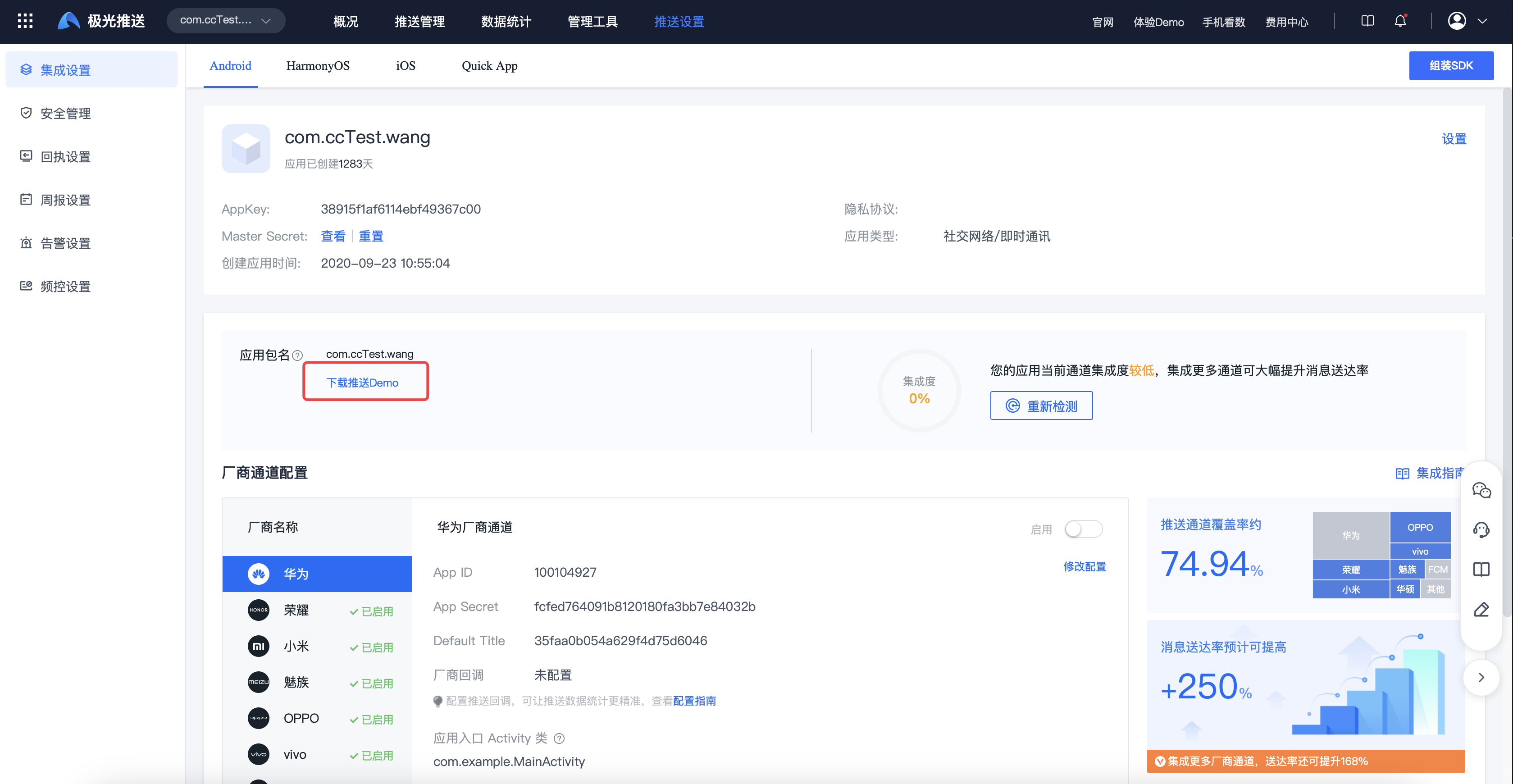
iOS platform
Click "Download SDK" and use Xcode to run the app on your phone. 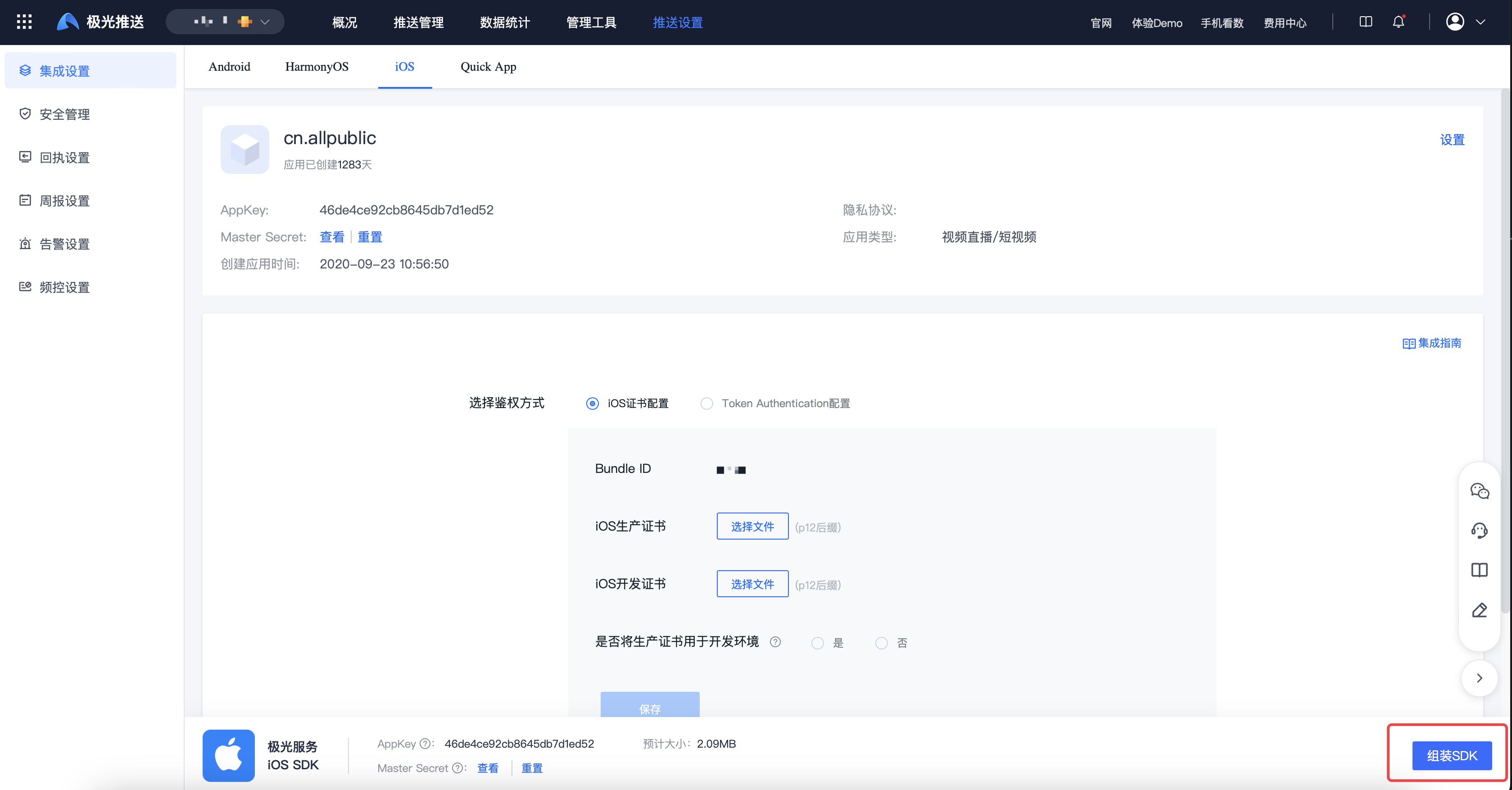
Quick test push
Install and open the instance application, and obtain the device's Registration ID on the application homepage, as shown in the figure below.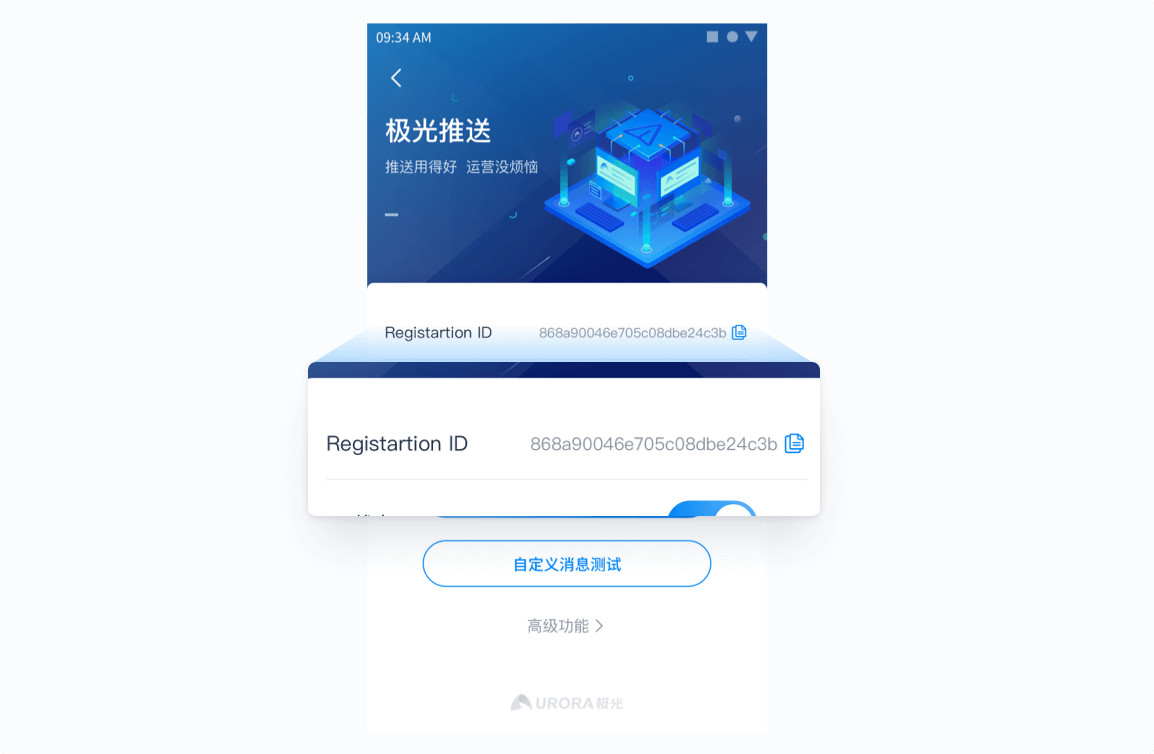
Keep the sample application front-end active and connected to the Internet. Scan the QR code to download and enter the Registration ID at the bottom of the Push Demo page to send a test message (only supports the Android platform). If you want to experience more message styles, push types, etc., please refer to the following: Portal creation push. 
Portal creates push
Enter [JiGuang Console] - [Message Push] - [Create Push] - [Notification Message] to test more message styles and push types. For details, please see [Create Push] (/jpush/console/push_manage/creat). 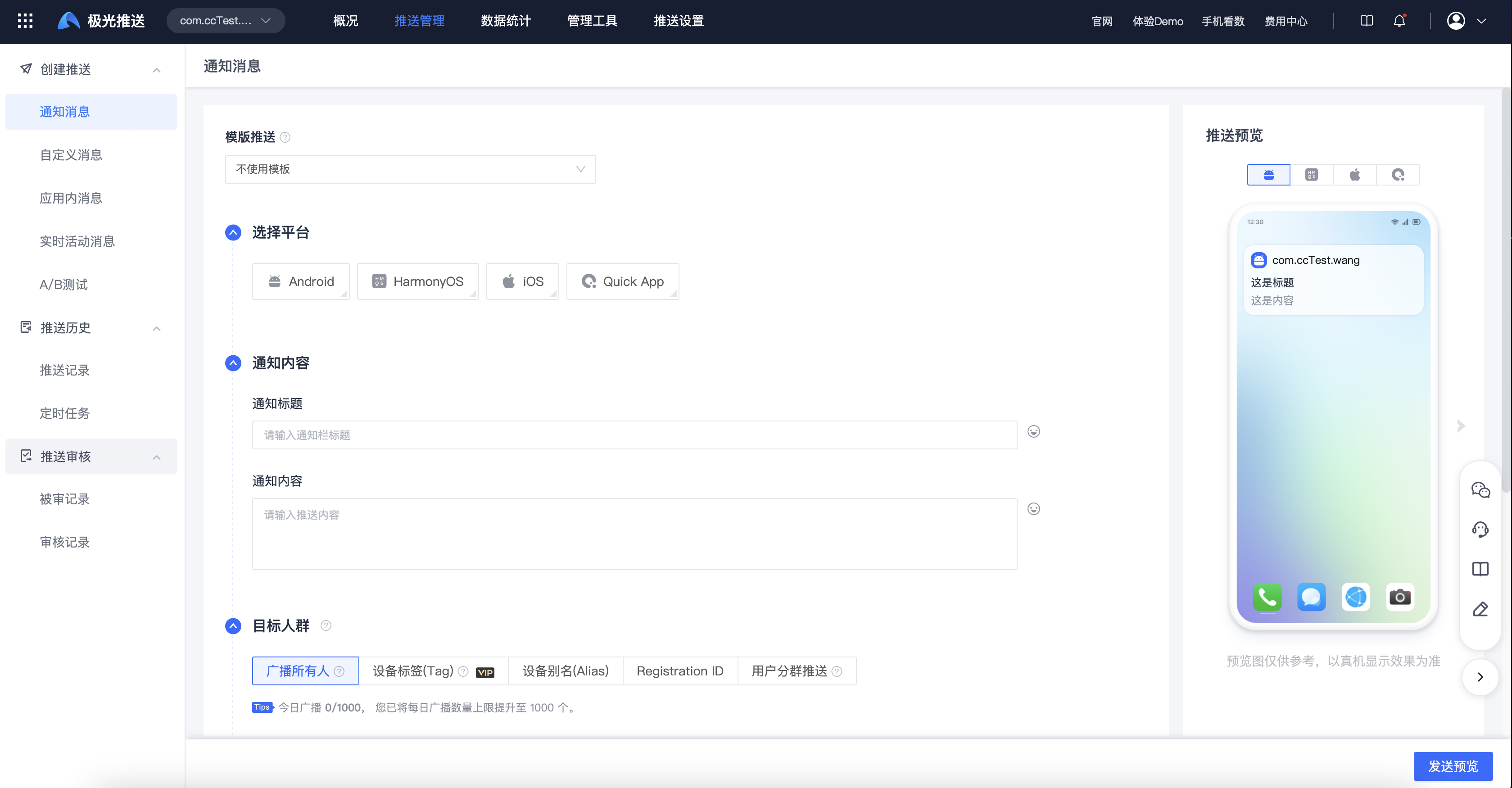
Client receives push
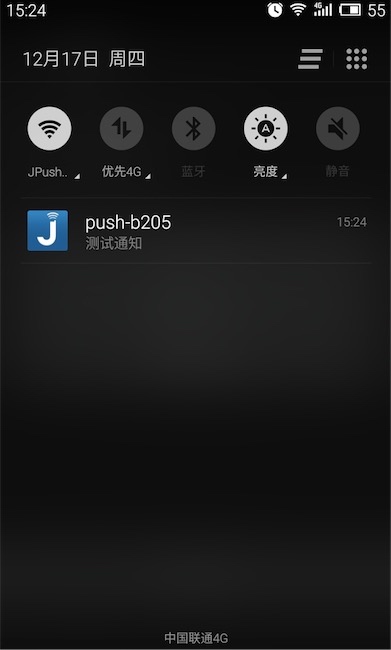
On the phone where the push demo is installed in the above steps, you can receive push notifications.