Push records
This article aims to guide users how to view and use push records on the Jiguang console.
Note: Starting from 2025.02.17, non-VIP customers can only query "broadcast" push records.
Push record description
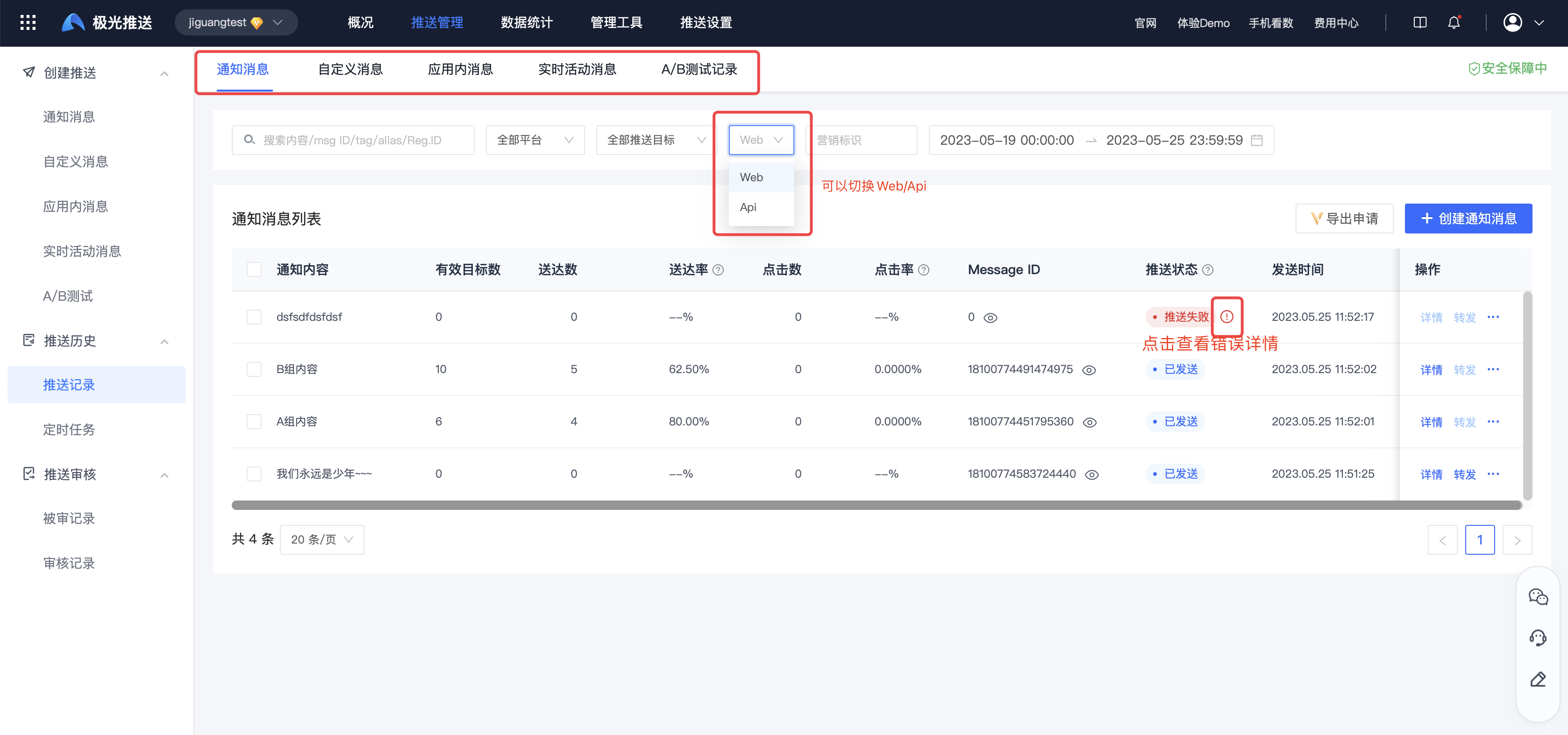
Enter the [JiGuang Console] - [Message Push] - [Push Management] - [Push Records] page, click "Notification Messages", "Customized Messages", and "A/B Test Records" to view the push records of the corresponding type. Move the mouse to "delivery rate", "click rate", "push status", etc. to view the explanation of the terms.
- Delivery rate: the number of notification messages delivered/the number sent. Delivery data is collected continuously for 5 days. Weighting of in-app reminder messages: If the in-app reminder function is enabled for this message, the weighted delivery rate = the number of in-app reminder messages delivered/the number of notification messages sent.
- Click rate: the number of clicks on the notification message/the number of deliveries. The delivery data is collected continuously for 5 days. In-app reminder message weighting: If the message has the in-app reminder function enabled, the weighted click rate = the number of clicks on the in-app reminder message/the number of notification messages sent.
- Push status: A successful push means that the Jiguang push service has processed the push task request, but it does not mean that all messages have been pushed to the user terminal. Processing indicates that the push task is being processed, and the end time is determined by the offline storage duration of the notification message.
- Activity number (A/B): User activity data for 1 natural day from the test time.
When the push status is "Push failed", the push is displayed in red. Click the symbol to the right of "Push failed" to view detailed error information.
Query push records
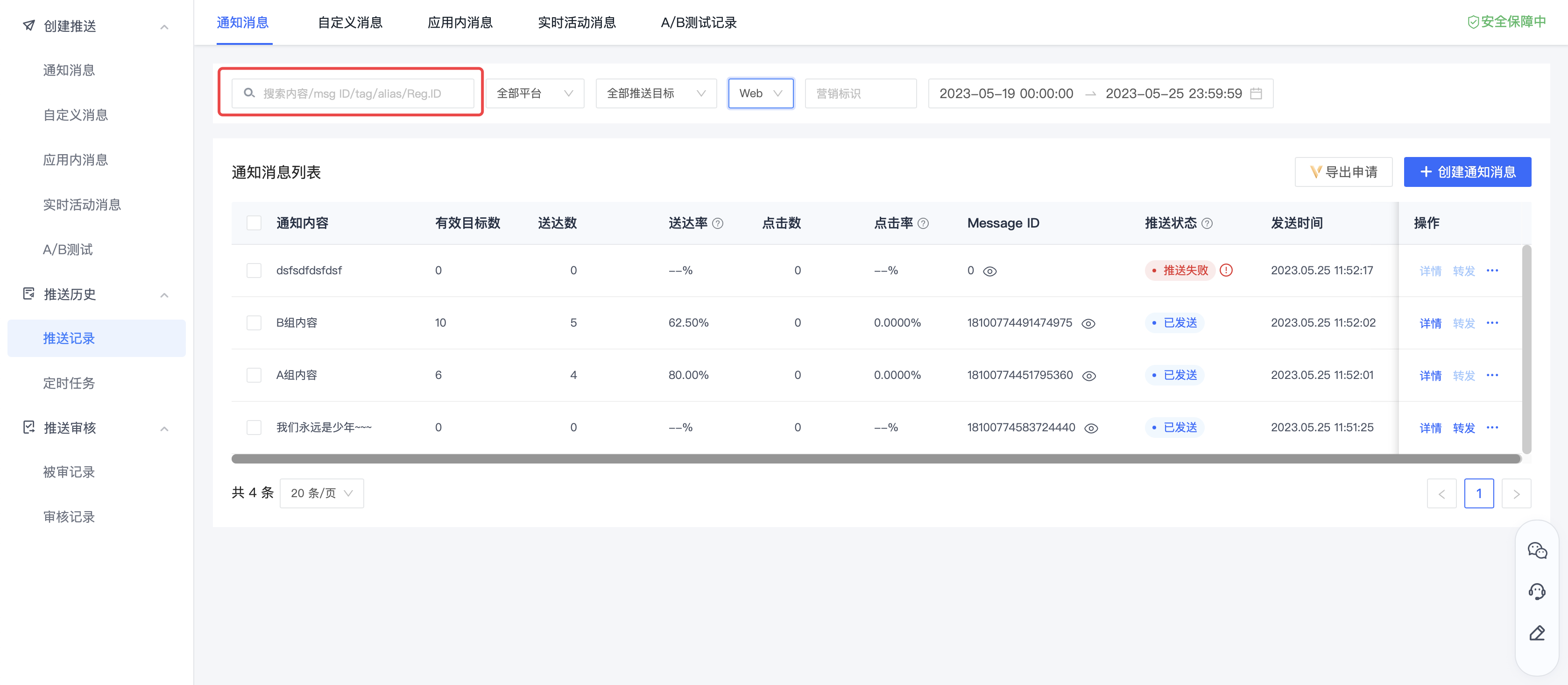
Enter "content/msg ID/tag/alias/RegID" in the search box to query push records.
The search content and push target must be consistent with the push.
Details
Notification message/custom message
On the [Push Record]-[Notification Message/Customized Message] page, click "Details" to enter the push details page. 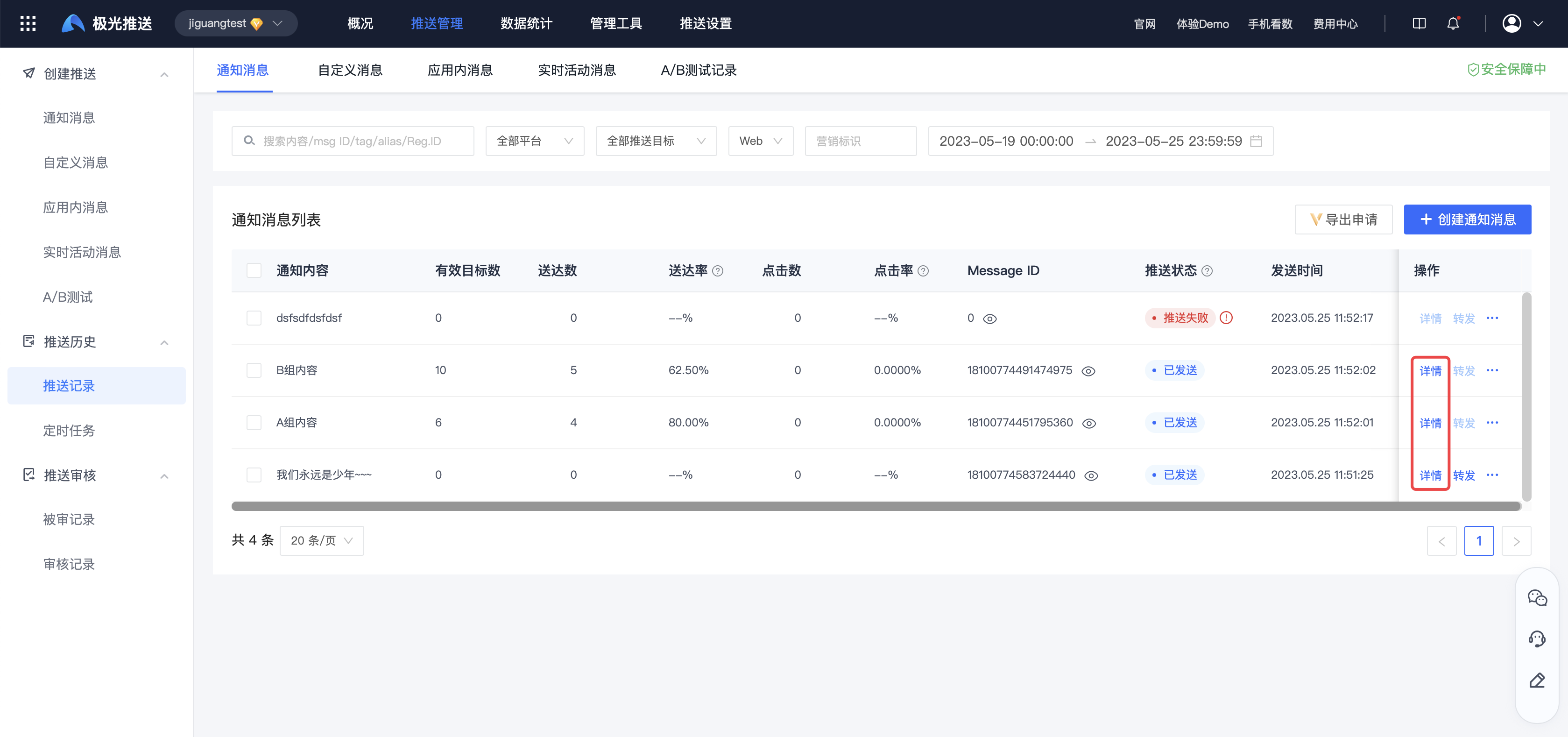
Basic information
Click the message body to view the json message body of this push, which is convenient for users to locate problems later. 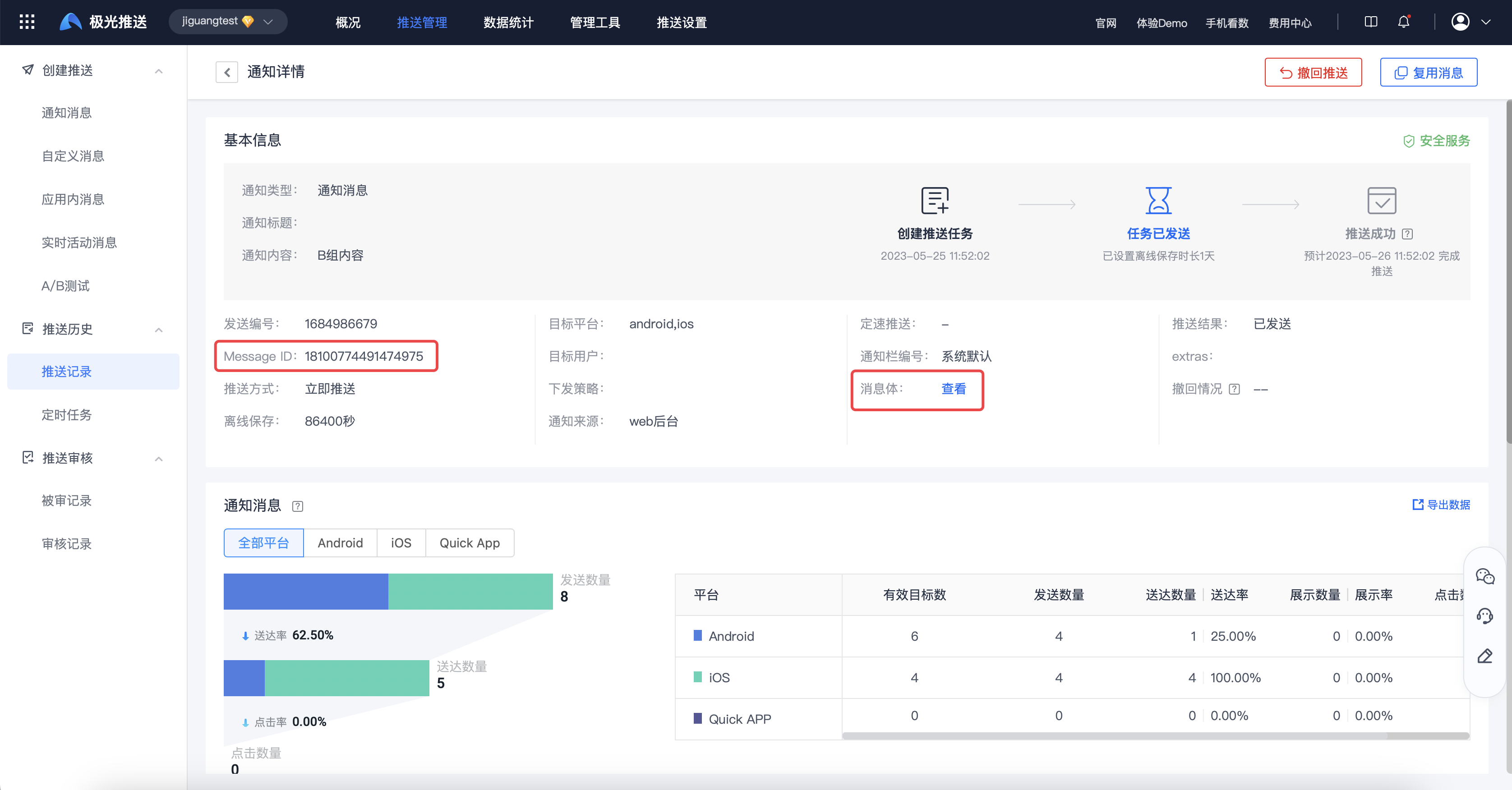
Notification message
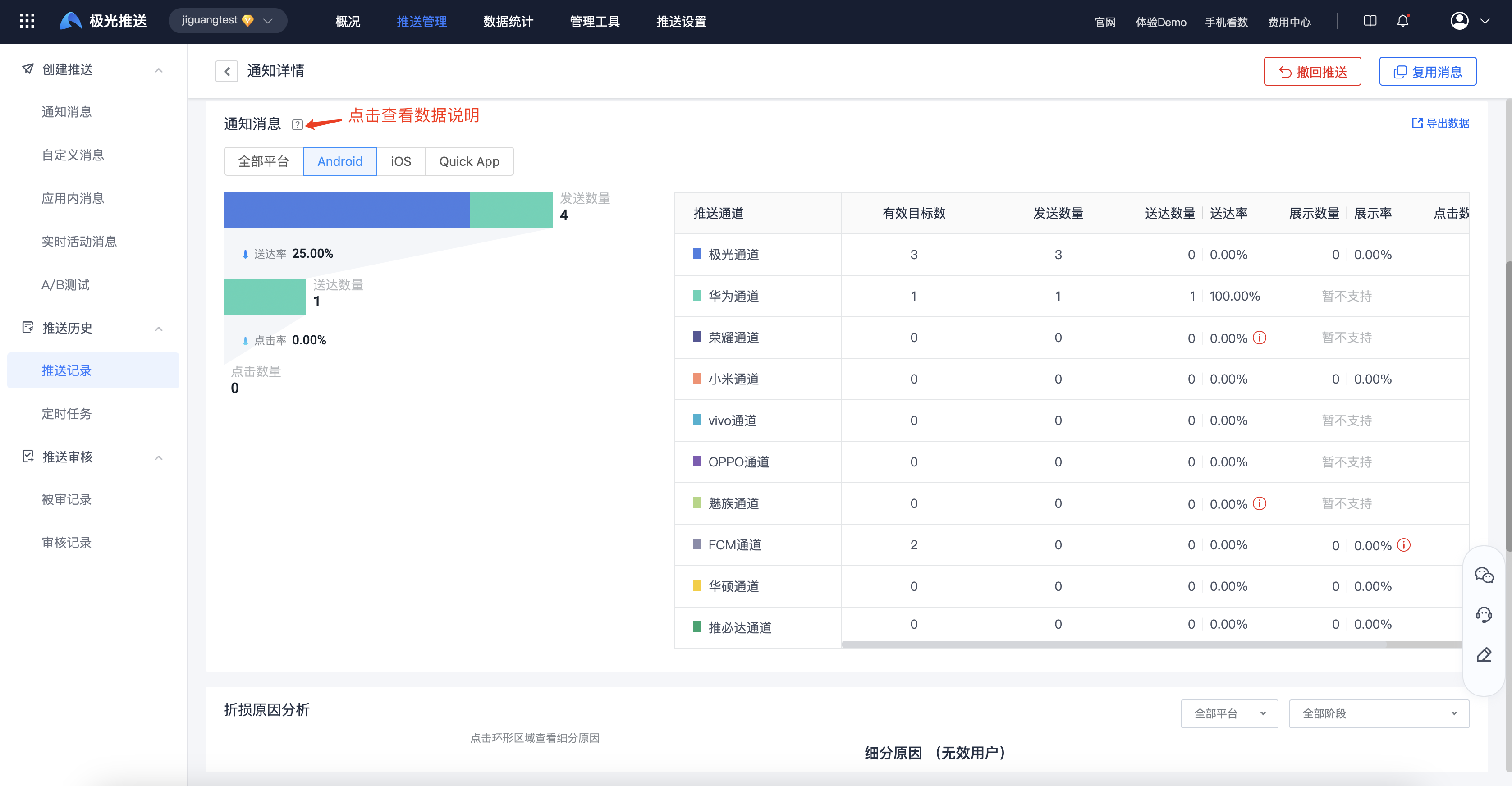
Select the corresponding platform to view detailed push data for different channels of the platform.
- Huawei and Meizu channels need to configure delivery receipts to calculate delivery data. For details, please refer to Manufacturer Channel Receipt Configuration Guide.
- Only Xiaomi and Jiguang channels support display rate statistics.
Custom message
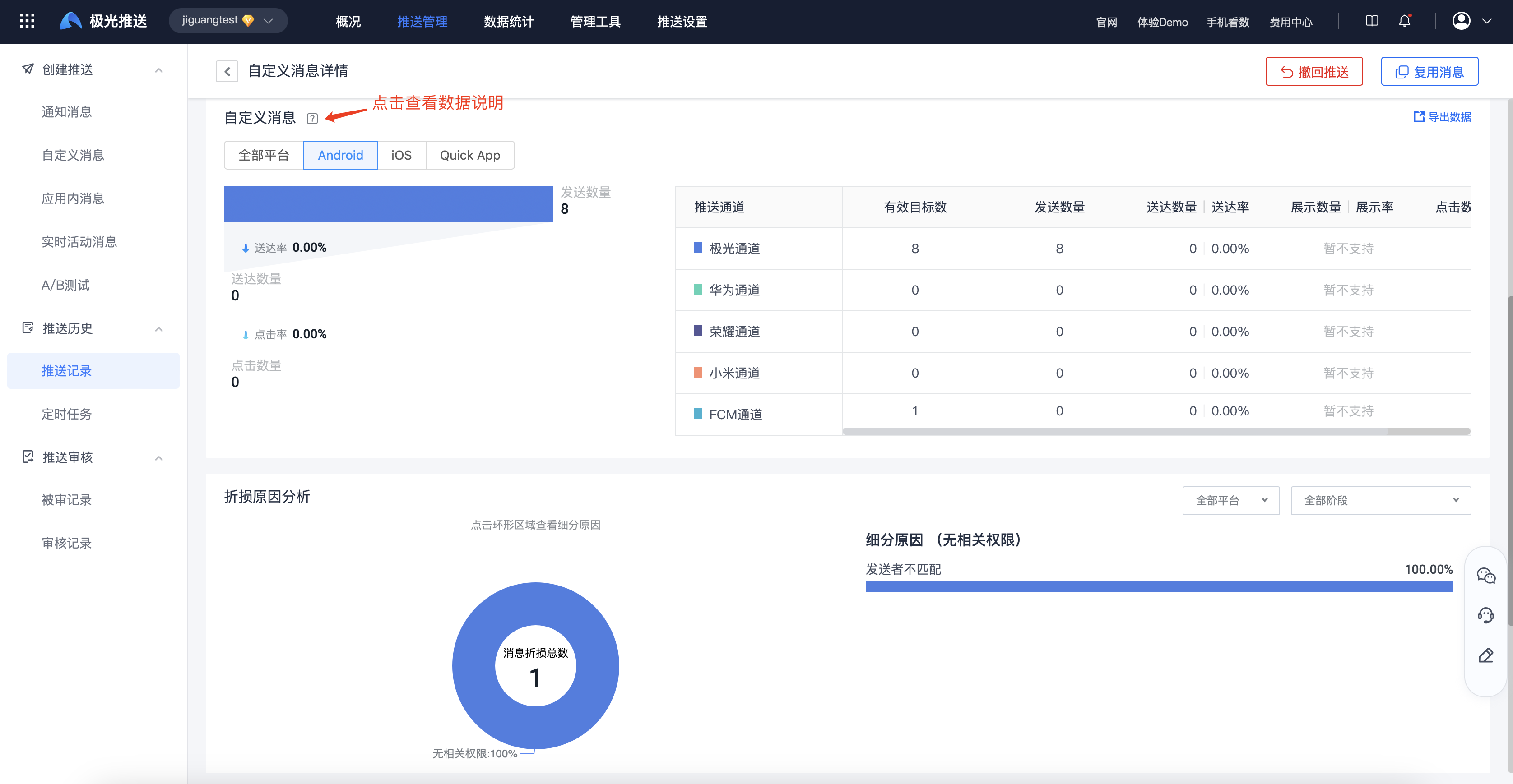
Only Xiaomi, Huawei, and FCM manufacturers support custom messages, and the device needs to be online to receive custom messages.
Analysis of causes of damage
- Click on the ring area to view the breakdown of the cause of damage.
- You can filter different platforms and stages to view the corresponding proportion of loss reasons.
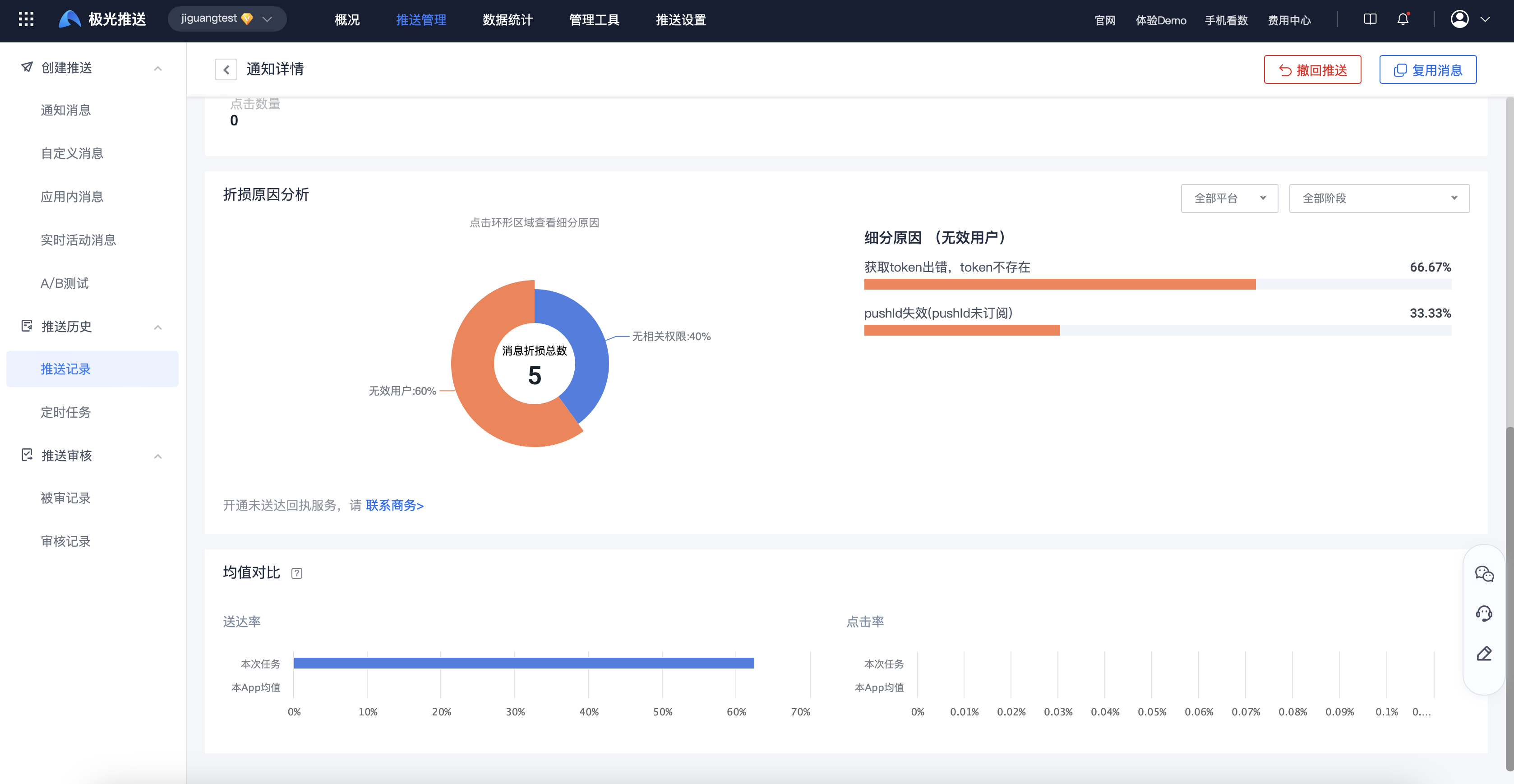
Mean comparison
- Average comparison - delivery rate - average value of this APP: within 30 days, the sum of the delivery quantity/sent quantity of the msgid to which the APPKEY belongs.
- Average comparison - click rate - average value of this APP: within 30 days, the number of clicks of the msgid to which the APPKEY belongs is added up/the number of deliveries.

A/B Testing
On the [Push Record]-[A/B Test Record] page, click "Details" to enter the push details page. 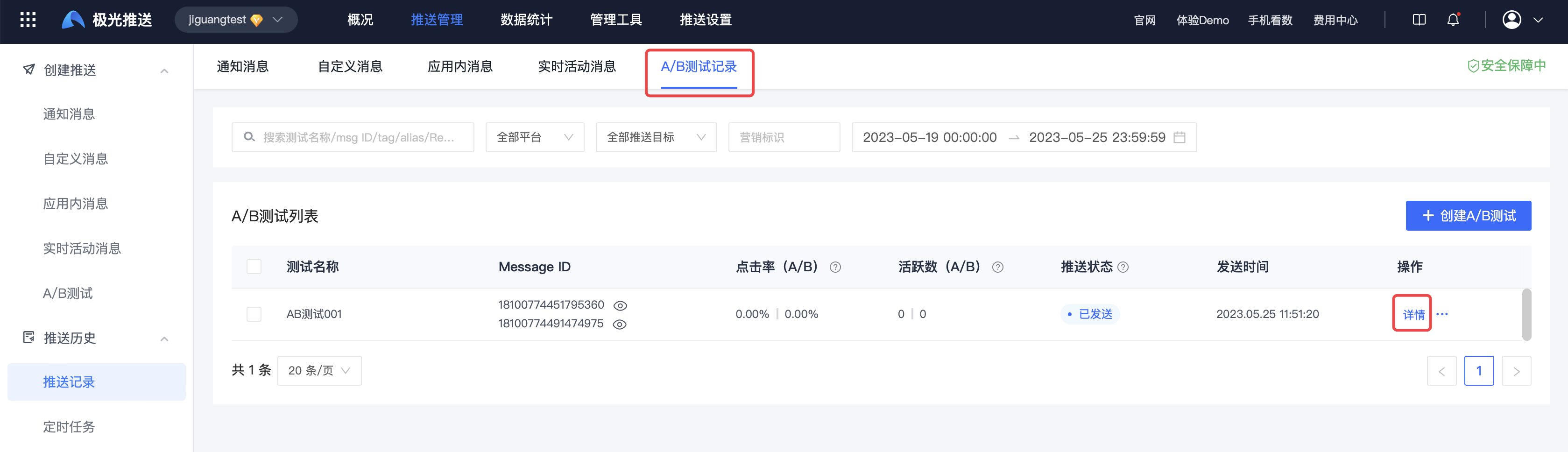
Basic information
A/B testing will return two pushed Message IDs and two message bodies. 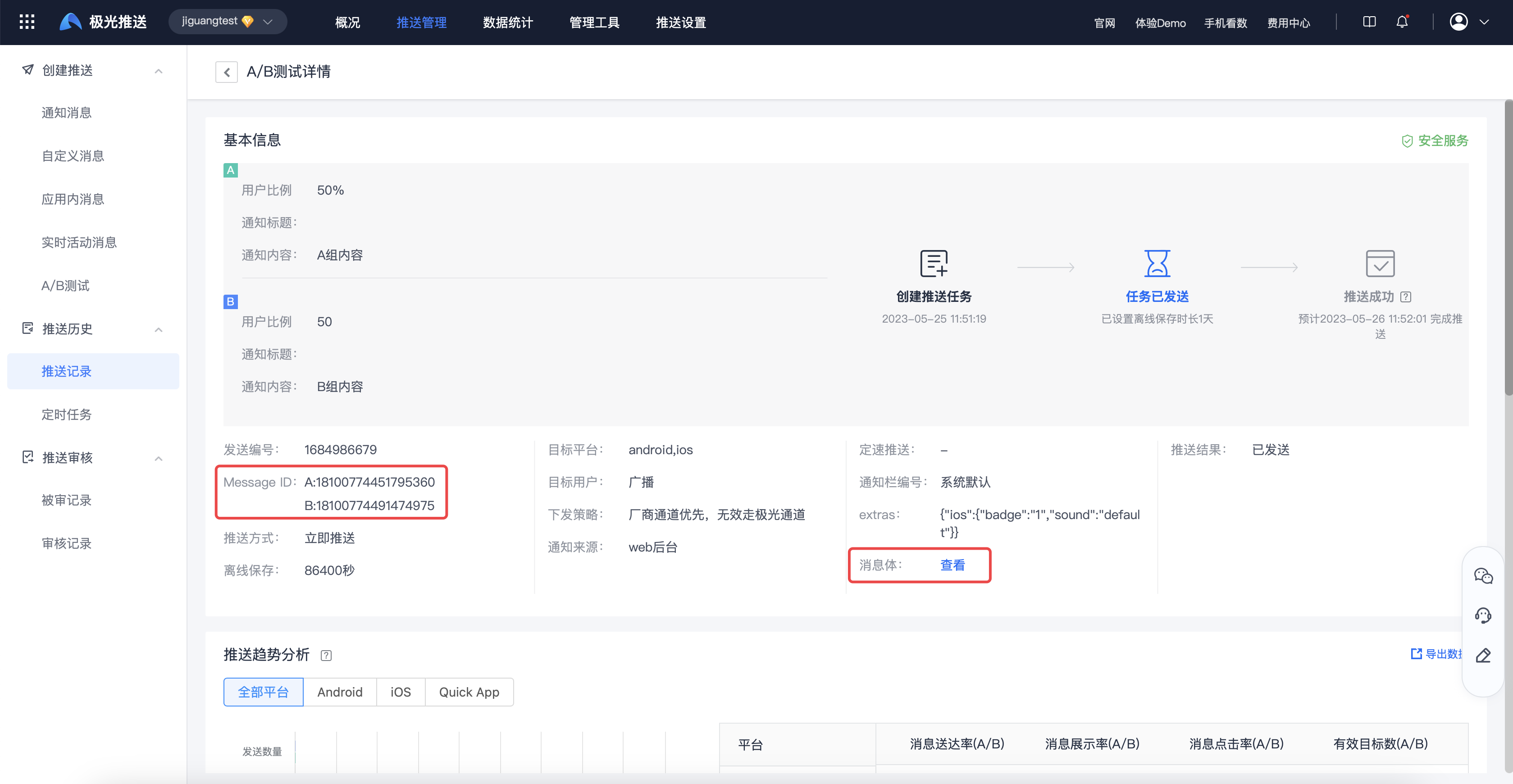
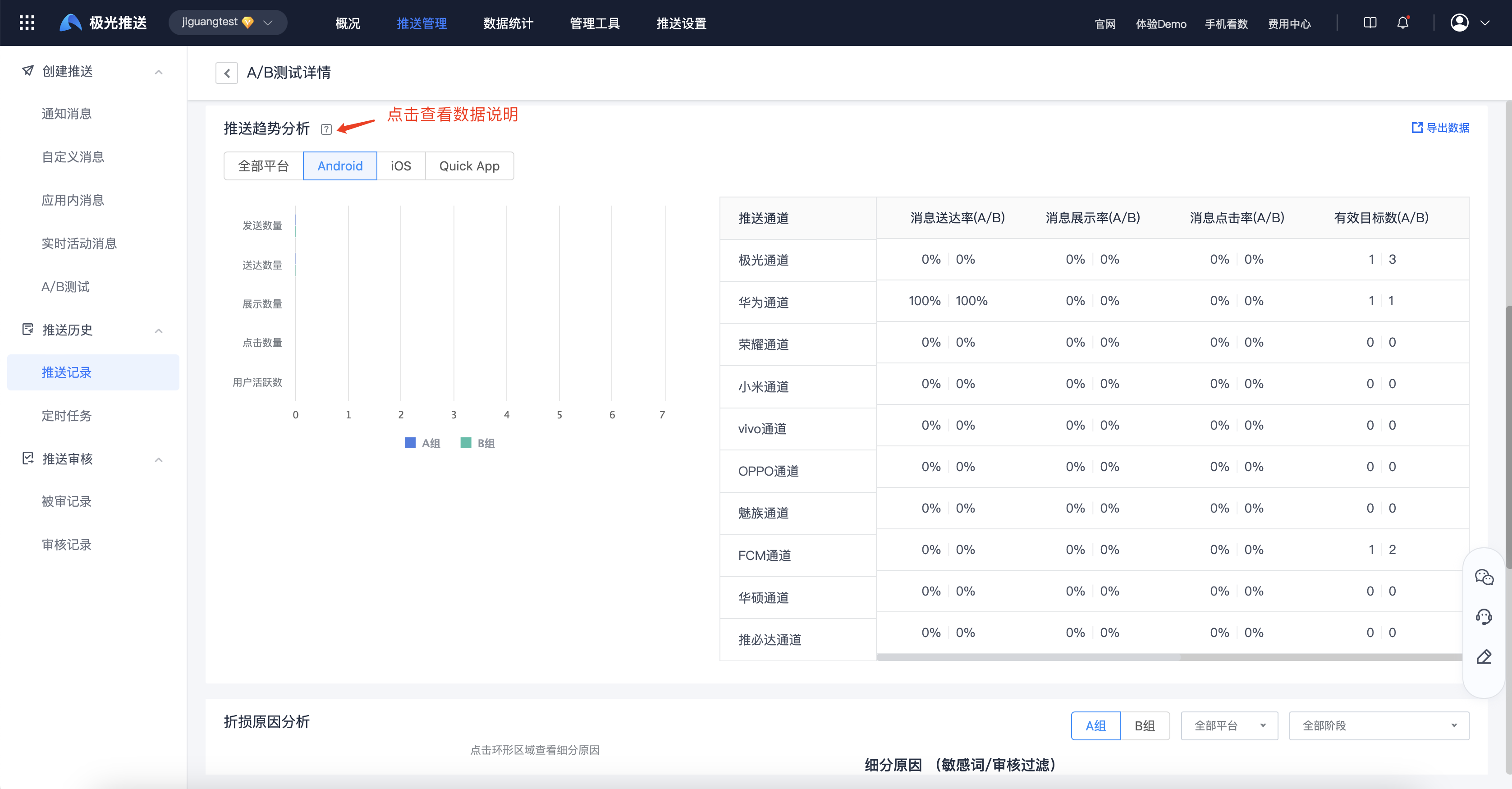
Push trend analysis
Select the corresponding platform to view detailed push data for different channels of the platform. All A/B test data will be displayed in two groups.
- Huawei and Meizu channels need to configure delivery receipts to calculate delivery data. For details, please refer to Manufacturer Channel Receipt Configuration Guide.
- Only Xiaomi and Jiguang channels support display rate statistics.
Analysis of causes of damage
- Click on the ring area to view the breakdown of the cause of damage.
- You can filter different platforms and stages to view the corresponding proportion of loss reasons.
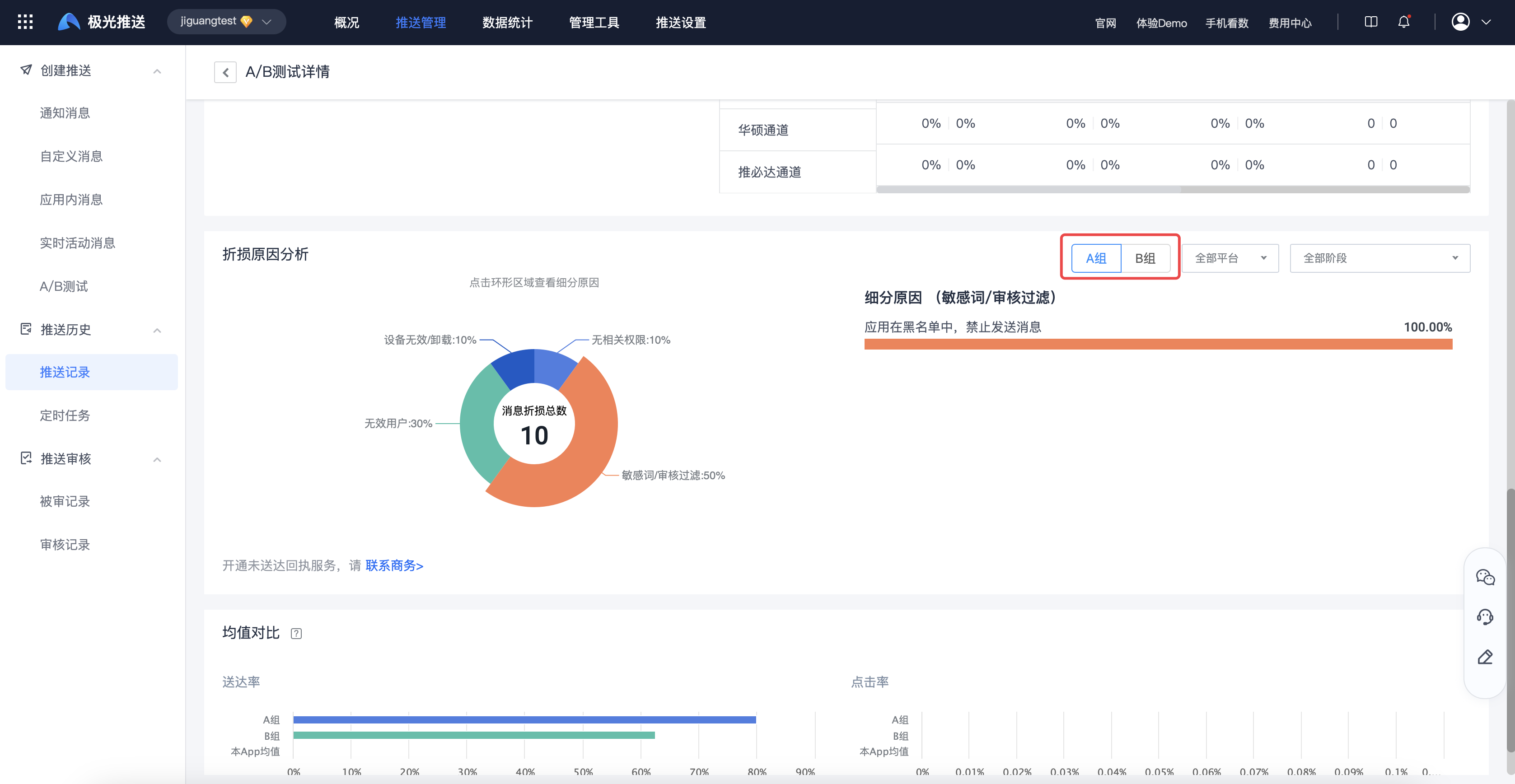
Mean comparison
- Average comparison - delivery rate - average value of this APP: within 30 days, the sum of the delivery quantity/sent quantity of the msgid to which the APPKEY belongs.
- Average comparison - click rate - average value of this APP: within 30 days, the number of clicks of the msgid to which the APPKEY belongs is added up/the number of deliveries.

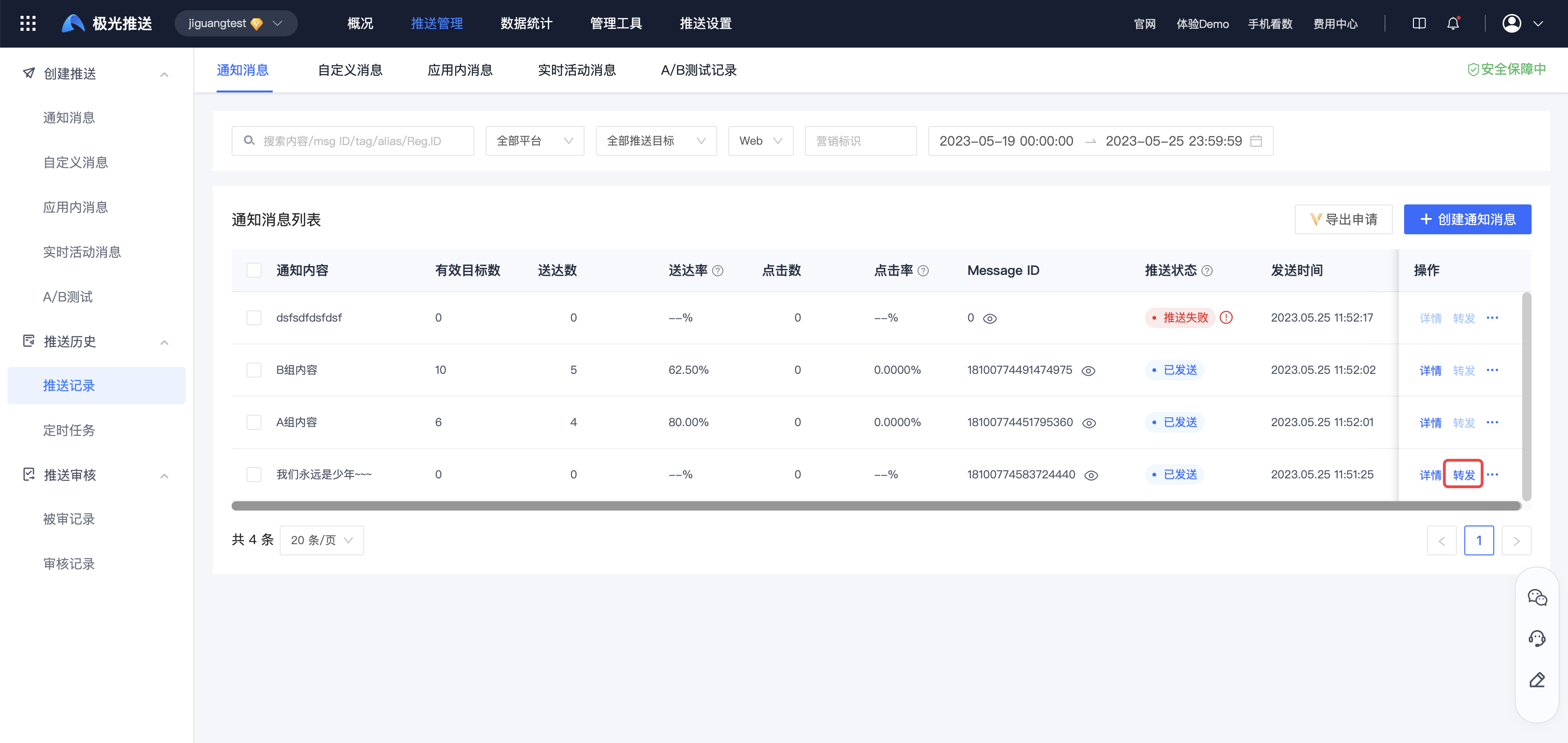
Forward
On the push record page, click "Forward" to enter the create push page again and reuse all the configurations of the original push message.
- The forwarding function only supports console push, and API push is not supported yet.
- A/B testing does not support forwarding.
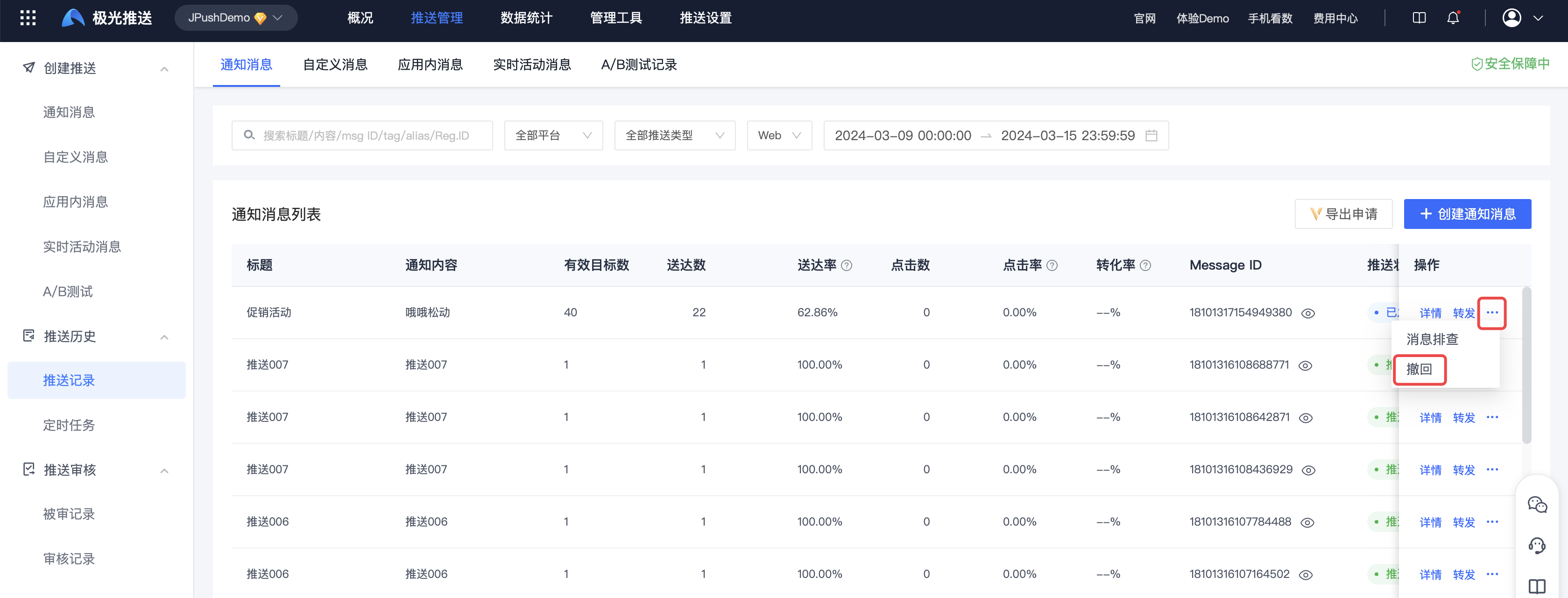
Withdraw
On the push record page, select the message that needs to be withdrawn and click "Withdraw".
Only Jiguang Channel and Xiaomi Channel support withdrawing notification messages that are displayed but not clicked.
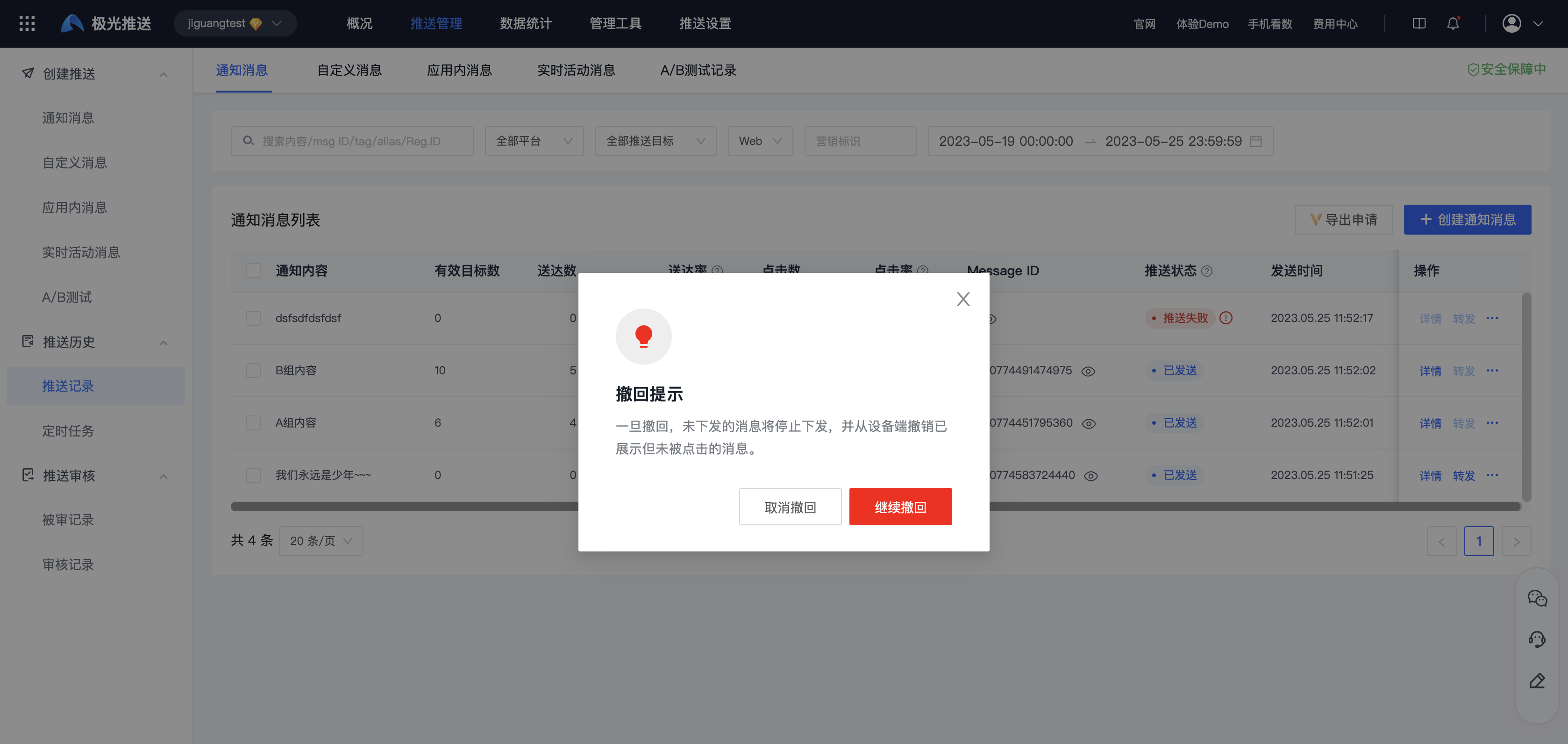
Click "Continue Withdraw" for secondary confirmation. Undelivered messages will stop being delivered, and messages that have been displayed but not clicked will be revoked from the device.
Message troubleshooting
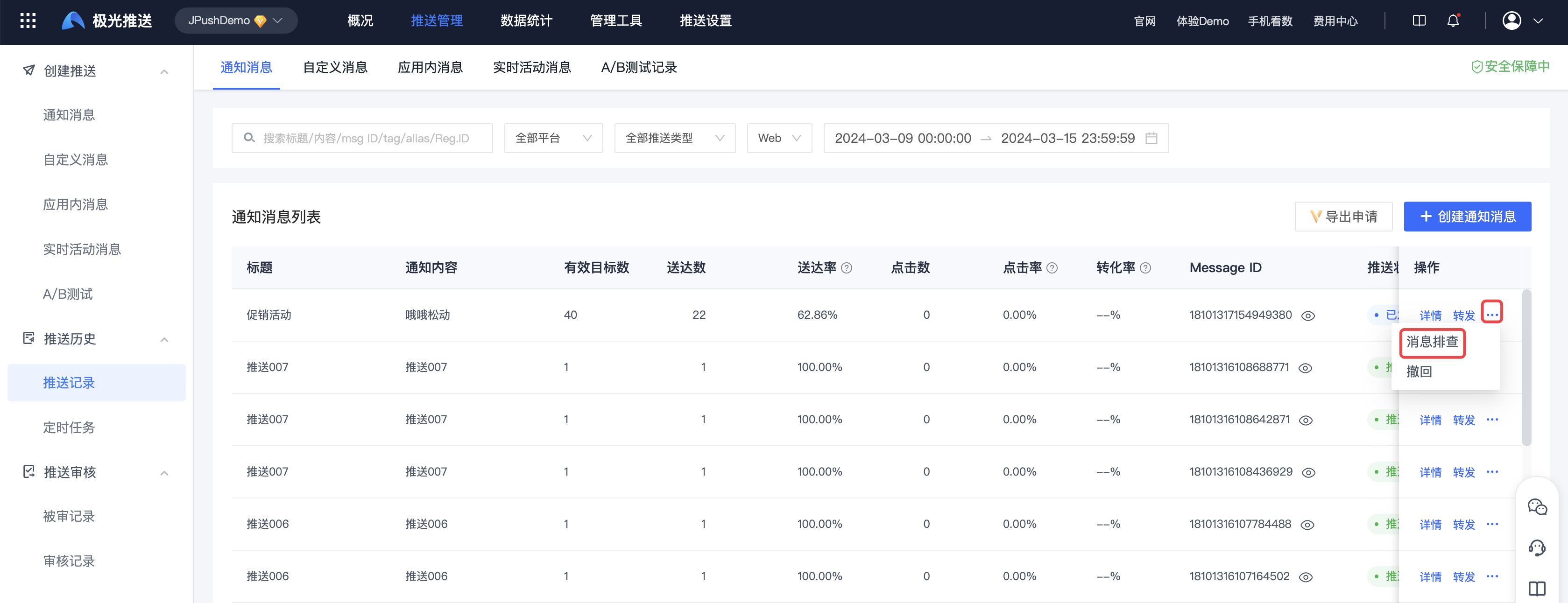
On the push record page, click "Message Check" to quickly query the overall life cycle of the message.
Note that when checking the message life cycle, you need to specify the messageid + device registrationid to query together. You need to confirm the device registrationid value yourself.
Export application
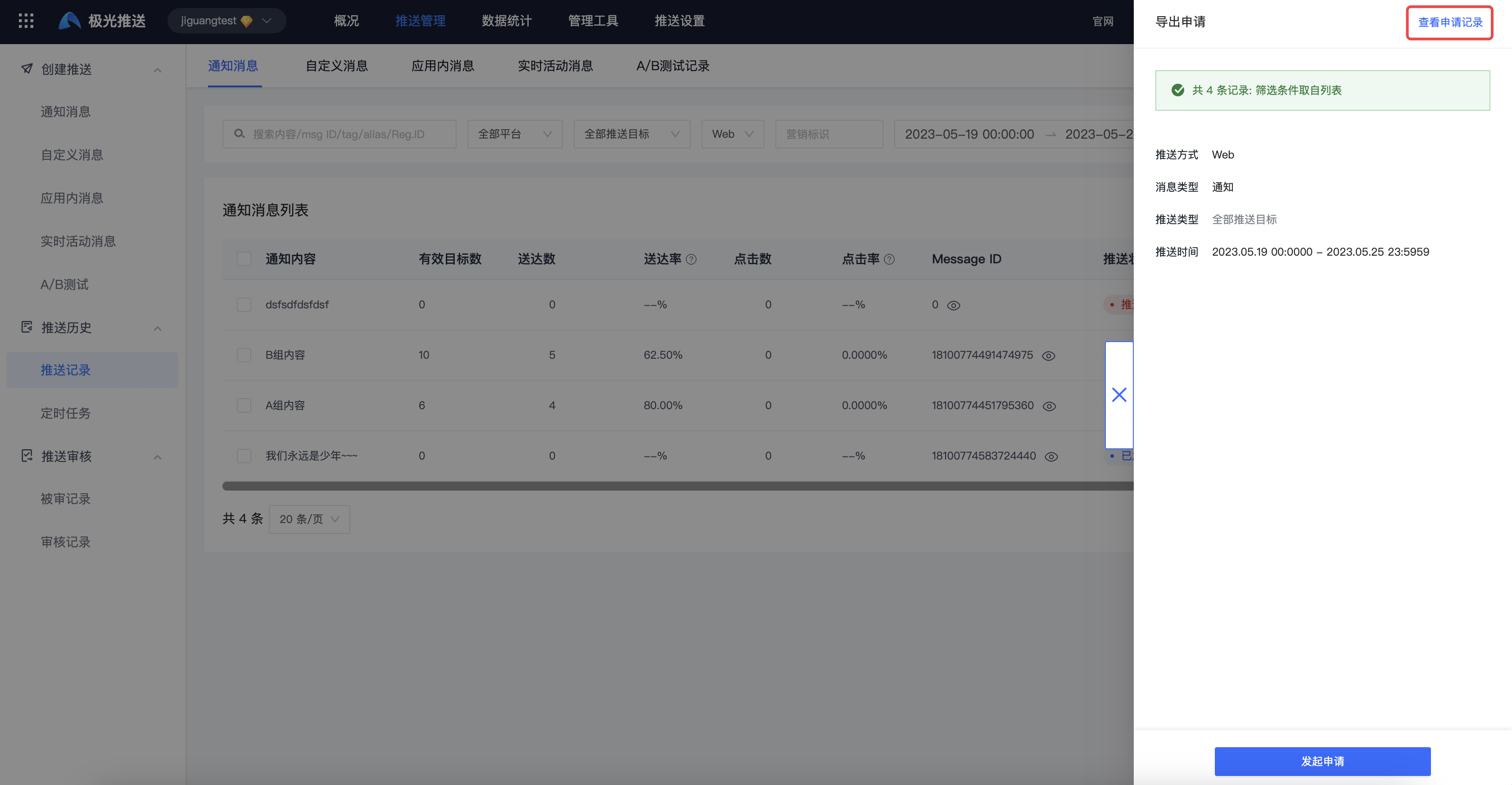
Click "Export Application" to enter the export push record page. 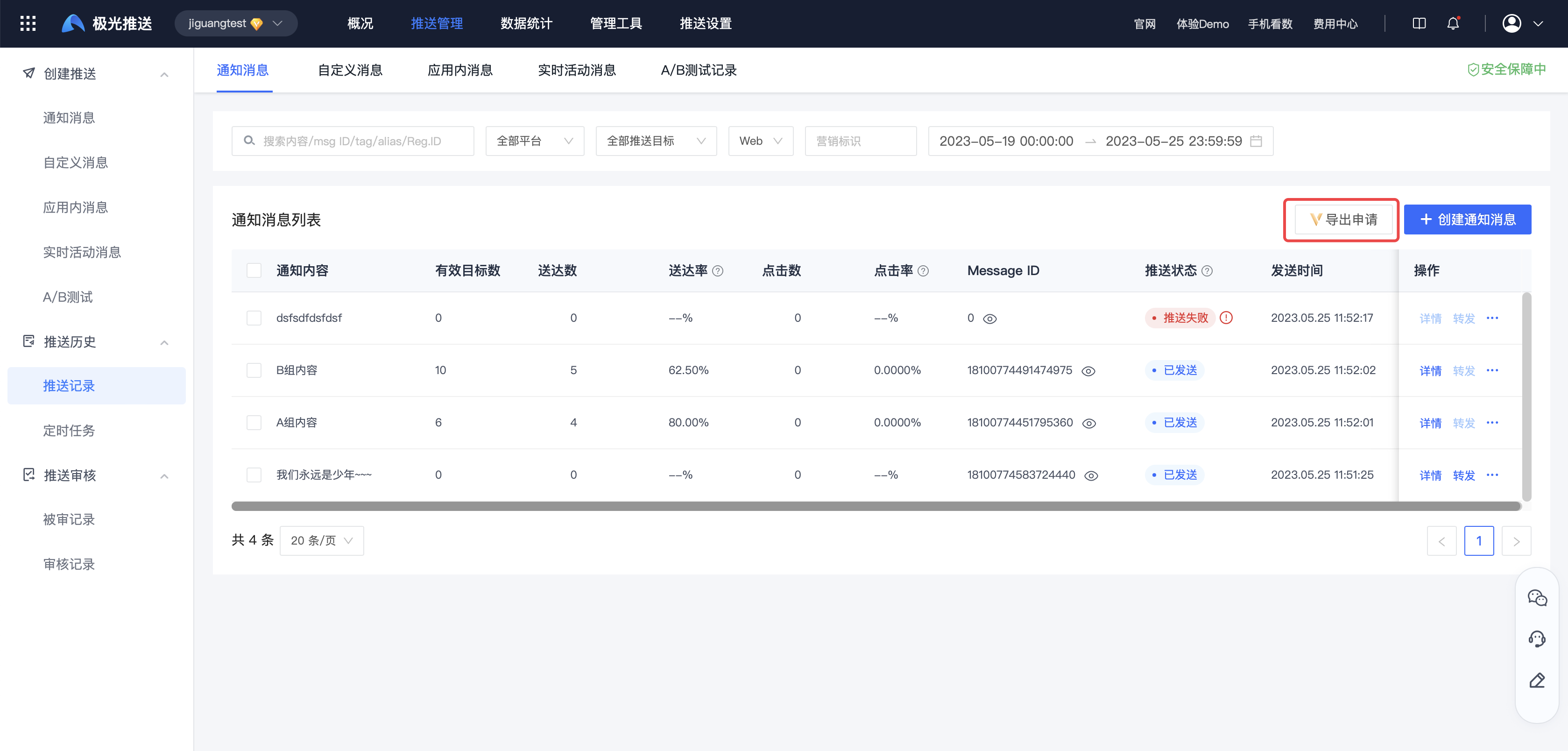
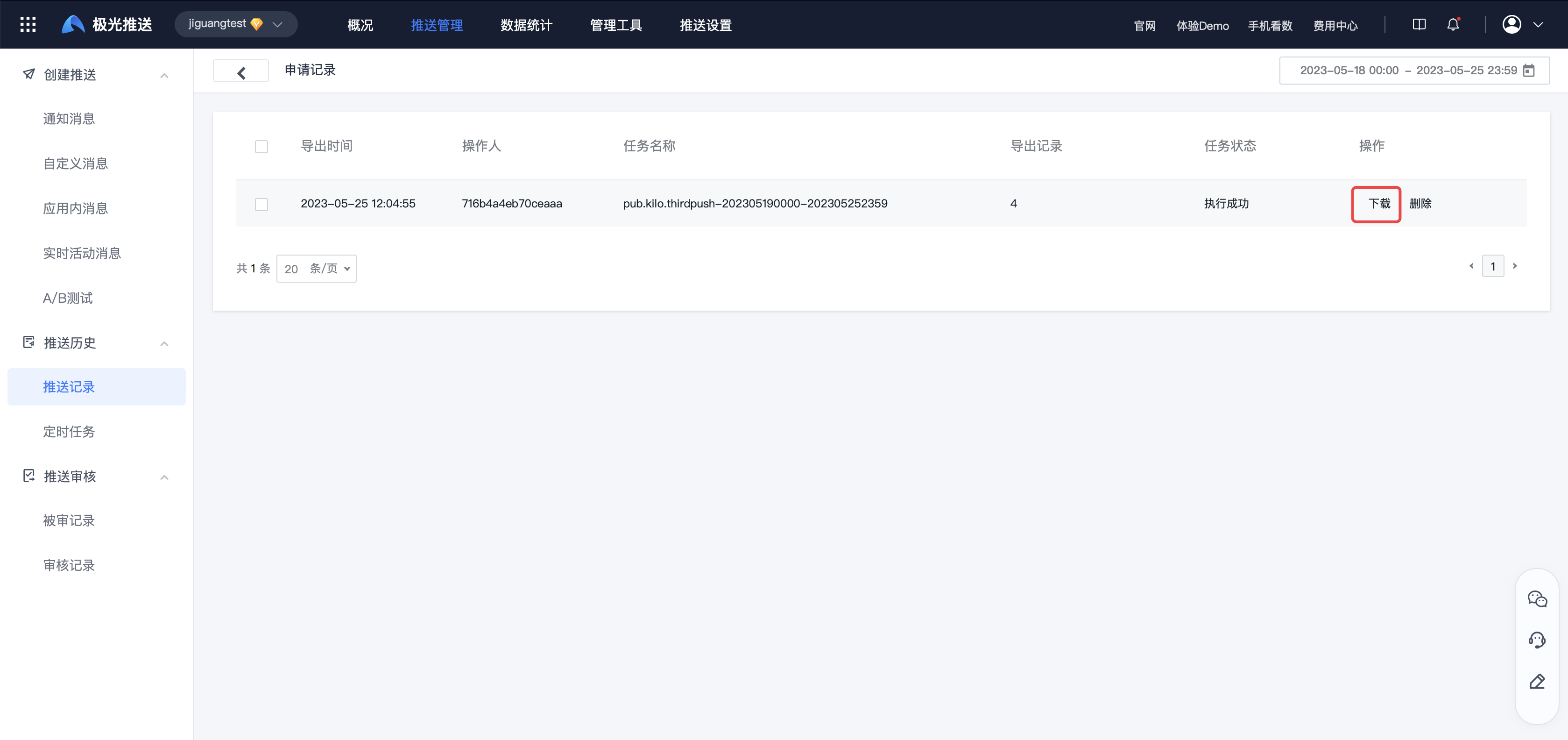
After clicking "Initiate Application", click View Application Record to download the push record.