Integration settings
This article is intended to guide customers on how to view an app's integration settings.
Prerequisites
Already created app and completed push setup.
Android
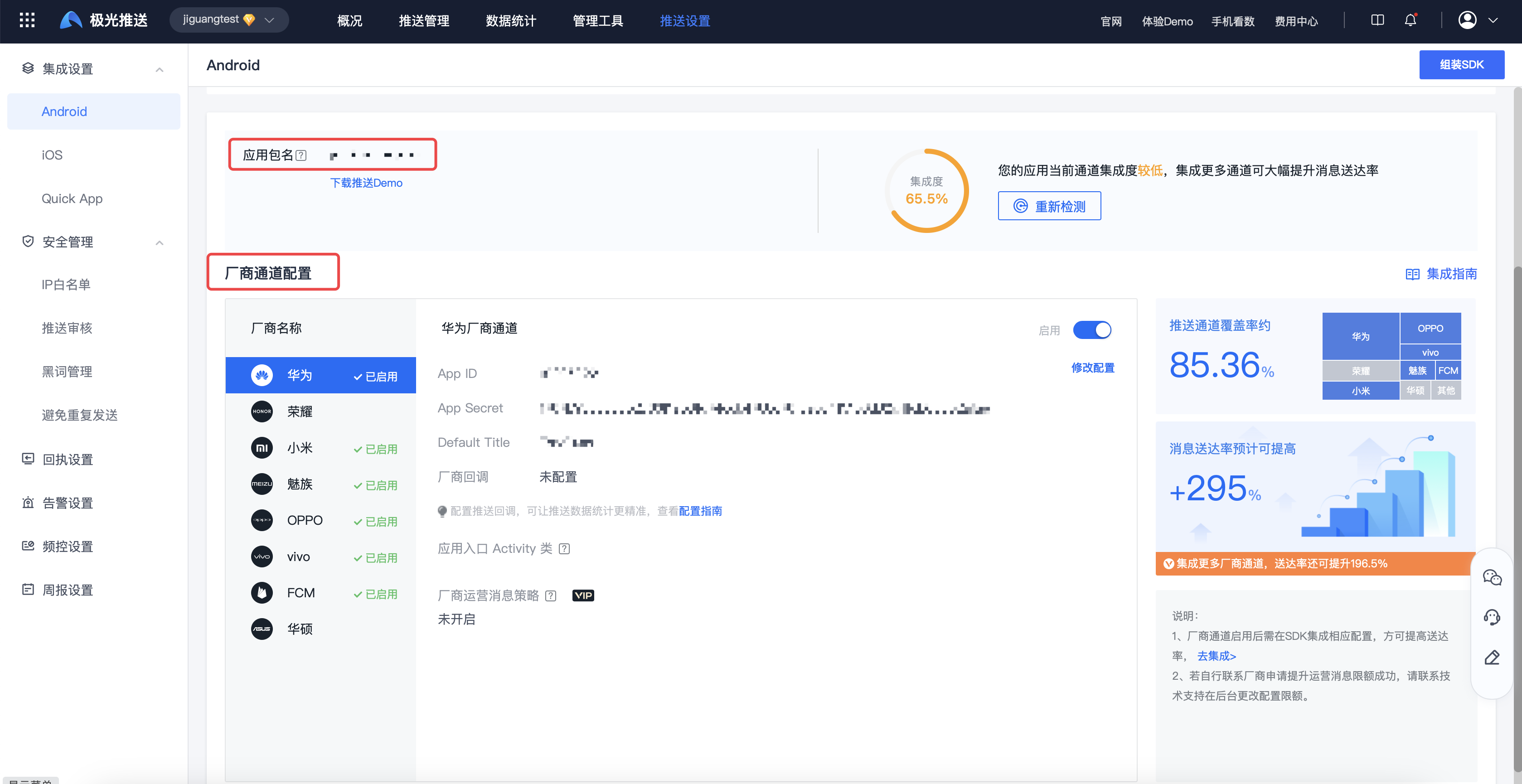
Enter the [Jiguang Console] - [Message Push] - [Push Settings] - [Integration Settings] - [Android] page to view the application package name, SDK integration level and manufacturer channel configuration information.
- Application package name: The package name of the Android application, configured and used in AndroidManifest.xml. This package name is commonly used for push, authentication, sharing, IM and other services. Once specified, it cannot be changed.
- Integration level: SDK integration level can help users understand the overall integration situation.
- Vendor channel configuration: To use the vendor channel, you need to configure vendor parameters on the console. For details, please refer to Manufacturer Channel Parameter Application Guide.
HarmonyOS
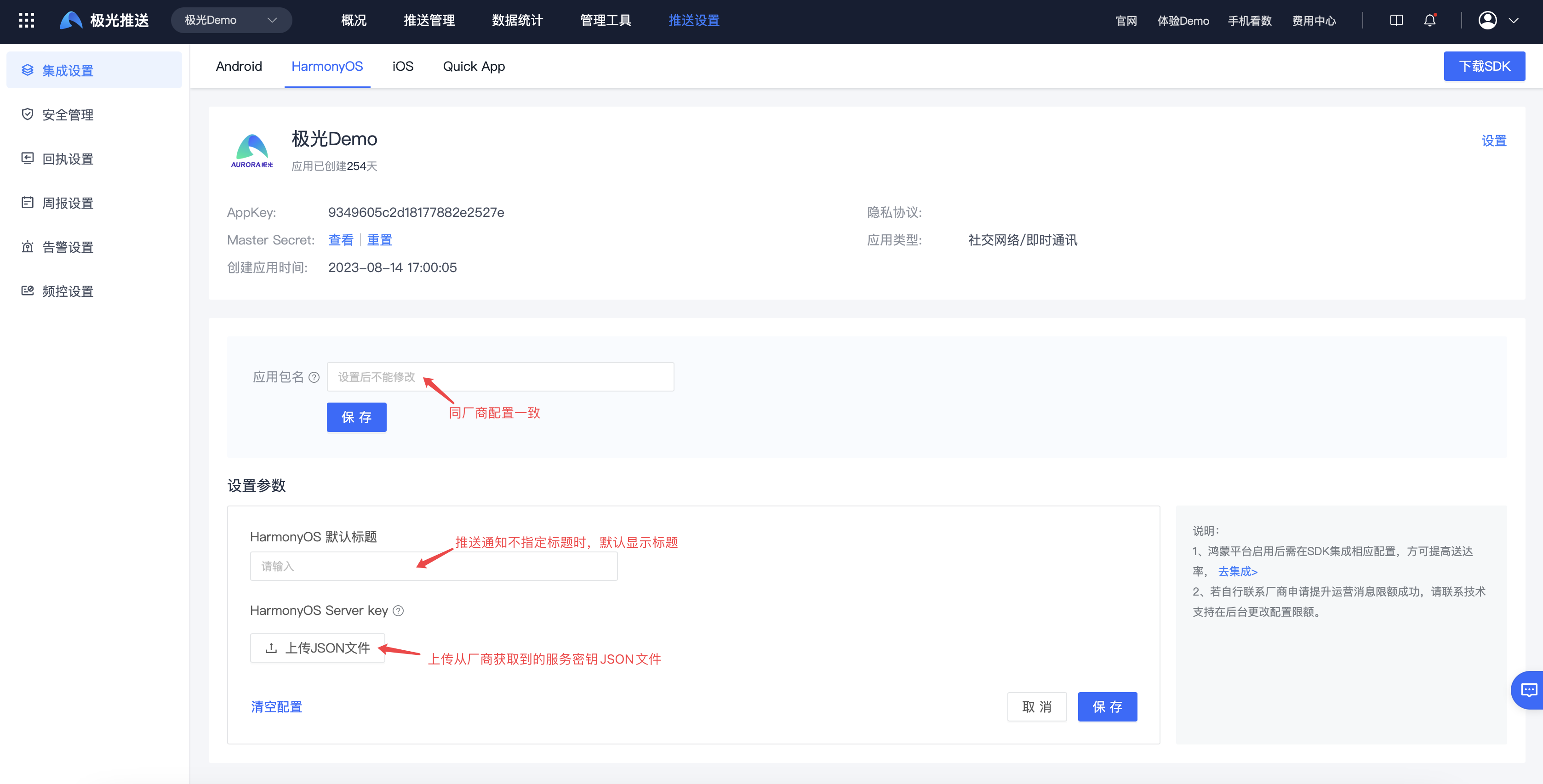
Enter the [JiGuang Console] - [Message Push] - [Push Settings] - [Integration Settings] - [HarmonyOS] page to view the application package name and manufacturer channel configuration information.
- Application package name: The package name of the Hongmeng application. Once the package name is specified, it cannot be changed.
- Vendor parameter settings: To use the vendor channel, you need to configure vendor parameters on the console. For details, refer to Manufacturer Parameter Application Guide.
iOS
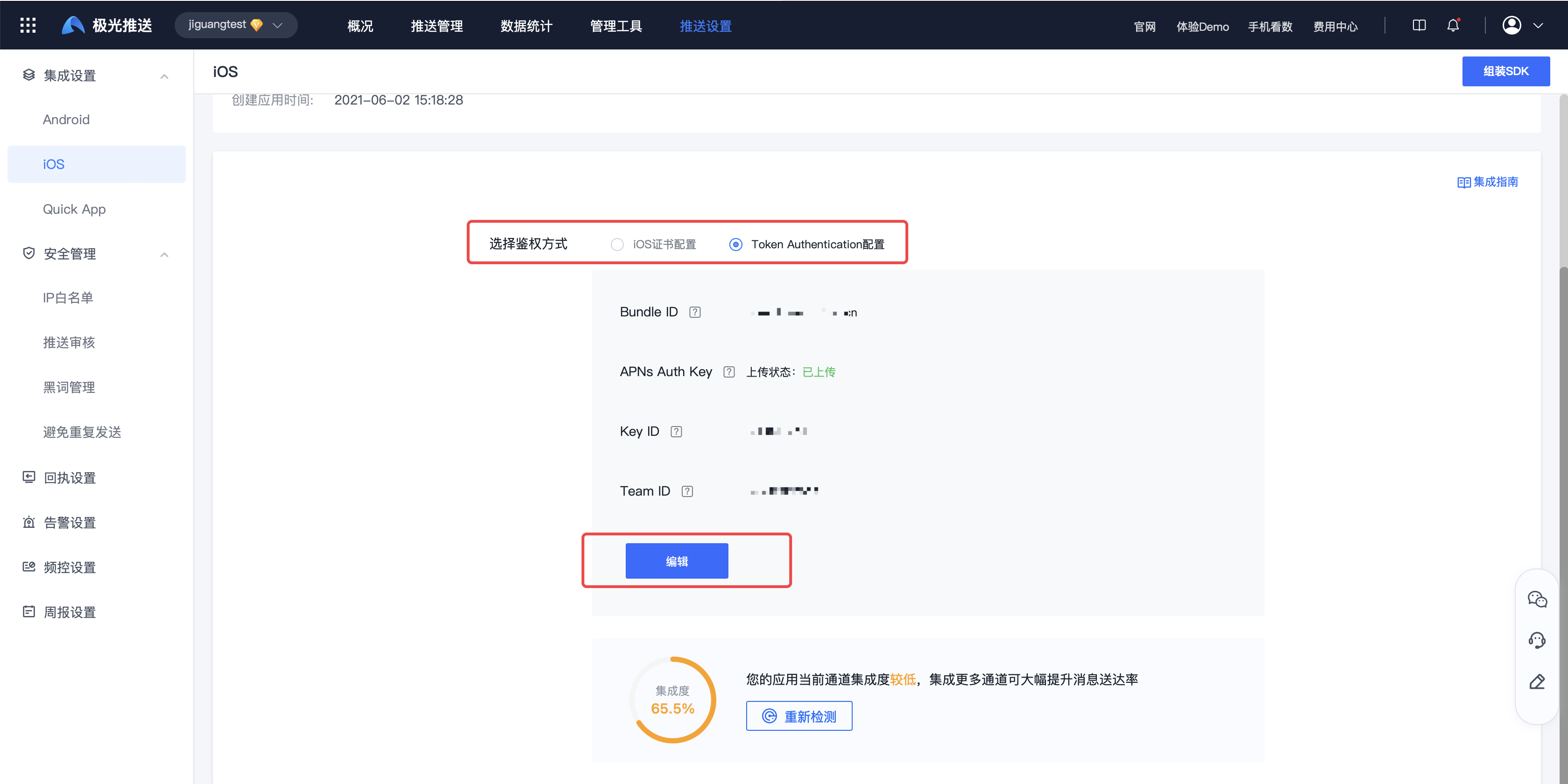
Enter the [Jiguang Console]-[Message Push]-[Push Settings]-[Integrated Settings]-[iOS] page to view the authentication details. For authentication method configuration, refer to [Certificate Setting Guide](/en/jpush/client/iOS/ios_cer_guide#Configuration of two authentication methods).
- Bundle ID: A string used to uniquely identify an APP ID.
- Whether to use the production certificate for the development environment: Apple's production push certificate allows use for push to the development environment. If you check Use the production certificate for the development environment, developers can only upload the production certificate and select the development environment for push on the official website push platform. There is no need to generate and upload a development certificate.
- If the APNS certificate file shows "Expired" or "Canceled", please update the certificate in time.
- You need to configure the delivery display callback to count the display data. For details, please refer to [Notification Display Statistics](/en/jpush/client/iOS/ios_guide_new#Notification Display Statistics).
Quick App
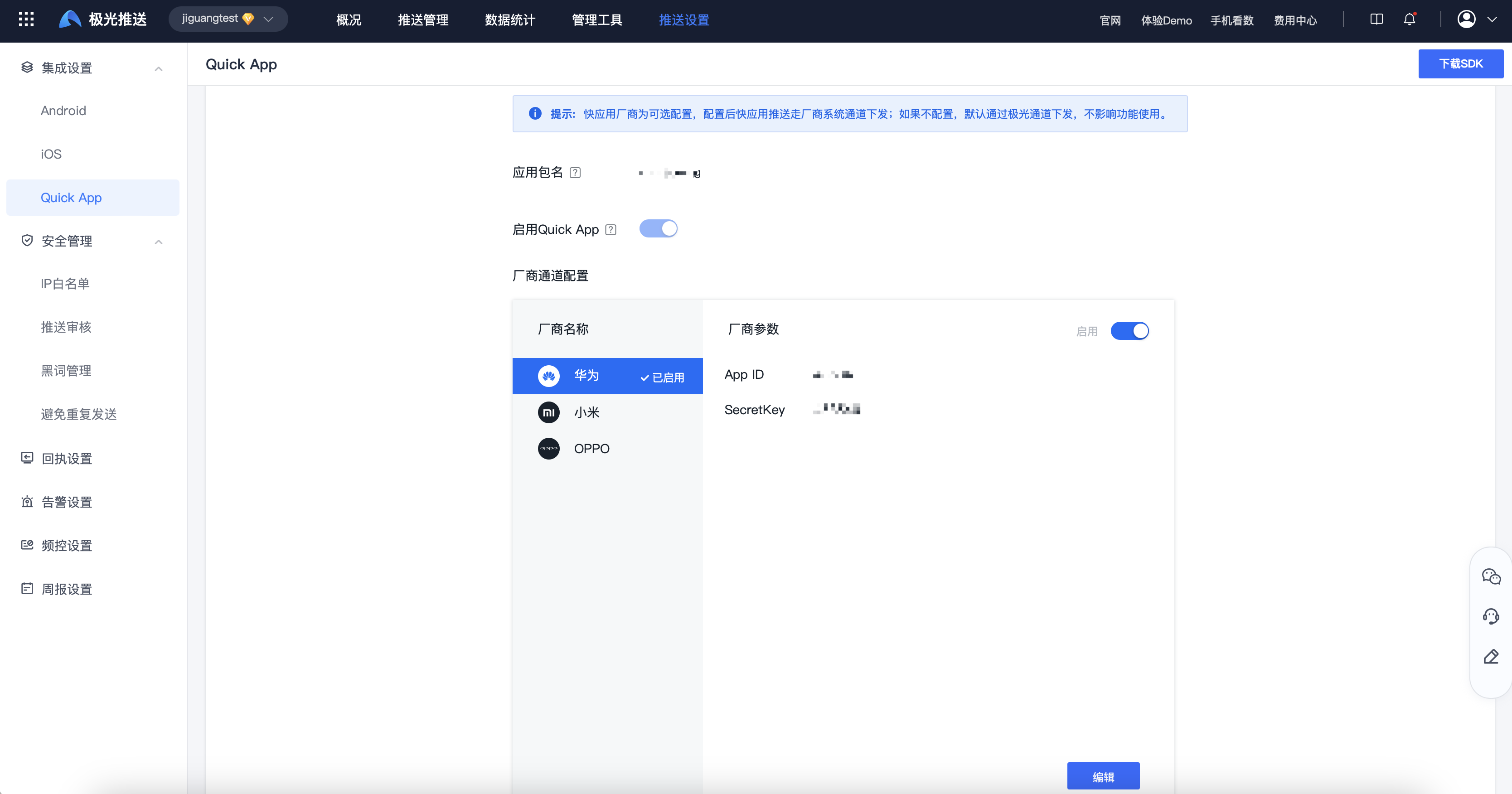
Enter the [JiGuang Console] - [Message Push] - [Push Settings] - [Integration Settings] - [Quick App] page to view the application package name and activation status.
- The package name set here is the package name of the quick app. Please distinguish it from the package name of the Android application. The package name cannot be changed after it is set. If you want to apply the manufacturer's quick app push, please keep it consistent with the quick app package name set by the manufacturer.
- You need to integrate the Quick App Push SDK before you can enable the Quick App Push function; the Quick App Manufacturer is an optional configuration, and after configuration, the Quick App Push will be delivered through the manufacturer's system channel; if not configured, it will be delivered through the JiGuang Channel by default, which does not affect the use of the function.