


#geofence This article aims to guide users on how to use the geofencing feature on the JiGuang console.
Geofencing description
Geofencing uses a virtual fence to enclose a virtual geographic boundary. When a user enters, leaves, or is within the circle, the mobile phone can receive automatic notifications; it can achieve accurate message push and push useful information to the right people in the right place. Currently geofencing only supports push through the JiGuang console.
Create geofence
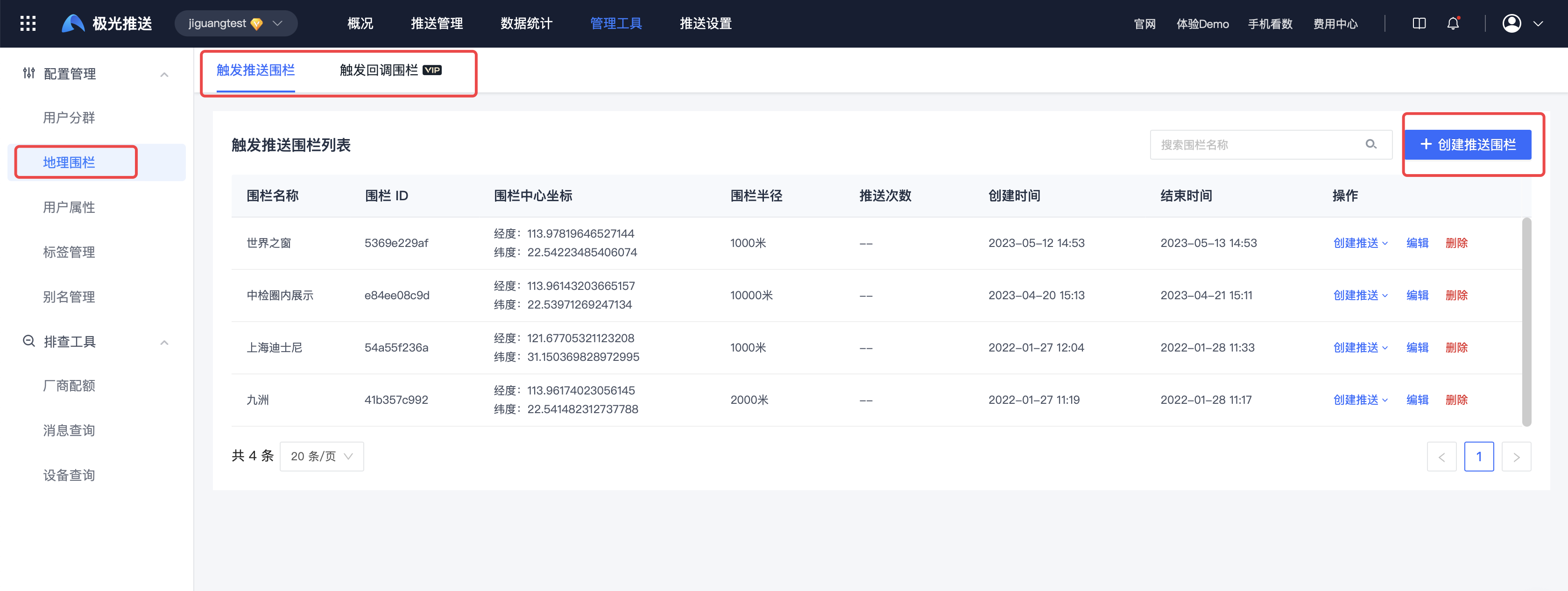
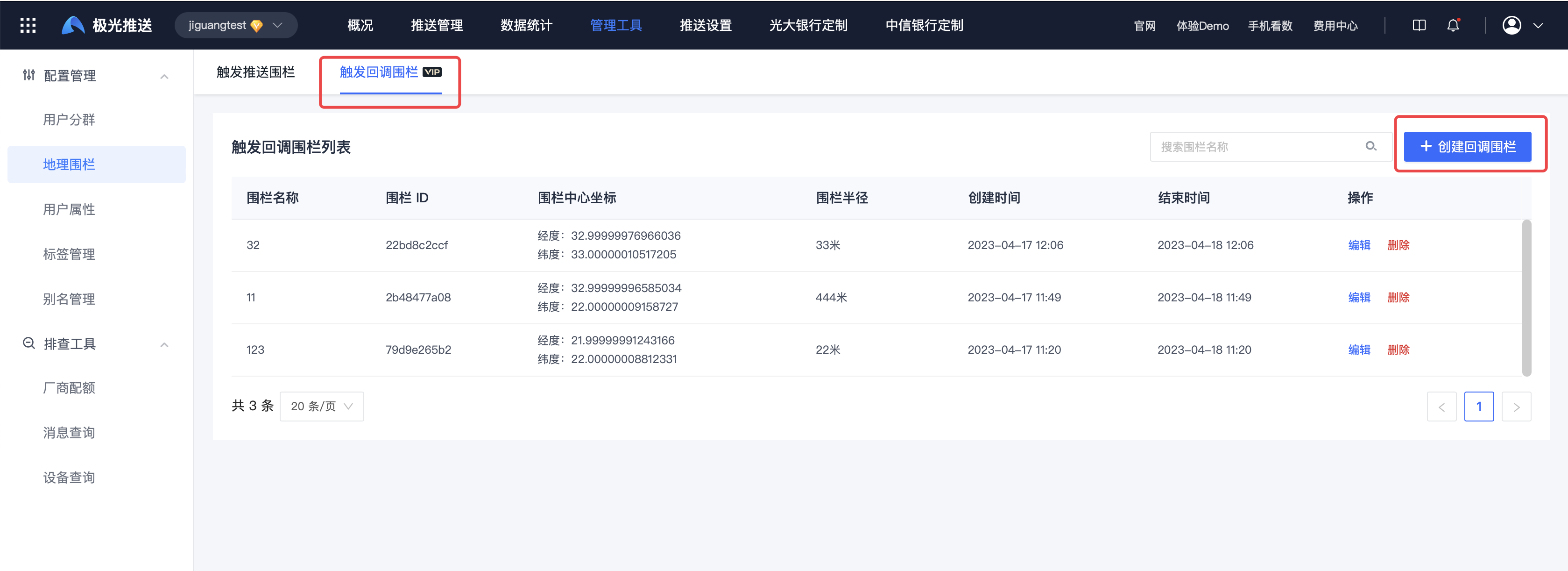
- Enter the [Message Push]-[Configuration Management]-[Geofencing] page and click "Create Geofence".
2. Enter the address you want to locate in the search box, and click the address on the map to create a geofence.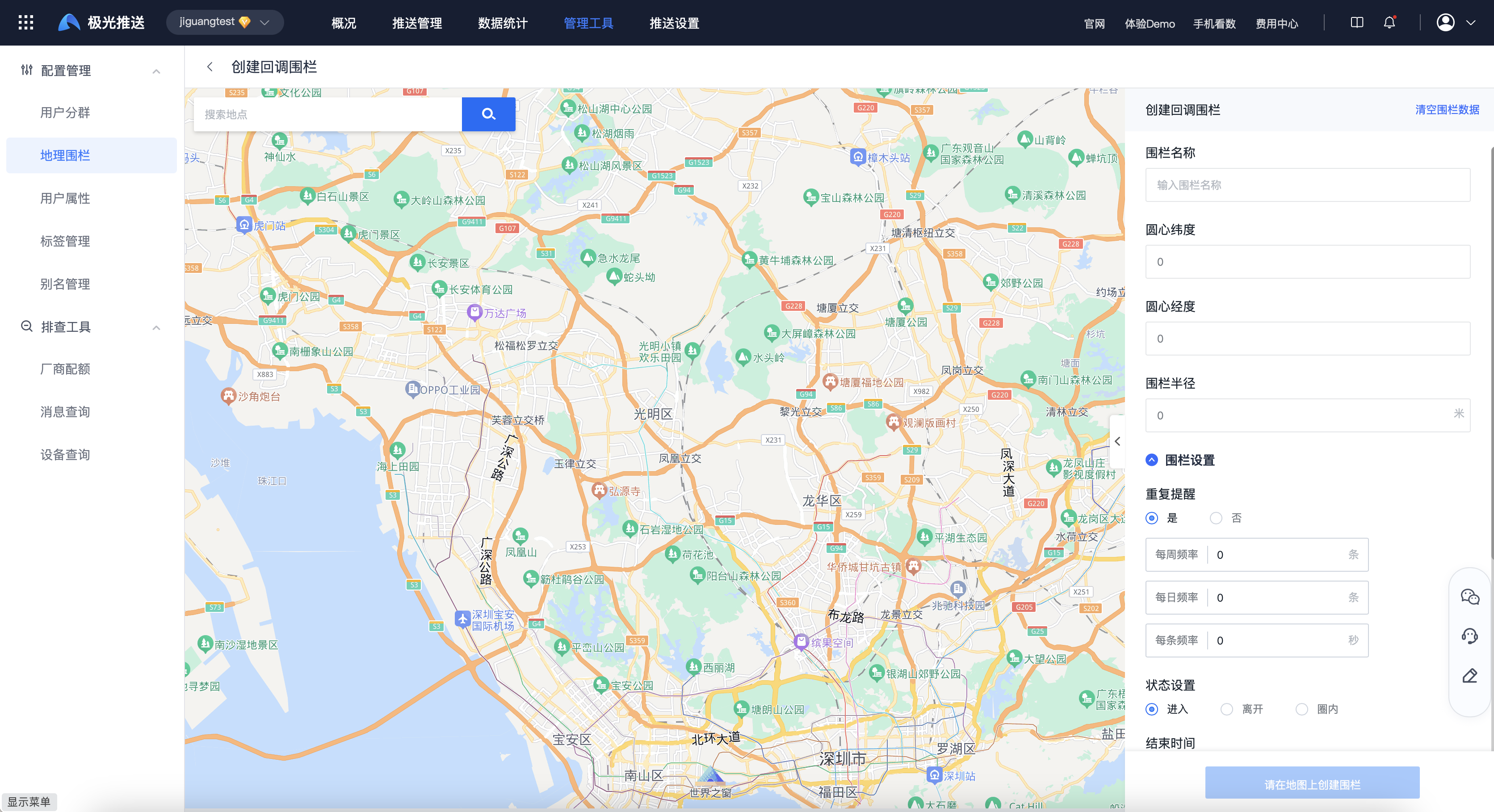
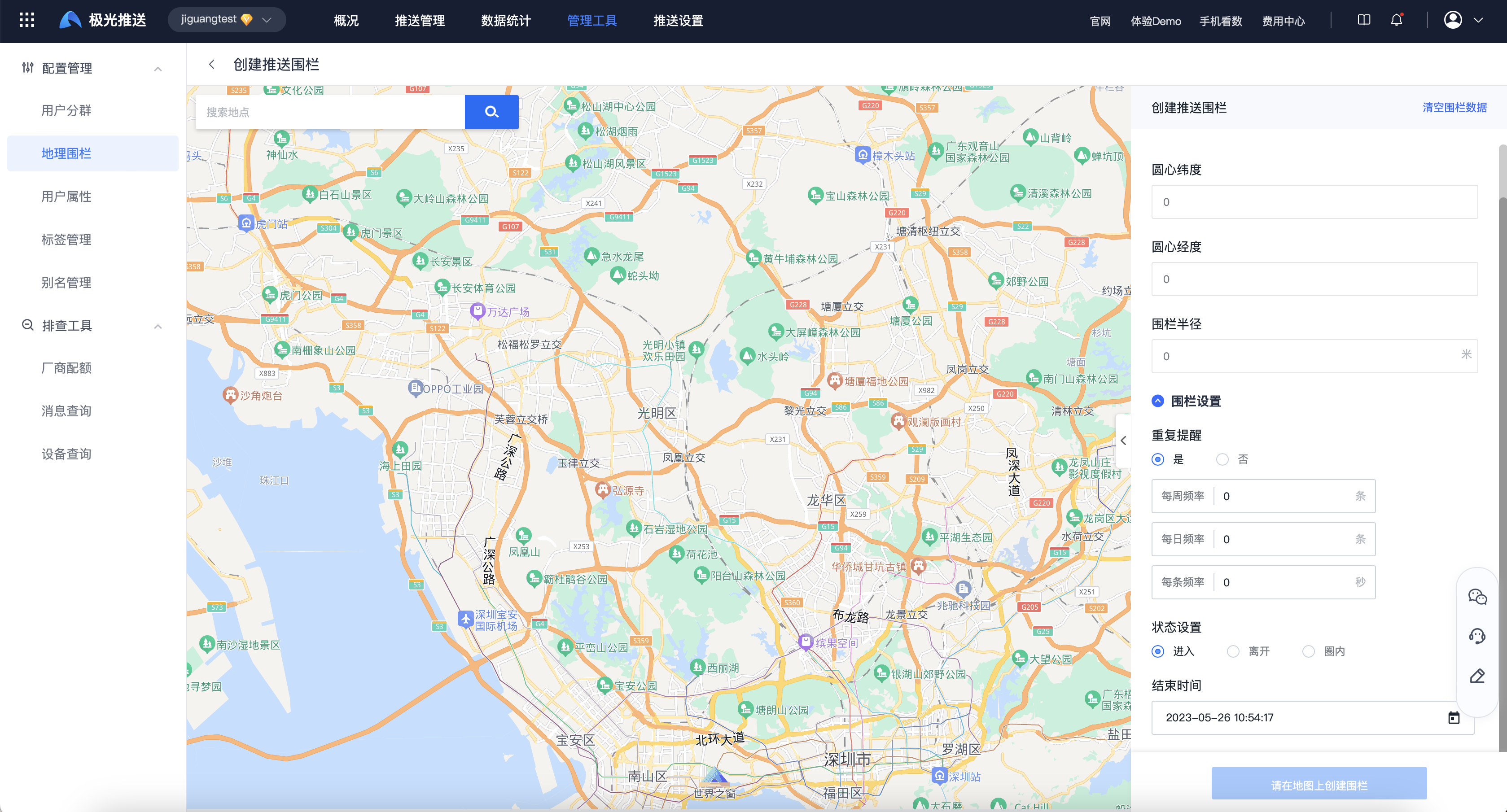
3. Fill in the fence name and fence radius.Fence settings
- Repeat reminder: You can set the frequency of weekly, daily, and each push. If the frequency is not set when creating, the default trigger frequency is: 60 minutes, and the minimum display frequency of each message is 3 minutes, incrementing every 3 minutes. For example: set each frequency to 100 seconds, then the trigger frequency is 3 minutes; set each frequency to 300 seconds, then the trigger frequency is 6 minutes.
- Status setting: represents the trigger conditions as entering, leaving, and within the circle.
- End time: The time when the geofence expires.
- Fence type:
- Triggered display: After the SDK client triggers the geofence condition, the push message will be displayed directly.
- Trigger callback (available only for VIP applications): After the SDK client triggers geofence conditions, it will call back information such as client registration_id and geofence ID value that meet the conditions to the user to meet personalized push scenarios.
Edit geofence
On the [Geofence] page, click "Edit" to modify the "Geofence" that has been created. 
Delete geofence
On the [Geofencing] page, click "Delete", and the geofence can be deleted after a second confirmation. 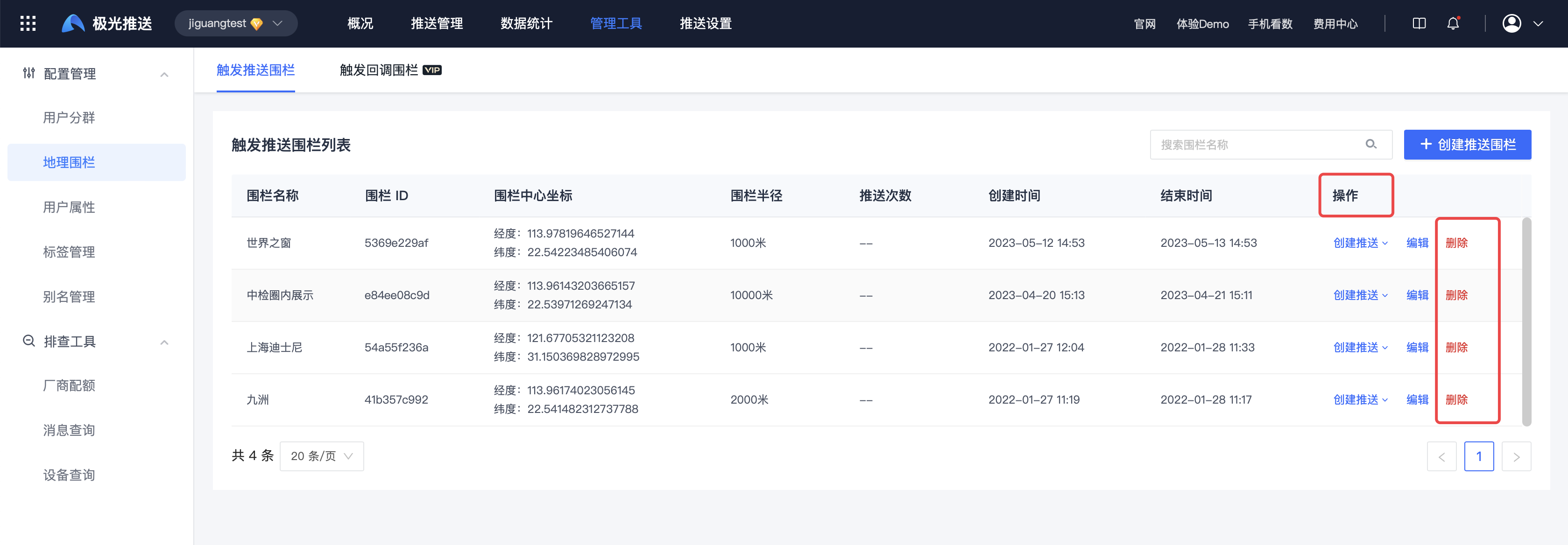
Use geofencing
On the [Create Push] page, select the geofence to be pushed in the [Advanced Settings] module to deliver messages to users who trigger the conditions. 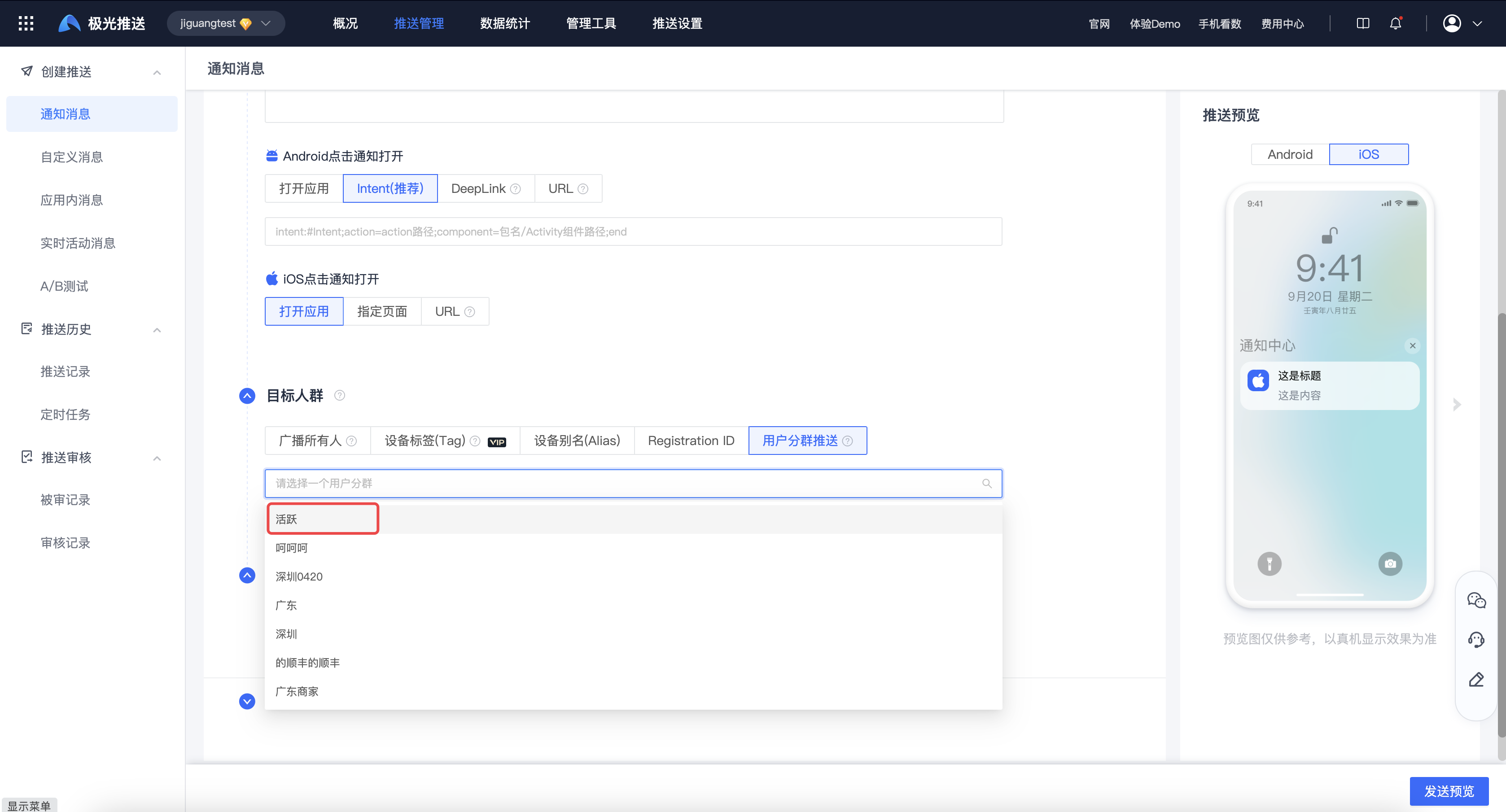
iOS Notes
When iOS creates notification messages to deliver geofences, geofence information is actually delivered through silent notifications. Due to iOS 14 and later versions, silent notifications have a limit on the number of pushes. If you send notification messages directly, you will often not receive push notifications. Therefore, it is recommended to create a custom message for geofence push:
1. Create a custom message. After the client triggers the geofence callback, the APP processes and displays the custom message.
2. Paying users can use the trigger callback service to complete personalized push.
- Select "Trigger callback" when creating a geofence.
- Create a custom message. When the geofence callback is triggered, the SDK will call back information such as registration_id and geofence ID value that meet the conditions to the user server. Users can complete personalized push based on the receipt information. Details Contact Business.
Usage restrictions
- Free app allows creation of up to 10 fences
- VIP application allows creation of up to 1000 fences

