


Android Notification Click — Jump Configuration
This article explains how to use intent, deeplink, or "open app" to jump to a target page when a notification has a target destination. We strongly recommend upgrading the SDK to 4.6.0 or later and configuring intent for the notification jump.
- For SDK < 4.6.0, the Jiguang channel has an
onNotifyMessageOpenedclick callback, but vendor channels do not.- For SDK ≥ 4.6.0, Android Jiguang and vendor channels are unified: when there is no notification jump destination, the
onNotifyMessageOpenedclick callback is delivered; when there is a destination, the click callback is not delivered.
Supported versions
The intent field in the REST API covers intent, deeplink, and "open app" jump methods.
- For SDK < 4.2.2, the
intentvalue only takes effect on the ASUS channel and the Jiguang channel; it does not affect other vendor channels. - For SDK ≥ 4.2.2, fill in the
intentfield when calling the API; otherwise clicking the notification may produce no jump.
How a target destination is configured
"Configuring a notification jump target" means completing the configuration below in the console or the API when sending.
Console
On the send page, select any option under "Android — Click Notification to Open".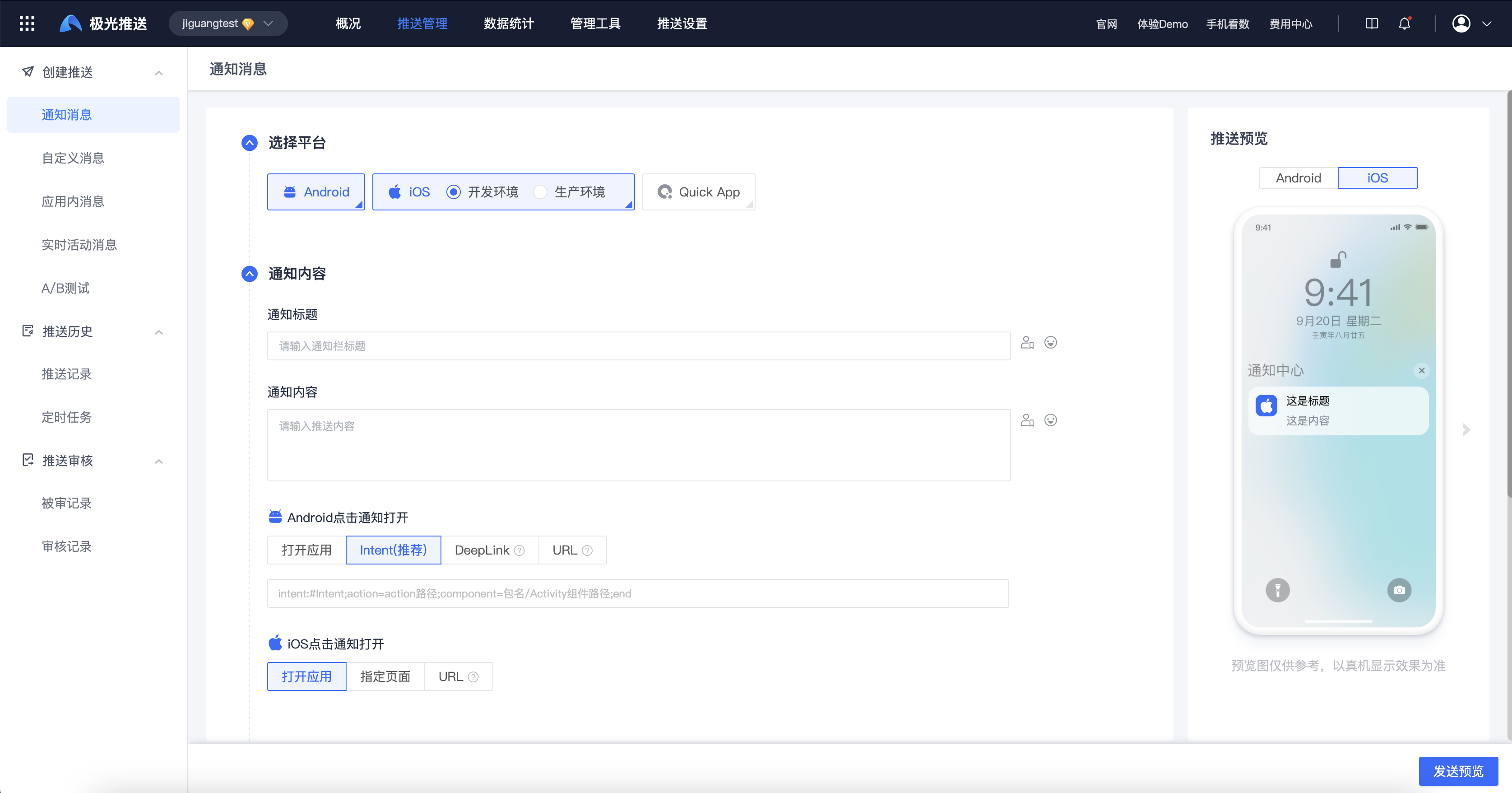
API
When sending via the API, set intent, or uri_activity / uri_action, under notification.android.
- For SDK ≥ 4.2.2, only
intentis needed. - For SDK < 4.2.2 that previously used
uri_activityanduri_action, just set those two fields.
| Key | Type | Required | Meaning | Description |
|---|---|---|---|---|
| intent | JSON Object | Optional | Specifies the target page | Use intent.url to specify the page to open when the notification is tapped.1. Jump to a target page: intent:#Intent;action=<action path>;component=<package>/<full Activity name>;end(OPPO and FCM require an action path; other vendors require the full Activity name. Otherwise the jump fails on that vendor's channel.)2. Jump to a deeplink URL: scheme://test?key1=val1&key2=val23. Open the app's home page: intent:#Intent;action=android.intent.action.MAIN;end (use exactly this string) |
| uri_activity | string | Optional | Specifies the target page | android:name of the <activity> node.intent. |
| uri_action | string | Optional | Specifies the target page | android:name of the <activity><intent-filter><action> node.intent. Required only if you need backwards compatibility with older SDKs. |
intent (recommended)
Format
Fixed format: intent:#Intent;action="<action path>";component="<package>"/"<Activity component path>";end
- The URI must start with
intent:#Intent;and end with;end.- There must not be multiple
action=orcomponent=segments.
Example:
intent:#Intent;action=cn.jiguang.myaction;component=cn.jiguang.jumptest/cn.jiguang.jumptest.OpenClickActivity;end
With parameters: intent:#Intent;action="<action path>";component="<package>"/"<Activity component path>";S.key1=value1;i.key2=2;end
S.: indicates that the value is a String.i.: indicates that the value is an Int.
Example:
intent:#Intent;action=cn.jiguang.myaction;component=cn.jiguang.jumptest/cn.jiguang.jumptest.OpenClickActivity;S.key1=value;i.key2=2;end
Client-side configuration
Configure the following in AndroidManifest.
OPPO and FCM channels require both
actionandcategoryfor the jump to work.
          <activity
 android:name="cn.jiguang.jumptest.OpenClickActivity"
 android:exported="true"
 android:launchMode="singleTask"
 android:screenOrientation="portrait">
 <intent-filter>
 <action android:name="cn.jiguang.myaction" ></action>
 <category android:name="android.intent.category.DEFAULT" />
 </intent-filter>
</activity>
Server-side usage
Console
Go to Message Push → Push Management → Create Push, choose the Android platform, select "intent (recommended)" under "Android — Click Notification to Open", and fill in the intent.
API
- For SDK ≥ 4.2.2, only
intentis needed; see API usage. - For SDK < 4.2.2 that previously used
uri_activityanduri_action, just set those two fields.
The following is a notification configuration snippet. For compatibility with SDK versions earlier than 4.2.2, set uri_activity to the fully qualified Activity class name and uri_action to the action registered for that Activity in the manifest. Here it remains consistent with the configuration above: cn.jiguang.myaction. The example uses JSONC with comments; remove the comments and use standard JSON in actual requests.
          {
 "notification": {
 "android": {
 "alert": "hello, JPush!",
 "title": "JPush test",
 "intent": {
 "url": "intent:#Intent;action=cn.jiguang.myaction;component=cn.jiguang.jumptest/cn.jiguang.jumptest.OpenClickActivity;S.key1=value;i.key2=3;end"
 },
 "uri_activity": "cn.jiguang.jumptest.OpenClickActivity",// compat for < 4.2.2
 "uri_action": "cn.jiguang.myaction"// compat for < 4.2.2

 }
 }
}
Reading intent parameters on the client
- To jump to a specific position within a page, the push can carry custom parameters; read them and run your business logic.
- The SDK passes intent parameters through as-is, so just read them from the target Activity's intent.
          package cn.jiguang.jumptest;
import androidx.appcompat.app.AppCompatActivity;
import android.content.Intent;
import android.os.Bundle;
import android.util.Log;

public class MainActivity extends AppCompatActivity {

 @Override
 protected void onCreate(Bundle savedInstanceState) {
 super.onCreate(savedInstanceState);
 setContentView(R.layout.activity_main);
 handleIntent();
 }

 @Override
 protected void onNewIntent(Intent intent) {
 super.onNewIntent(intent);
 handleIntent();
 }
 void handleIntent(){
 if(getIntent()!=null){
 String value1 =getIntent().getStringExtra("key1");
 int value2 =getIntent().getIntExtra("key2",0);
 Log.e("MainActivity",""+value1);
 Log.e("MainActivity",""+value2);
 }
 }
}
Reading Extras on the client
To jump to a specific position within a page, the push can carry custom parameters; read them and run your business logic.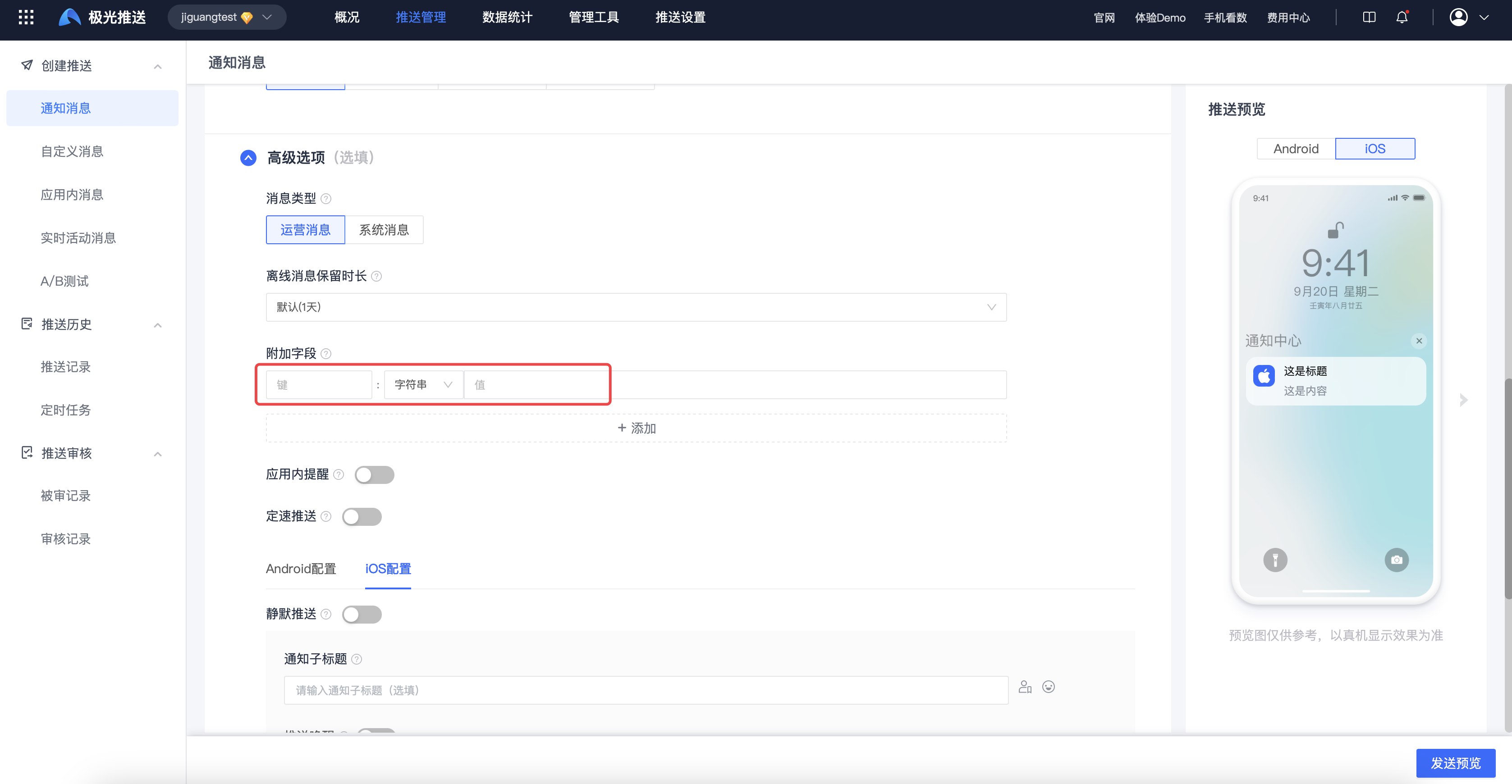
- For SDK < 4.6.0, the Jiguang channel has an
onNotifyMessageOpenedclick callback, but vendor channels do not.- For SDK ≥ 4.6.0, Android Jiguang and vendor channels are unified: when there is no notification jump destination,
onNotifyMessageOpenedis delivered; when there is a destination, the callback is not delivered.
- With a notification jump destination:
- SDK < 4.6.0
- Huawei channel: use
getIntent().getData().toString()to read parameters. - Xiaomi, vivo, OPPO, FCM, Meizu channels: use
getIntent().getExtras().getString("JMessageExtra"). - Jiguang channel: read parameters from the
messagein theonNotifyMessageOpened(Context context, NotificationMessage message)callback. - SDK ≥ 4.6.0
- Huawei channel: use
getIntent().getData().toString(). - Xiaomi, vivo, OPPO, FCM, Meizu, Honor, Jiguang channels: use
getIntent().getExtras().getString("JMessageExtra").
- Without a notification jump destination:
Note:
- When REST API does not set
intent,onNotifyMessageOpenedis delivered. - In the console, selecting "intent" but leaving the parameter empty also triggers
onNotifyMessageOpened. Other configurations set a notification target and do not deliveronNotifyMessageOpened. See How a target destination is configured.
- When REST API does not set
- SDK < 4.6.0:
- Vendor channels have no click callback; clicks do not jump, and parameters cannot be obtained.
- Jiguang channel: read parameters from the
messageinonNotifyMessageOpened(Context context, NotificationMessage message). - SDK ≥ 4.6.0: all channels read parameters from the
messageinonNotifyMessageOpened(Context context, NotificationMessage message).
Example:
          package com.HuananThirdPush.cn;

import android.app.Activity;
import android.os.Bundle;
import android.text.TextUtils;
import android.util.Log;
import android.widget.TextView;
import org.json.JSONException;
import org.json.JSONObject;
import cn.jpush.android.api.JPushInterface;

public class OpenClickActivity extends Activity {
 private static final String TAG = "OpenClickActivity";
 /** Notification extras key **/
 private static final String KEY_EXTRAS = "n_extras";
 private TextView mTextView;

 @Override
 protected void onCreate(Bundle savedInstanceState) {
 super.onCreate(savedInstanceState);
 mTextView = new TextView(this);
 setContentView(mTextView);
 handleOpenClick();
 }

 /**
 * Handle click events. The configured launch Activity is always started with
 * Intent.FLAG_ACTIVITY_CLEAR_TOP | Intent.FLAG_ACTIVITY_NEW_TASK,
 * so calling this in onCreate is enough.
 */
 private void handleOpenClick() {
 Log.d(TAG, "User clicked the notification");
 String data = null;

 // Huawei platform jpush payload
 if (getIntent().getData()!= null) {
 data = getIntent().getData().toString();
 }

 // FCM / OPPO / Xiaomi / vivo / Meizu / Honor platform jpush payload
 if (TextUtils.isEmpty(data) && getIntent().getExtras()!= null) {
 data = getIntent().getExtras().getString("JMessageExtra");
 }

 Log.w(TAG, "msg content is " + String.valueOf(data));
 if (TextUtils.isEmpty(data)) return;
 try {
 JSONObject jsonObject = new JSONObject(data);
 String extras = jsonObject.optString(KEY_EXTRAS);
 StringBuilder sb = new StringBuilder();
 sb.append("extras:");
 sb.append(String.valueOf(extras));
 sb.append("\n");
 mTextView.setText(sb.toString());

 }
}
deeplink
Format
Fixed format:
scheme://scheme://hostscheme://host/path
With parameters:
scheme://host/path?key1=val1&key2=val2
Client-side configuration
Configure the following in AndroidManifest.
actionandcategorymust match the example below.data.schemeis required; other attributes are optional.
<activity android:name=".DeeplinkTestActivity">
 <intent-filter>
 <action android:name="android.intent.action.VIEW" />
 <category android:name="android.intent.category.DEFAULT" />
 <category android:name="android.intent.category.BROWSABLE" />
 <data
 android:scheme="jiguang"
 android:host="deeptest"
 android:path="/index"/>
 </intent-filter>
</activity>
Server-side usage
Console
Go to Message Push → Push Management → Create Push, choose the Android platform, and select "DeepLink" under "Android — Click Notification to Open"; fill in the DeepLink.
API
- For SDK ≥ 4.2.2, only
intentis needed; see API usage. - For SDK < 4.2.2 that previously used
uri_activityanduri_action, just set those two fields.
The following is a notification configuration snippet. The legacy-compatible uri_action must match the DeepLink action configured in the manifest above: android.intent.action.VIEW.
          {
 "notification": {
 "android": {
 "alert": "hello, JPush!",
 "title": "JPush test",
 "intent": {
 "url": "jiguang://deeptest/index?key1=val1&key2=val2"
 },
 "uri_activity": "cn.jiguang.jumptest.DeeplinkTestActivity",// compat for < 4.2.2
 "uri_action": "android.intent.action.VIEW"// compat for < 4.2.2

 }
 }
}
Open app
API
Console
Go to Message Push → Push Management → Create Push, choose the Android platform, and select "Open app" under "Android — Click Notification to Open".
API
- For SDK ≥ 4.2.2, only
intentis needed; see API usage. - For SDK < 4.2.2 that previously used
uri_activityanduri_action, just set those two fields.
The following is a notification configuration snippet. It assumes that cn.jiguang.jumptest.MainActivity is the app's launcher Activity and that its manifest intent-filter declares android.intent.action.MAIN. For compatibility with earlier SDK versions, set uri_activity and uri_action to the actual launcher Activity and its registered action.
          {
 "notification": {
 "android": {
 "alert": "hello, JPush!",
 "title": "JPush test",
 "intent": {
 "url": "intent:#Intent;action=android.intent.action.MAIN;end"
 },
 "uri_activity": "cn.jiguang.jumptest.MainActivity", // compat for < 4.2.2
 "uri_action": "android.intent.action.MAIN" // compat for < 4.2.2
 }
 }
}

