


How to Implement Numeric Badges
Channel Support
Due to restrictions on different mobile phone systems, only some channels support badge display. Support is as follows:
| Phone Type | Jiguang Channel | Vendor Channel | Configuration Required |
|---|---|---|---|
| iOS | - | Supported | Yes |
| Huawei | Supported | Supported | Yes |
| Honor | Supported | Supported | Yes |
| Xiaomi | Supported | Supported | No |
| vivo | Supported | Supported | Yes |
| OPPO | Not supported | Supported | Yes |
| Meizu | Not supported | Not supported | - |
Note: vivo badges are supported only in JPush SDK 4.4.0 and later.
iOS Badge
JPush encapsulates the badge feature, allowing apps to upload badge values to the JPush server. The JPush backend helps manage the push badge value corresponding to each user, simplifying the operation of setting push badges.
Supported Version
Supported since version: 1.7.4
Upload Local Badge Value
Set the badge value stored on the JPush server. The API is as follows:
+ (BOOL)setBadge:(int)value
- Value range of
value: [0,99999] - Locally, you still need to call
[application setApplicationIconBadgeNumber:0]to set the badge value displayed on the icon.
Server-Side Settings
When pushing from the server, set the badge value under the ios field.
| Keyword | Type | Option | Meaning | Description |
|---|---|---|---|---|
| badge | string | Optional | App badge |
          // JSON message sent by the server
{
 "notification": {
 "ios": {
 "alert": "hello, JPush!",
 "badge": "+1" // Values can be N, +N, -N. 0 means clear.
 }
 }
}
Clear Badge
- When a notification is clicked, the client needs to call the native API
setApplicationIconBadgeNumberto clear the local badge display value.
          - (void)applicationWillEnterForeground:(UIApplication *)application {
 [application setApplicationIconBadgeNumber:0];
 [application cancelAllLocalNotifications];
}
- Clear the badge value stored on the JPush server, that is,
[setBadge:0]. The API is as follows:
+ (void)resetBadge
Huawei/Honor Badge
Supported Version
Huawei supported since version: 3.3.6 Honor supported since version: 4.7.0
Client Configuration
Huawei devices with EMUI 8.0 and later and Honor devices with Magic UI 5.0+ support numeric badge display. Configure the specified permissions in AndroidManifest.xml:
          <uses-permission android:name="com.huawei.android.launcher.permission.CHANGE_BADGE"/>
<uses-permission android:name="com.hihonor.android.launcher.permission.CHANGE_BADGE" />
Console Settings
If a vendor channel is integrated, go to [Message Push] - [Push Settings] - [Integration Settings] - [Huawei/Honor] and click Edit to configure the app entry Activity class. Note that it must be the app entry Activity class, and the Honor and Huawei vendor configurations must be consistent. Otherwise, badges cannot be displayed.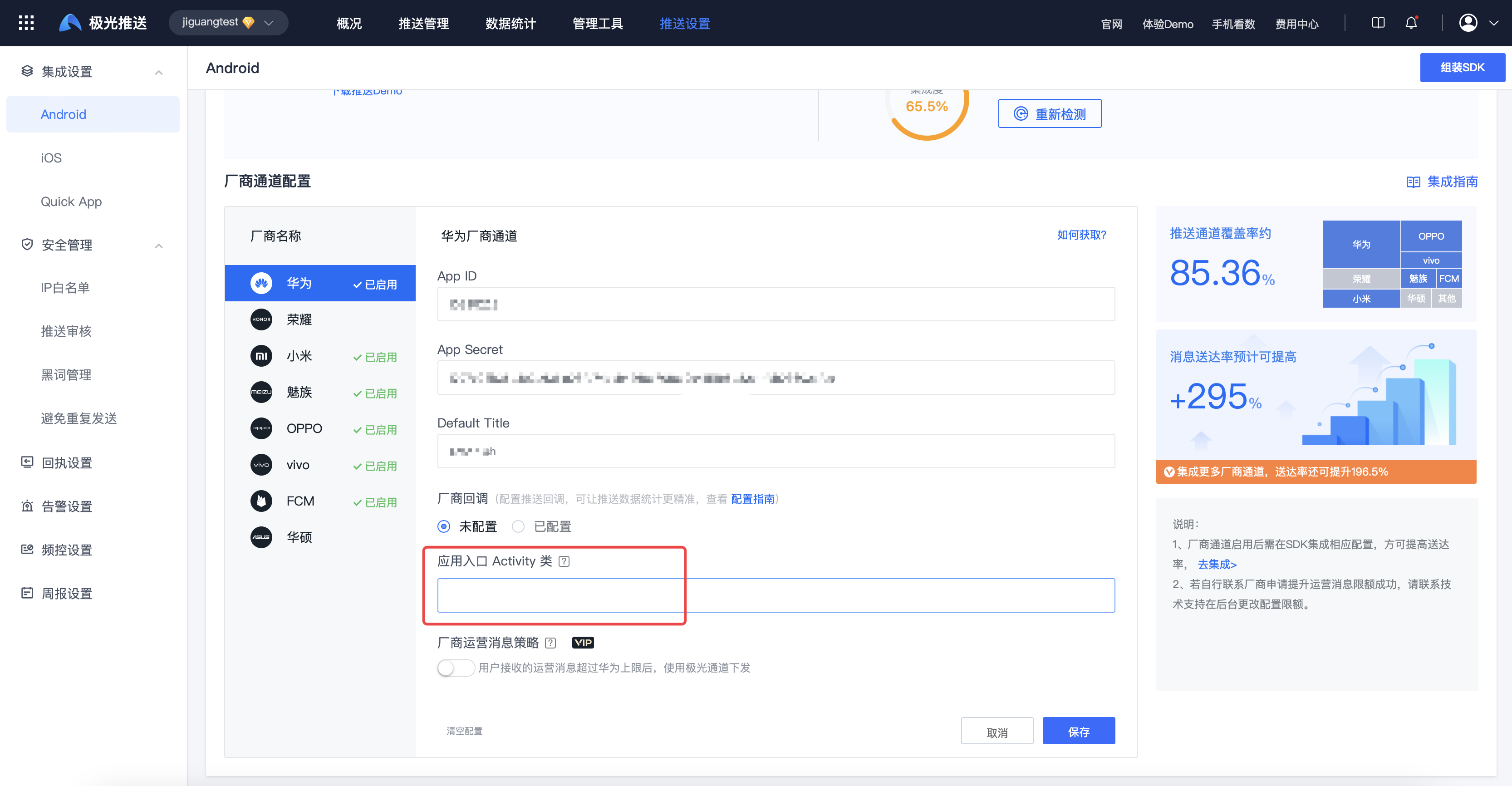
Server-Side Settings
After completing client and console configuration, configure the badge_class, badge_add_num, or badge_set_num field under the android field when pushing from the server to display badges.
badge_add_numindicates setting the badge number increment value, accumulating based on the original badge number.badge_set_numindicates setting a fixed badge number.
| Keyword | Type | Option | Meaning | Description |
|---|---|---|---|---|
| badge_add_num | int | Optional | Set the badge number increment value, accumulating based on the original badge number | badge_add_num value configured for the next notification bar message is added to the original badge number. Recommended value: 1.Example: if badge_add_num is 1 and the original badge number is 2, after this badge message is sent, the app badge number is displayed as 3.badge_set_num and badge_add_num both exist, badge_set_num takes precedence. |
| badge_set_num | int | Optional | Set a fixed badge number | badge_set_num and badge_add_num both exist, badge_set_num takes precedence. badge_set_num number configured for the next notification bar message is the badge value. Example: if badge_set_num is 1, no matter what the previous app badge number was, after this badge message is sent, the app badge number is displayed as 1. |
| badge_class | string | Optional | App entry Activity class corresponding to the desktop icon, such as "com.test.badge.MainActivity" |
badge_add_num; both must exist.badge_set_num; both must exist. |
          // JSON message sent by the server
{
 "notification": {
 "android": {
 "alert": "hello, JPush!",
 "badge_add_num": 1, // Badge increment value, value range 1-99
 "badge_set_num": 1, // Fixed badge value, value range 0-99
 "badge_class": "com.test.badge.MainActivity", // Defaults to the app's main Activity
 }
 }
}
Clear Badge
When a notification is clicked, the client needs to manually clear the badge number:
API Definition
public static void setBadgeNumber(Context context, int num)
Parameter Description
contextis the app's ApplicationContext.numis the new badge number. Negative values are corrected to 0.
Example:
JPushInterface.setBadgeNumber(this,0);
Xiaomi Badge
Xiaomi devices with MIUI 6 and later support numeric badges. The Xiaomi system automatically handles numeric badge display: notifications are +1 by default, and badges are cleared when the app is opened.
vivo Badge
Special note: when vivo messages are delivered through the vendor channel, if you expect badges to be displayed, you need to actively apply to vivo for badge permission. This feature is supported starting from JPush Android SDK v5.9.0.
Supported Version
Supported since version: 5.9.0
Client Configuration
- vivo requires the specified permission to be configured in
AndroidManifest.xml:
<uses-permission android:name="com.vivo.notification.permission.BADGE_ICON" />
- "Desktop icon badge" is disabled by default and needs to be manually enabled by the user.
- Enable path: Settings - Notifications & Status Bar - App Notification Management - App Name - Desktop Icon Badge.
- Apps that have not successfully integrated "Desktop icon badge" do not have the "Desktop icon badge" option.
- Depending on OS version differences, "Desktop icon badge" may be named "App icon mark" or "Desktop badge".
- The badge can take effect only when the Jiguang channel is used and the
onNotifyMessageArrivedcallback is available.
Server-Side Settings
After completing client configuration, configure the badge_add_num and badge_class fields under the android field when pushing from the server, so that badges can be displayed when messages are delivered through the Jiguang channel. If messages are delivered through the vendor channel, you also need to pass the options.third_party_channel.vivo.add_badge field.
| Keyword | Type | Option | Meaning | Description |
|---|---|---|---|---|
| notification.android.badge_add_num | int | Optional | Badge number, value range 1-99 | badge_add_num value configured for the next notification bar message is added to the previous badge number.It is recommended to configure badge_add_num as 1. Example: if badge_add_num is configured as 1 and the previous app badge number is 2, after this badge message is sent, the app badge number is displayed as 3. |
| options.third_party_channel.vivo.add_badge | bool | Optional | Whether to display badge | This field is passed through to the vivo vendor channel. You need to apply to the vendor for permission. After it is set, the badge automatically increases by 1. For details, see: Desktop badge setup method - Vpush integration method |
          // JSON message sent by the server
{
 "notification": {
 "android": {
 "alert": "hello, JPush!",
 "badge_add_num": 1, // Badge increment value, value range 1-99
 "badge_class": "com.test.badge.MainActivity" // Defaults to the app's main Activity
 }
 },
 "options":{
 "third_party_channel":{
 "vivo":{
 "distribution":"ospush",
 "classification": 0,
 "add_badge":true
 }
 }

 }
}
Clear Badge
When a notification is clicked, the client needs to manually clear the badge number:
API Definition
public static void setBadgeNumber(Context context, int num)
Parameter Description
contextis the app's ApplicationContext.numis the new badge number. Negative values are corrected to 0.
Example:
JPushInterface.setBadgeNumber(this,0);
OPPO Badge
Special note: OPPO vendor badges are displayed only when messages are delivered through the vendor channel, and you need to actively apply to OPPO for badge permission.
Server-Side Settings
When pushing from the server, pass the options.third_party_channel.oppo.badge_operation_type and options.third_party_channel.oppo.badge_message_count fields.
| Keyword | Type | Option | Meaning | Description |
|---|---|---|---|---|
| options.third_party_channel.oppo.badge_operation_type | int | Optional | Numeric badge operation type | 0: overwrite 1: increase |
| options.third_party_channel.oppo.badge_message_count | int | Optional | Set numeric badge count | Currently supports the OPPO vendor. 0: clear numeric badge (requires badge_operation_type=0 overwrite operation type)1-99: display the corresponding numeric badge Greater than 99: display 99+ When badge_operation_type is set to 1, this field does not need to be passed and defaults to +1 |
          // JSON message sent by the server
{
 "options":{
 "third_party_channel":{
 "oppo":{
 "distribution":"ospush",
 "channel_id":"*******",
 "badge_operation_type":0,
 "badge_message_count":2
 }
 }

 }
}

