Create push
This article is intended to guide users how toJiguangCreate notification messages, custom messages, in-app messages (rich media messages), real-time activity messages,A/B Push tasks such as testing.
and how to use AIGC Produce smart copywriting capabilities.
AI intelligent copywriting
- AIGC Generating smart copywriting is a paid function. There is a free trial period in the near future. During the free trial period, all applications can be used for free every day.100opportunities for intelligent copywriting generation. If you want to increase the upper limit, pleaseContact Business Consulting。
- Currently only supports passingJiguang WebPortal The console uses this function. The main portal pages used are "Notification Messages" and "Custom Messages". For details, see the usage guide below.
Application scenarios
pass AIGC Generating copywriting can significantly improve the work efficiency of carriers and message click-through rates. Its application scenarios mainly include:
Intelligent extraction of key information
- News and information APP For example,AIGC The technology can accurately refine the core of news. By inputting the original news text or fragments, push content containing titles, summaries and key information can be quickly generated.
- For the novel reading industry, you can enter the original text or outline of the novel and pass AIGC Extract the title and content of the notification content
Optimize existing message title content
- For e-commerce shopping APP, the carrier provides product details copywriting,AIGCMultiple attractive titles and descriptions will be generated based on keywords to help product promotion.
- For study guidance APP, AI can optimize course introduction copywriting, input original copywriting, generate titles and content that more accurately match user needs, and promote course registration.
User Guide
On the [Message Push]-[Push Management]-[Create Push]-[Notification Message] page or the [Message Push]-[Push Management]-[Create Push]-[Custom Message] page, the title and content parts could only be entered by the carrier before. Now it is supported by AIGC Generate title and notification content.
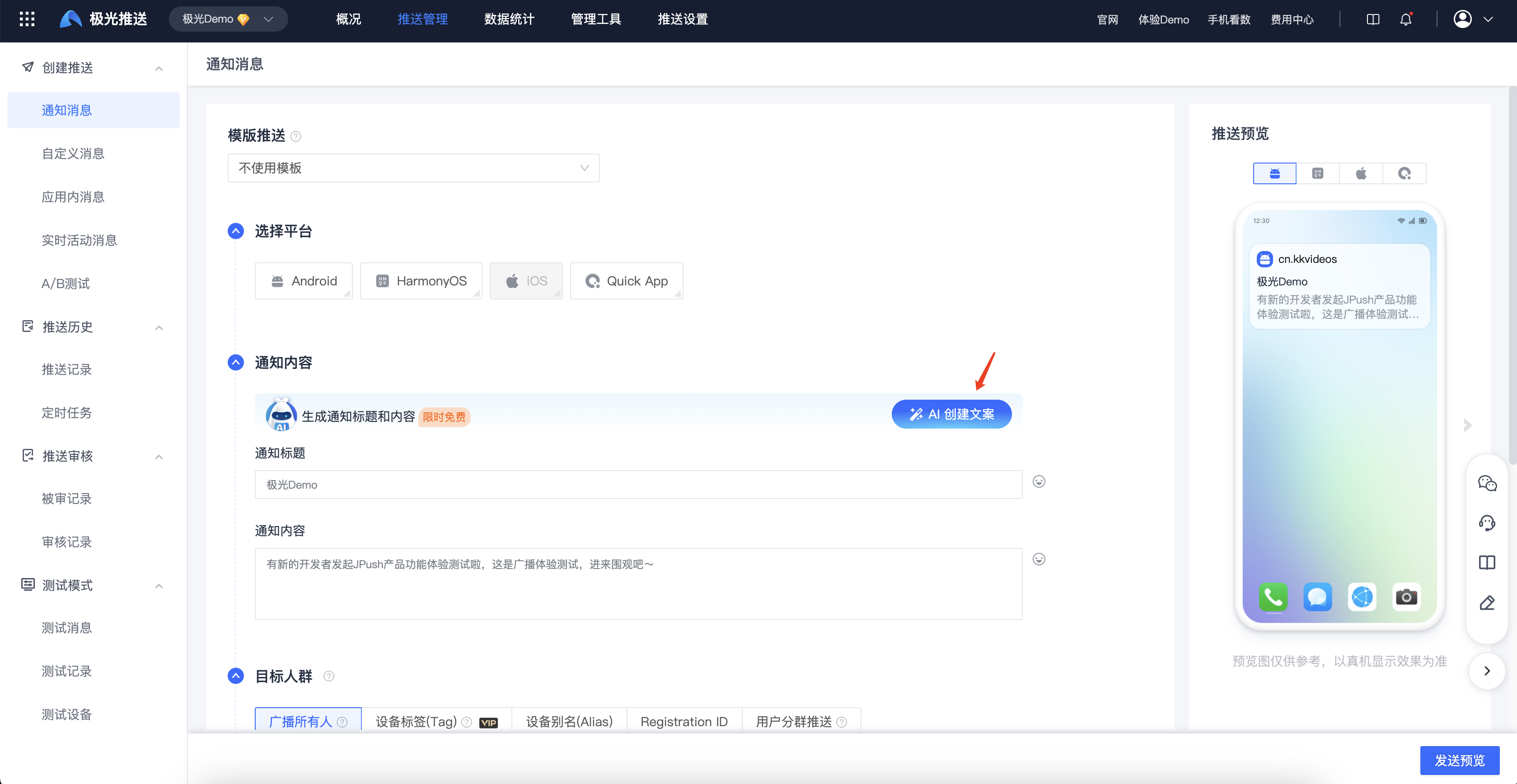
Click the [AI Create Copywriting] button to enter the content generation page, which requires carriers to enter necessary information for automatic generation of content.
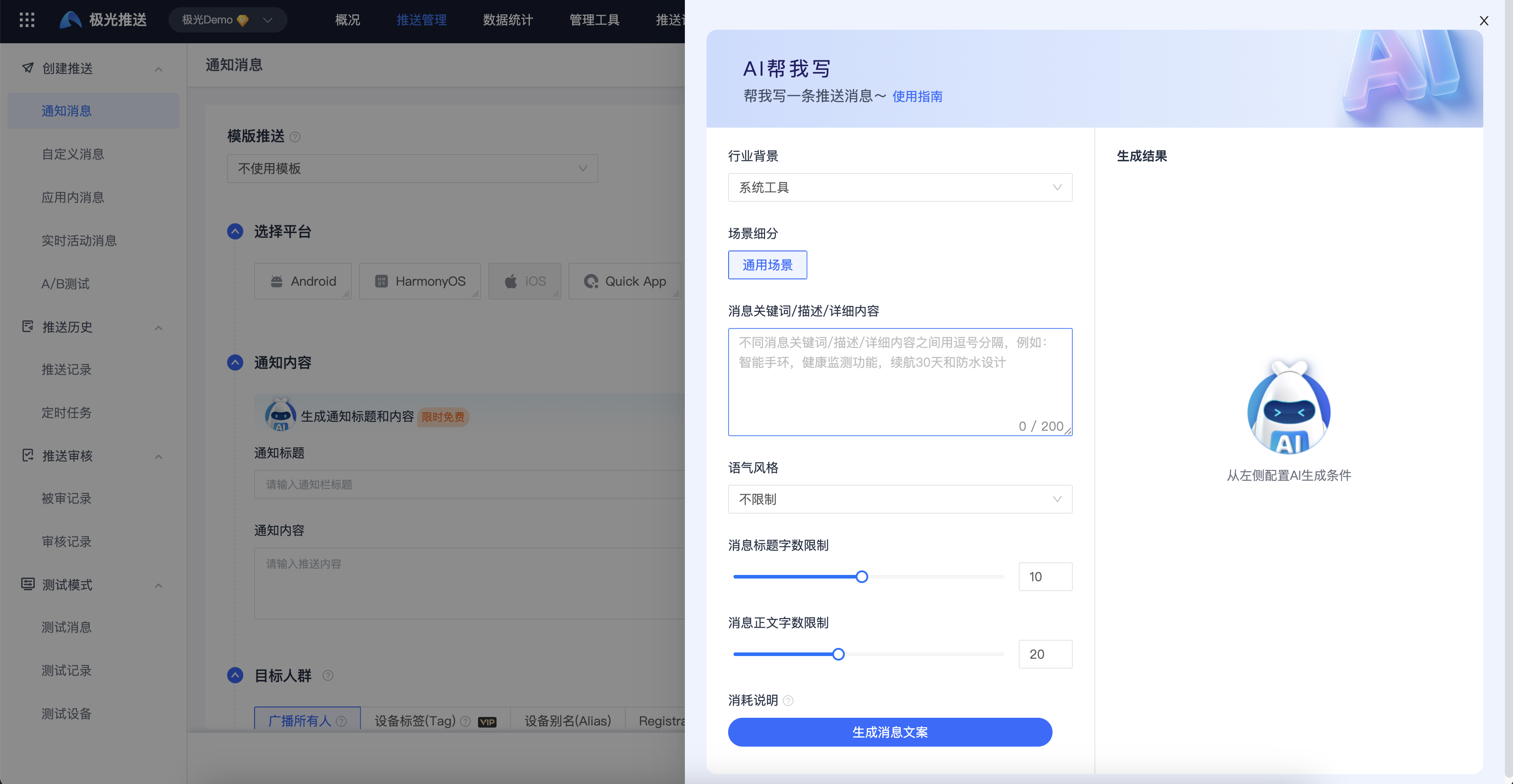
Supports selecting different industries and generating relevant content that conforms to industry characteristics. Instructions for use are as follows:
All industries - common scenarios
Generate copy
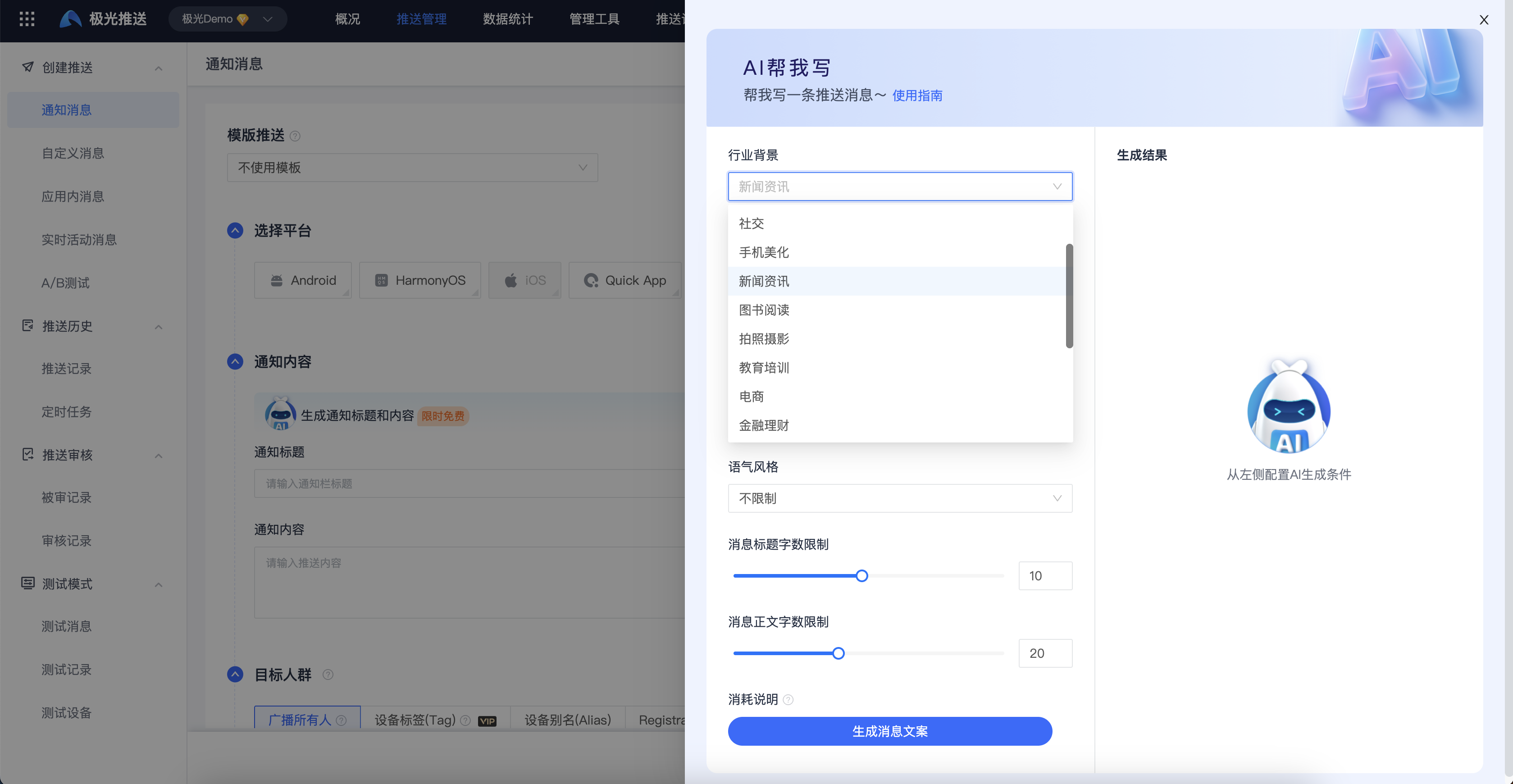
- Industry background: Please select the first-level industry in which your application is located
- Scenario segmentation: Except for the book reading and e-commerce industries, other industries only have one common scenario by default. The book reading industry supports novel recommendation scenarios and general scenarios, and the e-commerce industry supports e-commerce marketing scenarios and general scenarios. If you wish to have new subdivision scenes, pleaseconnectJiguang。
- Message keywords/description/detailed content: Use commas to separate different parameters, such as describing the detailed content of the product, discount details, selling points of the product, etc.
- Tone style: Different industries, different application scenarios and occasions, you can use different tones to generate copywriting, making the copywriting more vivid
- Message title word limit: required, that is, the length limit of the message title, the input range is between 1 and 20
- Message text limit: required, that is, the length limit of the message content. The input range is between 1 and 50.
- Number of generated plans: By default, 5 plans are returned for each generation
Use copywriting
- Based on the generated results, select the copywriting you think is the best, clickHoverClick the [Use] button on the right to useAIGCThe generated copy is automatically filled in the title content input box of the create push page.
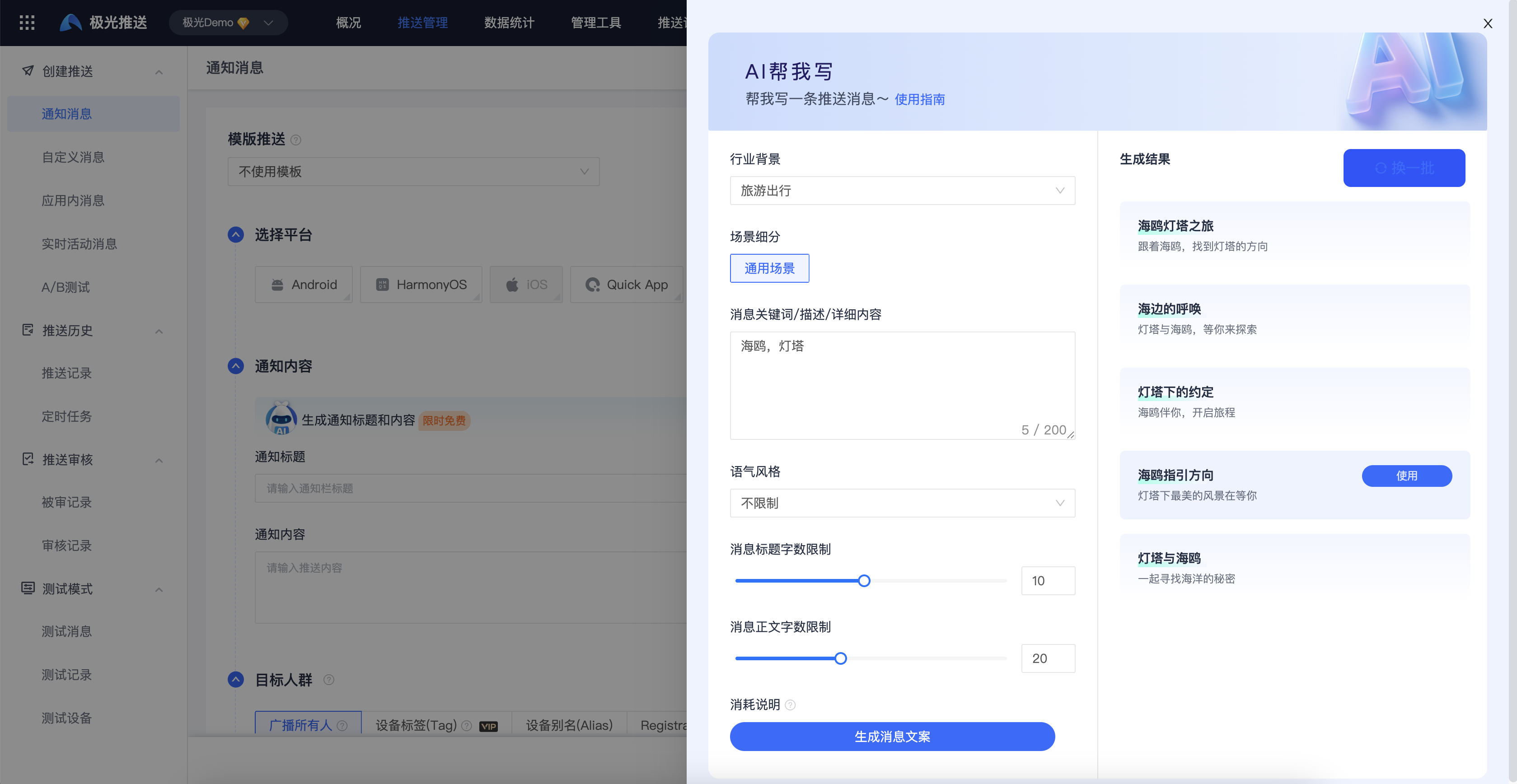
- Based on the generated results, select the copywriting you think is the best, clickHoverClick the [Use] button on the right to useAIGCThe generated copy is automatically filled in the title content input box of the create push page.
Book Reading-Novel Recommended Scenes
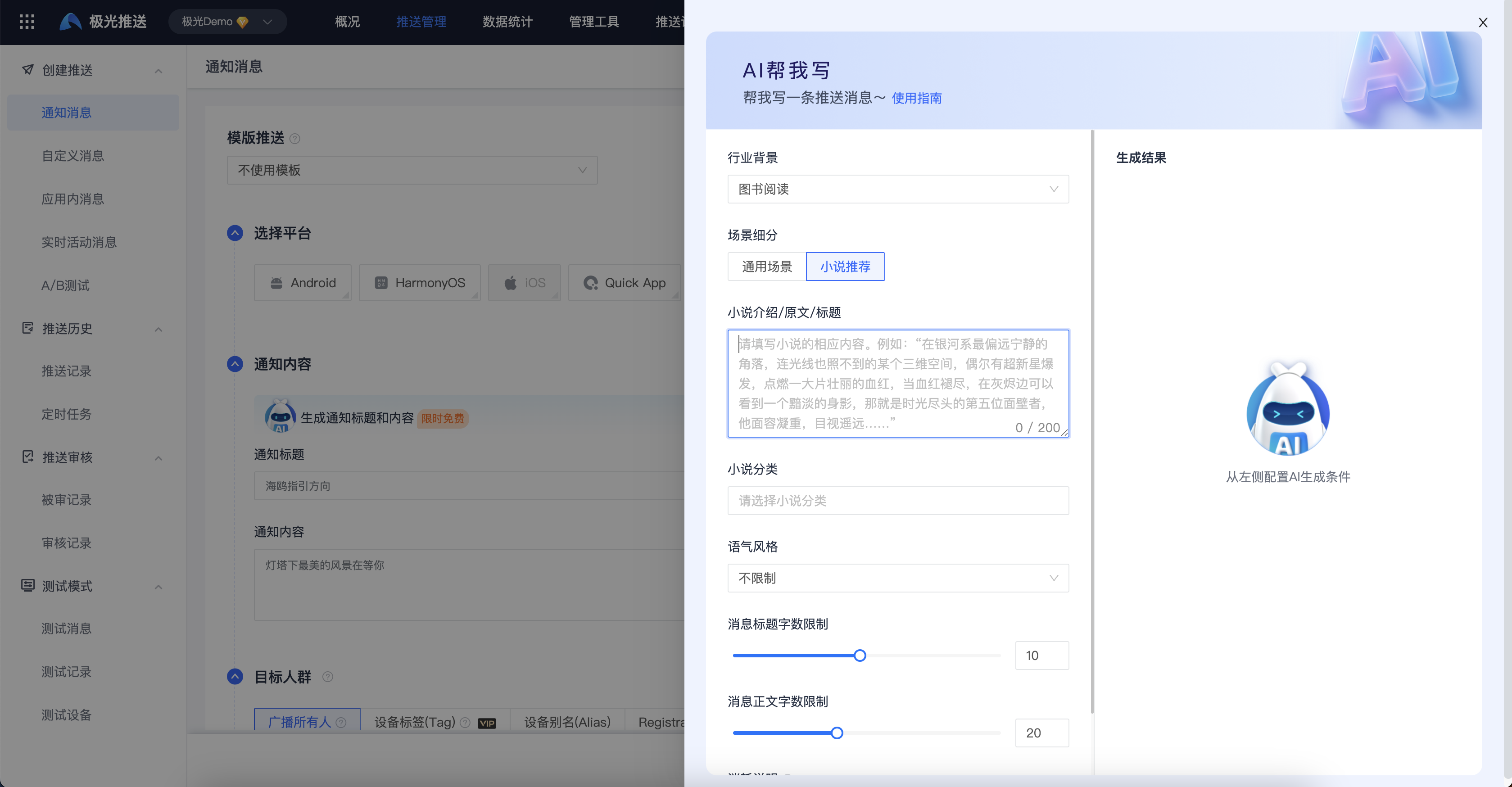
If your application industry is book reading and the scenario is [Novel Recommendation], then the input content will be slightly different from the general scenario.
Generate copy
- Industry background: Please select the first-level industry in which your application is located
- Scenario segmentation: The book reading industry supports novel recommendation scenarios and general scenarios. If you wish to have new subdivision scenes, pleaseconnectJiguang。
- Novel introduction/original text/title: required, you can fill in a brief introduction of the novel, the essence of the original text fragments of the novel, the main selling points of the novel, etc.
- Novel Category: Optional, you can select multiple choices, enter the category of this novel, such as sweet pet, cool novel, romance, etc.
- Tone style: Generate copy with or without tone to make the copy more vivid
- Message title word limit: required, that is, the length limit of the message title, the input range is between 1 and 20
- Message text limit: required, that is, the length limit of the message content. The input range is between 1 and 50.
- Number of generated plans: By default, 5 plans are returned for each generation
Use copywriting
- The output results and usage methods are the same as those in common scenarios.
E-commerce industry-e-commerce marketing scenarios
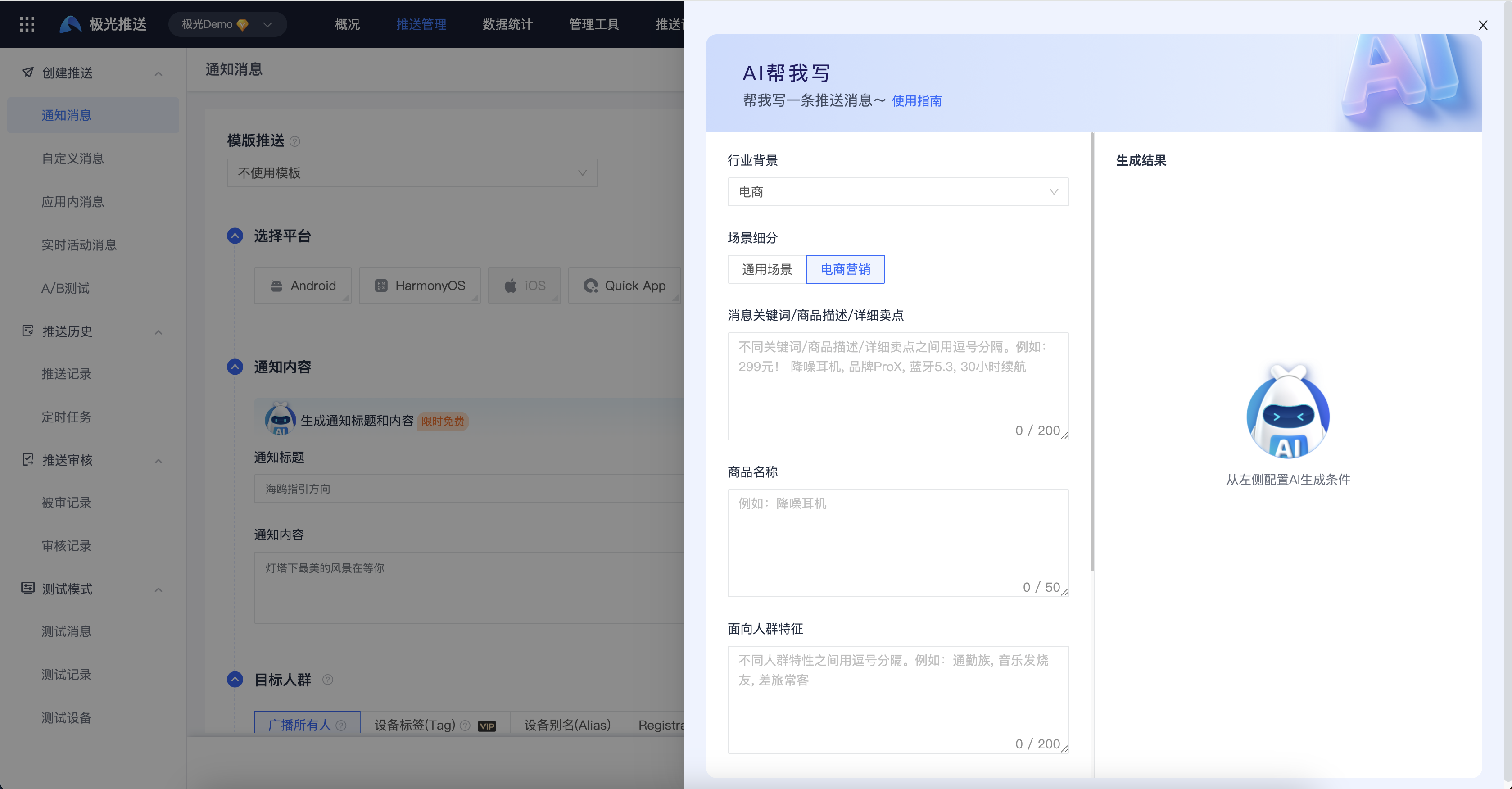
If your application industry is e-commerce and the scenario is [e-commerce marketing], then the input content has slight changes compared to the general scenario.
Generate copy
- Industry background: Please select the first-level industry in which your application is located
- Scenario segmentation: The e-commerce industry supports two types of e-commerce marketing scenarios and general scenarios. If you wish to have new subdivision scenes, pleaseconnectJiguang。
- Message keywords/product description/detailed selling points: required. You can fill in the detailed description, selling point information, etc. of this product. Separate different keywords/product descriptions/detailed selling points with commas. For example:299Yuan!, noise canceling headphones, brandProX, Bluetooth5.3, 30 hours of battery life
- Product name: Optional, enter brand name + specific product name
- Population-oriented characteristics: Optional, describe the characteristics of your target population, and separate different group characteristics with commas. For example: commuters, music enthusiasts, frequent business travelers
- Tone style: Generate copy with or without tone to make the copy more vivid
- Message title word limit: required, that is, the length limit of the message title, the input range is between 1 and 20
- Message text limit: required, that is, the length limit of the message content. The input range is between 1 and 50.
- Number of generated plans: By default, 5 plans are returned for each generation
Use copywriting
- The output results and usage methods are the same as those in common scenarios.
Create notification message
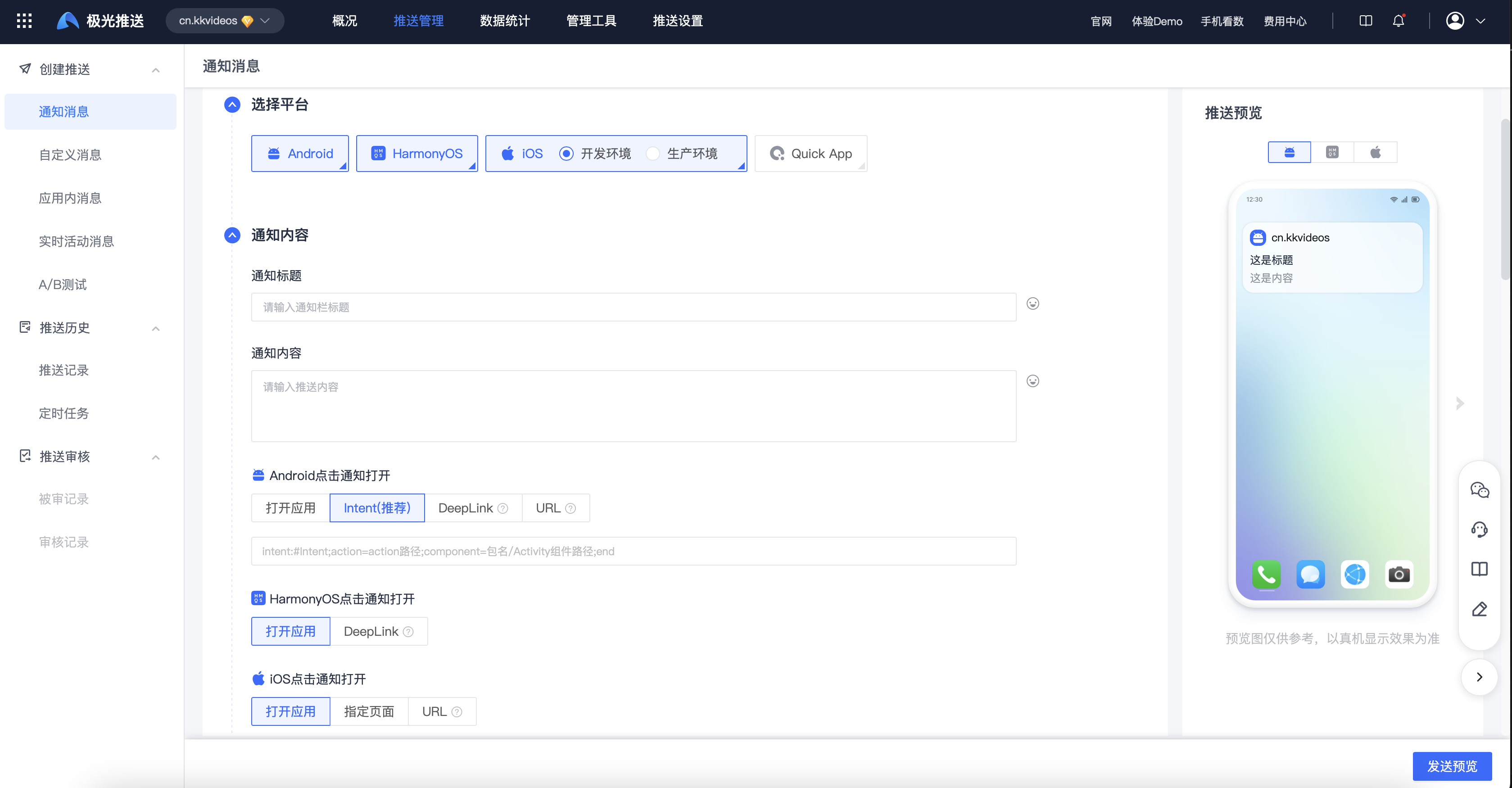
Enter the [Message Push]-[Push Management]-[Create Push]-[Notification Message] page to create a push task. The parameter configuration instructions are as follows:
Basic settings
Target Platform: Based on Integration SDK Platform, select the platform to be pushed.
- Before selecting a platform, you need to set the corresponding platform in [Push Settings].
- Sub-accounts only support platforms authorized by the main account.
- Before selecting a platform, you need to set the corresponding platform in [Push Settings].
Notification title: the title of the push message, please try to avoid "test, test, pure numbers" and other meaningless content, otherwise it may be intercepted by the manufacturer and the notification message cannot be received.
Notification content: the content of the push message, please try to avoid "test, test, pure numbers" and other meaningless content, otherwise it may be intercepted by the manufacturer and the notification message cannot be received.
Send time: select the time you want to send
- Immediately: Send the message immediately.
- Timing: The sending time can only be set to a time 3 minutes after the current time, and the scheduled task cannot exceed one year.
- Immediately: Send the message immediately.
Fixed-speed push: Complete push within a set time to reduce server pressure.
Click to open the notification: Action after clicking the notification, please refer to the details Android Notification click to jump。
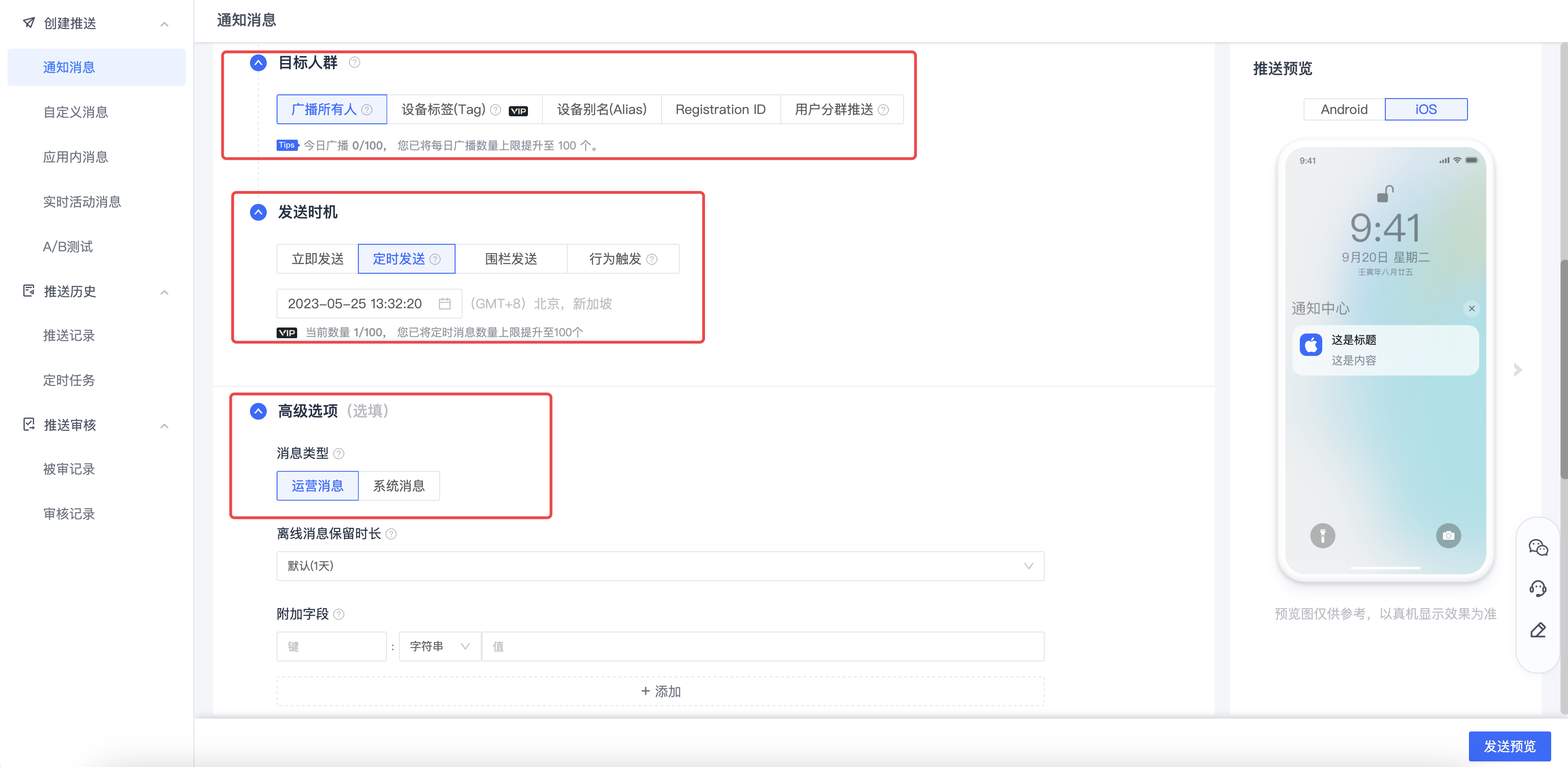
Advanced settings
- Message type:JiguangThe message type specified by the developer will be automatically adapted to the message classification field of each manufacturer's channel to avoid being restricted in sending messages and wasting the manufacturer's message quota.
- System messages: service notification messages corresponding to each manufacturer’s channel (Huawei/Honor: service and communication, Xiaomi /OPPO: private message,vivo: System message), usually the manufacturer does not limit the number sent.
- Operation news: marketing and operation news corresponding to each manufacturer channel (Huawei/Honor: marketing consulting, Xiaomi /OPPO: public trust,vivo: Operational messages), usually manufacturers will strictly limit the number sent.
- Offline message retention duration: You can use this value to specify the duration of offline messages. If the user is currently offline, the message will be saved as an offline message and will be pushed to the user the next time he comes online. That is, users will continue to receive push notifications when they are online within this time range, otherwise they will expire.
- The default duration is 1 day.
- Set to 0, which means offline messages will not be retained, that is, only users who are currently online can receive them, and all offline users will not receive them.
- The default duration is 1 day.
- Geo-fencing: Freely define geographical areas and business districts, and provide precise push notifications to people in the area.
- Additional fields: The client obtains the contents of additional fields for custom event processing.
- In-app reminders: Use in-app messages to reach users whose app notification permissions have been turned off and cannot be reached.Android SDK ≥3.9.0、iOS SDK ≥3.4.0 to support this feature.

Android
Vendor channel status: After the corresponding vendor channel integration and configuration is completed, the vendor channel status of the corresponding channel will be highlighted.
Notification delivery strategy: You can specify the manufacturer channel andJiguangPriority delivery strategy for the channel. When selecting the vendor strategy, you need to ensure that the vendor channel has been configured successfully. For details, refer to Notification distribution policy document。
Vendor quota policy: This policy only indicates whether to ignore and skipJiguangThe quota judgment and deduction logic on the system side actually still follow and are subject to the manufacturer's relevant quota mechanism. Currently only for Xiaomi,OPPO The manufacturer is valid; Xiaomi notification message,OPPO You can choose "Ignore" for private messages, and "Don't Ignore" is recommended for other types of push messages.
Notification bar style: different from JPush SDK Built-in notification bar style, the notification bar style here is based on the system api Three commonly used styles to build, click "?" for details to view instructions. exist JPush Android SDK 3.0.1 Supported by and later versions.
- Customize the notification bar style: You can set multiple sets of styles on the client to specify different numbers. When pushing on the server, specify the number and use the previously set style when displaying. The default value for this value is 0, which uses the default style. Notification bar style definition reference Customize notification bar style document.
Notification bar icon: icon on the right side of the notification bar.
- default logo: The notification bar displays the application's default icon.
- Specify icon path: The notification bar displays the icon of the specified path. The picture can be http or https A web resource that begins with, or drawable Resource folder path.
- Upload icon: The notification bar displays the upload icon.
- default logo: The notification bar displays the application's default icon.
Notification message template: You can set the reminder priority of notifications to avoid frequently disturbing customers. "General reminder template" is selected by default. The template includes template name, channel name, channel ID, notification priority, notification category, notification reminder type, and notification sound settings.
- General reminder template: notification priority is "PRIORITY_DEFAULT", the notification reminder type is "Tone | Vibrate | Indicator".
- Non-aware reminder template: notification priority is "PRIORITY_LOW”, the notification reminder type is “Indicator Light”.
- Strong reminder template: notification priority is "PRIORITY_HIGH", the notification reminder type is "Tone | Vibrate | Indicator".
- Click "New Message Reminder Template" to customize the reminder template.
- channel_id:against Android 8.0 And later system notification channel features, push needs to specify the notification channel ID.
- Notification priority: This priority is only forJiguangChannel takes effect, default priority The property is set to PRIORITY_DEFAULT, see the official description Developer documentation. exist JPush Android SDK 3.0.1 and later versions will take effect.
- Notification category: The system may use notifications category Properties for sorting or filtering in the notification bar. exist JPush Android SDK 3.0.1 It will take effect in and later versions. For the official description, see Developer documentation。
- Notification reminder type: Developers can check the corresponding items to specify the type of reminder on the mobile phone when the notification is delivered, but it cannot exceed the system limits. For example, if the sound of the mobile phone is turned on, vibration is allowed. LED The indicator light is on and can be turned on. exist JPush Android SDK 3.0.3 and later versions will take effect.
Subscript number: The subscript in the upper right corner of the application icon, please refer to it for details. Instructions related to digital corner markers。
- This attribute is currently only for Huawei EMUI 8.0 and above, Xiaomi MIUI Effective for 6 and above devices, in JPush Android SDK 3.3.6 Supported by and later versions.
- If this field is not filled in, it means that the corner number will not be changed (due to system control on Xiaomi devices, regardless of pushJiguangWhether it is delivered through the channel or through the manufacturer channel, even if it is not transmitted, the default +1 effect will still be used. ); otherwise the next notification bar message is configured badge_add_num The data will increase with the previous number of subscripts. suggestion badge_add_num Configured as 1; example:badge_add_num Configuration 1, the badge number before application is 2, after sending this badge message, the application badge number is displayed as 3.
- This attribute is currently only for Huawei EMUI 8.0 and above, Xiaomi MIUI Effective for 6 and above devices, in JPush Android SDK 3.3.6 Supported by and later versions.
Vendor special settings: If the fields set here overlap with the fields set in the above "Notification Reminder Template", the settings here shall prevail; manufacturers not listed here do not involve special personalized settings for the time being.
- Millet channel_id: Xiaomi notification category identifier; corresponding Push API of options.third_party_channel.xiaomi.channel_id Field, please refer to the usage details Xiaomi message classification usage guide。
- Huawei:importance、category、target_user_type Reference for usage details REST API document。
- Huawei channel_id: Huawei customized notification channel identifier; corresponding Push API of options.third_party_channel.huawei.channel_id Field, please refer to the usage details Huawei channel notification implementation。
- Huawei importance: Huawei manufacturer message reminder level; corresponding Push API of options.third_party_channel.huawei.importance field.
- Huawei category: Message type identifier of Huawei manufacturer, you need to apply for Huawei self-classification rights; corresponding Push API of options.third_party_channel.huawei.category field.
- Huawei target_user_type:Huawei manufacturer's normal message/test message identifier; corresponding Push API of options.third_party_channel.huawei.target_user_type field.
- glory importance: Honor manufacturer message classification; corresponding Push API of options.third_party_channel.honor.importance Field, please refer to the usage details Honor message classification usage guide。
- OPPO channel_id:OPPO Notification bar channel identification; corresponding Push API of options.third_party_channel.oppo.channel_id Field, please refer to the usage details OPPO Message Classification Usage Guide。
- vivo:
- vivo pushMode:vivo Manufacturer push mode; corresponding Push API of options.third_party_channel.vivo.push_mode field.
- vivo category:vivo Manufacturer's message secondary classification identification; corresponding Push API of options.third_party_channel.vivo.category Field, please refer to the usage details vivo Message Classification Usage Guide。

iOS
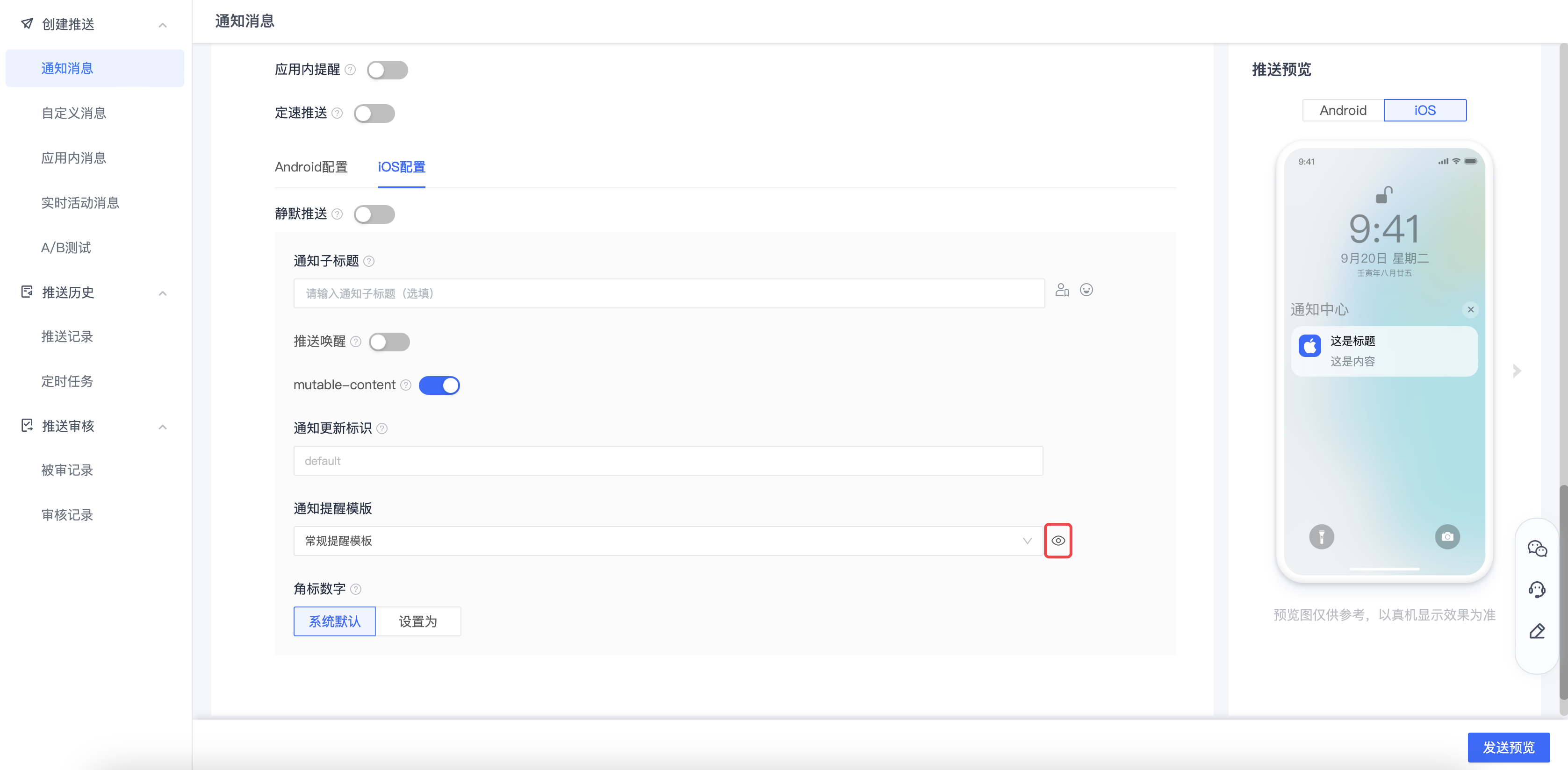
- silent_push:content-available: 1. Do not carry any badge,sound and message content and other parameters, you can perform content updates and other operations without disturbing the user, refer to "Silent Remote Notifications”。
- Notification subtitle: This field is only for iOS System version 10 or above.Android platform and iOS Other system versions are not affected by the content of this field.
- content-available(Push to wake):iOS 7 Start adding new features. The instructions for opening here are Background Remote Notification, if not enabled, it is normal Remote Notification. For details, please refer to:Background Remote Notification”。
- mutable-content:iOS 10 Start adding new features and functions, turn on the description support here iOS 10 of UNNotificationServiceExtension Feature, if not enabled, it will be normal Remote Notification. For details, please refer to:UNNotificationServiceExtension”。
- collapse id: notification carried collapse The id parameter will overwrite the same parameter in the notification center. collapse id notification.collapse The value of id cannot exceed 64 bytes, please refer to the detailed introduction of this field. APNs Guide。
- Notification message template: You can set the reminder priority of notifications to avoid frequently disturbing customers. "General Reminder Template" is selected by default. The template includes template name, notification type,sound、volume、critical、category、thread-id、interruption-level。
- General reminder template: notification type is "notification type",sound as "default notification",interruption-level for "active”。
- Non-aware reminder template: the notification type is "notification type",sound for "silence",interruption-level for "passive”。
- Click "New Message Reminder Template" to customize the reminder template.
- General Notice: Passed sound Field specifies the sound. Default is default, which is the system default sound. If set to a null value, it is muted. If set to a special name, you will need your App The sound can be normal only if the sound is configured in it.
- Alarm notification: Apps that need to push alarm notifications need to go to Apple Developer official website Apply for permission.
- category:iOS Classification, only iOS This parameter push is only supported on systems 8 and above.
- thread-id: An app-specific identifier used to group notifications, the same thread-id notifications are grouped together.
- interruption-level: Interruption level used to define notification priority and delivery time, view details interruption-level field.
- badge: Specifiable APNs push notification badge, displayed directly in the upper right corner of the desktop application icon, meaning the number of unread messages in the application, and can also be marked +N/-N, for example: the indexes of recipients A and B are 1 and 2 respectively, then after pushing +2, the index of A becomes 3, and the index of B becomes 4. The system default value is 1. For details, please refer to Instructions related to digital corner markers。
HarmonyOS
- Notification bar style: Currently only the system default style is supported.
- Notification bar icon: Currently only the application default icon is supported.
- Subscript number: The default effect is +1.
- Manufacturer-specific settings:
- category: Hongmeng manufacturer’s message type identification, you need to apply for Hongmeng self-classification rights; corresponding Push API of notification.hmos.category field.
- test_message: Hongmeng manufacturer's normal message/test message identification; corresponding Push API of notification.hmos.test_message field.
- receipt_id: Hongmeng manufacturer push data return receipt address identifier; corresponding Push API of notification.hmos.receipt_id field.

target group
Select the target: the target group that needs to be pushed. It is recommended to use the data obtained from the registration log during testing. registrationID Make a push.
- tag: Up to 20 can be pushed at one time.
- alias: Maximum push at one time 1000 indivual.
- registrationID: Maximum push at one time 1000 indivual.
Send preview
After configuring push parameters, click Send Preview to view the configured push parameters and estimated number of push users.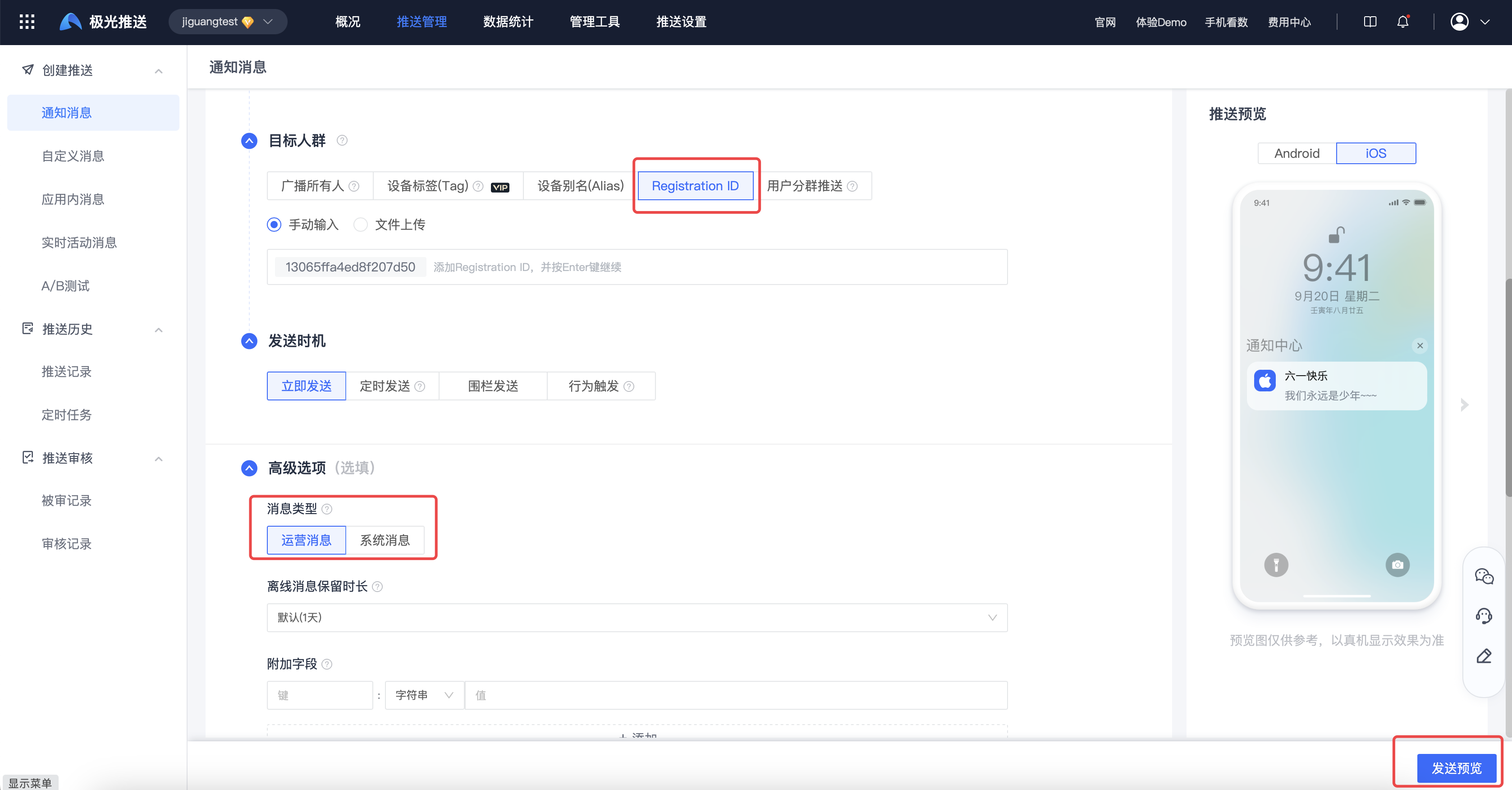
Confirm that the estimated number of people is >0 and click Confirm to successfully create the push task.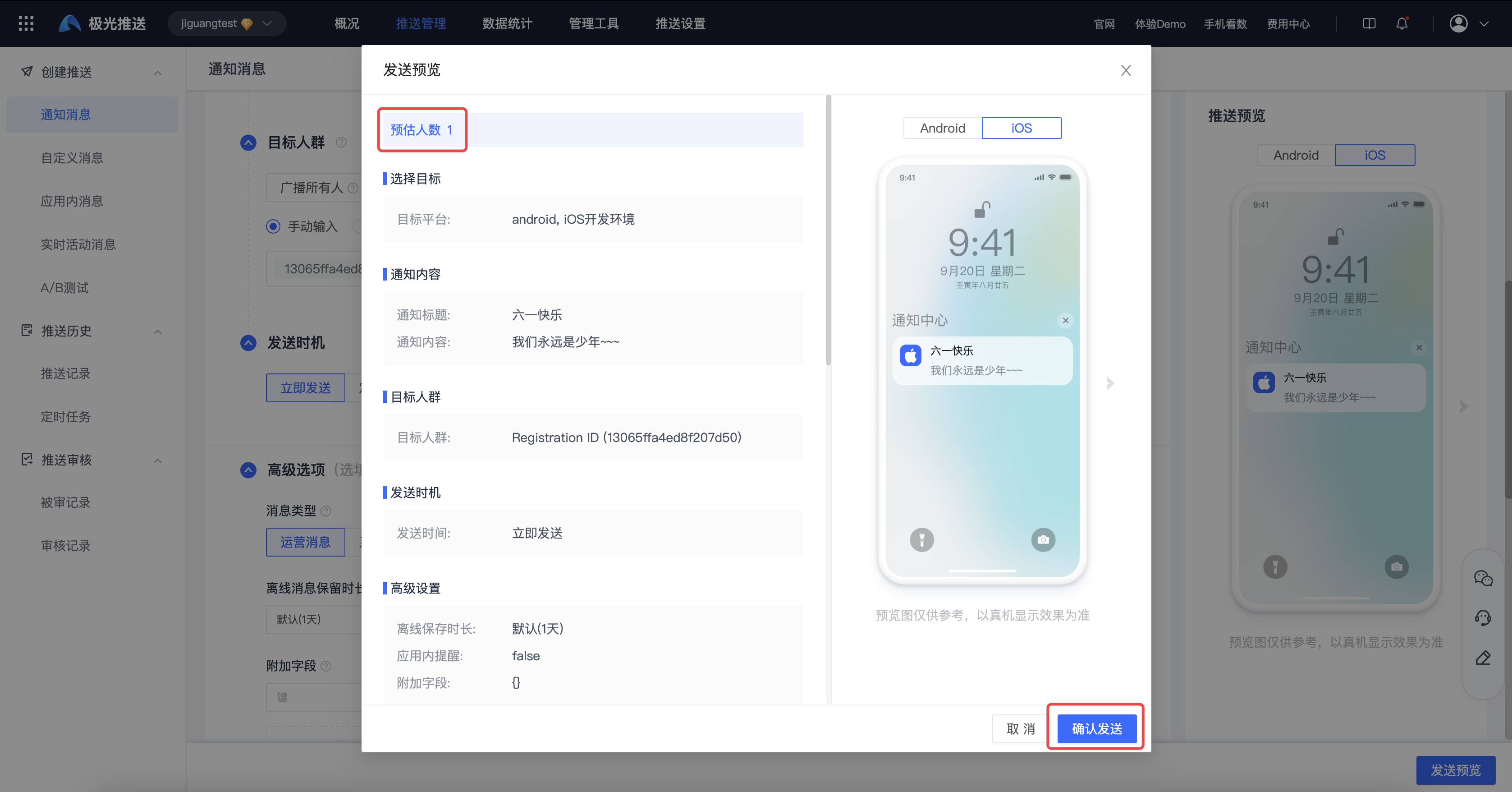
If the estimated number of people is 0, the push cannot be sent and the following error will be returned: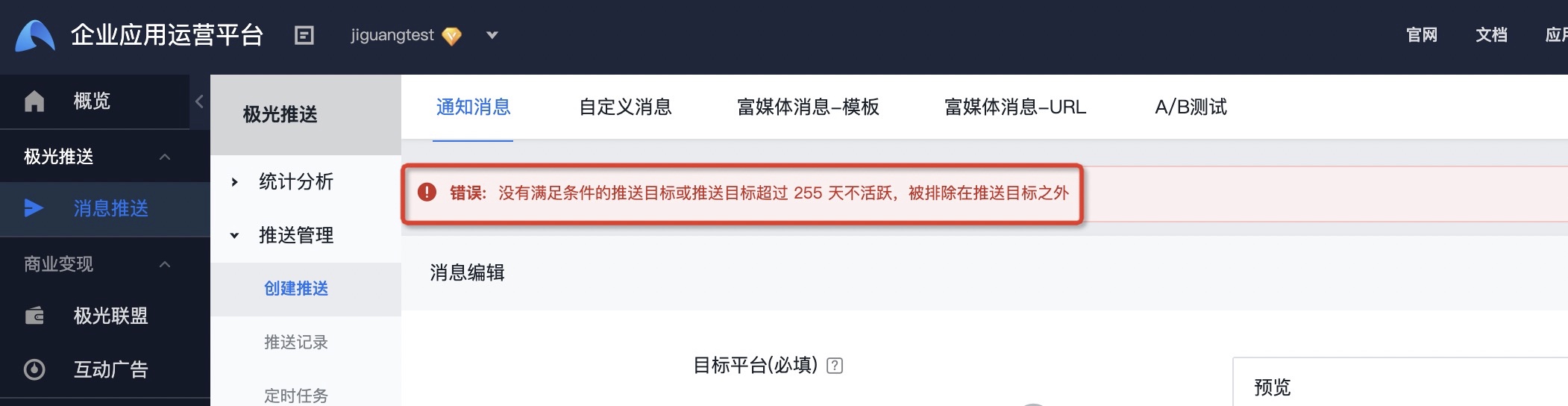
Create a custom message
Enter the [Message Push]-[Push Management]-[Create Push]-[Customized Message] page to create a push task. Please refer to the parameter configuration instructions. [Create notification message](#创建通知消息)。
Special note: Hongmeng platform does not currently support pushing custom messages.
Create real-time event messages
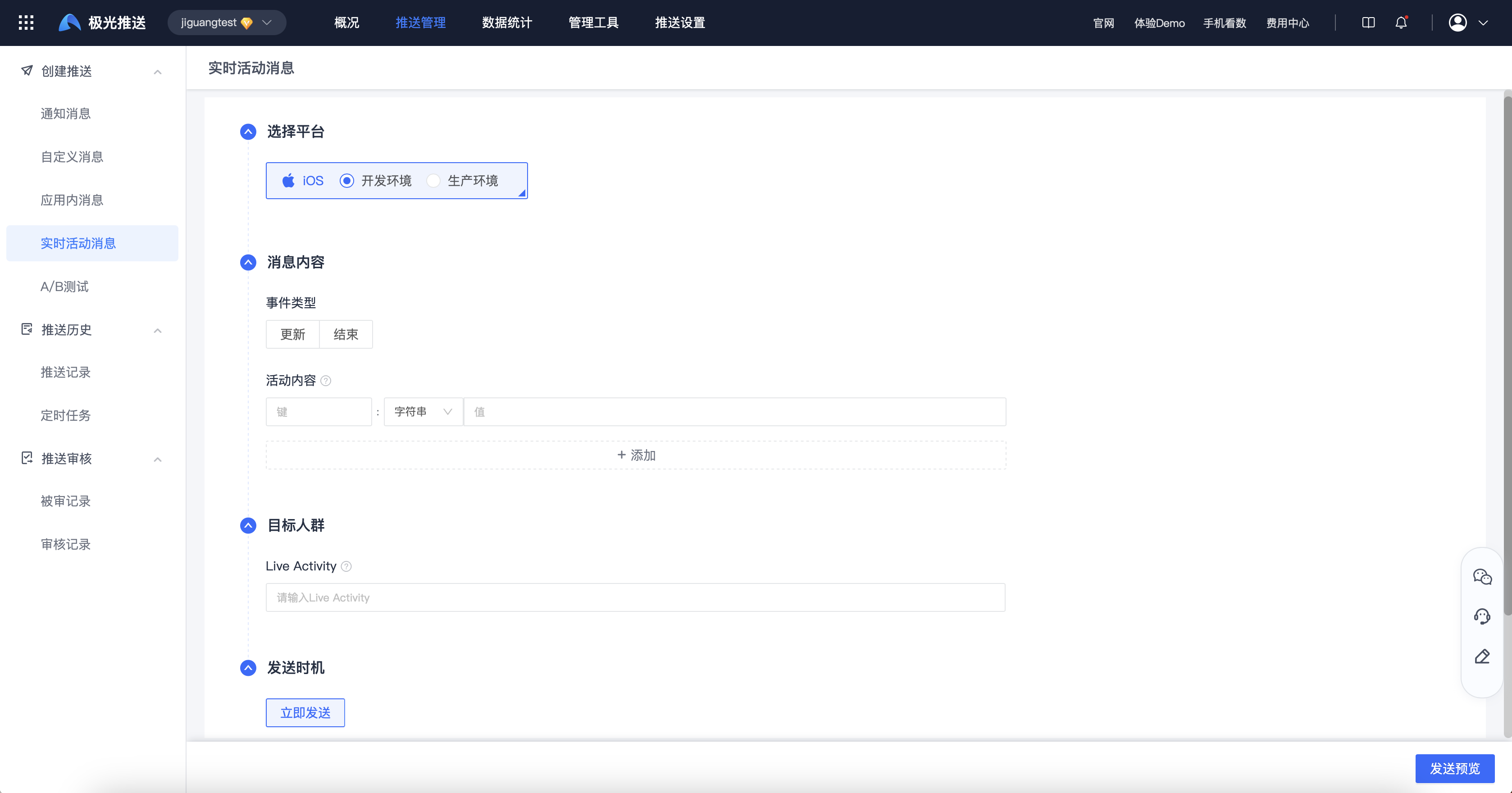
Enter the [Message Push]-[Create Push]-[Real-time Activity Message] page to create a push task. The parameter configuration instructions are as follows:
Basic settings
Choose a platform: based on integration SDK Platform, select the platform to be pushed.
- Before selecting a platform, you need to set the corresponding platform in [Push Settings].
- Sub-accounts only support platforms authorized by the main account.
- Real-time events are currently supported iOS platform.
- Before selecting a platform, you need to set the corresponding platform in [Push Settings].
Message content: The content body of the real-time activity message.
- Event type: update, end; when selecting the "end" event, you can choose to specify the activity disappearance time.
- Activity content:key-value form,key need and SDK set up key consistent.
- Event type: update, end; when selecting the "end" event, you can choose to specify the activity disappearance time.
Send time: select the time you want to send
- Immediately: Send the message immediately.
- Immediately: Send the message immediately.
target group
Live Activity: Real-time activity identification that needs to be pushed, corresponding to iOS SDK liveActivityId For the value, refer to the client:registerLiveActivity。
Advanced settings
- Prompt copywriting: The copywriting is displayed to Apple Watch on, mobile terminals are based on App Depending on the operating conditions and device usage, different effects will appear in the screen brightness, sound reminder, and smart island style performance.
- sound: Watch custom notification sound.
Send preview
After configuring push parameters, click Send Preview to view the configured push parameters and estimated number of push users.
Create an in-app message
An in-app message is a message displayed within an app to convey information, promotions, or remind users to take certain actions.
- In-app messages only goJiguangChannel delivery, only supports Android、iOS platform.
- In-app messages can only be sent through the console and are not currently available. API Send interface.
Supported message types
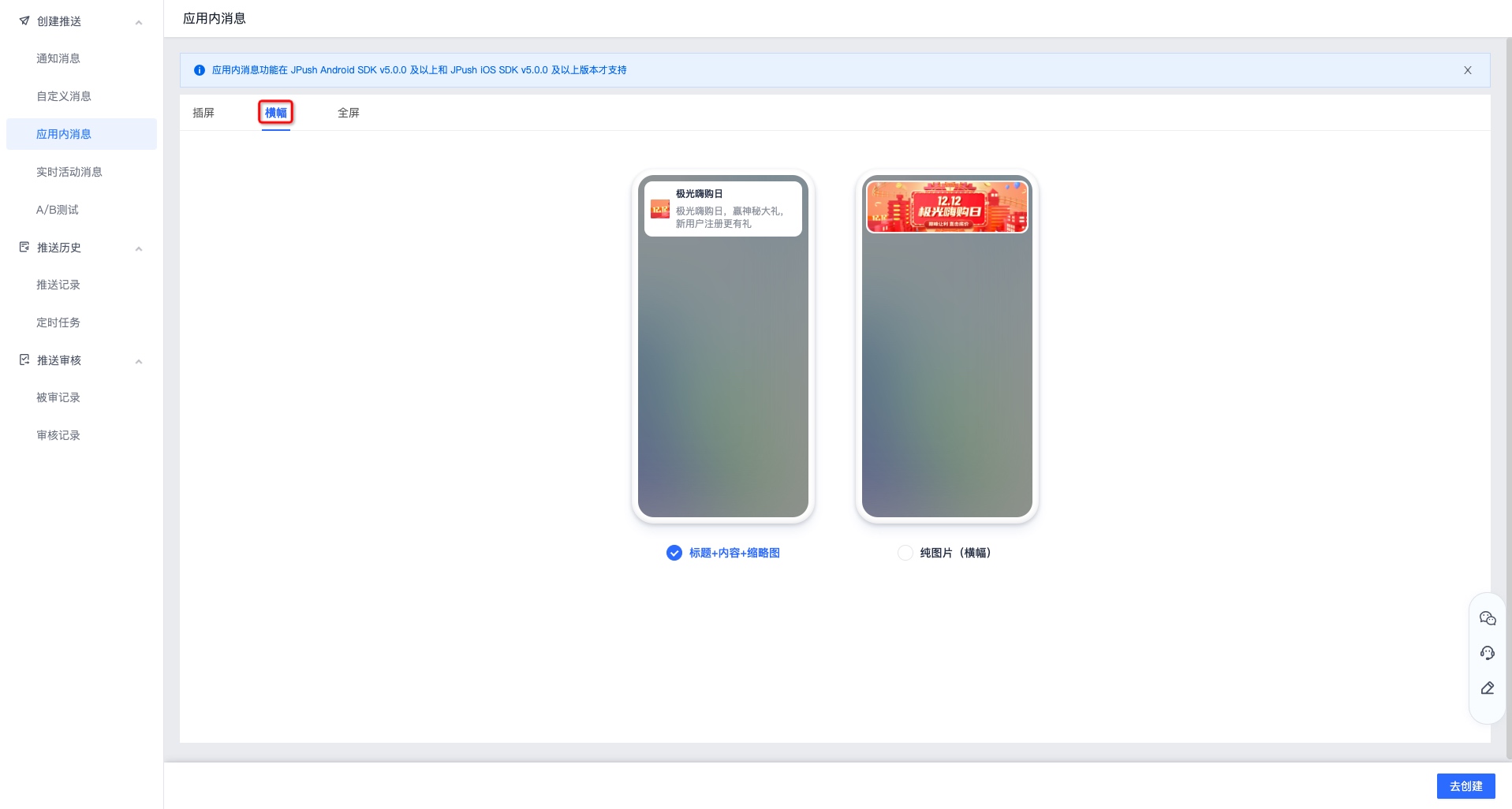
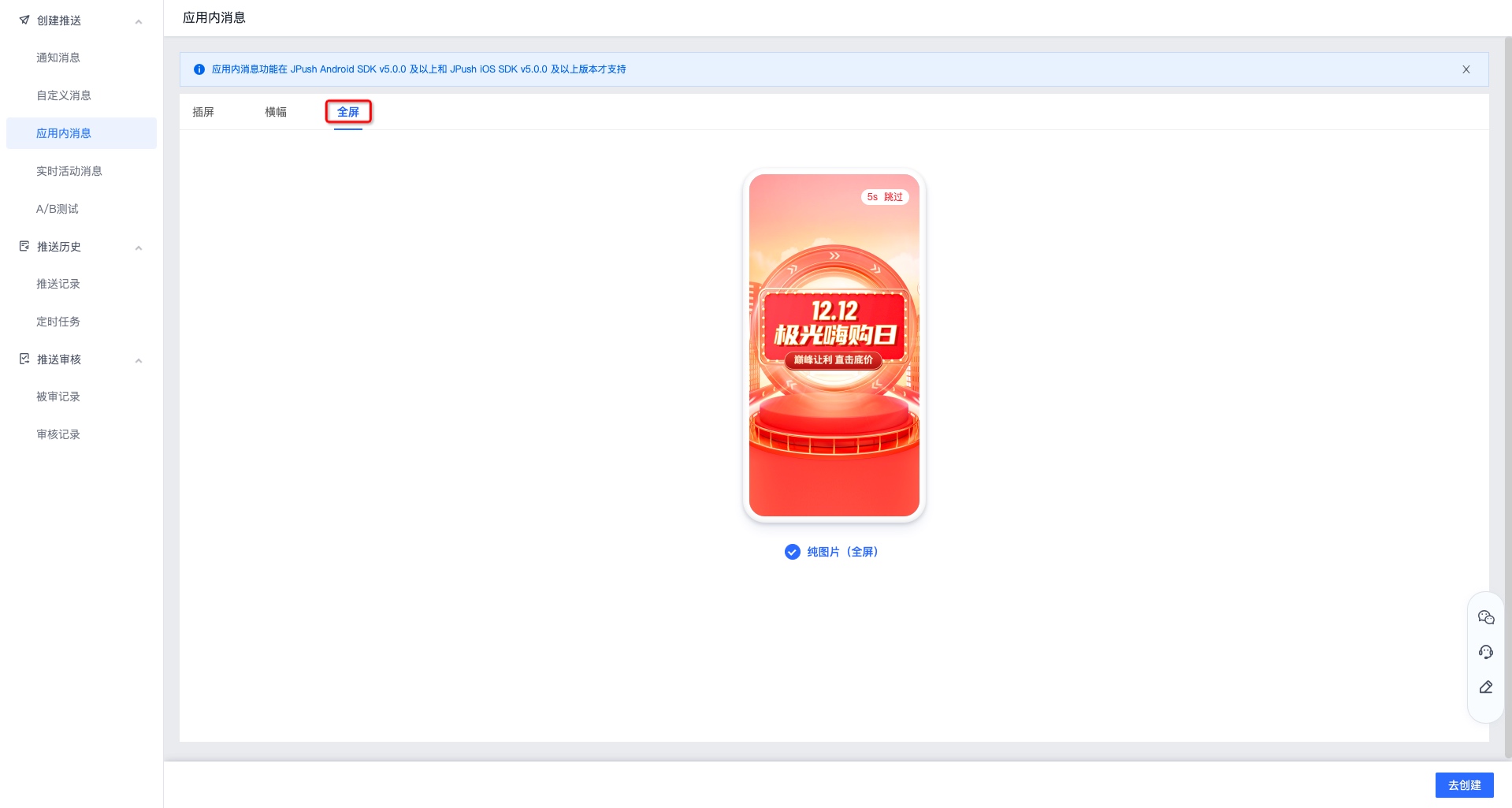
Our in-app messaging system supports three types: interstitial, banner, and full screen. The details are shown below:
table plaque
An interstitial is a half-screen in-app message that is usually displayed at key points in the app to attract users' attention.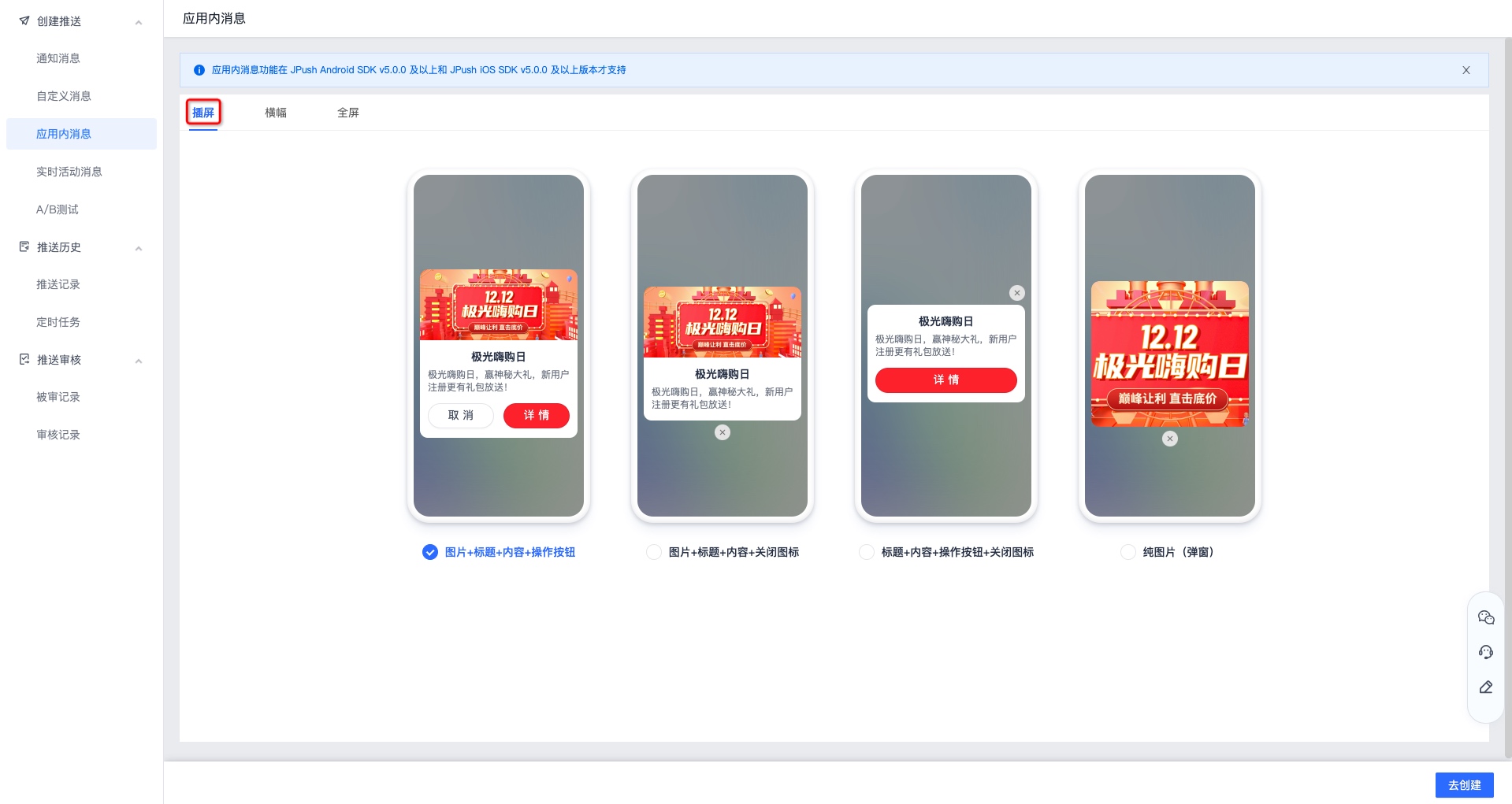
banner
full screen
Basic settings
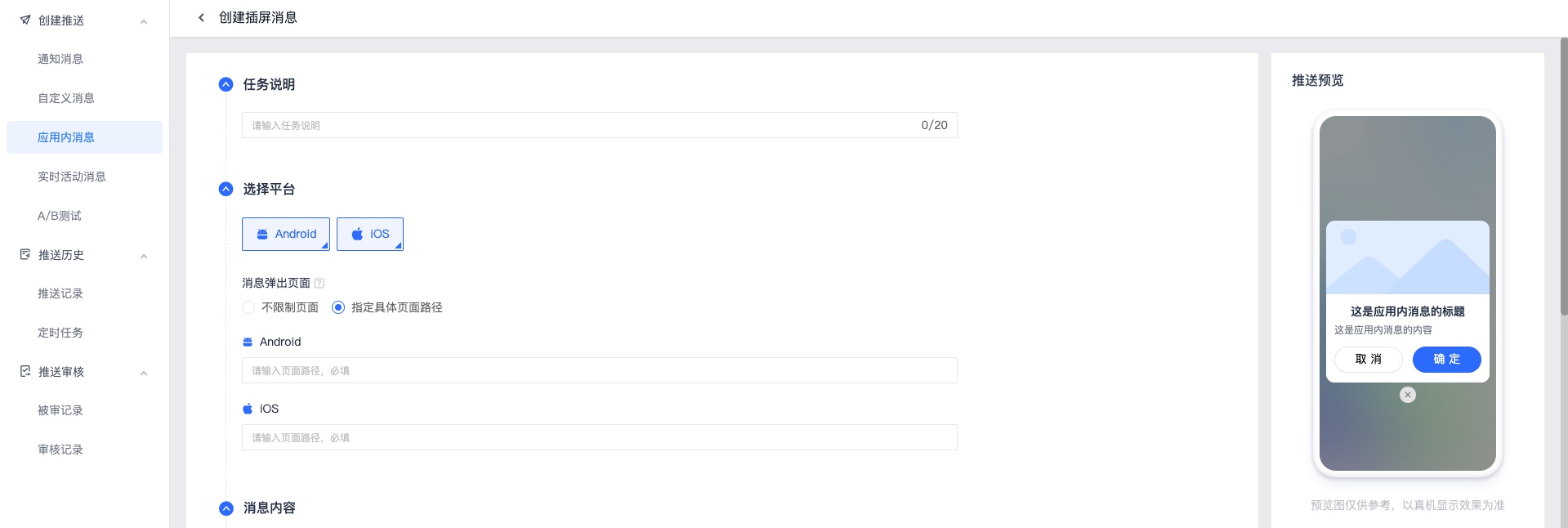
Enter the [Message Push] - [Create Push] - [In-App Message] page to create a push task. Here we take "Insert Screen" - "Picture + Title + Content + Action Button" as an example. The parameter configuration is as follows:
- Task description: A basic description of this push task.
- Target Platform: Based on Integration SDK Platform, select the platform to be pushed.
- Before selecting a platform, you need to set the corresponding platform in [Push Settings].
- Sub-accounts only support platforms authorized by the main account.
- Message pop-up page:
- Unlimited pages: Indicates that this in-app message can be displayed on any page (a message will only pop up once).
- Specify a specific page path: indicates that this in-app message is App It will only pop up on the specified page (a message will only pop up once).
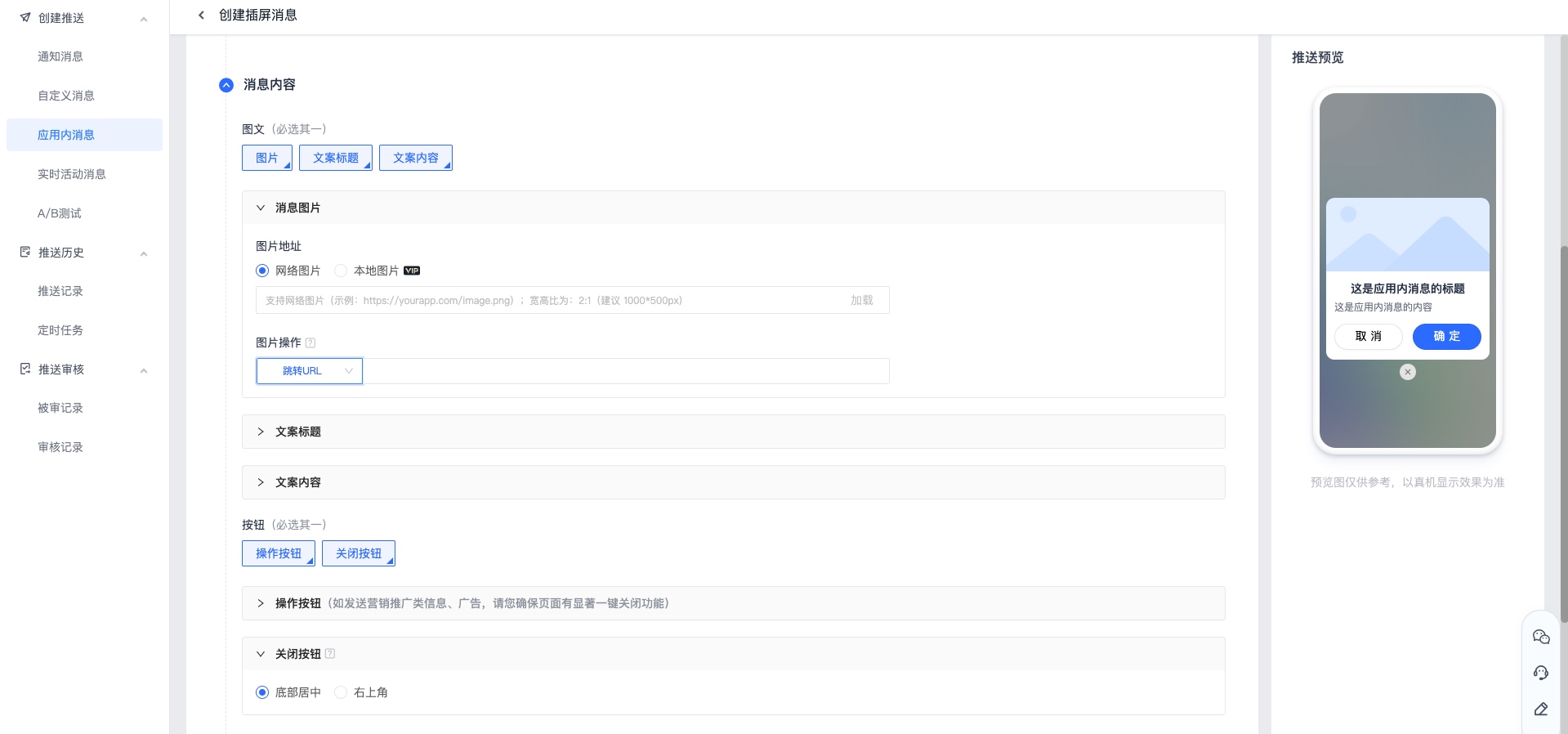
- Message content:
- Message picture:
- Image address: Supports network images and local images.
- Image Actions: Use web links or deep links to direct your users to external pages or to specific pages within your app. Support selection jump URL,Open Deeplink, no action. For details, please refer to the in-app message callback (Android、iOS)。
- Copy title:
- Message title: Supports setting bold, font size, position and font color.
- Copy content:
- Message content: Supports setting bold, font size, position and font color.
- Operation button: If you want to send marketing promotion information or advertisements, please make sure that the page has a prominent one-click closing function.
- Support setting primary and secondary buttons.
- You can customize button names and button operations. For button operations, please refer to the picture above.
- Close button: Close the current page after clicking it. Support setting in bottom center or upper right corner.
- Message picture:
target group
Select the target: the target group that needs to be pushed. It is recommended to use the data obtained from the registration log during testing. registrationID Make a push.
- tag: Up to 20 can be pushed at one time.
- alias: Maximum push at one time 1000 indivual.
- registrationID: Maximum push at one time 1000 indivual.
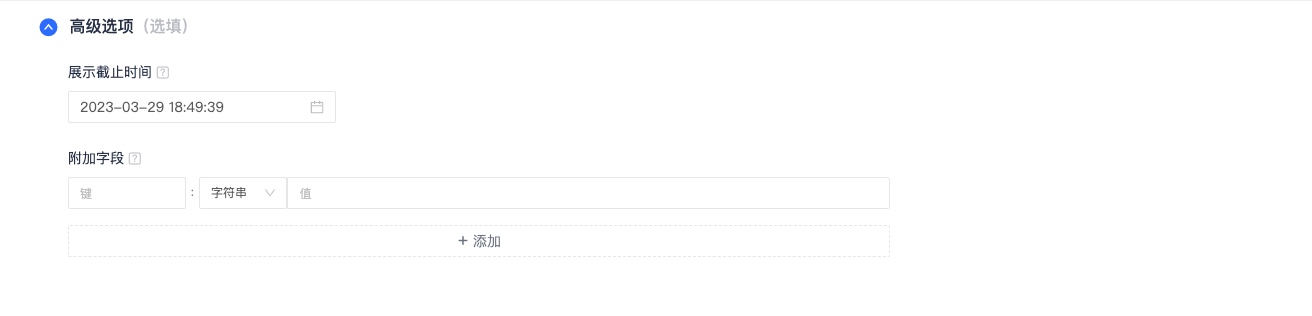
Advanced settings
- Display deadline: that is, within this time period, the user must go online and enter the display page to display the message normally, otherwise it will expire.
- A push message to a user, if the user is currently offline, will be saved as an offline message before the "display deadline" and will be pushed to the user the next time he comes online.
- has been sent to App message, but the end user has not entered the specified page and will not enter the page until the "display deadline" has passed. At this time, the in-app message will not be displayed.
- Additional parameters: used for client-side custom event processing. For details, please refer to the client-side acquisition parameters (Android、iOS)。
create A/B test
A/B Test setup
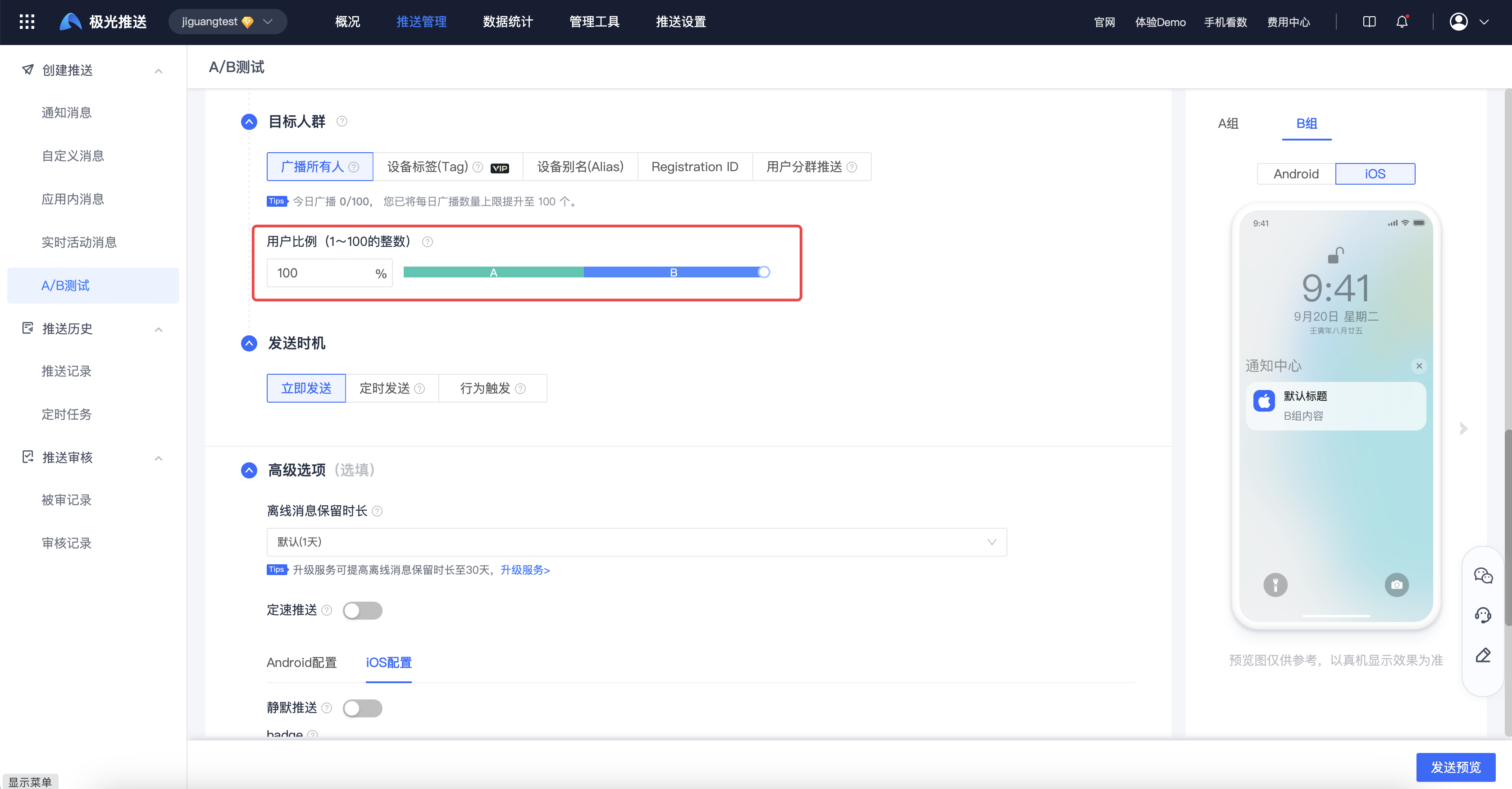
Set parameters such as target platform, user ratio, and sending time. Please refer to the parameter configuration instructions. Create notification message。
User proportion: The set user proportion is the percentage of users who meet the above conditions.
- The proportion of users participating in the test in two groups A and B is equal.
- For example, if the user ratio is 40%, then the user ratios of two groups A and B are 20% respectively. If the target platform is iOS and Android, taking group A as an example, those in group A who participated in the test iOS Users account for iOS 20% of platform users, those in group A who participated in the test Android Users account for Android 20% of platform users.
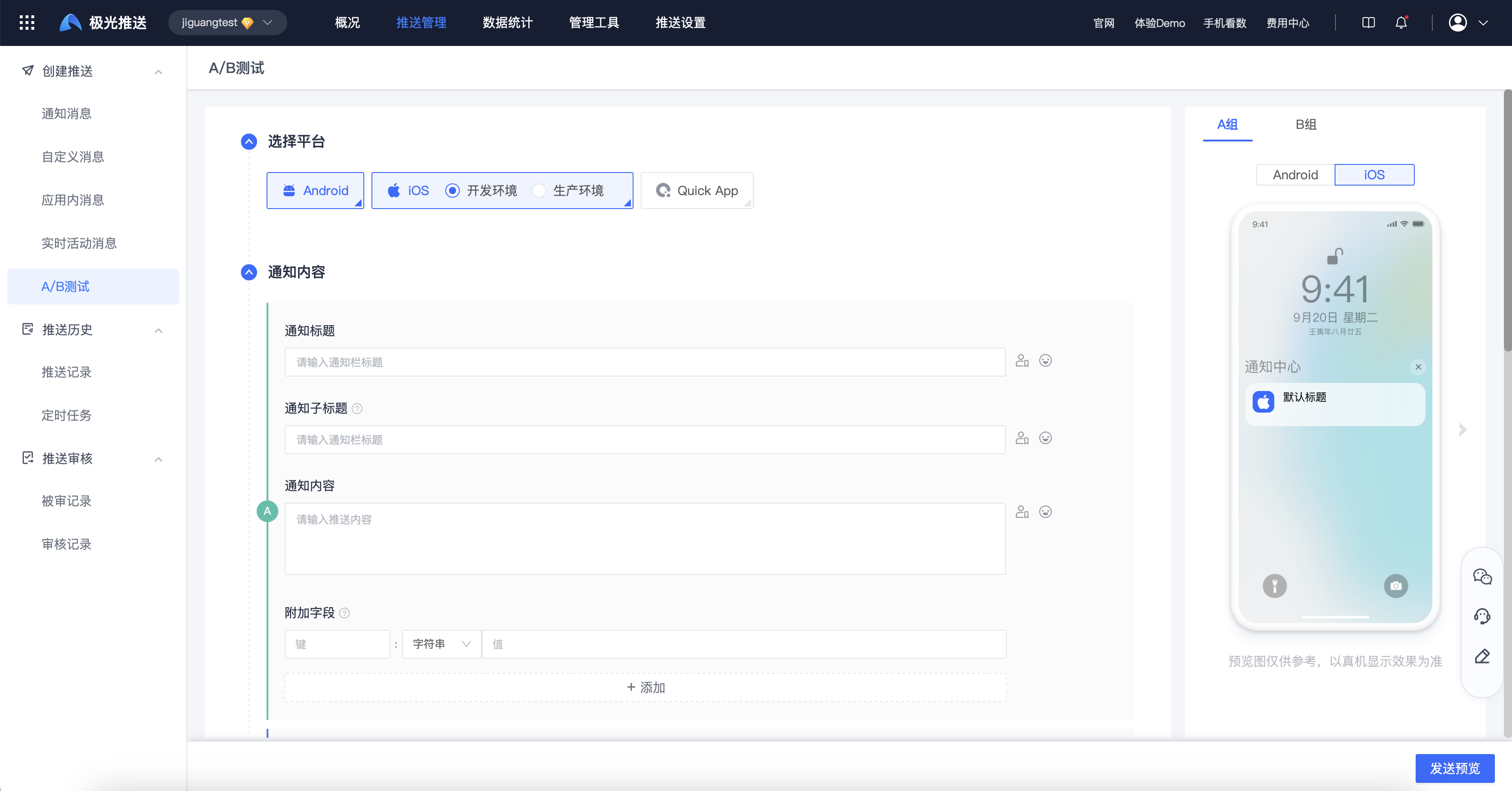
Set notification content
Click "Next" to enter the notification content editing page. Please refer to the parameter configuration instructions. Create notification message。
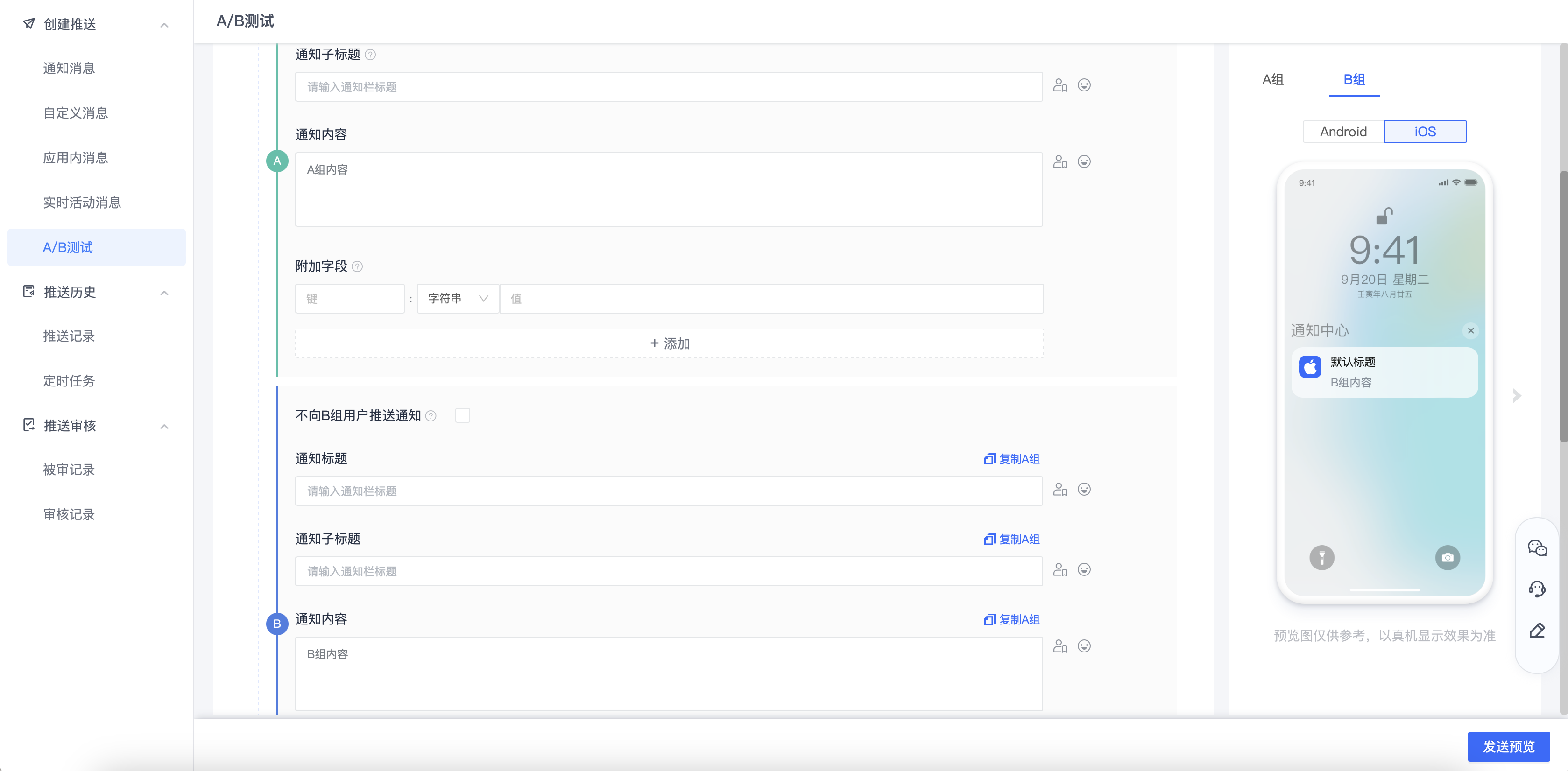
Choose target audience
The push target is at least 2 people, if participating A/B Test If the target number is less than 2 people, the push will fail.
The final result of calculating the number of people is rounded to an integer and decimals are discarded.