User grouping
This article aims to guide users how to use the user group function on the Jiguang console.
Create user groups
Enter the [Jiguang Console]-[Message Push]-[Configuration Management]-[User Group] page and click "Create User Group". 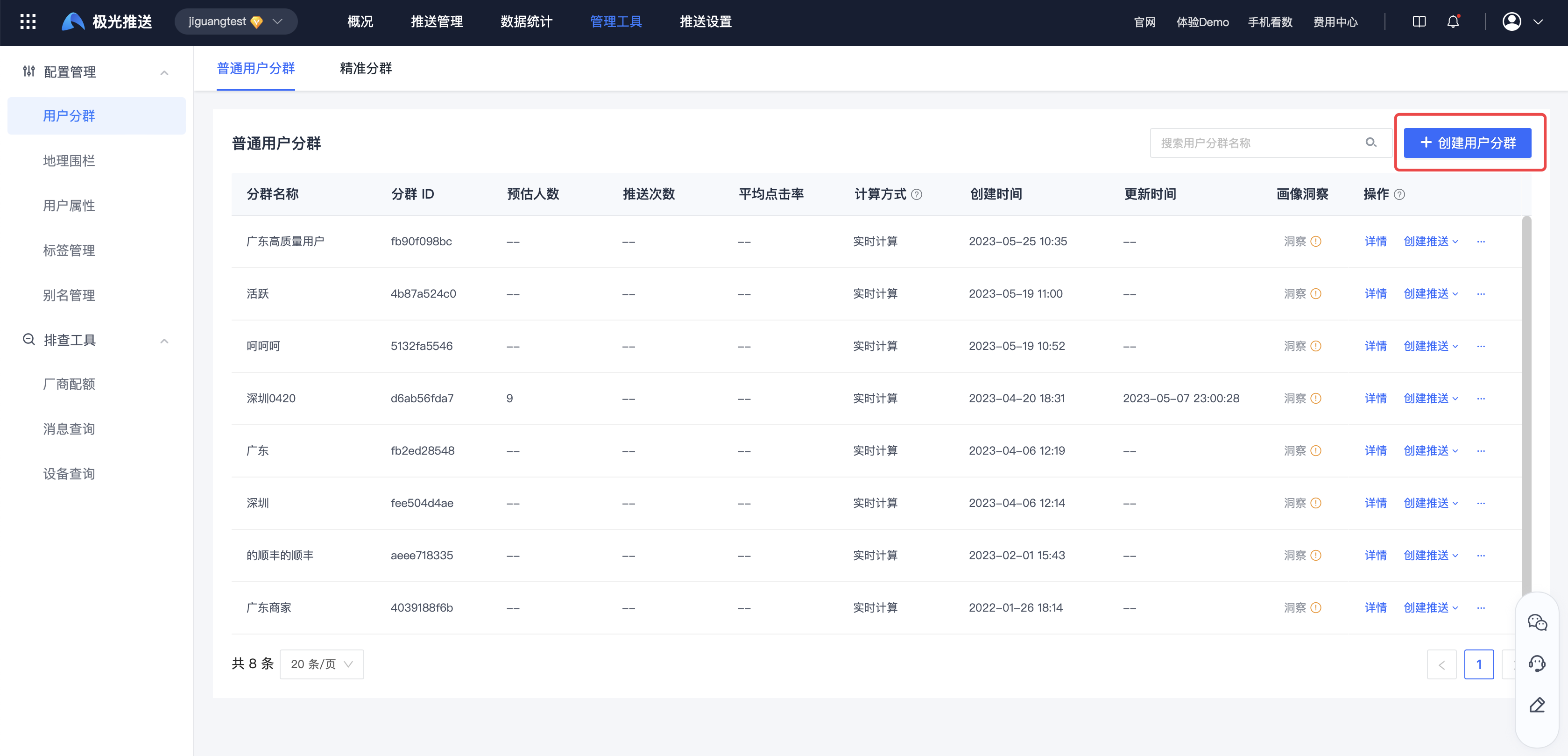
On the [Create User Group] page, you need to fill in the group name and configure at least one group latitude. 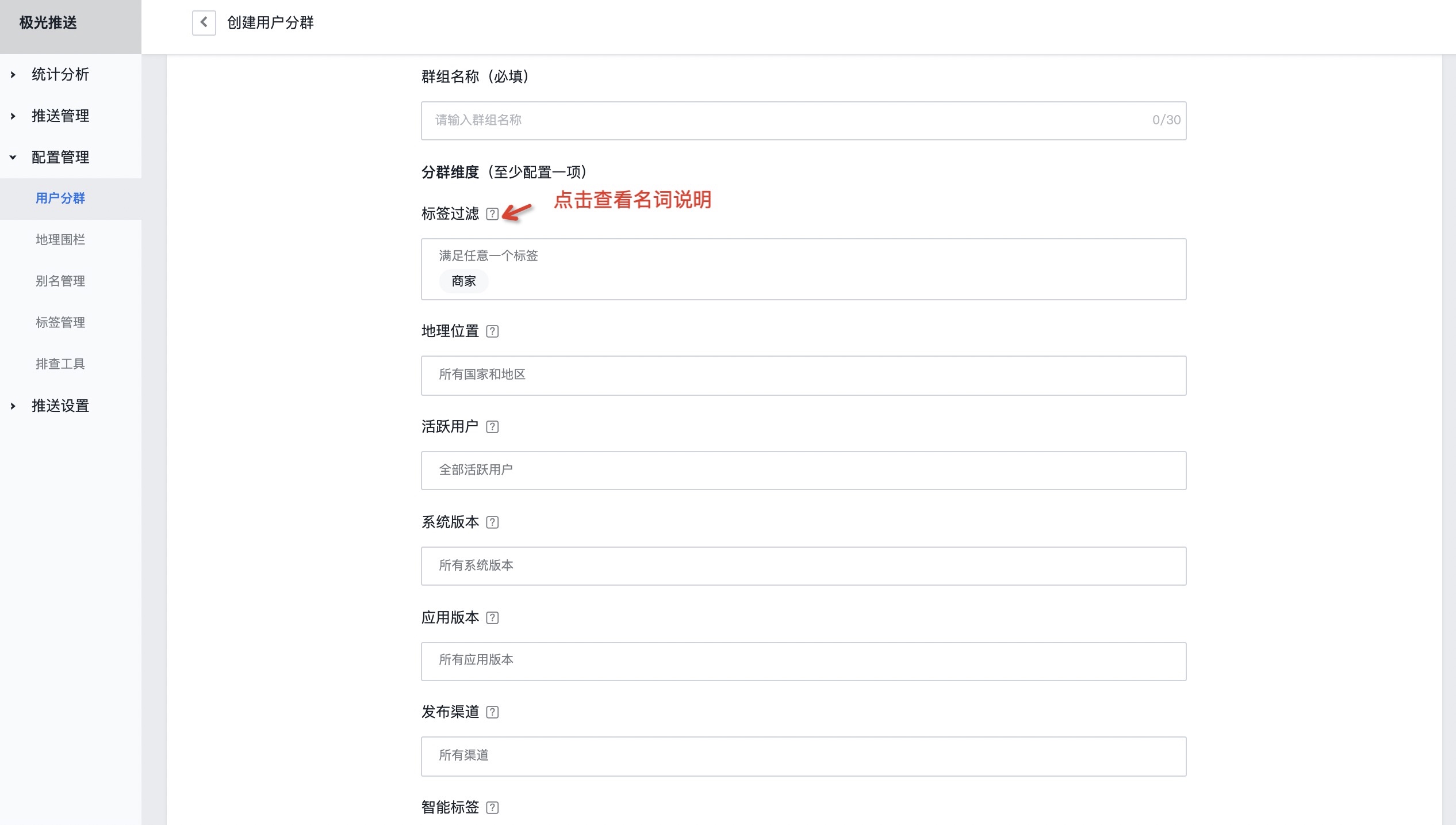
Tag filtering
Just like the label when pushing, the label is set through the client API.
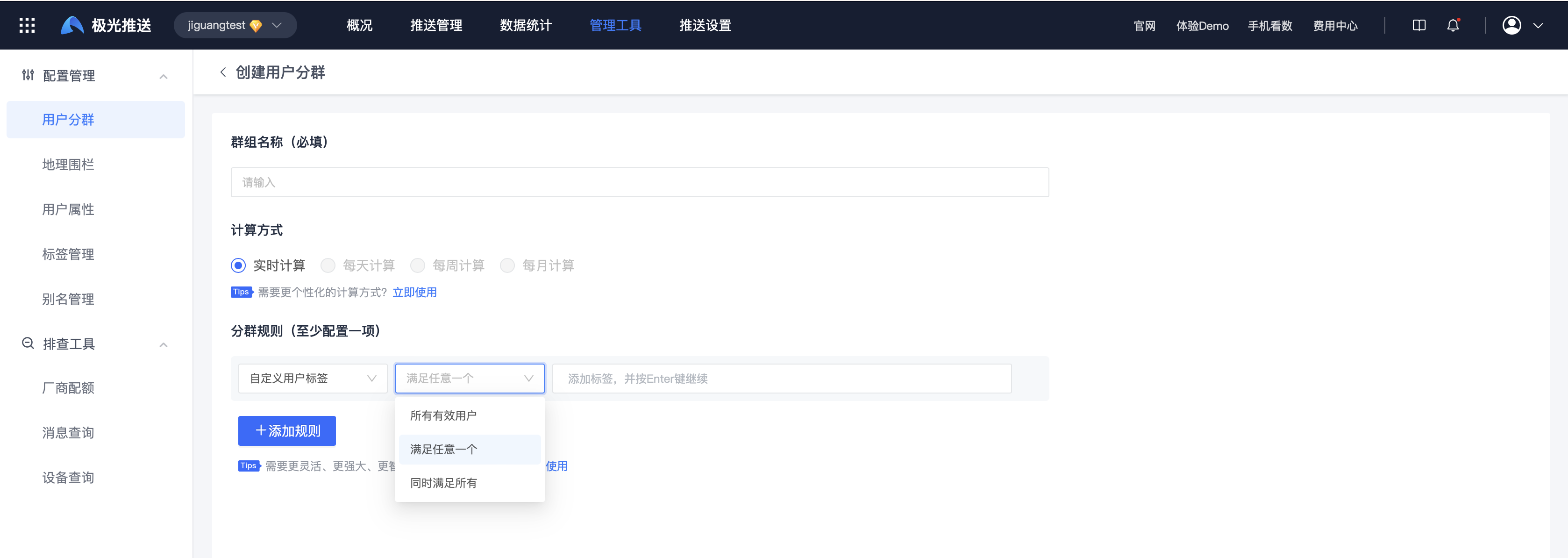
- Satisfies any one: The tags are union relationships.
- Satisfy all at the same time: There is an intersection relationship between tags.
Geographical location
Add the city and province where the user belongs, and you can also refine the results by adding excluded areas. Example: If you select Guangdong Province and exclude Shenzhen City, it will be pushed to all non-Shenzhen Guangdong users.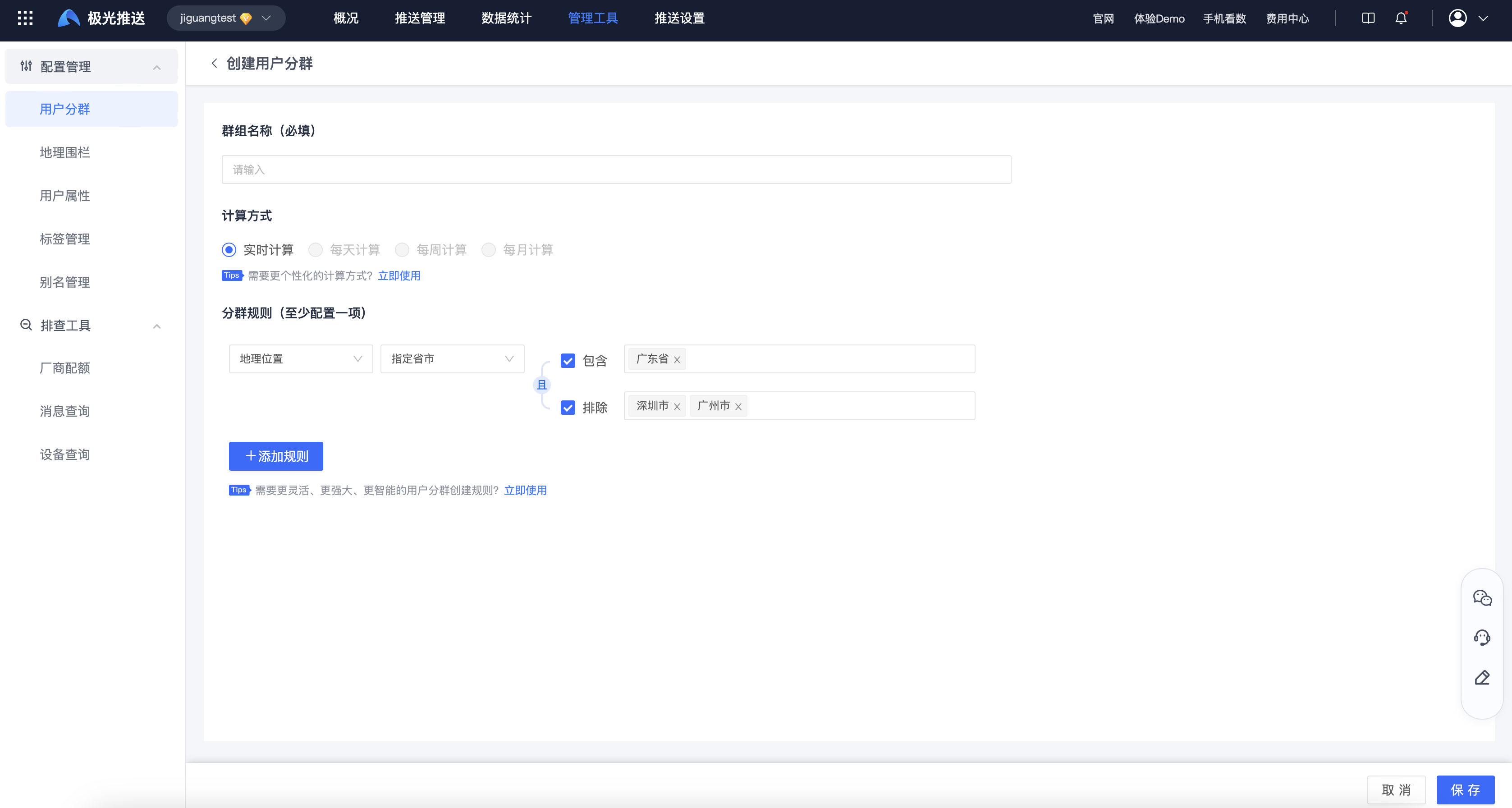
Active users
Users who have opened the APP within the statistical time range are recorded as "active users". Example: Active within 3 days means the user has opened the app in the last 3 days.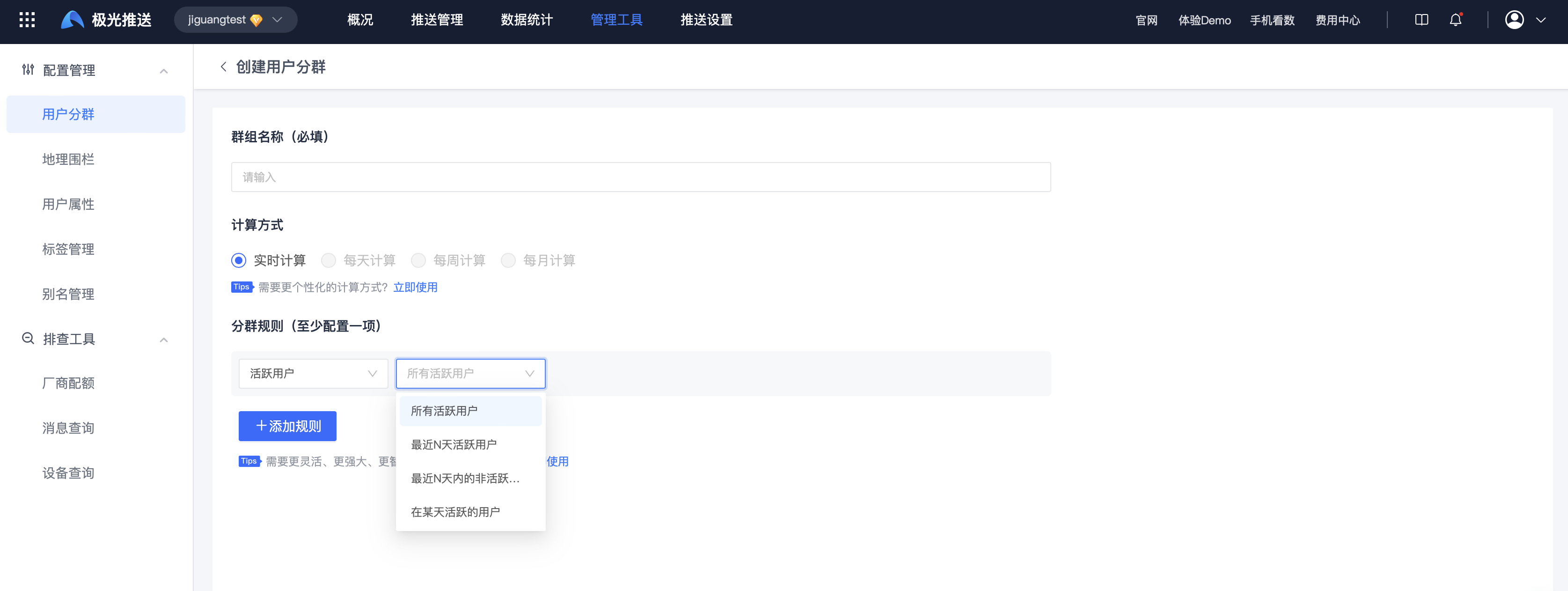
System version
iOS version filtering: You can filter by iOS system version conditions. The system version refers to the version of the operating system, such as: iOS 7.1.
Android version filtering: You can filter by Android system version conditions. The system version refers to the version of the operating system, such as: Android 4.2. 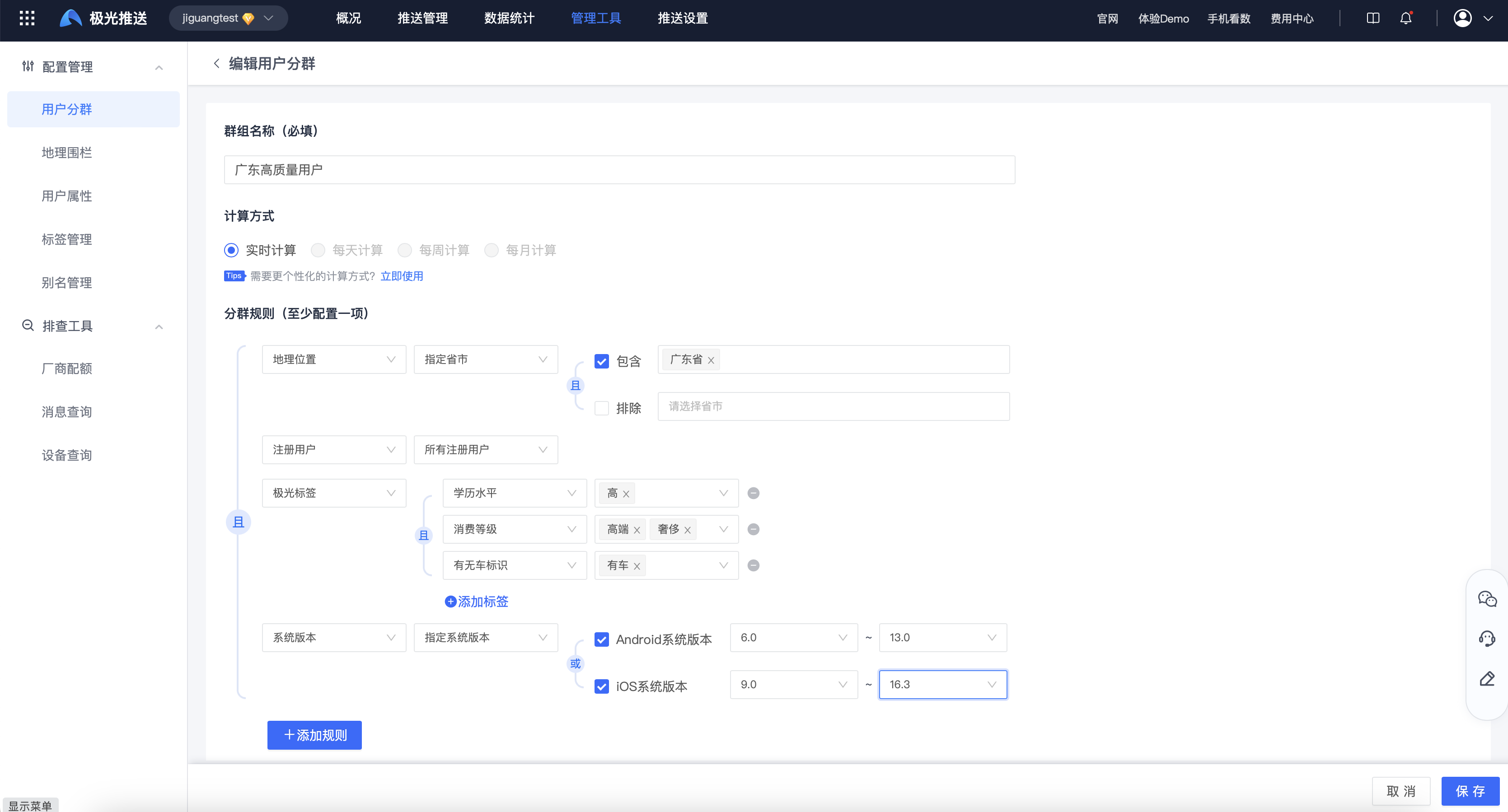
Application version
The version number of the application APP, such as: APP iOS version 1.0, APP Android version 2.0. 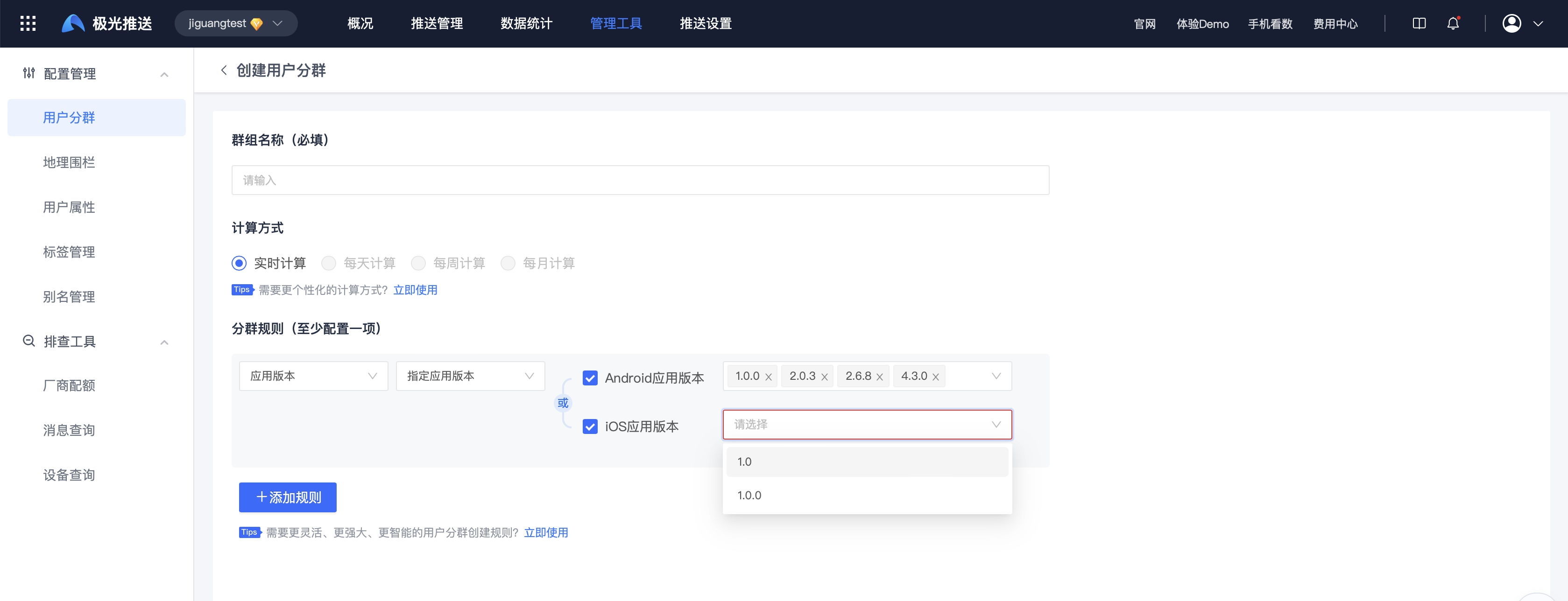
Release channel
The channel number for the application to be put on the designated application market. 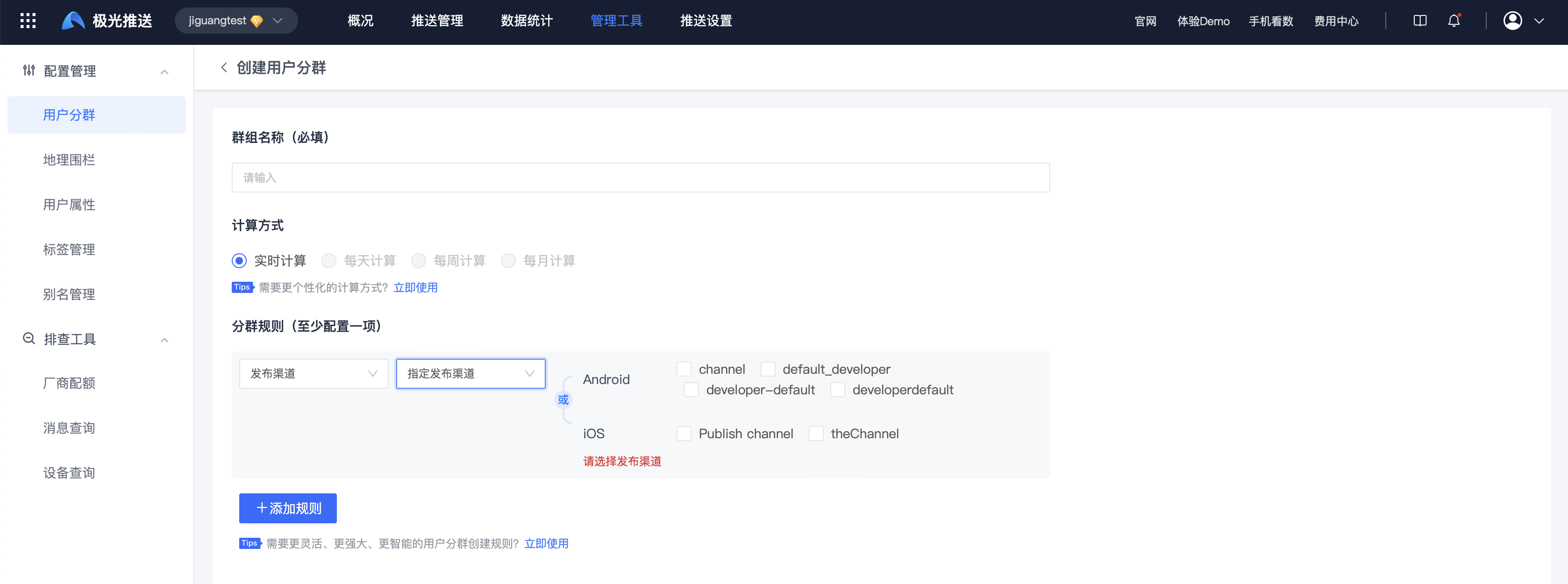
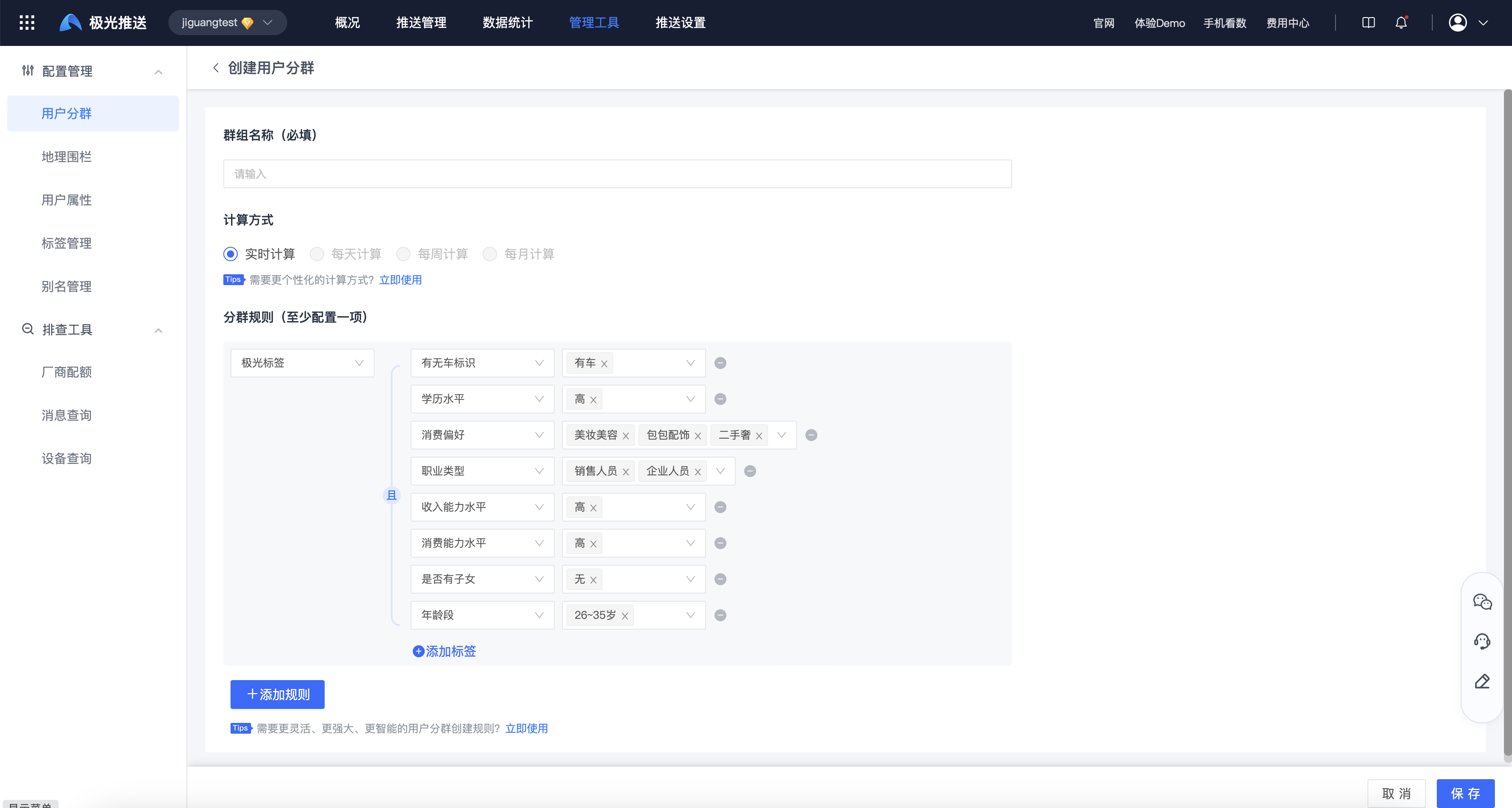
Smart Tags
Different from the concept of push tags, smart tags are attribute tags that Jiguang dynamically adds to the client through big data analysis.
- Multiple attributes can be added, and there is an intersection relationship between the attributes.
- Multiple values can be selected after an attribute, and the values are in a union relationship.
Online users
Users who have connected to the JPush server within the statistical time range are recorded as "online users". For example: Although an Android application is not opened by the user but is online in the background, it also belongs to an online user. An iOS application "online" is consistent with "active". 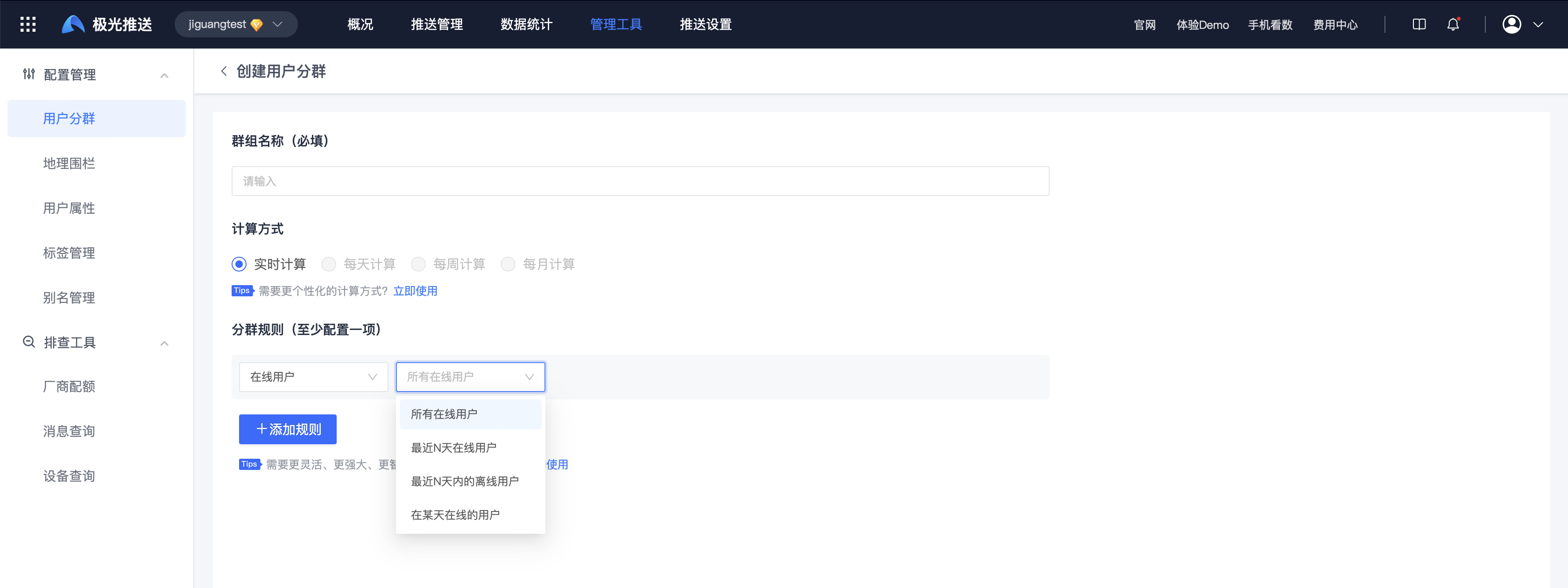
Registered User
When a user opens the APP for the first time, he or she will register with the JPush server as a registered user (and also as a new user). 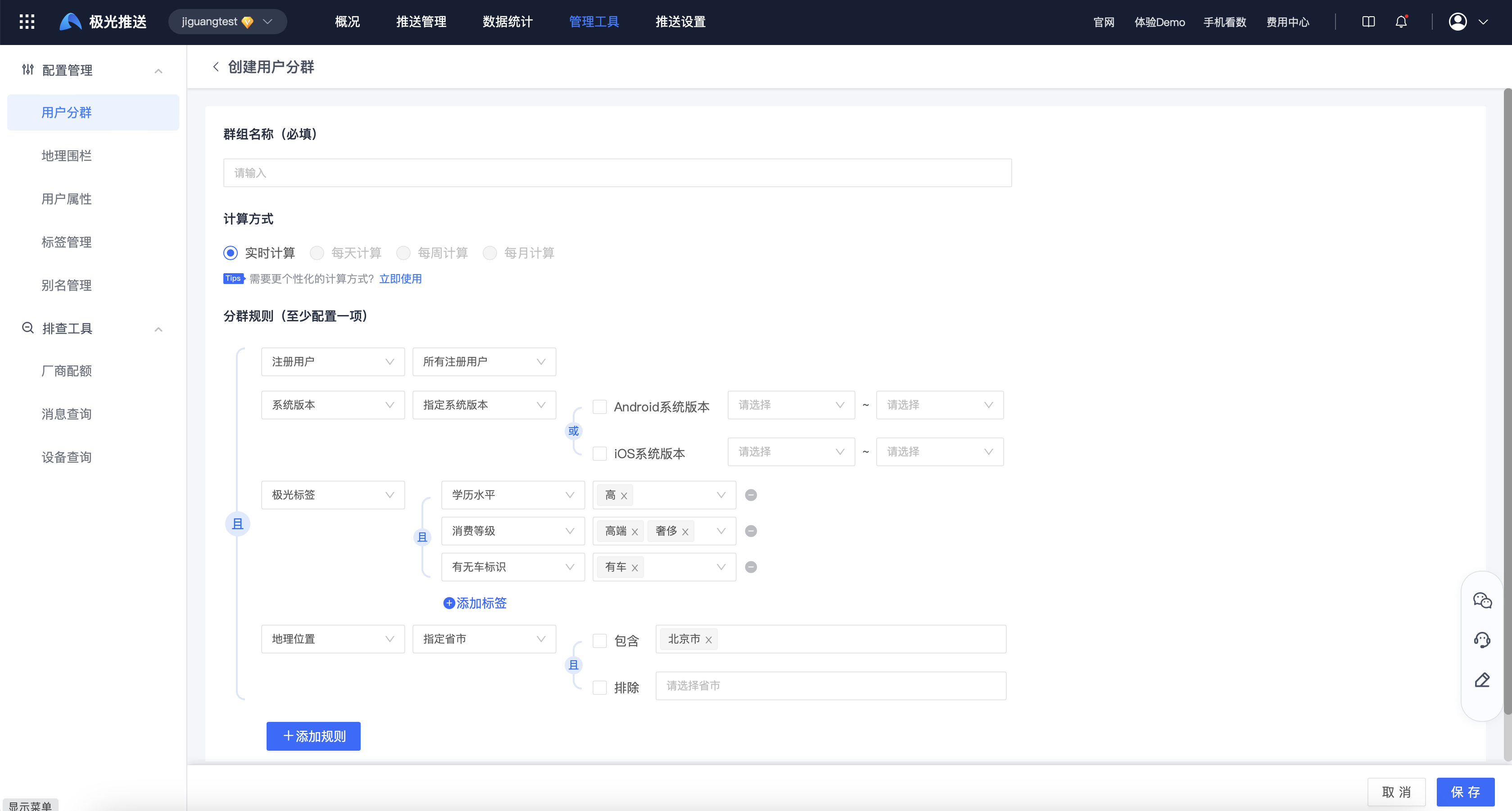
Edit user group
On the [User Groups] page, click "Edit" to modify the created "User Groups". 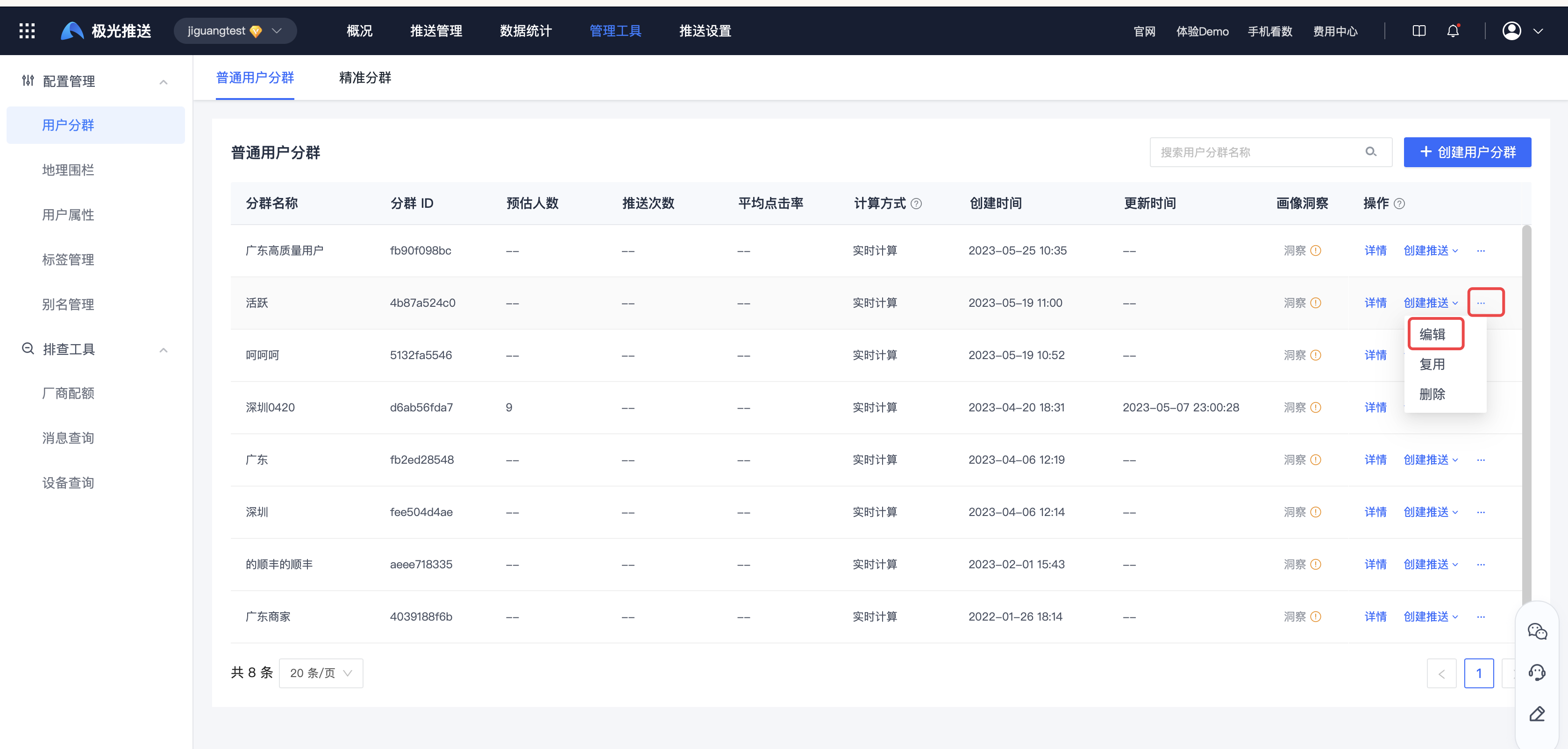
Quick creation
On the [User Grouping] page, click "Quick Create". This operation will jump to the page for creating user groups, and copy and fill the existing user grouping conditions into the creation page, allowing you to quickly create a new user group.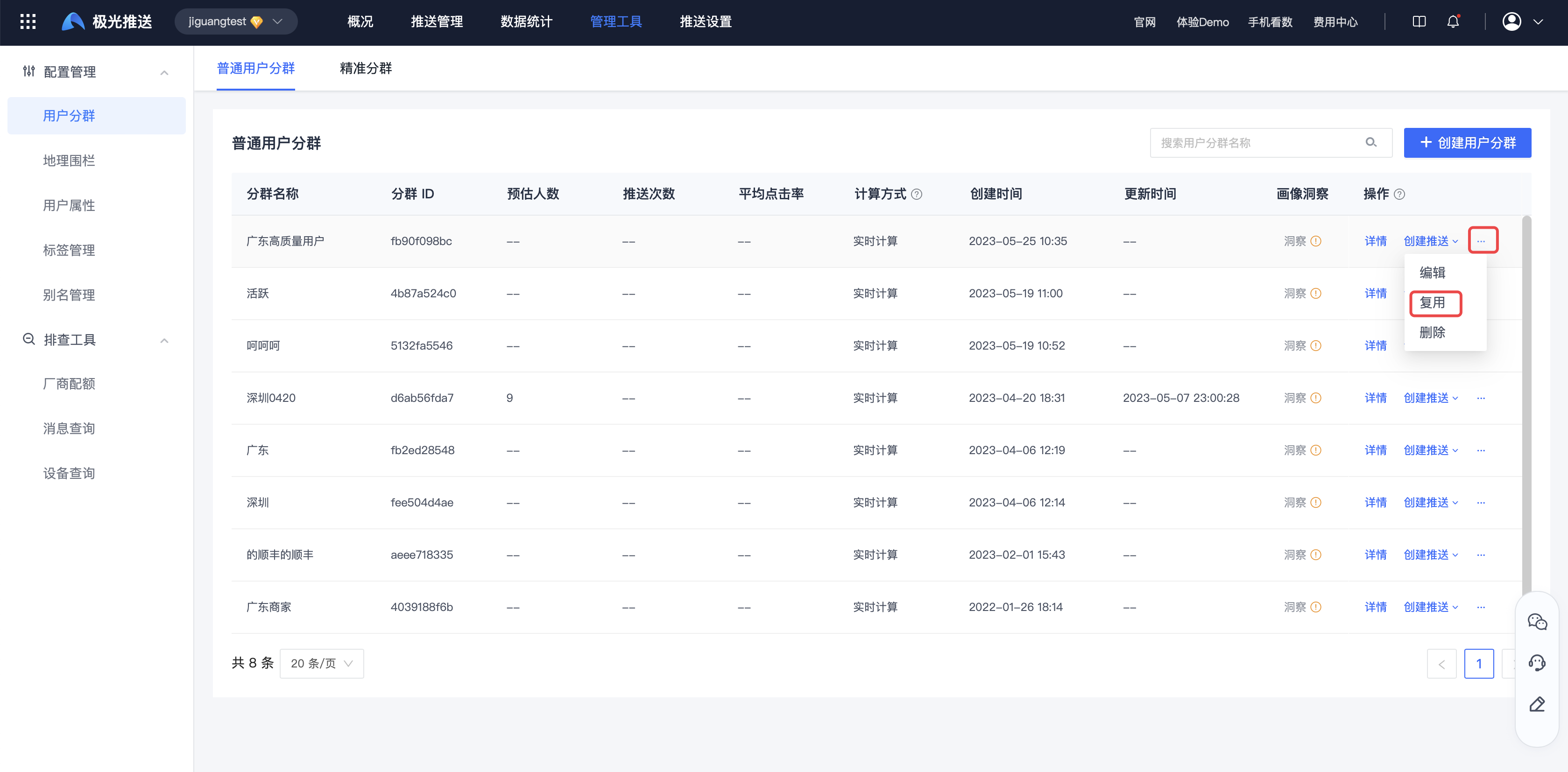
Delete user group
On the [User Group] page, click "Delete", and the user group can be deleted after a second confirmation. 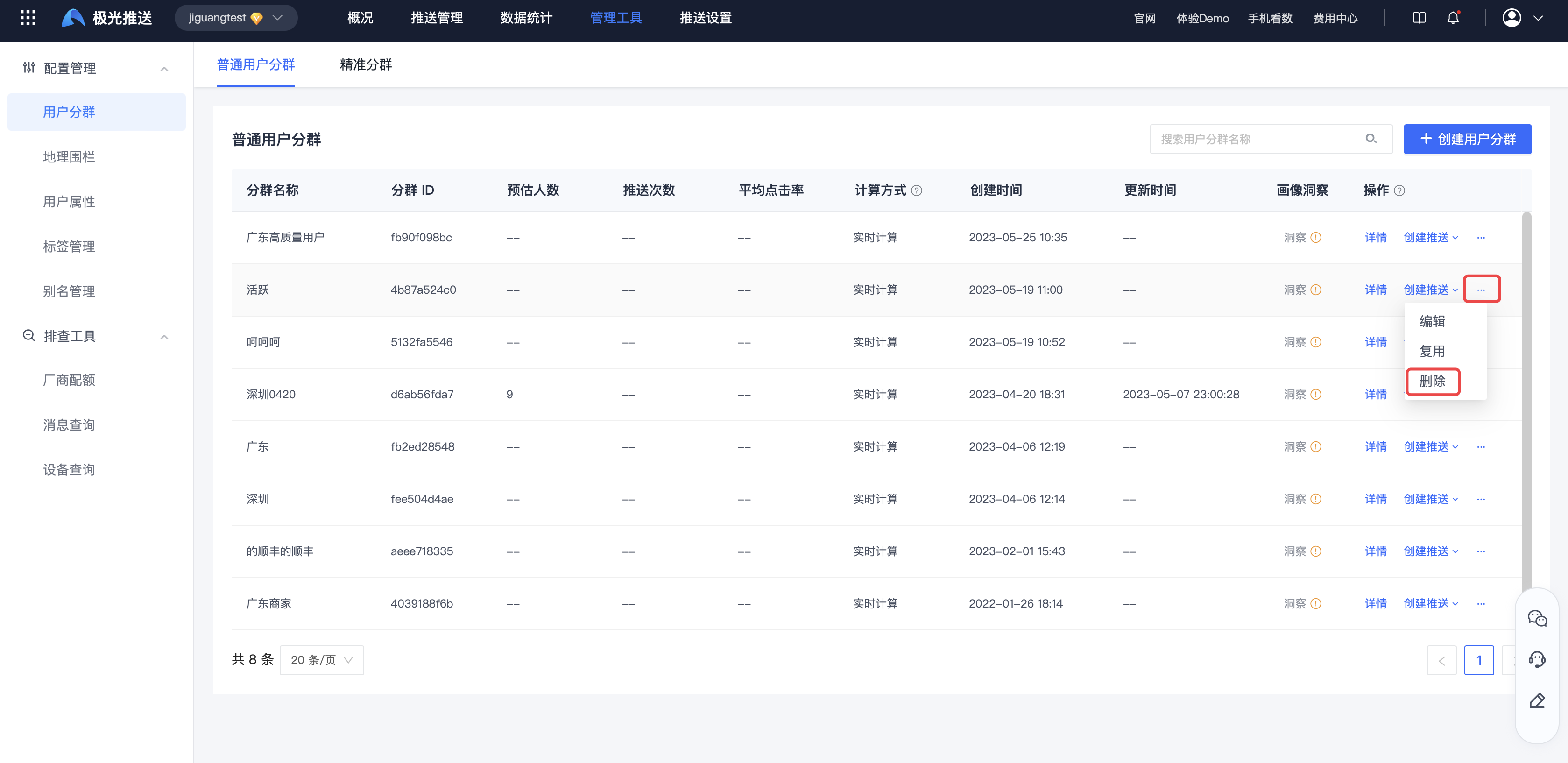
Use user grouping
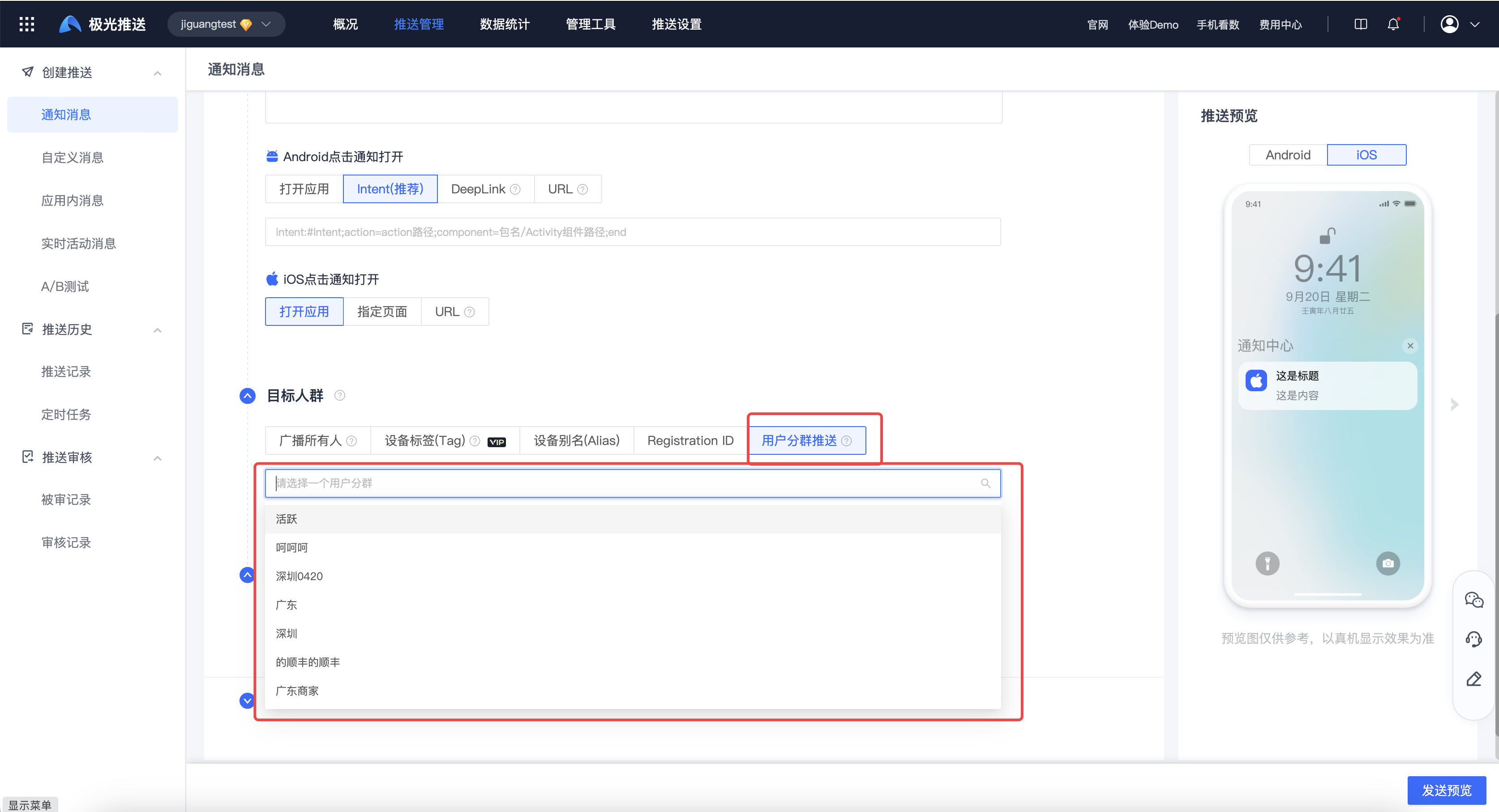
On the [Create Push] page, after configuring the push parameters, the target group selects "User Group Push" - the user group that has been created, and then the push can be made to the users of this user group.