iOS notification permission categories
Scheduled Notification Summary
iOS 15 introduced Scheduled Notification Summary, which delivers important information on time while greatly reducing interruptions during work.
- Deliver Immediately: When APNs delivers a notification, the system shows it immediately.
- Scheduled Summary: Notifications received during the day are grouped according to the user's schedule for quick review; the summary is sorted by priority with the most relevant at the top.
Setup
- Turn on "Scheduled Notification Summary" under Settings → Notifications.

Set summary delivery time and apps included in the summary.

After setup, the app's notification settings show "Deliver Immediately" and "Scheduled Summary" under notification delivery.
If you choose "Scheduled Summary" and Time Sensitive Notifications is off, notifications appear only at scheduled times.

Always deliver immediately
Time Sensitive notifications and Direct Messages are not included in the scheduled summary. To always deliver immediately, enable Time Sensitive Notifications and Direct Messages.
With Direct Messages enabled, users can customize the image on the left of the notification.

Time Sensitive Notifications
Request permission
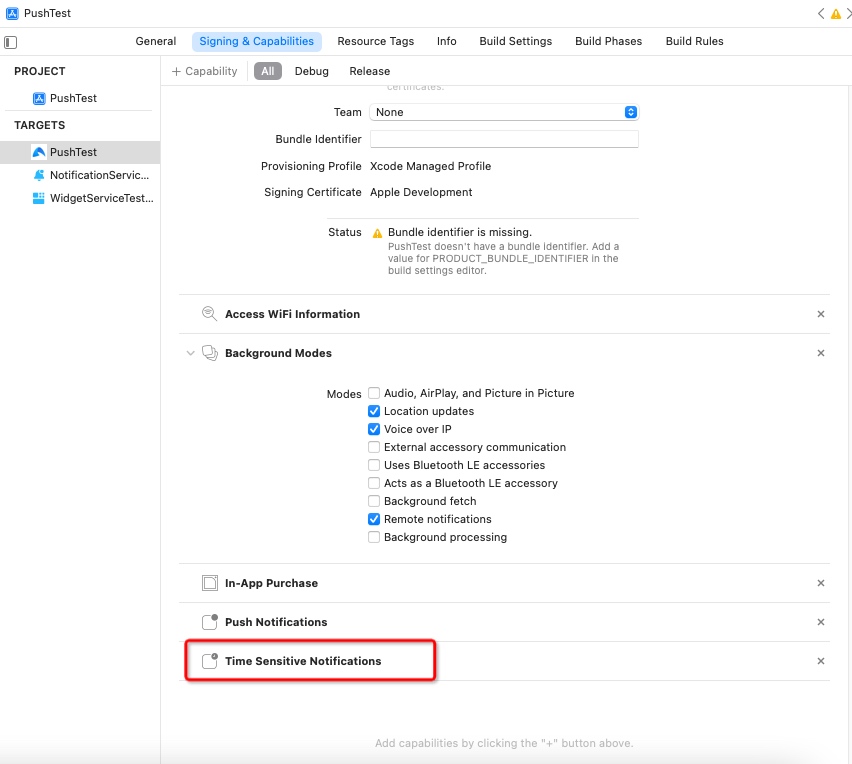
Enable Targets → Capabilities → Time Sensitive Notifications.
Enable Time Sensitive Notifications for your app on the Apple Developer site.

Get setting status
@property (NS_NONATOMIC_IOSONLY, readonly) UNNotificationSetting timeSensitiveSetting API_AVAILABLE(macos(12.0), ios(15.0), watchos(8.0)) API_UNAVAILABLE(tvos);
Example:
          UNUserNotificationCenter *center = [UNUserNotificationCenter currentNotificationCenter];

 [center getNotificationSettingsWithCompletionHandler:^(UNNotificationSettings * _Nonnull settings) {

 NSLog(@"%ld",(long)settings.timeSensitiveSetting);

 }];
- To send a Time Sensitive notification through the Push API, set
notification.ios.interruption-leveltotime-sensitive. For details, seenotification.ios.interruption-level.
Direct Messages
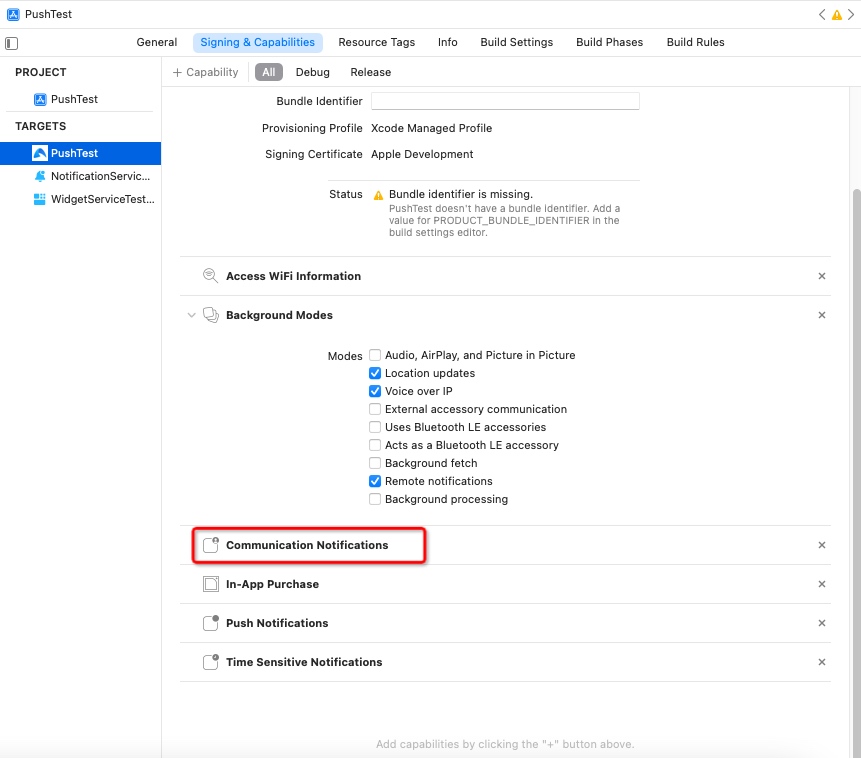
Enable Targets → Capabilities → Communication Notifications.
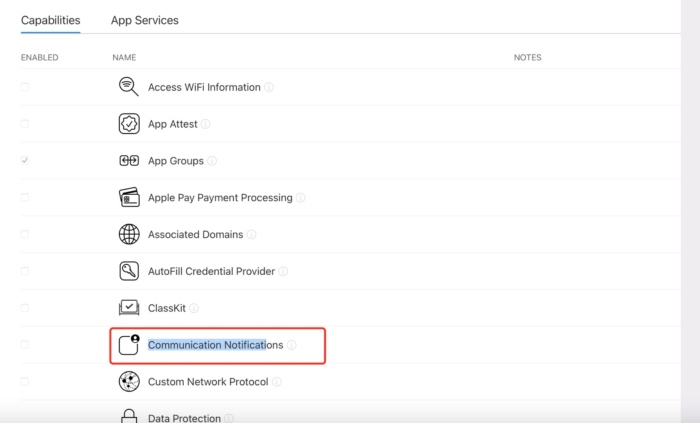
Enable Communication Notifications for your app on the Apple Developer site.
Add key
NSUserActivityTypesin Info.plist with array valuesINSendMessageIntentandINStartCallIntent.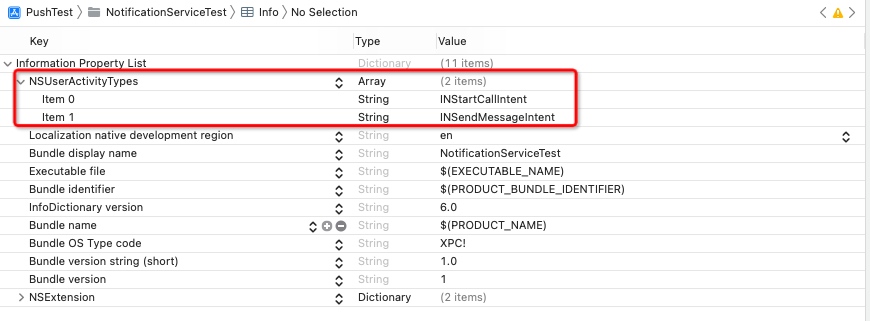
Get setting status
@property (NS_NONATOMIC_IOSONLY, readonly) UNNotificationSetting directMessagesSetting API_AVAILABLE(macos(12.0), ios(15.0), watchos(8.0)) API_UNAVAILABLE(tvos);
Show in-app notification settings
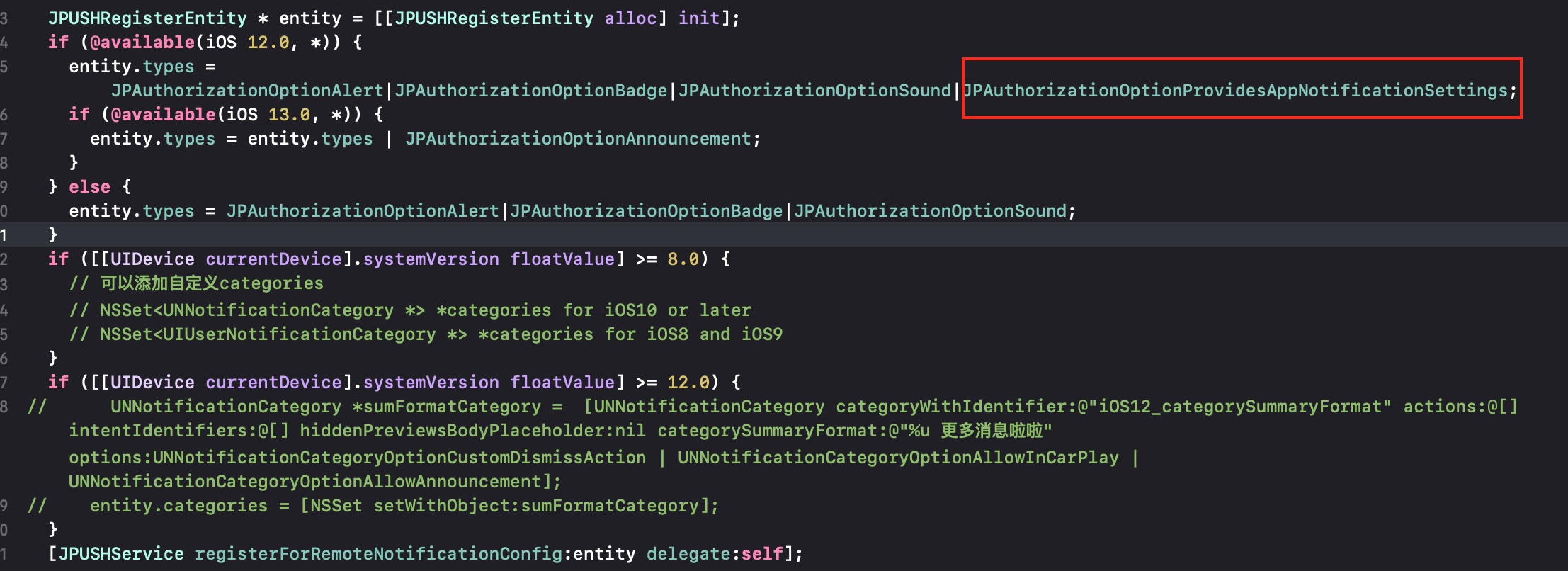
To show "In-App Notification Settings" at the bottom of the app's notification settings page, include JPAuthorizationOptionProvidesAppNotificationSettings when requesting APNs permission.
Available on iOS 12 and later.