


test mode
In order to solve the problem of developers distinguishing test users from production users in push functions, we have newly launched the test module function. This function ensures that each push only reaches test users, eliminating the need to manually mark or create multiple applications, simplifying the operation process, improving push efficiency, and making testing more accurate and efficient.
Usage steps
- Add "Test Equipment":
It supports adding/deleting/modifying devices through Jiguang WebPortal, and also supports adding/deleting/modifying devices through the Reset API interface. Please see the description below for details.
- Specify "test mode" to send push:
The message will only be sent to the test device (even if it is a broadcast push, it will only be broadcast to the test device); it supports sending through Jiguang WebPortal and also supports sending through the Reset API interface. See the description below for details.
- View the "Test Record": Viewing via JiGuang WebPortal is only supported.
##WebPortal
Test equipment
Add a test device on the [Push Management]-[Test Mode]-[Test Device] page, and subsequent test messages will only be sent to target users in the test device list. 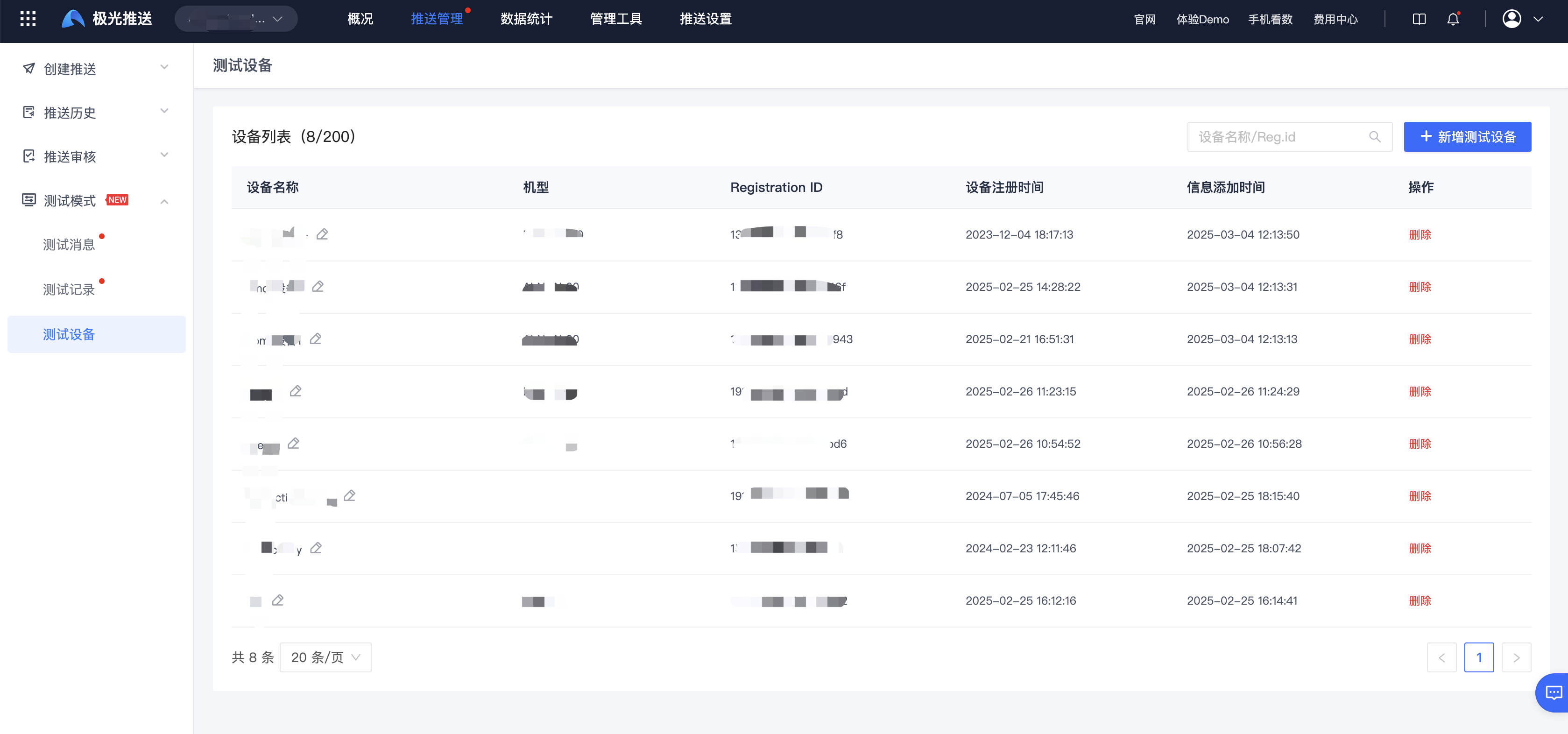
Test message
On the [Push Management] - [Test Mode] - [Test Message] page, you can create test mode push messages, which support "Notification Messages", "Custom Messages", "In-App Messages" and "Real-time Activity Messages"; its functional logic, operation and usage are the same as Formally Create Push, the difference is that the target group here is only for test devices. 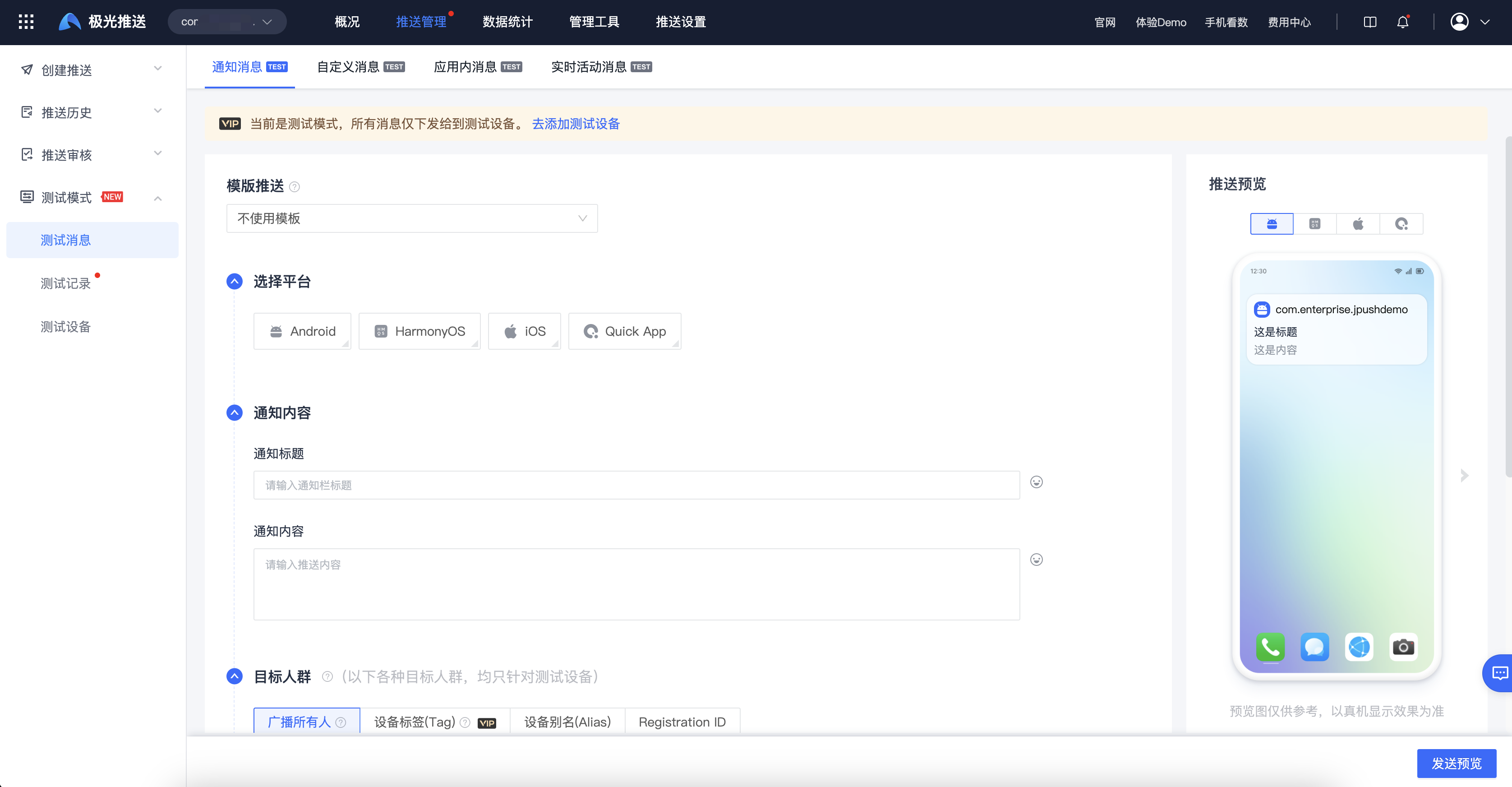
Test record
After the test message is sent, you can view the sending record status through the exclusive [Push Management] - [Test Mode] - [Test Record] page. Its functional logic, operation and usage are the same as Formal Push Record. The difference is that this page only displays test records. 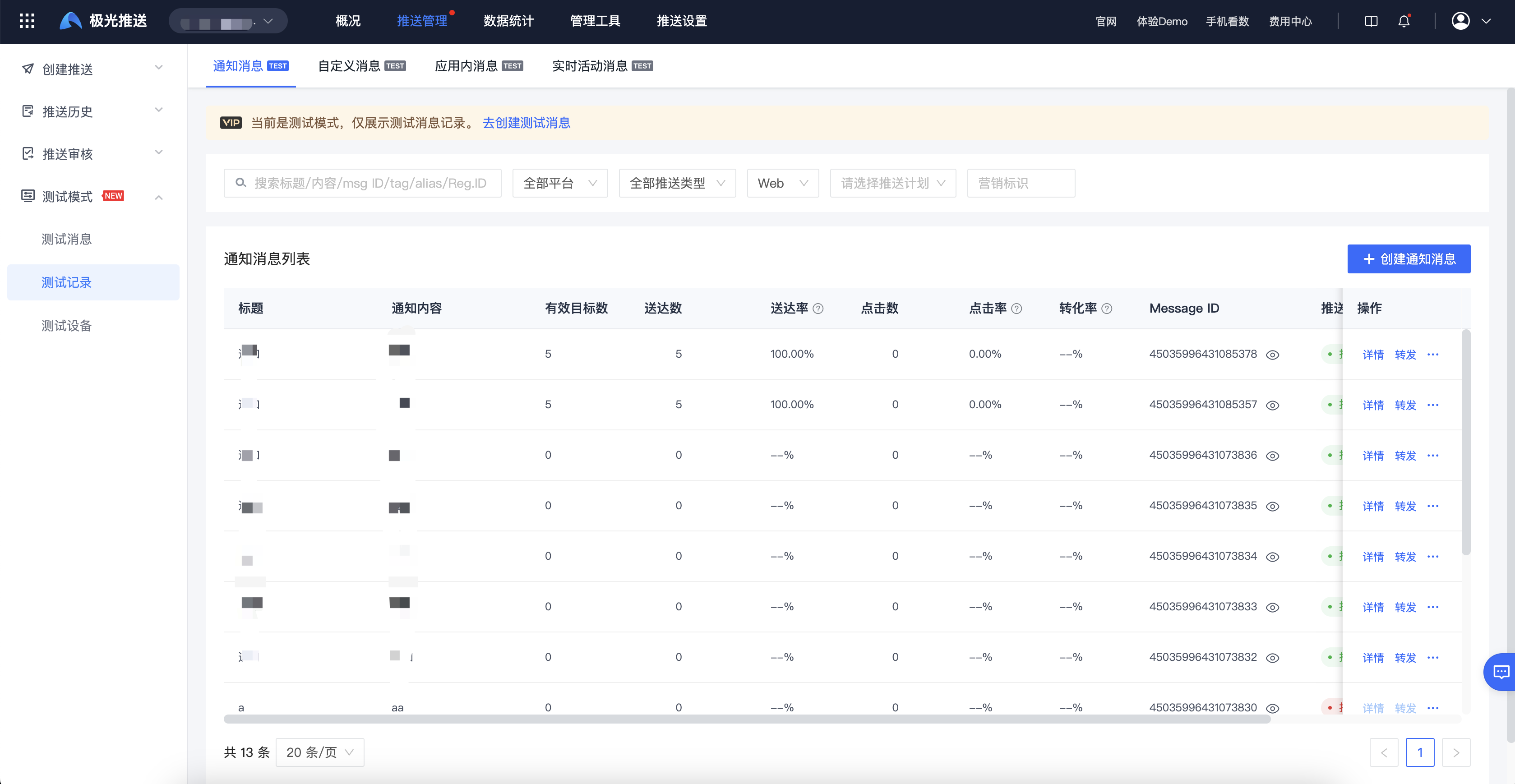
API
Test device management API
Supports adding, deleting, querying, and modifying test devices through the Rest API interface. For details on this part of the interface, please refer to the document: Test Device Management.
Create test mode messaging API
When using the Push API interface to connect, the [options.test_model](https://docs.jiguang.cn/jpush/server/push/rest_api_v3_push#Test Mode-Description) field in the protocol indicates whether to test the mode message:
- false: formal mode message (default)
- true: test mode message According to the actual business scenario, just specify the options.test_model field to push the corresponding value.

