Scheduled tasks
This article aims to guide users how to view notification messages, custom messages, and scheduled tasks for A/B testing on the Jiguang console.
Notification message/custom message
After creating a scheduled push on the [Push Management]-[Create Push]-[Notification Message/Custom Message] page, enter the [Scheduled Task] page and click "Notification Message" and "Custom Message" to view the corresponding type of scheduled task records. 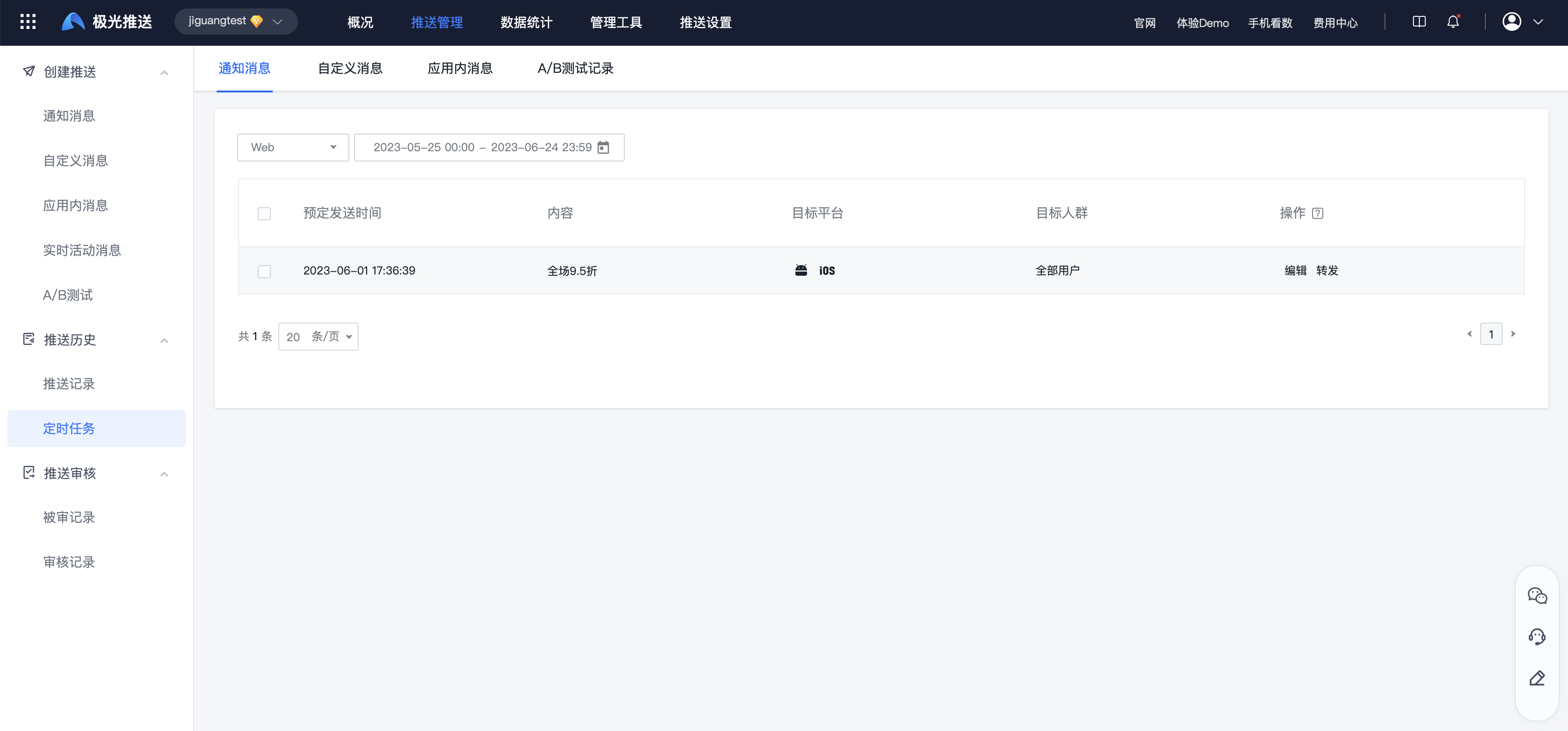
Edit
Before the scheduled sending time, click "Edit" to modify the "scheduled task" that has been created. 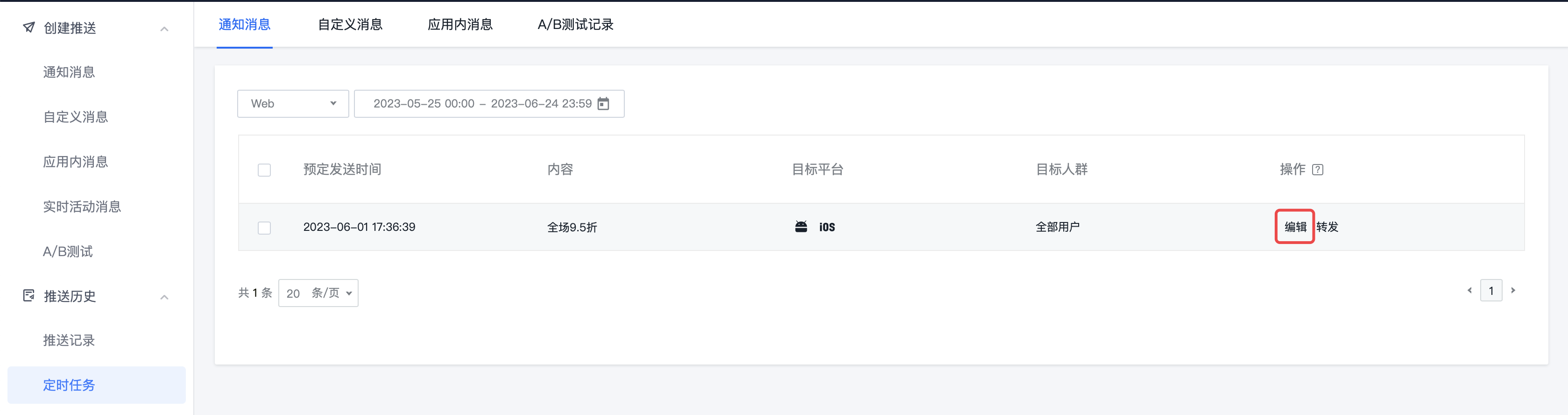
Forward
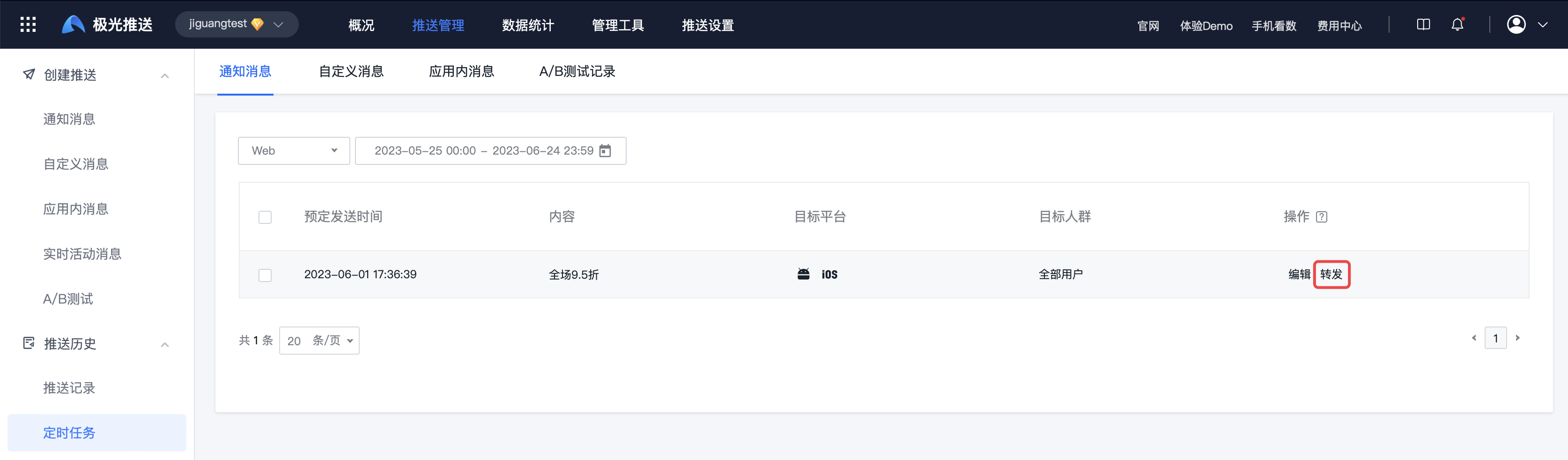
Before the scheduled sending time, click "Forward" to reuse the parameters of the specified "scheduled task" and quickly add a new "scheduled task".
This operation will generate a new "scheduled task"!
A/B test records
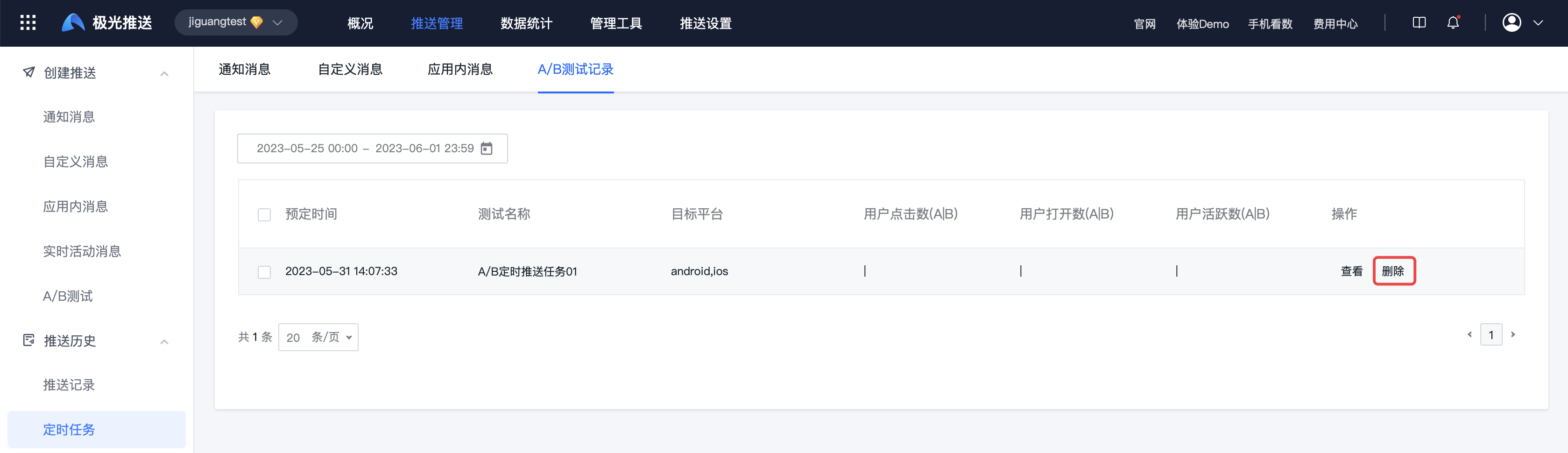
After creating a scheduled push on the [Push Management]-[Create Push]-[A/B Test] page, enter the [Scheduled Task] page and click "A/B Test Record" to view the scheduled task record. 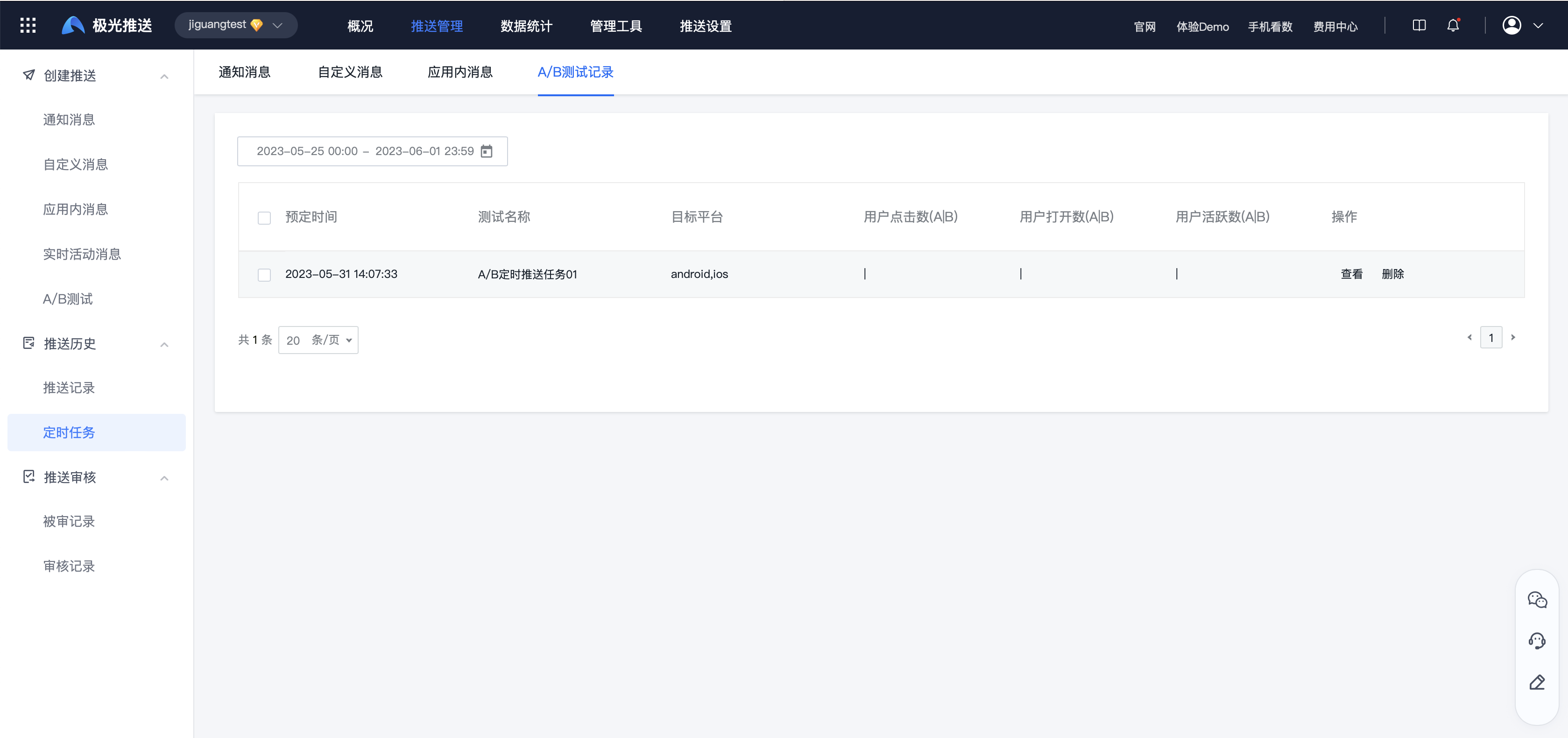
View
Before the scheduled sending time, click "View" to view the test report and message details. 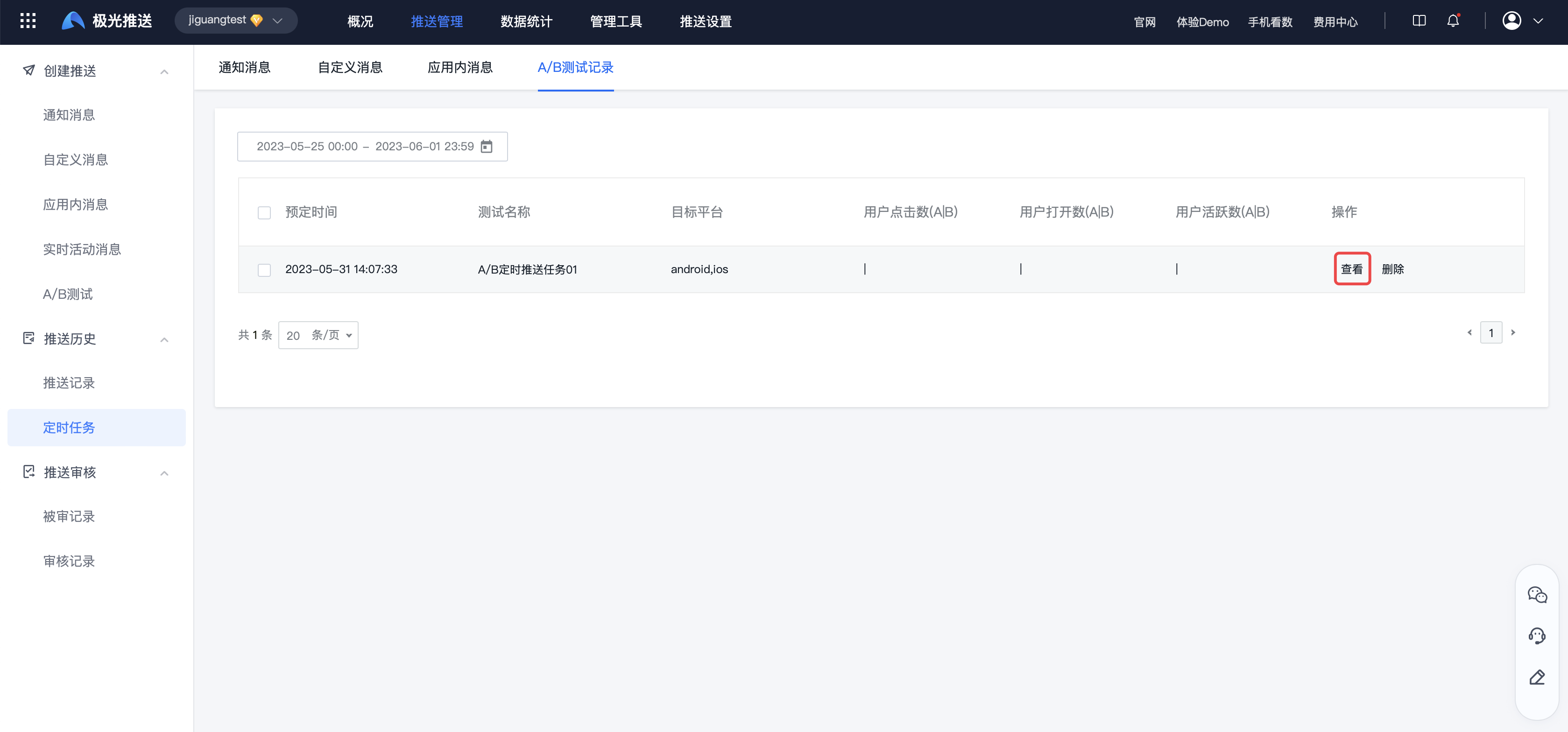
Test Report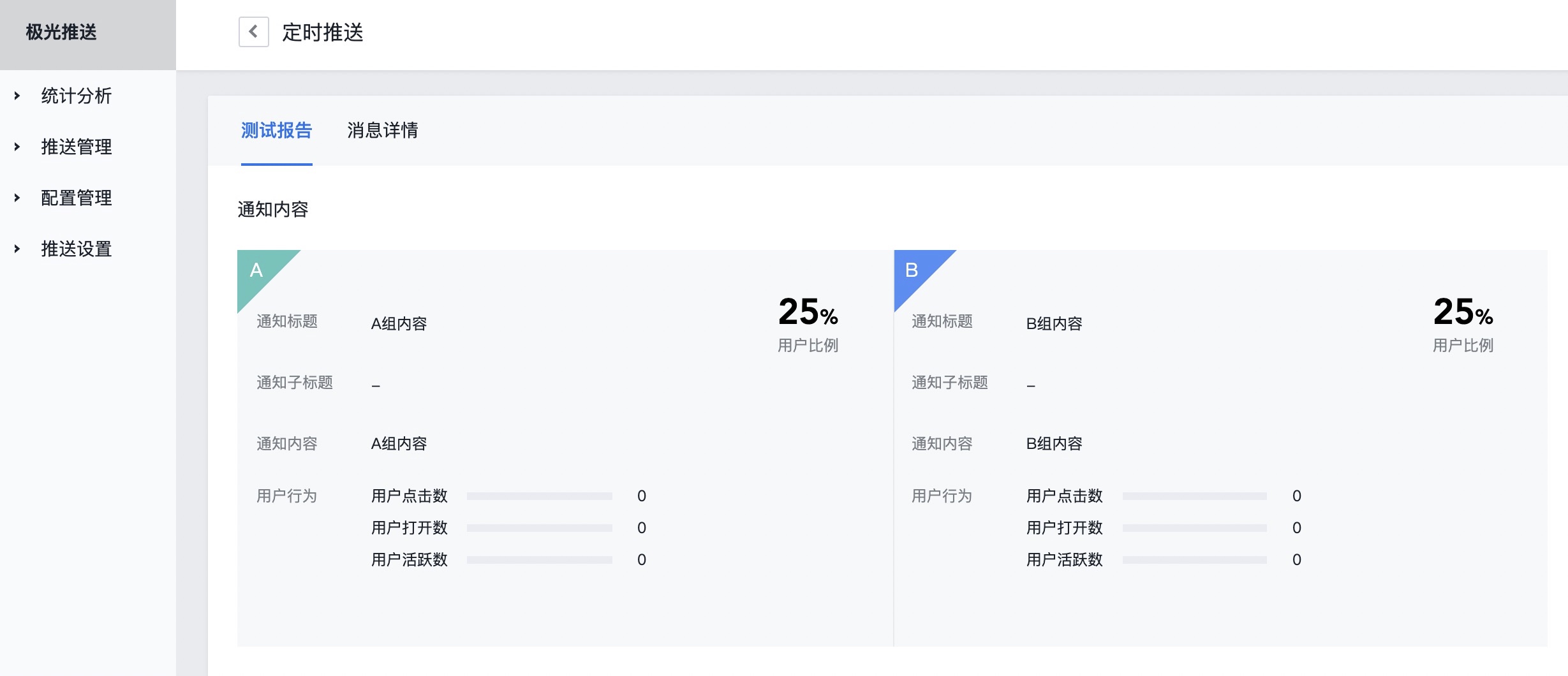
Message details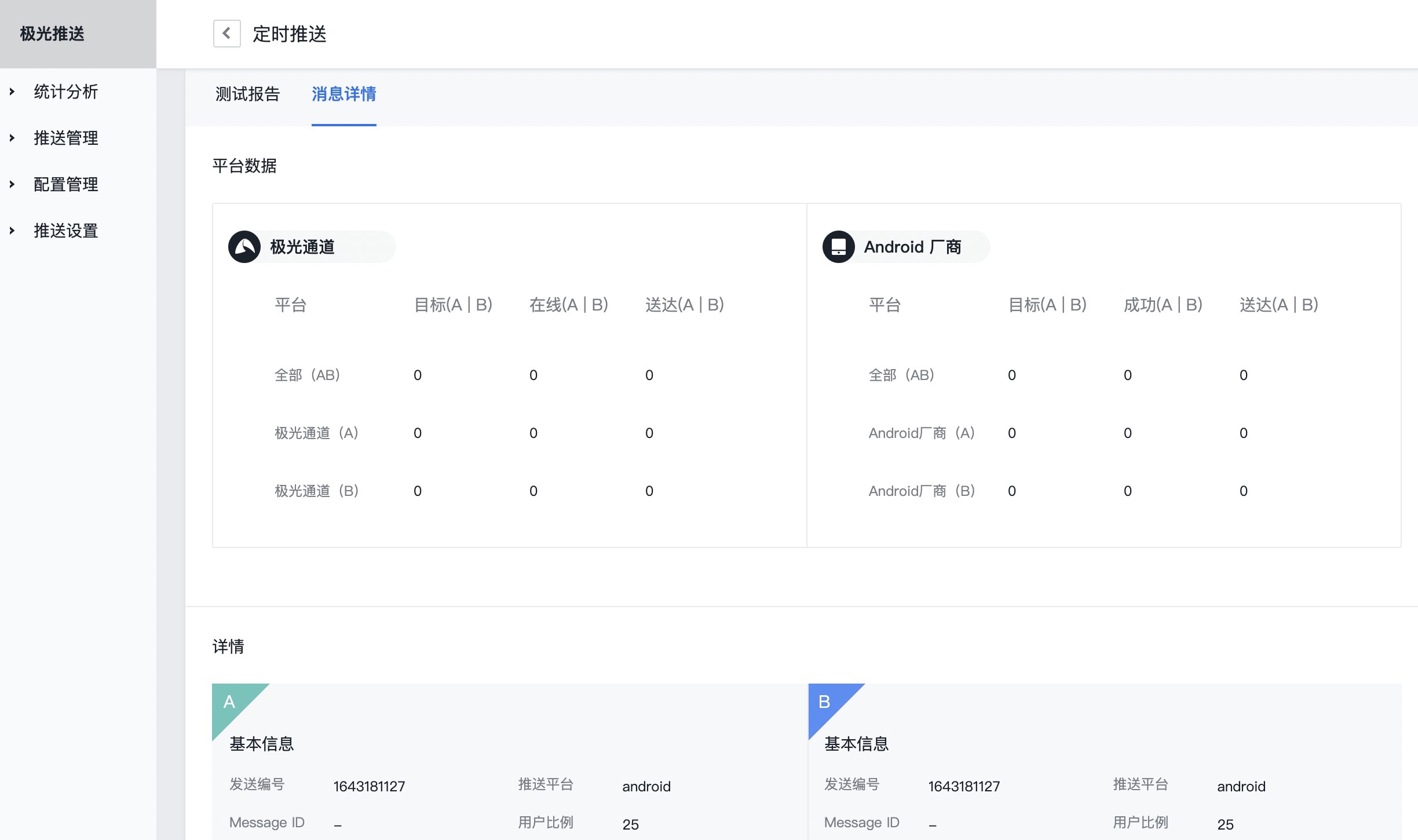
Delete
Before the scheduled sending time, click "Delete" and confirm twice to delete the A/B test record.